A Story About Testing an IP-Restricted Environment with Claude in Chrome and FoxyProxy

This page has been translated by machine translation. View original
Introduction
Many people have opportunities to work with admin panels or staging environments that can only be accessed from specific IP addresses. Since you can't open them from your own device, you first need to secure an access route via a company proxy.
However, even if you secure the route, that doesn't necessarily solve the problem. While API-level connectivity may work fine, you can run into a different wall when visually checking the appearance in a browser.
In the end, you have no choice but to ask someone to visually inspect any minor display issues each time they arise. This article explains how I solved this problem using a combination of Claude in Chrome and FoxyProxy, including the actual steps I tried.
Target Audience
- People who have opportunities to work with admin panels or staging environments restricted by IP
- People who have to ask someone to check for display issues each time they occur
- People who use Claude in Chrome but are struggling with compatibility with headless browsers or proxies
- People who want to combine automated browser operations with proxy-based access
References
- ブラウザを自然言語で操作する Claude in Chrome を使ってみた
- Get started with Claude in Chrome
- Claude in Chrome troubleshooting
Background and Challenges
Staging environments sometimes have IP address allowlists configured. When you try to access them directly from your device or CI, you may receive an explicit error like 403, or the connection may time out with no response.
In such environments, there are cases where the rule is to pass through the allowlist via a proxy server. Going through a proxy allows API and curl-level connectivity to work without issues.
However, visual verification in a browser doesn't end there. Many web services have mechanisms to detect and block access from bots. This detection looks not only at the IP address, but also at whether the access is coming from a headless browser. Even if you pass through the allowlist via a proxy, automated capture by a headless browser can hit a different wall due to this detection.
Even in such cases, I wanted to automate the operational verification.
Verification
I prepared the following staging environment.
- One server acting as the page protected by an allowlist
- Only allows communication from specific IP addresses
- Also configured with a simple bot detection that rejects requests containing HeadlessChrome in the User-Agent with a 403
- One server acting as a proxy
- Used as a self-hosted SOCKS5 proxy by establishing an SSH dynamic port forwarding tunnel from the working device to this server
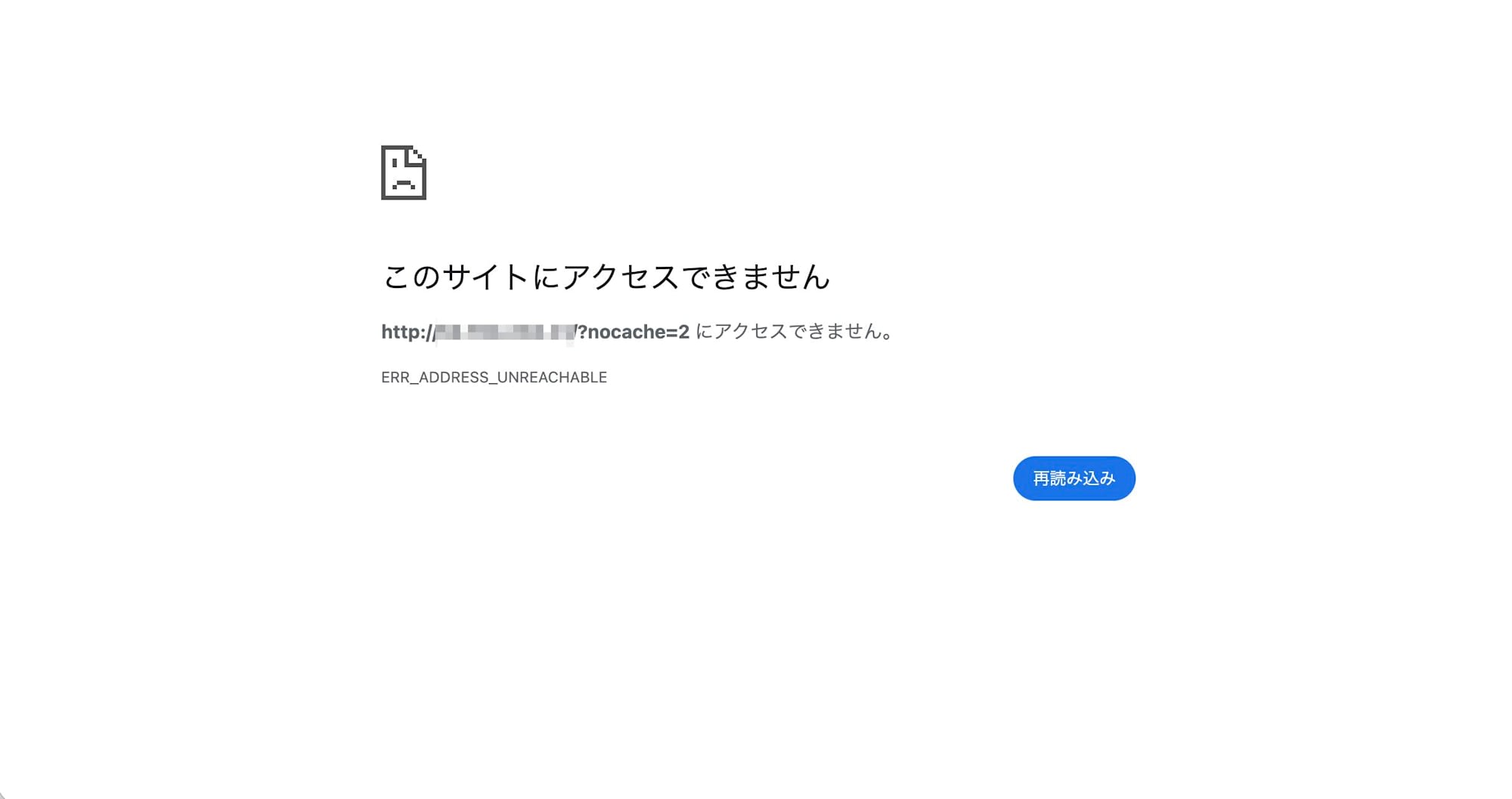
First, when I tried to access the protected page directly from the working device, curl ended with a timeout. The browser displayed ERR_ADDRESS_UNREACHABLE, and neither method could reach it.
Next, I established an SSH tunnel to the proxy server and tried accessing through that tunnel. curl was able to reach the destination without any issues. The IP address barrier had been cleared at this point.
However, when I tried to route the same path through a headless browser (Playwright), it was rejected.
User-Agent: ...HeadlessChrome/147.0.7727.15...
→ 403 Forbidden
It was blocked by the page's detection logic because the User-Agent contained the string HeadlessChrome. I confirmed with an actual headless browser that even after passing the IP address allowlist, the headless browser itself hits a different wall.
Finally, I switched the proxy settings of the browser connected to Claude in Chrome to use this tunnel. With that switch in place, I had Claude in Chrome open the page, and was able to confirm that it could read the page content using only natural language instructions.
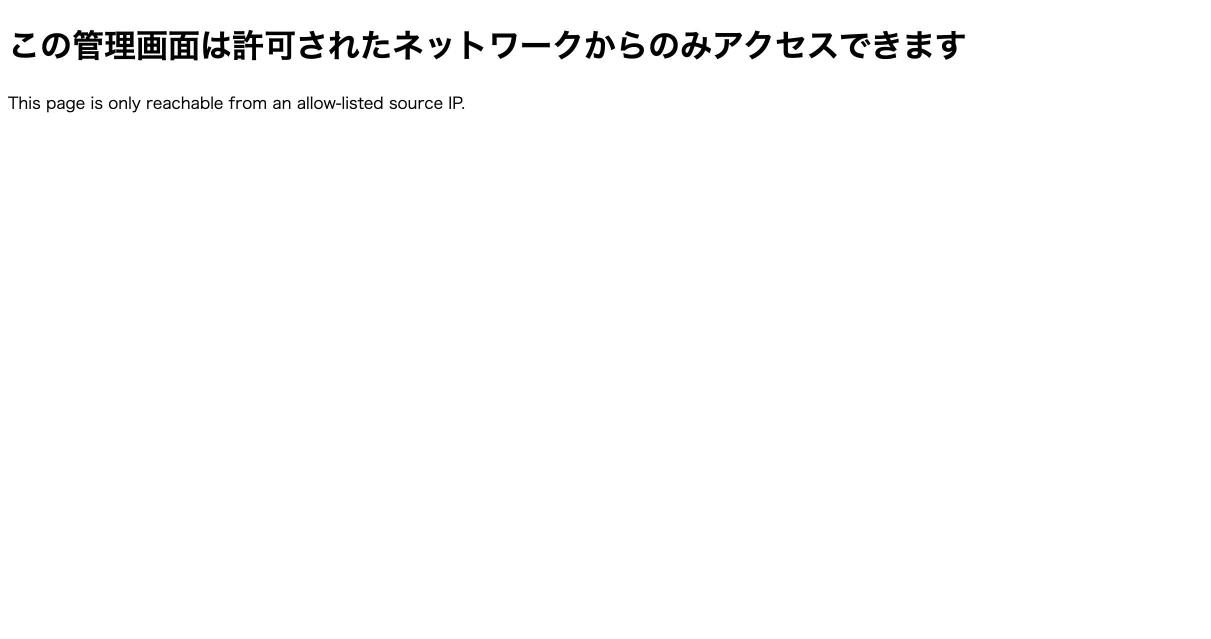
What Claude in Chrome is operating is not a headless automation browser, but the regular browser you use every day. Therefore, HeadlessChrome is not included in the User-Agent, and it does not get caught by this detection.
Discussion
This approach also has its limitations. For pages that require entering a password to log in, Claude cannot enter it on your behalf. A person needs to log in in advance and leave the session active. Additionally, checking for layout issues when the screen width changes may not be automatable due to constraints on the extension side, and such scenarios will continue to rely on manual visual inspection.
Environments with IP restrictions are in most cases also highly confidential environments. Since Claude in Chrome operates by recognizing the content on screen, the information being displayed is passed along as-is. Considerations such as not having it enter credentials and limiting its use to verification purposes only are indispensable.
Summary
For staging environments with IP restrictions, it is worth trying the combination of Claude in Chrome and FoxyProxy. On the other hand, there are still tasks that Claude alone cannot complete, such as entering passwords or changing screen widths. Furthermore, since you are dealing with highly confidential screens, considerations such as limiting use to verification tasks are also necessary. I hope this article is helpful to those facing the same challenges.