
I tried migrating memory from the Claude Pro plan (individual) to the Enterprise plan

This page has been translated by machine translation. View original
Plan Change Data Migration Challenges
Hello. This is Kuma-GAI from the AI Business Division.
When companies evaluate Claude adoption, I think many start with Pro or Team plans that are suitable for small-scale use.
A common question from companies considering switching to Enterprise plan for company-wide deployment is whether conversation history and memories will be carried over.
In conclusion, data migration is not performed automatically, so it must be done manually.
Table of Contents
This article will introduce how to migrate memories.
- About Claude's Memory Feature
- Checking Your Current Memory
- Migrating Memory
- Verifying Migration
- Summary
About Claude's Memory Feature
The memory feature is available on all plans (Free, Pro, Max, Team, Enterprise) via web, Claude Desktop, and Claude Mobile.
Claude automatically summarizes conversations and remembers key knowledge from entire chat history (excluding chats within projects).
Memory is automatically updated every 24 hours, and memory context is loaded each time you start a new conversation.
Using the memory feature allows you to create context that persists across conversations.
The more you use Claude, the more it accumulates knowledge over time and transforms into a personal assistant that understands you.
This is an essential feature when using Claude for work as it improves the quality and reproducibility of tasks.
Use Cases
Specific application scenarios include:
- Maintaining consistent conversation style across multiple conversations
- Learning thought patterns from user decisions and feedback
- Remembering and applying frequently used business frameworks
- Providing project information to agents
Checking Your Current Memory
Claude automatically creates and updates memory.
You can check your current memory from Claude's settings screen.
It's registered under "Settings" -> "Features" -> "Memory from Chats".
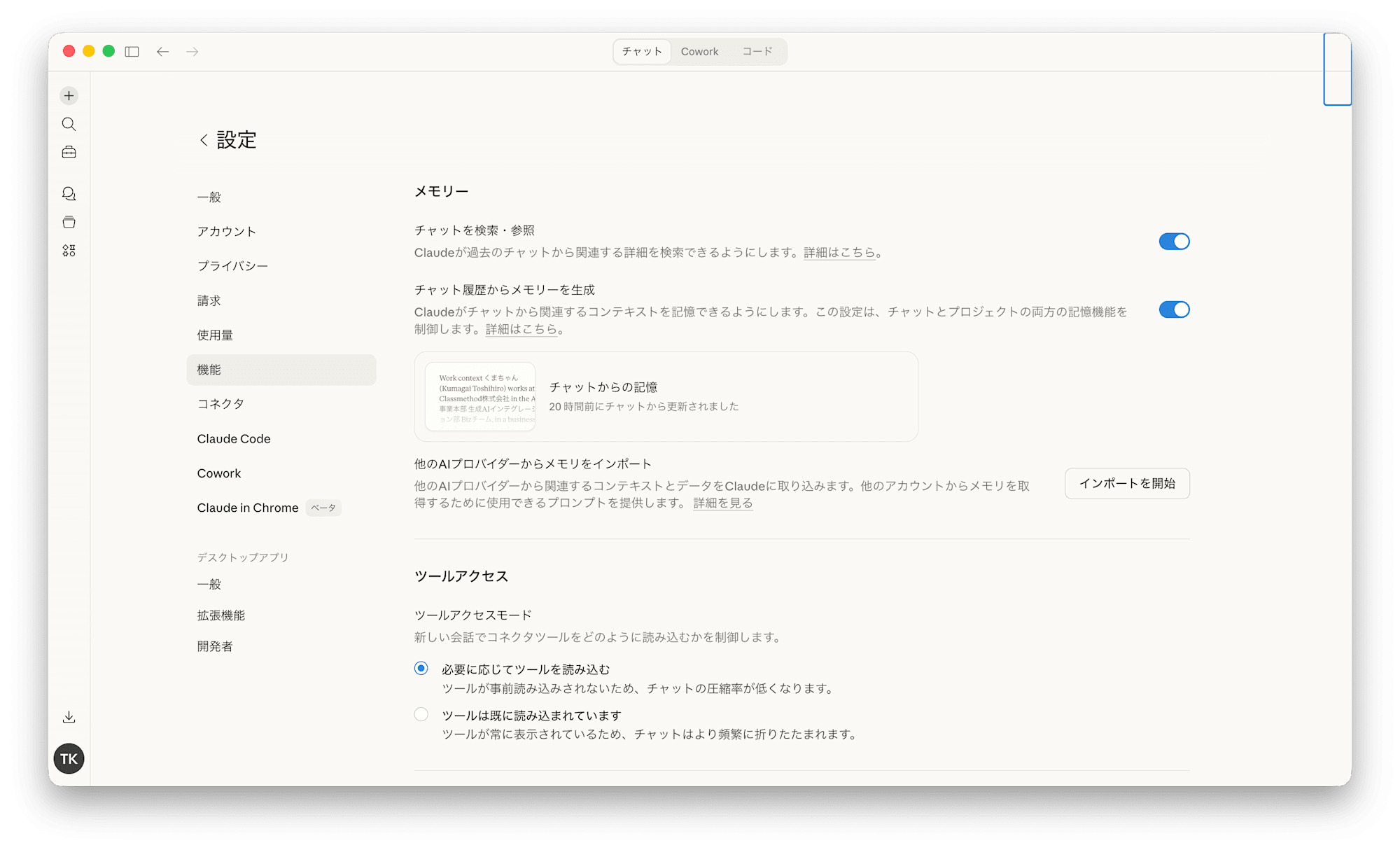
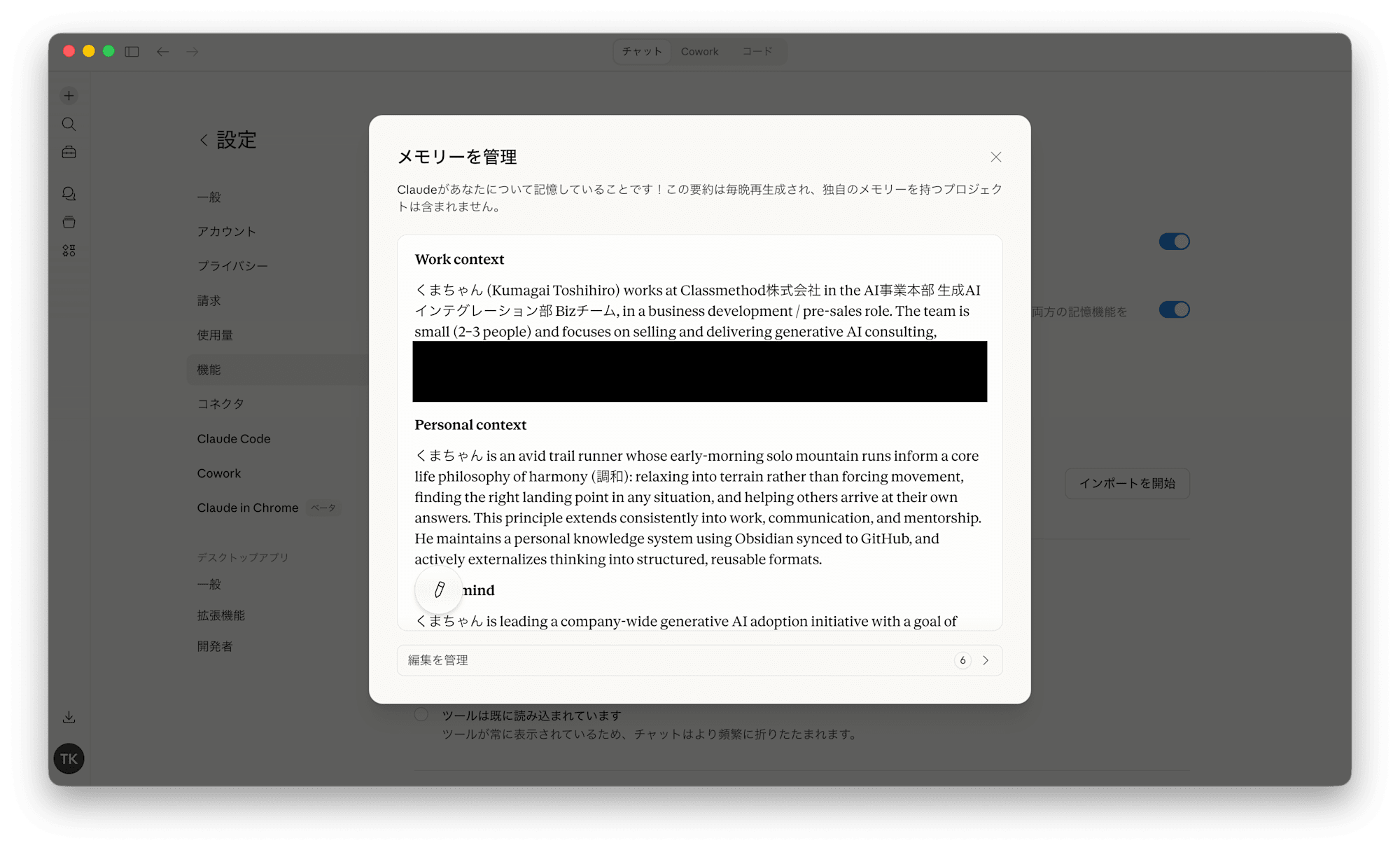
For reference, this is what my memory looked like.
Since it contains personal details that I can't show everything, I'll introduce the overview briefly.
Author's Memory Overview
- Profile (organization and job duties)
- Life philosophy
- Specific figures and judgments for sales strategy
- Client information
- Details of ongoing projects
- Email style instructions
- Mentoring style when advising juniors
- Topics not to bring up in conversation (prohibited matters)
Migrating Memory
After explaining the overview and importance of memory, when switching to the Enterprise plan,
an issue arises with migrating memory registered in other plans.
Migration must be done manually, and here's how to do it.
The Problem
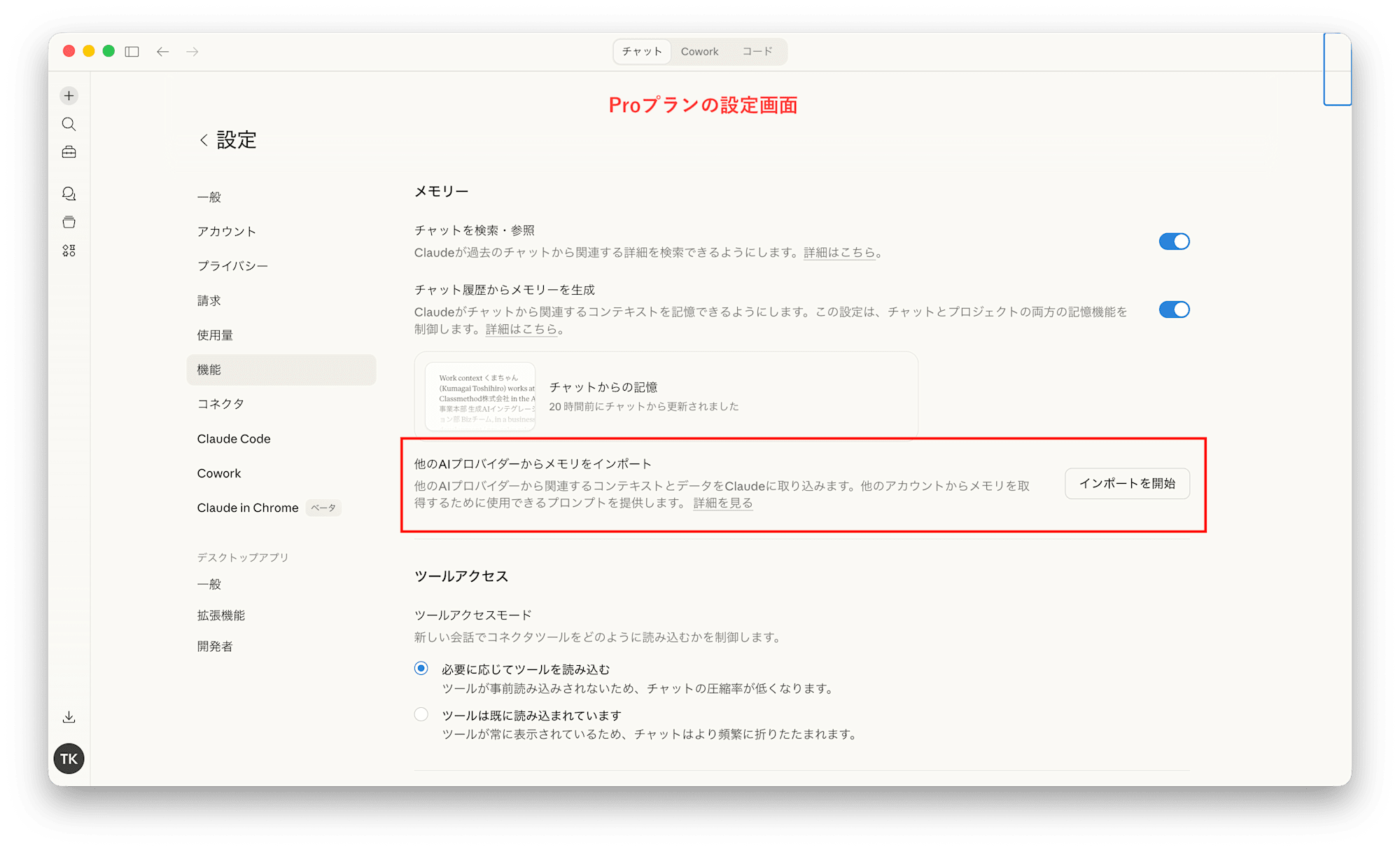
Anthropic officially provides a tool for migrating memory.
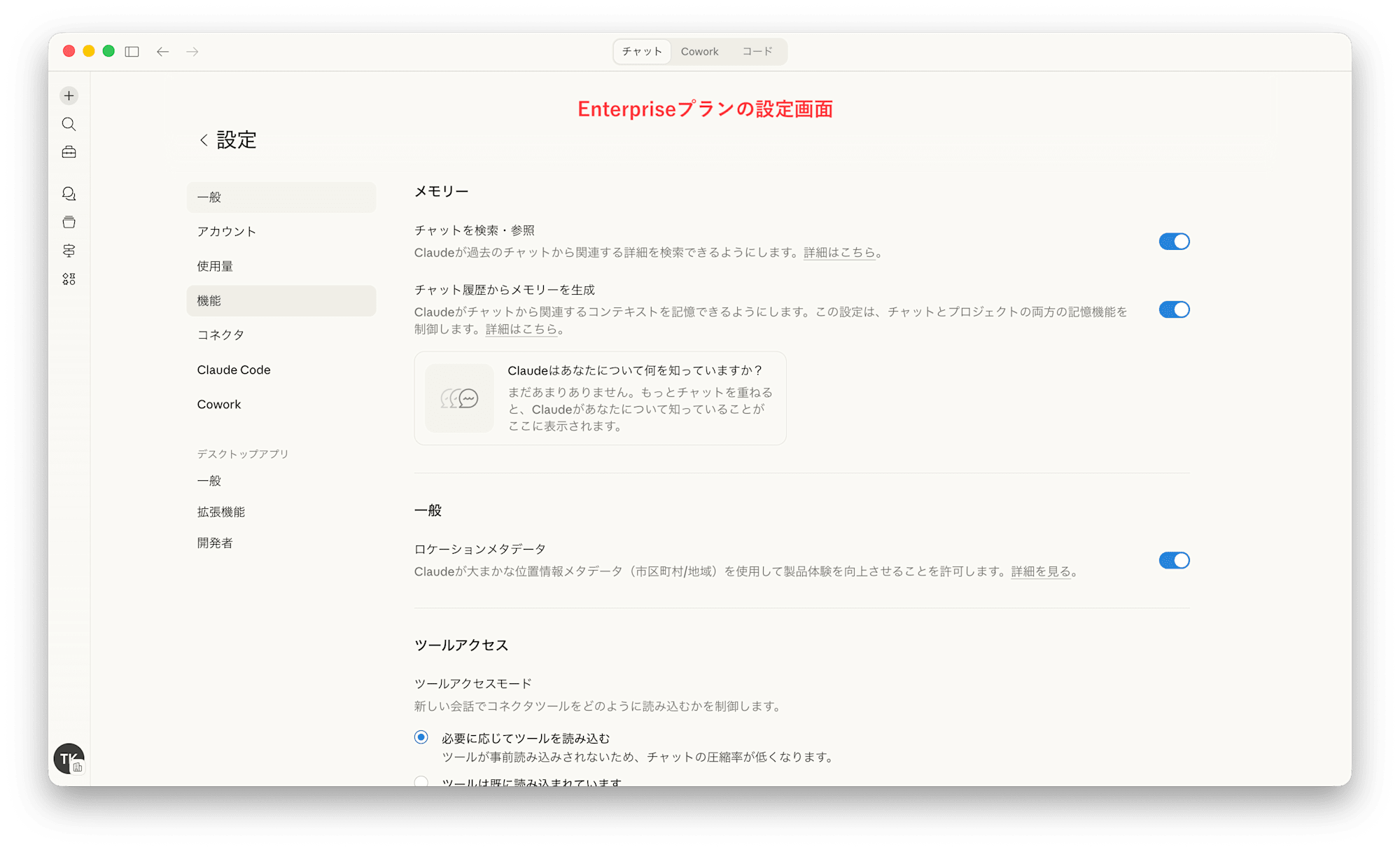
When I tried to use the tool and import from the Enterprise settings screen, a problem occurred.
"The import function is not found in the settings screen"
At the time of writing this blog, the memory import function was not available for Enterprise plans.
Image 1: Pro plan settings screen / Image 2: Enterprise plan settings screen
How I Solved It
Since the memory content is essential information for work, I wanted to migrate it no matter what.
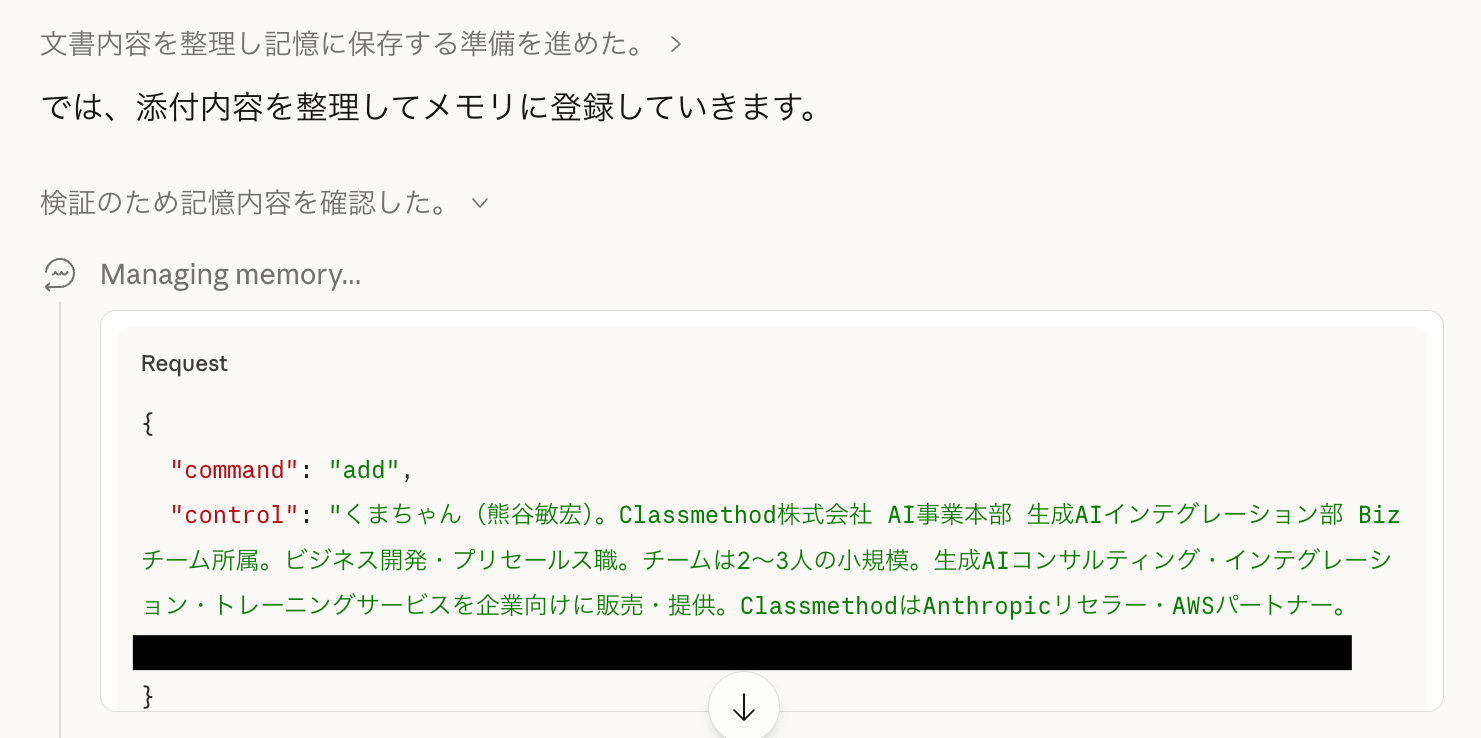
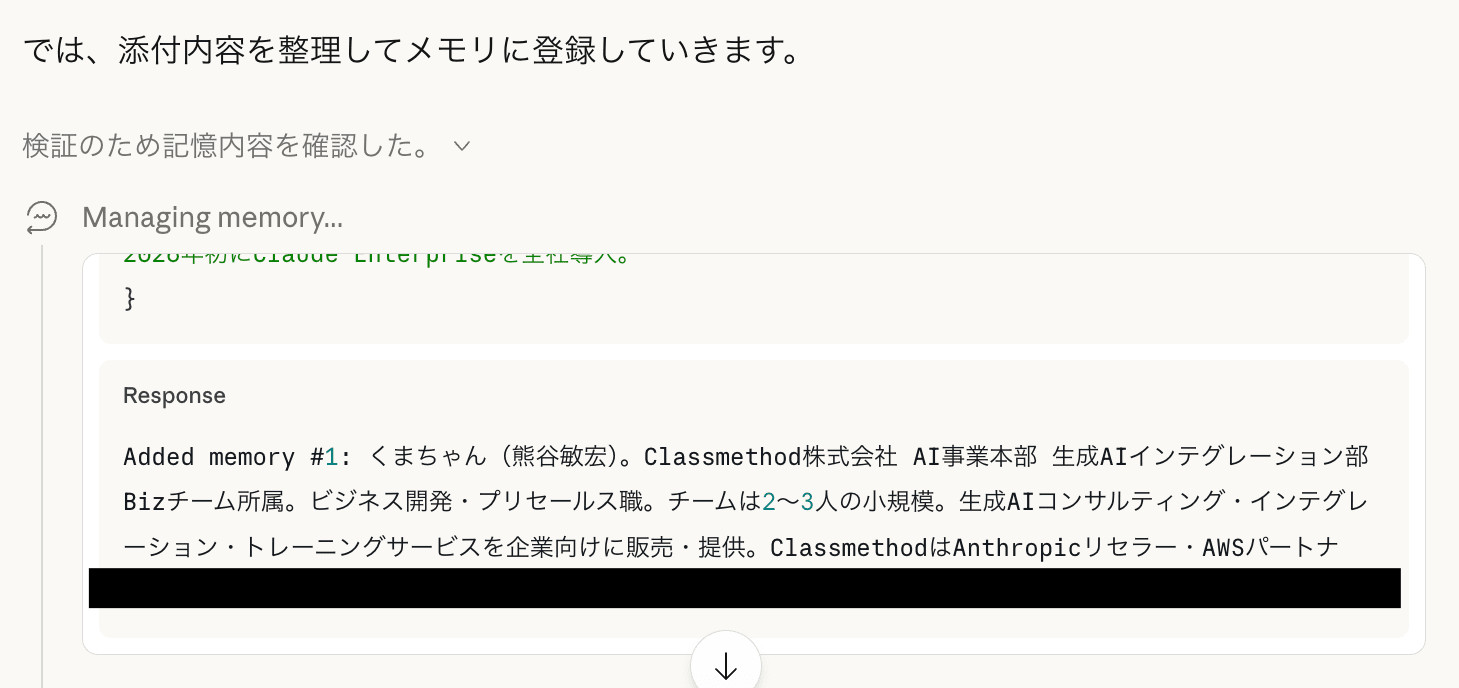
As a result, when I instructed through conversation, contrary to my worries, I was able to import the memory quite easily.
Steps
- Copy memory from the current plan's settings screen
- Start a new conversation in the Enterprise plan
- Attach the copied memory and instruct
Please remember the attached content in your memory
I was able to migrate memory information in just 3 steps.
I found that Claude, understanding the user's instructions, executes a command to add memory.
Verifying Migration
Here's how to check if memory has been successfully reflected after migration.
The method is very simple.
Ask questions about your memory and check if Claude can answer properly. It's like giving a quiz.
And you can have Claude create the quiz questions themselves.
In the same conversation where you registered the memory, try giving the following prompt:
Please think of 5-10 questions to verify if the memory has been reflected. Make them suitable for prompts.
You'll get results like:
- Briefly explain my company and role
- What is my core philosophy? Where does it come from?
- What is ******'s tech stack and what issues are we trying to solve?
- What's the quarterly goal for the current sales team, and what initiatives have been identified as having the highest leverage?
- What are we doing with the ****** project?
- Write an email conveying negative news to a client
- Summarize the plan for the May seminar
- Tell me about ******
- Based on my style of giving feedback to juniors, suggest how to give advice
- What's the status of the ****** ticket?
Create a new conversation and try asking these questions. Claude will answer based on the memories accumulated so far.
That's the process from memory migration to verification.
Summary
- Memory serves as a persistent storage across conversations
- Memory remembers user profiles, conversation styles, projects, and more
- When changing plans, memory can be migrated manually