
ClipboardItem + Blob for Copying Rich Text and the HTTP Environment Trap

This page has been translated by machine translation. View original
Introduction
In an internal web application, there was a requirement to "copy Markdown text generated by an LLM with a single click and paste it with formatting into an email client."
navigator.clipboard.writeText() can only copy plain text. When pasting into Outlook and similar apps, **bold** and ### heading would appear as literal symbols.
So I implemented writing both text/html and text/plain to the clipboard using ClipboardItem and Blob, but I fell into a trap where the copy button became completely unresponsive after deploying to the production environment (HTTP).
This article summarizes the implementation of rich text copying using Blob and the fallback handling for HTTP environments.
Prerequisites & Environment
- React 19 / Next.js 15 (App Router)
- Browsers: Chrome 130+, Firefox 130+, Edge 130+
- Production environment: HTTP access over internal network (
http://10.x.x.x/)
What We Want to Achieve
When copying Markdown text, we want it to paste in the appropriate format depending on the destination.
| Paste destination | Expected behavior |
|---|---|
| Outlook / Teams | Formatting such as bold, headings, and lists is applied |
| Notepad / Terminal | Plain text with Markdown symbols (**, ###) removed |
In other words, a single copy operation needs to store both text/html and text/plain in the clipboard.
I mentioned "storing both text/html and text/plain," but not many people are aware that the clipboard has a concept of MIME types to begin with.
MIME types (Multipurpose Internet Mail Extensions) are identifiers that indicate the format of data. You often see them in the HTTP response header Content-Type, and the OS clipboard manages data using the same mechanism.
The clipboard is not a simple text container — it is a collection of data keyed by multiple MIME types. For example, when you copy text from a web page, the following data is stored in the clipboard simultaneously.
| MIME type | Content |
|---|---|
text/plain |
Plain text without formatting |
text/html |
Rich text with HTML tags |
The destination application selects and uses the MIME type it supports. Outlook preferentially reads text/html, while Notepad reads text/plain.
Verifying with Clipboard Inspector
You can use Clipboard Inspector to visually inspect the MIME types and data stored in the clipboard.
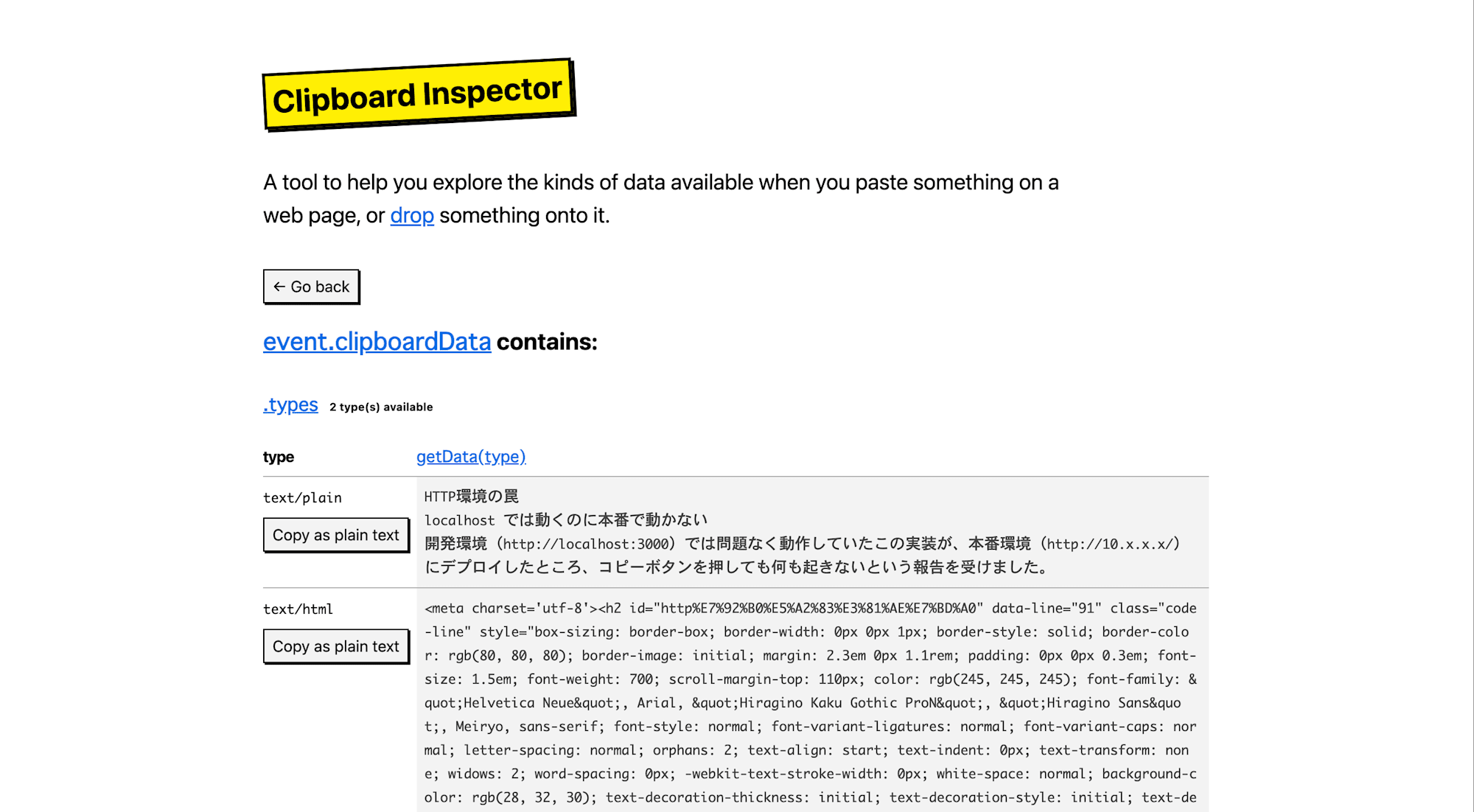
For example, if you copy part of this article and paste it into Clipboard Inspector, you can confirm that both text/plain and text/html are stored. Our implementation does the same thing programmatically.
Rich Text Copying with ClipboardItem + Blob
Why Is Blob Needed?
navigator.clipboard.writeText() is for plain text only. To write multiple MIME types simultaneously, use navigator.clipboard.write() and pass a Blob for each MIME type to ClipboardItem.
await navigator.clipboard.write([
  new ClipboardItem({
    "text/plain": new Blob([plainText], { type: "text/plain" }),
    "text/html":  new Blob([htmlText],  { type: "text/html" }),
  }),
]);
Browsers manage each MIME type in the clipboard as binary data. Blob (Binary Large Object) is an object that represents that binary data, and the ClipboardItem constructor is designed to require a Blob for each MIME type.
Markdown → HTML → Clean Plain Text
The implementation follows three steps.
Step 1: Markdown → HTML conversion
Use react-markdown and renderToStaticMarkup from react-dom/server to convert Markdown into semantic HTML.
import ReactMarkdown from "react-markdown";
import remarkGfm from "remark-gfm";
import { renderToStaticMarkup } from "react-dom/server";

const rendered = renderToStaticMarkup(
  React.createElement(ReactMarkdown, { remarkPlugins: [remarkGfm] }, markdown),
);
const htmlText = `<div style="font-family:sans-serif;line-height:1.6">${rendered}</div>`;
Step 2: Extract clean plain text from HTML
For the text/plain side, we want text with Markdown symbols removed. While you could use a library like strip-markdown, there is a simpler approach that leverages the browser's layout engine.
const tempDiv = document.createElement("div");
tempDiv.innerHTML = htmlText;
tempDiv.style.cssText = "position:fixed;opacity:0;pointer-events:none";
document.body.appendChild(tempDiv);
const cleanText = tempDiv.innerText;
document.body.removeChild(tempDiv);
innerText returns text based on the browser's layout result, so HTML tags like <h1> and <strong> are automatically removed, and appropriate line breaks are inserted at block element boundaries. The element is added to the DOM because innerText requires layout information (textContent does not require layout but ignores line breaks between block elements).
Step 3: Write with ClipboardItem
await navigator.clipboard.write([
  new ClipboardItem({
    "text/plain": new Blob([cleanText], { type: "text/plain" }),
    "text/html":  new Blob([htmlText],  { type: "text/html" }),
  }),
]);
With this, pasting into Outlook will include formatting, and pasting into Notepad will give plain text.
The HTTP Environment Trap
Works on localhost but Not in Production
This implementation worked fine in the development environment (http://localhost:3000), but after deploying to production (http://10.x.x.x/), I received reports that nothing happened when pressing the copy button.
No error message. No visual change to the button. A complete silent failure.
Cause: Secure Context
The navigator.clipboard API is only available in a Secure Context. A Secure Context is an environment that meets one of the following conditions:
- Accessed via
https:// - Accessed via
localhost/127.0.0.1
This was the trap. localhost is treated as a Secure Context even over HTTP. This is a special exception that browsers provide for developer convenience.
In other words, as long as developers are testing at http://localhost:3000, navigator.clipboard works normally and the problem in HTTP environments cannot be discovered. In an environment where production is accessed via a direct IP address like http://10.x.x.x/, navigator.clipboard becomes undefined and nothing happens.
Cause of Silent Failure
The original implementation had the following structure.
// Original implementation (problematic)
try {
  await navigator.clipboard.write([
    new ClipboardItem({ ... }),
  ]);
} catch {
  // Fallback for browsers that don't support ClipboardItem
  await navigator.clipboard.writeText(cleanText);
}
In an HTTP environment, navigator.clipboard itself becomes undefined, so write() throws an exception, and writeText() in the catch block also throws an exception in the same way. This second exception propagates further up, resulting in a failure with no feedback in the UI.
Fallback Implementation
Branching with window.isSecureContext
window.isSecureContext is a boolean value that returns whether the current context is a Secure Context. We use this to implement branching based on the environment.
async function handleCopy() {
  // Prepare HTML and plain text from Markdown (as described above)
  const htmlText = /* ... */;
  const cleanText = /* ... */;

  try {
    if (window.isSecureContext) {
      // HTTPS / localhost — Modern Clipboard API
      try {
        await navigator.clipboard.write([
          new ClipboardItem({
            "text/plain": new Blob([cleanText], { type: "text/plain" }),
            "text/html":  new Blob([htmlText],  { type: "text/html" }),
          }),
        ]);
      } catch {
        // Browser doesn't support ClipboardItem → plain text only
        await navigator.clipboard.writeText(cleanText);
      }
    } else {
      // HTTP environment — execCommand fallback (plain text only)
      const ta = document.createElement("textarea");
      ta.value = cleanText;
      ta.style.cssText = "position:fixed;opacity:0;pointer-events:none";
      document.body.appendChild(ta);
      ta.focus();
      ta.select();
      document.execCommand("copy");
      document.body.removeChild(ta);
    }
    setCopied(true);
    setTimeout(() => setCopied(false), 2000);
  } catch (err) {
    const msg = err instanceof Error ? err.message : String(err);
    setCopyError(msg);
    setTimeout(() => setCopyError(null), 3000);
  }
}
Key Points of the Fallback
document.execCommand("copy") is deprecated, but continues to work in all major browsers and is the only means of writing to the clipboard in a non-Secure Context.
Implementation notes:
- Use
textarea.inputcannot correctly select text containing line breaks - Hide it with
position:fixed; opacity:0; pointer-events:none.display:nonepreventsselect()from working - Call in the order
focus()→select()→execCommand("copy") - Remove from the DOM immediately after copying
In HTTP environments, copying text/html is not possible, so only plain text can be copied. This is a specification limitation, and HTTPS is required when formatted copying is needed.
Summary of the Decision Flow
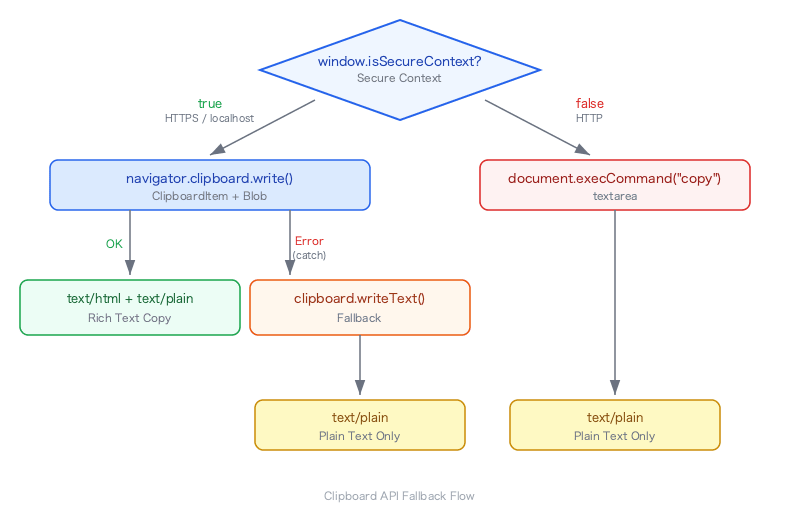
Verification
| Environment | Copy method | Paste result |
|---|---|---|
https:// or localhost |
ClipboardItem + Blob | Outlook: formatted / Notepad: plain text |
https:// (ClipboardItem not supported) |
writeText fallback | Plain text only |
http://10.x.x.x/ |
execCommand fallback | Plain text only |
| execCommand also fails | Error message displayed | Button turns red and shows error content for 3 seconds |
To verify the HTTP environment fallback locally, accessing via a LAN IP such as http://192.168.x.x:3000 will result in a non-Secure Context.
Summary
- Using
ClipboardItem+Blob, you can write bothtext/htmlandtext/plainto the clipboard simultaneously - The
navigator.clipboardAPI is Secure Context only. There is a special exception wherelocalhostis treated as a Secure Context even over HTTP - Due to this exception, the problem cannot be detected in development environments. It silently fails in HTTP production environments
- Use
window.isSecureContextto check in advance and fall back todocument.execCommand("copy")in HTTP environments innerTextuses the browser's layout engine to obtain clean plain text from HTML with Markdown symbols removed
When using the Clipboard API, always verify the protocol of the deployment target. HTTP access over internal networks or VPN is especially easy to overlook.