
I tried translating an entire Word document with the Cloud Translation API

This page has been translated by machine translation. View original
Hi, I'm Keema.
There are many situations where you want to translate a proposal or manual created in Word into another language while preserving the layout.
For example, you might need to translate a document with tables, figures, and text boxes into English without breaking the appearance.
However, if you extract only the text from Word and translate it, tables and multi-column layouts break and the original appearance cannot be reproduced.
Furthermore, unique proper nouns such as product names and character names often need to be consistently translated to a fixed term every time.
Previously, I wrote an article about translating PDFs using the Document Translation feature of Google Cloud's Cloud Translation API.
In this article, I used the same feature to translate a Word (DOCX) file directly, and verified how well the layout is preserved, how text boxes and tables are handled, and whether custom terminology can be fixed using a glossary — all by actually running it.
This article is the Word edition of a series verifying document translation by format.
The specifications and behavior were confirmed in Google Cloud's official documentation, with relevant sections quoted.
I then verified whether the behavior matches the official documentation by actually running it.
Series Articles
| Format | Article |
|---|---|
| PDF Edition | Cloud Translation API で PDF をレイアウトを保ったまま翻訳する |
| Word Edition (this article) | - |
Target audience: Those considering automating the translation of Word documents
1. Conclusion: Official Documentation vs. Verified Results
For those who want to know the conclusion quickly, here is a summary of the official Google Cloud documentation statements and the results actually confirmed through translation for Word (DOCX).
Detailed steps and before/after images are in §3 and beyond.
| Aspect | Official Documentation Statement | Verified Result (confirmed in this article) |
|---|---|---|
| Body text, formatting, layout | Translates while preserving format and layout | Headings, body text, tables, multi-column layouts, colored text, and headers/footers were preserved |
| Text inside text boxes | Not translated and remains in the source language | As stated, remained in Japanese (all shapes: rectangle, rounded rectangle, and ellipse) |
| Text inside images | (Not stated) | Not translated (because it is not text data) |
| Glossary (fixing custom terms) | Can fix translations using a glossary | Almost consistently unified in both body text and tables |
| Regions where glossaries can be created | Custom resources only in us-central1 |
Created in us-central1 (Tokyo region not available) |
The official statements are quoted in the relevant sections throughout each section.
The most important point is that the content inside text boxes is not translated.
This is a behavior explicitly stated in the official documentation, and it was reproduced exactly as described.
If you're in a hurry, reviewing this table and the images in §3 will give you an overview.
2. What Is Document Translation in Cloud Translation API?
Cloud Translation API has a feature called Document Translation, separate from the plain text translation feature, which translates entire files.
When you pass a PDF or DOCX file, it returns the translated result while preserving the formatting and layout.
An overview of this feature, the differences between Basic (v2) and Advanced (v3), how to choose between synchronous and batch processing, and authentication (API keys cannot be used; ADC or a service account must be used) were covered in detail in the previous PDF edition.
Reference: DevelopersIO: Cloud Translation API で PDF をレイアウトを保ったまま翻訳する
Supported input formats include not only PDF but also Word, PowerPoint, and Excel formats (including legacy formats).
The Word format covered in this article, DOCX, is one of them.
| Input Format | MIME Type | Output Format |
|---|---|---|
| DOCX | application/vnd.openxmlformats-officedocument.wordprocessingml.document |
DOCX |
| DOC | application/msword |
DOC or DOCX |
Reference: Official Documentation: Translate documents | Google Cloud
For Word, the official documentation explicitly states one important caveat.
That is, text inside text boxes is not translated and remains in the source language.
Content inside text boxes aren't translated and remain in the source language.
Reference: Official Documentation: Translate documents | Google Cloud
This behavior was reproduced exactly in the verification in this article (confirmed in §4).
3. Preparing for Verification
3.1 Environment Prerequisites
The verification in this article was run in the following environment.
| Item | Environment Used |
|---|---|
| OS | macOS |
| Python | 3.12.x (with a venv created inside) |
| Google Cloud SDK (gcloud) | 565.0.0 |
| google-cloud-translate | 3.26.0 |
| GCP Project | Personal project (billing enabled) |
In addition, the following prerequisites are assumed to be in place.
- A Google Cloud project with billing enabled
- The
gcloudcommand is available - IAM permissions to manage translations and glossaries (equivalent to
roles/cloudtranslate.editor; write permissions to the target bucket are also required when using a glossary)
3.2 Sample Document (Original Fictional Anime)
For verification purposes, I had Claude create a Word document styled as official setting materials for a fictional anime called "Hoshirei Monogatari: Lumina Chronicle."
This is entirely original content with no relation to any real works, persons, or organizations.
It shares the same world as the PDF edition, with matching proper nouns (coined terms).
This document intentionally includes elements that are prone to layout breakage and elements I wanted to verify for translation.
- Headings, body text, multiple tables (Hoshirei Codex, glossary, broadcast information), two-column layout (multi-column)
- Colored text, hyperlinks, headers/footers
- Text boxes (shapes) with rounded rectangles, rectangles, and ellipses containing text (for verifying text box translation behavior)
- Coined terms such as
星霊,共鳴進化, and雷狼ボルテ(for verifying glossary behavior)
The Word document translated this time consists of 4 pages in total.
All pages before translation are shown below.
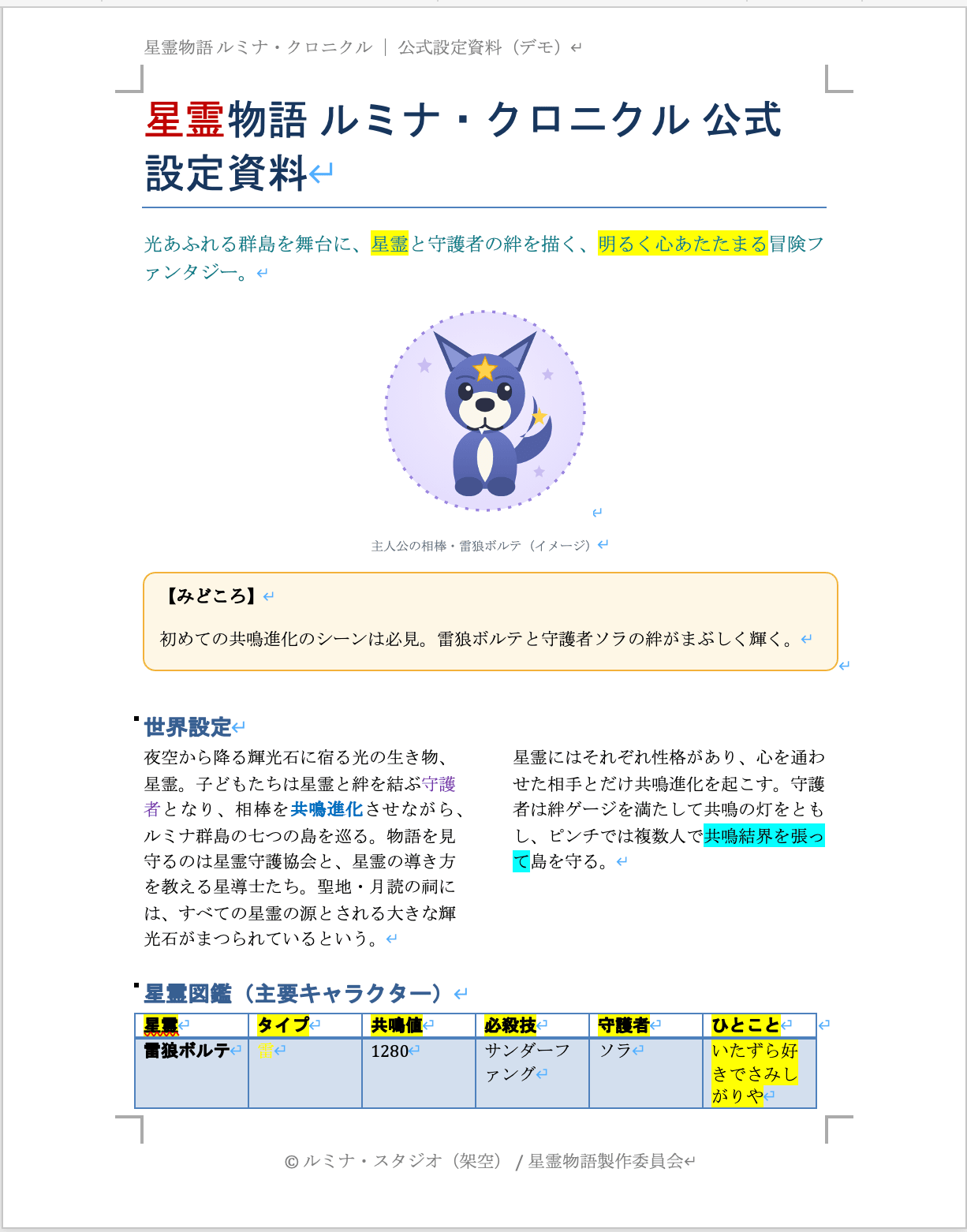
Pre-translation Word page 1: Title, key visual image, orange-bordered text box ("Highlights"), two-column world setting, Hoshirei Codex table
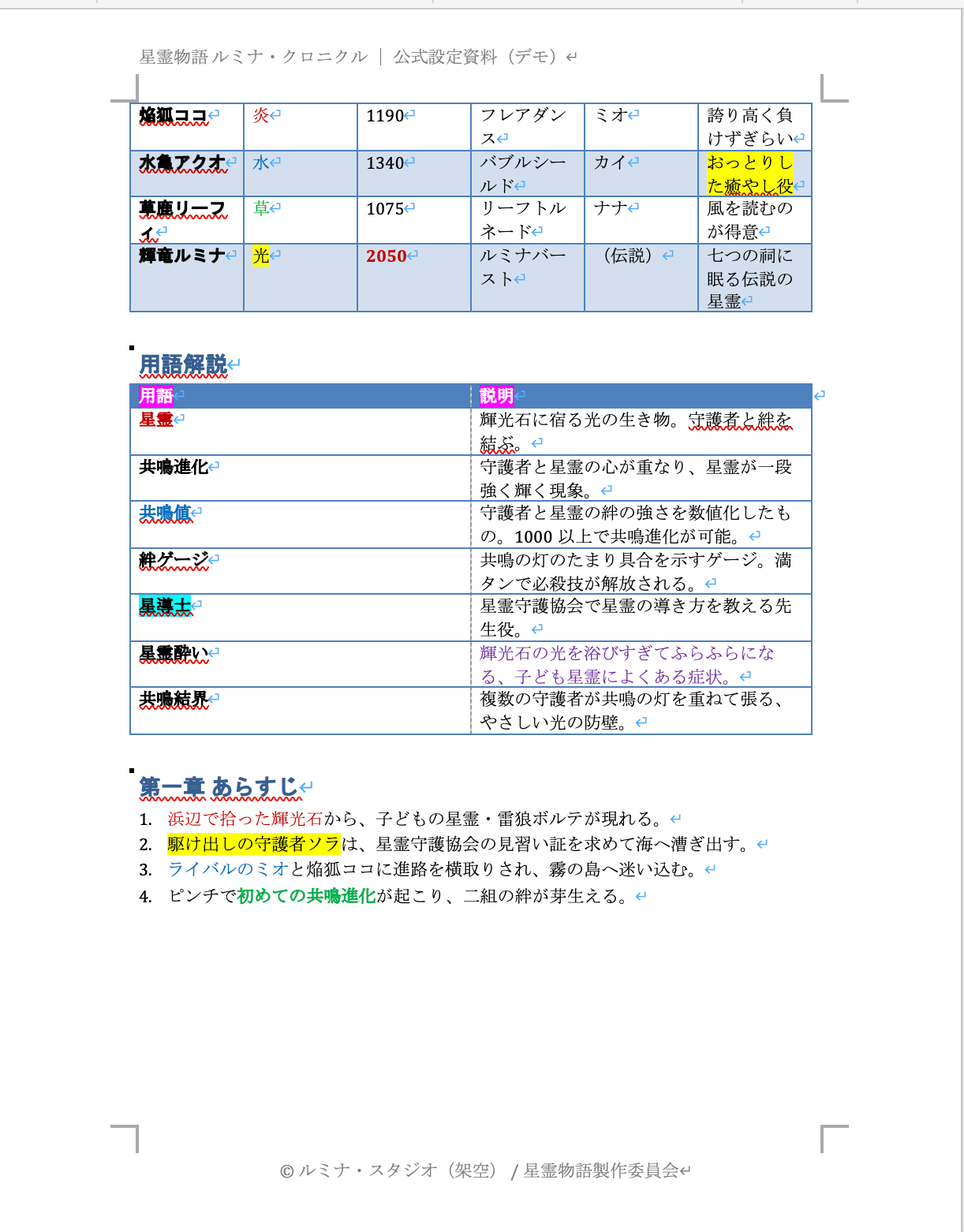
Pre-translation Word page 2: Continuation of the Hoshirei Codex table, glossary table, synopsis
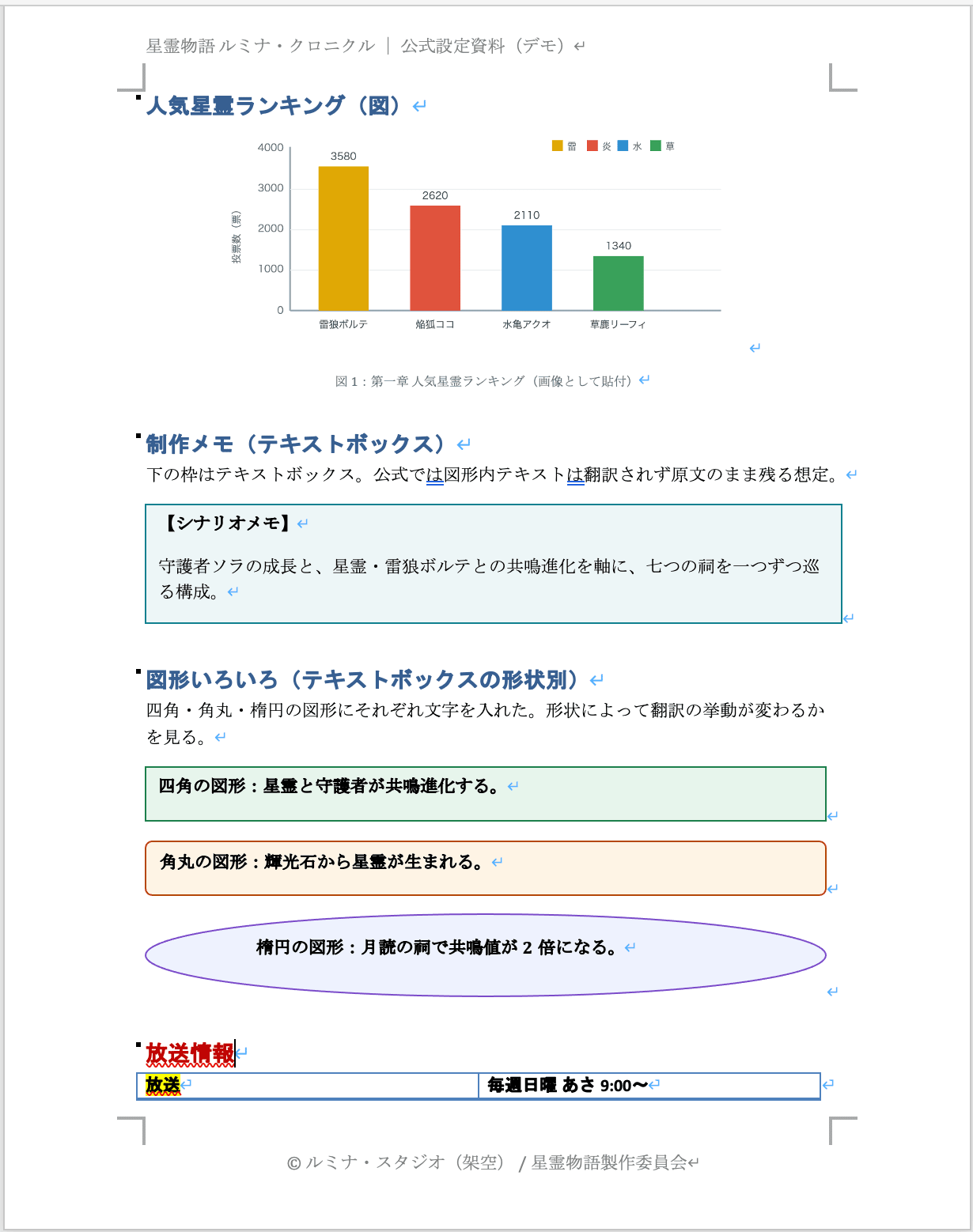
Pre-translation Word page 3: Popularity ranking bar chart image, production notes text box, rectangle/rounded rectangle/ellipse shapes
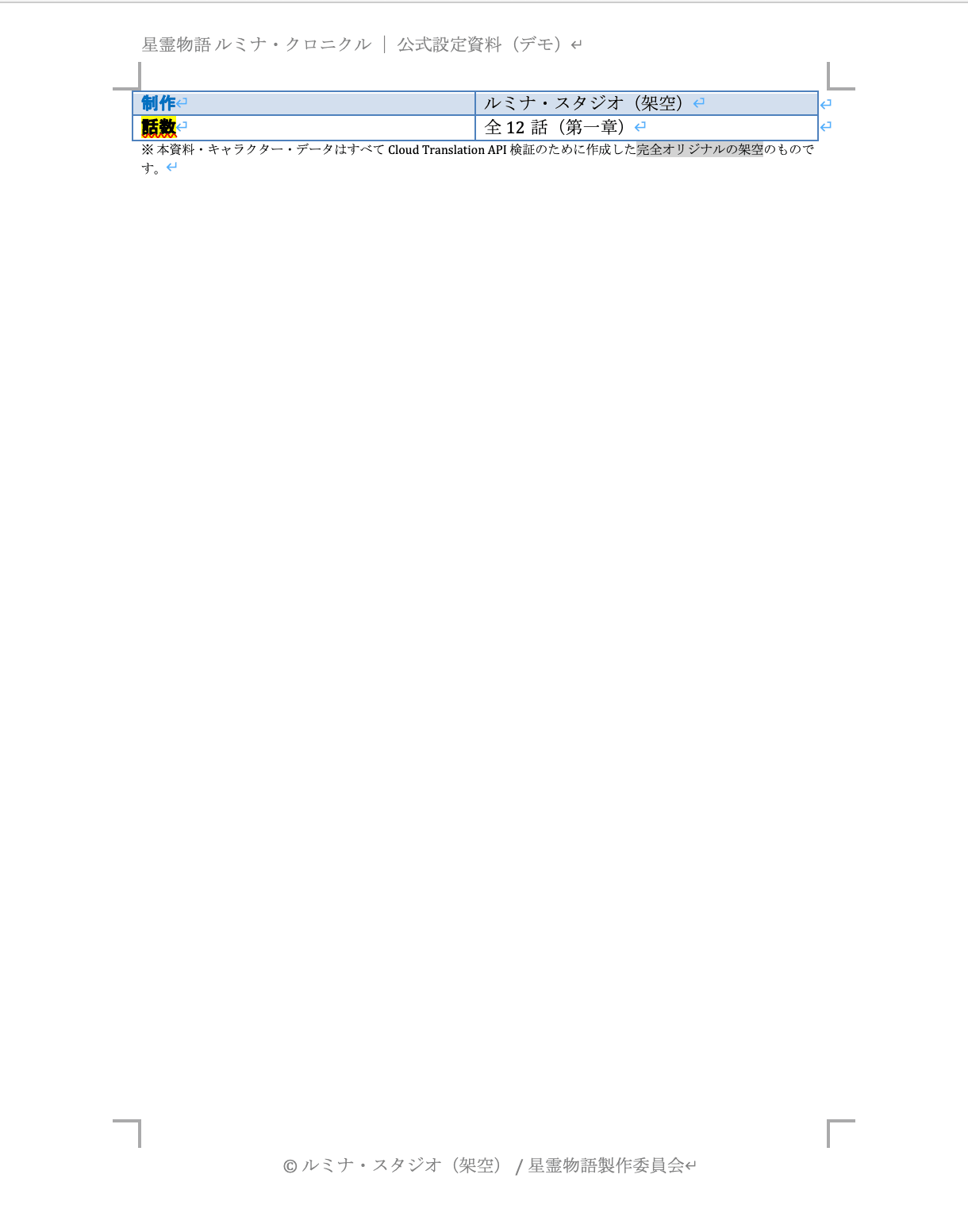
Pre-translation Word page 4: Broadcast information table, footnotes, footer
3.3 Environment Setup
The setup flow is the same as in the PDF edition.
First, enable the Cloud Translation API.
gcloud services enable translate.googleapis.com --project <YOUR_PROJECT_ID>
Next, authentication.
Document Translation (v3 / Advanced) does not support API keys, so ADC (Application Default Credentials) is used.
gcloud auth application-default login
gcloud auth application-default set-quota-project <YOUR_PROJECT_ID>
Create a virtual environment (venv) and install the library inside it.
python3 -m venv .venv
source .venv/bin/activate
pip install google-cloud-translate
4. Translating Word (DOCX)
Let's try synchronous translation, which loads the file's byte stream directly into the request.
The script used for translation determines the MIME type from the file extension and can handle PDF, DOCX, XLSX, and PPTX with the same code.
PDF-specific options (native detection and skew correction) are only added for PDFs and are not included for Office formats.
Full text of translate_document_handson.py (click to expand)
from __future__ import annotations

import argparse
import time
from pathlib import Path

from google.cloud import translate_v3 as translate

# Glossaries and custom models must be placed in us-central1.
DEFAULT_LOCATION = "us-central1"

# Extension → MIME type (Document Translation supported formats)
MIME_BY_SUFFIX = {
    ".pdf": "application/pdf",
    ".docx": "application/vnd.openxmlformats-officedocument.wordprocessingml.document",
    ".pptx": "application/vnd.openxmlformats-officedocument.presentationml.presentation",
    ".xlsx": "application/vnd.openxmlformats-officedocument.spreadsheetml.sheet",
}

def mime_for(path: str) -> str:
    """Returns the MIME type based on the input file extension. Raises ValueError for unsupported extensions."""
    suffix = Path(path).suffix.lower()
    if suffix not in MIME_BY_SUFFIX:
        raise ValueError(f"Unsupported extension: {suffix} (supported: {', '.join(MIME_BY_SUFFIX)})")
    return MIME_BY_SUFFIX[suffix]

def parse_args() -> argparse.Namespace:
    p = argparse.ArgumentParser(description="Cloud Translation API Document Translation (synchronous)")
    p.add_argument("--project", required=True, help="GCP project ID")
    p.add_argument("--input", required=True, help="Input file path")
    p.add_argument("--output", required=True, help="Output file path (result without glossary)")
    p.add_argument("--source", default="ja", help="Source language code (default: ja)")
    p.add_argument("--target", default="en", help="Target language code (default: en)")
    p.add_argument("--location", default=DEFAULT_LOCATION, help=f"Location (default: {DEFAULT_LOCATION})")
    p.add_argument("--glossary-id", default=None, help="Glossary ID (when specified, outputs both with and without glossary)")
    return p.parse_args()

def build_request(args: argparse.Namespace, content: bytes) -> dict:
    """Builds the request dictionary for translate_document.

    Specifying the source language is required when using a glossary (official spec).
    """
    parent = f"projects/{args.project}/locations/{args.location}"
    mime_type = mime_for(args.input)
    request: dict = {
        "parent": parent,
        "source_language_code": args.source,
        "target_language_code": args.target,
        "document_input_config": {"content": content, "mime_type": mime_type},
    }
    if args.glossary_id:
        glossary_path = (
            f"projects/{args.project}/locations/{args.location}"
            f"/glossaries/{args.glossary_id}"
        )
        request["glossary_config"] = translate.TranslateTextGlossaryConfig(glossary=glossary_path)
    return request

def write_bytes(path: str, data: bytes) -> None:
    Path(path).parent.mkdir(parents=True, exist_ok=True)
    Path(path).write_bytes(data)

def main() -> None:
    args = parse_args()
    content = Path(args.input).read_bytes()
    print(f"Input: {args.input} ({len(content):,} bytes, {args.source}→{args.target})")

    client = translate.TranslationServiceClient()
    request = build_request(args, content)

    started = time.perf_counter()
    response = client.translate_document(request=request)
    elapsed = time.perf_counter() - started

    base = response.document_translation
    write_bytes(args.output, base.byte_stream_outputs[0])
    print(f"Processing time: {elapsed:.2f} seconds")
    print(f"Output (without glossary): {args.output} ({len(base.byte_stream_outputs[0]):,} bytes)")

    # With glossary: a single call returns a separate output in glossary_document_translation
    if args.glossary_id and response.glossary_document_translation.byte_stream_outputs:
        out = Path(args.output)
        glossary_out = str(out.with_name(f"{out.stem}_glossary{out.suffix}"))
        write_bytes(glossary_out, response.glossary_document_translation.byte_stream_outputs[0])
        print(f"Output (with glossary): {glossary_out}")

if __name__ == "__main__":
    main()
First, translate the Word document from Japanese to English without a glossary.
python translate_document_handson.py \
    --project <YOUR_PROJECT_ID> \
    --input hoshirei_ja.docx \
    --output hoshirei_en.docx
# Example output
Input: hoshirei_ja.docx (125,305 bytes, ja→en)
Processing time: 1.30 seconds
Output (without glossary): hoshirei_en.docx (119,172 bytes)
A multi-page DOCX was translated in just over a second.
Let me compare all 4 pages before and after translation (without glossary).
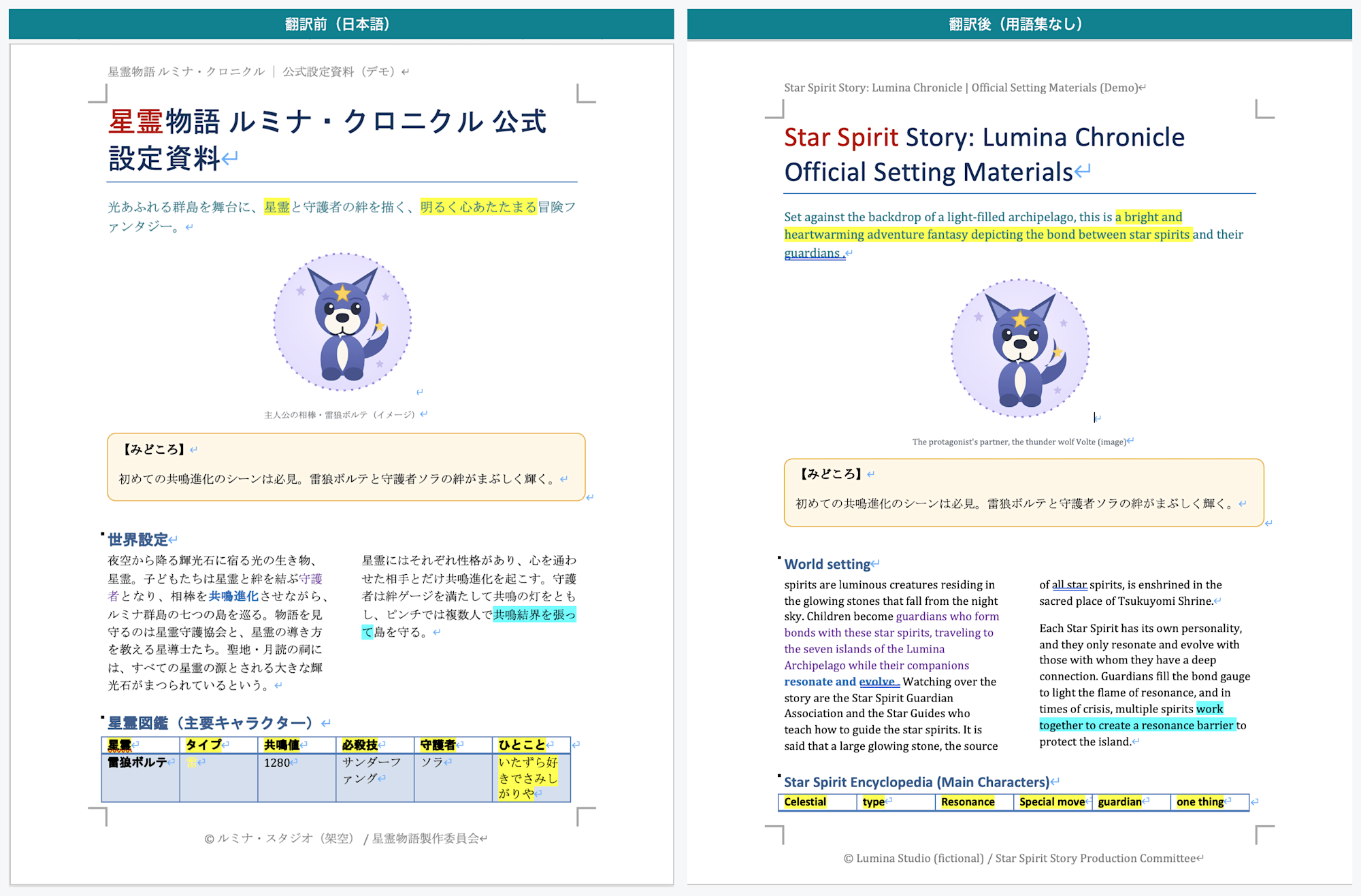
Page 1: Left is before translation (Japanese), right is after translation (without glossary). Body text, headings, colored text, and headers/footers are translated into English, but the "Highlights" text box remains in Japanese
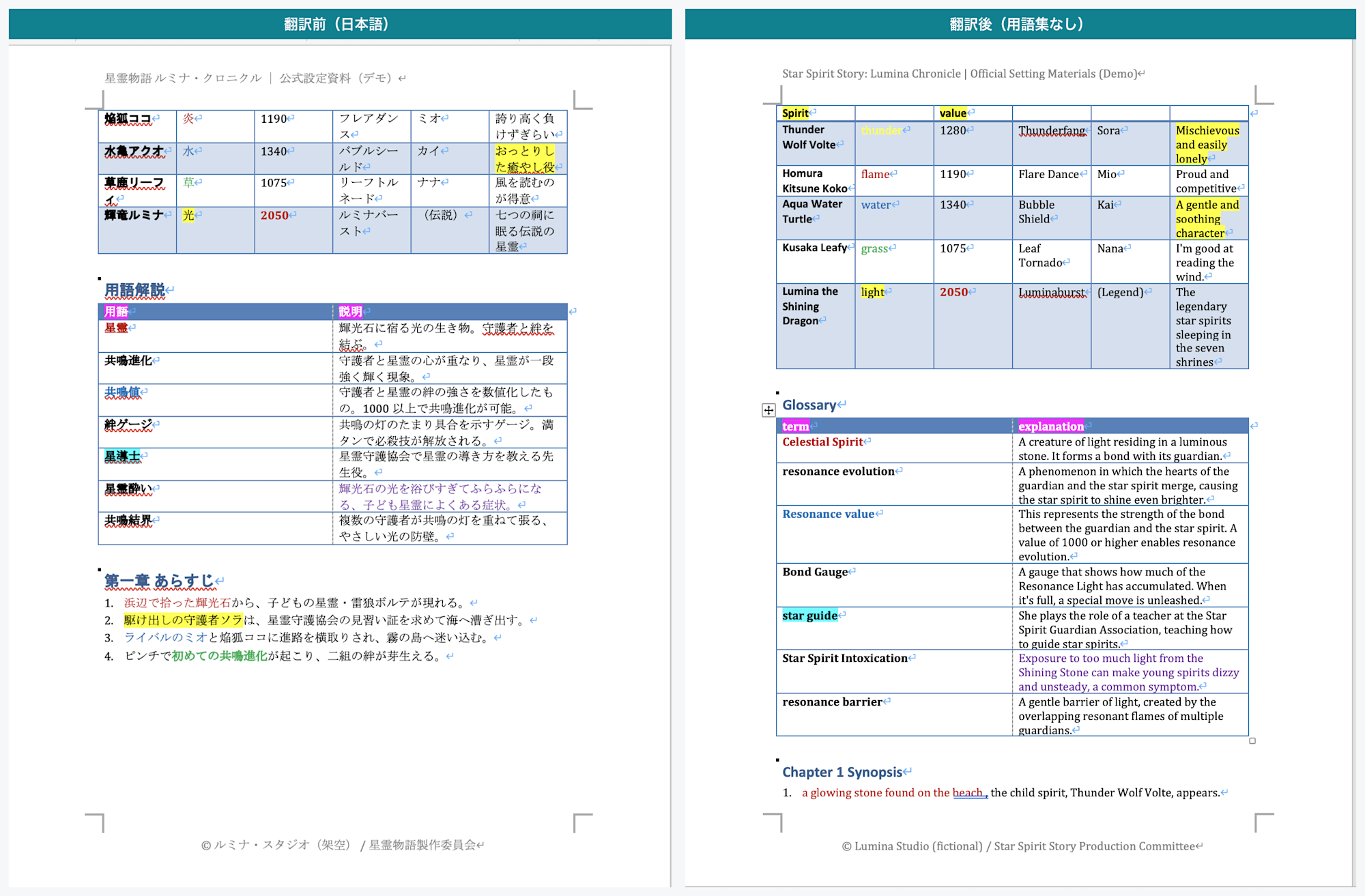
Page 2: Left is before translation, right is after translation. The Hoshirei Codex table, glossary table, and synopsis are translated into English while preserving the layout
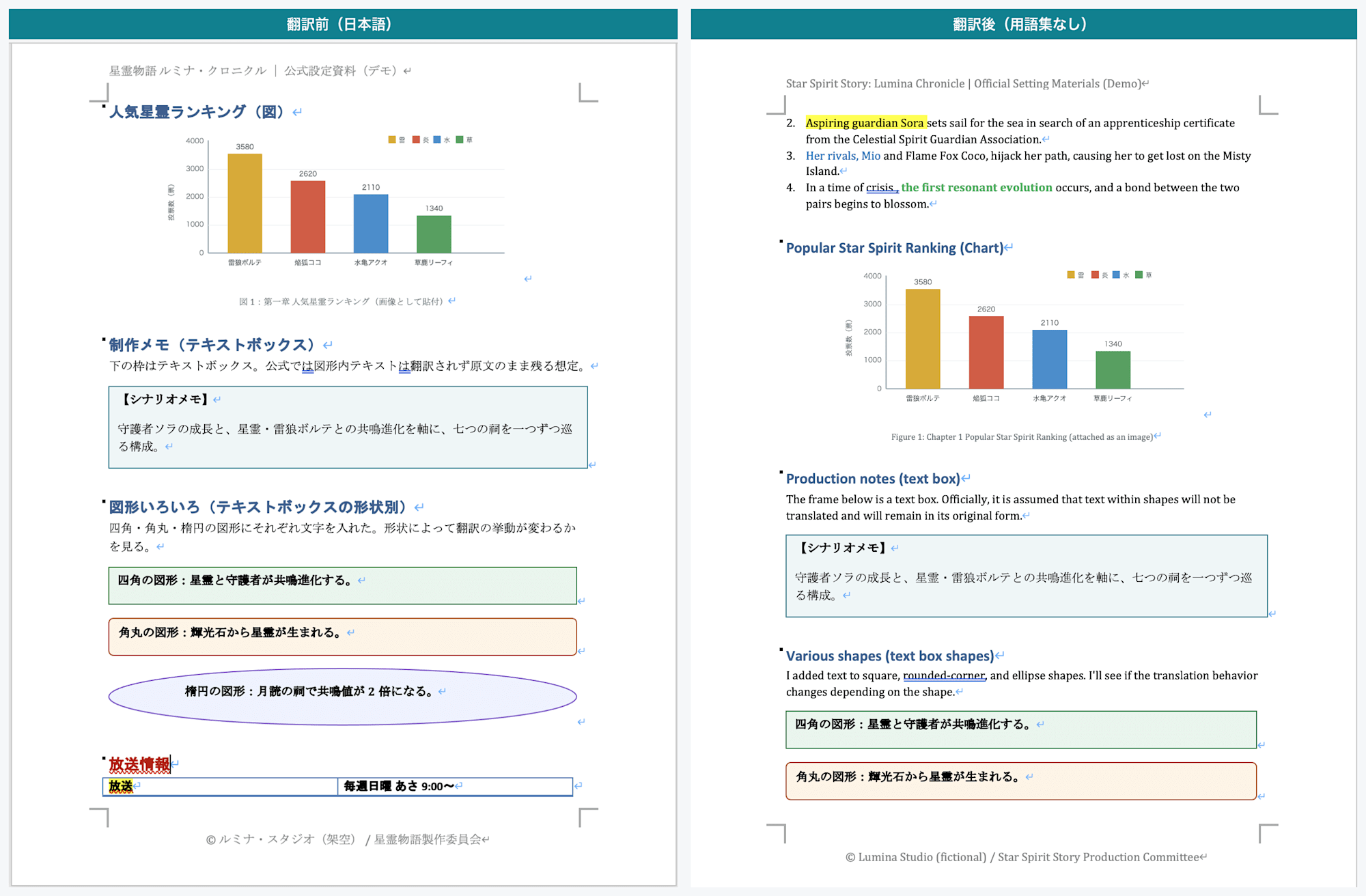
Page 3: Left is before translation, right is after translation. Body text is translated into English, but the production notes and the content inside the rectangle, rounded rectangle, and ellipse shapes remain in Japanese without being translated
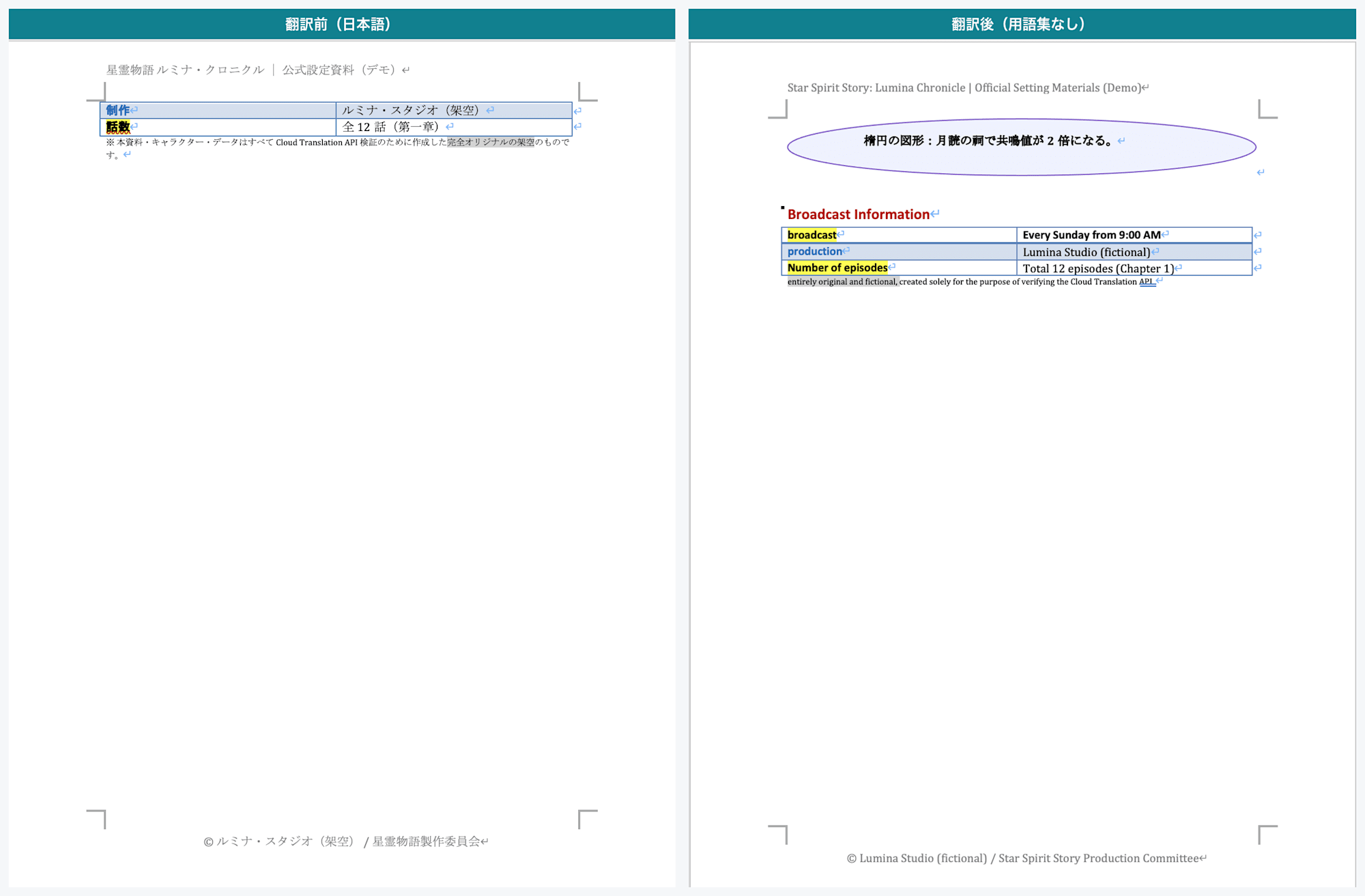
Page 4: Left is before translation, right is after translation. The broadcast information table, footnotes, and footer are translated into English
Headings, body text, colored text, two-column layout, tables, and even headers/footers — the layout is almost entirely preserved.
What stood out in particular for formatting preservation was the handling of background colors and text colors.
In sections where the text color changed mid-sentence or where background colors were applied, those colors were carried over exactly as-is after translation.
Portions that were bold for emphasis also remained bold after translation.
This shows that the translation preserves not just the text replacement but also character-level formatting information.
On the other hand, elements that were not translated were clearly delineated.
First, text boxes.
The orange-bordered shape on page 1 ("Highlights"), the production notes text box on page 3, and the rectangle, rounded rectangle, and ellipse shapes — the text inside all of them remained in Japanese.
This matches the official statement quoted in §2: "Content inside text boxes aren't translated and remain in the source language."
Note that in the PDF edition, font sizes were reduced to fit the layout to match the pre-translation appearance, but in the Word case, font sizes did not change and page breaks shifted slightly.
However, page breaks occurred at natural positions and there were no issues with the content.
The other element was the bar chart inserted as an image.
The popularity ranking chart on page 3 was inserted as an image, so it was not subject to translation.
Text inside images is not text data and cannot be handled by Document Translation.
5. Fixing Custom Terms with a Glossary
Let's verify whether proper nouns and custom terms can be fixed to a consistent translation.
To use a glossary, you need to (1) prepare a TSV with source and target term pairs, (2) upload it to Cloud Storage, and (3) create a glossary resource.
By specifying the created glossary at translation time, registered terms will be aligned to their fixed translations.
5.1 Preparing the Glossary TSV
The glossary is prepared as a TSV file with one term pair per line, tab-separated, with the source language (Japanese) on the left and the target language (English) on the right.
No header row is needed; the left side is the coined source term and the right side is the fixed translation.
For this verification, I prepared 20 coined terms from the sample as glossary_ja_en.tsv.
星霊	Hoshirei
共鳴進化	Reso-Evolution
輝光石	Lumina Shard
雷狼ボルテ	Voltefang
焔狐ココ	Pyrofox Coco
水亀アクオ	Aquortle
草鹿リーフィ	Leafawn
輝竜ルミナ	Lumidragon
月読の祠	Moonread Shrine
守護者	Warden
星導士	Starwright
星霊守護協会	Hoshirei Warden Guild
共鳴値	Reso-Value
共鳴の灯	Resonance Flame
絆ゲージ	Bond Gauge
星霊酔い	Hoshirei-sickness
星霊図鑑	Hoshirei Codex
ルミナ群島	Lumina Archipelago
七つの祠	Seven Shrines
共鳴結界	Reso-Barrier
5.2 Uploading the TSV to Cloud Storage and Creating the Glossary Resource
Rather than uploading the TSV directly to create the glossary resource, you first place it in Cloud Storage and then specify that GCS URI to create the resource.
Create the bucket in the same us-central1 region as the glossary.
# Create bucket (skip if already exists)
gcloud storage buckets create gs://<YOUR_BUCKET> \
    --project <YOUR_PROJECT_ID> --location us-central1

# Upload the TSV
gcloud storage cp glossary_ja_en.tsv \
    gs://<YOUR_BUCKET>/glossaries/glossary_ja_en.tsv
Next, create the glossary resource from the uploaded TSV.
Creation is a long-running operation (LRO), so run it from the client library and wait for completion.
Save the following code as setup_glossary.py and run it with the venv from §3.3 still active.
Full text of setup_glossary.py (click to expand)
from google.cloud import translate_v3 as translate

PROJECT_ID = "<YOUR_PROJECT_ID>"
LOCATION = "us-central1"   # Glossaries are only available in us-central1
GLOSSARY_ID = "hoshirei-ja-en"
INPUT_URI = "gs://<YOUR_BUCKET>/glossaries/glossary_ja_en.tsv"

client = translate.TranslationServiceClient()
name = client.glossary_path(PROJECT_ID, LOCATION, GLOSSARY_ID)
glossary = translate.Glossary(
    name=name,
    # Unidirectional (ja→en) glossary
    language_pair=translate.Glossary.LanguageCodePair(
        source_language_code="ja", target_language_code="en"
    ),
    input_config=translate.GlossaryInputConfig(
        gcs_source=translate.GcsSource(input_uri=INPUT_URI)
    ),
)
parent = f"projects/{PROJECT_ID}/locations/{LOCATION}"
operation = client.create_glossary(parent=parent, glossary=glossary)
result = operation.result(180)   # Wait up to 180 seconds for completion
print(f"Creation complete: {result.name} (entry count: {result.entry_count})")
python setup_glossary.py
# Example output
Creation complete: projects/.../locations/us-central1/glossaries/hoshirei-ja-en (entry count: 20)
The official documentation also explicitly states that custom resources must use us-central1.
Note: All of your resources in a single request to Cloud Translation - Advanced must have the same location. Currently, only global and us-central1 locations are supported. For all custom resources—AutoML models, glossaries, long-running-operations—you must use us-central1.
Reference: Official Documentation: Migrate to Cloud Translation - Advanced (v3) | Google Cloud
5.3 Comparing Results With and Without a Glossary
Translate with the created glossary specified.
Passing the glossary ID created in 5.2 to --glossary-id returns both "without glossary" and "with glossary" results in a single response.
python translate_document_handson.py \
    --project <YOUR_PROJECT_ID> \
    --input hoshirei_ja.docx \
    --output hoshirei_en.docx \
    --glossary-id <YOUR_GLOSSARY_ID>
Looking first at the result without a glossary, the translations of proper nouns were quite inconsistent (per Claude's analysis).
Out of 26 occurrences of 星霊 in the source, the breakdown of main translations in the English output without a glossary was as follows.
Translation of 星霊 (without glossary) |
Occurrences |
|---|---|
| Star Spirit | 8 |
| star spirits | 6 |
| Celestial Spirit | 3 |
| star spirit | 3 |
| Other variations | Several |
The same word ended up split into multiple variations, including differences in capitalization and singular/plural form.
Machine translation chooses the most contextually appropriate translation each time, so without a mechanism to align proper nouns, this is the result.
Switching to the glossary-enabled result, these were neatly unified.
The places where translations actually changed were the title page where proper nouns appear frequently (page 1) and the glossary table (page 2).
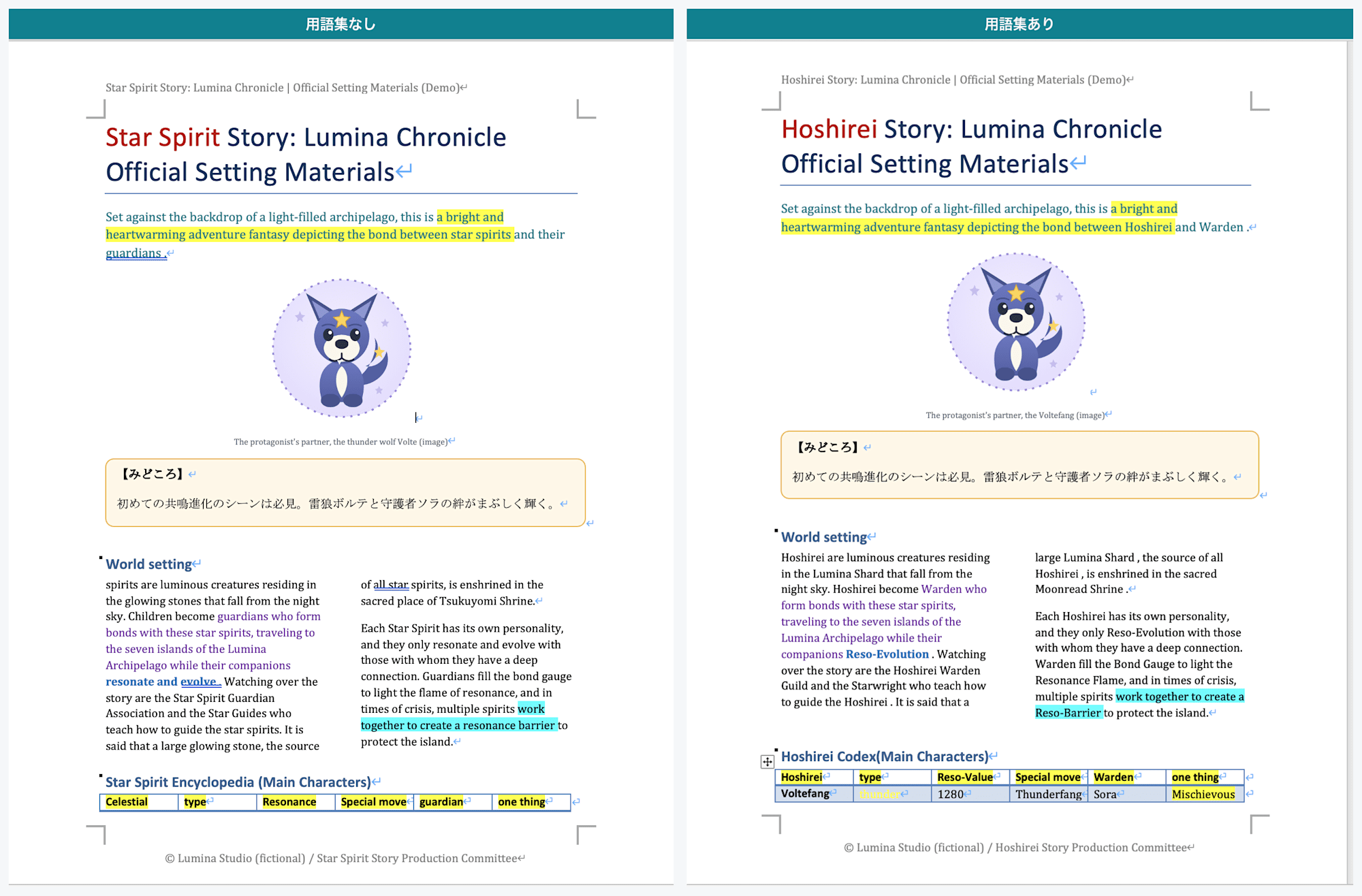
Page 1: Left is without glossary (title is "Star Spirit Story," with inconsistent translations of 星霊 as Star Spirit), right is with glossary ("Hoshirei Story" is fixed and 星霊 is unified as Hoshirei)
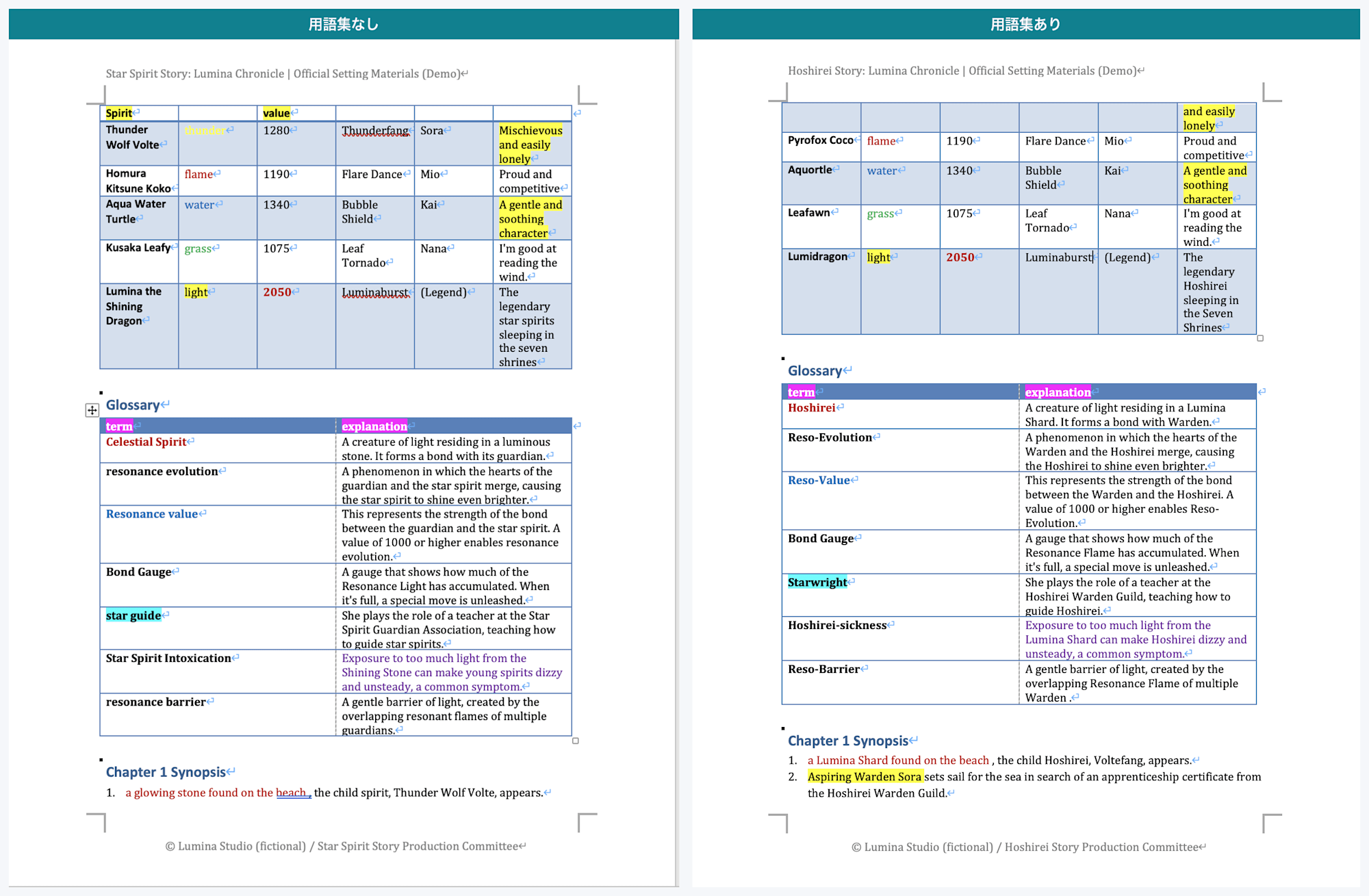
Page 2: Left is without glossary, right is with glossary. In the glossary table, 共鳴進化 becomes Reso-Evolution, 星導士 becomes Starwright, and 共鳴結界 becomes Reso-Barrier — all coined terms are fixed to their registered translations
The title changed from "Star Spirit Story" to "Hoshirei Story," and 星霊, which had been split into 4 different translations, was unified to Hoshirei.
Other coined terms were also fixed to their registered translations: 守護者 to Warden, 共鳴進化 to Reso-Evolution, 輝光石 to Lumina Shard, and 雷狼ボルテ to Voltefang.
The glossary was applied not only to body text but also to table cells (text boxes are excluded from translation in the first place, so they are also outside the scope of glossary application).
However, checking the full glossary-enabled output revealed it was not a perfect 100% (per Claude's analysis).
Just one occurrence of 星霊 remained as star spirits instead of being fixed to Hoshirei.
In the body text "Hoshirei become Warden who form bonds with these star spirits," within the same sentence 星霊 was fixed to Hoshirei and 守護者 was fixed to Warden, yet one more 星霊 remained as star spirits.
Since the glossary applies by matching each occurrence based on surrounding context, occasionally the same term may be missed depending on the context.
That said, the vast majority were fixed correctly, so the actual outcome was "almost unified, but with occasional misses."
6. Pricing and Processing Time
The pricing for document translation varies by the translation model used.
For the standard NMT model, document translation is priced per page.
| Item | Unit Price |
|---|---|
| NMT document translation | $0.08 / page |
Reference: Pricing Page: Pricing | Google Cloud
For this sample (a DOCX of several pages), the combined cost with and without the glossary was well under $1.
Processing time was approximately 1–2 seconds as measured.
7. About Attribution ("Machine Translated by Google")
In the PDF edition, a "Machine Translated by Google" attribution was added to the upper left of the translated PDF.
For this Word (DOCX) translation, even though no attribution was specified, this text was not found in the translated file.
Since the presence or absence of the attribution differed between PDF and Office under the same conditions, I checked the specifications.
The attribution text can be specified in the API request as customizedAttribution, and the default when not specified is "Machine Translated by Google."
This field is not PDF-specific; it is common to the entire translateDocument (document translation) feature.
customizedAttribution
stringOptional. This flag is to support user customized attribution. If not provided, the default is Machine Translated by Google. Customized attribution should follow rules in https://cloud.google.com/translate/attribution#attribution_and_logos
Reference: API Reference: Method: projects.locations.translateDocument | Google Cloud
What's important to note here is that customizedAttribution only describes the "attribution text" itself — there is no official documentation explicitly stating how or whether that text is reflected in the output (i.e., whether it is burned into the file) for each format.
The reason why the presence of attribution differs by format could not be confirmed in the official documentation.
Based on what was actually observed, the attribution was burned into the PDF output but did not appear in Office format outputs (DOCX/XLSX/PPTX).
This is presumably because PDF reconstructs translated text overlaid on the page to preserve layout, and the output is produced differently from editable Office formats — but this is speculation and is not backed by any official statement.
Another point to keep in mind, from a different angle, is the explicit disclosure requirement under the brand guidelines.
This is separate from the question of whether attribution is burned into the output file, and it requires that whenever translation results are shown to users, regardless of format, it must be made clear that the content is a machine translation.
Whenever you display translation results from Google Translate directly to users, you must make it clear to users that they are viewing automatic translations from Google Translate using the appropriate text or brand elements.
Reference: Brand Guidelines: Attribution requirements | Google Cloud
In other words, the fact that attribution is not burned into Office format outputs is not itself a problem, but when publishing or distributing translation results, the responsibility to clearly indicate that the content is a machine translation lies with the user, regardless of format.
8. Summary
Cloud Translation API's Document Translation can translate a Word (DOCX) file directly while preserving the layout of body text, tables, multi-column layouts, colors, and headers/footers, and using a glossary allows proper nouns to be almost consistently fixed.
As explicitly stated in the official documentation, content inside text boxes and shapes is not translated and remains in the source language.
It is worth considering placing text that needs to be translated in the body text or tables rather than in text boxes.
Note that the handling of text boxes differs by format.
I will also write blog posts covering Excel and PowerPoint editions in the future, so please check those out.
I hope this article is helpful for those considering automating the translation of Word documents.