
Search official documentation with Cloudflare CLI and retrieve it in Markdown

This page has been translated by machine translation. View original
Hey there! I'm Yuji Nishimura from the Operations team!
When looking up how to configure Cloudflare, I sometimes want to search the official documentation from the terminal and read it as plain text. With Cloudflare CLI's cf docs search, you can use the URLs from search results to retrieve the full Markdown content.
First, receive the search results as JSON
If cf is already installed, run it with your search term in quotes. No Cloudflare login is required, but an internet connection is needed.
cf docs search "proxy a DNS record"
What comes back is not the page content itself, but an array of search results containing title, description, and url. According to the official documentation, search results are returned ranked, with a maximum of 5 results.
Here is an excerpt of the first result from the 5 results returned during testing.
[
  {
    "title": "Proxy DNS records",
    "description": "Proxy DNS records through Cloudflare.",
    "url": "https://developers.cloudflare.com/learning-paths/prevent-ddos-attacks/baseline/proxy-dns-records/"
  }
]
Save the Markdown content from the search result URL
The following command also uses jq and curl. After reading the title and description of the search results, if the top page matches your needs, you can retrieve the content from its URL.
cf docs search "proxy a DNS record" > dns-results.json &&
url=$(jq -er '.[0].url' dns-results.json) &&
curl -fsSL -H 'Accept: text/markdown' "$url" -o cloudflare-doc.md &&
head -n 6 cloudflare-doc.md
At the top of the retrieved file, there was frontmatter containing the title and description as shown below. The HTTP response Content-Type was also text/markdown; charset=utf-8.
---
description: Proxy DNS records through Cloudflare.
title: Proxy DNS records
The following image shows the execution screen displaying the title and URL from the search results, along with the title of the retrieved Markdown.
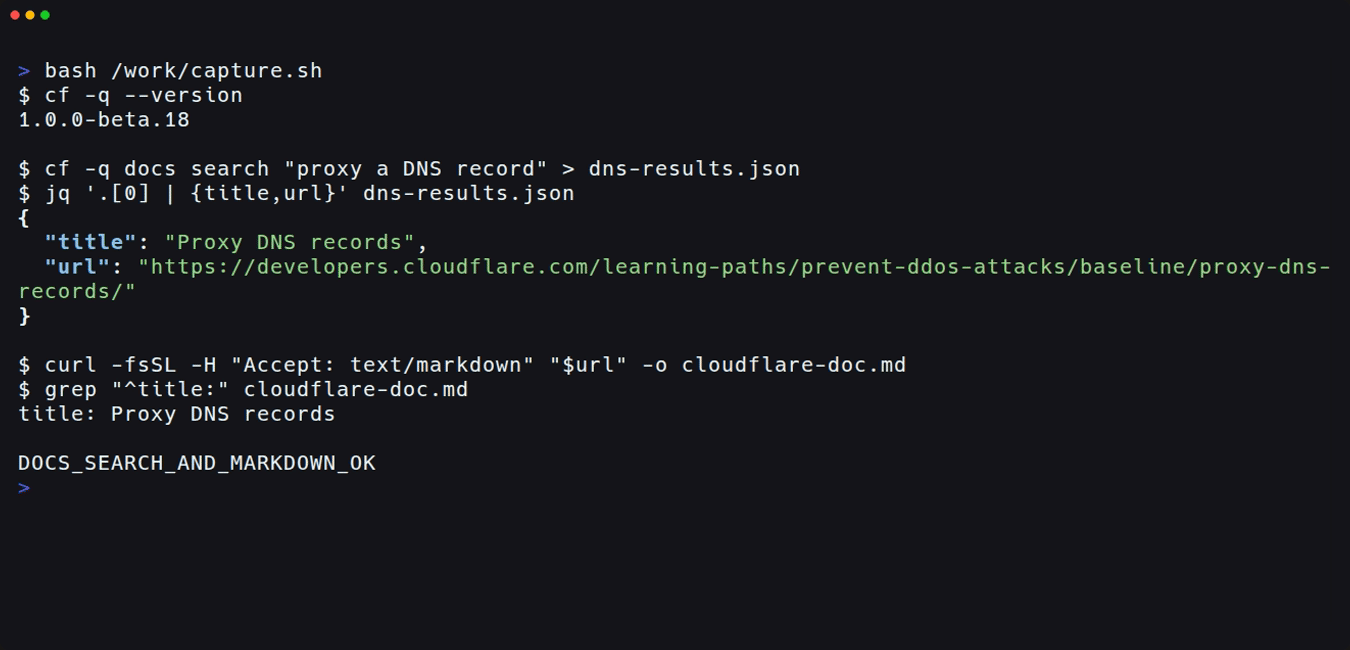
By saving to a file like this, you can read the contents of the retrieved official page locally or pass it to a coding agent. Because the commands are chained with &&, the next step only proceeds if the search, URL extraction, and retrieval all succeed. If the search results are empty, jq -er exits with a non-zero status and curl will not run.
The environment used and notes on reading search results
The environment for this was Ubuntu 24.04.5 LTS (ARM64), Node.js 24.21.0, and cf 1.0.0-beta.18. jq and curl were also used to retrieve the page content. The installation requirements and steps for cf require Node.js 22.18 or later. Even in a dedicated environment without credentials, the search and Markdown retrieval completed successfully.
cf docs search is a feature introduced in the beta.16 announcement. cf itself is still in beta, and options and output may change. Before trying it, checking the version with cf --version will make it easier to compare with the results in this article.
The search results also included URLs pointing to headings within the same page. In the DNS search performed here as well, the top-level page and a different heading within that page appeared together. Even if 5 results are returned, they do not necessarily represent 5 independent pages.
Results were also returned for the Japanese query "Workerを定期実行する", but the top result was Configure Worker Loader, with Scheduled Handler appearing third. Rather than automatically using the top result, it is safer to read the title and description before making your selection. Rankings and content will vary depending on the search results at the time of execution.
Summary
By receiving official page candidates as JSON with cf docs search and retrieving the chosen URL with Accept: text/markdown, you can read the full Markdown content right from the terminal. You can try it without logging in, but since search results and page content are separate, it is more practical to select the page to retrieve after reviewing the title and description.
Reference links: