
I Tried Running Cloudflare Workers' Cron Triggers from the Local Explorer

This page has been translated by machine translation. View original
Hi there! I'm Yuji Nishimura from the Operations Department!
When you build Cron processing with Cloudflare Workers, you may want to try out the behavior of scheduled() from a screen before deploying.
With the update on October 17, 2026, you can now run a Cron Trigger once from the Local Explorer. In addition to selecting a configured Cron expression and pressing Trigger, you can specify a different expression or a scheduled time on the spot.
This time, I prepared a minimal Worker and tried both a normal completion and an intentional exception. I also checked the Cron settings screen in the Cloudflare dashboard, so I'll introduce it along with the difference in use cases.
Difference between the dashboard Cron settings and Local Explorer
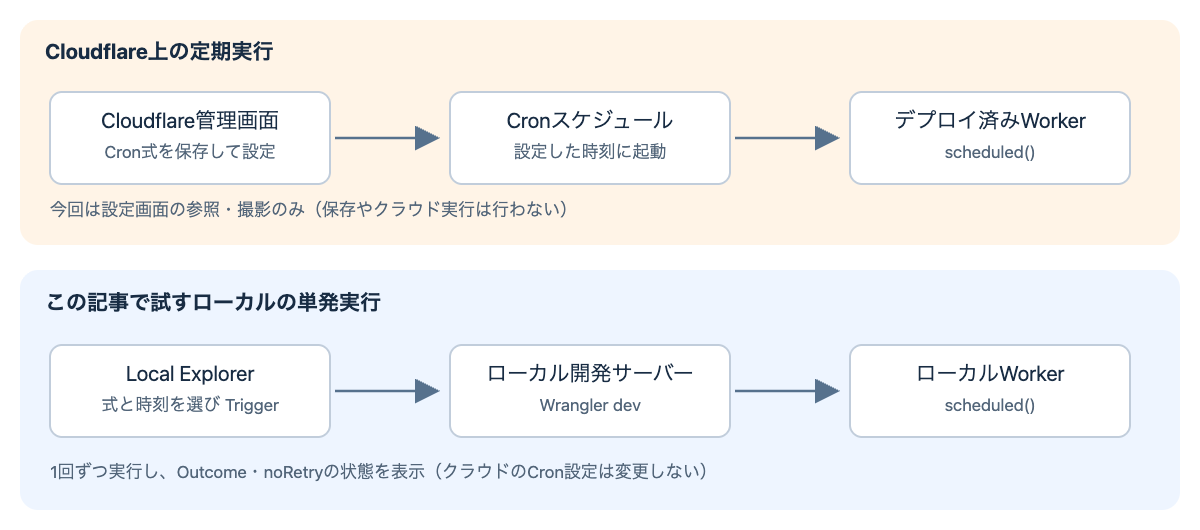
The Cloudflare dashboard is where you configure Cron schedules that periodically run a deployed Worker. Local Explorer is used to call the scheduled() of a Worker under local development one time at a time.
The following is a conceptual diagram I made myself. It separates the periodic execution in the cloud configured in the dashboard from the one-off local execution we try this time.
In the dashboard, I selected an existing verification Worker from Workers & Pages, then opened Settings → Trigger Events → Cron Triggers → Add. When I entered 0 * * * * in the Cron expression tab, the upcoming schedule was shown as minute 00 of every hour in UTC.
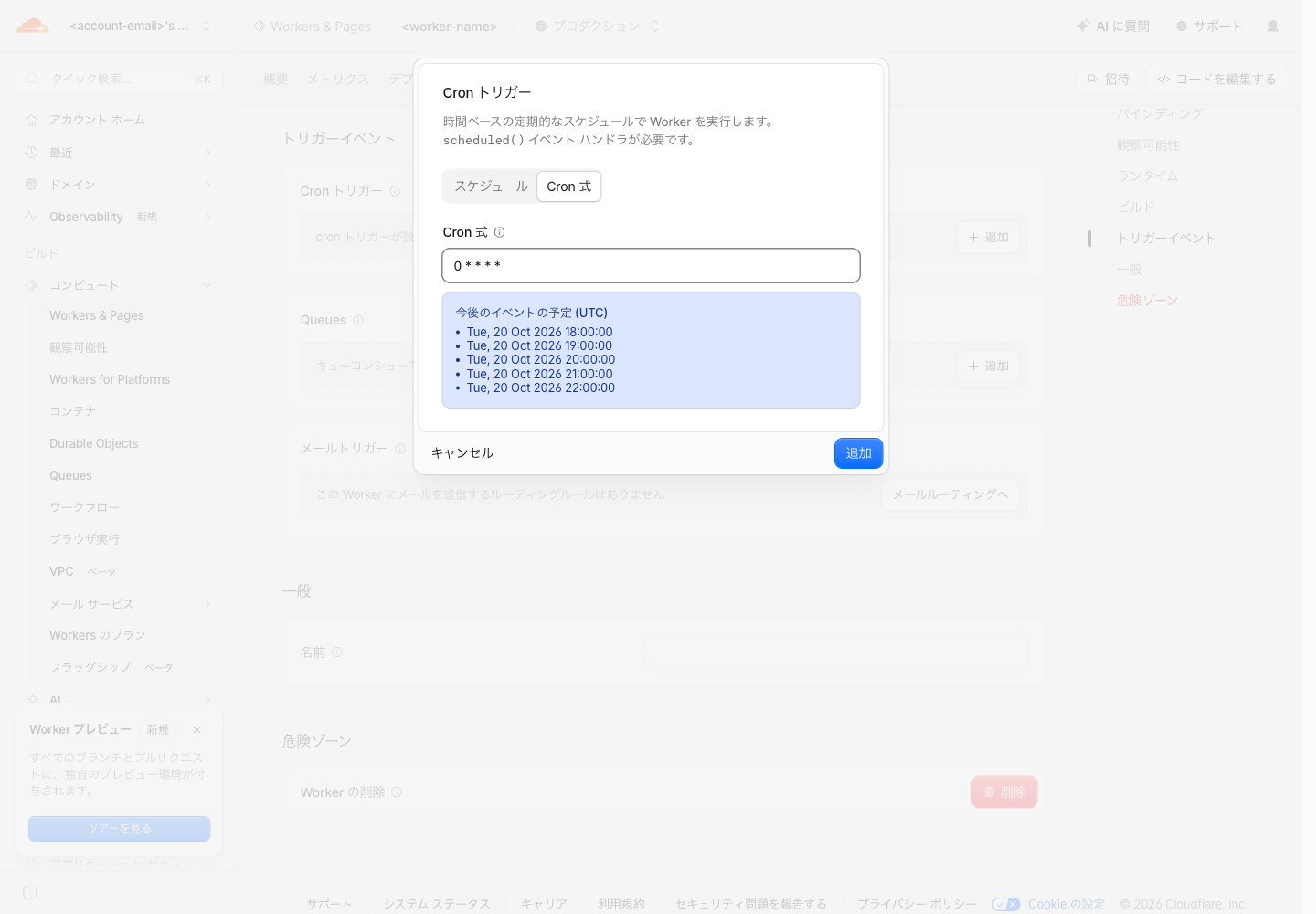
This is the screen of an existing verification Worker. It is separate from the local sample we build below, and after taking the screenshot I closed it with Cancel, so nothing was saved or executed on the cloud side. Account information and the like in the image are hidden.
Note that for Workers managed with Wrangler, the official documentation recommends managing Cron Triggers in the Wrangler configuration file as well. In the sample we build next, we also define the expression in wrangler.jsonc.
Preparing a minimal Worker
The Cron testing feature requires Wrangler 4.139.0 or later, or Cloudflare Vite plugin 1.60.0 or later. This time I used Wrangler and verified in the following environment.
| Item | Version |
|---|---|
| macOS | 26.6.1 |
| Node.js | 24.21.0 |
| pnpm | 12.14.0 |
| Wrangler | 4.151.3 |
In a new working directory, I prepared the following files. The Wrangler version is pinned for reproducibility.
{
  "name": "local-explorer-cron-demo",
  "version": "1.0.0",
  "private": true,
  "type": "module",
  "packageManager": "pnpm@12.14.0",
  "scripts": {
    "dev": "wrangler dev --port 8789"
  },
  "devDependencies": {
    "wrangler": "4.151.3"
  }
}
I allowed the installation processes of dependency packages run by pnpm in this directory's settings.
allowBuilds:
  esbuild: true
  workerd: true
pnpm install
mkdir -p src
In wrangler.jsonc, I set an expression for minute 00 of every hour. I also enabled observability.enabled.
{
  "$schema": "node_modules/wrangler/config-schema.json",
  "name": "local-explorer-cron-demo",
  "main": "src/index.js",
  "compatibility_date": "2026-10-17",
  "triggers": {
    "crons": ["0 * * * *"]
  },
  "observability": {
    "enabled": true
  }
}
The Worker only logs the received Cron expression and scheduled time. The 5 * * * * branch in the latter half is for checking the display of noRetry() and an exception. There is no access to external APIs or databases.
export default {
  async fetch() {
    return new Response("Open /cdn-cgi/local/explorer to test Cron Triggers.\n");
  },
  async scheduled(controller) {
    const event = {
      cron: controller.cron,
      scheduledTime: controller.scheduledTime,
      scheduledAt: new Date(controller.scheduledTime).toISOString(),
    };
    console.log("cron-event", JSON.stringify(event));
    if (controller.cron === "5 * * * *") {
      controller.noRetry();
      console.log("noRetry requested");
      throw new Error("Intentional failure after noRetry");
    }
    console.log("cron-completed");
  },
};
I started the local development server with the following command. Here I'm using port 8789.
pnpm exec wrangler dev --local --ip 127.0.0.1 --port 8789
Open http://127.0.0.1:8789/cdn-cgi/local/explorer in a browser. If you started it on a different port, match the port in the URL as well.
Running a configured Cron expression with a specified time
When I opened Cron Triggers → Configured Crons in the left menu, the 0 * * * * set in wrangler.jsonc was displayed.
You can run it with Scheduled time left at Now. This time, to fix the time passed to the handler, I opened Add preset. I entered 2026-10-21T00:00 in Date and time (UTC) and saved it with Save preset. In Japan time, that is 09:00 on October 21, 2026.
When I selected that time and pressed Trigger next to the expression, I got the following result.
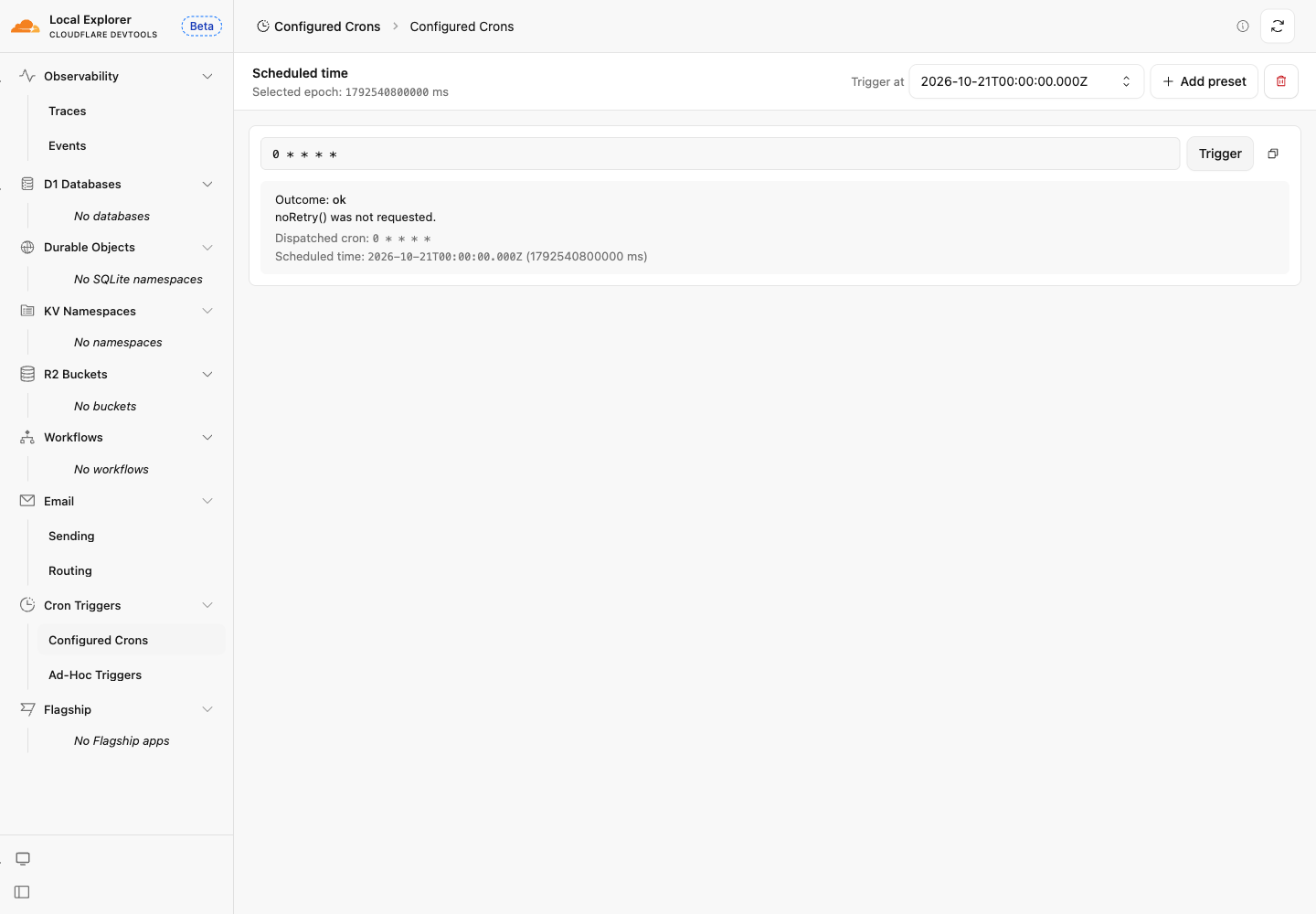
On the screen, I could confirm Outcome: ok, noRetry() was not requested., the invoked Cron expression, and the specified scheduled time. The following log was also output in the terminal where Wrangler was started.
cron-event {"cron":"0 * * * *","scheduledTime":1792540800000,"scheduledAt":"2026-10-21T00:00:00.000Z"}
cron-completed
The value of scheduledTime is Unix time in milliseconds. The UTC date and time selected on the screen matches the value the handler received.
The time specification here is not a reservation that waits until that time to run. When you press Trigger, it runs on the spot and the specified value is passed to the handler. It is useful when you want to align the input and test processing that branches by time, such as at date boundaries.
Trying another Cron expression without rewriting the configuration
Next I opened Cron Triggers → Ad-Hoc Triggers, and from Add trigger entered 15 * * * * in Expression. This is an expression not registered in wrangler.jsonc.
I selected the previous preset again in Scheduled time and pressed Trigger, and this also resulted in Outcome: ok.
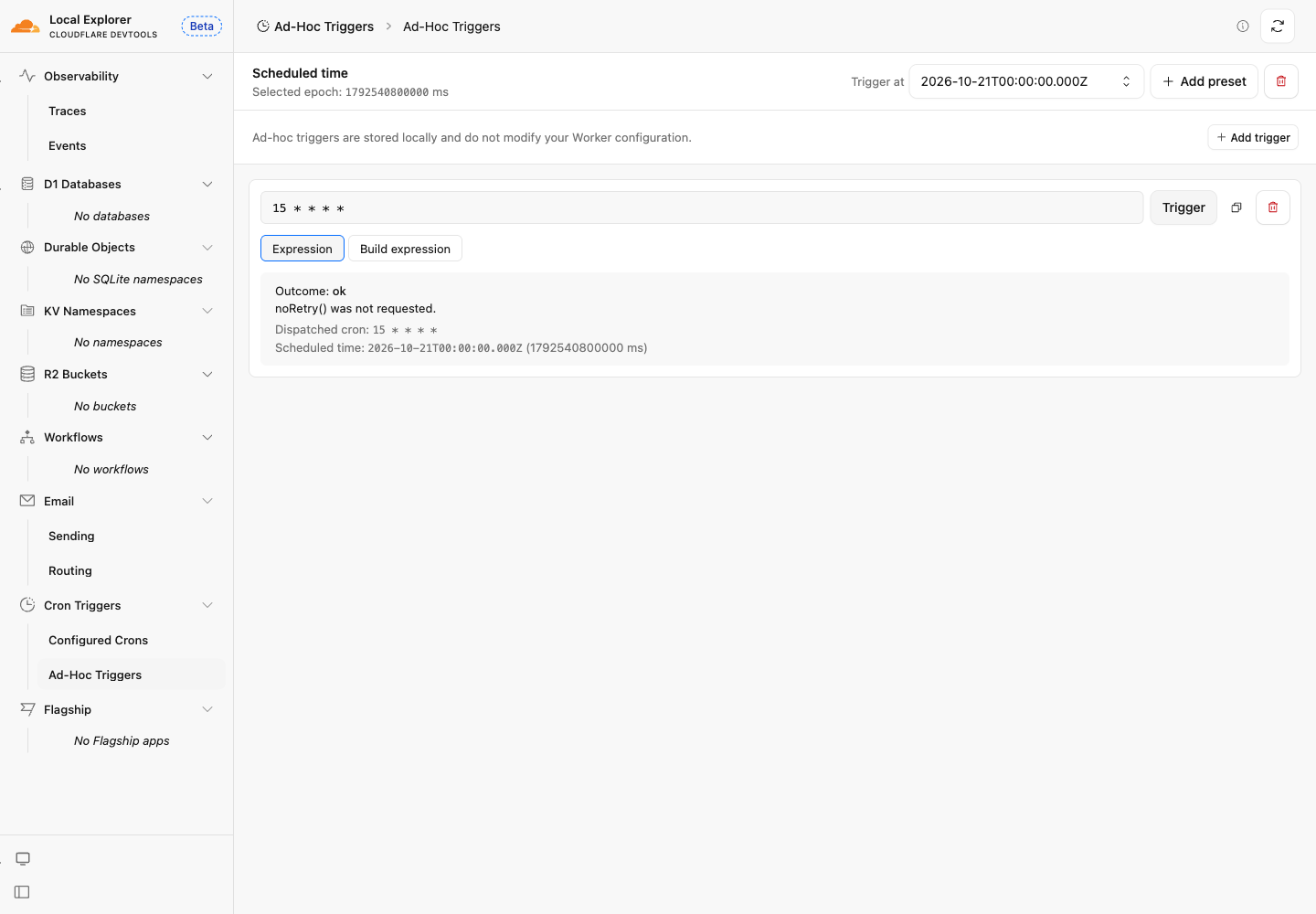
The value corresponding to controller.cron in the log was also the 15 * * * * I entered. The time I specified this time is 00:00, but I was able to invoke it without waiting until minute 15 of the hour specified by the expression.
Even after execution, the expression in wrangler.jsonc remained only 0 * * * *. Ad-hoc expressions and time presets are saved in the browser, and they do not change the Wrangler configuration or deployed Cron Triggers.
Checking the state of an exception and noRetry
I changed the same input field to 5 * * * * and pressed Trigger again. In the sample code, only for this expression, an exception is thrown after calling controller.noRetry().
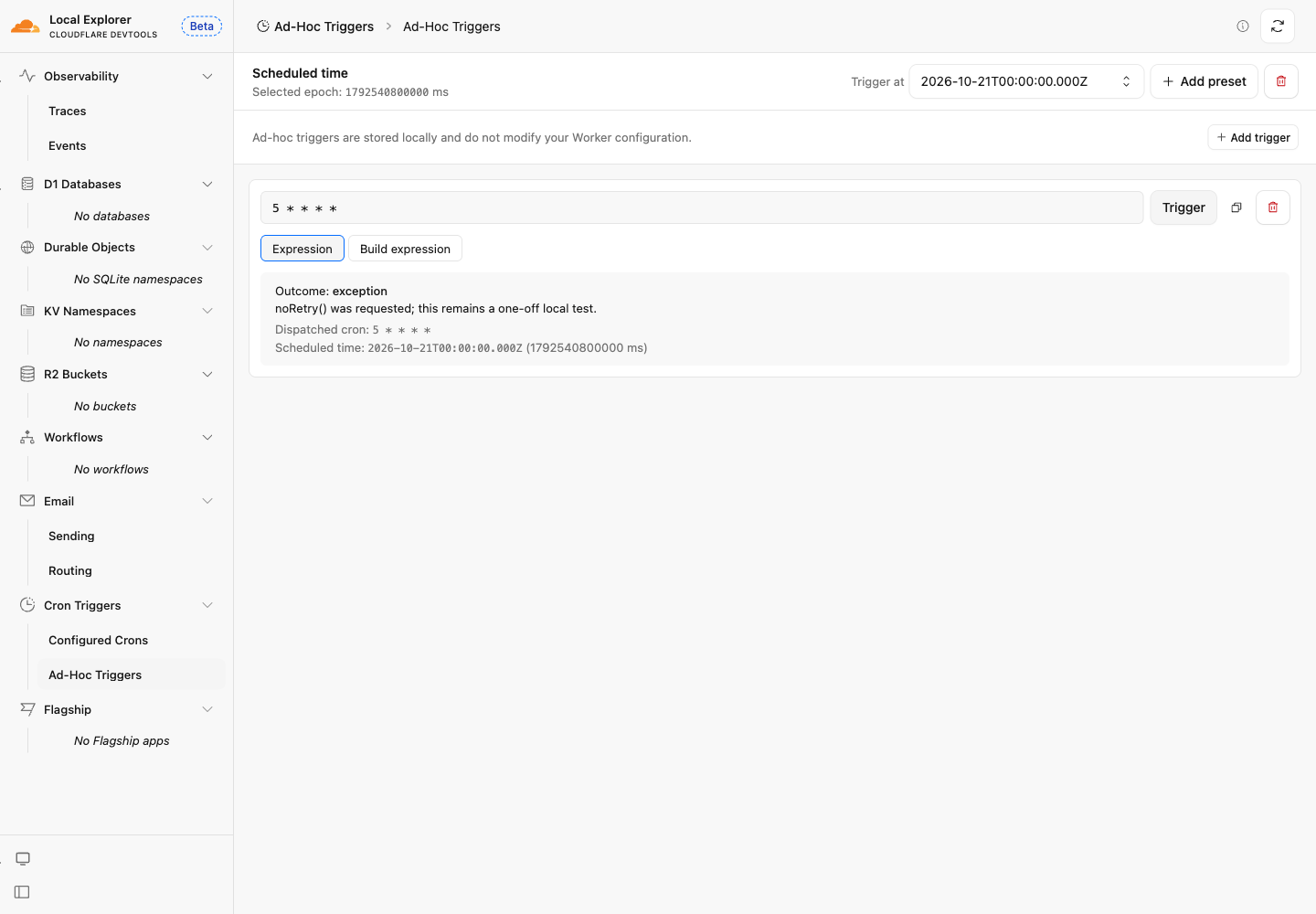
The result was Outcome: exception, and noRetry() was requested; this remains a one-off local test. was displayed. Compared with the normal completion screen, you can check separately whether the processing succeeded and whether noRetry() was called.
What I checked this time is the display for this one-off local execution. I did not verify the number of retries or the interval on the cloud, or the actual re-execution after noRetry() is called.
Points to keep in mind when trying it
Summary
From Local Explorer, I was able to run scheduled() with both a configured Cron expression and a temporary expression. Since the scheduled time can be fixed, you can repeatedly verify the processing with the same input.
The Cloudflare dashboard can be used for periodic execution settings in the cloud, and Local Explorer for one-off tests before deployment. States like normal completion, exception, and the noRetry() call status as in this case can first be checked on the local screen before moving on to verification on the cloud.