I tried deploying Lambda with code included using CloudFormation

This page has been translated by machine translation. View original
Introduction
Hello, I'm Shota Yamamoto.
When creating Lambda functions with CloudFormation, you can specify not only the function configuration but also the code on the template side.
The two most common approaches are writing the code directly in the template, and referencing a zip file uploaded to S3.
This time, I tried both of these methods in practice.
Code.ZipFile
First, I'll try using Code.ZipFile to write Lambda code directly in a CloudFormation template.
This approach is well-suited for small validation Lambda functions or Lambda functions used as CloudFormation custom resources.
Creating the Template
First, create inline-lambda.yaml locally and write the following content.
AWSTemplateFormatVersion: '2010-09-09'
Description: Deploy Lambda with inline code using Code.ZipFile

Resources:
  InlineLambdaExecutionRole:
    Type: AWS::IAM::Role
    Properties:
      RoleName: cfn-inline-lambda-role
      AssumeRolePolicyDocument:
        Version: '2012-10-17'
        Statement:
          - Effect: Allow
            Principal:
              Service: lambda.amazonaws.com
            Action: sts:AssumeRole
      ManagedPolicyArns:
        - arn:aws:iam::aws:policy/service-role/AWSLambdaBasicExecutionRole

  InlineLambdaFunction:
    Type: AWS::Lambda::Function
    Properties:
      FunctionName: cfn-inline-lambda-demo
      Runtime: python3.12
      Handler: index.handler
      Role: !GetAtt InlineLambdaExecutionRole.Arn
      Timeout: 10
      Code:
        ZipFile: |
          def handler(event, context):
              name = event.get("name", "World")

              return {
                  "statusCode": 200,
                  "message": f"Hello, {name}! This Lambda was deployed with Code.ZipFile."
              }

Outputs:
  FunctionName:
    Description: Lambda function name
    Value: !Ref InlineLambdaFunction
The part where the Lambda code is written is as follows.
Code:
  ZipFile: |
    def handler(event, context):
        ...
The Lambda code is written directly in ZipFile.
Since CloudFormation handles inline code with the filename index, the handler is specified as index.handler.
Creating the Stack
Use the created template to create a stack from the CloudFormation console.
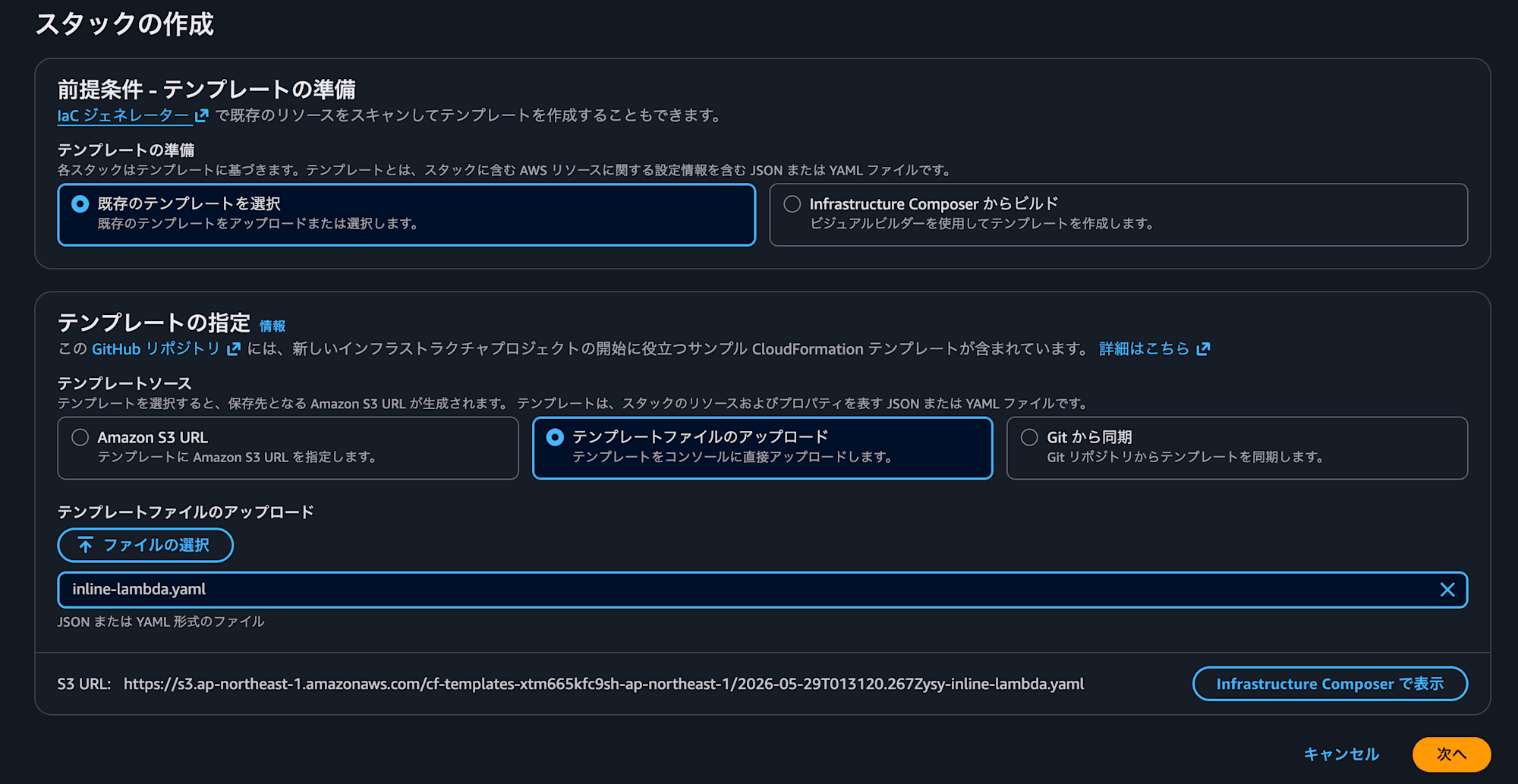
Click "Create stack" in CloudFormation and select "With new resources".
For template specification, choose "Upload a template file", upload the inline-lambda.yaml you just created, and proceed to the next step.
Once you proceed to the screen for specifying stack details, enter the following settings.
- Stack name:
cfn-inline-lambda-demo
Since this template has no parameters, proceed to the next step as is.
Leave the stack options unchanged and proceed to the final confirmation screen.
On the final confirmation screen, since this template creates an IAM role, check "I acknowledge that AWS CloudFormation might create IAM resources" and click Submit.
Once the status becomes CREATE_COMPLETE, creation is complete.
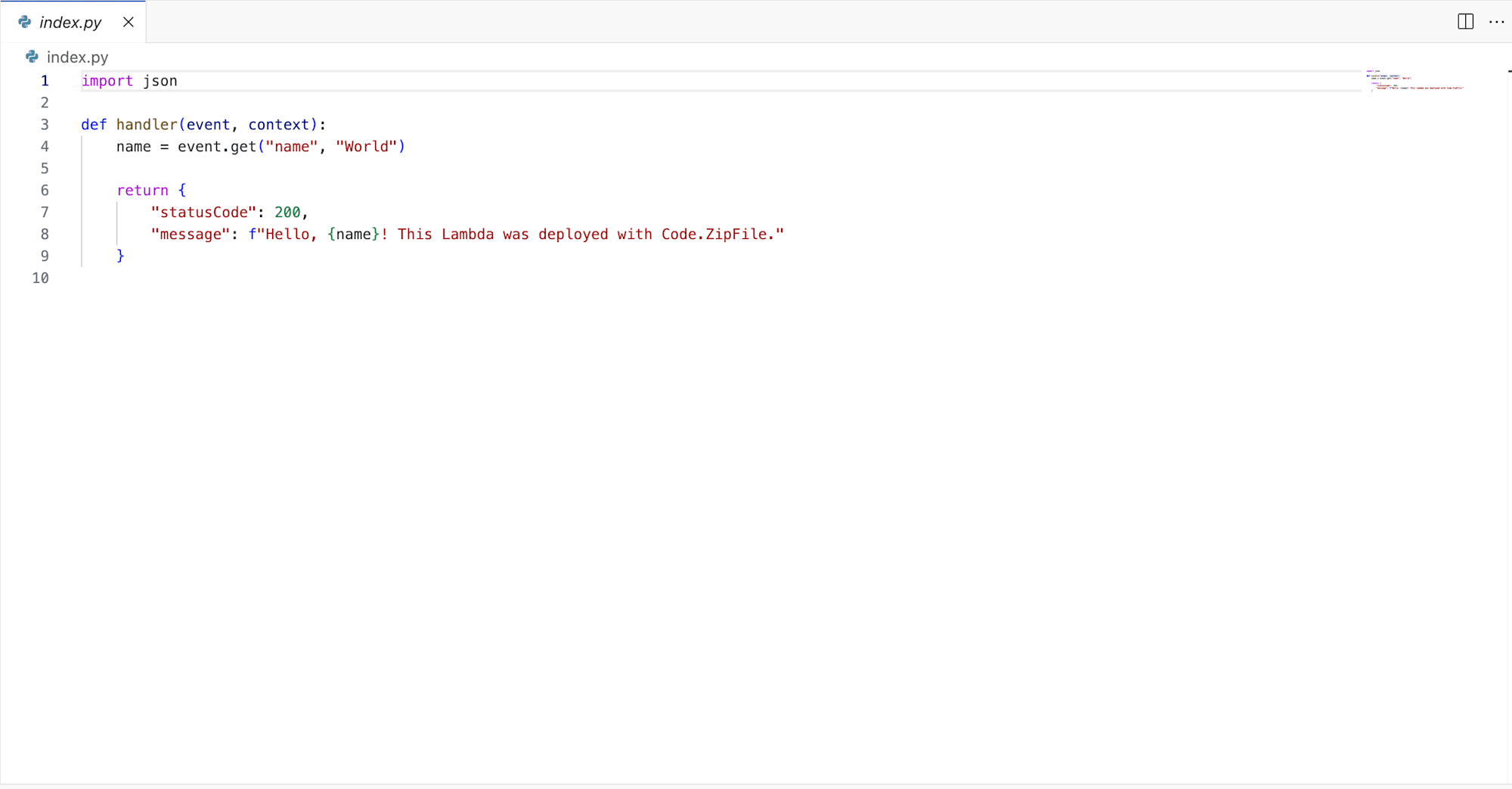
Check the created Lambda function and view the code — you can see that the code written in the template has been applied.
Code.S3Bucket / S3Key
Next, I'll try the method of packaging the Lambda code into a zip file, uploading it to S3, and referencing that zip file from CloudFormation.
This example uses a single file, but it can also handle multi-file configurations and cases where you want to include external libraries.
Creating the Lambda Code and Zip File
First, prepare the code to deploy to Lambda.
Create lambda_function.py locally and write the following content.
def handler(event, context):
    name = event.get("name", "World")

    return {
        "statusCode": 200,
        "message": f"Hello, {name}! This Lambda was deployed from an S3 zip file."
    }
Zip the created file and save it as function.zip.
Creating the S3 Bucket and Uploading
Next, create an S3 bucket to store the zip file.
Open S3 from the Management Console and create a bucket with the following settings.
- Bucket name:
cfn-lambda-code-demo-20260529(any unique name) - Region: Asia Pacific (Tokyo) ap-northeast-1
- Other: Leave as default
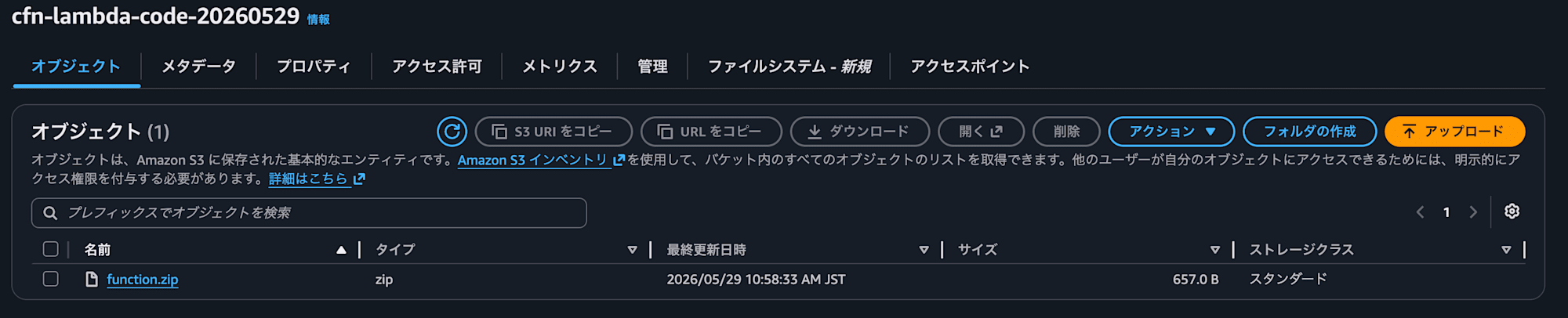
Once the bucket is created, upload the function.zip you created earlier directly to the root of the bucket.
Creating the Template
Next, create a CloudFormation template.
Create s3-lambda.yaml locally and write the following content.
AWSTemplateFormatVersion: '2010-09-09'
Description: Deploy Lambda with code from S3 zip

Parameters:
  CodeBucketName:
    Type: String
    Description: S3 bucket name for Lambda deployment package

  CodeS3Key:
    Type: String
    Description: S3 key for Lambda deployment package
    Default: function.zip

Resources:
  S3ZipLambdaExecutionRole:
    Type: AWS::IAM::Role
    Properties:
      RoleName: cfn-s3zip-lambda-role
      AssumeRolePolicyDocument:
        Version: '2012-10-17'
        Statement:
          - Effect: Allow
            Principal:
              Service: lambda.amazonaws.com
            Action: sts:AssumeRole
      ManagedPolicyArns:
        - arn:aws:iam::aws:policy/service-role/AWSLambdaBasicExecutionRole

  S3ZipLambdaFunction:
    Type: AWS::Lambda::Function
    Properties:
      FunctionName: cfn-s3zip-lambda-demo
      Runtime: python3.12
      Handler: lambda_function.handler
      Role: !GetAtt S3ZipLambdaExecutionRole.Arn
      Timeout: 10
      Code:
        S3Bucket: !Ref CodeBucketName
        S3Key: !Ref CodeS3Key

Outputs:
  FunctionName:
    Description: Lambda function name
    Value: !Ref S3ZipLambdaFunction
The part where the Lambda code is specified is as follows.
Code:
  S3Bucket: !Ref CodeBucketName
  S3Key: !Ref CodeS3Key
This time, instead of writing the code directly, !Ref is used to specify the S3 bucket name and the object key of the zip file.
Since the specific values will be set when creating the stack, only the parameter names are written here.
Creating the Stack
Use the created template to create a stack from the CloudFormation console.
Click "Create stack" in CloudFormation and select "With new resources".
For template specification, choose "Upload a template file", upload the s3-lambda.yaml you just created, and proceed to the next step.
Once you proceed to the screen for specifying stack details, enter the following settings.
- Stack name:
cfn-s3zip-lambda-demo - CodeBucketName: The name of the S3 bucket you created earlier
- CodeS3Key:
function.zip

Leave the stack options unchanged, proceed to the next step, and on the final confirmation screen, check "I acknowledge that AWS CloudFormation might create IAM resources" and click Submit.
Once the status becomes CREATE_COMPLETE, creation is complete.
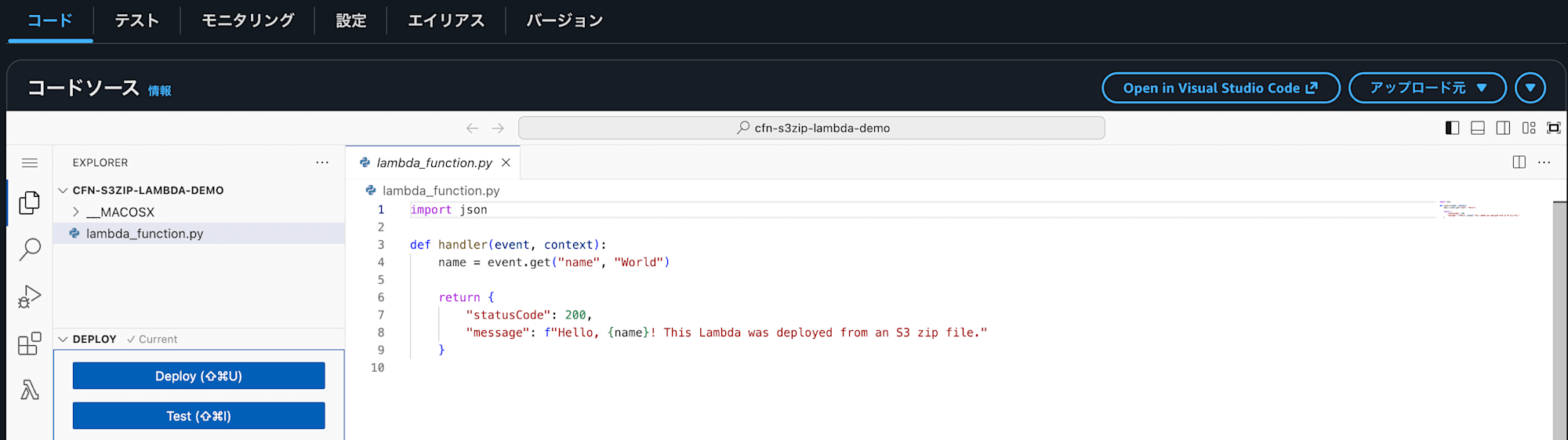
Opening the Lambda code, you can see that the contents of function.zip have been applied.
Conclusion
That concludes the introduction to deploying Lambda with code included using CloudFormation.
The IaC Generator introduced previously cannot convert Lambda code, so you can use the methods described here to include the Lambda code portion in your template.
Feel free to try it out alongside the previous article.
References
About Classmethod Operations, Inc.
We are the operations company of the Classmethod Group.
Our specialized teams in operations, maintenance development, support, information systems, and back office are a group of experts who leverage IT and AI to the fullest through "systems" to provide clients with everything from business process outsourcing to problem-solving and high-value-added services.
We are recruiting members for various positions.
If you are interested in our culture, systems, and work style that simultaneously realize "Operational Excellence" and "Working your way, living your way," please visit the Classmethod Operations, Inc. Corporate Site. ※ Name changed from Annotation Inc. in January 2026
