Preparing to buy iPhone 17! Converted physical SIM to eSIM on the device

This page has been translated by machine translation. View original
On September 10, 2025, the iPhone 17 series announced by Apple eliminated physical SIM slots across all models, supporting only eSIM. This physical SIM elimination, previously implemented only in the United States, has finally expanded to Japan.
I currently use a physical SIM with my iPhone 13 Pro. Until recently (around the iPhone 12 era), although it supported dual SIM, the combination was limited to one physical SIM and one eSIM, not two eSIMs. Therefore, I continued to use a physical SIM for my main line and an eSIM for my secondary line.
However, when considering migrating to iPhone 17, I need to convert my physical SIM to eSIM beforehand. So, I decided to try the eSIM conversion right away.
This article explains how to convert a physical SIM to an eSIM using just your iPhone.
Two Methods to Change from Physical SIM to eSIM
There are mainly two methods to change from a physical SIM to an eSIM:
- Automatic conversion using only iPhone: A feature added in iOS 16 and later, allowing direct conversion on your iPhone without contacting your carrier
- Exchange through carrier interaction: The traditional method of contacting your carrier to request an eSIM profile
This time, I tried the first method, which is faster and doesn't require carrier interaction.
Test Environment
- iPhone 13 Pro
- iOS 18.6.2
- povo 2.0 (physical SIM)
- Stable Wi-Fi environment
Prerequisites
For eSIM conversion using only your iPhone, you need to meet the following conditions:
- iOS 16 or later installed
- Compatible iPhone model (iPhone XS/XR or later)
- Active physical SIM inserted
- Carrier that supports this feature
The detailed method to change from physical SIM to eSIM is also described in Apple's official documentation.
Steps for eSIM Conversion Using Only iPhone
Step 1: Open Settings App
- Tap "Settings" from the home screen
- Select "Cellular"
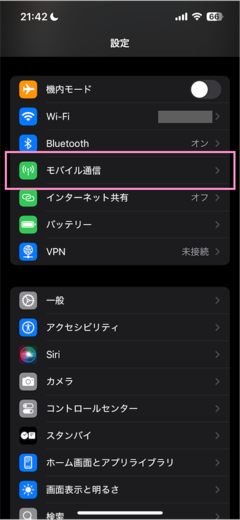
Step 2: Select SIM Line
Tap on the physical SIM line currently in use. It typically displays "Primary" or the carrier name (Docomo, KDDI, SoftBank, etc.) (The display may vary depending on your carrier and settings).
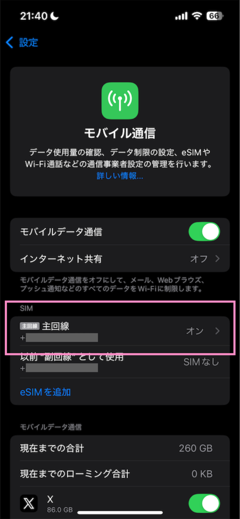
Step 3: Check eSIM Conversion Option
On the physical SIM line details screen, one of the following options will be displayed:
- "Convert to eSIM"
- "Convert to eSIM"
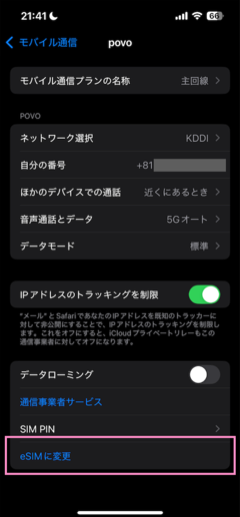
Note: If this option is not displayed
Your carrier may not support this automatic conversion feature. In that case, method 2 (interaction with carrier) will be necessary.
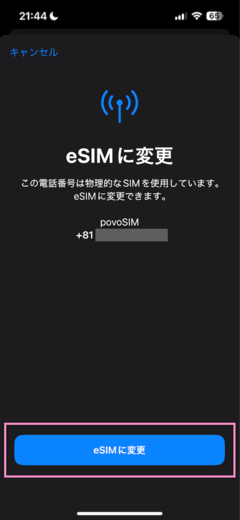
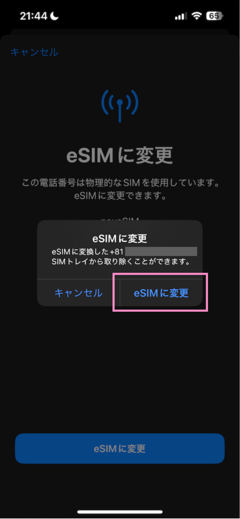
Step 4: Confirm Conversion Process
- Tap "Convert to eSIM"
- Select "Convert to eSIM" in the confirmation dialog
| 1. Convert to eSIM | 2. Select again in dialog |
|---|---|
 |
 |
Step 5: Execute Conversion Process
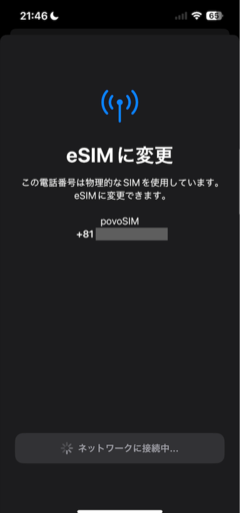
A final confirmation will be performed. Double-click the side button to approve the execution.
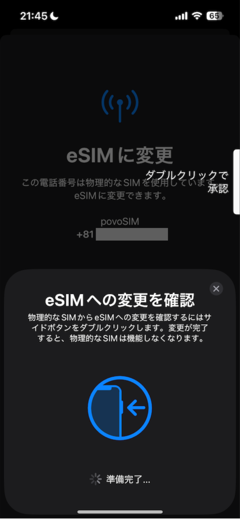
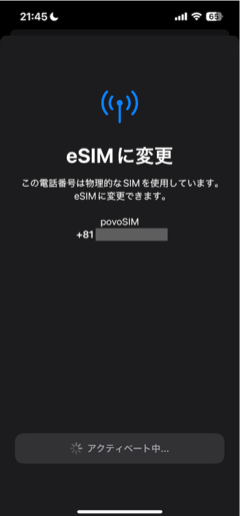
Activation completes in approximately 2-5 minutes. During this time, communication may be temporarily interrupted.
- iPhone automatically connects to the carrier's server
- Physical SIM information is converted to an eSIM profile
| During activation | Connecting to network |
|---|---|
 |
 |
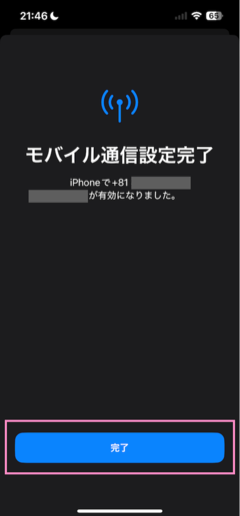
Step 6: Complete Conversion Process
The conversion process is complete, and the conversion to eSIM is finished. Tap the "Done" button to end the conversion process.
Step 7: Verify Conversion Completion
Once activation is complete, the physical SIM is automatically disabled, and communication switches to the eSIM. To confirm proper eSIM communication, I performed the following steps:
- Turn OFF the device, and remove the physical SIM
- Turn ON the power, turn OFF Wi-Fi, and confirm connectivity
- Check that it appears as an eSIM in "Settings" > "Cellular"
I confirmed that communication works without problems even with the physical SIM removed.
Summary
Converting from a physical SIM to an eSIM can be done easily using the feature available in iOS 16 and later. In the case of povo 2.0, the process was completed with just operations on the iPhone, without any need to contact the carrier.
Now I'm prepared for easy migration to a new iPhone 17 when it arrives, using the "eSIM Quick Transfer" feature.
With the arrival of iPhone 17, it's expected that eSIM usage will expand further in Japan. Those currently using physical SIMs likely can easily convert using the method described here. However, some carriers may not support this feature, in which case you'll need to contact your carrier as before.
Furthermore, iPhone 17 allows registration of up to 8 eSIMs, enabling more flexible SIM management than ever before. This offers greater convenience for using multiple carriers or easily adding local SIMs when traveling abroad.
If you're considering changing from a physical SIM to an eSIM, I encourage you to try this method.