
I Tried Connecting from the dbt platform to Snowflake via AWS PrivateLink and Restricting the Route with a Network Policy

This page has been translated by machine translation. View original
I'm Kawabata.
If your environment restricts connections to Snowflake to AWS PrivateLink only, the dbt platform must also connect over PrivateLink. The feature that creates the Private endpoint on the dbt side is available on the dbt platform Enterprise+ plan.
In this article, I connect from the dbt platform to Snowflake via AWS PrivateLink. I also confirm that the connection goes through the VPC endpoint on the dbt side, using Snowflake's records and a Network Policy. To avoid affecting the shared account, the Network Policy that rejects public connections is applied only to the job user DBT_PL_SVC. I do not disable public connections for the entire Snowflake account.
Overview of Private connectivity in the dbt platform
Private connectivity in the dbt platform is a feature for connecting privately to data platforms and similar services. It supports AWS, Azure, and Google Cloud. This article uses the part of it that connects to Snowflake via AWS PrivateLink. The VPC endpoint used for the connection resides in dbt Labs' AWS account. In the dbt platform, you select this endpoint in a Connection. Connections from environments that use that Connection go through PrivateLink.
Supported plans and requirements
Here is a summary of the official documentation.
| Item | Details |
|---|---|
| dbt platform plan | Enterprise+, Virtual Private |
| Snowflake edition | Business Critical or higher |
| Cloud | The dbt platform and Snowflake must be on the same cloud provider |
| Region | Connections work across different regions within the same cloud provider |
| Creating a Private endpoint | Self-serve (Snowflake on AWS only), or a request to dbt Support |
| Authorization on the Snowflake side | Ask Snowflake Support to authorize dbt's AWS account |
Setup flow
- A Snowflake administrator asks Snowflake Support to authorize dbt's AWS account
- Pass the output of
SYSTEM$GET_PRIVATELINK_CONFIG()to the dbt platform and create a Private endpoint (in the Support-led setup, send it to dbt Support) - Select the Private endpoint in a dbt platform Connection
- If needed, use a Snowflake Network Policy to restrict the source of the target user's connections to dbt's VPC endpoint
Prerequisites
- The dbt platform Enterprise+ plan (this article uses the AWS multi-tenant environment)
- Account admin privileges in the dbt platform (used to create the Private endpoint, Connection, and environment)
- A Snowflake account of Business Critical or higher (AWS)
- The Snowflake ACCOUNTADMIN role (used to run
SYSTEM$GET_PRIVATELINK_CONFIG()and create the Network Policy) - Ability to file a case with Snowflake Support
Verification environment
| Item | Value |
|---|---|
| dbt platform | Enterprise+, AWS us-east-1 |
| Snowflake | Business Critical, AWS_AP_NORTHEAST_1 |
Preparation
Create key pairs
Create two key pairs: one for dbt jobs and one for the Studio IDE. Since this is for verification, they use unencrypted PKCS#8 format. Run this in Git Bash.
mkdir -p ~/.snowflake/keys
# For jobs (DBT_PL_SVC)
openssl genrsa 2048 | openssl pkcs8 -topk8 -inform PEM -out ~/.snowflake/keys/rsa_key_dbt_pl_svc.p8 -nocrypt
openssl rsa -in ~/.snowflake/keys/rsa_key_dbt_pl_svc.p8 -pubout -out ~/.snowflake/keys/rsa_key_dbt_pl_svc.pub
# For Studio IDE (DBT_PL_DEV)
openssl genrsa 2048 | openssl pkcs8 -topk8 -inform PEM -out ~/.snowflake/keys/rsa_key_dbt_pl_dev.p8 -nocrypt
openssl rsa -in ~/.snowflake/keys/rsa_key_dbt_pl_dev.p8 -pubout -out ~/.snowflake/keys/rsa_key_dbt_pl_dev.pub
# Display the public key body on one line (paste it into RSA_PUBLIC_KEY of CREATE USER)
grep -v "PUBLIC KEY" ~/.snowflake/keys/rsa_key_dbt_pl_svc.pub | tr -d '\n'; echo
grep -v "PUBLIC KEY" ~/.snowflake/keys/rsa_key_dbt_pl_dev.pub | tr -d '\n'; echo
Do not include private keys in Git repositories or article images, and store them with restricted file access permissions. In production, decide on key encryption, storage, and rotation according to your organization's policies.
Create the role and users for dbt
Create the service user DBT_PL_SVC used by dbt jobs and DBT_PL_DEV used by the Studio IDE. Both authenticate with key pairs. The reason for separating the users is to distinguish only the job connections in the login history. DBT_PL_DEV is also created with TYPE = SERVICE, but this time it is used only to verify the connection path. The authentication design for production developers is out of scope for this article.
USE ROLE USERADMIN;
CREATE ROLE DBT_PL_ROLE;
GRANT ROLE DBT_PL_ROLE TO ROLE SYSADMIN;

CREATE USER DBT_PL_SVC
  TYPE = SERVICE
  DEFAULT_ROLE = DBT_PL_ROLE
  DEFAULT_WAREHOUSE = DBT_PL_WH
  RSA_PUBLIC_KEY = '<公開鍵>';

CREATE USER DBT_PL_DEV
  TYPE = SERVICE
  DEFAULT_ROLE = DBT_PL_ROLE
  DEFAULT_WAREHOUSE = DBT_PL_WH
  RSA_PUBLIC_KEY = '<公開鍵>';

GRANT ROLE DBT_PL_ROLE TO USER DBT_PL_SVC;
GRANT ROLE DBT_PL_ROLE TO USER DBT_PL_DEV;
USE ROLE SYSADMIN;
CREATE WAREHOUSE DBT_PL_WH
  WAREHOUSE_SIZE = XSMALL
  AUTO_SUSPEND = 60
  AUTO_RESUME = TRUE
  INITIALLY_SUSPENDED = TRUE;
CREATE DATABASE DBT_PL_DB;
-- Schema in which to create Network Rules (not granted to the dbt role)
CREATE SCHEMA DBT_PL_DB.NETWORK;

GRANT USAGE ON WAREHOUSE DBT_PL_WH TO ROLE DBT_PL_ROLE;
-- Allow dbt to create the schemas PATH_PRIVATE / PATH_DEV
GRANT USAGE, CREATE SCHEMA ON DATABASE DBT_PL_DB TO ROLE DBT_PL_ROLE;
You can check whether the keys were registered with DESC USER. If RSA_PUBLIC_KEY_FP has a value, there is no problem.
USE ROLE USERADMIN;
DESC USER DBT_PL_SVC;
DESC USER DBT_PL_DEV;
Check the PrivateLink configuration
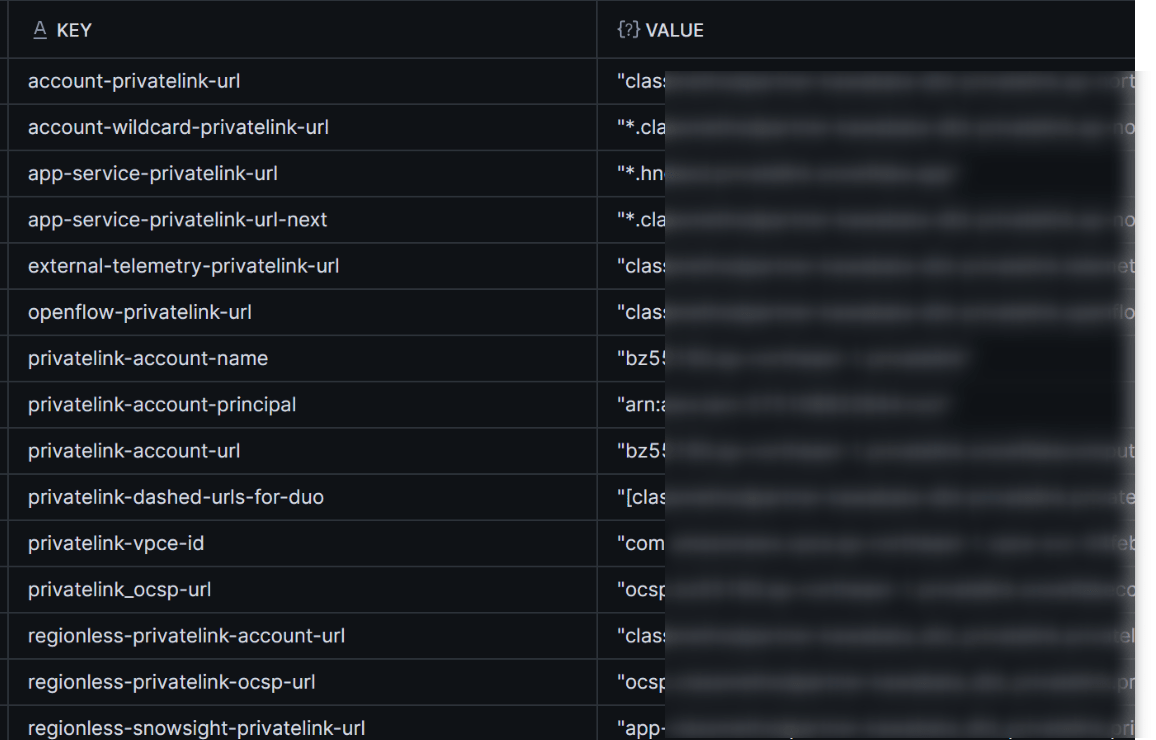
Get the PrivateLink configuration on the Snowflake side with SYSTEM$GET_PRIVATELINK_CONFIG(). Only ACCOUNTADMIN can run it. Displaying it per key shows the values used in later steps.
USE ROLE ACCOUNTADMIN;
SELECT key, value
FROM TABLE(FLATTEN(INPUT => PARSE_JSON(SYSTEM$GET_PRIVATELINK_CONFIG())));
| key | Description |
|---|---|
privatelink-account-url |
The account URL for PrivateLink. It becomes the connection target of dbt's Private endpoint |
regionless-privatelink-account-url |
A PrivateLink URL that includes the organization name and account name |
privatelink-vpce-id |
The ID of the VPC endpoint service on the Snowflake side. It is a different value from the ID of the VPC endpoint on the dbt side |
Ask Snowflake Support to authorize dbt's AWS account
Snowflake has SYSTEM$AUTHORIZE_PRIVATELINK for authorizing AWS accounts. However, according to the Snowflake docs, it cannot be used to authorize a SaaS vendor's AWS account. So I filed a case with Snowflake Support, giving the AWS account ID 346425330055 of dbt's multi-tenant environment. This ID is a public value listed in the dbt docs.
According to the dbt docs, Snowflake recommends that the account owner file the case directly, rather than dbt Labs filing it on their behalf. The case needs three items, which are summarized in a Snowflake knowledge article: the Snowflake account URL, the vendor's AWS account ID, and the authorization request.
This time I filed the case from the Support page in Snowsight with the following content.
件名: dbt platform(dbt Labs)からの AWS PrivateLink 接続のため、AWS アカウント ID の許可をお願いします

dbt platform(dbt Labs 社の SaaS、AWS マルチテナント環境)から、弊社の Snowflake アカウントへ AWS PrivateLink で接続する準備をしています。
ナレッジ記事「How to setup Private Connectivity to Snowflake from third party Cloud Service vendors」に沿って、ベンダーの AWS アカウント ID の許可(allowlist)を依頼します。

- Snowflake アカウント URL: https://myorg-myaccount.snowflakecomputing.com
- アカウントロケーター / リージョン: xy12345 / <リージョン>(AWS)
- エディション: Business Critical
- ベンダー: dbt Labs(dbt platform、AWS マルチテナント環境)
- 許可を依頼する AWS アカウント ID: 346425330055
- 依頼内容: 上記の AWS アカウント ID を、SaaS アプリケーションからのプライベート接続のために許可してください
- 参考(dbt 側の手順): https://docs.getdbt.com/docs/platform/secure/private-connectivity/aws/aws-snowflake

許可が完了しましたら、本ケースでご連絡ください。SYSTEM$GET_PRIVATELINK_AUTHORIZED_ENDPOINTS() で確認します。
About one business day after filing, I received a notice that the authorization was complete.
※Thank you for the quick response!
You can check whether it was authorized in the list of authorized AWS accounts.
USE ROLE ACCOUNTADMIN;
SELECT SYSTEM$GET_PRIVATELINK_AUTHORIZED_ENDPOINTS();
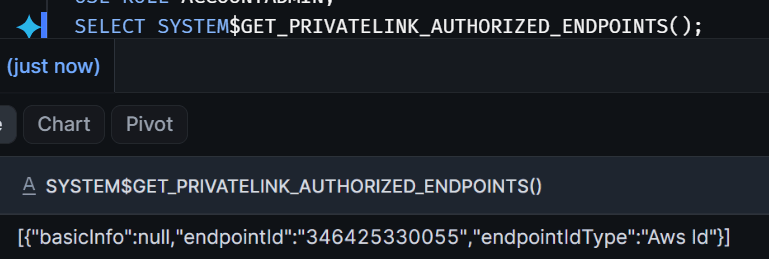
If 346425330055 is included in the list, there is no problem.
Trying it out
Create a Private endpoint in the dbt platform
After receiving the authorization notice from Snowflake Support, open Private endpoints in Account settings of the dbt platform. Request a new endpoint with Request new in the list.
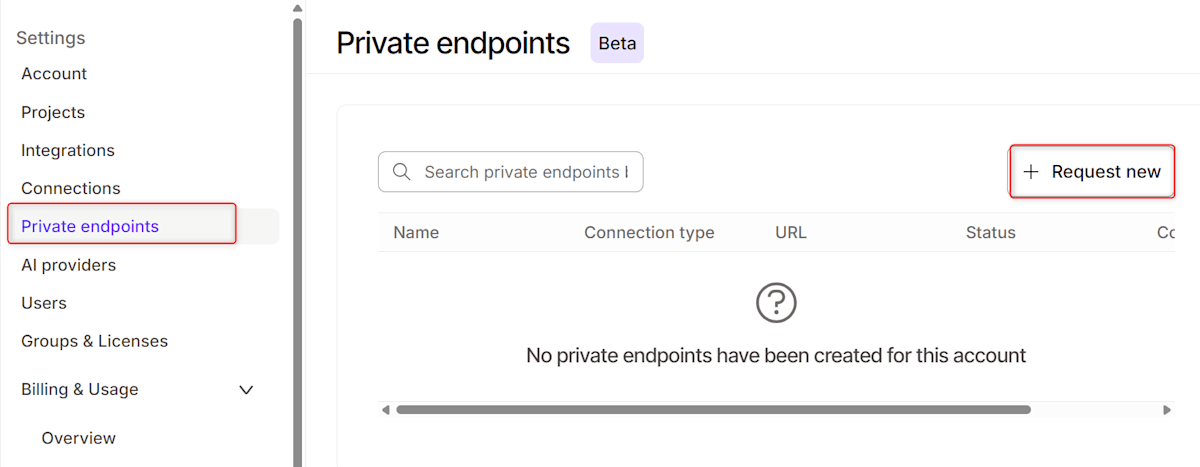
Provider type is already set to Snowflake. The SQL shown in Step 1: Run SQL command is the following single line.
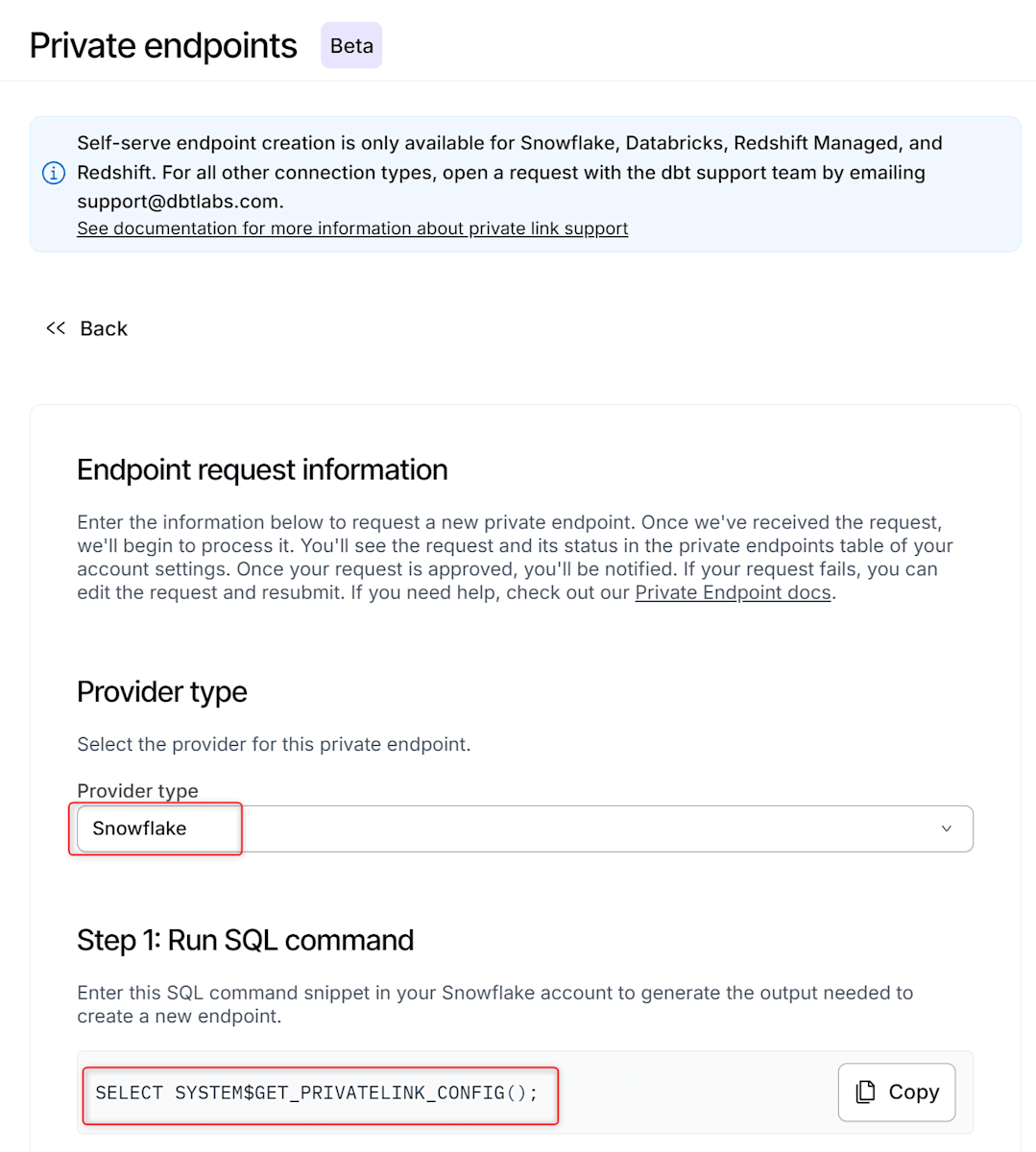
SELECT SYSTEM$GET_PRIVATELINK_CONFIG();
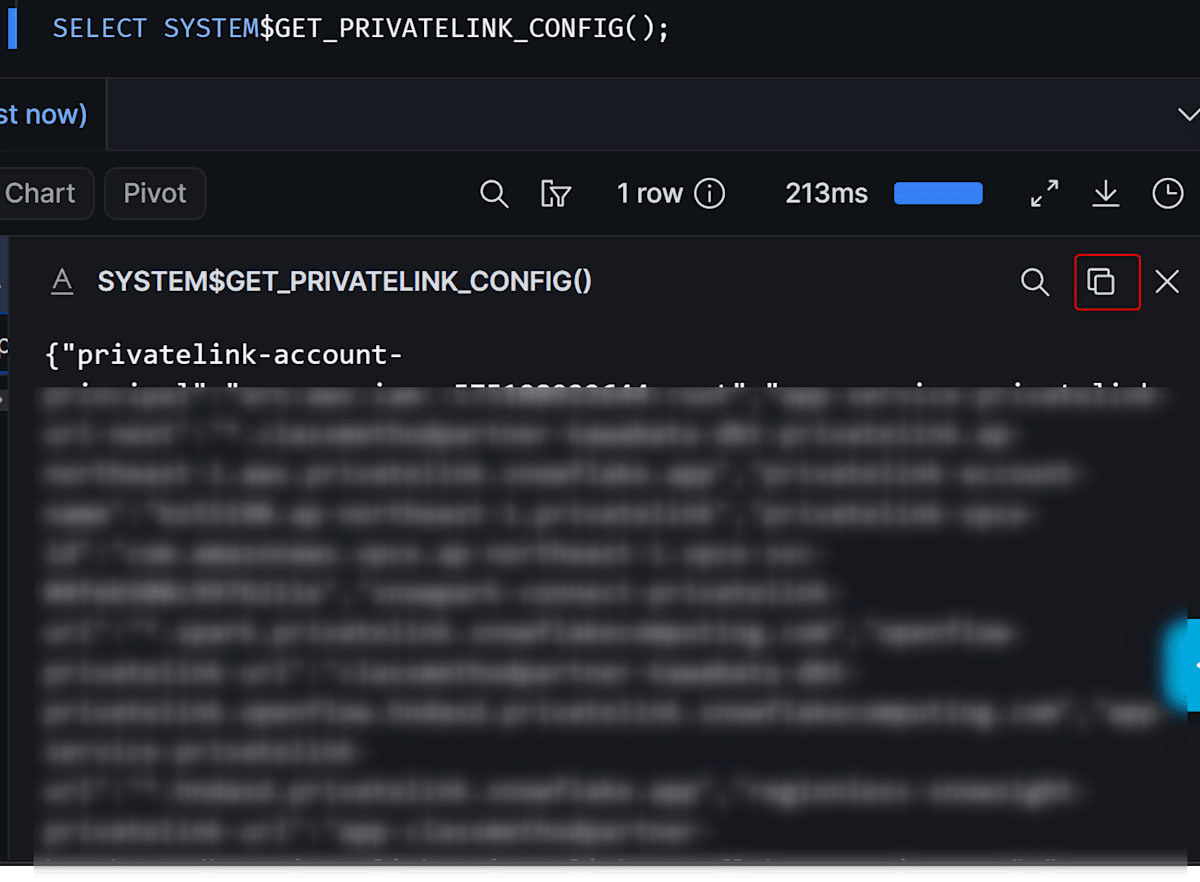
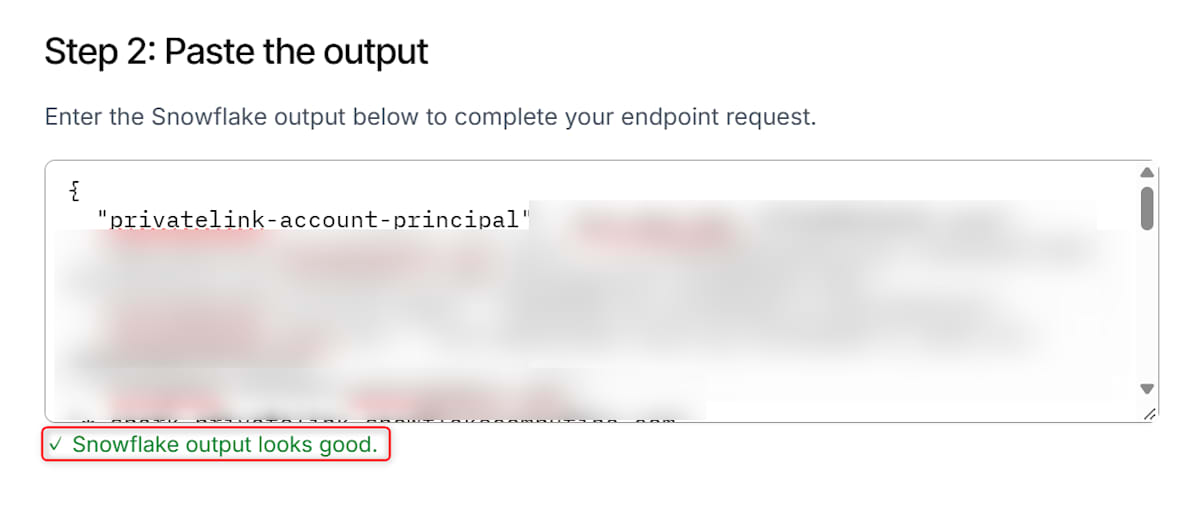
Run this SQL in Snowflake as ACCOUNTADMIN and paste the entire JSON output into Step 2: Paste the output. If Output looks good is displayed, there is no problem.
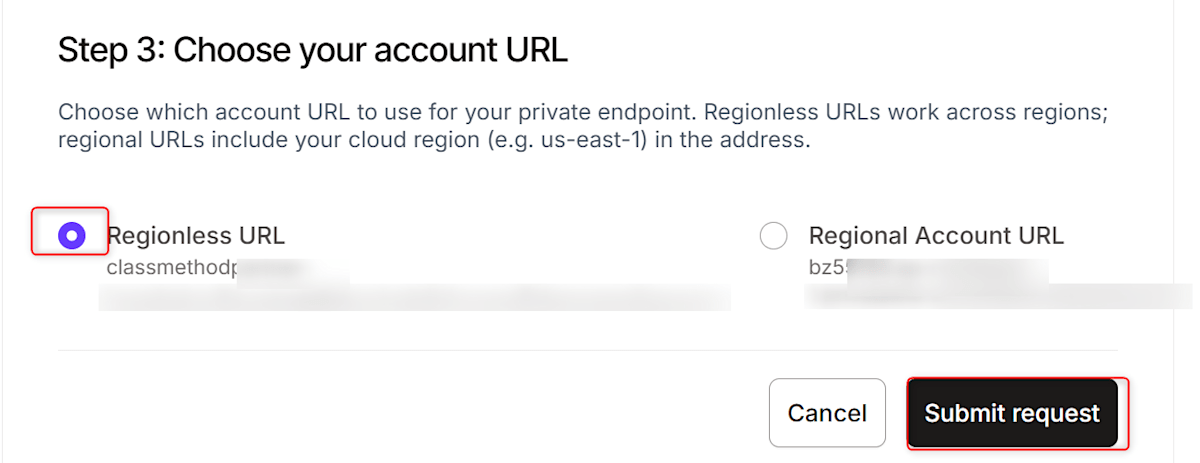
In Step 3: Choose your account URL, select the account URL to use for the connection.
| Option | key | URL format |
|---|---|---|
| Regionless | regionless-privatelink-account-url |
<組織名>-<アカウント名>.privatelink.snowflakecomputing.com |
| Regional | privatelink-account-url |
<アカウントロケーター>.<リージョン>.privatelink.snowflakecomputing.com |
Both are URLs for connecting privately to the same Snowflake account, and the main difference is the account identifier format. This time I chose Regionless, for the following reason.
- The Snowflake docs treat the account locator format as legacy and do not recommend using it. Regionless uses the organization name and account name format, which is the same identifier format Snowflake currently recommends
Pressing Submit request starts the creation of the endpoint.
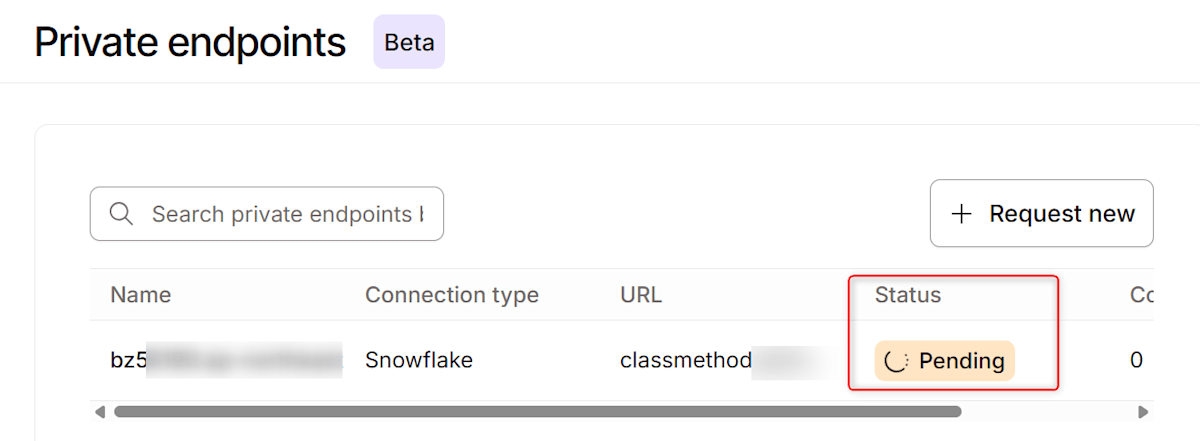
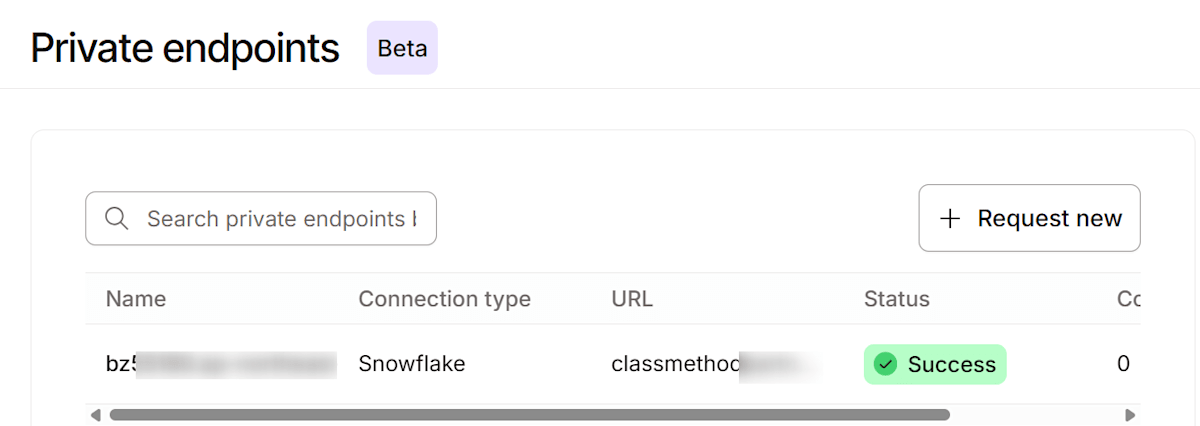
If Connectivity status becomes Success, there is no problem.
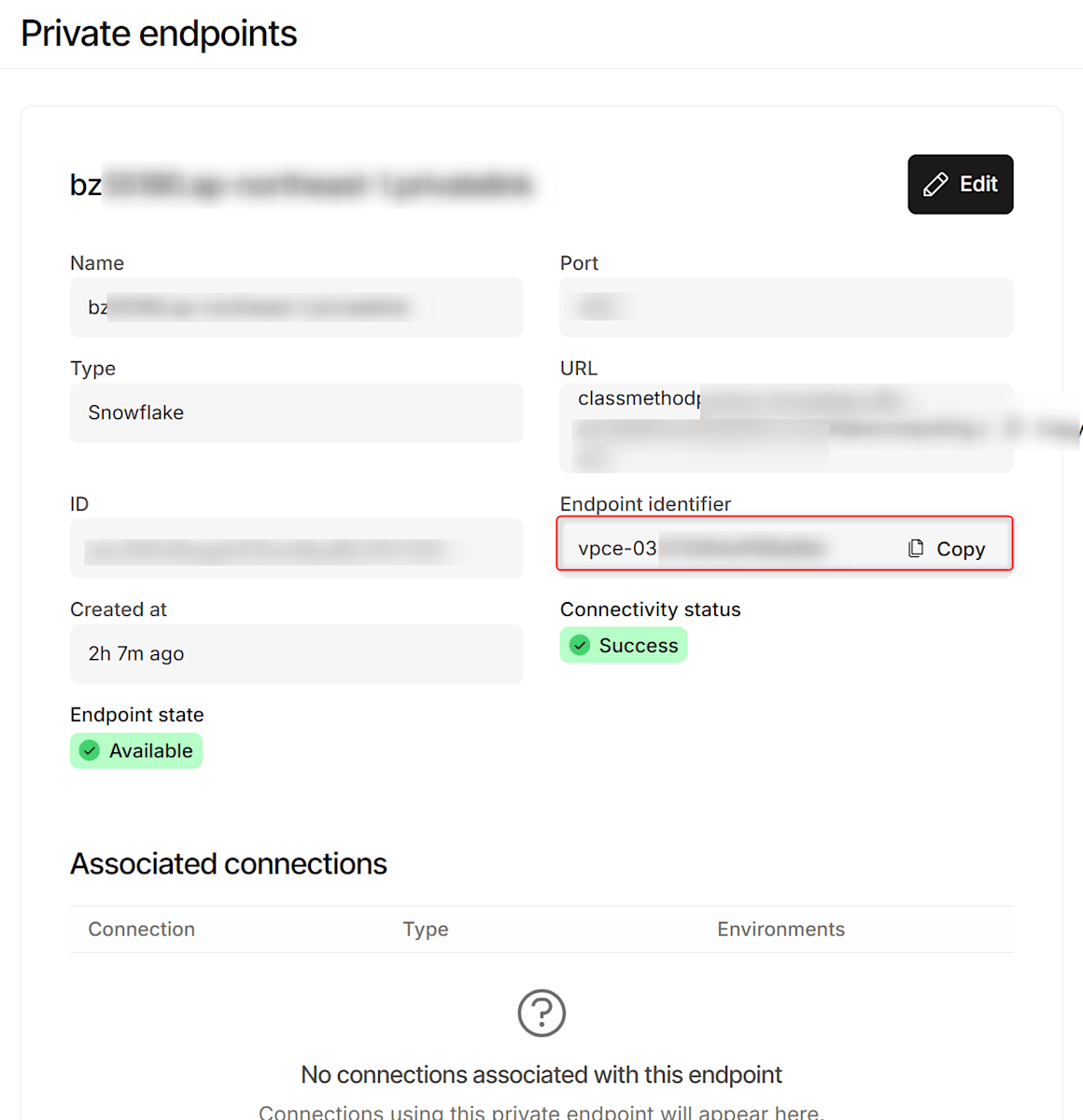
When you open the endpoint, the ID of the VPC endpoint on the dbt side is shown as the Endpoint identifier. This is the value to put into the Network Rule later.
Supplement: Creating a Private endpoint with the Support-led setup
If there is no Private endpoints menu in Account settings, ask dbt Support to create the endpoint for you. The dbt docs call this the Support-led setup.
I did not do this one, so I summarize what the docs say as of October 14, 2026.
There are three steps.
- File a case with Snowflake Support and get dbt's AWS account
346425330055authorized (same as self-serve) - Once authorized, run
SELECT SYSTEM$GET_PRIVATELINK_CONFIG();as ACCOUNTADMIN and copy the output - Fill in the following template and email it to dbt Support (support@getdbt.com)
Subject: New Multi-Tenant (Azure or AWS) PrivateLink Request

- Type: Snowflake
- dbt platform account URL: https://<prefix>.<region>.dbt.com
- SYSTEM$GET_PRIVATELINK_CONFIG output: <手順 2 の出力全体>
- *Use privatelink-account-url or regionless-privatelink-account-url?: privatelink-account-url
- **Create Internal Stage PrivateLink endpoint? (Y/N): N
- dbt AWS multi-tenant environment (US, EMEA, AU, JP): <自分の dbt アカウントのリージョン>
The docs include the following notes on the template items.
- If you do not specify the connection target URL,
privatelink-account-urlis used. If you prefer, you can useregionless-privatelink-account-urlinstead - To create a PrivateLink endpoint for the Internal Stage, you must first enable PrivateLink for the Internal Stage on the Snowflake side
- The AWS account ID
346425330055is the value for the multi-tenant environment. For the ID of Virtual Private (single-tenant), ask dbt Support
After you send it, dbt Labs proceeds with the setup. The docs give an estimate of 3 to 5 business days. When the endpoint becomes available, Support will contact you. Creating the Connection afterward is the same as self-serve: select the endpoint from PrivateLink Endpoint in Settings.
When using the Support-led setup, the place to find the VPCE ID to put into the Network Rule is dbt Support, as the docs instruct. After connecting, you can also check the ID of the source endpoint with CLIENT_PRIVATE_LINK_ID in LOGIN_HISTORY, as in this article.
Create a project with a Connection that specifies the PrivateLink Endpoint
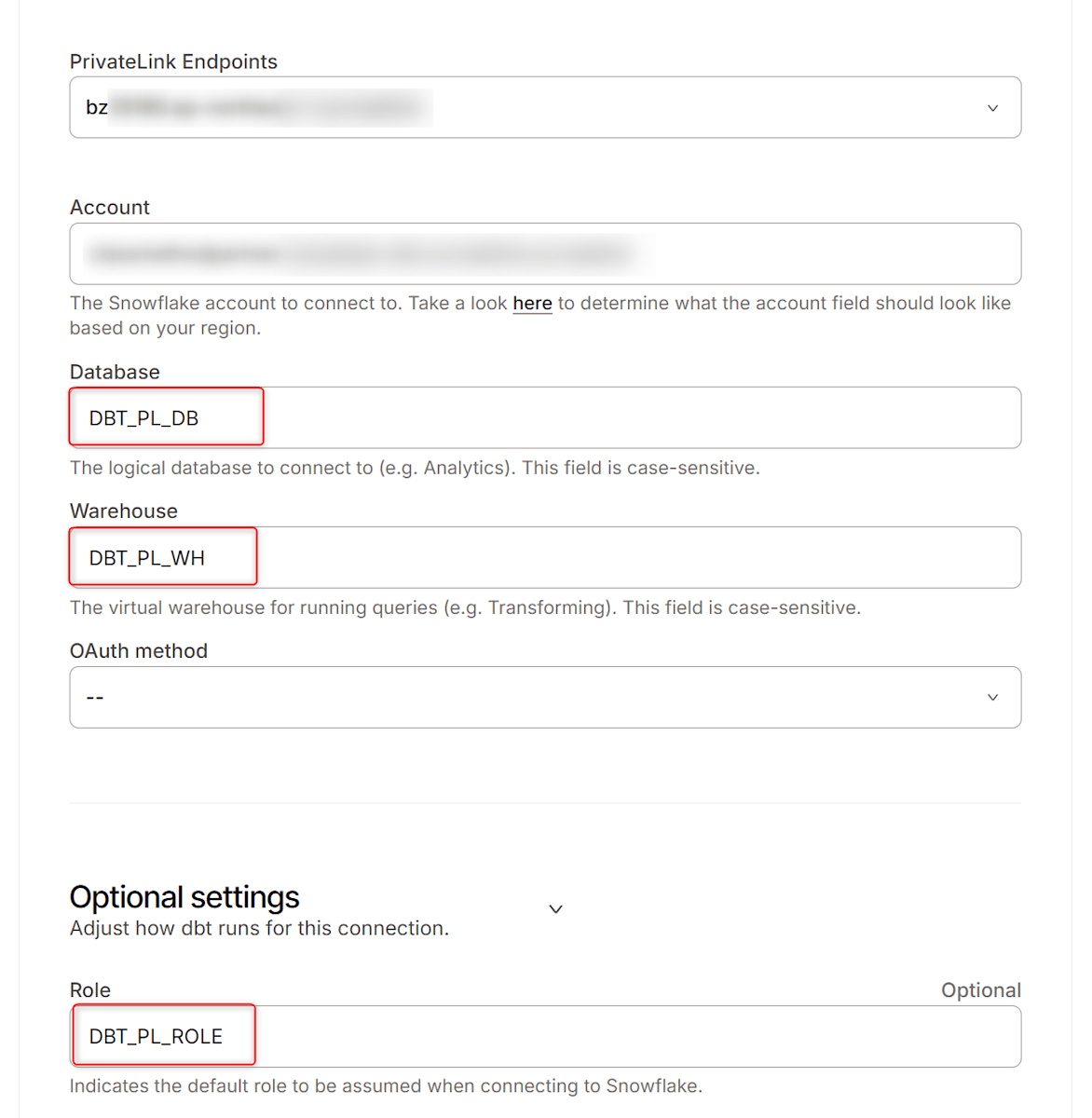
First, create a Connection from Account settings → Connections → New connection → Snowflake. In Settings, select PrivateLink Endpoint and choose the endpoint you created from the dropdown. The hostname / account field is filled in automatically.
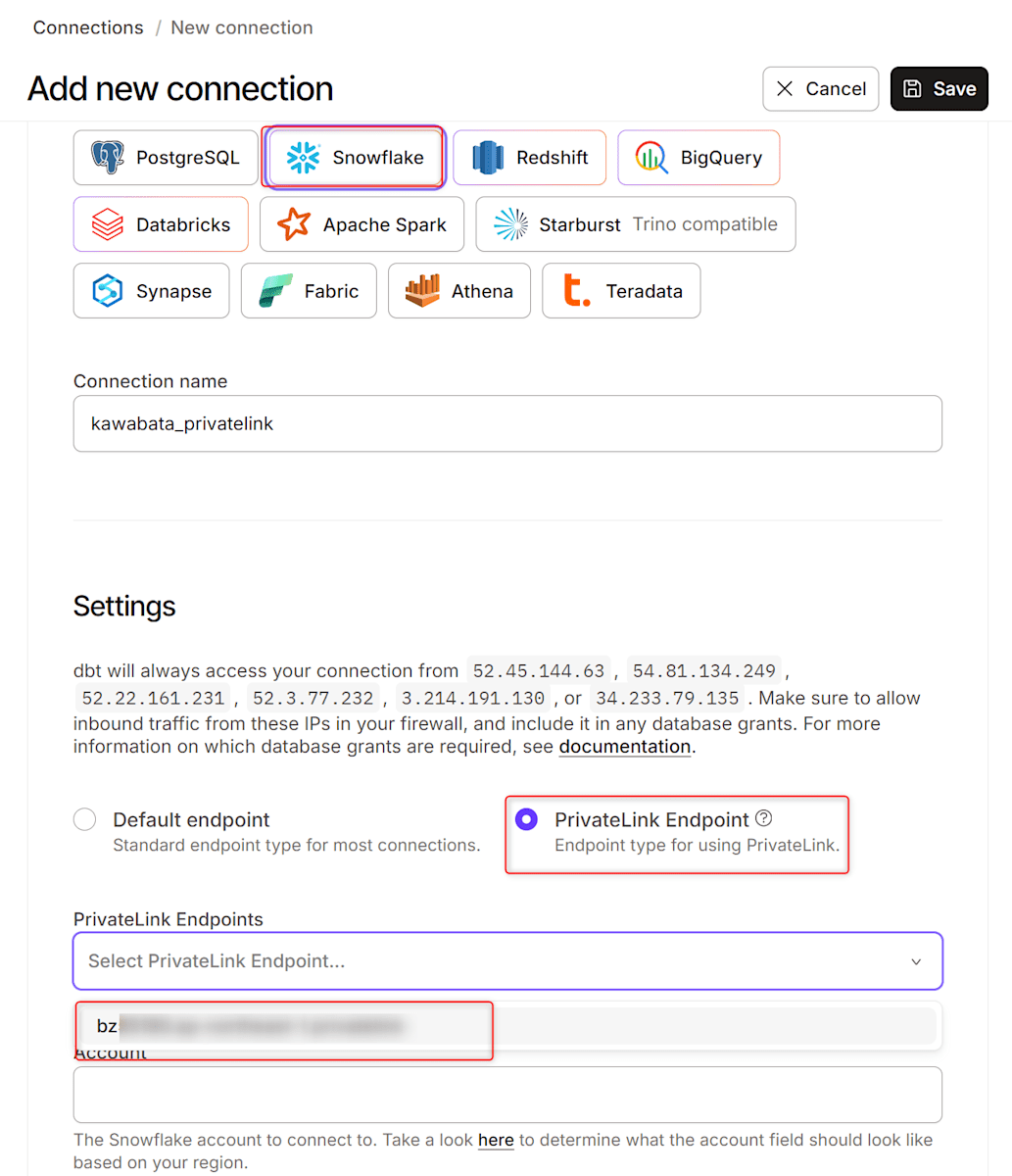
This time I configured Database DBT_PL_DB, Warehouse DBT_PL_WH, and Role DBT_PL_ROLE.
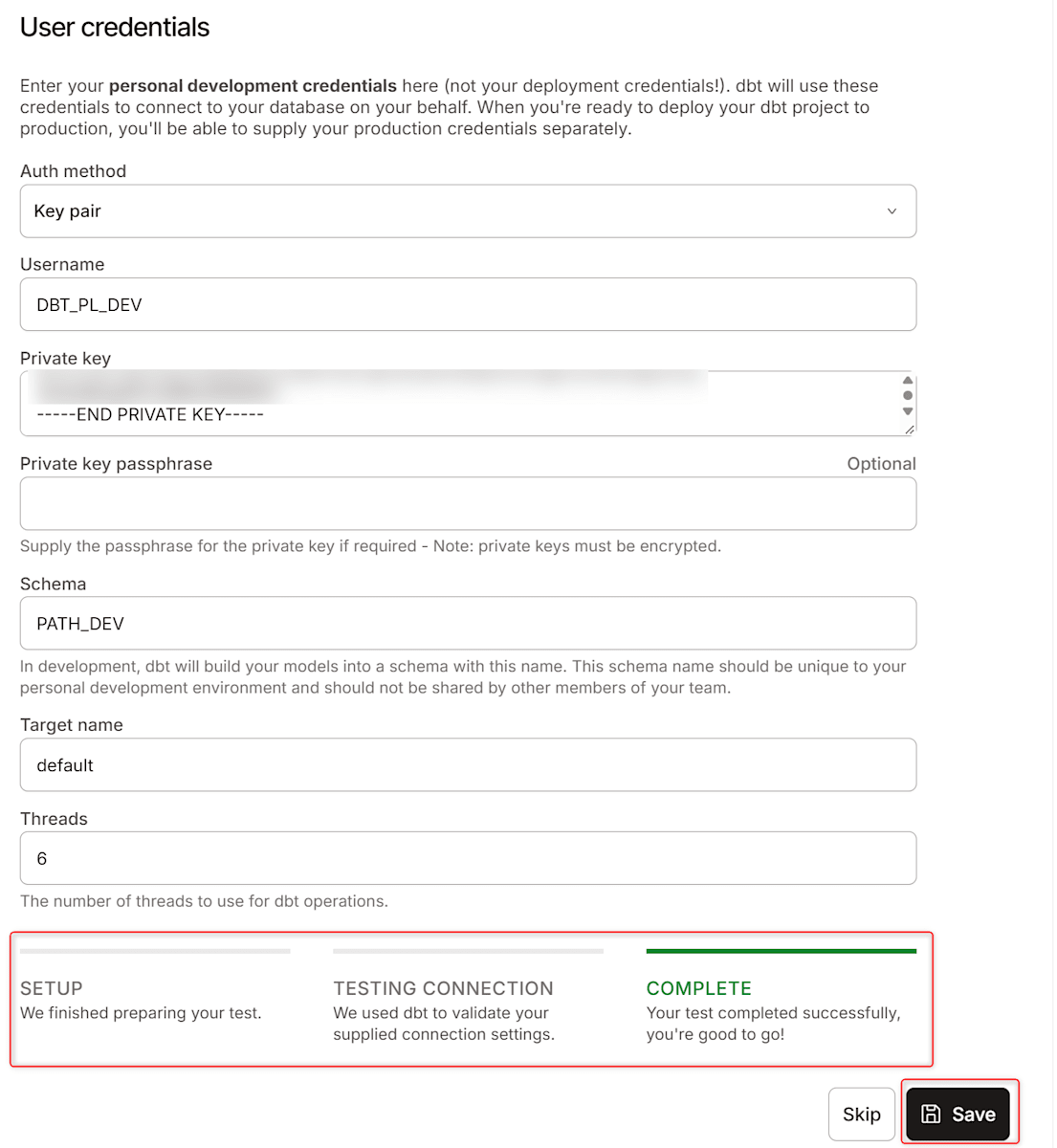
Next, create the project kawabata_dbt_privatelink_check from Account settings → Projects → Create new project. The Connection for the development environment is the one configured above. For development credentials, use the DBT_PL_DEV key pair, and specify PATH_DEV for the schema.
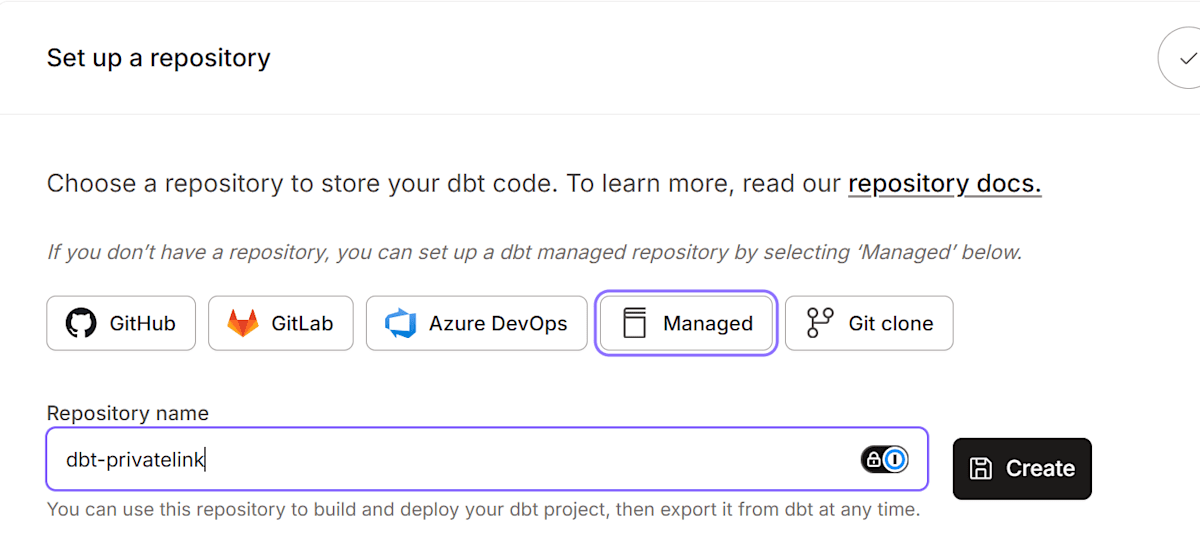
For Set up a repository, I used a Managed repository for verification.
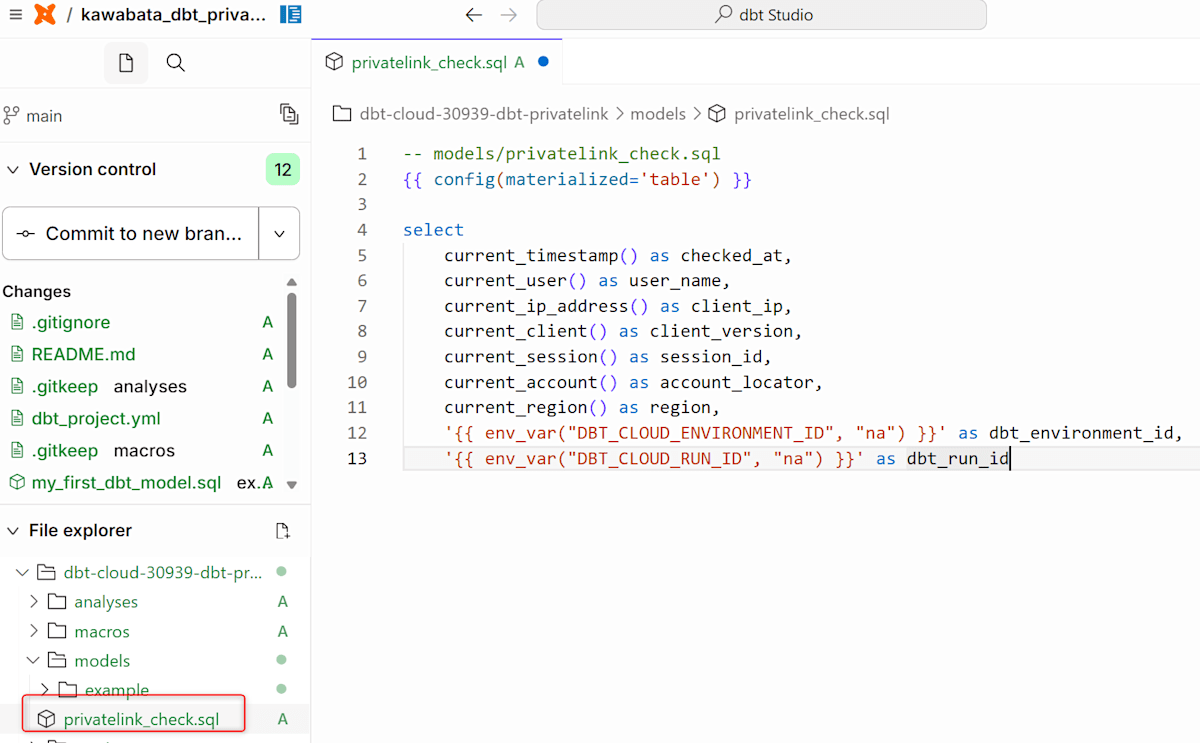
In the Studio IDE, press Initialize your project and create the following model as models/privatelink_check.sql. The IDE's connection also goes through PrivateLink. current_ip_address() is a function that returns the IPv4 address of the connection source as seen from Snowflake.
-- models/privatelink_check.sql
{{ config(materialized='table') }}

select
    current_timestamp() as checked_at,
    current_user() as user_name,
    current_ip_address() as client_ip,
    current_client() as client_version,
    current_session() as session_id,
    current_account() as account_locator,
    current_region() as region,
    '{{ env_var("DBT_CLOUD_ENVIRONMENT_ID", "na") }}' as dbt_environment_id,
    '{{ env_var("DBT_CLOUD_RUN_ID", "na") }}' as dbt_run_id
After Commit and sync, merge into main.
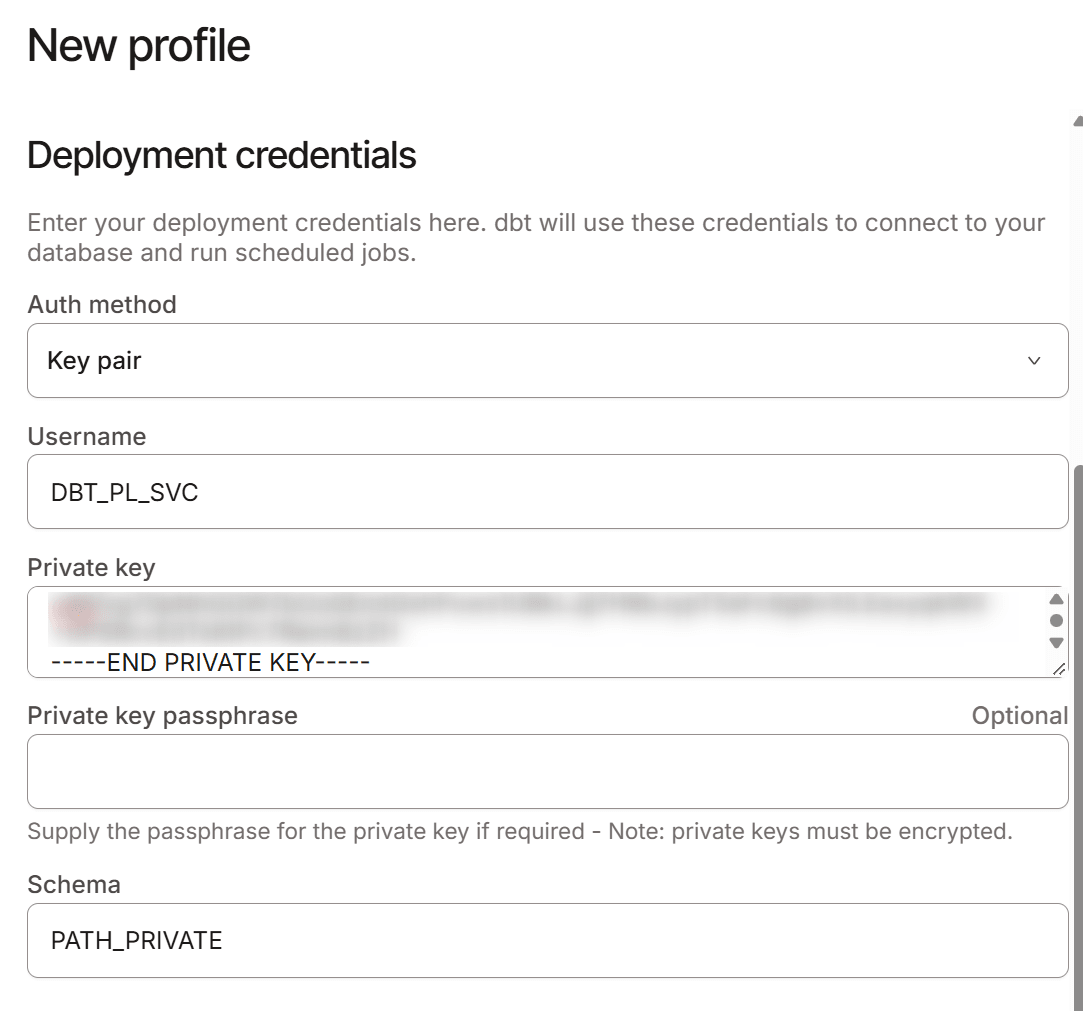
Next is the deployment environment path_private. In the dbt platform, you assign a connection profile, which combines a Connection and credentials, to an environment. The settings were as follows.
- Create an environment from Orchestration → Environments → Create environment → Deployment. The type is General
- Create a profile from Connection profiles → Add new profile. The Connection is the one described above, and Deployment credentials is Key pair with the
DBT_PL_SVCkey - The schema is
PATH_PRIVATE, and Extended Attributes isconnect_retries: 0
Then create the job job-path-private. It is under Orchestration → Jobs → Create job → Deploy job, and the environment is path_private.
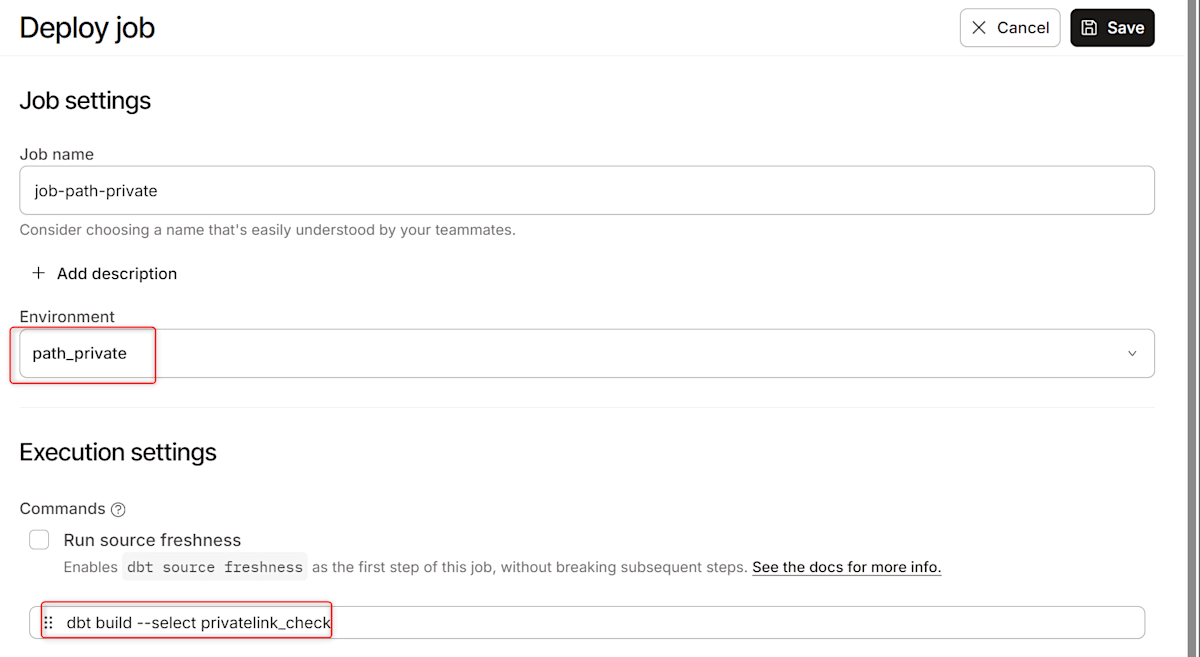
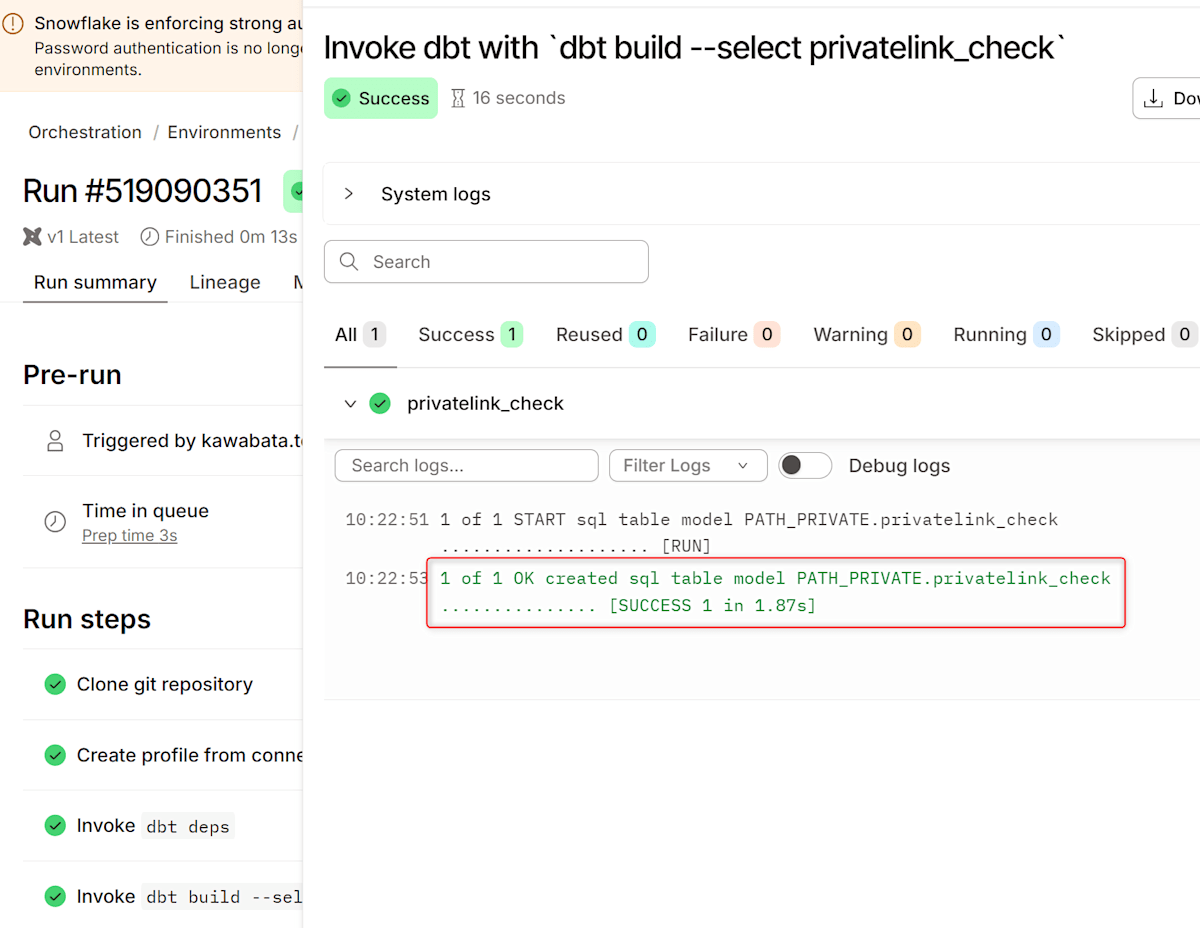
The command is dbt build --select privatelink_check, with Generate docs and source freshness turned off. When I ran it with Run now, the log showed 1 of 1 OK.
Check the connection path with LOGIN_HISTORY
Check the login history of DBT_PL_SVC with LOGIN_HISTORY_BY_USER in the Information Schema. The CLIENT_PRIVATE_LINK_ID column is the ID of the endpoint when logging in over a private connection.
USE ROLE ACCOUNTADMIN;
USE WAREHOUSE DBT_PL_WH;
ALTER SESSION SET TIMEZONE = 'Asia/Tokyo';
SELECT event_timestamp, client_ip, client_private_link_id, reported_client_type,
       first_authentication_factor, is_success, error_code, error_message
FROM TABLE(DBT_PL_DB.INFORMATION_SCHEMA.LOGIN_HISTORY_BY_USER(
       USER_NAME => 'DBT_PL_SVC', RESULT_LIMIT => 50))
ORDER BY event_timestamp DESC;

Look at the login rows where IS_SUCCESS is YES. If CLIENT_PRIVATE_LINK_ID matches the Endpoint identifier shown in the dbt platform, there is no problem. That login went through the VPC endpoint on the dbt side. As a supplementary check, also confirm that CLIENT_IP is a private IP address.
Confirm the job succeeds even when public IPv4 connections are rejected by a Network Policy
According to the Snowflake docs, a Network Rule that uses a private endpoint ID has no effect on requests from the public network. To reject public connections as well, put an IPv4 Network Rule in the blocked list. So I set a Network Policy with the same structure as the docs example on DBT_PL_SVC. It is a policy with dbt's VPCE ID in the allowed list and 0.0.0.0/0 (the entire IPv4 range) in the blocked list. The account used for this verification is shared with other users, so I set the Network Policy on the user rather than on the account.
USE ROLE ACCOUNTADMIN;

CREATE NETWORK RULE DBT_PL_DB.NETWORK.ALLOW_DBT_VPCE
  MODE = INGRESS
  TYPE = AWSVPCEID
  VALUE_LIST = ('vpce-0xxxxxxxxxxxxxxxx');

CREATE NETWORK RULE DBT_PL_DB.NETWORK.BLOCK_PUBLIC_V4
  MODE = INGRESS
  TYPE = IPV4
  VALUE_LIST = ('0.0.0.0/0');

CREATE NETWORK POLICY DBT_PL_POLICY
  ALLOWED_NETWORK_RULE_LIST = ('DBT_PL_DB.NETWORK.ALLOW_DBT_VPCE')
  BLOCKED_NETWORK_RULE_LIST = ('DBT_PL_DB.NETWORK.BLOCK_PUBLIC_V4');

ALTER USER DBT_PL_SVC SET NETWORK_POLICY = DBT_PL_POLICY;
You can check whether the target is as intended with the following SQL. I did not change the account's NETWORK_POLICY.
SHOW PARAMETERS LIKE 'NETWORK_POLICY' IN ACCOUNT;
SHOW PARAMETERS LIKE 'NETWORK_POLICY' IN USER DBT_PL_SVC;
DESC NETWORK POLICY DBT_PL_POLICY;

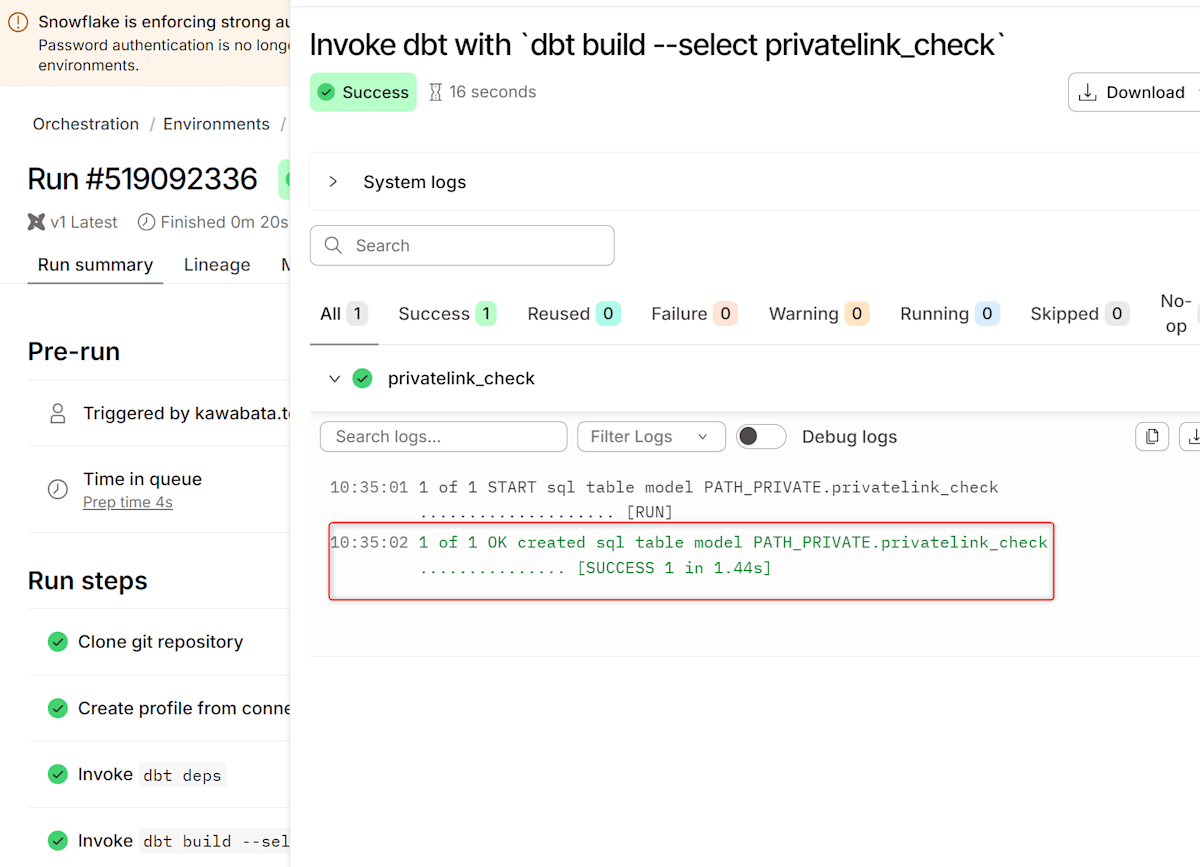
According to the Snowflake docs, in this configuration the IPv4 Network Rule is not used to evaluate private connections. The job succeeded even with all public IPv4 rejected, so the connection goes through dbt's VPC endpoint. In addition, in the login history after the re-run, I confirmed that CLIENT_PRIVATE_LINK_ID matches the VPCE ID I allowed.
For reference, when I connected as DBT_PL_SVC from my local PC using a temporary connection with the Snowflake CLI, it resulted in an error. The error says that the source IP address is not allowed, showing that the public connection was rejected by the Network Policy.
snow sql -x --account "myorg-myaccount" --user DBT_PL_SVC --authenticator SNOWFLAKE_JWT --private-key-file "$HOME\.snowflake\keys\rsa_key_dbt_pl_svc.p8" --role DBT_PL_ROLE --warehouse DBT_PL_WH -q "select current_ip_address()"

Check the destination hostname with ACCOUNT_USAGE
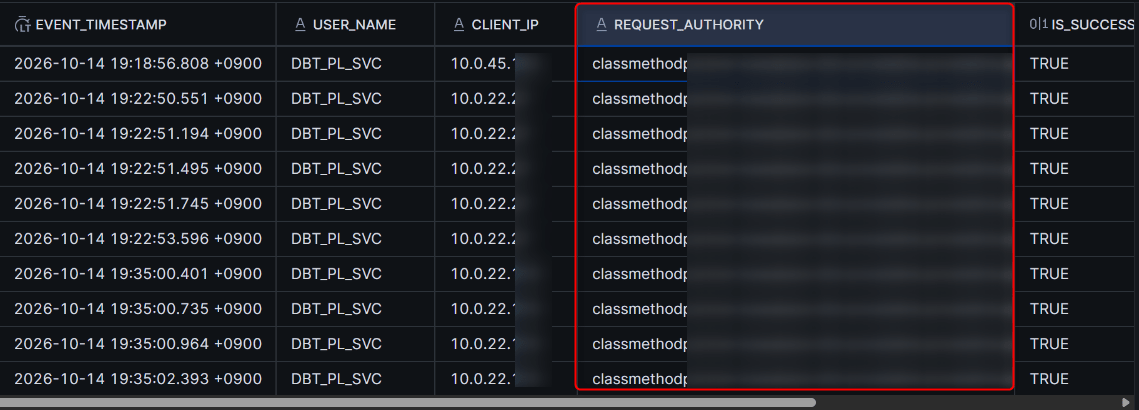
You can also check the connection path with ACCOUNT_USAGE views. The REQUEST_AUTHORITY column of INGRESS_NETWORK_ACCESS_HISTORY is the hostname the client used to connect. Joining SESSIONS and LOGIN_HISTORY shows the login source for each session. The row whose SESSION_ID is the same as the session_id saved by the model is the job's session. It takes up to 3 hours for data to appear in SESSIONS and up to 4 hours in INGRESS_NETWORK_ACCESS_HISTORY.
USE ROLE ACCOUNTADMIN;
USE WAREHOUSE DBT_PL_WH;
ALTER SESSION SET TIMEZONE = 'Asia/Tokyo';

-- Match sessions to logins
SELECT s.created_on, s.session_id, s.client_application_id,
       l.client_ip, l.client_private_link_id, l.reported_client_type, l.is_success
FROM SNOWFLAKE.ACCOUNT_USAGE.SESSIONS AS s
JOIN SNOWFLAKE.ACCOUNT_USAGE.LOGIN_HISTORY AS l
  ON s.login_event_id = l.event_id
WHERE s.user_name = 'DBT_PL_SVC'
ORDER BY s.created_on;

-- Hostname used for the connection
SELECT event_timestamp, user_name, client_ip,
       request_authority, is_success, error_code, error_message
FROM SNOWFLAKE.ACCOUNT_USAGE.INGRESS_NETWORK_ACCESS_HISTORY
WHERE user_name = 'DBT_PL_SVC'
ORDER BY event_timestamp;

Limitations and notes
Limitations and notes
privatelink-vpce-idis the ID of the VPC endpoint service on the Snowflake side.- What goes into the Network Rule is the Endpoint identifier on the dbt side. The two IDs are different values.
- A Network Rule with only a VPCE ID does not reject requests from the public network (Snowflake docs).
- To reject public connections as well, you need an IPv4 Network Rule in the blocked list.
- A Network Policy set on a user does not, in principle, apply to token requests for Snowflake OAuth. What applies is the Network Policy of the security integration or the account.
- The exception is the built-in
SNOWFLAKE$LOCAL_APPLICATIONintegration, for which the user's Network Policy also applies to token requests (Snowflake docs). - When using Snowflake OAuth over PrivateLink, users' devices must also be able to reach the PrivateLink endpoint.
- The dbt docs advise using External OAuth where possible.
- PrivateLink to the Internal Stage requires a separate endpoint, and in the dbt docs the procedure is to ask dbt Support. It is not covered in this article.
- The self-serve feature for Private endpoints is in beta as of October 14, 2026.
- If there is no menu in Account settings, ask dbt Support using the template in the dbt docs (3 to 5 business days).
- If Edit / Delete for an endpoint is not displayed, ask your dbt account manager to enable it.
- Right after an endpoint is created, the Studio IDE or Test connection may fail while waiting for DNS to propagate.
- The procedures for Azure and Google Cloud are in the following dbt docs, respectively.
Conclusion
I tested connecting from the dbt platform to Snowflake via AWS PrivateLink.
The self-serve feature is in beta, but setup was quite easy, the waiting time was short, and the connection was smooth, so it was a good experience.
I hope this article is helpful to someone!