
Deploying a Business Card-Style Homepage with Cloudflare Drop

This page has been translated by machine translation. View original
Introduction
Hello everyone, this is Akaike.
Recently, Cloudflare released a feature called Cloudflare Drop that lets you publish a site just by dragging and dropping a folder.
Its appeal is that you can quickly publish a static site without any account registration or login. I thought it would be perfect for publishing a homepage that serves as a business card, so I actually tried it out.
This time I deployed the following using Cloudflare Drop, so I'll summarize everything I did, from deployment to linking a custom domain and updating the site.
What is Cloudflare Drop?
Cloudflare Drop is a service that lets you deploy a static site to Cloudflare without registering an account.
It was released in the update on July 8, 2026.
The general flow is as follows.
- Drag and drop a folder or zip file containing your static assets (HTML, CSS, JavaScript, images, fonts, etc.)
- A live preview URL valid for only 1 hour is issued
- If you
Claimit to a Cloudflare account within that hour, the deployment becomes permanent
The key point is the flow: first deploy without an account and check that it works, then, if you like it, link it to an account to make it permanent.
This matches the need to "just publish it for now and check how it looks" very well.
Note that only static assets are supported.
Please be aware that applications requiring server-side processing are not supported.
Prerequisites
- You have prepared a set of static site files to deploy (HTML, CSS, images, etc.)
- A Cloudflare account (the free plan is fine) if you want to make it permanent
Drop it
Now, let's deploy right away.
First, access the following page.
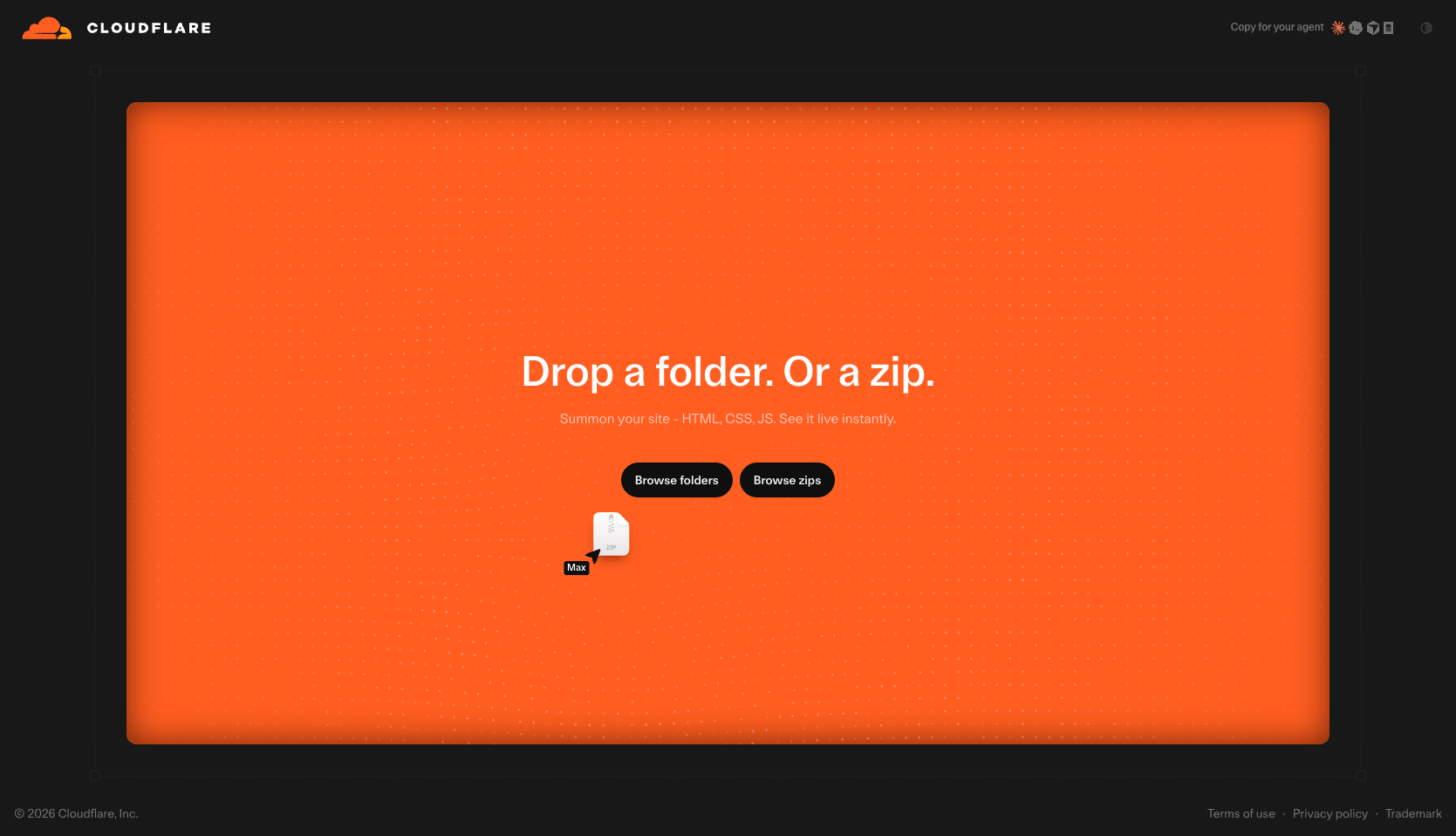
Drag and drop the prepared static site folder onto the area on this screen that says "Drop a folder. Or a zip."
You will be asked to agree to the terms of service for deployment.
Review the contents and click "Accept".
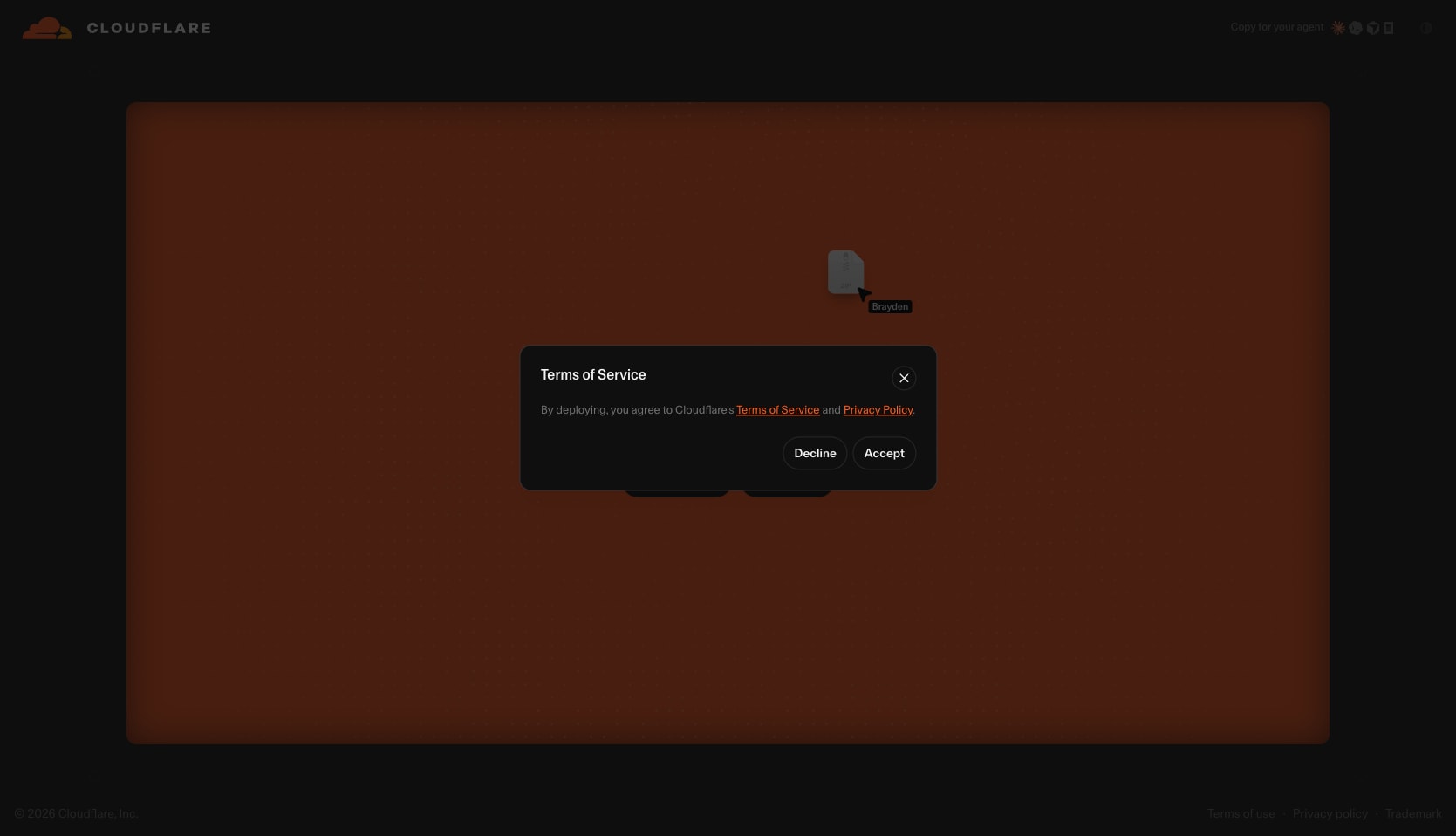
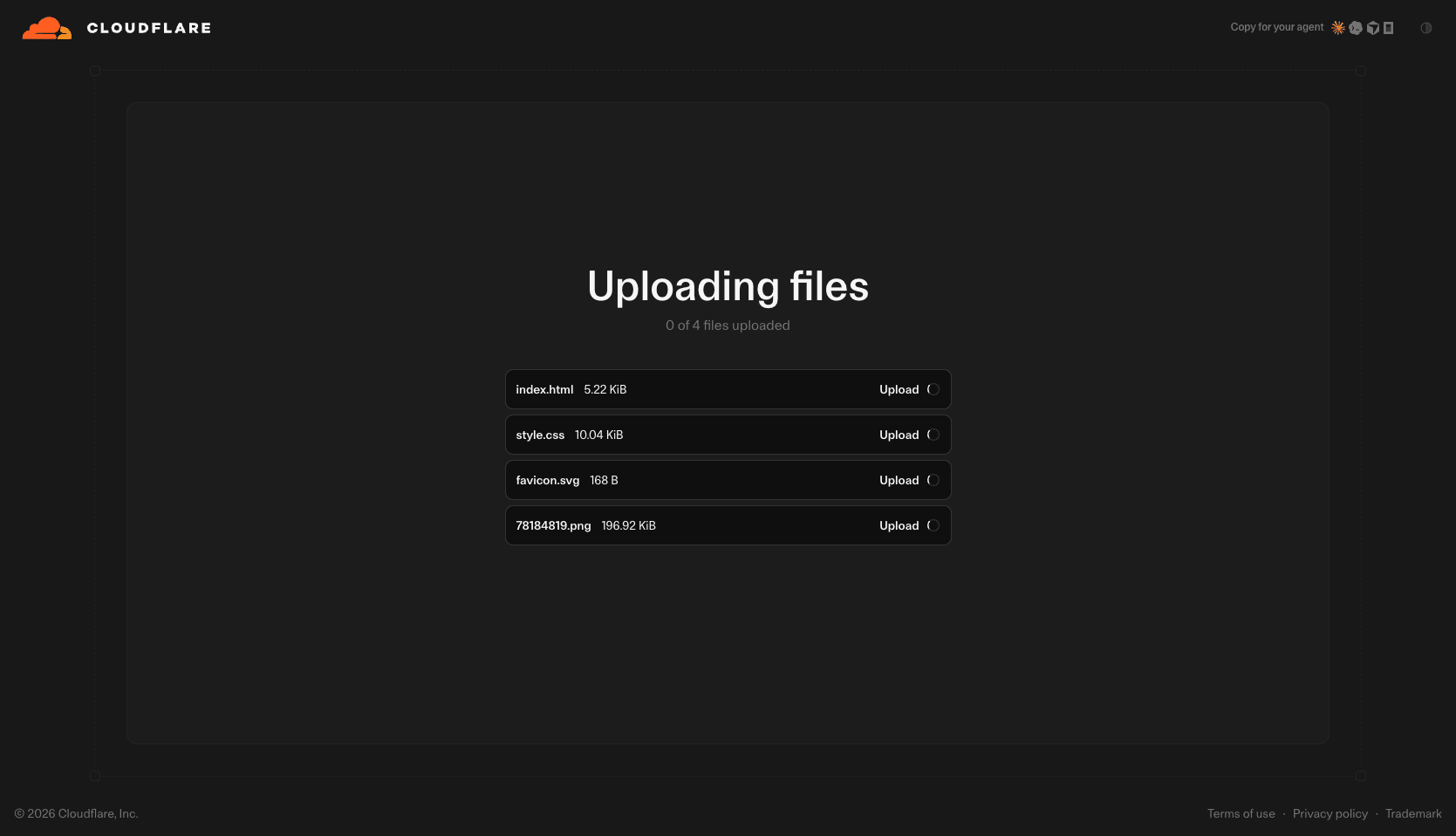
Once you agree, the files in the folder are uploaded one after another.
This time, four files were uploaded: index.html, style.css, favicon.svg, and 78184819.png.
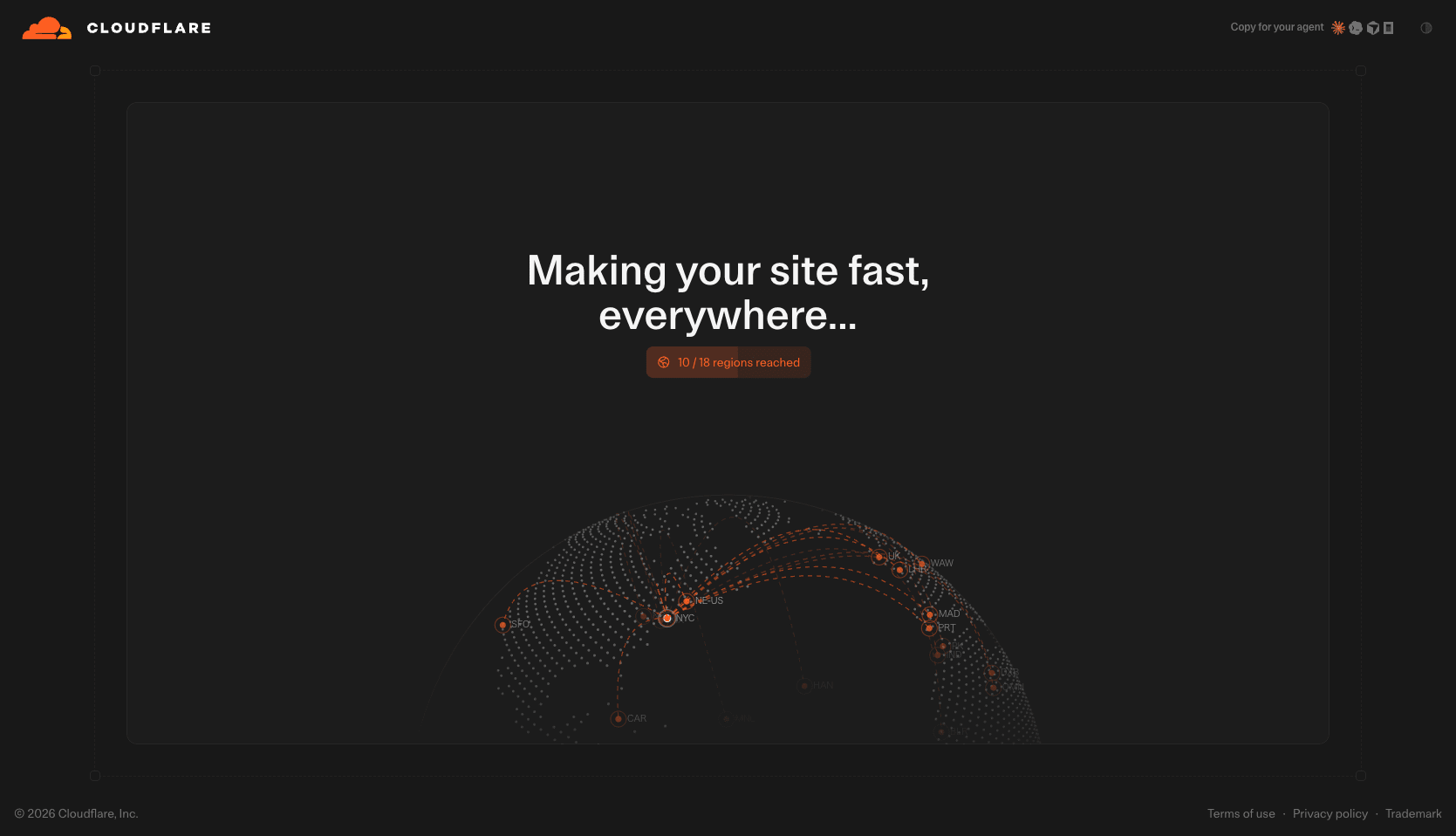
When the upload is complete, the screen changes to "Making your site fast, everywhere...", showing the site being distributed to regions around the world.
This is just what you'd expect from Cloudflare—the presentation is elaborate and fun to watch!
When "Your site is ready" is displayed, the deployment is complete.
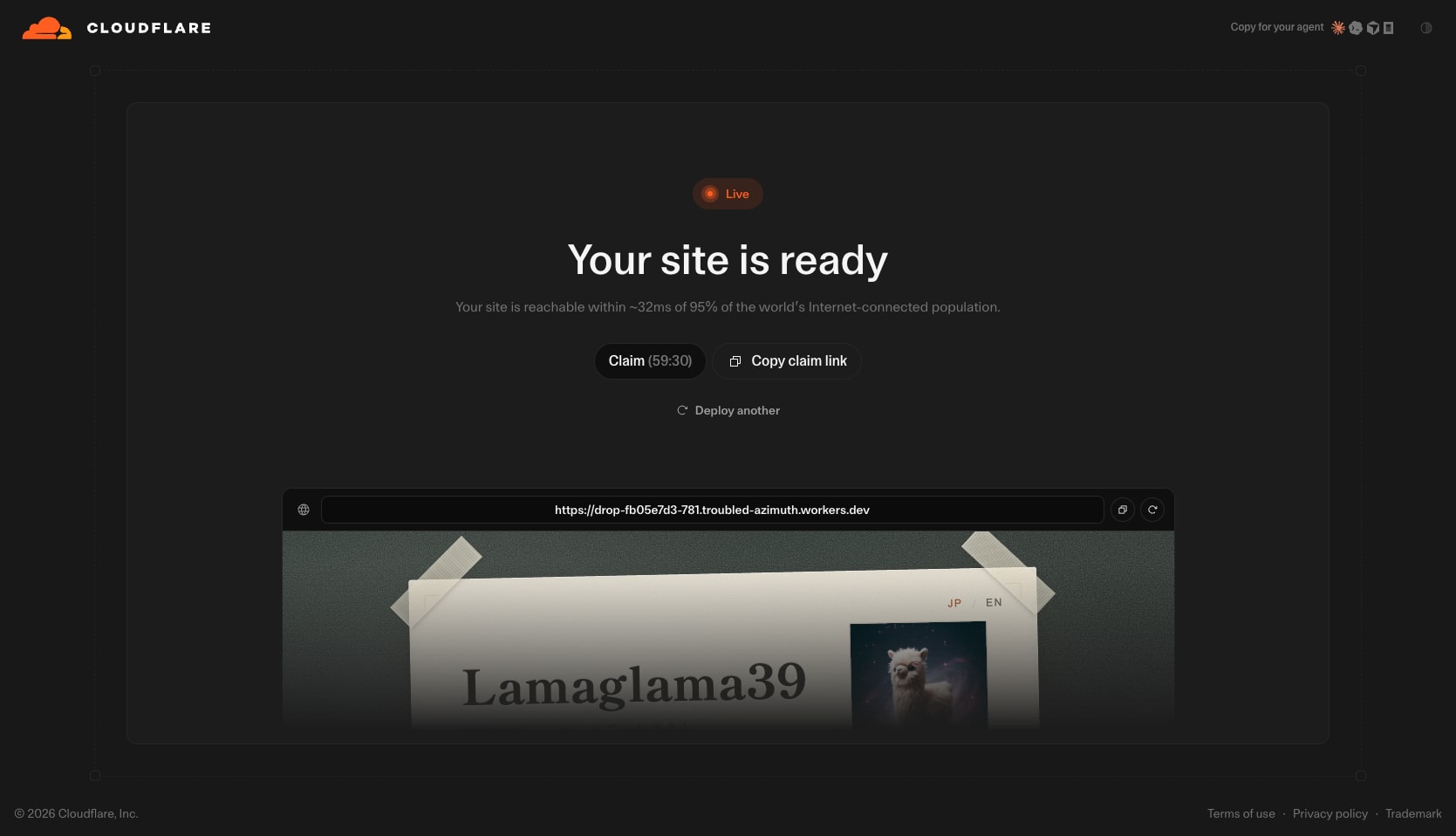
A preview URL was issued along with the "Live" indicator.
When I actually accessed it, the business card site I had prepared was displayed properly.
The time it took up to this point was about 31 seconds from the drop.
It's blazing fast!
Note that at this point it's still a temporary preview.
A countdown of "Claim (59:30)" is displayed on the screen, and if you don't link it to an account within this time limit, the site will disappear.
Side note: Publishing with AI
Although this blog deploys manually, Cloudflare Drop is also designed to be used from AI agents.
In the upper right of the top page, there is a button called "Copy for your agent".
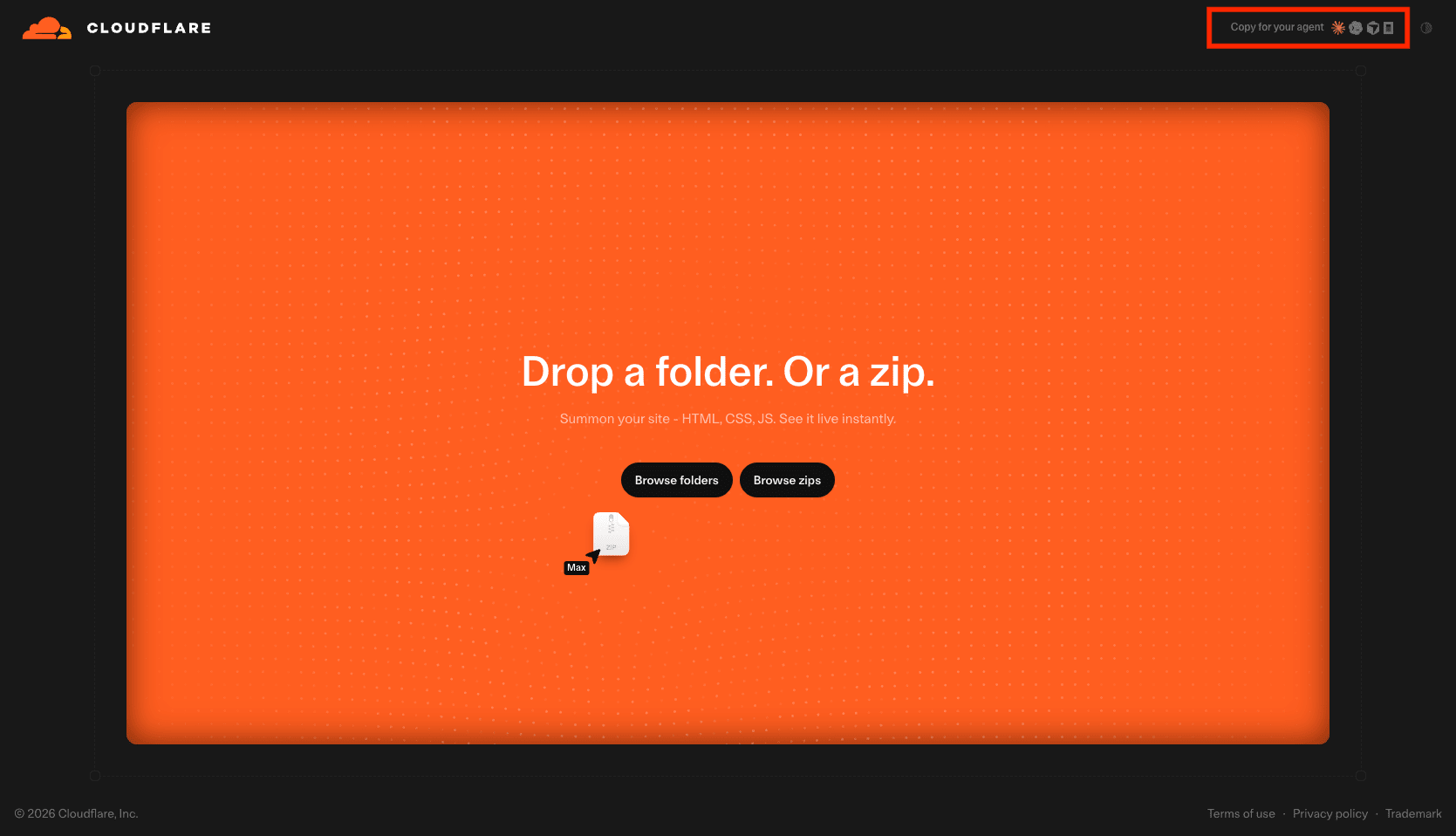
When you press this button, deployment instructions for AI agents are copied to the clipboard.
The copied content was an instruction to fetch https://www.cloudflare.com/drop/llms.txt, as follows.
Fetch https://www.cloudflare.com/drop/llms.txt
The contents of llms.txt are as follows, and the steps for an AI agent to deploy a site using Cloudflare Drop or wrangler are written in a form that can be read directly as a prompt.
Prompt
# Cloudflare Drop

> Deploy static sites to Cloudflare's global network instantly, with no account required to start.

## How it works

1. Drop a folder or .zip file containing your static site (HTML, CSS, JS).
2. Cloudflare Drop uploads and distributes it to Cloudflare's global network.
3. You get a live `workers.dev` URL.
4. Claim the deployment within 60 minutes to keep it.

## For AI agents

Use Cloudflare Drop at https://www.cloudflare.com/drop/ only when you have browser automation and a completed static site folder or .zip file to upload. After publishing, return both the live URL and claim URL.

For local CLI project workflows, prefer Wrangler instead of Cloudflare Drop. If Wrangler is not authenticated with Cloudflare, use Wrangler 4.102.0 or later.

If Wrangler is not installed globally, use `npx` or `npm exec`:

```sh
npm exec --yes wrangler@latest -- deploy ./dist --name my-static-site --temporary --compatibility-date <YYYY-MM-DD>
`` `

Replace `./dist` with the directory containing the final static files. Use today's date for `--compatibility-date`.

For static site deployments:

- Deploy a dedicated project output directory, such as `./dist`, `./build`, or another folder containing the final static files.
- Ensure the deployed directory contains an `index.html`.
- Pass a Worker name with `--name`.
- If the first deploy creates a temporary account but fails because a name is missing, rerun with `--name`.
- If the deploy fails because `compatibility_date` is required, rerun with `--compatibility-date <YYYY-MM-DD>`.

After deployment, verify the live URL. If it initially returns 404, wait briefly and retry before changing the deployment, because the route and assets can take a short time to become available.

Return both:

- The live `workers.dev` URL
- The claim URL

The claim URL grants ownership of the temporary preview account. Treat it as sensitive and tell the user it expires after 60 minutes.

Do not use `--temporary` when Wrangler is already authenticated with OAuth, `CLOUDFLARE_API_TOKEN`, or a global API key. In authenticated environments, use normal `wrangler deploy`.

For details:

- https://developers.cloudflare.com/workers/platform/claim-deployments/
- https://developers.cloudflare.com/workers/wrangler/commands/workers/#deploy
なのでAIエージェントにこの指示を渡せば、「作った静的サイトをCloudflare Dropで公開しておいて」と頼むだけでデプロイまで任せられます。
永続化する
気に入ったので、このサイトを永続化していきます。
前述の画面の「Claim」ボタンを押すと、Cloudflareのダッシュボードのクレーム画面へ遷移します。
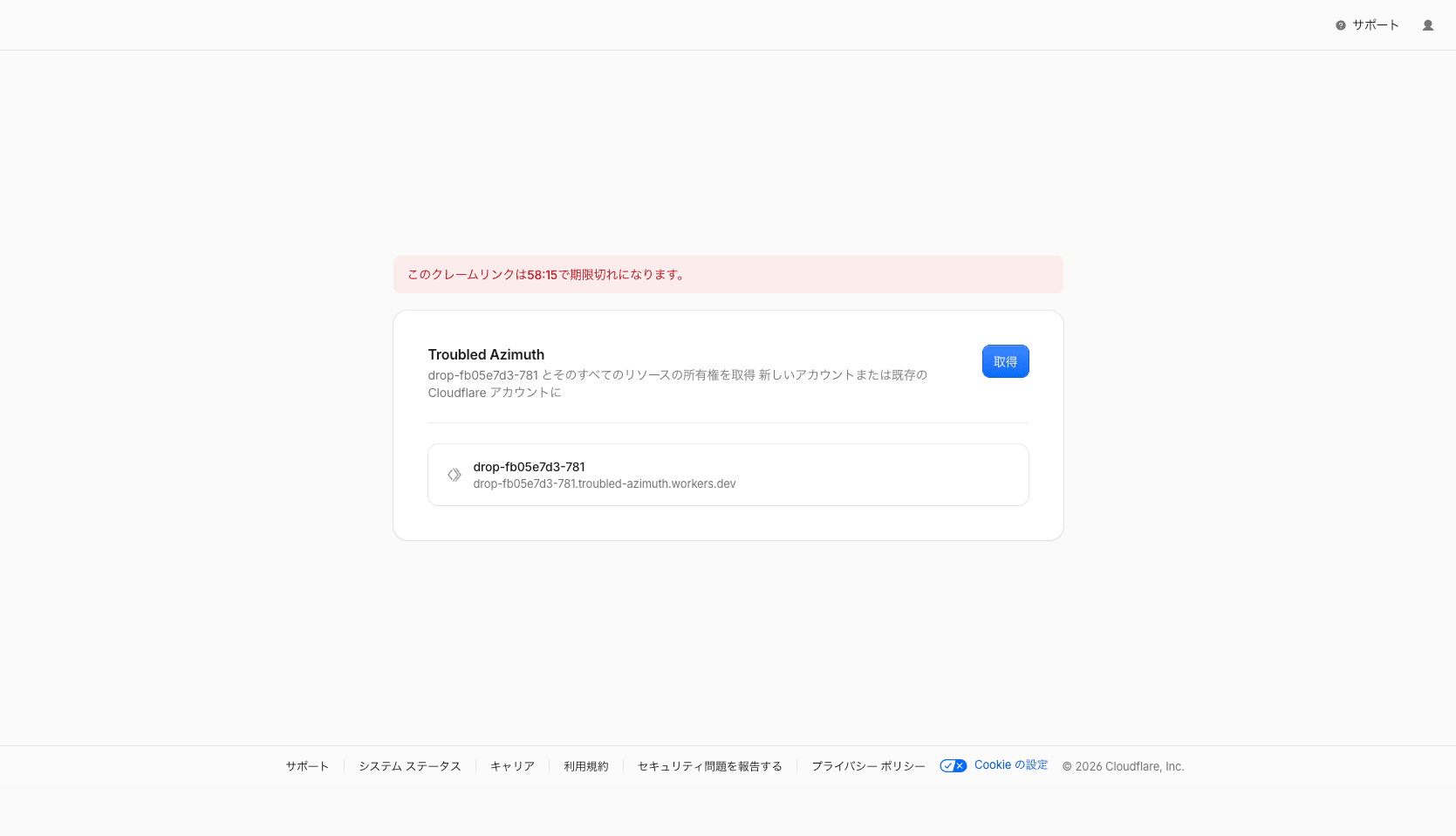
画面上部にカウントダウンが表示されており、時間制限があることがわかります。
プロジェクト名を確認して「取得」ボタンを押します。
続いて、このサイトをどのアカウントに追加するかを選択します。
新しいアカウントを作成するか、既存のアカウントに追加するかを選べます。
私はすでにCloudflareアカウントを持っていたので、既存のアカウントを選択して「確認」を押しました。
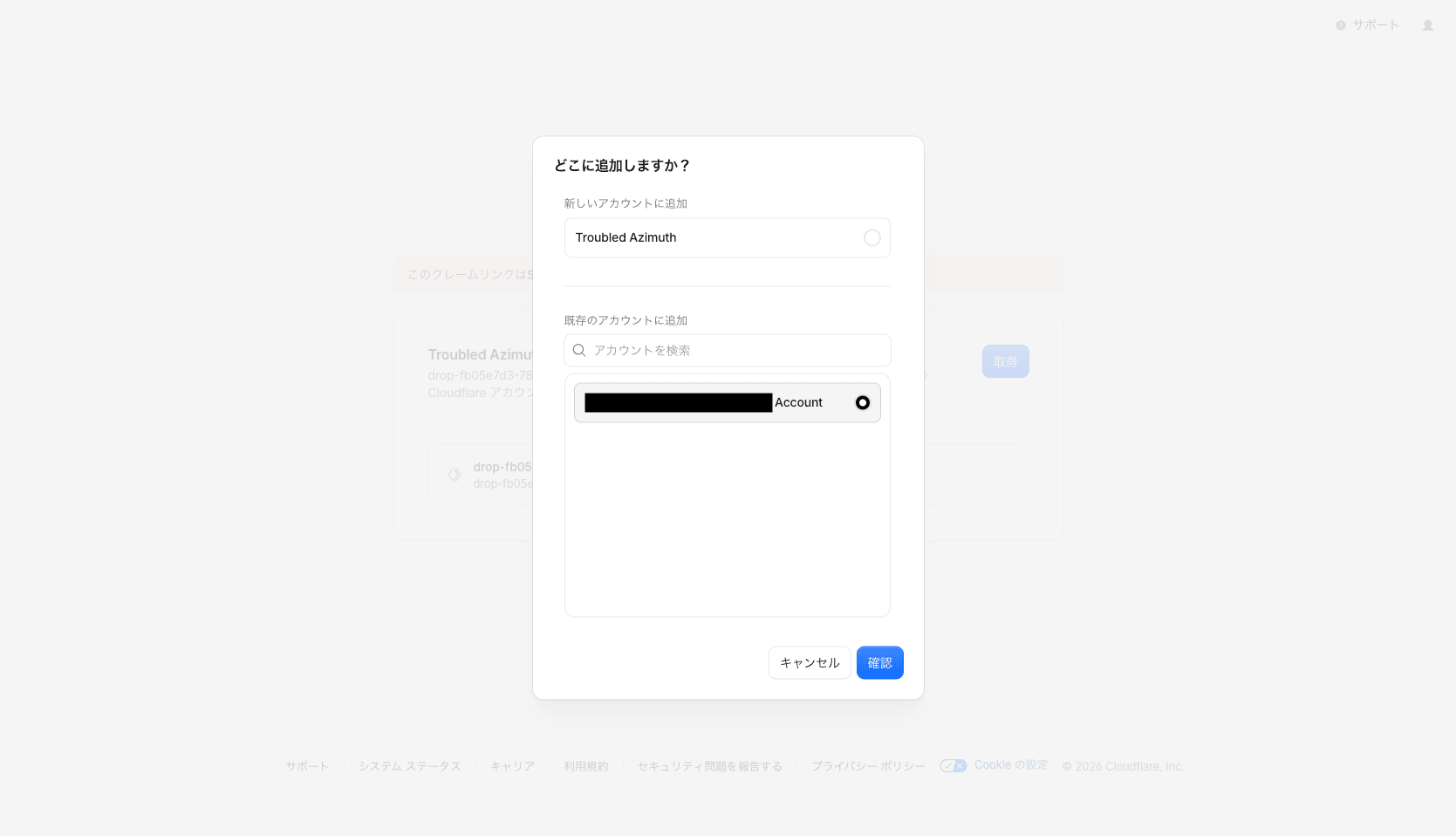
しばらく待つと「サイトが公開されました」と表示され、永続化が完了しました。
この処理も30秒かからないぐらいでした。
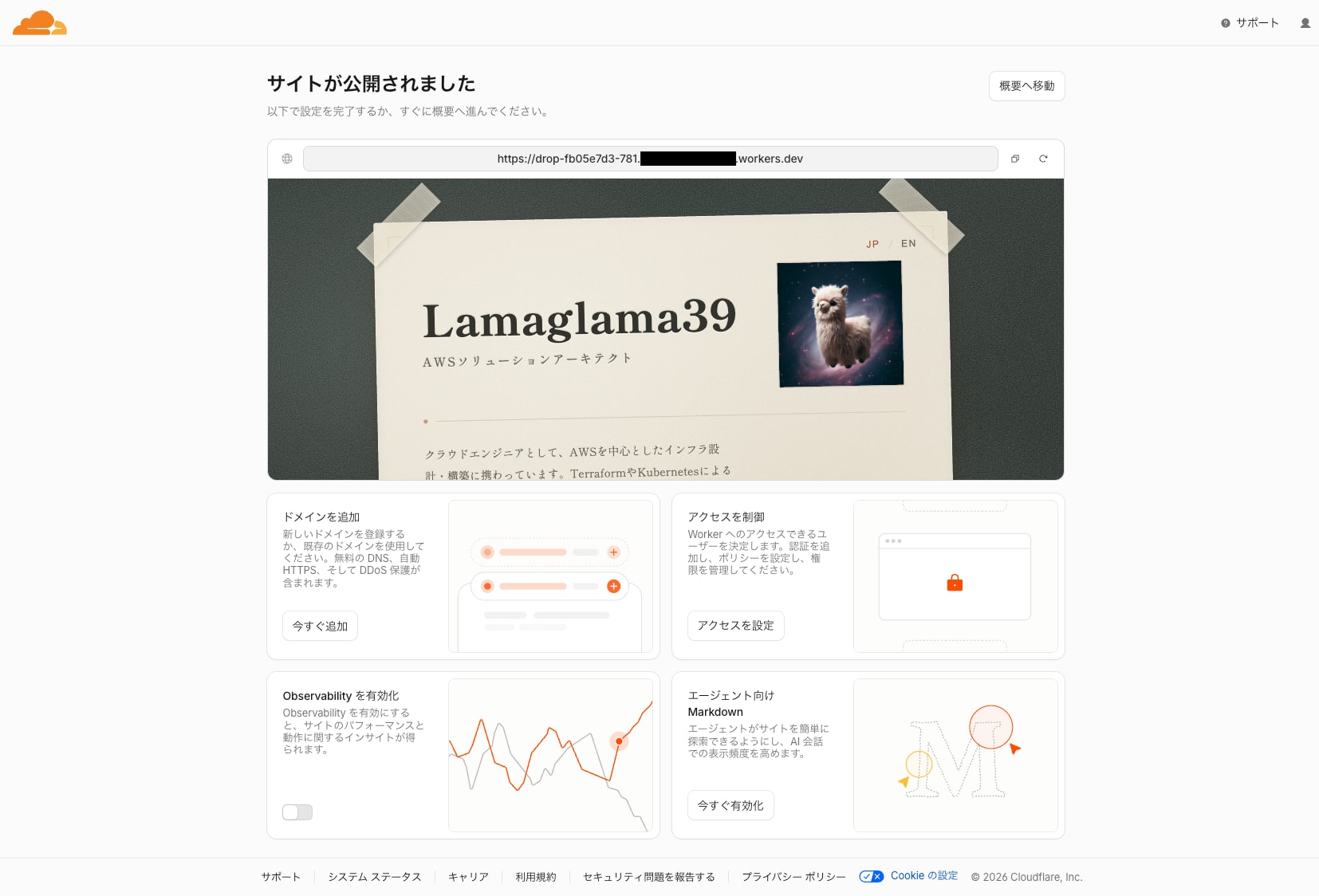
ドロップからここまで、最速で1分ぐらいでデプロイできてしまいました。
これはRTAが捗りますね!
色々カスタマイズする
すでにお気づきの方もいるかもしれませんが、永続化されたサイトの実体はWorkers & Pagesのプロジェクトです。
そのため、通常のWorkersと同じようにダッシュボードから各種カスタマイズができます。
ここでは独自ドメインの紐づけとObservabilityの有効化を試してみます。
ドメインを紐づける
デフォルトで払い出されるのはworkers.devのサブドメインですが、名刺代わりのサイトとして使うなら独自ドメインを紐づけたいところです。
対象のWorkerの「ドメイン」タブを開き、「ドメインを追加」から設定していきます。
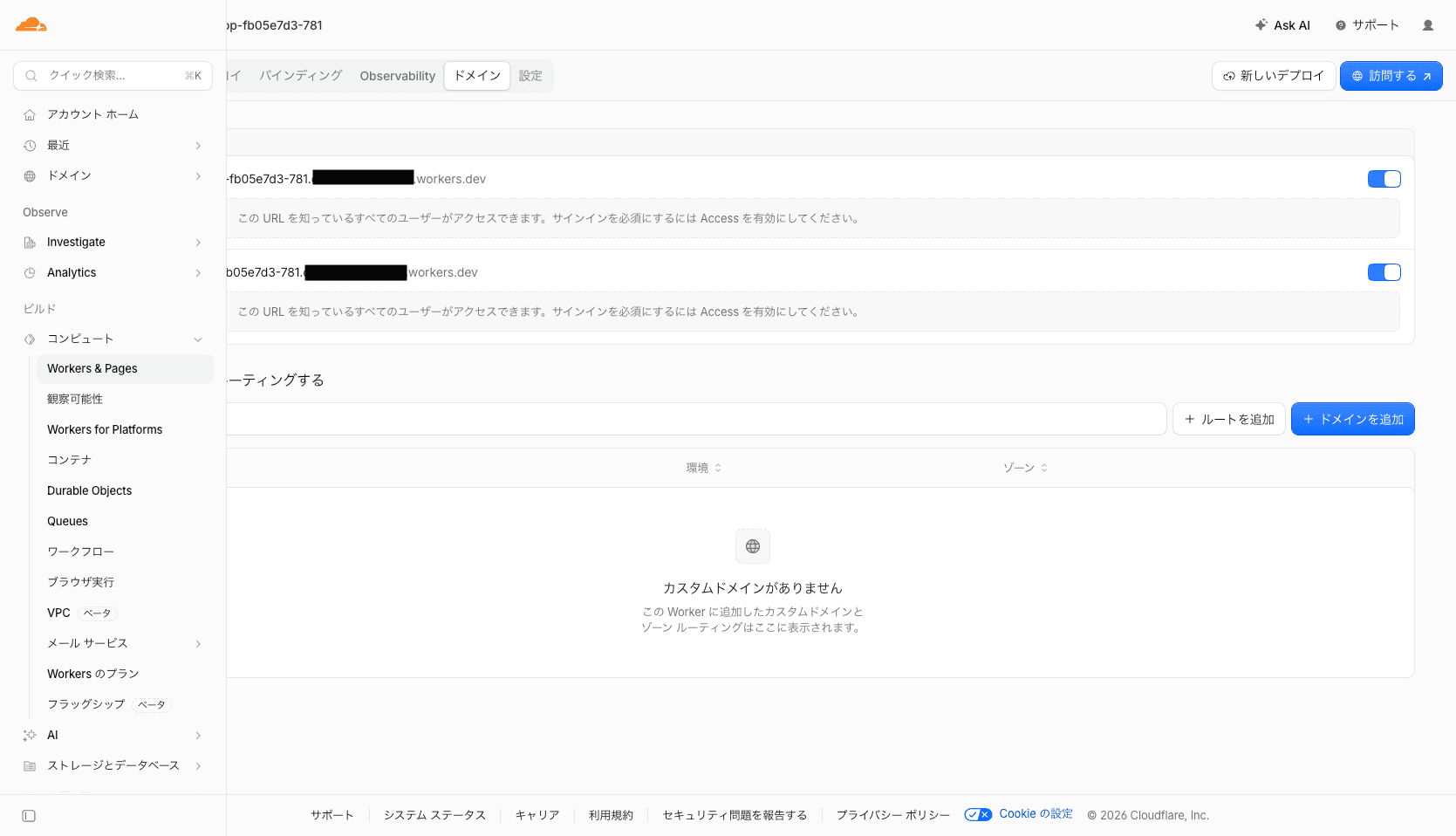
今回は事前にCloudflareで管理しているlamaglama39.devドメインに対して、meishiというサブドメインを紐づけます。
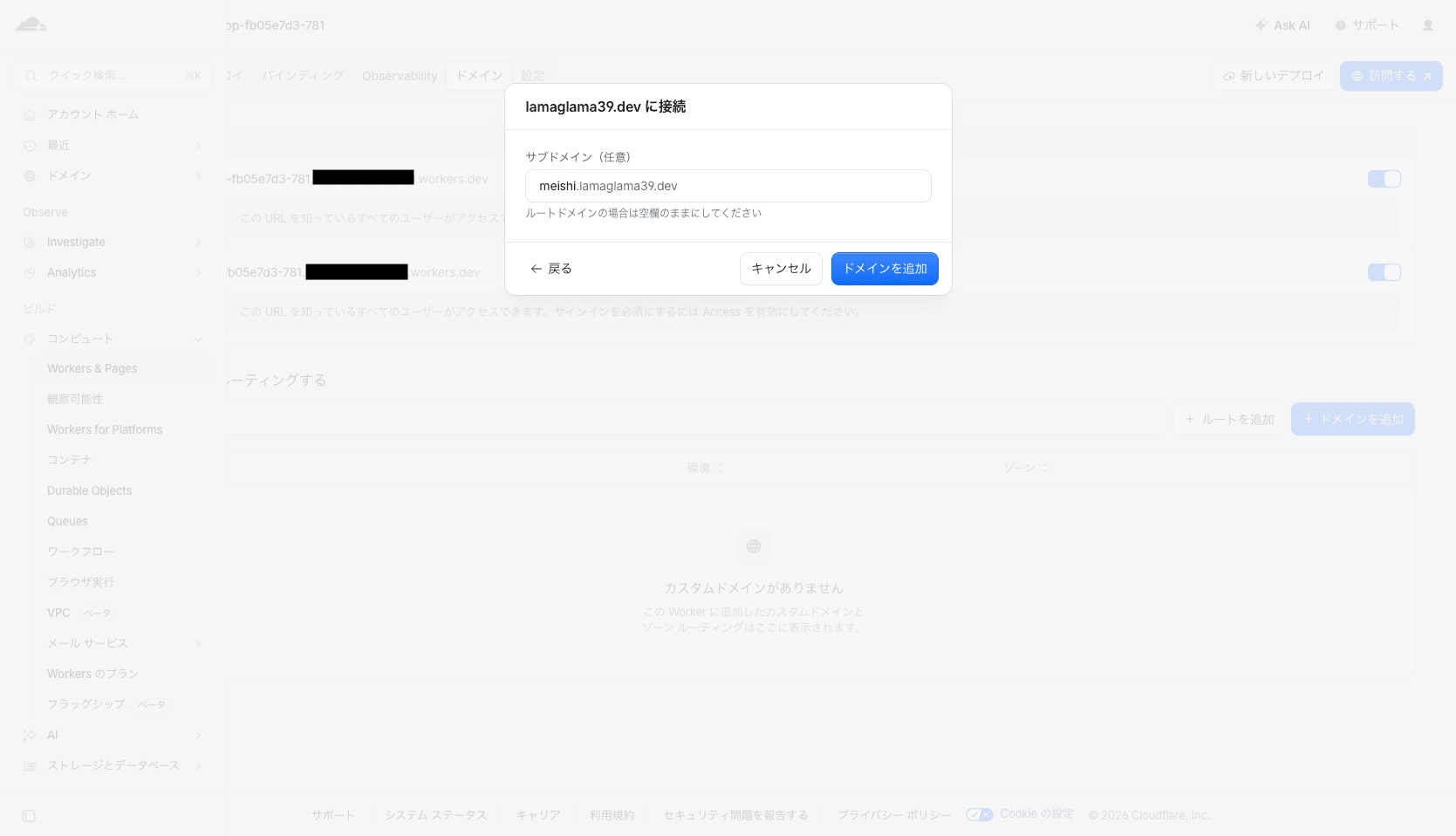
しばらくするとカスタムドメインが有効になりました。
またこの時点でデフォルトのWorkers URLは不要なので、無効化しておきます。
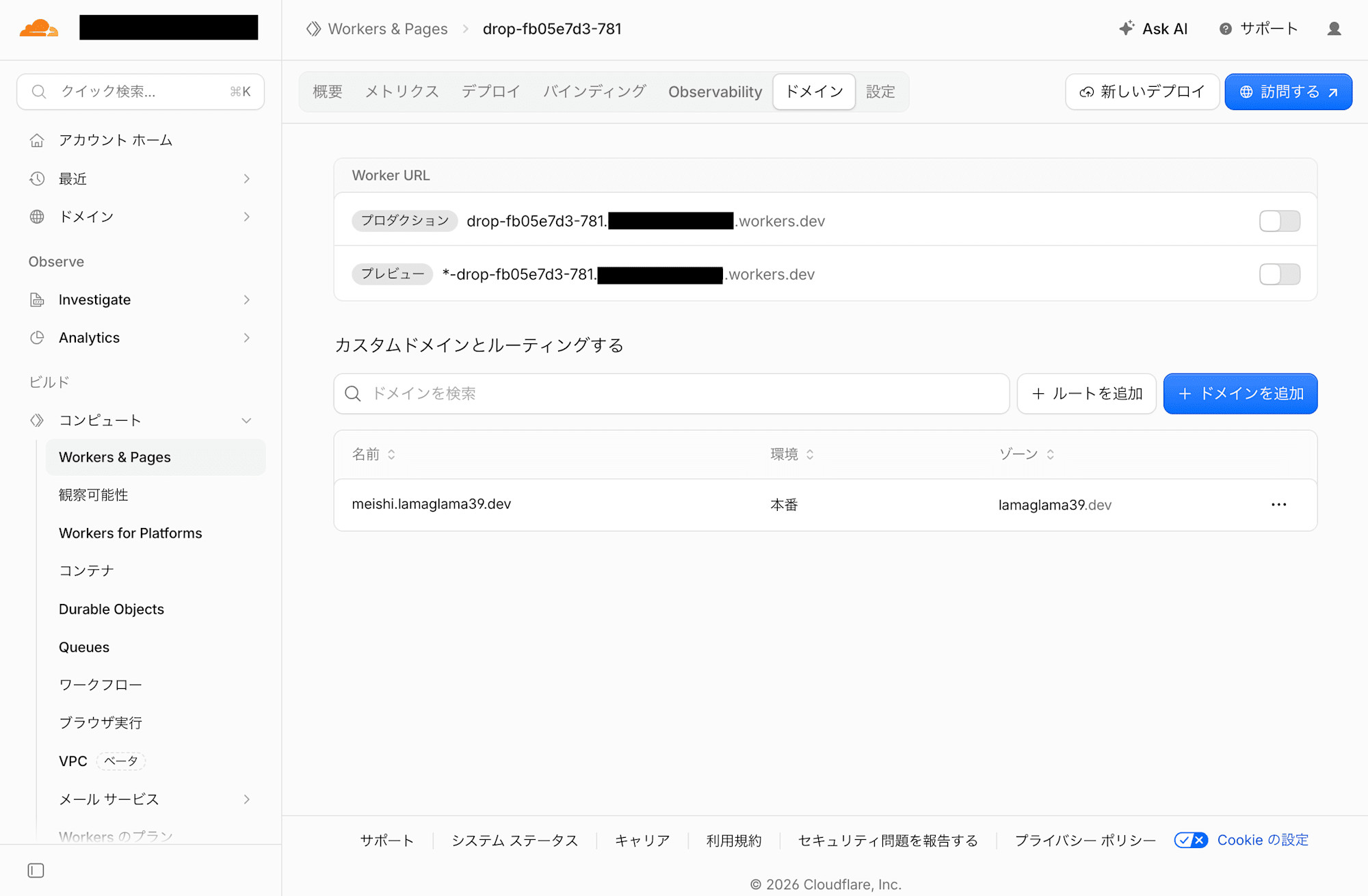
これで以下のURLで名刺サイトにアクセスできるようになりました。
Observability有効化
せっかくなので、アクセス状況を確認できるようにObservabilityも有効化しておきます。
「設定」タブの「観察可能性」から、Workers Logsを有効化します。
「起動ログを含める」と「ログをWorkersダッシュボードに保存する」を有効にして「デプロイ」を押します。
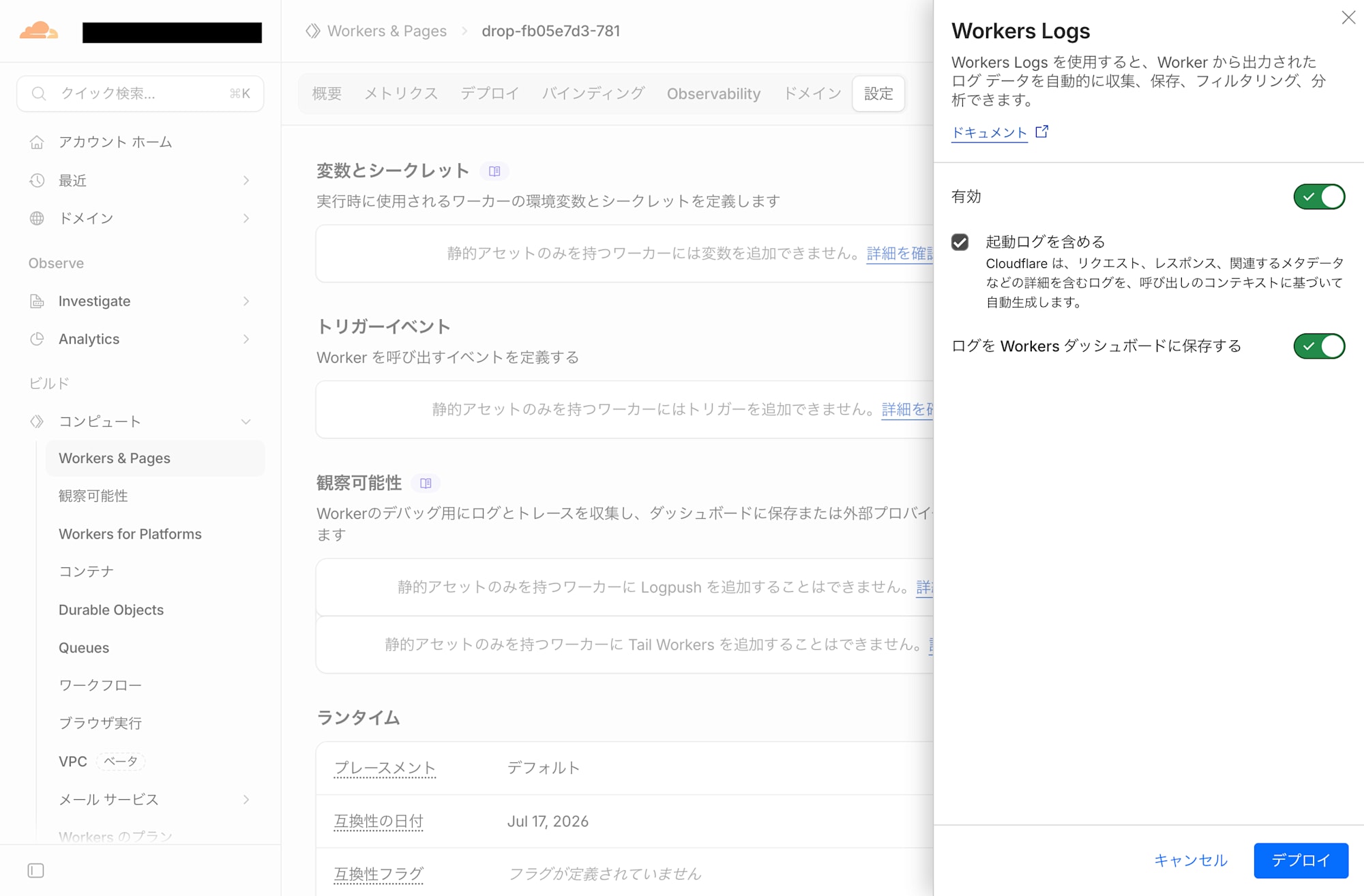
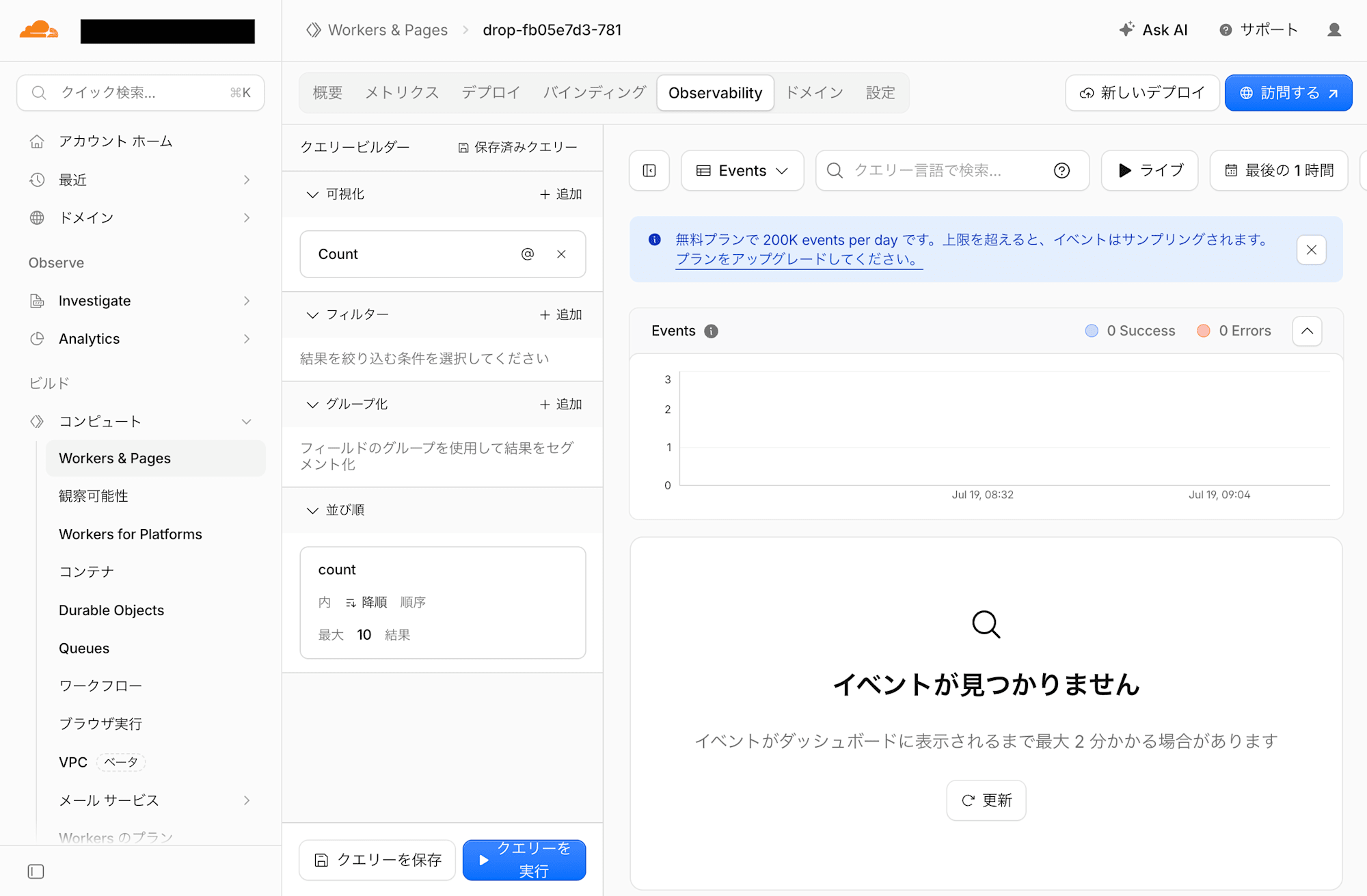
有効化すると、「Observability」タブからリクエストのイベントを確認できるようになります。
無料プランでも1日あたり20万イベントまで記録できるため、名刺サイト程度のアクセス量であれば十分そうです。
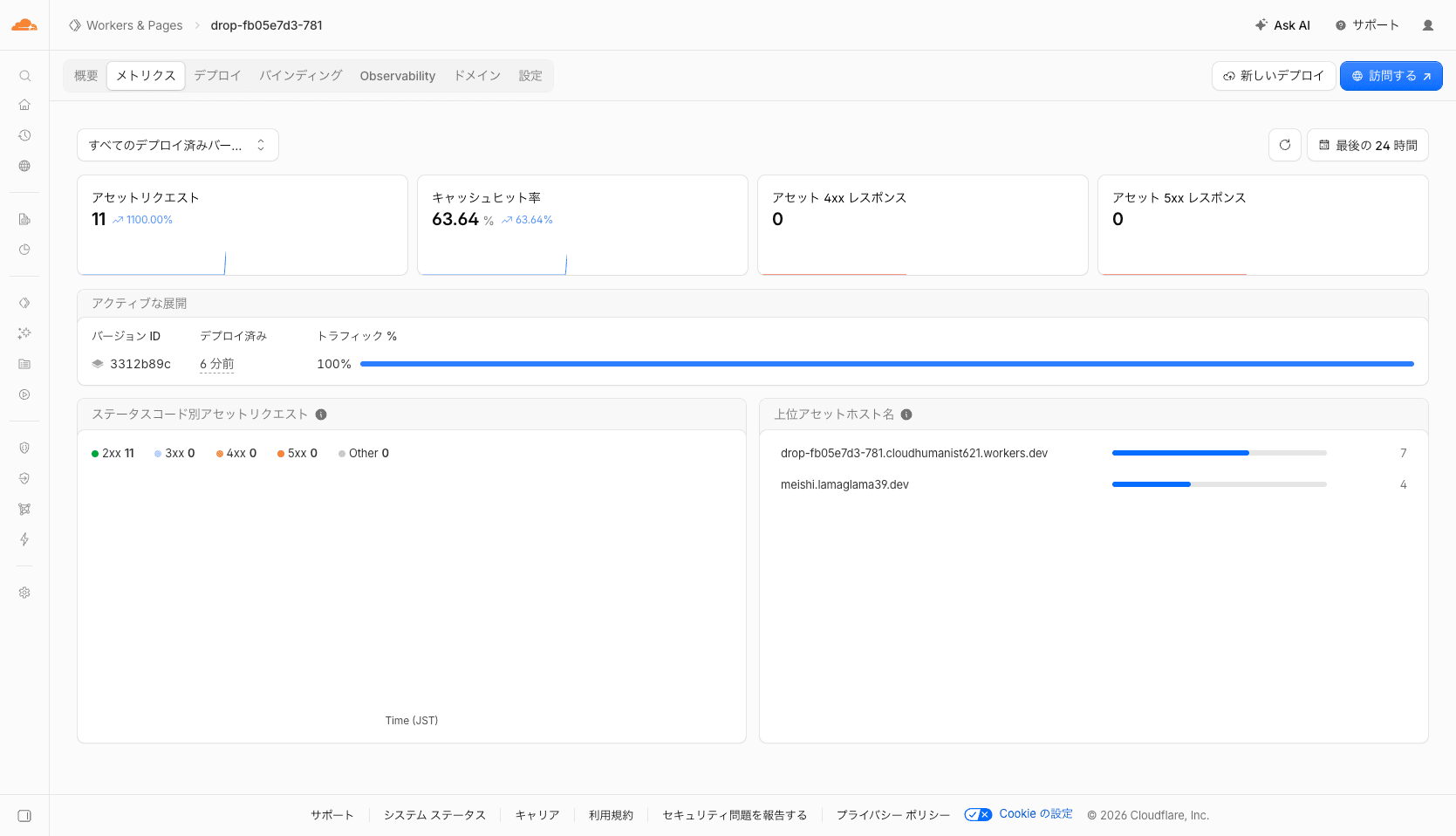
ちなみに、デプロイ済みバージョンのメトリクスは「メトリクス」タブから確認できます。
アセットリクエスト数やキャッシュヒット率、ステータスコード別のリクエスト数などが一目でわかるようになっています。
AI向けマークダウン
「Markdown for Agents」も有効化してみようと思ったのですが、こちらは無料プランでは使えませんでした。
ダッシュボードの「AI」メニューから設定画面を開くと、「エージェント用Markdown」のトグルに「Proプラン」のバッジが付いています。
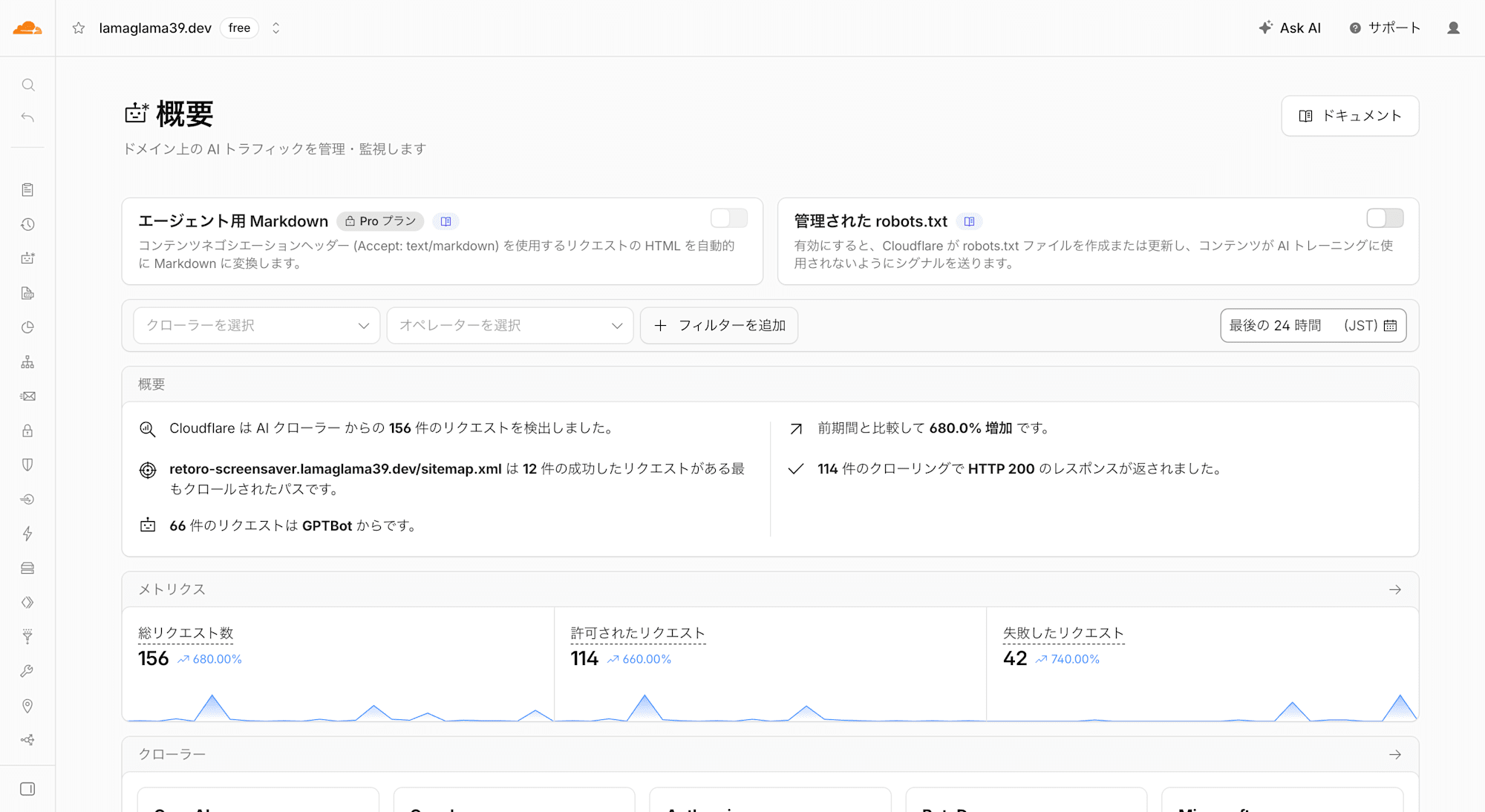
この機能は、AIエージェントがAccept: text/markdownヘッダーを付けてリクエストした際に、CloudflareがエッジでHTMLを自動的にMarkdownへ変換して返してくれるものです。
公式ドキュメントによると、対応しているのはPro、Business、Enterpriseプランのゾーンとのことでした。
Markdown for Agents is available to Pro, Business and Enterprise plans, and SSL for SaaS customers at no cost.
とはいえ、やっていることは「Acceptヘッダーを見てHTMLの代わりにMarkdownを返す」というシンプルなコンテンツネゴシエーションです。
そのため自前で実装することも可能だとは思います。(本ブログでは詳細までは触れません)
更新する
サイトの内容を更新したくなった場合も、ダッシュボードから静的ファイルを再アップロードするだけで対応できます。
「設定」から「静的ファイルをアップロードしてワーカーを更新します」を開きます。
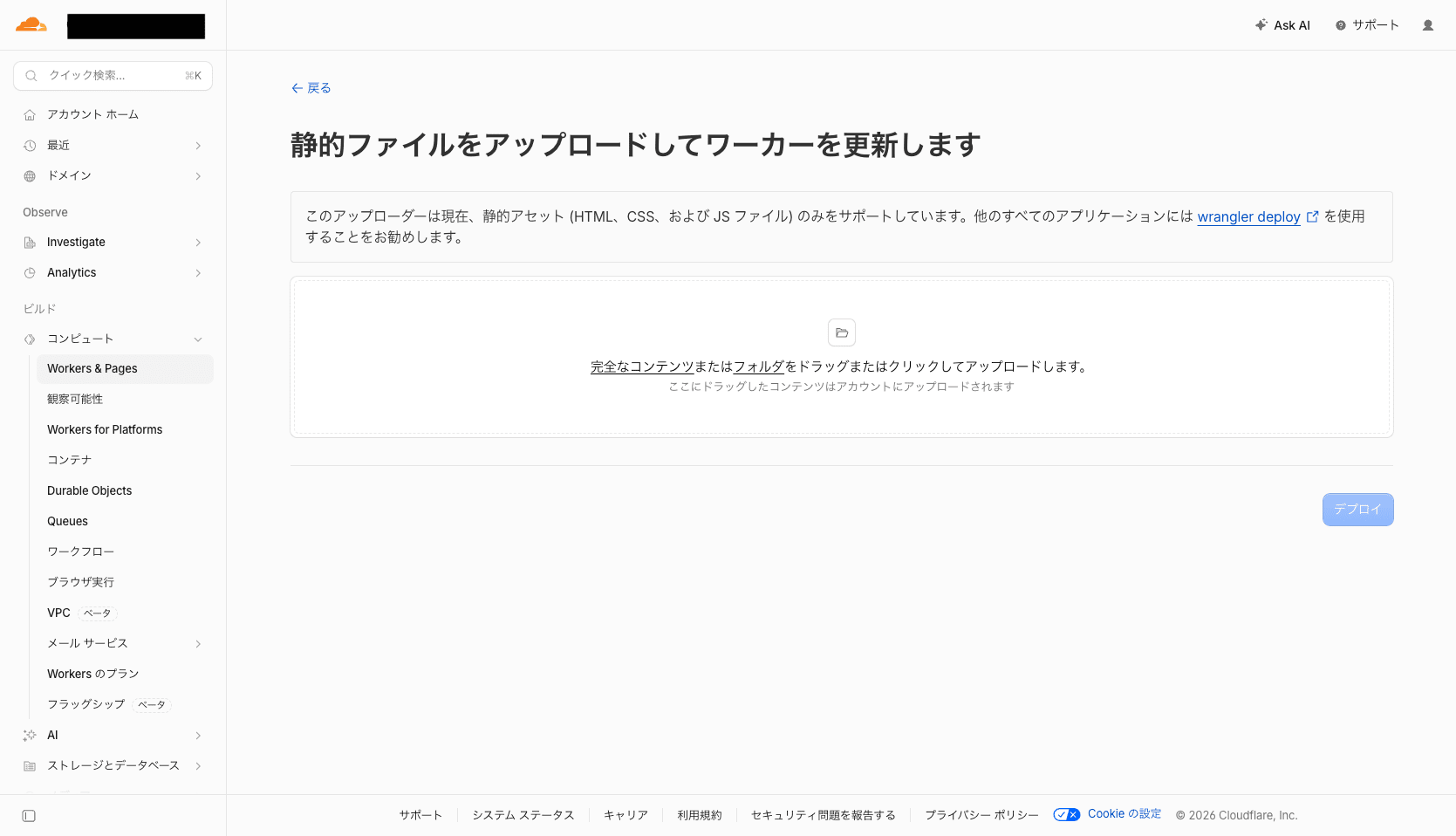
初回と同じように、更新後のファイル一式をドラッグ&ドロップします。
アップロードするファイルの一覧が表示されるので、内容を確認して「デプロイ」を押せば更新完了です。
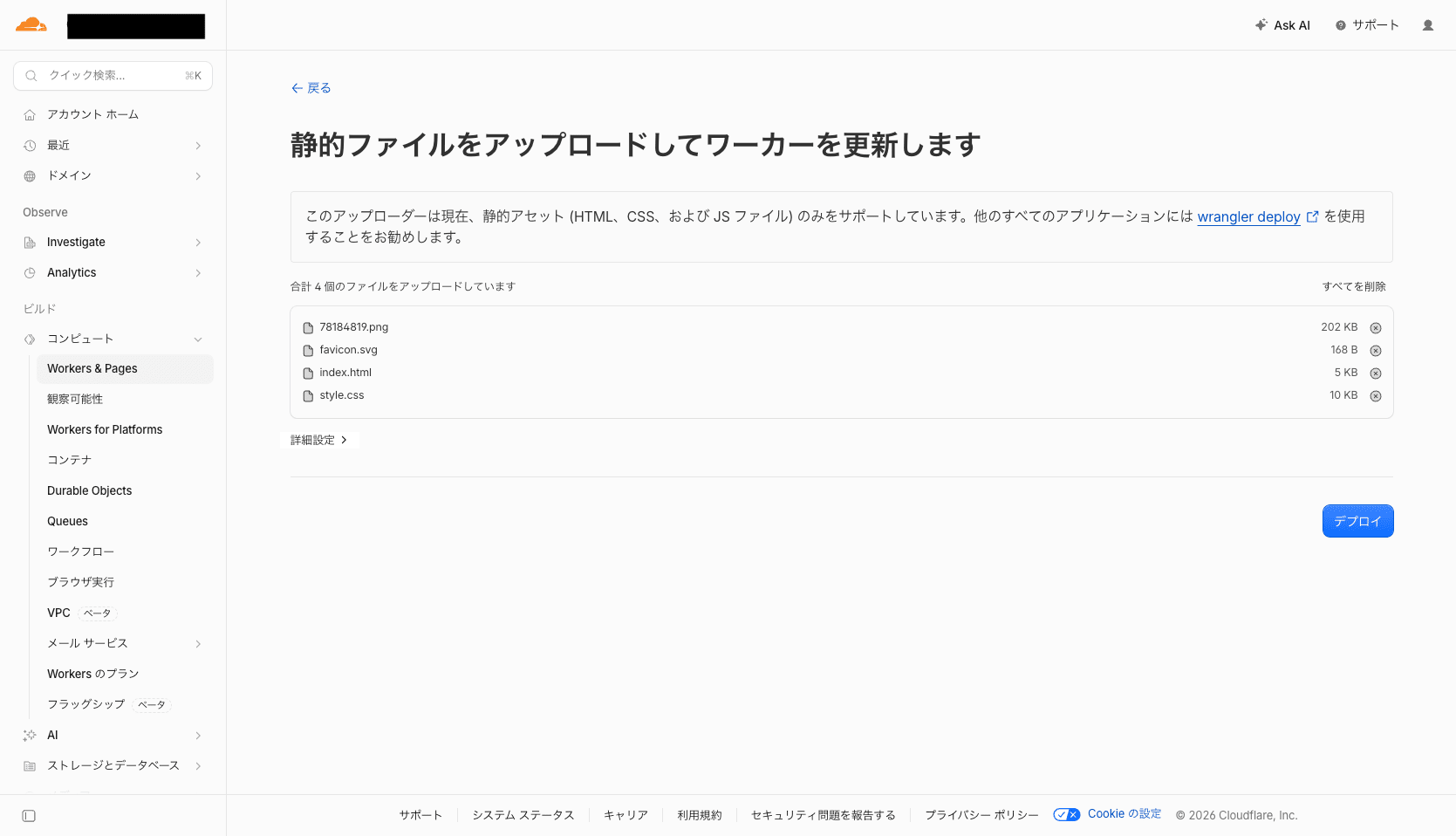
なお、このアップローダーが対応しているのは静的アセット(HTML、CSS、JSファイル)のみです。
より本格的なアプリケーションを扱いたい場合や、CI/CDに組み込んで自動デプロイしたい場合は、wrangler deployを使うことが推奨されています。
考慮事項
実際に触ってみて感じた注意点をいくつかまとめておきます。
- プレビューには時間制限がある
- ドロップ後のプレビューは1時間限定です。永続化したい場合はその間にClaimする必要があります。
- 対応するのは静的アセットのみ
- サーバーサイドの処理が必要なアプリケーションには対応していません。あくまで静的サイト向けの機能です。
- 本格運用ならwrangler
- 継続的に更新するサイトや複雑な構成のプロジェクトでは、
wranglerによるデプロイを検討したほうがよいです。 - Cloudflare Dropは「手軽に素早く公開する」ことに特化した機能と捉えるのがよさそうです。
- 継続的に更新するサイトや複雑な構成のプロジェクトでは、
逆に言えば、名刺代わりのホームページやちょっとしたポートフォリオサイトのように、静的で更新頻度もそれほど高くないサイトであれば、Cloudflare Dropは非常に手軽で相性が良い選択肢だと感じました。
さいごに
以上、Cloudflare Dropで名刺代わりのホームページをデプロイしてみました。
アカウントなしでとりあえず公開して動作確認し、気に入ったら永続化するという流れが非常に手軽で、思い立ってから1分ほどでサイトが公開できてしまう体験はなかなか衝撃的でした。
また独自ドメインの紐づけやObservabilityの有効化まで、Workers & Pagesの機能をそのまま使える点も嬉しいポイントです。
「静的サイトはあるけど公開先で悩んでいる」という方は、一度試してみてはいかがでしょうか。
この記事が誰かのお役に立てば幸いです。