![[Update] AWS DevOps Agent's Slack integration now features two-way communication functionality](https://images.ctfassets.net/ct0aopd36mqt/51cg1nDeDwY3QV8Q8Z2bVX/73d108504bcf60ba8d92ebeb7e372b43/aws-devops-agent-DevOpsAgent.png?w=3840&fm=webp)
[Update] AWS DevOps Agent's Slack integration now features two-way communication functionality

This page has been translated by machine translation. View original
As the title suggests, bidirectional communication functionality has been added to the DevOps Agent's Slack integration.
September 1, 2026: Chat with AWS DevOps Agent in Slack
You can now start and continue conversations with AWS DevOps Agent directly from a private Slack channel. Enable bidirectional communication when you associate a channel, then run a one-time setup command and chat using app mentions.
– Source: What's new - AWS DevOps Agent
Previously, communication was one-way — meaning "DevOps Agent simply sent messages to a Slack channel" — but with this update, by @mentioning DevOps Agent from our side, DevOps Agent will now perform the necessary investigation and return the results in chat. You can interactively check the status of resources directly in Slack.
I went ahead and tried out this feature.
Setup 1: Add a Slack Provider
This assumes you have already created an agent space. In this blog, I'll walk through the process starting from adding the Slack feature provider. If you have already completed this part, feel free to skip ahead.
On the [AWS DevOps Agent > Feature Providers] page, select [Register] for the Slack feature.
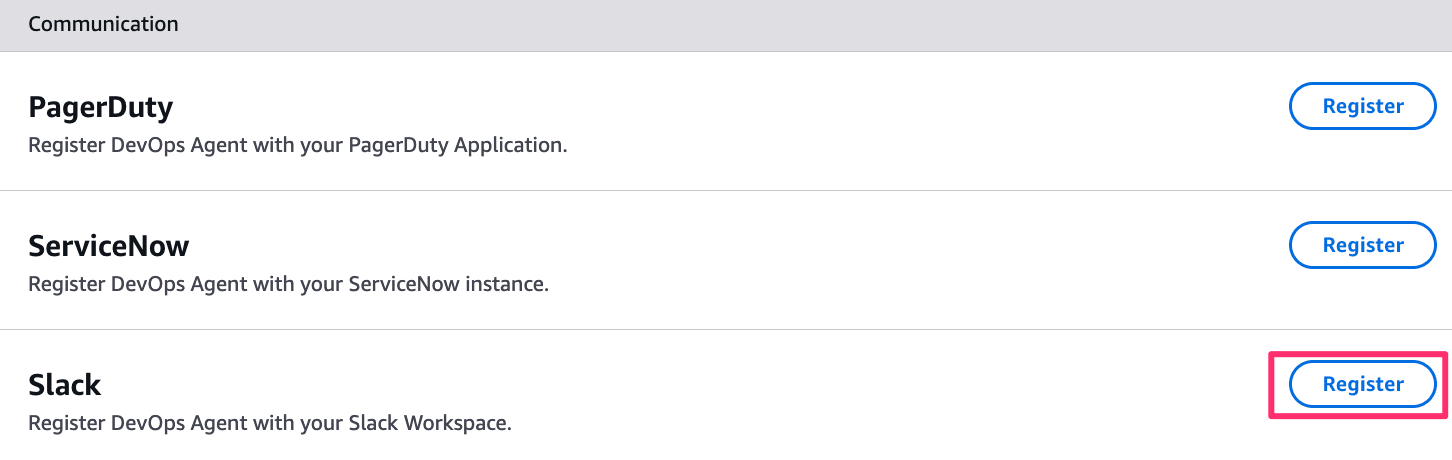
Register Slack from the feature provider list
Leave the default settings and select [Next].
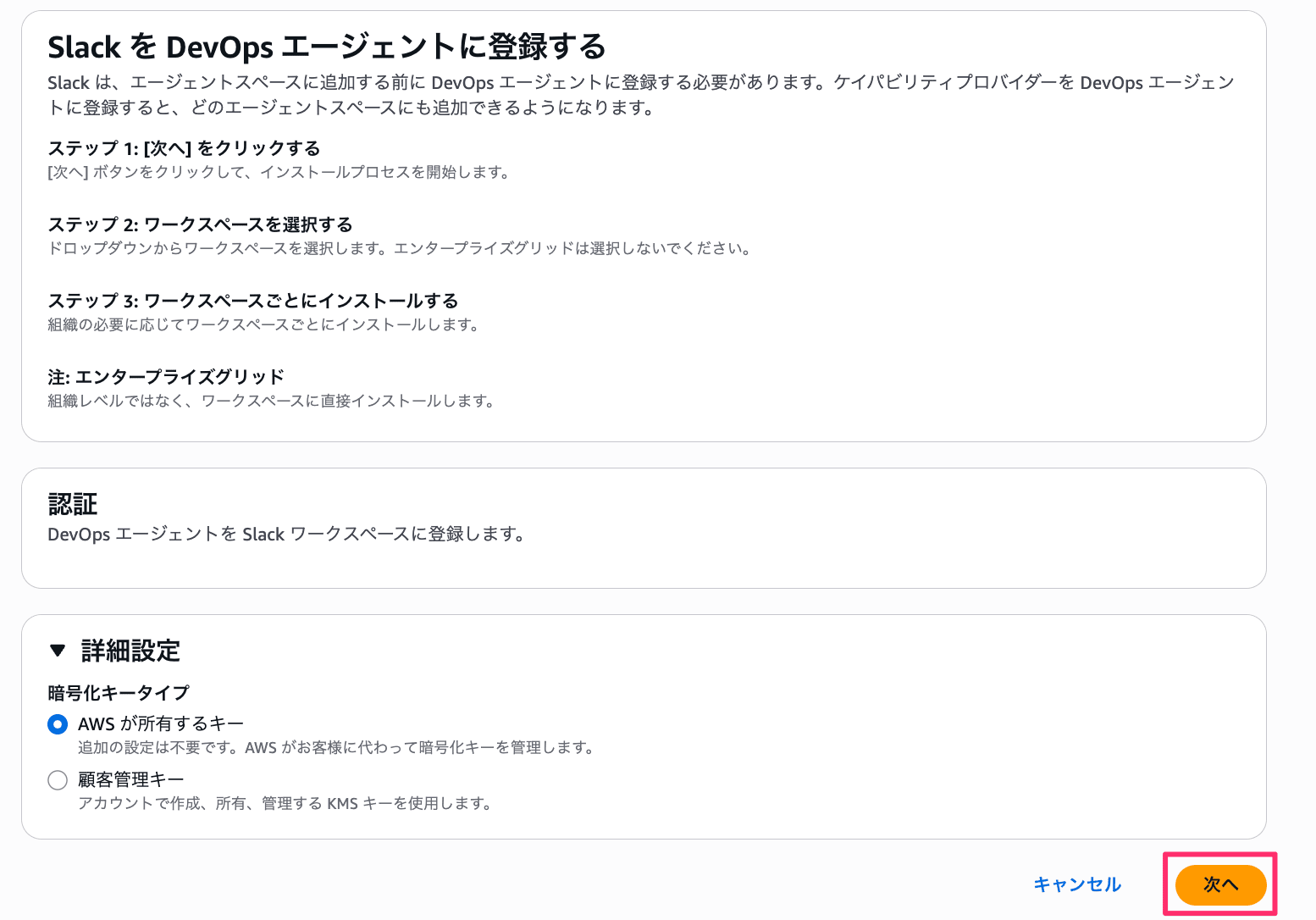
Screen for registering Slack with DevOps Agent
The Slack permissions screen will appear. You will be asked to grant access to the "AWS DevOps Agent - AP (Tokyo)" app, so select your target workspace and choose [Allow].
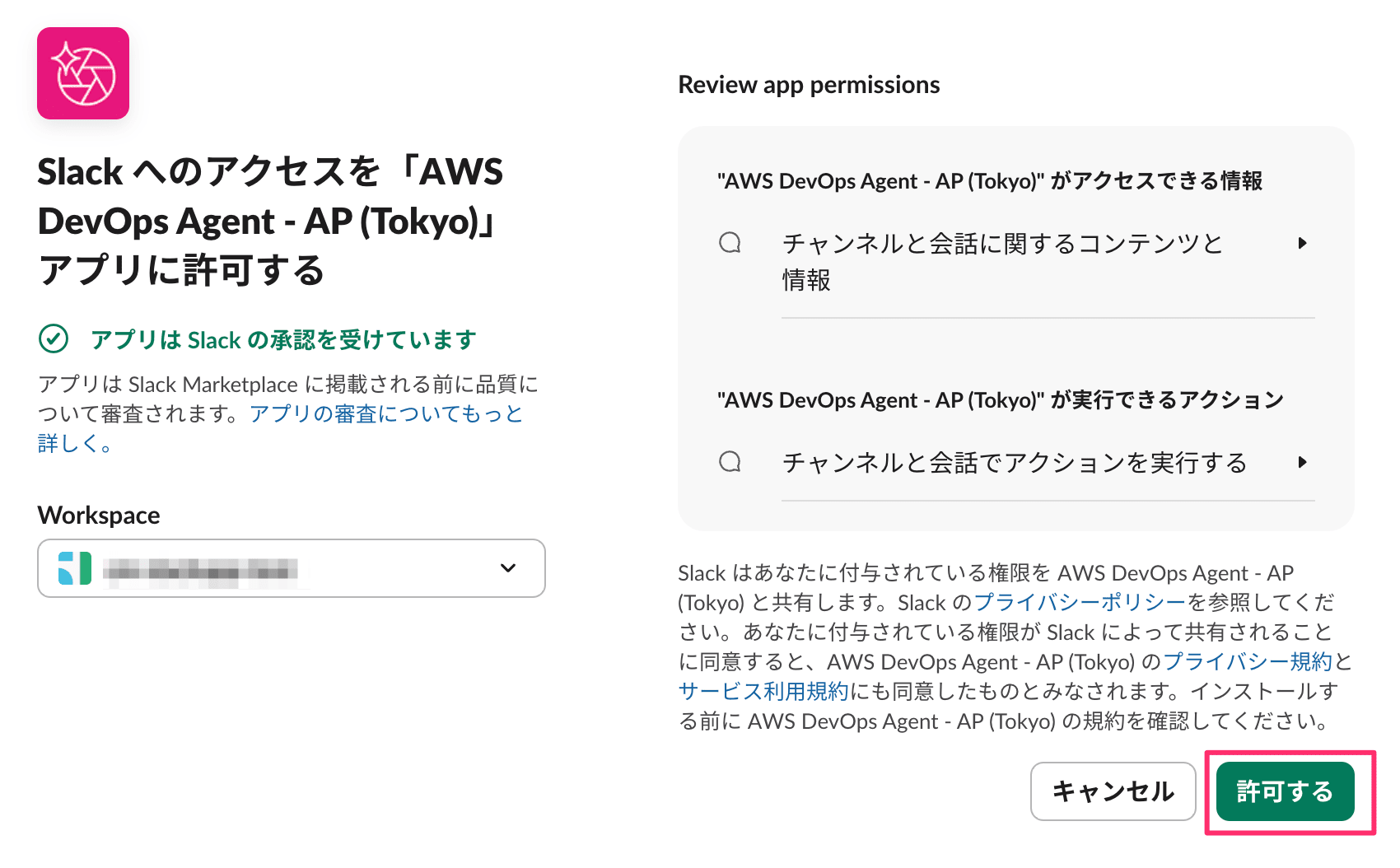
Slack app access permission screen
Setup 2: Associate with an Agent Space
Next is the work on the agent space side. This also involves some operations in the Slack channel along the way. Note that the bidirectional communication feature only supports private channels. Make sure to prepare a private channel to integrate with in advance.
Navigate to the page of the agent space you want to configure.
From [Features > Communication], select [Add integration].
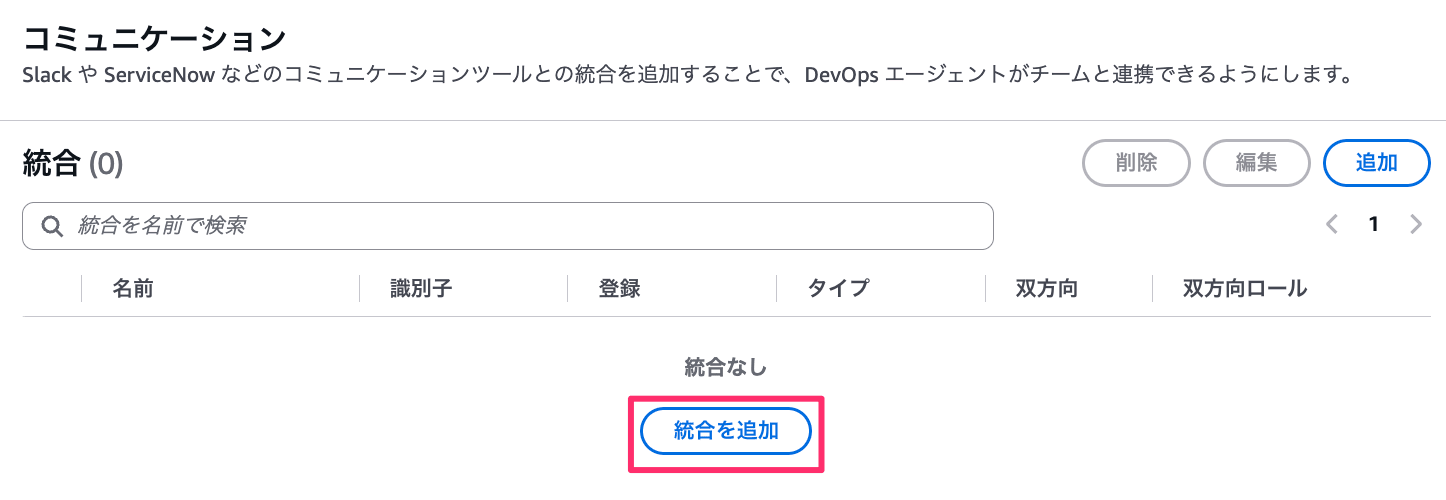
Communication settings for the agent space
The Slack provider you registered earlier will appear as "Registered," so select [Add].
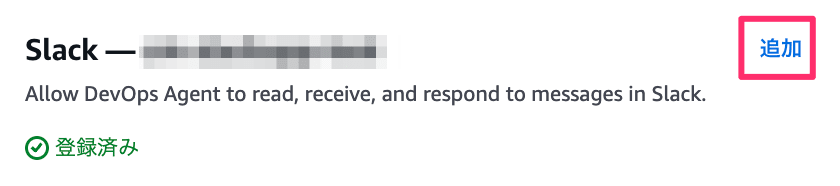
Add the registered Slack provider
You will be taken to the "Associate this agent space with a Slack channel" screen. Enter the [Channel ID] of the target channel and configure the [Bidirectional communication] settings.
For the bidirectional communication settings, specify the IAM role to use. This time, we'll create a new one and select [Next].
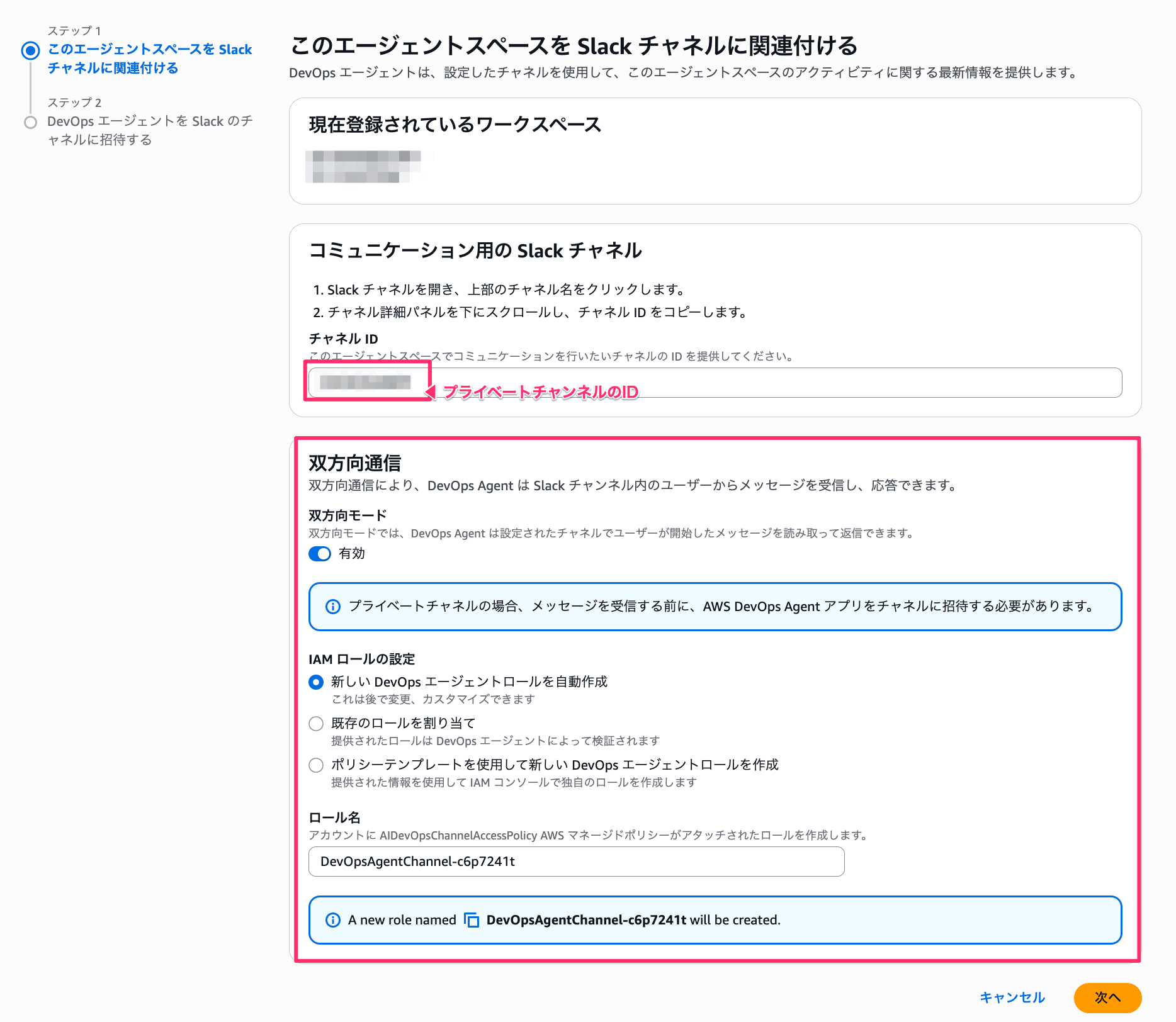
Configure the channel ID and bidirectional communication
In the next step, you will be guided to invite the DevOps Agent to the Slack channel. Run /invite @AWS DevOps Agent - AP (Tokyo) in the Slack channel.
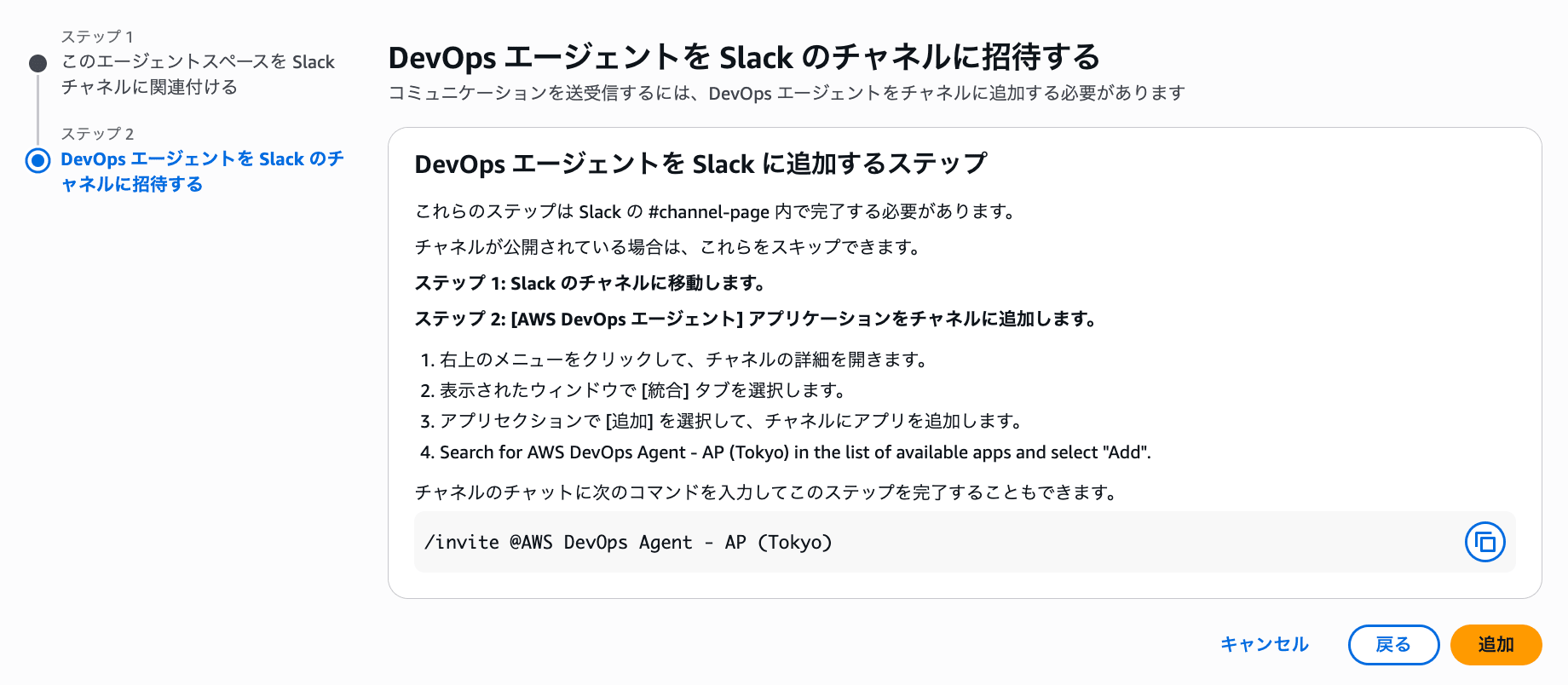
Instructions for inviting DevOps Agent to the channel
Select [Add] to complete the association. The Slack integration has been added to the communication list.
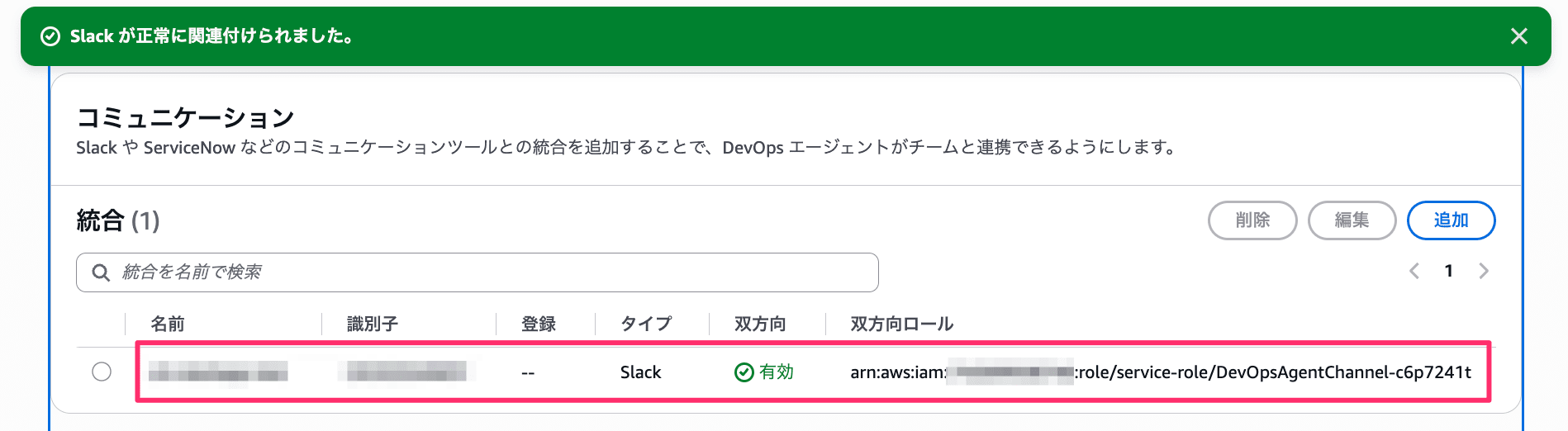
Integration added with bidirectional set to "Enabled"
Let's Chat
Initial Setup
Before starting a chat, a one-time setup is required on the channel side. Send a new message to the channel (not inside a thread) by mentioning DevOps Agent and typing setup.
Once you receive Channel bound to agent space back, you're ready to go.
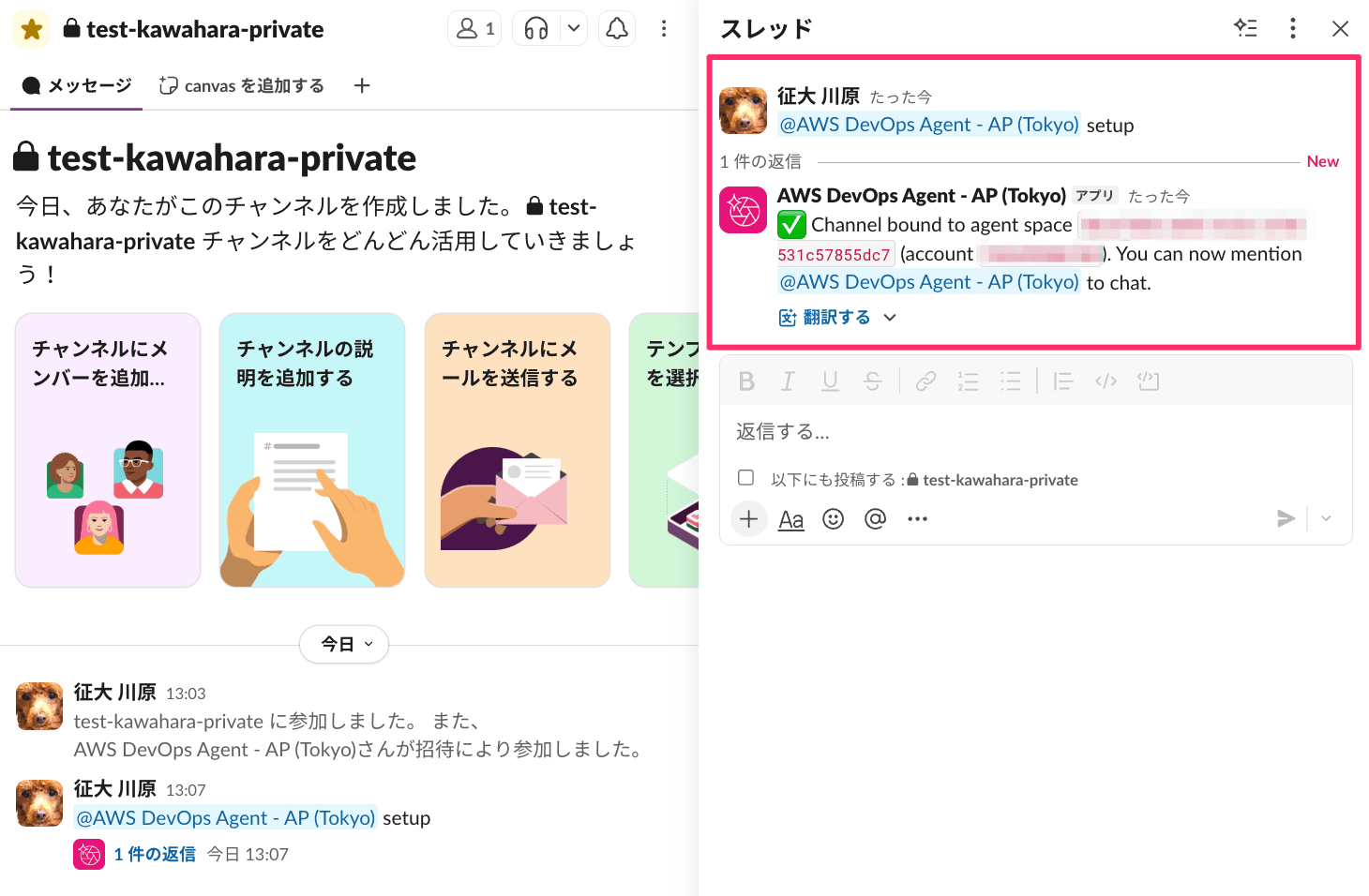
Sending "setup" returns "Channel bound to agent space"
Part 1: Hello World
Let's start with a simple chat. When I mentioned it, it replied in a thread like this.
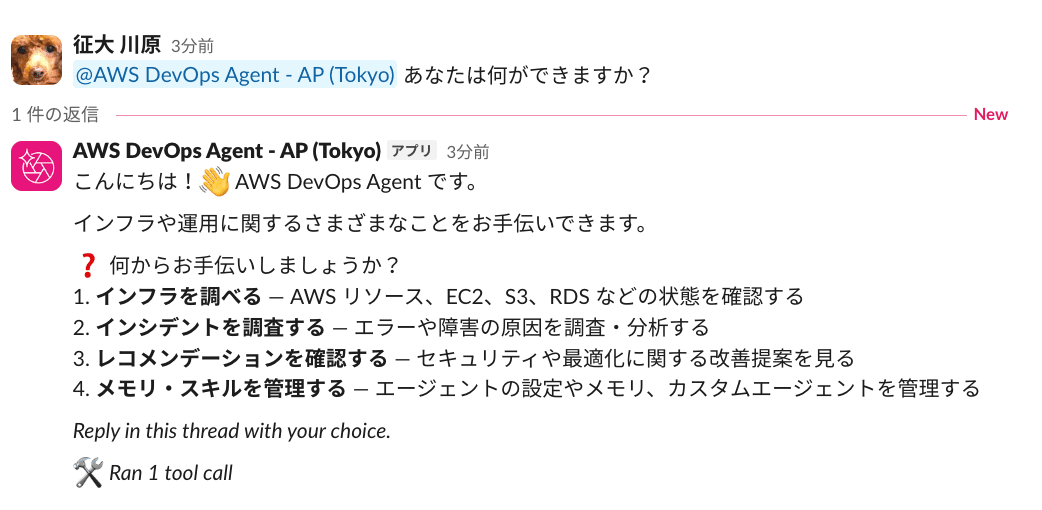
It returned a list of things it can do
Part 2: Resource Investigation
Let's ask it to investigate an AWS resource. I passed a GuardDuty finding ARN and asked for the details.
It retrieved the finding, investigated it, and summarized the results into a report. Just like the chat and investigation features in the web app, it properly used tools and skills.
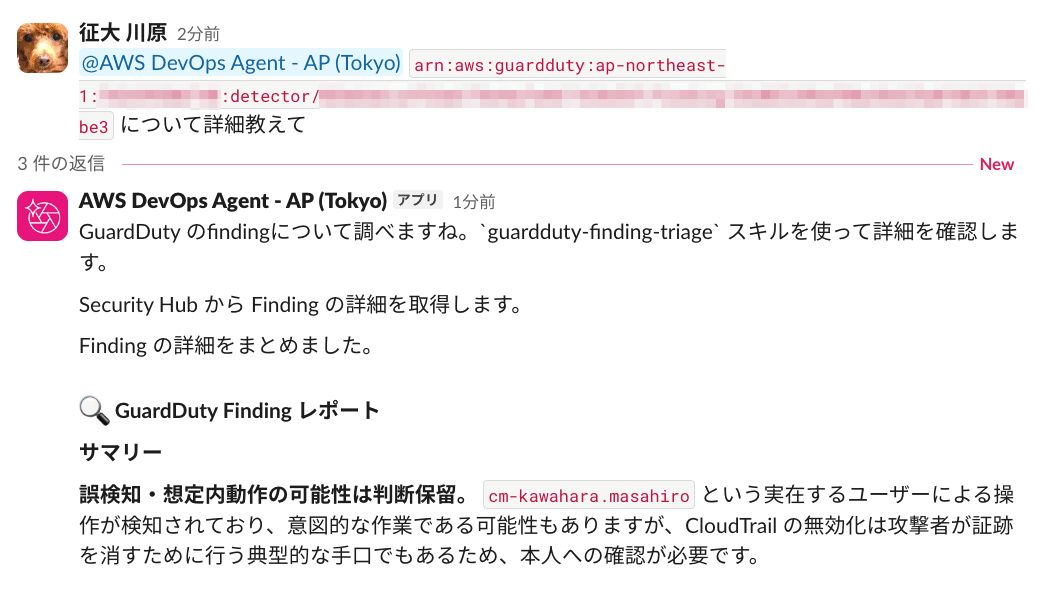
Investigated the GuardDuty Finding using a skill and compiled a report
When you continue mentioning it in the same thread, it returns answers based on the conversation so far.
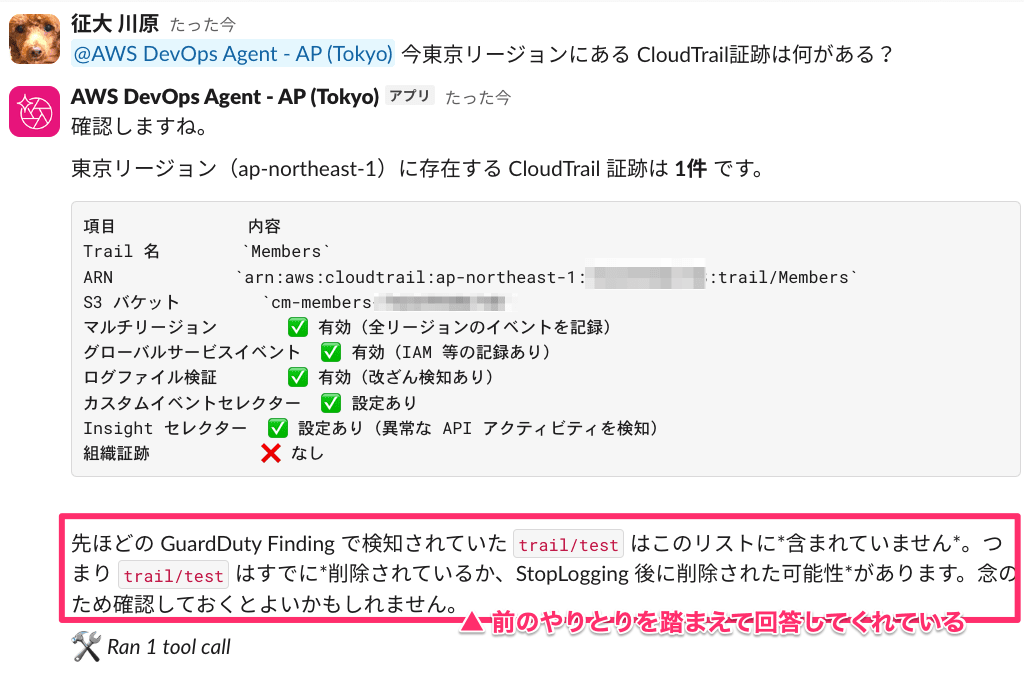
Answered with CloudTrail trail information based on the previous Finding
Part 3: Various Other Things
When mentioning it partway through a thread, it does not appear to pick up earlier messages in the thread (where it was not mentioned).
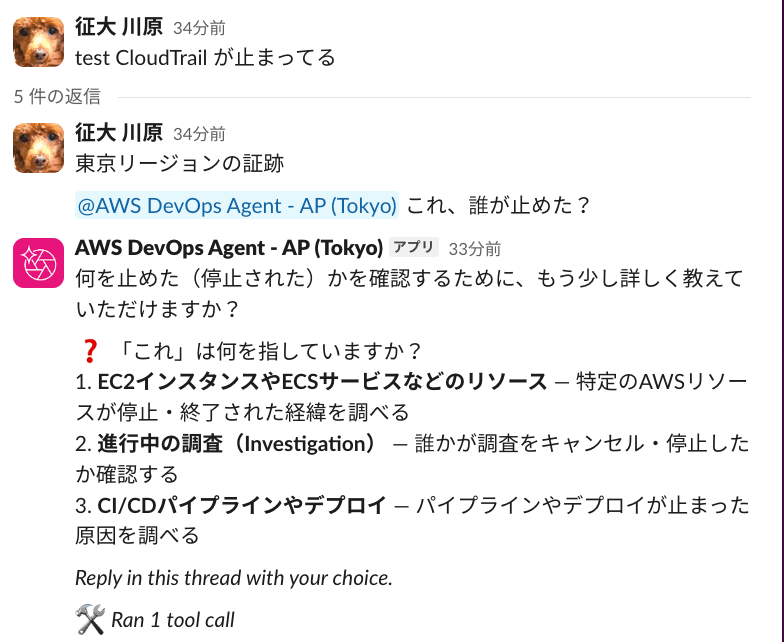
It doesn't pick up content from the start of the thread and asks back for the target
However, if you continue mentioning it in a thread where DevOps Agent has posted an investigation report as a notification, it will respond with an understanding of that investigation.
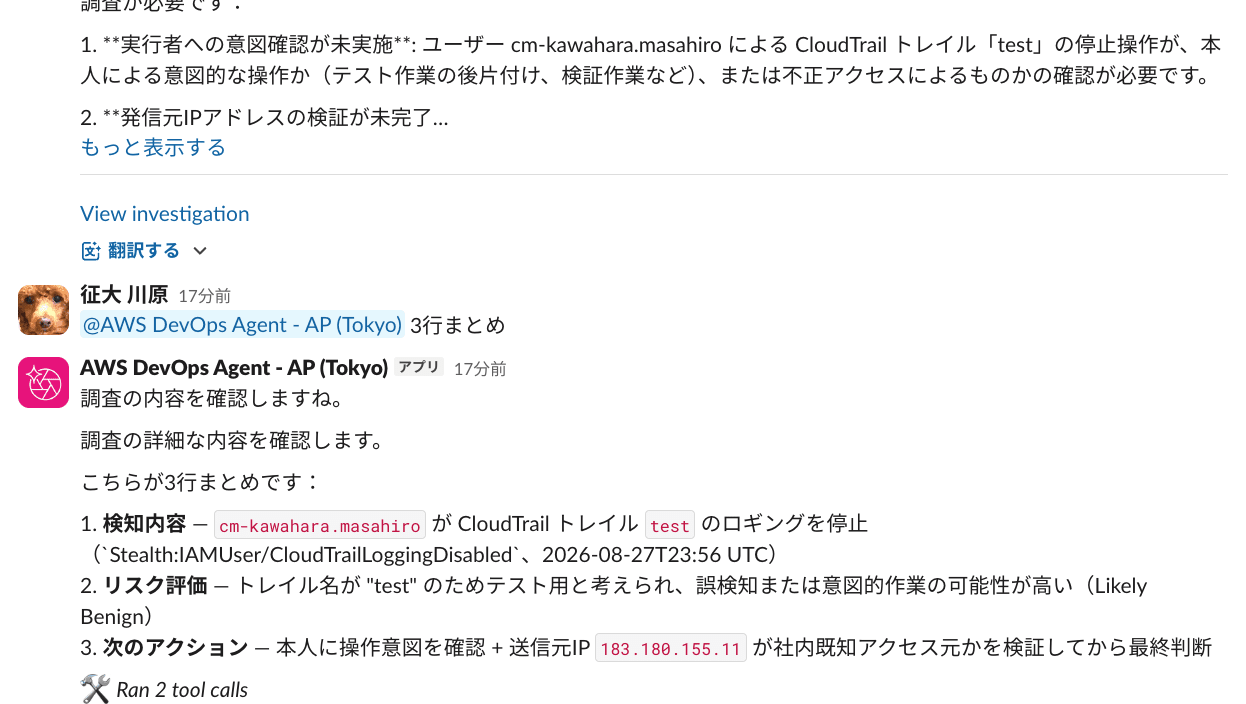
You can continue the conversation in a DevOps Agent investigation thread
Also, it appears that it can only reference the content of the thread where it was mentioned. It cannot retrieve other messages in the channel.
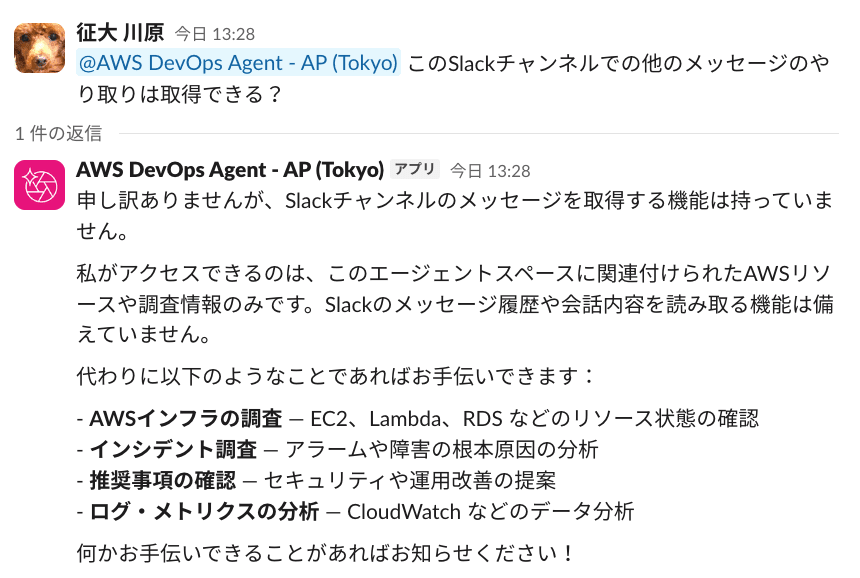
Response indicating that the channel's message history cannot be read
Supplementary: What Gets Recorded in CloudTrail Events?
When a chat is initiated from Slack, a CreateChat event is recorded. The event source is aidevops.amazonaws.com.
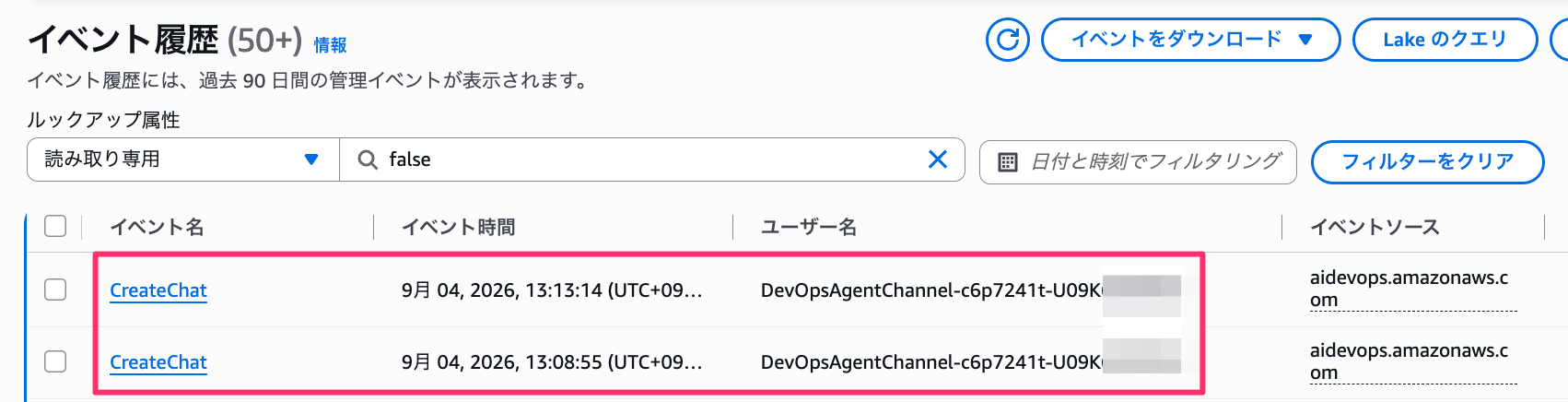
CreateChat event is recorded with the username
The contents of the event are as follows.
{
  "userIdentity": {
    "type": "AssumedRole",
    "arn": "arn:aws:sts::999999999999:assumed-role/DevOpsAgentChannel-c6p7241t/DevOpsAgentChannel-c6p7241t-U09K654PA5A",
    "sessionContext": {
      "sessionIssuer": {
        # omitted
        "userName": "DevOpsAgentChannel-c6p7241t-U09K654PA5A"
      }
    },
    "invokedBy": "aidevops.amazonaws.com"
  },
  "eventSource": "aidevops.amazonaws.com",
  "eventName": "CreateChat",
  "awsRegion": "ap-northeast-1",
  "requestParameters": null,
  "responseElements": {
    "createdAt": 1788495194.265,
    "executionId": "8ad6d51f-68d8-4c49-8c4e-36552b23bf09"
  },
  "resources": [
    {
      "type": "AWS::AIDevOps::AgentSpace",
      "ARN": "arn:aws:aidevops:ap-northeast-1:999999999999:agentspace/0bce185d-a465-4c2e-a184-531c57855dc7"
    }
  ]
}
The session name and username are formatted like DevOpsAgentChannel-c6p7241t-U09K654PA5A. This follows the format {bidirectional-role-name}-{Slack user ID}, making it (at least partially) possible to trace who initiated the chat.
Conclusion
I tried out the bidirectional Slack communication feature of DevOps Agent.
It's great that anyone who is a member of the private channel can use it without having to open the web app. Since you can ask about resource status as a natural extension of everyday conversation, the barrier to adoption seems quite low.
On the other hand, as an administrator, I felt that cost tracking could be challenging. Since you can trace who executed what through CloudTrail logs, the best approach would be to cross-reference that with actual cost information to estimate usage.
That's all — I hope this was helpful.