I tried running NVIDIA NemoClaw on DGX Spark

This page has been translated by machine translation. View original
Introduction
Hello, I'm Morishige from Classmethod's Manufacturing Business Technology Department.
In my recent on-site GTC 2026 report, I introduced "NemoClaw," an open-source AI agent security stack announced by NVIDIA.
With GTC over and before heading home, I immediately tried it out on the DGX Spark. This time, rather than a conceptual discussion, this is a hands-on record from installation through chatting with an agent.
NemoClaw Review
The details of NemoClaw are explained in my previous GTC report article, so here I'll just briefly recap the parts relevant to this verification.
NemoClaw is an open-source plugin that adds an NVIDIA-made security layer to OpenClaw (an AI agent framework). The core is a secure runtime called OpenShell, consisting of 3 layers: sandbox (OS-level isolation via Landlock + seccomp), a policy engine (constraint enforcement and update proposals), and a privacy router (routing sensitive data to local models).
The goal this time is to set up NemoClaw on the DGX Spark and run a locally self-contained secure agent environment using Nemotron 3 Super via Ollama. I'll be following the DGX Spark Playbook published by NVIDIA.
Verification Environment
| Item | Value |
|---|---|
| Hardware | NVIDIA DGX Spark (GB10) |
| Memory | 128GB unified memory |
| OS | Ubuntu 24.04 LTS |
| Docker | 29.1.3 |
| NVIDIA Driver | 580.126.09 |
| Node.js | v22.22.0 |
| Ollama | 0.17.2 |
| Inference model | Nemotron 3 Super 120B-A12B (Q4_K_M, Ollama) |
Ollama is already running Nemotron 3 Super on the DGX Spark. I'll proceed by adding NemoClaw to this environment. The OLLAMA_HOST=0.0.0.0 setting for Ollama is already done, so the connection from the sandbox is ready.
For the basic setup of DGX Spark and the introduction of Nemotron 3 Super, please refer to my previous articles as well.
Installing on DGX Spark
The DGX Spark Playbook published by NVIDIA summarizes the procedure in 14 steps. It covers everything carefully from Docker, Node.js 22, and Ollama installation, so if you're new to DGX Spark, it's safest to start there.
Since these are already installed in my environment, I'll start from the NemoClaw-specific installation.
Installing the OpenShell CLI
Install the CLI for OpenShell, the sandbox runtime of NemoClaw.
curl -LsSf https://raw.githubusercontent.com/NVIDIA/OpenShell/main/install.sh | sh
openshell: resolving latest version...
openshell: downloading openshell v0.0.11 (aarch64-unknown-linux-musl)...
openshell: verifying checksum...
openshell: extracting...
openshell: installed openshell 0.0.11 to /home/morishige/.local/bin/openshell
On the ARM64 DGX Spark, the install script automatically downloaded the aarch64 binary.
Installing NemoClaw
NemoClaw itself is installed by cloning the GitHub repository and globally installing it via npm.
cd ~
git clone https://github.com/NVIDIA/NemoClaw.git
cd NemoClaw
sudo npm install -g .
added 1 package in 452ms
DGX Spark-specific Setup
NemoClaw provides a dedicated setup command for DGX Spark.
sudo nemoclaw setup-spark
Internally, it automatically handles things like configuring Docker's cgroup namespace mode (required for OpenShell to run k3s inside a container) and adding the user to the Docker group. On first run, it will ask for your NVIDIA API Key, so issue a free key at build.nvidia.com and enter it. Even if you're only using local Ollama, it's required as a CLI gateway.
Onboarding Wizard
Running nemoclaw onboard launches a 7-step setup wizard.
cd ~/NemoClaw
nemoclaw onboard
The wizard proceeds in 7 steps. Here's how it went when I tried it.
Step 1: Preflight
✓ Docker is running
✓ Container runtime: docker
✓ openshell CLI: openshell 0.0.11
✓ Port 8080 available (OpenShell gateway)
✓ Port 18789 available (NemoClaw dashboard)
✓ NVIDIA GPU detected: 1 GPU(s), 124610 MB VRAM
The DGX Spark Playbook mentioned that "No GPU detected may be displayed," but in my environment it was correctly recognized as 124,610 MB (approximately 122GB). The way unified memory is reported appears to vary by environment.
Note that port 18789 is the port used by the NemoClaw dashboard. If another container is using it, you'll be blocked at Preflight, so it's worth checking in advance.
Step 2: Gateway
The OpenShell gateway container starts. On the first run, it took about 30-60 seconds due to image download.
Step 3: Sandbox
You enter a sandbox name (default is my-assistant). It builds a Docker image from NemoClaw's Dockerfile and creates the sandbox. The first build installs Python 3, Git, OpenClaw, the NemoClaw plugin, and more on top of a Node.js 22-slim base image. The build completed without issues on the ARM64 DGX Spark as well. The image size was approximately 1.5GB, and the whole process including upload to the gateway took about 5 minutes.
Step 4: Inference
It automatically detects local inference engines. If Ollama is running, it will appear as a candidate for you to select.
Inference options:
  1) NVIDIA Cloud API (build.nvidia.com)
  2) Local Ollama (localhost:11434) — running (suggested)

Choose [1]: 2
The list of models is also automatically fetched from Ollama. In my environment, 36 models were displayed. I selected nemotron-3-super here.
Step 5: Inference provider
The ollama-local provider is automatically created and the inference route is configured.
Route: inference.local
Provider: ollama-local
Model: nemotron-3-super:latest
Step 6: OpenClaw
The OpenClaw gateway automatically starts inside the sandbox.
Step 7: Policies
You select a preset for network policies. pypi and npm are suggested by default, and it also detected environment variables from the host environment (in this case SLACK_BOT_TOKEN) and suggested additional presets.
Once setup is complete, the sandbox information is displayed.
──────────────────────────────────────────────────
Sandbox      my-assistant (Landlock + seccomp + netns)
Model        nemotron-3-super:latest (Local Ollama)
NIM          not running
──────────────────────────────────────────────────
Run:         nemoclaw my-assistant connect
Status:      nemoclaw my-assistant status
Logs:        nemoclaw my-assistant logs --follow
──────────────────────────────────────────────────
The whole process took about 17 minutes. The first time takes longer due to the image build, but subsequent runs should be faster thanks to caching.
Changing the Inference Model
This time, I directly selected nemotron-3-super in Step 4 of the onboarding wizard. The Playbook's default is nemotron-3-nano, but with the DGX Spark's 128GB unified memory, Super works without issues.
If you want to change the model later, you can switch the inference route with the following command.
openshell inference set \
  --provider ollama-local \
  --model nemotron-3-super:latest \
  --no-verify
--no-verify is a flag that skips host-side verification because host.openshell.internal is only resolvable from inside the sandbox.
If the provider hasn't been created yet, create it manually.
openshell provider create \
  --name ollama-local \
  --type openai \
  --credential "OPENAI_API_KEY=ollama" \
  --config "OPENAI_BASE_URL=http://host.openshell.internal:11434/v1"
You can check the current settings with openshell inference get.
Running the Agent
Running from the Command Line
First, let's connect to the sandbox and try the agent from the command line.
nemoclaw my-assistant connect
Inside the sandbox:
export NVIDIA_API_KEY=local-ollama
export ANTHROPIC_API_KEY=local-ollama
openclaw agent --agent main --local -m "Say hello in Japanese" --session-id s1
こんにちは!

real    0m14.423s
With the Nemotron 3 Super model already loaded, a response came back in about 14 seconds. Checking with nvidia-smi, Ollama was using approximately 89,734 MiB (about 87.6GB / 128GB). On the first run, you'll need to wait a bit as model loading takes time.
The reason for setting dummy values for NVIDIA_API_KEY and ANTHROPIC_API_KEY is that OpenClaw checks for the existence of API keys. Since actual inference is routed to Ollama, they don't need to be valid keys.
While I was at it, I also checked the sandbox's network isolation.
# Run inside the sandbox
curl -sI https://httpbin.org/get
HTTP/1.1 403 Forbidden
It's properly blocked. OpenShell's network policy is working, and external access to anything other than pypi, npm, and slack that were permitted during onboarding is blocked. This reduces the risk of agents inside the sandbox making unintended external communications.
Interactive Chat with OpenClaw TUI
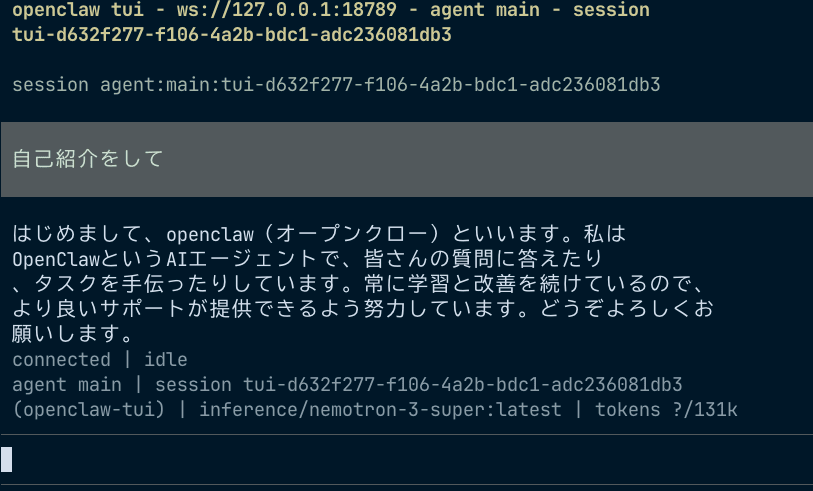
In addition to sending one-off questions from the command line, you can also use it interactively. With the sandbox connected, launch the OpenClaw TUI.
# Inside the sandbox
openclaw tui
Monitoring with OpenShell TUI
By launching the OpenShell TUI from the host side in a separate terminal, you can monitor sandbox activity in real time.
openshell term
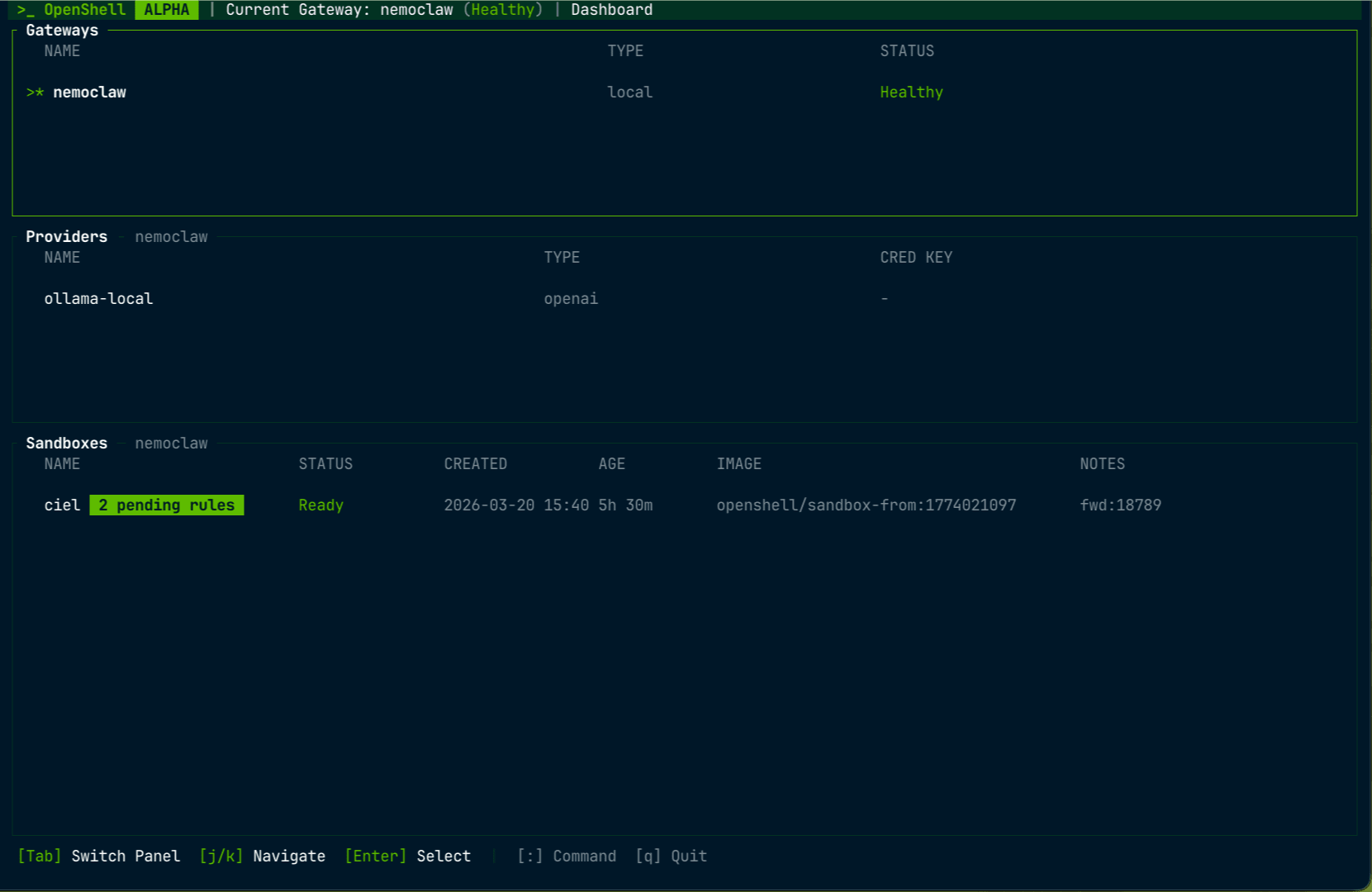
f to follow, s to filter by source, q to quit.
Using the Browser Dashboard
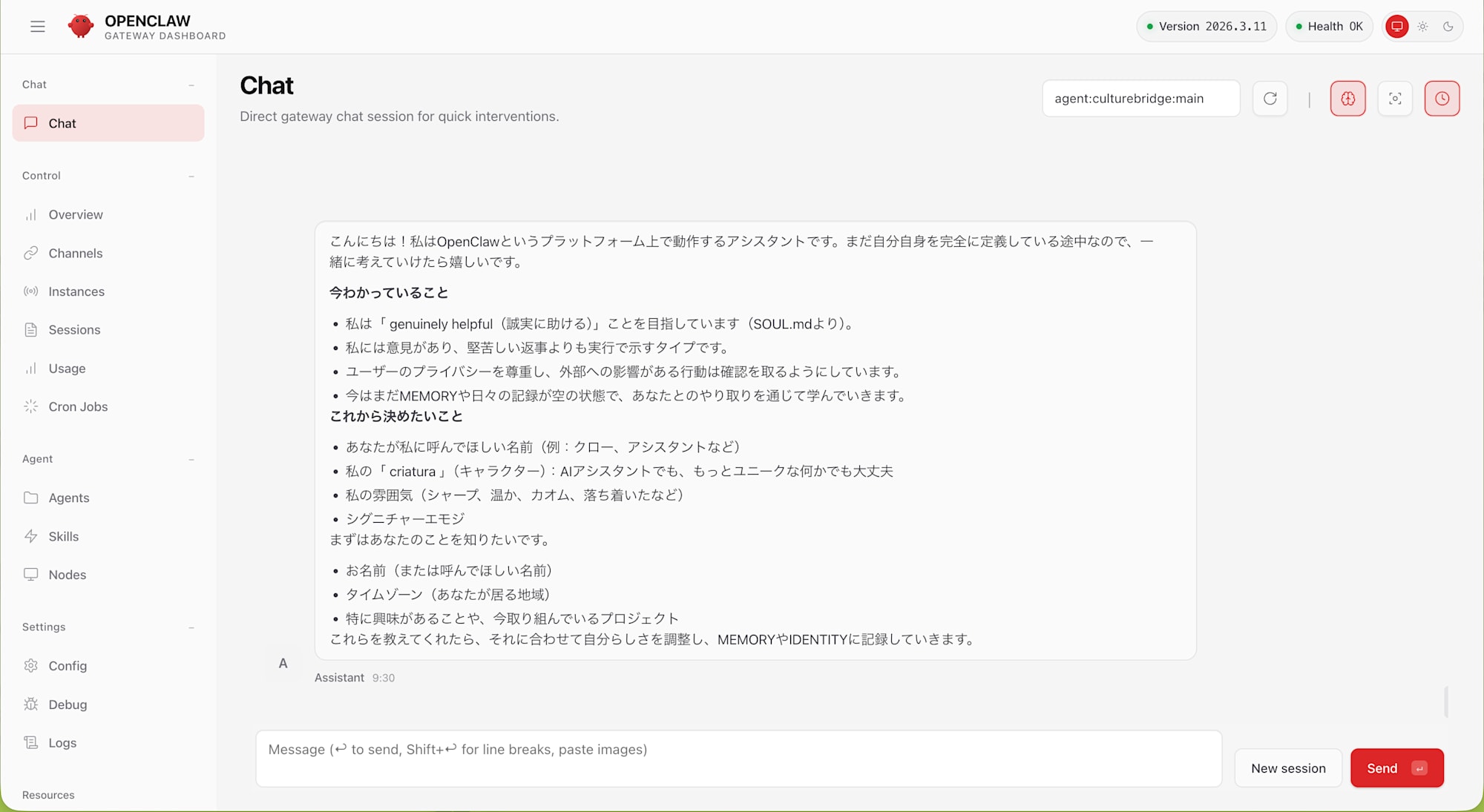
OpenClaw also comes with a browser-based chat UI. Since port 18789 forwarding is automatically configured during onboarding, retrieve the dashboard URL and open it in a browser.
Inside the sandbox:
openclaw dashboard
🦞 OpenClaw 2026.3.11 (29dc654)

Dashboard URL: http://127.0.0.1:18789/#token=29f18ce9...
Opening the displayed URL in a browser shows the OpenClaw chat UI. Note that you need to use the complete URL including the #token=... hash fragment as-is.
Sandbox Operation Tips
Once setup is complete, interacting with the agent is comfortable, but there are a few things that are helpful to know during the development and customization phase.
Moving Files In and Out
The sandbox is a minimal environment with no editors like vi or nano. The workflow for editing configuration files or placing scripts is to work on the host side and then push them in with openshell sandbox upload.
# Send a file from host → sandbox
openshell sandbox upload my-assistant ./my-file.txt /sandbox/

# Retrieve a file from sandbox → host
openshell sandbox download my-assistant /sandbox/output.txt ./
When uploading an entire directory, .gitignore rules are applied by default, so there's no worry about node_modules and similar being included. Use the --no-git-ignore flag if you want to disable this.
Connecting with VS Code Remote-SSH
The openshell sandbox ssh-config command can generate an SSH config entry. By appending this to ~/.ssh/config, you can connect directly to the sandbox from VS Code's Remote-SSH extension to edit files and work in the terminal.
openshell sandbox ssh-config my-assistant >> ~/.ssh/config
Managing the Sandbox
# Check sandbox status
nemoclaw my-assistant status

# Check logs (real-time following)
nemoclaw my-assistant logs --follow

# Delete the sandbox (if you want to start over)
nemoclaw my-assistant destroy
To return to a completely clean state including the gateway:
openshell sandbox delete my-assistant
openshell gateway destroy -g nemoclaw
After that, re-running nemoclaw onboard lets you start from scratch.
Architecture Overview
NemoClaw on DGX Spark operates in the following nested structure.
DGX Spark (Ubuntu 24.04, cgroup v2)
  └── Docker (29.x, cgroupns=host)
       └── OpenShell gateway container
            └── k3s (embedded)
                 └── nemoclaw sandbox pod
                      └── OpenClaw agent + NemoClaw plugin
It's a structure where k3s runs inside Docker, and the sandbox Pod stands within that. The reason nemoclaw setup-spark configures Docker's cgroup namespace mode is because this k3s expects cgroup v1-style paths.
OpenShell's security isolation consists of 4 layers.
| Layer | What it protects | Timing |
|---|---|---|
| Filesystem | Blocks reads/writes outside permitted paths | Fixed at sandbox creation |
| Network | Blocks unauthorized external connections | Hot-reloadable at runtime |
| Process | Blocks privilege escalation and dangerous syscalls | Fixed at sandbox creation |
| Inference | Routes model API calls to controlled backends | Hot-reloadable at runtime |
Pitfalls and Solutions
Here's a summary of issues encountered running NemoClaw on DGX Spark, along with known issues documented in the Playbook.
Dashboard Port Conflict
The NemoClaw dashboard uses port 18789 hardcoded. In my environment, another container from a hackathon was occupying this port, and it was blocked at Preflight. It's a good idea to check in advance with ss -tlnp | grep 18789.
Gateway Port Conflict
If a container is using port 8080, the gateway will fail to start. If an old gateway remains, you can delete it with openshell gateway destroy -g nemoclaw.
OpenShell Forward Becomes Dead
After a while post-setup, the port forward to the dashboard occasionally became dead. Check with openshell forward list, and if it's dead, restart it.
openshell forward stop 18789 my-assistant
openshell forward start --background 18789 my-assistant
Cannot Reach Ollama from the Sandbox
If Ollama is listening only on the default localhost, it cannot be accessed from the sandbox. The OLLAMA_HOST=0.0.0.0 setting is required.
sudo mkdir -p /etc/systemd/system/ollama.service.d
printf '[Service]\nEnvironment="OLLAMA_HOST=0.0.0.0"\n' | sudo tee /etc/systemd/system/ollama.service.d/override.conf
sudo systemctl daemon-reload && sudo systemctl restart ollama
Origin Error When Accessing Remotely
Accessing the dashboard via SSH tunnel produced an origin not allowed error. This is because nemoclaw-start.sh only sets http://127.0.0.1:18789, the default value of CHAT_UI_URL, in allowedOrigins. The browser accesses it at http://localhost:18789, but 127.0.0.1 and localhost are treated as different origins.
The fix is simply to specify CHAT_UI_URL and restart the gateway inside the sandbox.
# Inside the sandbox
export NVIDIA_API_KEY=local-ollama
export ANTHROPIC_API_KEY=local-ollama
export CHAT_UI_URL=http://localhost:18789
nemoclaw-start
Performance Impressions
I measured two models, Nemotron 3 Super and Nano, across 3 patterns: direct Ollama API call, OpenClaw CLI, and Web dashboard.
| Model | Direct Ollama API | OpenClaw CLI | Web Chat |
|---|---|---|---|
| Nano (30B / 3B active) | 0.6 sec | 15 sec | ~1 min |
| Super (120B / 12B active) | 5 sec | 14 sec | ~5 min |
Calling the Ollama API directly, both models are fast enough for practical use. On the other hand, going through the OpenClaw agent takes 14-15 seconds on the CLI and 1-5 minutes on Web chat. This is dominated not so much by model inference time, but rather by the overhead of the agent framework itself: agent startup, plugin loading, multiple inference calls for planning, and so on.
Nemotron 3 Super supports the reasoning_effort parameter. It can be controlled via the think parameter in the Ollama API, and setting think: false skips reasoning token generation, speeding things up from 10 seconds to 5 seconds. However, when disabling reasoning via the OpenClaw agent, the model's judgment degraded and the agent's planning loop increased, actually causing a significant slowdown from 14 seconds to 2 minutes 47 seconds. It seems keeping reasoning ON is the right choice when using it as an agent.
Memory usage, as confirmed with nvidia-smi, was approximately 89,734 MiB (about 87.6 GB) for Super and about 27 GB for Nano. With the DGX Spark's 128 GB unified memory, Super runs without issues, but if you're running other services alongside it, Nano gives you more headroom.
If you "just want to confirm it works," Super is fine, but if you're going to use it intensively as an agent on a daily basis, Nano gives a less stressful experience.
Summary
I tried everything from installing NemoClaw Early Preview to running an agent on the DGX Spark.
Looking back at what worked: the OpenShell sandbox was successfully built on the ARM64 DGX Spark without issues, the agent ran with local inference via Ollama, and network isolation also functioned correctly. You can chat from the dashboard Web UI and it also supports execution from the command line. I was able to confirm that NemoClaw's concept of a "locally self-contained secure agent environment" can be realized on the DGX Spark.
On the other hand, there were also a few rough edges typical of an Early Preview. There were a fair number of pitfalls not apparent from the documentation alone, such as the origin error on remote access, the issue with port forwards becoming dead, and the NVIDIA API Key being required even for local use. I think things will go much more smoothly if you also refer to spark-install.md in the repository and the DGX Spark Playbook.
Regarding performance, the fact that even the 120B Super model "runs" is a benefit of the DGX Spark's 128 GB unified memory, but if you prioritize the agent experience, Nano is more realistic. However, there seems to be room for improvement here as optimization on the agent framework side progresses.
NemoClaw is still at the Early Preview stage, but I have a feeling that OpenShell's security model (out-of-process policy enforcement) will become a quite powerful foundation when it reaches GA. Looking toward an era where agentic AI is used seriously in enterprises, it's reassuring that a "sandbox you can safely try things in" like this runs on hardware you have at hand.
Reference Links
Official Documentation
- NVIDIA NemoClaw Product Page
- NemoClaw Developer Guide
- NemoClaw Architecture Reference
- GitHub - NVIDIA/NemoClaw
- DGX Spark Playbooks - NemoClaw
- OpenShell Technical Blog