Build a Remote Desktop Environment on DGX Spark (RustDesk + Tailscale)

This page has been translated by machine translation. View original
Introduction
Hello, I'm Morishige from Classmethod's Manufacturing Business Technology Department.
I've written several articles about DGX Spark, but this time I'd like to change things up a bit and cover setting up a remote desktop environment.
I've mostly been working via SSH through the CLI and had barely touched the GUI desktop. However, I thought it was a shame to have GNOME Shell running and not use it, so I decided to set up a remote desktop environment.
In this article, I'll introduce the steps to build a secure remote desktop connection without a relay server using a combination of RustDesk and Tailscale. (It gave me a bit of trouble in my environment, but depending on your setup, you might be able to get started with no effort at all...)
Why RustDesk + Tailscale?
While researching remote desktop options, I came across an open-source remote desktop software called RustDesk. As the name suggests, it's written in the Rust language, and it runs lightweight and cross-platform. This time, I chose a "Direct IP Access" configuration combining RustDesk with Tailscale.
Comparing the main options, here's what I found:
| Option | Merits | Demerits |
|---|---|---|
| VNC (TigerVNC, etc.) | Mature technology, simple configuration | Heavy rendering, encryption requires separate setup |
| Chrome Remote Desktop | Easy setup | Dependent on Google account, ARM support is? |
| RustDesk (via public server) | Open source, cross-platform | Latency due to public relay server |
| RustDesk + Tailscale | Direct connection without relay, double encryption | Setup required for both |
My personal deciding factors were: first, using Tailscale's Direct IP Access eliminates the need for relay servers like hbbs/hbbr, resulting in zero infrastructure management. Additionally, the double encryption from Tailscale (WireGuard) and RustDesk (NaCl E2E) protects both the route and the screen transfer.
Here's the overall picture of the connection we're building:
This is a configuration where RustDesk communicates directly within Tailscale's WireGuard tunnel without going through a relay server.
Prerequisites
The environment for this setup is as follows:
| Item | DGX Spark (Server side) | MacBook Pro (Client side) |
|---|---|---|
| OS | Ubuntu 24.04 (DGX OS) | macOS |
| Architecture | aarch64 (Grace CPU) | Apple Silicon |
| Tailscale IP | 100.x.x.x | 100.x.x.x |
| Display | X11 + GDM + GNOME Shell | - |
Tailscale is already configured on both machines, and a direct connection has been confirmed with tailscale status.
DGX Spark Side Setup
Installing RustDesk
Since DGX Spark is an aarch64 architecture, we install the ARM version of the deb package.
# Check architecture
uname -m
# aarch64

# Download the latest version (1.4.5 as of February 2026)
cd /tmp
wget https://github.com/rustdesk/rustdesk/releases/download/1.4.5/rustdesk-1.4.5-aarch64.deb

# Install
sudo dpkg -i rustdesk-1.4.5-aarch64.deb
sudo apt-get install -f -y
Configuring Direct IP Access and a Fixed Password
Enable direct connection via Tailscale and set up a password for unattended access.
# Enable Direct IP Access
sudo rustdesk --option direct-server Y

# Set a fixed password (16+ characters recommended)
sudo rustdesk --password '<your-strong-password>'

# Check the RustDesk ID (make a note of it)
rustdesk --get-id
Configuring the systemd Service
We'll start RustDesk as a service, but there's one tricky point here. Since the systemd service runs outside of the X11 session, display information needs to be passed explicitly.
First, let's check the current session information.
# Check the X11 display number
# Get environment variables from the GNOME Shell process
cat /proc/$(pgrep -u $(whoami) gnome-shell | head -1)/environ | tr '\0' '\n' | grep ^DISPLAY=
# DISPLAY=:1

# Check the XAUTHORITY path
cat /proc/$(pgrep -u $(whoami) gnome-shell | head -1)/environ | tr '\0' '\n' | grep ^XAUTHORITY=
# XAUTHORITY=/run/user/1000/gdm/Xauthority
Using this information, create a systemd override file.
sudo mkdir -p /etc/systemd/system/rustdesk.service.d

sudo tee /etc/systemd/system/rustdesk.service.d/override.conf <<'EOF'
[Service]
Environment="DISPLAY=:1"
Environment="XAUTHORITY=/run/user/1000/gdm/Xauthority"
Environment="DBUS_SESSION_BUS_ADDRESS=unix:path=/run/user/1000/bus"
Environment="XDG_SESSION_TYPE=x11"
EOF

sudo systemctl daemon-reload
sudo systemctl enable rustdesk
sudo systemctl start rustdesk
xorg.conf Configuration for Headless Environments
And this is the part where I got most stuck this time.
When operating DGX Spark without a monitor connected, all entries in xrandr output show as disconnected. RustDesk's screen capture library (libscrap) uses xrandr's monitor information to enumerate displays, so if there are 0 connected monitors, it results in a "no display" error.
# xrandr output when no monitor is connected
xrandr
# Screen 0: minimum 8 x 8, current 3440 x 1440, maximum 32767 x 32767
# HDMI-0 disconnected primary
# USB-C-0 disconnected
# USB-C-1 disconnected
# ...
Even though the X11 screen itself exists and GNOME is rendering, from RustDesk's perspective there is "no screen."
The solution is to configure xorg.conf to make the NVIDIA driver treat HDMI-0 as "connected."
sudo vim /etc/X11/xorg.conf
Add the following 2 lines to Section "Device":
Section "Device"
    Identifier     "Device0"
    Driver         "nvidia"
    VendorName     "NVIDIA Corporation"
+   Option         "ConnectedMonitor" "HDMI-0"
+   Option         "ModeValidation" "NoDFPNativeResolutionCheck,NoVirtualSizeCheck,NoMaxPClkCheck,NoEdidMaxPClkCheck,NoMaxSizeCheck,NoHorizSyncCheck,NoVertRefreshCheck,NoWidthAlignmentCheck"
EndSection
ConnectedMonitor is an option that makes the specified output recognized as "connected" even when no physical monitor is attached. ModeValidation is an option to allow various resolutions even without EDID information.
After making the changes, restart GDM.
sudo systemctl restart gdm
After restarting, checking xrandr should show HDMI-0 as connected.
xrandr
# Screen 0: minimum 8 x 8, current 1920 x 1080, maximum 32767 x 32767
# HDMI-0 connected primary 1920x1080+0+0
# ...
Adjusting the Resolution
If you want to change the resolution for remote desktop use, you can change it instantly with nvidia-settings. (You can also adjust it from the RustDesk client app.)
DISPLAY=:1 XAUTHORITY=/run/user/1000/gdm/Xauthority \
  nvidia-settings --assign CurrentMetaMode="HDMI-0: 1920x1080 +0+0"
Firewall Configuration
Since communication via Tailscale is already encrypted with WireGuard, a connection is possible even without firewall settings. However, in environments where ufw is enabled, explicitly opening ports limited to the Tailscale interface makes things more robust.
sudo ufw allow in on tailscale0 to any port 21118 proto tcp comment 'RustDesk Direct IP'
sudo ufw allow in on tailscale0 to any port 21119 proto tcp comment 'RustDesk Direct IP'
By limiting to tailscale0, access from outside Tailscale can be blocked.
MacBook Pro Side Setup
The client side is relatively simple.
brew install --cask rustdesk
In macOS "System Settings > Privacy & Security," allow the following:
- Screen Recording → Check RustDesk
- Accessibility → Check RustDesk
Once RustDesk is launched, enter the DGX Spark's Tailscale IP (100.x.x.x) in the "ID" input field on the left to connect. When prompted for a password on the first connection, enter the fixed password you set earlier with rustdesk --password.
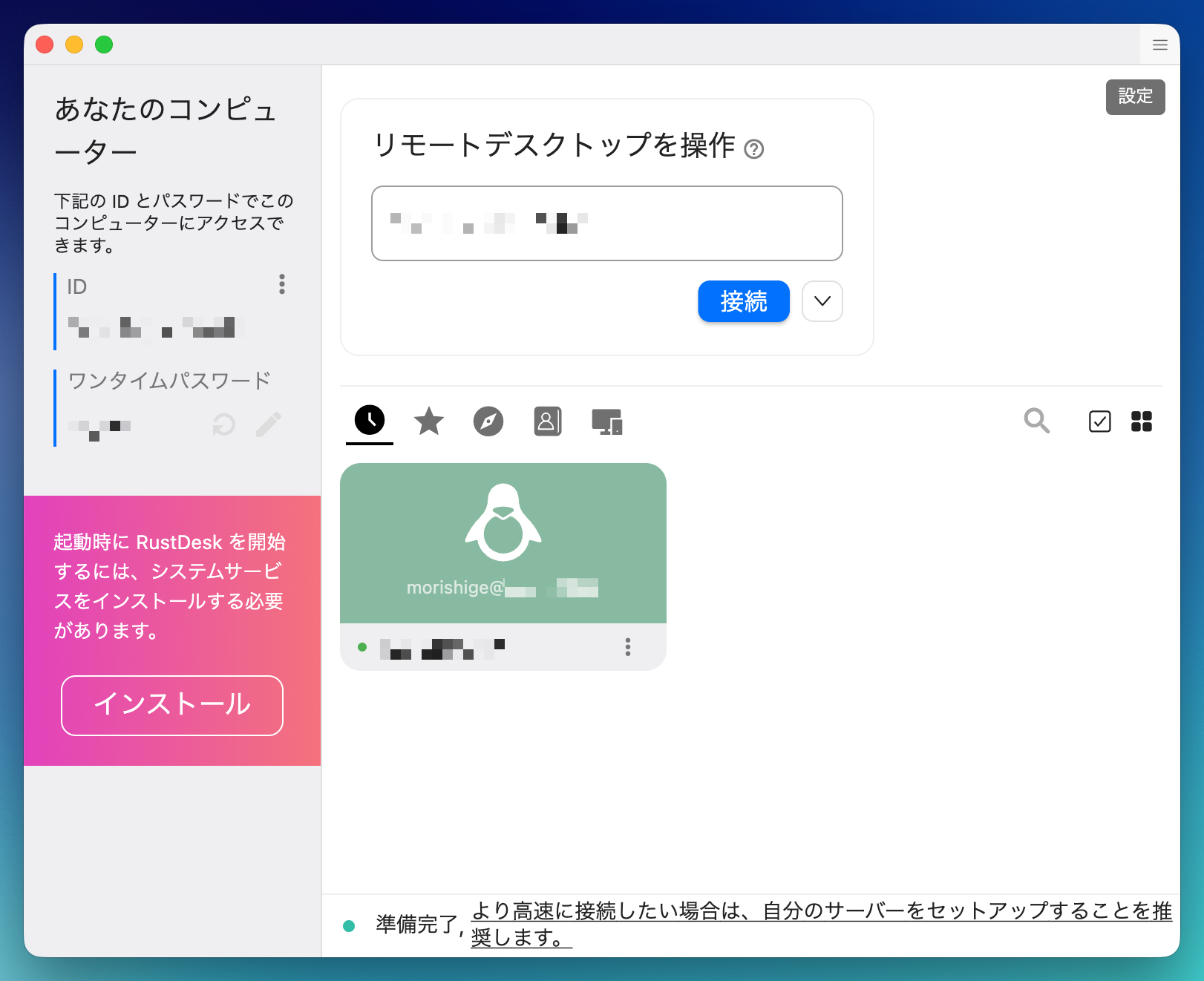
Connecting
Once the MacBook Pro side setup is complete, let's try connecting to DGX Spark from RustDesk.
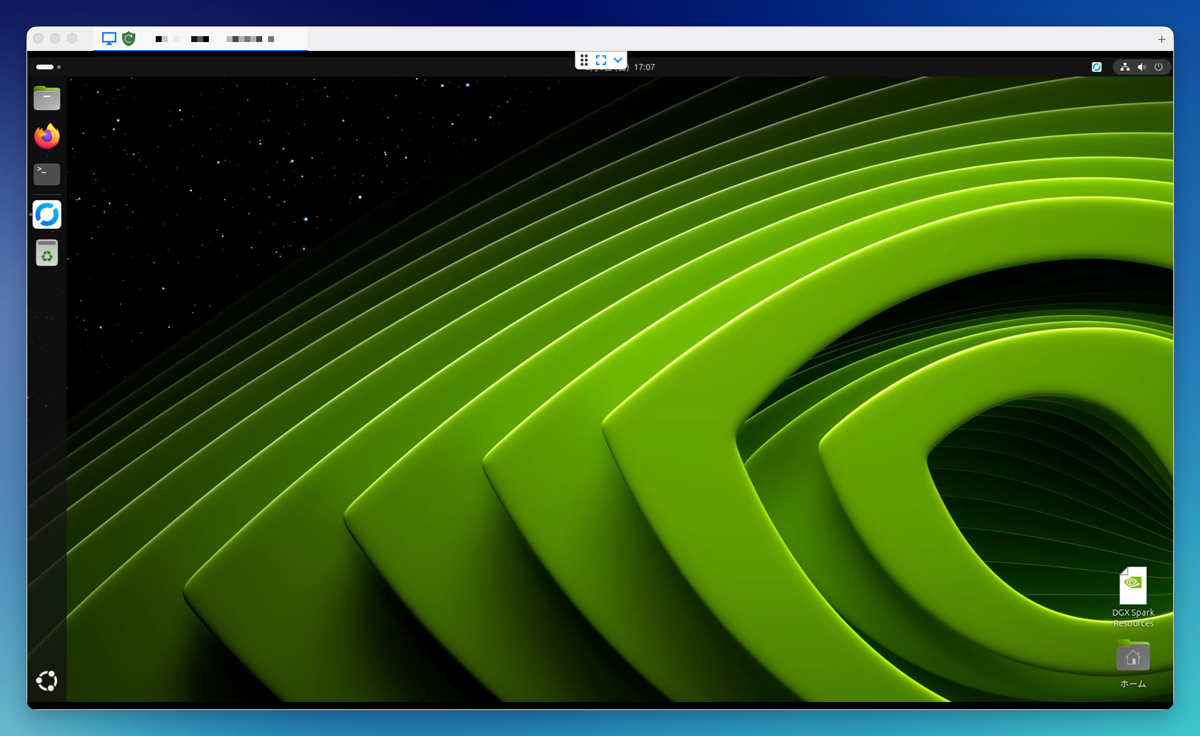
After entering the password, the DGX Spark's GNOME desktop appears on the MacBook's screen. With Tailscale's direct connection (no derp relay), latency is barely noticeable within the same network. Text editing and terminal operations are comfortable, and web browser scrolling works smoothly without any hitches.
After connecting, the following adjustments are available from RustDesk's toolbar:
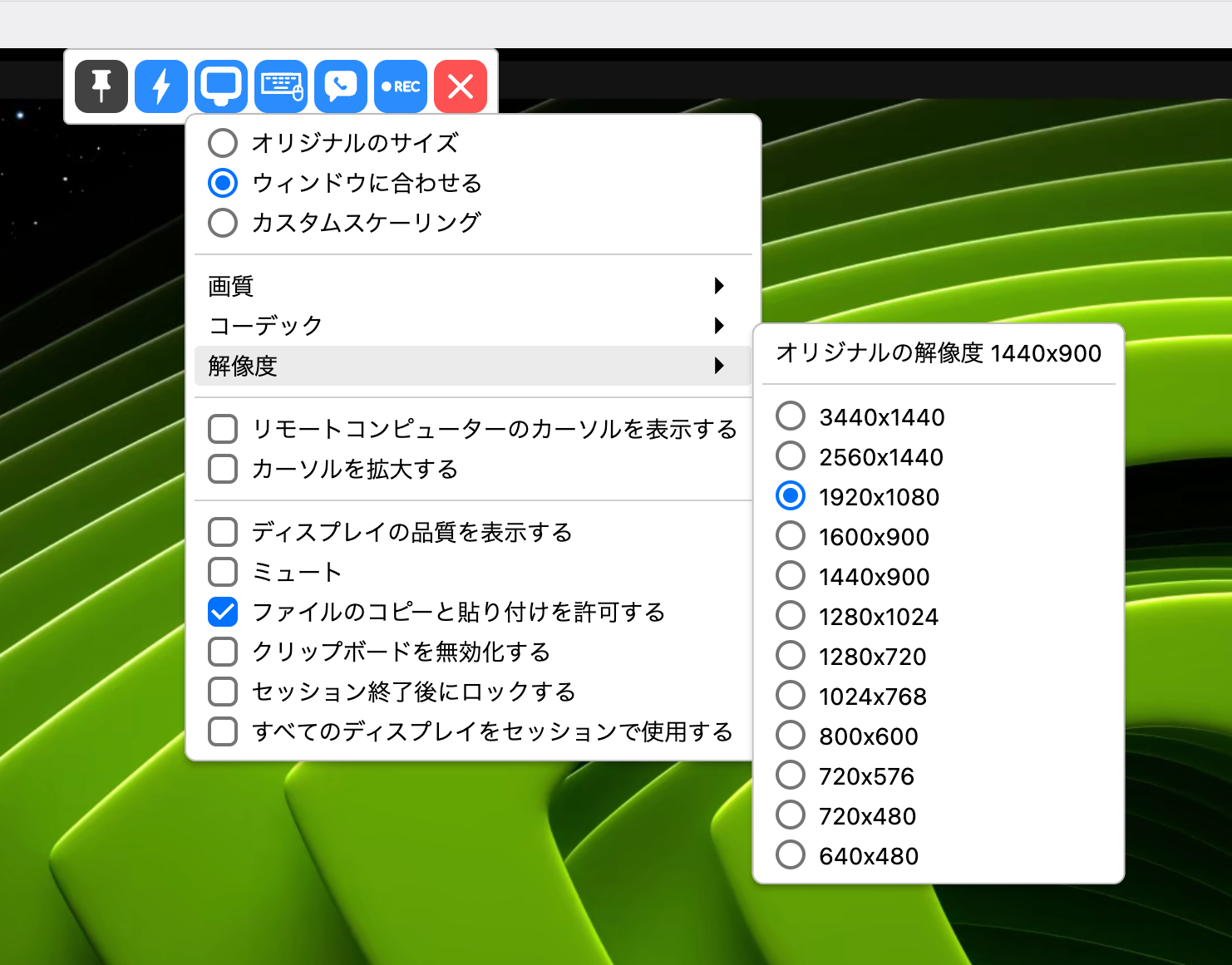
- Window size changes (resizable on the client side)
- Image quality adjustment (Balanced / Best)
- FPS changes (default 30fps, 60fps for operations with a lot of movement)
SSH is usually sufficient, but there are surprisingly many situations where I want a GUI, such as when I want to check the DGX Dashboard or use WebUIs for image generation. Having a remote desktop environment that you can connect to quickly in those moments is very convenient.
Troubleshooting
"No Display" Error
This is the most common issue. If the following error appears in RustDesk's server log, check the ConnectedMonitor setting in xorg.conf.
ERROR: Failed to get display 0, displays len: 0
Logs can be found at the following locations:
# systemd journal
journalctl -u rustdesk -f

# RustDesk's own logs
cat ~/.local/share/logs/RustDesk/server/rustdesk_rCURRENT.log
Connection Works but Screen is Black
The GNOME lock screen may be showing. Moving the mouse or clicking via RustDesk should bring up the password input screen.
If unlocking every time is tedious, you can also enable automatic login in GDM.
# Add the following to /etc/gdm3/custom.conf
[daemon]
AutomaticLoginEnable=true
AutomaticLogin=<your-username>
Since it's doubly protected by Tailscale + RustDesk's fixed password, I think the risk of automatic login is acceptable within a home network.
systemd Service Environment Variables Not Taking Effect
Let's verify that the contents of override.conf are correct.
# Check the override file
cat /etc/systemd/system/rustdesk.service.d/override.conf

# Reload and restart the service
sudo systemctl daemon-reload
sudo systemctl restart rustdesk
Summary
I built a remote desktop environment for DGX Spark using RustDesk + Tailscale's Direct IP Access.
The key points this time are as follows:
- Since it connects directly within the Tailscale network, no relay server is needed
- In headless operation, the
ConnectedMonitorsetting in xorg.conf is essential - X11 session information (DISPLAY, XAUTHORITY, etc.) needs to be passed to the systemd service
This time, I got quite stuck on issues around xrandr in a headless environment. The situation where "even though the X11 screen exists without a physical monitor, RustDesk can't see it" was counterintuitive, and it took time to identify the cause. I hope this serves as a reference for those trying the same configuration.
I thought SSH was sufficient, but there are surprisingly many situations where I occasionally want a GUI, and this has expanded the ways I can use DGX Spark a little further.
Reference Links
- Tailscale × RustDesk Official Guide — Tailscale-side configuration steps and best practices
- RustDesk Linux Client Documentation — Linux version installation and configuration
- RustDesk Headless Linux Support Wiki — Configuration methods for headless environments (xorg.conf, etc.)