
When I investigated the problem of the beginning being cut off when converting a MOV trimmed in QuickTime to a GIF using FFmpeg, an unexpected specification came to light

This page has been translated by machine translation. View original
First, I've summarized the solution for those who are busy. If you're wondering what this is all about, skip ahead to the Background section!
Solution Summary for Those Having Issues
Adding -ignore_editlist 1 to the input options will fix it. Adjust the trimming with -ss/-to as needed.
Note that -ignore_editlist 1 must be written before -i (input side), and -ss/-to must be written after -i (output side), otherwise they won't work.
ffmpeg -ignore_editlist 1 -i input.mov -vf "fps=<frame rate>" -ss <start position in seconds> -to <end position in seconds> output.gif
Seconds to Specify for -ss/-to
Here, you need to specify the timestamp visible in QuickTime Player plus an offset.
The offset is calculated as "edit list time ÷ time scale". Each can be checked with the following commands.
# Check the edit list time
ffprobe -v trace input.mov 2>&1 | grep -A 3 elst

# Check the time scale
ffprobe -v trace input.mov 2>&1 | grep time_scale
If the file before trimming still exists, or if you can re-record, using an unedited MOV file lets you use the following command. You can also specify seconds using the timestamps visible in QuickTime Player.
ffmpeg -i input.mov -vf "fps=<frame rate>" -ss <start position in seconds> -to <end position in seconds> output.gif
Note that this article uses QuickTime Player 10.5 and FFmpeg 8.1.2.
Background
At DevelopersIO, given its nature as a technical blog, there are frequent situations where we want to embed videos for demos and such. However, as of July 24, 2026, Zenn markup does not support embedding video files. While embedding YouTube is possible, I find it cumbersome to play back, so I almost exclusively convert to GIF and embed that way.
Since I use QuickTime Player for screen recording, the file format is MOV. To convert MOV to GIF, I use the handy command-line tool FFmpeg.
Now, this happened when I was writing the following blog post the other day.
Since it was an article introducing my own app, I needed to include a demo video at the beginning. I started by screen recording with QuickTime Player.
GIFs loop automatically, so if you don't include a few seconds of still frames at the beginning and end, the footage jumps abruptly and becomes hard to watch. This time, showing the AI chat streaming all the way to the end would make it too long, so I recorded it with a longer still section only at the beginning. Afterward, I trimmed the beginning and end to the optimal length and saved. I cut about 1 second from the beginning and about 3 seconds from the end.
I then converted that MOV to a GIF using FFmpeg with the following command.
ffmpeg -i input.mov -vf "fps=10" output.gif
Then, for some reason, the still section at the beginning of the output GIF was completely cut off. The end, on the other hand, was fine.
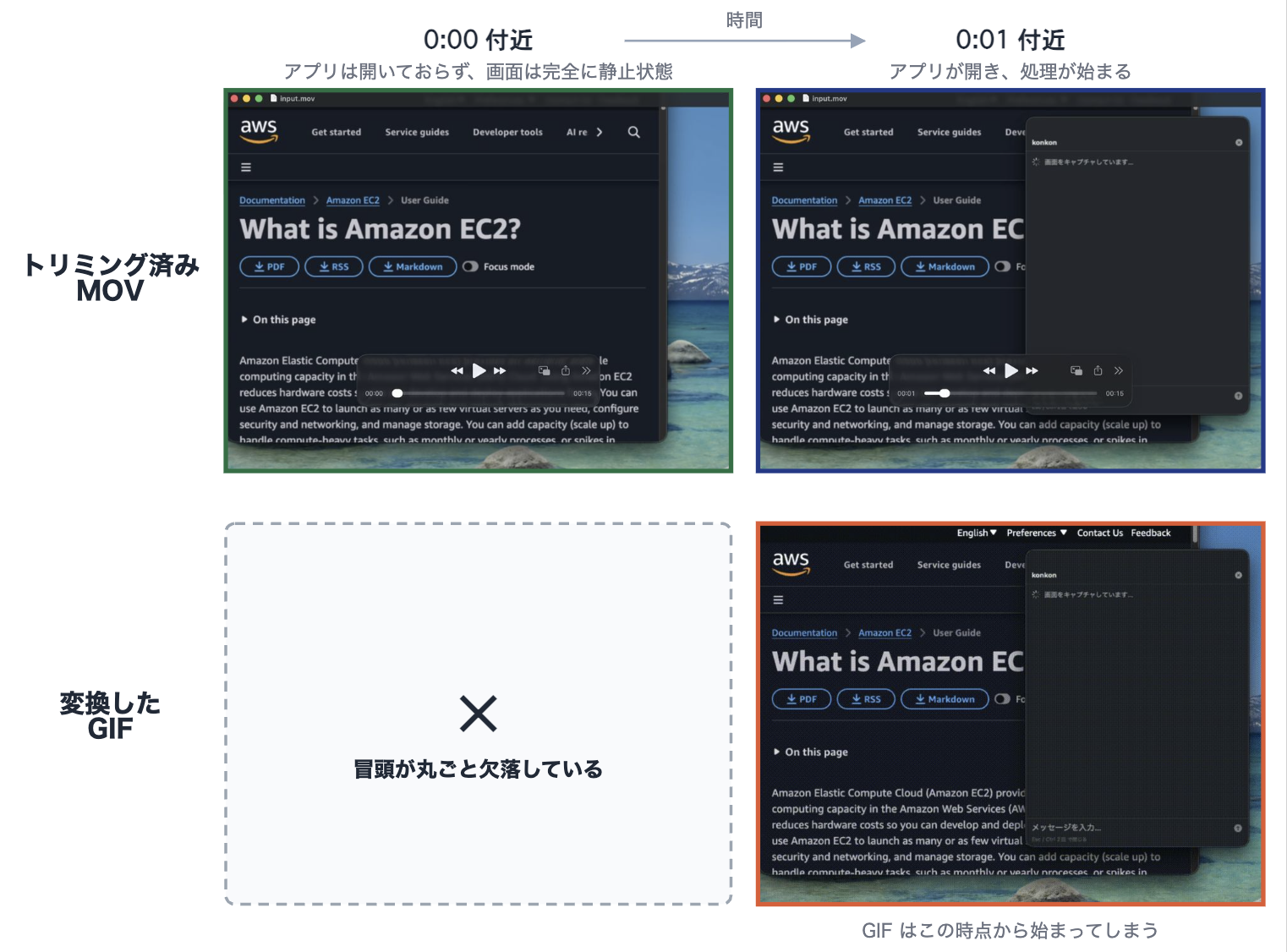
Click here for an actual GIF comparison

Part of the beginning is missing.
This had never happened before. I thought for a while about whether I had done anything differently than usual, and come to think of it, hadn't I trimmed more than usual this time...?
As a test, I converted an unedited MOV with the same command, and the problem did not occur. So the cause is the trimming.
Investigating the Edit List
QuickTime's trimming uses a mechanism called an edit list (elst). An edit list is metadata that exists in the MOV/MP4 container. It is used to change only the playback range without touching the video data itself.
The edit list can be checked in ffprobe's trace log.
ffprobe -v trace input.mov 2>&1 | grep -A 3 elst
The trimmed MOV file showed this:
[mov,mp4,m4a,3gp,3g2,mj2 @ 0xae0c0c000] track[0].edit_count = 1
[mov,mp4,m4a,3gp,3g2,mj2 @ 0xae0c0c000] duration=8709 time=648 rate=1.000000
time=648 means "start playback from 648 units into the beginning of the media data," and duration=8709 means "stop playback at 8709 units in."
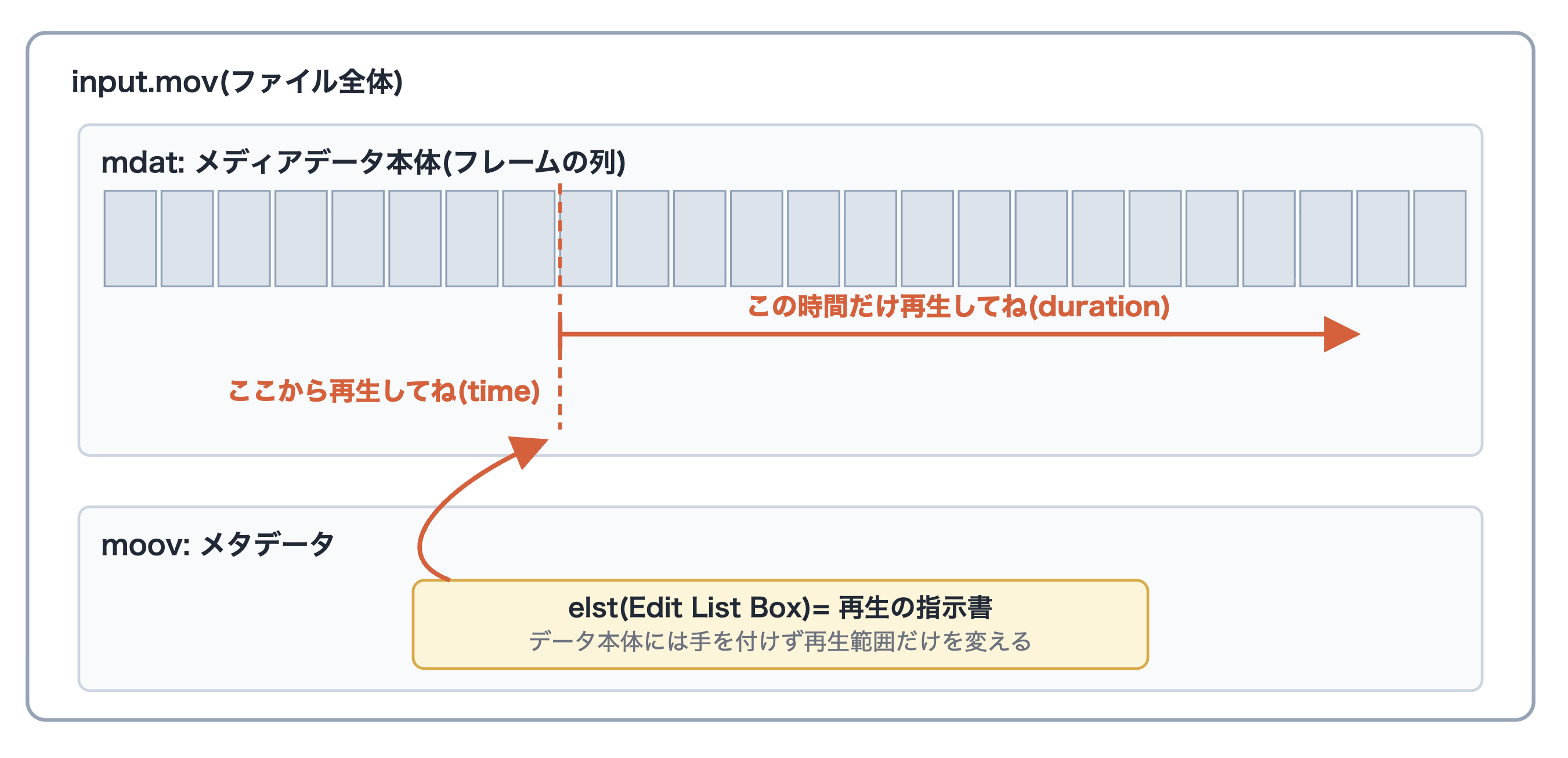
This unit is the track's time scale. The default time scale in QuickTime is 600, and this file was the same. So time=648 means skipping 648 ÷ 600 = 1.08 seconds from the beginning, and duration=8709 means cutting off after 8709 ÷ 600 ≈ 14.5 seconds of playback. This matches the trimming I applied to the MOV file.
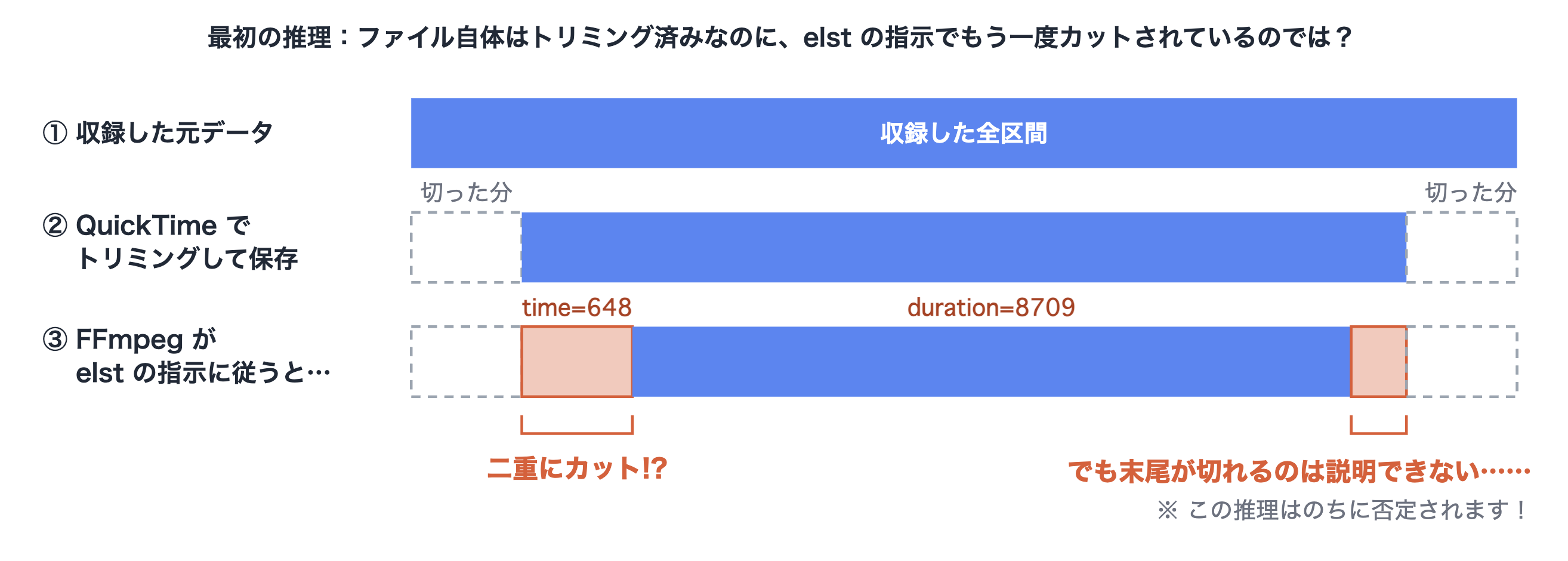
In other words, while the file itself had already been trimmed, the trimming instructions remained in the edit list. Since FFmpeg follows the edit list by default, this skip was applied on top of the existing trimming, and my initial theory was that the GIF was generated with double trimming applied at the beginning. That wouldn't explain the end trimming, though...
For now, I tried converting to GIF with the following command. -ignore_editlist 1 is an option that ignores the edit list instructions and decodes all existing media data from the beginning[1].
ffmpeg -ignore_editlist 1 -i input.mov -vf "fps=10" output.gif
Checking the GIF, the still section at the beginning was properly preserved. Great! But something felt off...
On closer inspection, the beginning section that I had trimmed in the MOV had been completely restored. The end hadn't fully come back, but part of it had been restored as well.
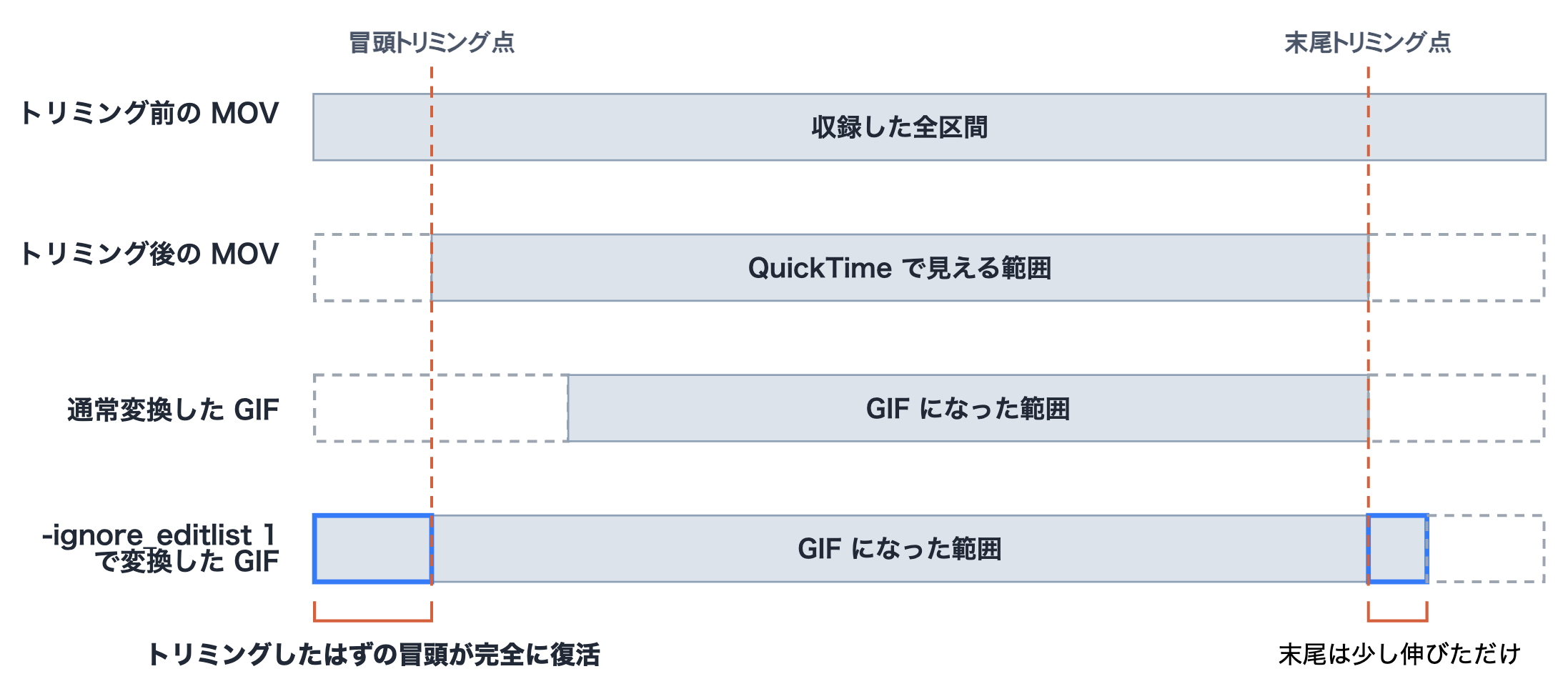
Strange behavior. This behavior cannot be explained by the double-trimming theory alone.
For the GIF conversion itself, I just needed to remove the extra parts, and as introduced at the beginning, using -ignore_editlist 1 together with -ss/-to (options to cut input/output) worked fine. But having come this far, I was curious to unravel this mysterious behavior!
To start, it seemed I needed further investigation into the specifications of QuickTime and FFmpeg.
QuickTime's Trimming Specification
First of all, what is the point of leaving the edit list in a trimmed file? Once you reopen a trimmed video in QuickTime Player you can't revert it, and it seems pointless to keep a record of the trimming.
After researching this in detail, it appears this is related to a special specification of trimming in QuickTime. I'll explain in detail below.
Prerequisite Terminology
QuickTime screen recordings use a video compression codec called H.264. Video is a sequence of tens of frames per second, but storing every frame as an image would be enormous, so H.264 records most frames as "differences from other frames," interspersing keyframes with complete image information at regular intervals.
A group from one keyframe up to just before the next keyframe is called a GOP (Group of Pictures). Since keyframes are large, encoders space them further apart for footage with little change. This means that for screen recordings with minimal movement, a GOP can span several seconds.
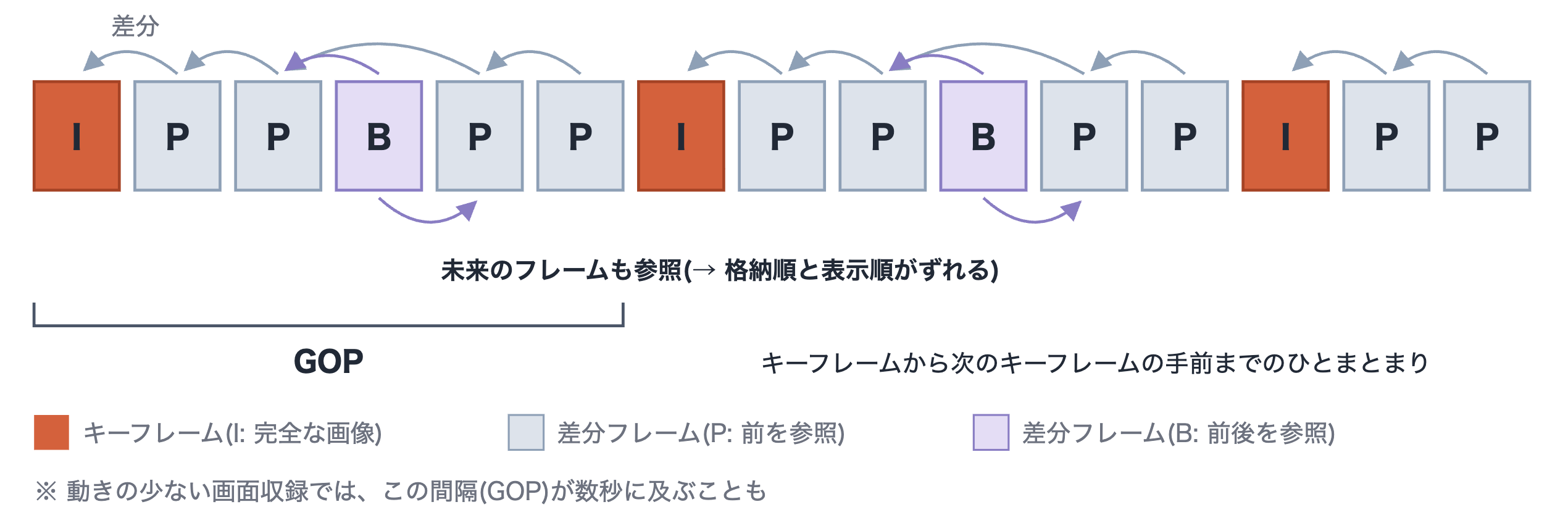
For those who want a detailed explanation, the AWS blog below is easy to understand.
Handling of Edit Lists and Pre-roll
Difference frames cannot be decoded without their reference frames. Meanwhile, QuickTime's trimming can cut at any desired frame regardless of keyframe position, and does so without re-encoding — a lossless trim[2].
To achieve both of these, the data from at least the trim point back to the nearest preceding keyframe (the pre-roll) must remain in the file. Without the pre-roll, the frames immediately after the trim point cannot be decoded. The edit list then instructs "start playback from the trim point," hiding the extra footage.
In short, the edit list (and pre-roll) is information that must always be retained to enable lossless trimming.
I verified the detailed specifications of trimming in QuickTime by creating several files with different trim points. I'll omit the details of the verification, but the results were as follows:
- Beginning side: Data before the keyframe immediately preceding the trim point is deleted. The remaining pre-roll is the minimum needed for decoding, and the edit list's
timeis the distance from the trim point to the preceding keyframe. - End side: The frame containing the trim point plus up to 2 more frames are retained, and data beyond that is deleted. In H.264, because future frames are also referenced, the storage order and display order can shift by several frames, so this is probably a margin for that reordering?
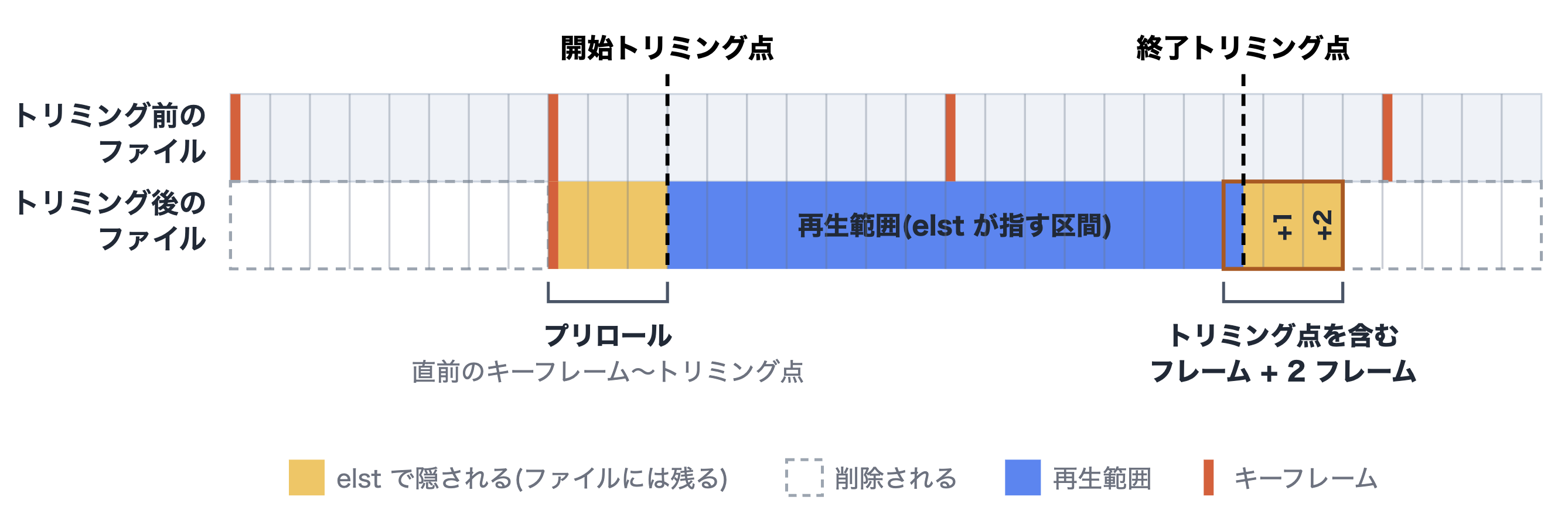
By the way, QuickTime screen recording is basically variable frame rate (VFR). Since frames are only recorded when there is a change, the same frame is displayed for several seconds during still sections like the beginning in this case.
With this in mind, when I checked the list of keyframes in this file, the 1.08-second trim point was between the first and second keyframes.
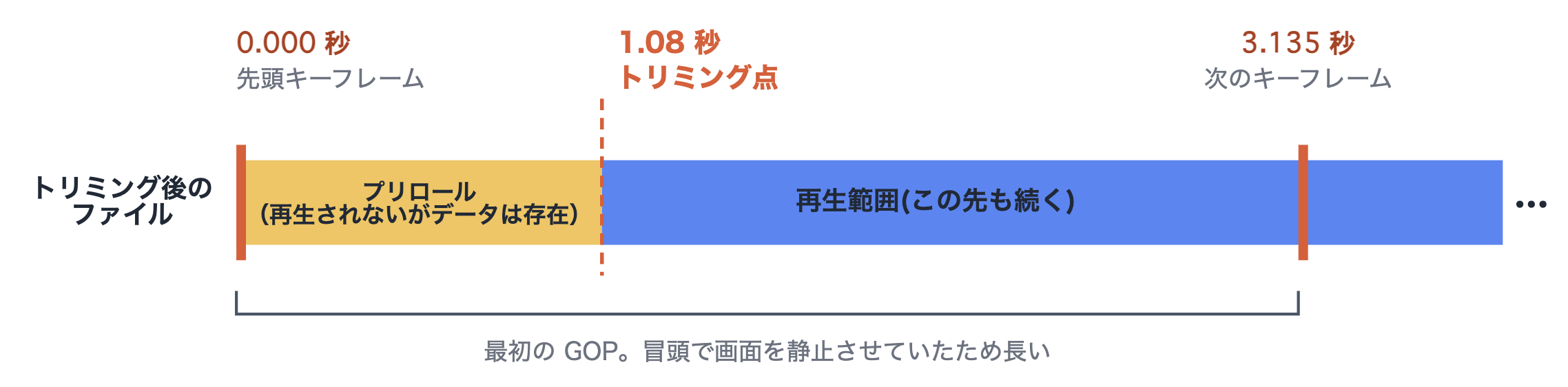
Actual process of checking keyframes
Keyframe positions can be checked with the following command:
ffprobe -v error -skip_frame nokey -select_streams v \
  -show_frames -show_entries frame=pts_time -of csv=p=0 input.mov
Here are the results from running this on the trimmed recording file:
0.773333
1.760000
2.746667
4.908333
6.841667
9.015000
The first keyframe is at 0.773 seconds, and there is no keyframe at time 0. Since ffprobe also basically returns timestamps reflecting the edit list, it hides the first keyframe in the beginning according to the time instruction. That's why no keyframe appears to exist at the head.
So next I ran the same listing with -ignore_editlist 1 added.
0.000000
3.135000
4.121667
5.108333
7.270000
9.203333
11.376667
A keyframe that wasn't in the previous listing appeared, showing up at 0 seconds. This is the true first keyframe, the starting point of the original video.
This confirmed that the earlier schematic was correct, and I now largely understand the processing QuickTime performed.
In other words, the 1.08 seconds trimmed from the beginning had not been deleted from the data and remained entirely as pre-roll. A small amount of extra also remained at the end, 2 frames to be exact.
Differences Between FFmpeg and QuickTime Specifications
Now, the main topic. Why does FFmpeg delete the entire still section at the beginning?
Comparing the timestamps in the keyframe list, every entry was shifted by approximately 2.36 seconds between the case with the edit list applied and the case without. This is the amount of skipping FFmpeg applied to the MOV file.
On the other hand, the edit list instruction was time=648 (1.08 seconds), meaning FFmpeg was cutting about 1.28 seconds more than instructed.
I theorized that this was caused by a difference in specifications between FFmpeg and QuickTime regarding trimming. After researching FFmpeg's source code and other materials, the following specifications became clear:
- QuickTime Player: Displays the frame spanning the trim point (not a keyframe, but a regular frame) for the remaining portion of its duration from the trim point, so the still beginning is visible. Similarly, the frame spanning the end trim point is cut off at that point for display, so it ends at the intended position.
- FFmpeg: Discards frames that start before the trim point and plays from the first frame that starts at or after the trim point, so the still beginning disappears. For the end, conversely, frames that span the end point are not discarded and are included, so a still end does not disappear and may in fact run longer than intended.[3]
Furthermore, after actually checking the timestamps of all frames including non-keyframes, I found that there was a long frame lasting 1.8 seconds from 0.53 seconds to 2.36 seconds.
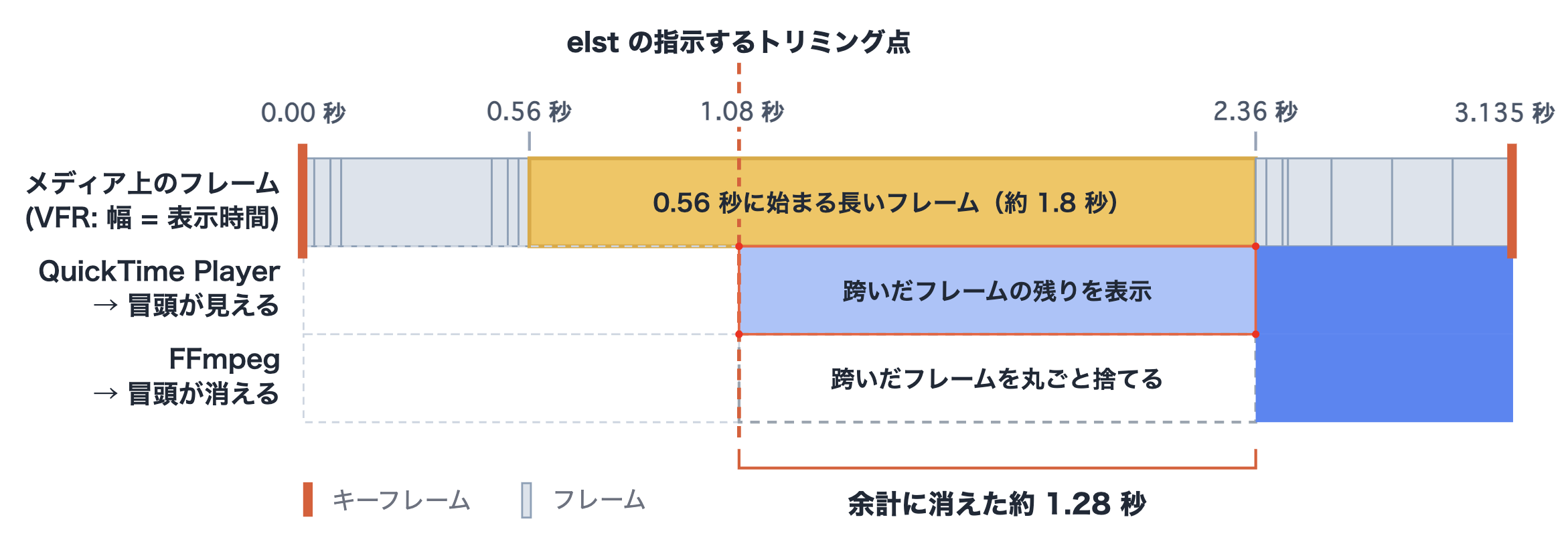
In other words, the cause of this issue was that FFmpeg skipped entirely the long frame that spanned the trim point.
Incidentally, when I also checked the end side with the actual file, as described by the deletion rule above, the frame spanning the trim point + 2 frames were hidden by the edit list and remained. This is why using -ignore_editlist 1 also restores part of the end trimming.
Actual verification process
I'll check the full list of frame timestamps including non-keyframes. If the hypothesis is correct, the frame just before 1.08 seconds should be followed by a jump directly to 2.361667 seconds.
ffprobe -v error -ignore_editlist 1 -select_streams v \
  -show_frames -show_entries frame=pts_time -of csv=p=0 input.mov | head -10
0.000000
0.026667
0.066667
0.093333
0.466667
0.506667
0.533333
0.560000 ← Frame immediately before 1.08 seconds
2.361667
2.388333
Just as expected, 0.560000 is followed by 2.361667. The frame starting at 0.56 seconds is displayed continuously for about 1.8 seconds, spanning the trim point at 1.08 seconds. The measured excess skip of 2.361667 − instruction 1.08 = 1.281667 seconds closely matches the excess amount measured from the keyframe list!
The reason why the still section at the beginning disappeared has finally become clear.
Incidentally, I also checked the end side with the actual file.
12.525000
12.631667
13.045000
13.538333
14.098333
14.538333
15.031667 ← Start of frame spanning the trim point
15.525000 ← End
16.060000
17.166667
As described by the deletion rule above, the frame spanning the trim point + 2 frames are hidden by the edit list and remain.
Why Do the Specifications Differ?
I couldn't find a clear source for why FFmpeg discards frames, so I'll offer some analysis here.
QuickTime Player is an application for playing back video, and as long as it can render the image that should be displayed at any given moment, it doesn't matter if that time falls in the middle of a frame's display duration.
FFmpeg, on the other hand, reads files and cuts them into frame-by-frame or packet-by-packet data, passing data one frame at a time to the next processing step. In terms of implementation, there is no mechanism to specify "include this frame but start display partway through"[3:1].
Therefore, my current hypothesis is that FFmpeg simply doesn't account for the case where a single frame is extremely long in VFR. If anyone knows the real reason, please let me know!
Summary
Here is a summary of the specifications revealed in this investigation.
QuickTime Player's Trimming
- It is lossless trimming using an edit list, and the video data itself is not completely deleted
- On the beginning side, only data before the keyframe immediately preceding the trim point is deleted, and the data in between remains as pre-roll. On the end side, the frame spanning the trim point + 2 frames are retained.
FFmpeg's Interpretation of Edit Lists
- By default, FFmpeg follows the edit list, but on the beginning side, it discards entire frames that start before the
timepoint. On the end side, conversely, frames spanning the end point are not discarded and are included. - As a result, the beginning may be cut more than instructed, and the end may remain longer than intended.
Screen Recording Specifications
- Since QuickTime screen recording uses VFR, a single frame's display duration can span several seconds in still sections.
- When that long frame spans the trim point, FFmpeg will erase the entire still section at the beginning.
As an aside, the specifications revealed in this article also imply that footage dropped by QuickTime's trimming may not be fully deleted and could remain. As done in this article, adding -ignore_editlist can restore it, so using trimming to deal with sensitive information captured on screen may be risky.
I hope this helps those struggling with the same issue!