
I fell into 3 traps when implementing slash commands in Google Chat Workspace Add-ons

This page has been translated by machine translation. View original
Introduction
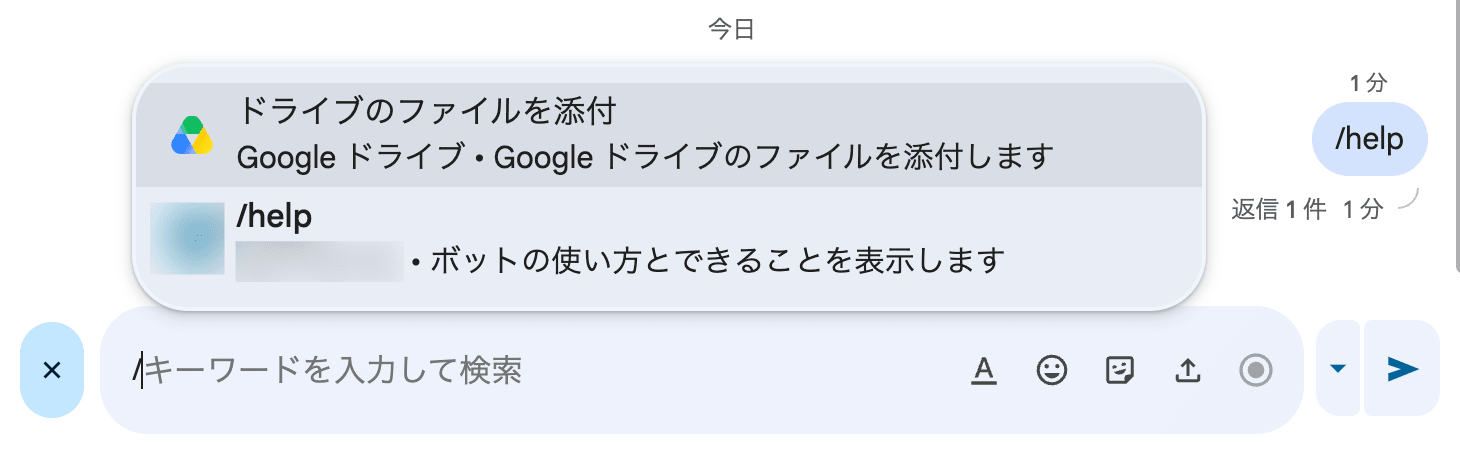
I added a /help slash command and welcome message to a RAG bot running on Google Chat. I thought "just implement it as documented and it'll be easy," but I fell into 3 traps and ended up deploying over and over until I found solutions. Please refer to this article for the basic configuration.
This article summarizes the problems I encountered when implementing slash commands in a Google Chat app using the Google Workspace Add-ons format, along with their solutions. I hope it's useful for anyone developing with the same configuration.
Prerequisites & Environment
- Google Chat app (Workspace Add-ons format)
- Cloud Functions 2nd gen (Cloud Run based)
- Python 3.14 + functions-framework
- Chat API accessed via
googleapiclient
The bot is configured as follows.
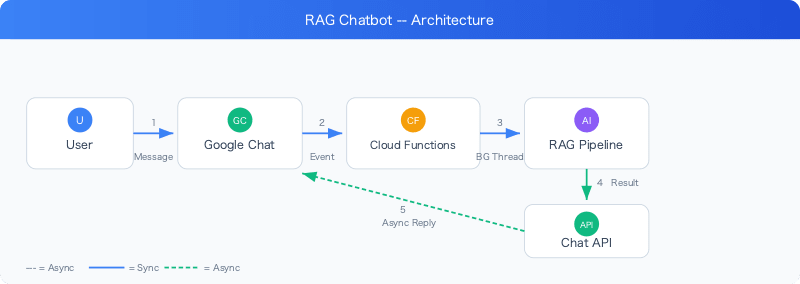
- User sends a message in Google Chat
- Cloud Functions receives the event
- RAG pipeline runs in a background thread
- Message is sent asynchronously via Chat API (progressive card updates)
What I Wanted to Do
- Welcome message: Display a card explaining how to use the bot when it's added to a DM
/helpcommand: Display the same help card via a slash command
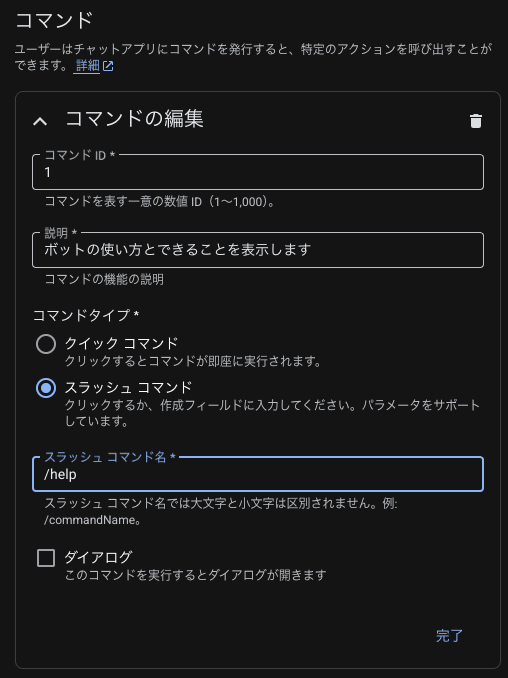
Open Google Chat API Configuration and configure Commands
- Guard against general questions: Respond appropriately to questions like "What are you?"
Workspace Add-ons Event Format
As a prerequisite to understand first, there are two event formats for Google Chat apps.
- Legacy Chat API format: Determines event type using the
event.typefield (MESSAGE,ADDED_TO_SPACE, etc.) - Workspace Add-ons format: Determines event type by the presence of keys in the payload
The current documentation recommends the Workspace Add-ons format, and this article assumes that format as well. The event determination patterns are as follows.
chat = body.get("chat", {})

if "addedToSpacePayload" in chat:
    # Bot was added to a space
    pass

if "removedFromSpacePayload" in chat:
    # Bot was removed from a space
    pass

if "appCommandPayload" in chat:
    # A slash command was executed
    pass

if "buttonClickedPayload" in chat:
    # A card button was clicked
    pass

if "messagePayload" in chat:
    # A regular message was sent
    pass
Legacy-style checks like if event_type == "ADDED_TO_SPACE" won't work. Checking for the presence of payload keys is the correct pattern.
Trap 1: appCommandId Gets Deserialized as float
Symptom
The slash command event is being received correctly, but command ID matching always fails.
Cause
When registering a slash command in Google Cloud Console, the command ID is set as an integer (e.g., 1). The official Python documentation samples also define it as an integer with ABOUT_COMMAND_ID = 1 and compare using ==.
# Official sample (simplified)
ABOUT_COMMAND_ID = 1

def handle_app_command(event):
    if event["appCommandPayload"]["appCommandMetadata"]["appCommandId"] == ABOUT_COMMAND_ID:
        return {"text": "About this app..."}
However, when I checked the payload received by Cloud Functions in debug logs, the type of appCommandId was float.
{
  "debug_cmd_id": 1,
  "debug_cmd_id_type": "float",
  "debug_str_match": false
}
In Python's JSON deserialization, a JSON number (1) can be either int or float. Due to the behavior of the JSON parser used internally by Flask/Werkzeug's request.get_json(), appCommandId: 1 was being parsed as 1.0 (float).
As a result, str(cmd.get("appCommandId")) becomes "1.0", which doesn't match "1".
>>> str(1.0)
'1.0'
>>> str(1.0) == "1"
False
Solution
I changed the approach to cast with int() before string comparison.
HELP_COMMAND_ID = "1"

cmd = payload.get("appCommandMetadata", {})
if str(int(cmd.get("appCommandId", 0))) == HELP_COMMAND_ID:
    # Command processing
    pass
Alternatively, comparing as integers like in the official sample is simpler.
HELP_COMMAND_ID = 1

if int(cmd.get("appCommandId", 0)) == HELP_COMMAND_ID:
    pass
Note that this is not behavior specific to Flask/Werkzeug. Python's standard json module parses JSON 1 as int and 1.0 as float. In other words, the root cause is that the Google Chat API side is including appCommandId as 1.0 (with decimal point) in the JSON payload it sends.
>>> import json
>>> type(json.loads('1')).__name__
'int'
>>> type(json.loads('1.0')).__name__
'float'
Trap 2: Messages Don't Appear with Synchronous Response
Symptom
When returning a synchronous response to an appCommandPayload (slash command) event exactly as documented, nothing appears in Google Chat.
What I Tried
I returned a response in the format described in the official documentation.
# Synchronous response exactly as in official documentation
return {
    "hostAppDataAction": {
        "chatDataAction": {
            "createMessageAction": {
                "message": {"text": "Help message"}
            }
        }
    }
}
I confirmed via Cloud Logging that the response was returning normally with HTTP 200. However, nothing appeared in Google Chat, whether as text or cards.
Since displaying dialogs (action.navigations format) in response to buttonClickedPayload (button clicks) was working fine within the same bot, the Add-ons format response itself wasn't broken.
Solution: Switch to Asynchronous Sending via Chat API
This bot handles regular message responses using an asynchronous pattern as well (returning {} immediately as the HTTP response, then sending messages using the Chat API in a background thread). The issue was resolved by unifying slash command responses to use the same pattern.
from bot.chat_api import ChatApiClient
from bot.cards import build_welcome_card

def _send_welcome_card(space_name, thread_name=None):
    """Asynchronously send welcome card via Chat API"""
    client = ChatApiClient()
    client.create_message(
        space_name,
        build_welcome_card(),
        thread_name=thread_name,
    )

# Slash command handler
if "appCommandPayload" in chat:
    payload = chat["appCommandPayload"]
    cmd = payload.get("appCommandMetadata", {})
    if int(cmd.get("appCommandId", 0)) == HELP_COMMAND_ID:
        space_name = payload.get("space", {}).get("name")
        thread_name = payload.get("message", {}).get(
            "thread", {}).get("name")
        if space_name:
            threading.Thread(
                target=_send_welcome_card,
                args=(space_name, thread_name),
                daemon=True,
            ).start()
    return {}
Key point: Since appCommandPayload contains space.name and message.thread.name, all the information needed to send a message via the Chat API is available.
For ADDED_TO_SPACE (addedToSpacePayload) as well, I switched to asynchronous sending by getting the space name from addedToSpacePayload.space.name.
if "addedToSpacePayload" in chat:
    space_name = chat["addedToSpacePayload"].get("space", {}).get("name")
    if space_name:
        threading.Thread(
            target=_send_welcome_card,
            args=(space_name,),
            daemon=True,
        ).start()
    return {}
Note: When using background threads, the Cloud Run --no-cpu-throttling setting is required. By default, the CPU is throttled after the HTTP response is returned, causing background threads to freeze.
# Only needed once (settings persist between deployments)
gcloud run services update YOUR_SERVICE \
  --region=asia-northeast1 \
  --no-cpu-throttling
Trap 3: RAG Pipeline Running for General Questions
Symptom
For questions like "What are you good at?" or "Hello," the RAG pipeline runs and responds with "No relevant information was found in the knowledge base."
Choosing an Approach
I considered several approaches to this problem.
| Approach | Advantages | Disadvantages |
|---|---|---|
| Pre-RAG intent classifier | Reliable filtering | Additional latency + API cost for all queries |
| Keywords/regex | Low cost | Fragile for Japanese, maintenance burden |
| Prompt adjustment | Zero additional cost, no pipeline changes needed | RAG still runs (results are wasted) |
| Welcome card | Addresses root cause (users don't know the bot's purpose) | General questions can't be completely prevented |
Conclusion: I adopted a hybrid approach of welcome card (addressing the root cause) + prompt adjustment (handling residual cases). For a low-volume internal bot, the cost of classifying every message is higher than the occasional cost of a general question going through RAG.
Prompt Adjustment
I added a "Handling greetings and self-introductions" section to the system prompt.
## Handling Greetings and Self-Introductions
- When a user asks for a greeting or self-introduction:
  - Briefly explain your role
  - Set is_answerable to true
  - Can respond even if knowledge base search results are empty
    (information about the bot itself is included in this prompt)
- For general questions unrelated to the target operations:
  - Inform the user that you are dedicated to specific operational Q&A
  - Direct users to a general chat service for general questions
  - Set is_answerable to true
Key point: It's important to instruct the model to set is_answerable = true. This bot forces a fallback message ("Please contact the relevant department") when is_answerable = false. Since greetings and general questions are in a "answered" state even without knowledge base information, if you don't set it to true, an escalation message will be appended.
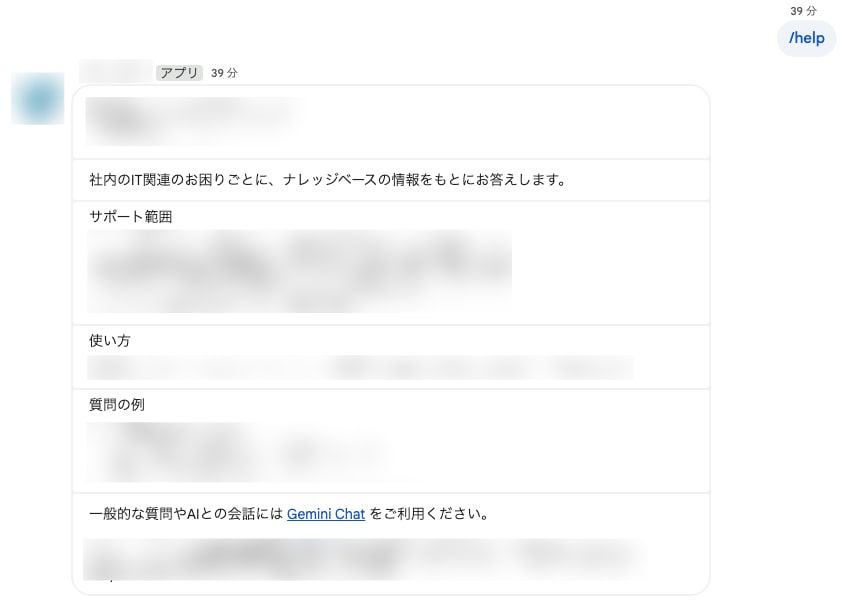
Welcome Card
I configured the bot to send a card showing the bot's purpose, usage, and example questions when the bot is added and when the /help command is used. This helps users understand the bot's purpose from the start and reduces the frequency of general questions.
Step-by-Step Debugging with Cloud Logging
Let me also touch on debugging techniques for production environments (Cloud Functions / Cloud Run).
For problems that can't be reproduced locally (Google Chat event formats, response rendering, etc.), incrementally isolating issues with print() + json.dumps() in production was effective.
Step 1: Checking Event Structure
print(json.dumps({
    "debug_chat_keys": list(chat.keys()),
    "debug_body_keys": list(body.keys()),
}), flush=True)
This let me confirm whether appCommandPayload was included in the event and whether the key name was correct.
Step 2: Checking Inside the Payload
payload = chat["appCommandPayload"]
print(json.dumps({
    "debug_payload_keys": list(payload.keys()),
}), flush=True)
Confirmed whether space, message, and appCommandMetadata were included.
Step 3: Checking Types and Values
cmd = payload.get("appCommandMetadata", {})
print(json.dumps({
    "debug_cmd_id": cmd.get("appCommandId"),
    "debug_cmd_id_type": type(cmd.get("appCommandId")).__name__,
    "debug_str_match": str(cmd.get("appCommandId")) == "1",
}), flush=True)
This is where I discovered the float type and identified the root cause.
Important: Python's logging module (logger.info(), etc.) may not output logs with default log level settings in Cloud Run. For reliable output to Cloud Logging, print(json.dumps(...), flush=True) is the most dependable approach. Forgetting flush=True can cause buffering that makes logs invisible.
Also, outputting structured JSON causes Cloud Logging to automatically parse it as jsonPayload, making filtering and querying easier.
# Command to check in Cloud Logging
gcloud logging read \
  "resource.type=\"cloud_run_revision\" \
  AND resource.labels.service_name=\"YOUR_SERVICE\"" \
  --limit=10 \
  --format="json(textPayload,jsonPayload,timestamp)" \
  --project=YOUR_PROJECT
gcloud functions logs read truncates JSON payloads, so use gcloud logging read for checking structured logs.
Summary
Key learnings when implementing slash commands in Google Chat Workspace Add-ons.
appCommandIdmay be deserialized asfloat. When comparing withstr(), cast withint()first. Integer-to-integer comparison is better.- If synchronous responses (
hostAppDataAction) aren't displaying, consider switching to asynchronous sending via Chat API. Combined with Cloud Run's--no-cpu-throttling, you can send messages from background threads. - When "things don't work as documented," add debug logs incrementally to verify types, values, and structure. For problems that only reproduce in production,
print(json.dumps(...), flush=True)is the most reliable approach. - A hybrid of prompt adjustment + welcome card is a low-cost and effective guard against general questions. Pre-RAG classifiers are over-engineering for low-volume internal bots.