I tried creating a shortcut that automatically hides screenshots containing sensitive information in iOS 27

This page has been translated by machine translation. View original
Introduction
Have you ever experienced that heart-stopping moment just before sharing an iPhone screenshot, when you suddenly notice your real name or other personal information is visible in it? I have.
To prevent such accidents before they happen, I created a shortcut using a new feature added in iOS 27 that automatically hides screenshots containing sensitive information.
Shortcut Flow
Many new actions and automations have been added to iOS 27 Shortcuts[1]. The three new features used this time are as follows.
- A trigger that fires when a screenshot is saved
- An action that moves photos to a protected hidden album: "Hide Photo"
- "Extract Text from Image" which enables OCR
For determining whether information is sensitive, the "Use Model" action available since iOS 26 is used with an on-device model (local model).
The specific processing flow is as follows.
- Triggered by a screenshot being saved
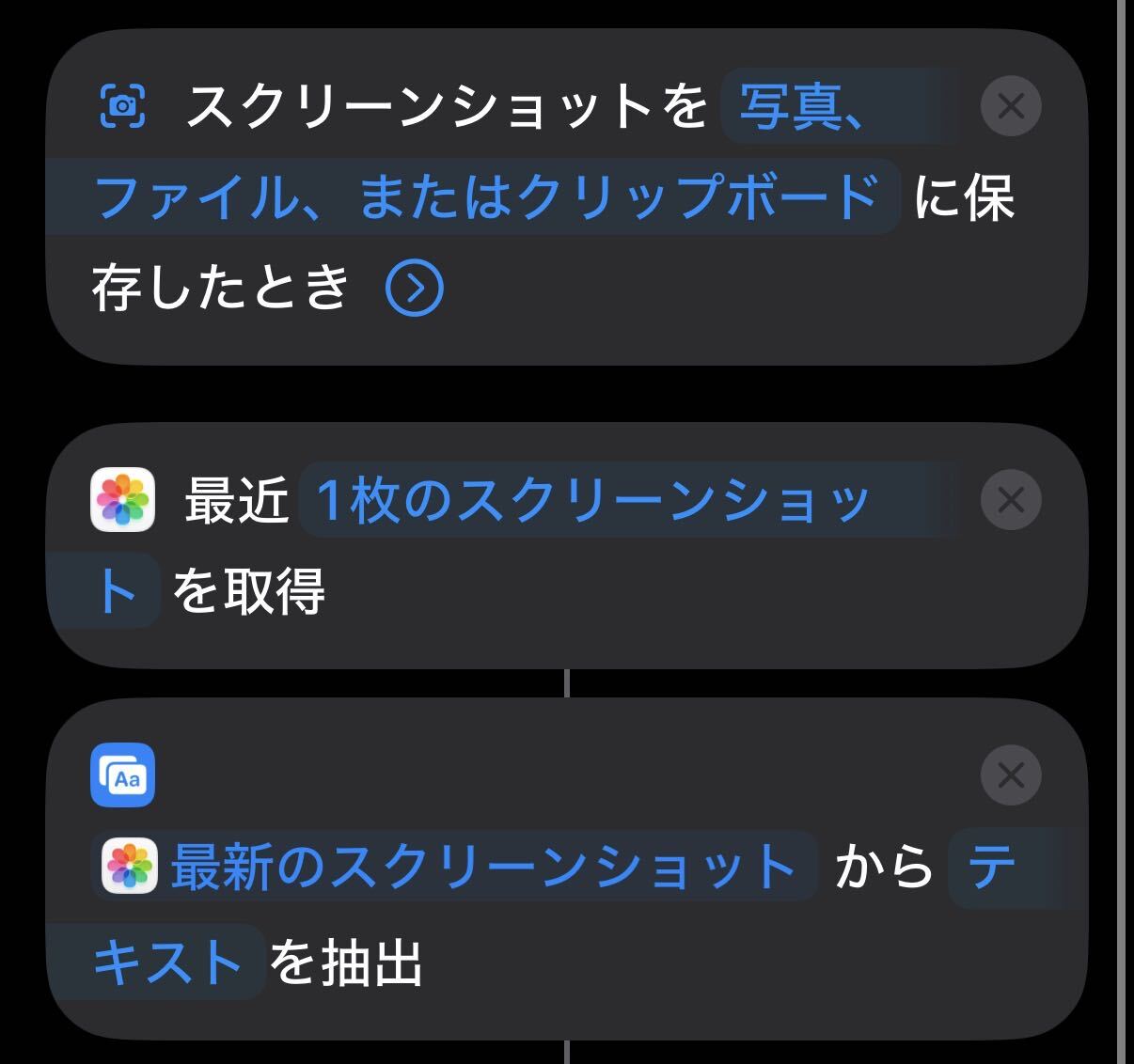
- Retrieve the latest screenshot and extract its text
- Use an on-device model to determine whether the extracted text contains sensitive information
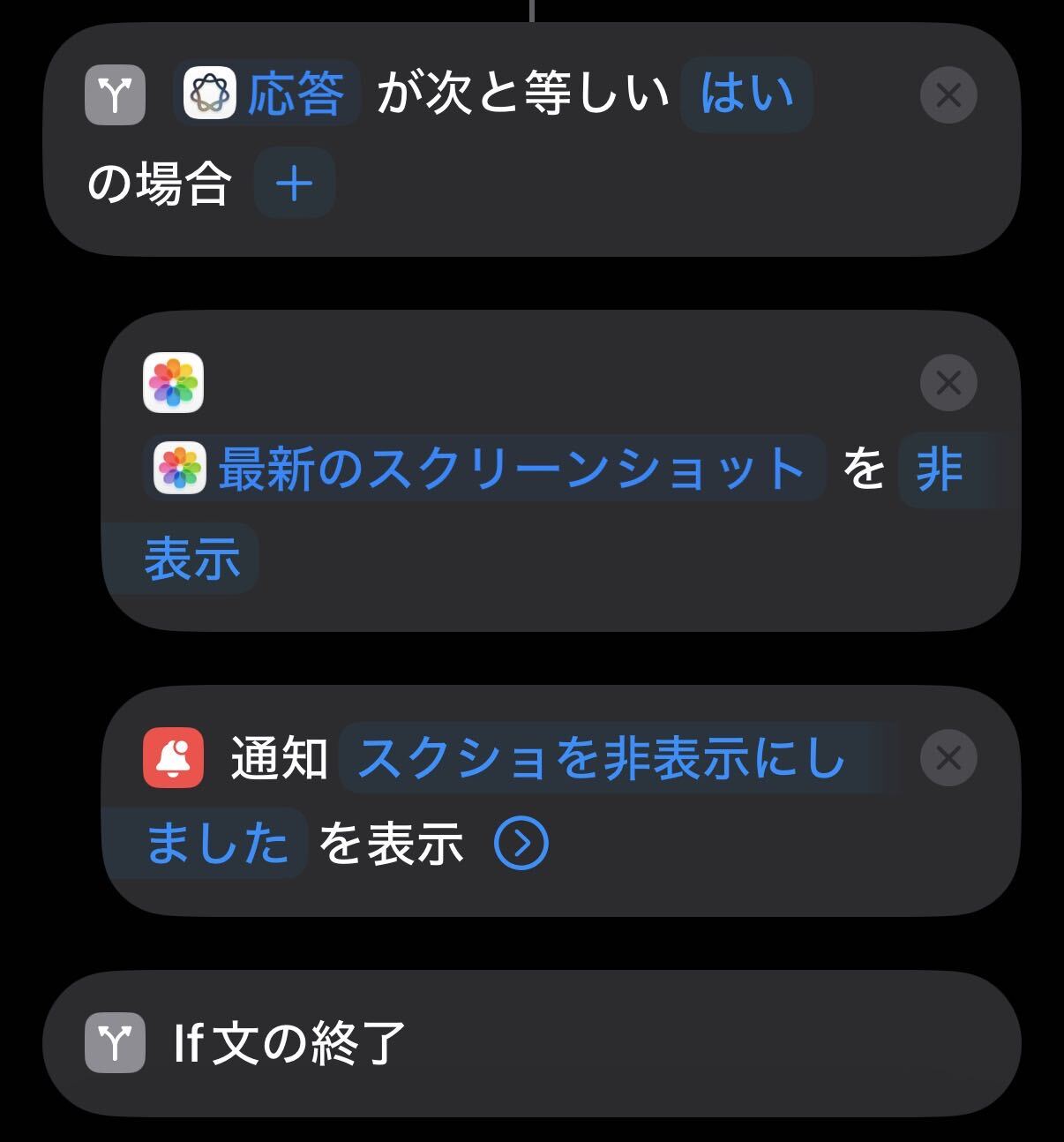
- If it does, hide the photo and display a notification
How to Build It
Extracting Text from a Screenshot
Create a new shortcut and place the "When a Screenshot is Saved" trigger at the top. Turn off the trigger notification toggle so you are not prompted every time it runs.
Next, set the retrieval count to 1 in "Get Latest Screenshots" and pass the result to "Extract Text from Image."
Detecting Sensitive Information
Add "Use Model" and select "On-Device" as the model. You can technically select ChatGPT and others as well, but please be aware that sensitive information may be sent externally.
Since you can specify the output type, set the output to "Boolean." Write the following in the prompt and insert the extracted text variable at the end.
Return true if the following text contains sensitive information such as name, passwords, API keys, access tokens, credit card numbers, or personal addresses and phone numbers. Otherwise, return false.
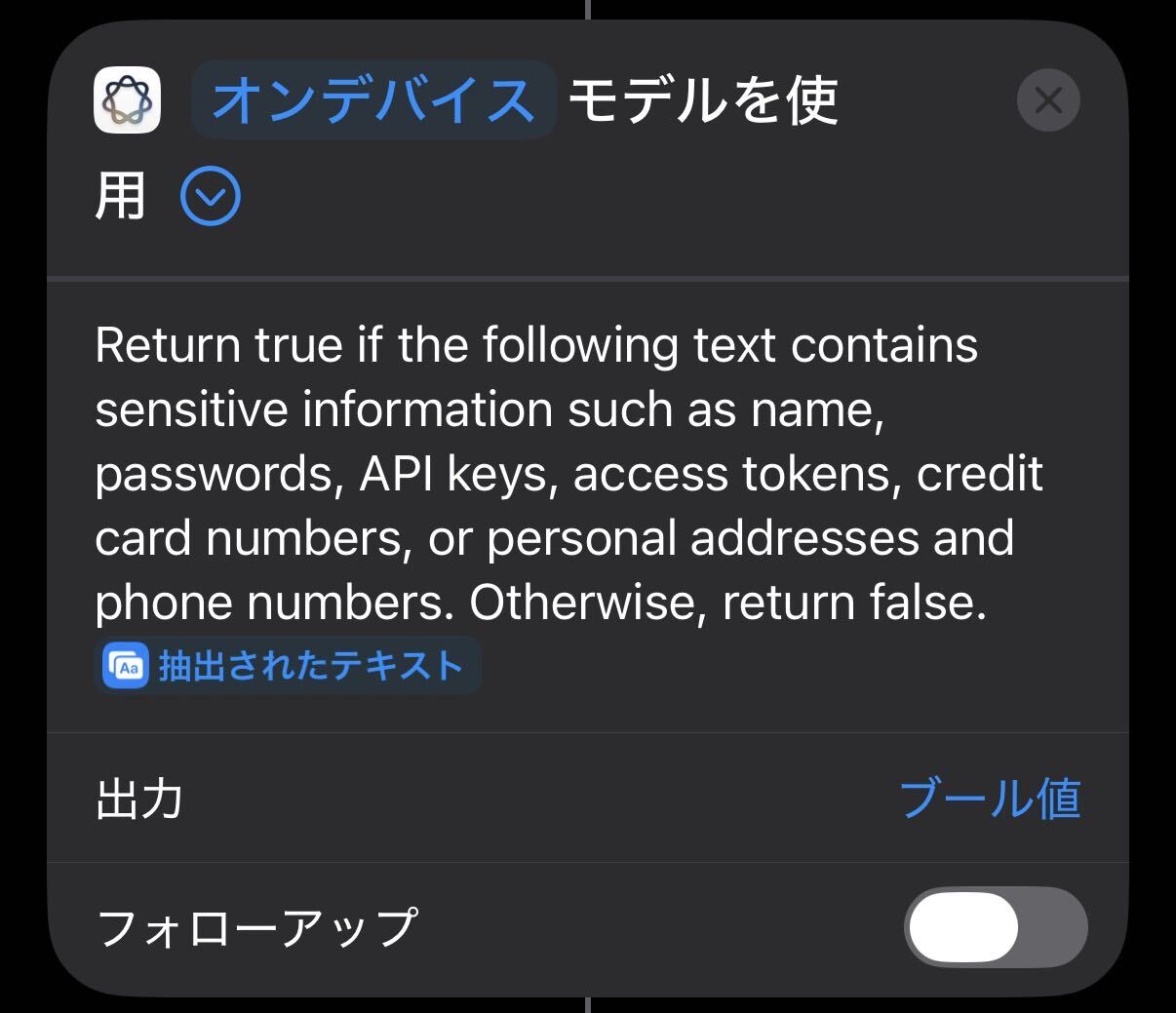
By the way, when the prompt was written in Japanese, false was returned no matter what was passed to it. Rewriting it in English made the detection work correctly.
The text being evaluated — even Japanese content such as kanji names and addresses — worked fine, so I don't think it simply lacks Japanese language support, but it remains a mystery.
Hiding the Screenshot and Sending a Notification
Use an "if statement" to check whether the model's output is true, and if so, execute "Hide Photo" and "Show Notification." Pass the screenshot retrieved earlier to "Hide Photo."
Testing
Let's try sending a message containing a personal name to a LINE memo and taking a screenshot.
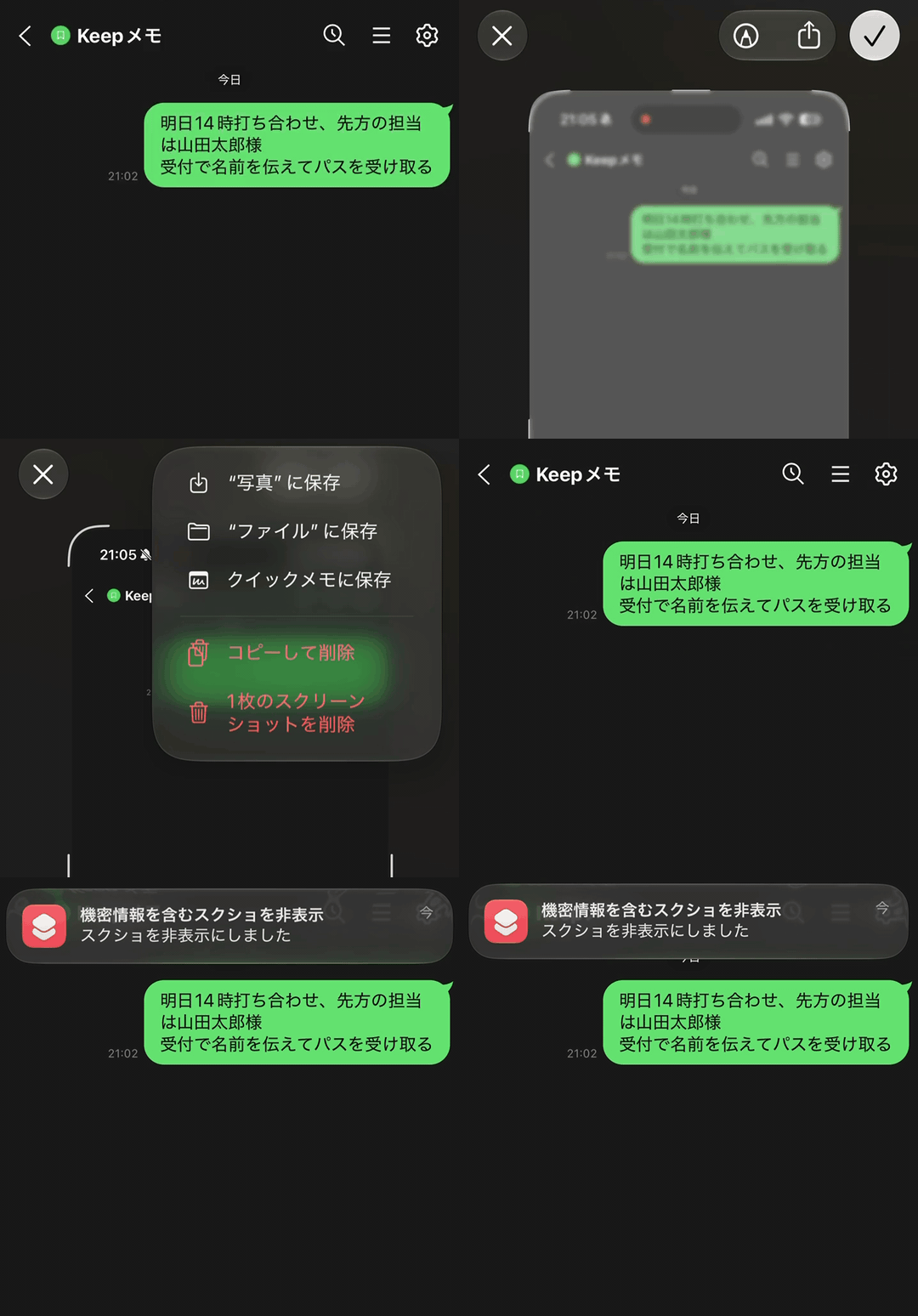
A notification arrived, and the screenshot had been moved to the "Hidden" album in the Photos app!
The detection also seems to finish in about 2 seconds, which is fast enough.
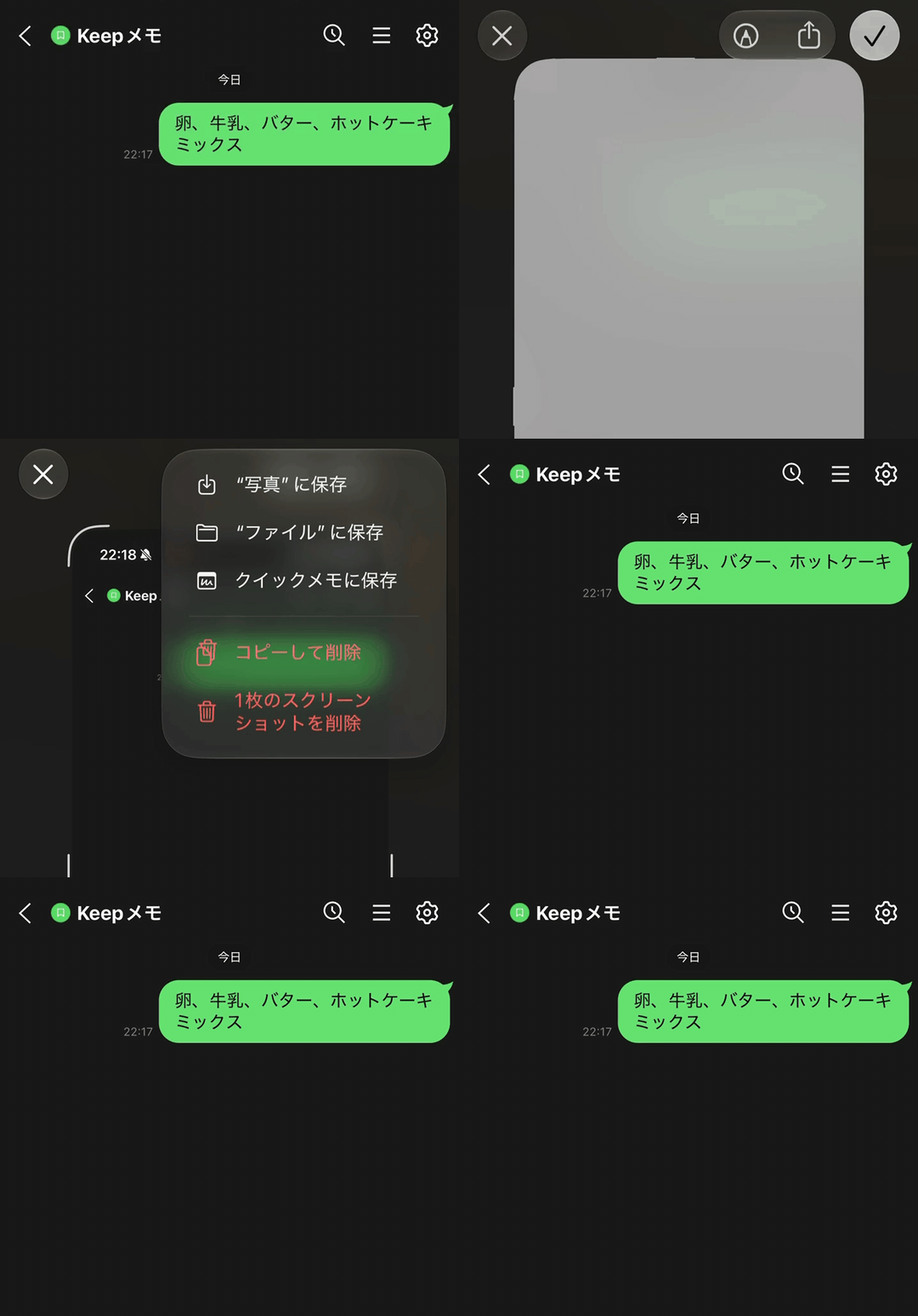
Screenshots that did not contain sensitive information triggered no response. It appears the classification is working properly.
Summary
By combining the screenshot trigger and "Hide Photo" added in iOS 27 with on-device model judgment, I was able to create a shortcut to guard against sensitive information appearing in screenshots.
Please feel free to use it as one measure to take before accidentally sharing a screenshot.