
I tried Kiro Crew on EC2 with Amazon Linux 2023

This page has been translated by machine translation. View original
Introduction
Kiro Crew was announced on the official blog on August 4, 2026 (local time).
For installation on macOS and Slack integration, please refer to Iwasa's article.
This article introduces installing Kiro CLI and Kiro Crew, starting the Gateway, and using the Dashboard via SSH tunnel on an EC2 instance running Amazon Linux 2023.
Verification Details
Verification Environment
Verification was performed in the following environment.
| Item | Value |
|---|---|
| EC2 Instance Type | t3a.medium |
| Architecture | x86_64 |
| OS | Amazon Linux 2023 |
| Region | ap-northeast-1 |
| kiro-cli | 2.16.1 |
| kirocrew | 0.1.2 |
| Build Method | CloudFormation (IAM stack + EC2 stack) |
The full CloudFormation template is included in the reproduction information at the end. The content is intended for x86_64 t3a.medium.
Setting Up Kiro Crew on an Amazon Linux 2023 EC2 Instance
Deploy the IAM stack and EC2 stack in order using CloudFormation.
export AWS_REGION=ap-northeast-1
export KEY_NAME=<EC2_KEY_PAIR_NAME>
export IAM_STACK_NAME=kirocrew-iam
export EC2_STACK_NAME=kirocrew

aws cloudformation deploy \
  --region "$AWS_REGION" \
  --template-file kirocrew-iam.yaml \
  --stack-name "$IAM_STACK_NAME" \
  --capabilities CAPABILITY_NAMED_IAM

aws cloudformation deploy \
  --region "$AWS_REGION" \
  --template-file kirocrew-ec2.yaml \
  --stack-name "$EC2_STACK_NAME" \
  --parameter-overrides \
    KeyName="$KEY_NAME" \
    IamStackName="$IAM_STACK_NAME"
After the installation of kiro-cli and kirocrew is complete via EC2 UserData, log in via SSH.
Log in to Kiro CLI
kiro-cli login
Enter your organization's Start URL and region, then approve the device code in the browser to log in. Note that the Start URL, device code, and authentication URL are not included here.
The procedure for signing in with IAM Identity Center is introduced in the article below.
Initial Setup for Kiro Crew
kirocrew setup
This time, the workspace was used with its default settings. Slack integration and launching on AWS were skipped, and Asia/Tokyo was specified for the timezone. The interactive flow is as follows.
kirocrew setup interaction log
Kiro Crew Setup 👻

── Workspace Directory ──
Default: /home/ec2-user/workplace/kirocrew-workspace
Workspace path [/home/ec2-user/workplace/kirocrew-workspace]:
✅ Workspace: /home/ec2-user/workplace/kirocrew-workspace

Installing agent config...
✅ Agent installed: /home/ec2-user/.kiro/agents/kirocrew.json

── Slack Credentials ──
Configure Slack tokens? [Y/n]: n
⏭ Skipped. Slack integration will be disabled.

── Slash Command ──
Slash command name [kirocrew]:
✅ Slash command: /kirocrew

── Timezone ──
IANA timezone (e.g. America/Los_Angeles): Asia/Tokyo
✅ Timezone saved: Asia/Tokyo

── Run on AWS (optional) ──
Launch KiroCrew on AWS now? [y/N]: n
⏭ Skipped. Launch later: kirocrew cloud launch

👻 Done! Try: kirocrew doctor && kirocrew gateway
Login to Kiro CLI and initial setup of Kiro Crew are now complete.
Start the Gateway and Connect via SSH Tunnel
Start the Gateway on EC2.
kirocrew gateway
kirocrew gateway startup log
👻 Kiro Crew gateway starting…

⚠️  Do not enter sensitive, secret, or regulated data into KiroCrew.
   Treat anything you send as potentially logged or processed by the
   configured model provider.

👻 Dashboard: ssh -NL 5476:localhost:5476 <EC2_HOST>
             then open http://localhost:5476?token=<GATEWAY_TOKEN>
👻 Run 24/7: see docs/remote-desktop-setup.md for systemd service setup
👻 Headless remote session — skipping browser auto-open
ss -ltnp | grep ':5476'
The Gateway was listening on 127.0.0.1:5476. The Dashboard URL in the format http://localhost:5476?token=<GATEWAY_TOKEN> displayed at startup will be used next.
ssh -N -L 45476:127.0.0.1:5476 ec2-user@<EC2_HOST>
Local port 45476 is an available port used during verification. If 45476 is already in use, replace it with any available port and change the port number in the URL opened in the browser to the same value.
With the SSH tunnel established, replace the port number in the Dashboard URL with 45476. Open http://localhost:45476?token=<GATEWAY_TOKEN> in your local browser.
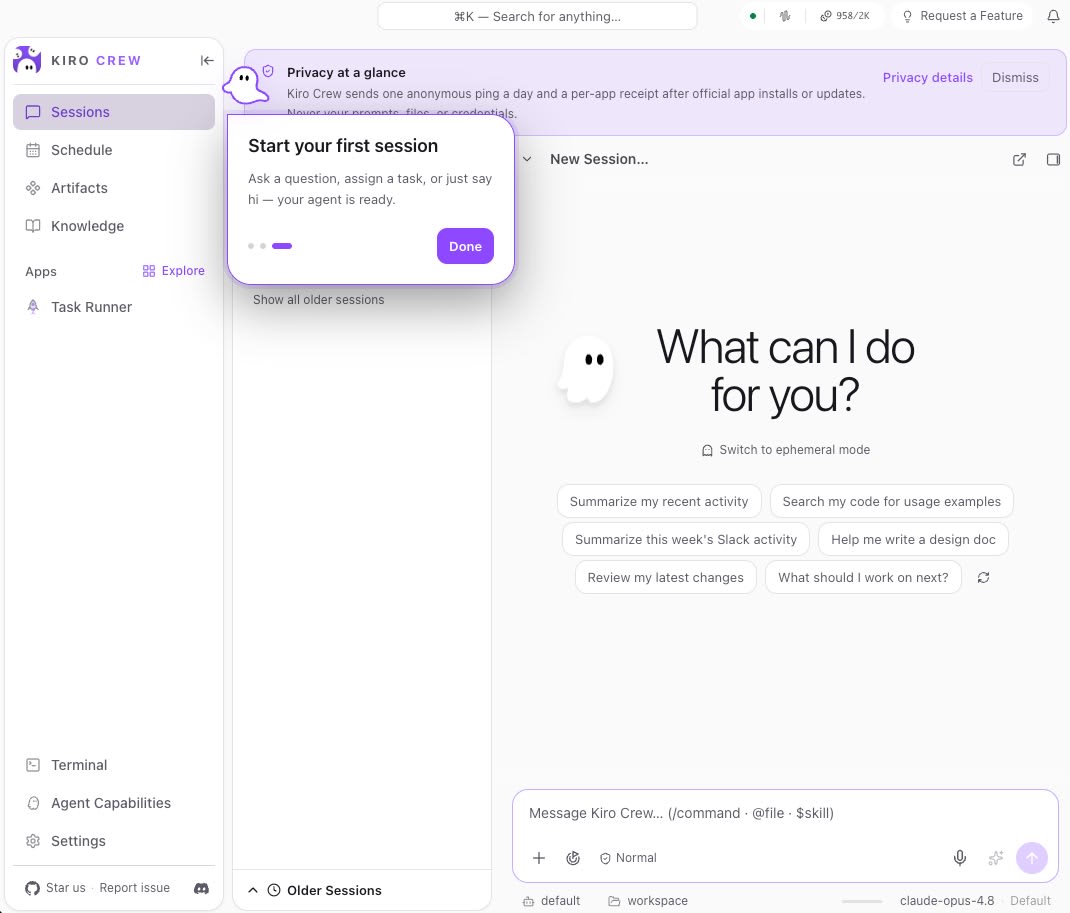
The Dashboard was successfully displayed from the local browser.
Running a Chat from the Dashboard
The model selection UI was opened in a session.
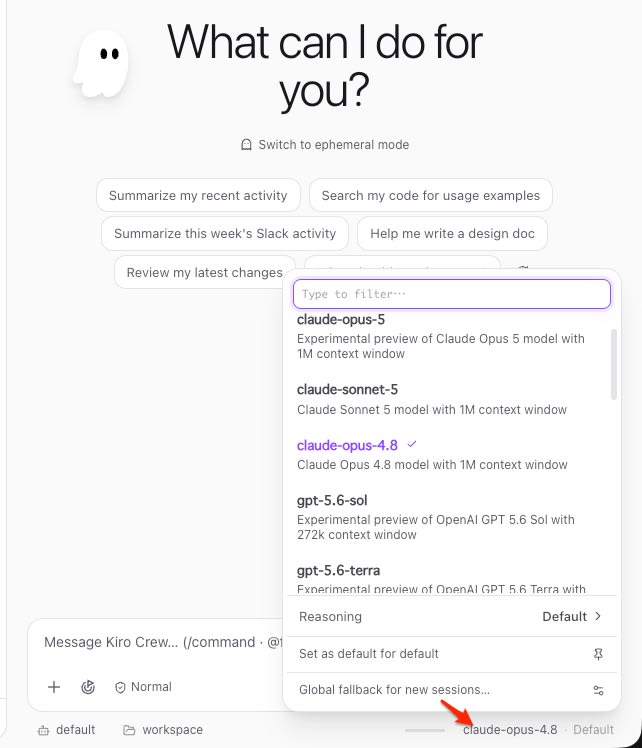
A model could be selected from the list of available models.
The agent in the session was asked about the running OS and architecture.
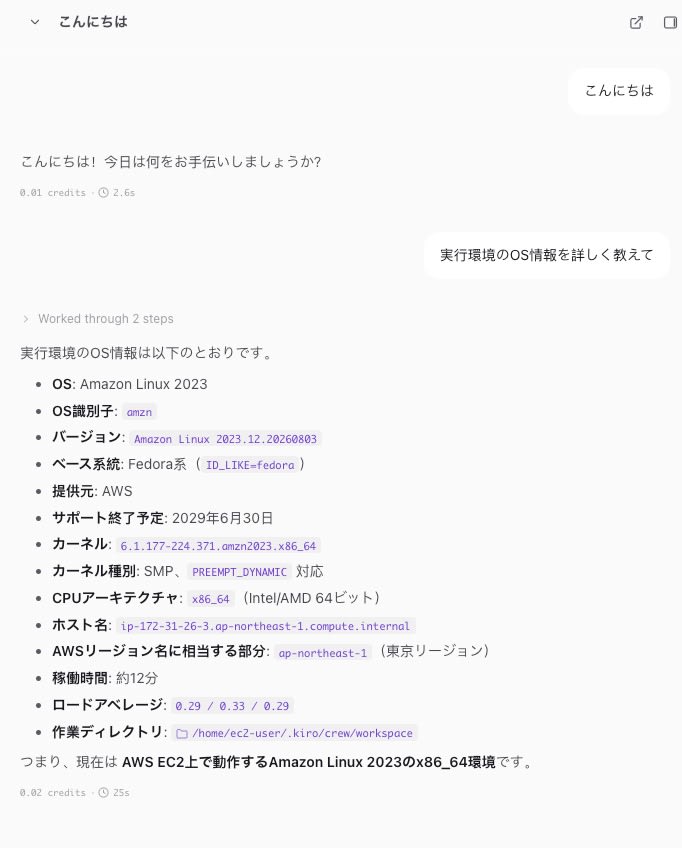
The response indicated Amazon Linux 2023 and x86_64.
A request was made to verify the caller credentials using STS.
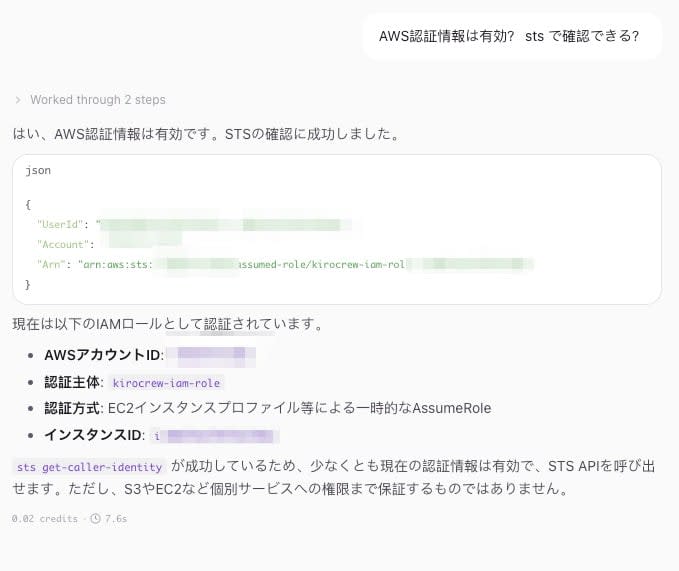
The STS caller was confirmed using the temporary credentials from the instance profile.
Summary
Kiro Crew was successfully started on an EC2 instance running Amazon Linux 2023, and the Dashboard was accessible from a local browser via SSH tunnel.
By installing Kiro Crew on EC2, the EC2 instance can be treated as a dedicated sandbox for agents. The impact of commands executed by the agent remains within the instance and does not affect your local machine. When you are done testing, simply delete the stack to clean up the entire environment. When operating AWS APIs, the temporary credentials from the instance profile can be used directly.
For light workloads such as chatting from the Dashboard, Kiro Crew ran on a t3a.medium. If you want to try out Kiro Crew first, give running it on EC2 a try.
Reference Links
- https://kiro.dev/blog/introducing-kiro-crew/
- https://kiro.dev/docs/crew/
- https://github.com/kirodotdev/KiroCrew
- https://www.infoworld.com/article/4204961/awss-kiro-crew-aims-to-turn-ai-coding-agents-into-autonomous-engineering-teams.html
Reproduction Information
kirocrew-iam.yaml
AWSTemplateFormatVersion: '2010-09-09'
Description: KiroCrew IAM - EC2 Instance Profile with SSM access

Resources:
  KiroCrewRole:
    Type: AWS::IAM::Role
    Properties:
      RoleName: !Sub '${AWS::StackName}-role'
      AssumeRolePolicyDocument:
        Version: '2012-10-17'
        Statement:
          - Effect: Allow
            Principal:
              Service: ec2.amazonaws.com
            Action: sts:AssumeRole
      ManagedPolicyArns:
        - arn:aws:iam::aws:policy/AmazonSSMManagedInstanceCore

  KiroCrewInstanceProfile:
    Type: AWS::IAM::InstanceProfile
    Properties:
      Roles:
        - !Ref KiroCrewRole

Outputs:
  InstanceProfileName:
    Value: !Ref KiroCrewInstanceProfile
    Export:
      Name: !Sub '${AWS::StackName}-instance-profile'
  RoleName:
    Value: !Ref KiroCrewRole
    Export:
      Name: !Sub '${AWS::StackName}-role'
kirocrew-ec2.yaml
AWSTemplateFormatVersion: '2010-09-09'
Description: KiroCrew EC2 - x86_64 / AL2023 / kiro-cli + kirocrew auto-install

Parameters:
  KeyName:
    Type: AWS::EC2::KeyPair::KeyName
    Default: m4mini
    Description: EC2 key pair name
  IamStackName:
    Type: String
    Default: kirocrew-iam
    Description: IAM stack name (source of InstanceProfile export)

Resources:
  KiroCrewSG:
    Type: AWS::EC2::SecurityGroup
    Properties:
      GroupDescription: !Sub '${AWS::StackName} - SSH only'
      SecurityGroupIngress:
        - IpProtocol: tcp
          FromPort: 22
          ToPort: 22
          CidrIp: 0.0.0.0/0

  KiroCrewInstance:
    Type: AWS::EC2::Instance
    DeletionPolicy: Delete
    UpdateReplacePolicy: Delete
    Properties:
      InstanceType: t3a.medium
      ImageId: !Sub '{{resolve:ssm:/aws/service/ami-amazon-linux-latest/al2023-ami-kernel-default-x86_64}}'
      KeyName: !Ref KeyName
      IamInstanceProfile: !ImportValue
        Fn::Sub: '${IamStackName}-instance-profile'
      SecurityGroupIds:
        - !Ref KiroCrewSG
      MetadataOptions:
        HttpTokens: required
        HttpEndpoint: enabled
      BlockDeviceMappings:
        - DeviceName: /dev/xvda
          Ebs:
            VolumeSize: 20
            VolumeType: gp3
            Encrypted: true
            DeleteOnTermination: true
      Tags:
        - Key: Name
          Value: !Sub '${AWS::StackName}'
      UserData:
        Fn::Base64: !Sub |
          #!/bin/bash
          set -euo pipefail
          LOG="/var/log/kirocrew-setup.log"
          exec > >(tee -a "$LOG") 2>&1
          echo "===== KiroCrew setup started: $(date) ====="

          # ---- 1. Expand /tmp ----
          mount -o remount,size=2G /tmp
          echo "[1/6] /tmp expanded: $(df -h /tmp | tail -1 | awk '{print $4}') free"

          # ---- 2. Swap 1GB ----
          fallocate -l 1G /swapfile
          chmod 600 /swapfile
          mkswap /swapfile
          swapon /swapfile
          echo '/swapfile none swap sw 0 0' >> /etc/fstab
          echo "[2/6] Swap complete: $(swapon --show --noheadings)"

          # ---- 3. System packages ----
          dnf install -y python3.11 python3.11-pip nodejs npm git unzip
          echo "[3/6] Packages complete"

          # ---- 4. Install kiro-cli (ec2-user) ----
          sudo -u ec2-user bash << 'EOF'
          set -euo pipefail
          export HOME=/home/ec2-user
          echo "[4/6] Installing kiro-cli..."
          KIRO_CLI_SKIP_SETUP=1 bash <(curl -fsSL https://cli.kiro.dev/install) <<< "y"
          echo "[4/6] kiro-cli complete: $(ls $HOME/.local/bin/kiro* | tr '\n' ' ')"
          EOF

          # ---- 5. Install kirocrew (ec2-user) ----
          sudo -u ec2-user bash << 'EOF'
          set -euo pipefail
          export HOME=/home/ec2-user
          echo "[5/6] Installing kirocrew..."
          curl -fsSL https://download.crew.kiro.dev/cli.sh | sh
          echo "[5/6] kirocrew complete: $($HOME/.local/bin/kirocrew --version 2>/dev/null || echo installed)"
          EOF

          # ---- 6. PATH (.bashrc) ----
          sudo -u ec2-user bash -c \
            "grep -q '\.local/bin' ~/.bashrc || echo 'export PATH=\"\$HOME/.local/bin:\$PATH\"' >> ~/.bashrc"
          echo "[6/6] .bashrc update complete"

          echo "===== KiroCrew setup finished: $(date) ====="
          echo "KIROCREW_SETUP_DONE" > /tmp/kirocrew-setup-done

Outputs:
  InstanceId:
    Value: !Ref KiroCrewInstance
  PublicIp:
    Value: !GetAtt KiroCrewInstance.PublicIp
  SSMConnect:
    Value: !Sub 'aws ssm start-session --target ${KiroCrewInstance} --region ${AWS::Region}'
  SSHConnect:
    Value: !Sub 'ssh -i ~/.ssh/${KeyName}.pem ec2-user@${KiroCrewInstance.PublicIp}'
  NextStep:
    Value: 'kirocrew setup && kirocrew config set agent.allow_unsandboxed_exec true && kirocrew gateway'
