I Tried Migrating Kiro Settings to Controls in Enterprise Management

This page has been translated by machine translation. View original
Introduction
On November 17, 2026, Kiro's administrator settings management feature, Enterprise Management (preview), began supporting migration of existing profiles.
Enterprise Management is a feature that lets administrators define rules and settings in one place in the AWS Console and apply them to Kiro IDE, Kiro CLI, and Kiro Web. The preview started on November 10 for new profiles.
In this article, I run the migration using Migrate to the new experience shown on the Settings screen, and then check the Settings and Controls screens after the migration.
Test Environment
- Region: US East (N. Virginia) (us-east-1)
- Identity source: IAM Identity Center
Migration
Migrate to the new experience
Migrate to the new experience was displayed on the Settings screen, so I followed the instructions to migrate. This prompt is not displayed for newly created accounts or accounts that have not used Kiro; they start with the Controls screen from the beginning.
The migration is one-way, and once you run it, you cannot go back to the previous approach of managing settings on the Settings screen. Before running it, you can check how your current settings map to Controls in See how your settings map. This time, I ran it with Administrator permissions. For the required IAM permissions, see Prerequisites in Get started in the official documentation.
- In the AWS Console, switch to the profile's Region and open Kiro > Settings
- Open See how your settings map. When you select a setting, the corresponding row is displayed in the In Controls (YAML) panel. This operation does not change any settings
- Select Migrate to the new experience, and then select Migrate in the confirmation dialog
Settings Screen After Migration
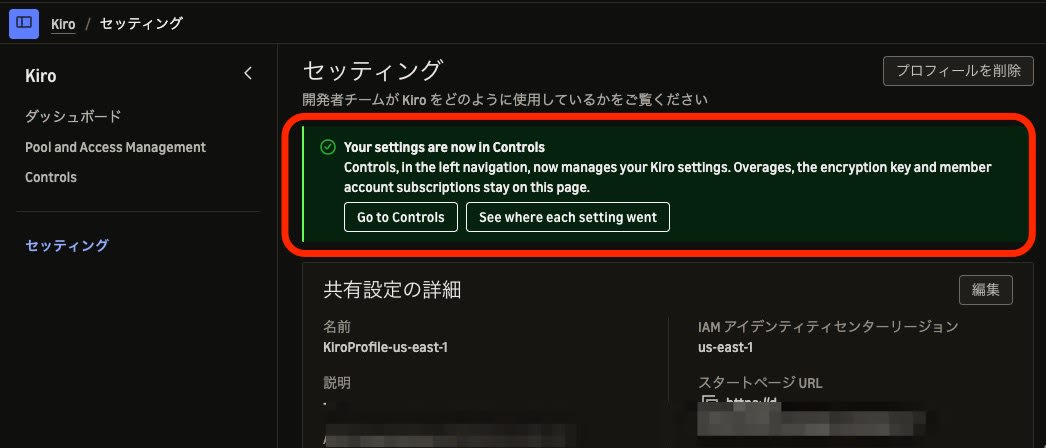
A banner was displayed at the top of the Settings screen after the migration. The banner explained that the encryption key and member account subscriptions remain on this page. It also showed a Go to Controls button to open Controls and a See where each setting went button to check where settings were moved.
Controls
Form View
The Controls screen lets you switch between the Form view and the YAML view. At the top of the page, the currently active (Live) revision and the associated profile are displayed.
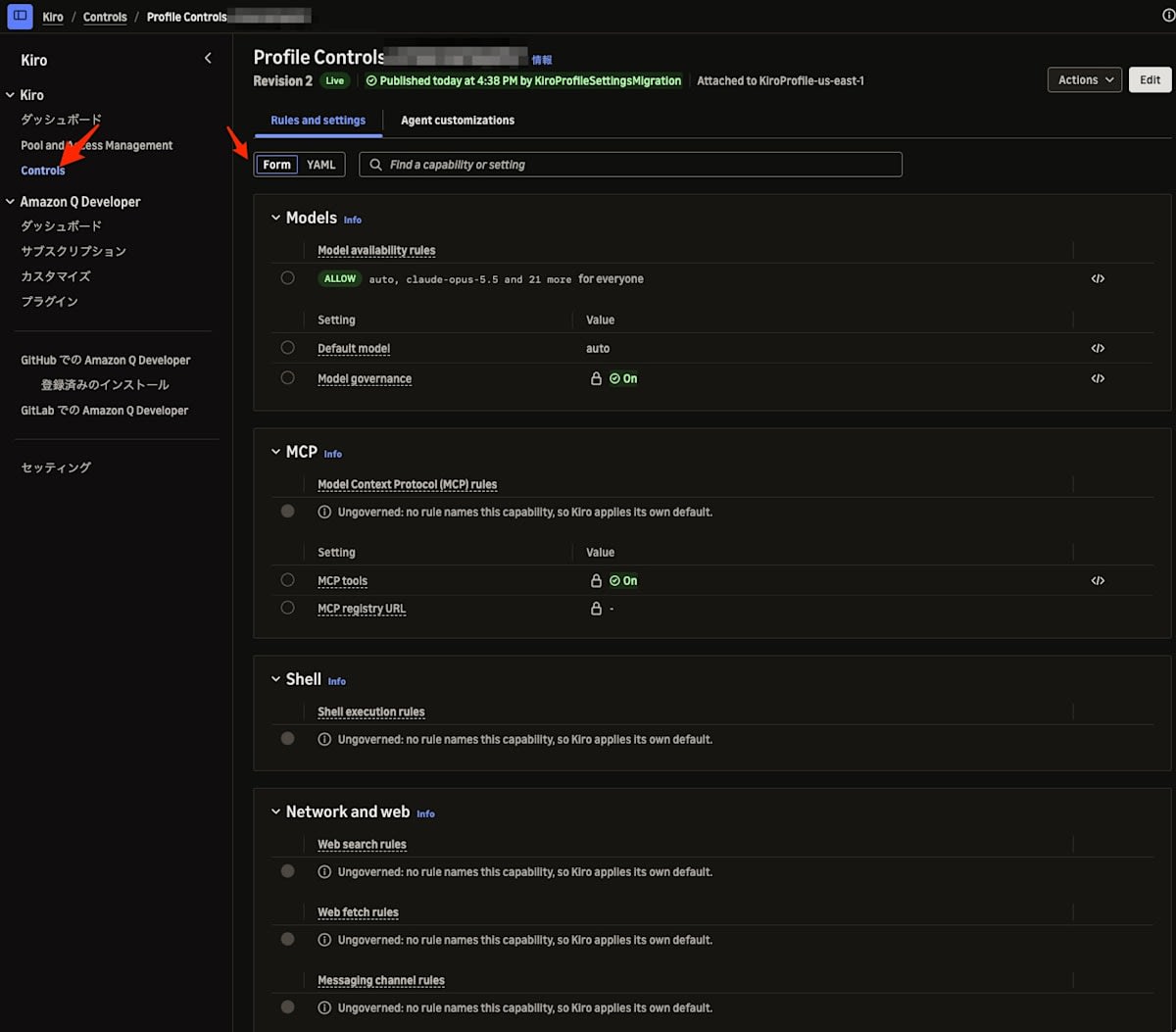
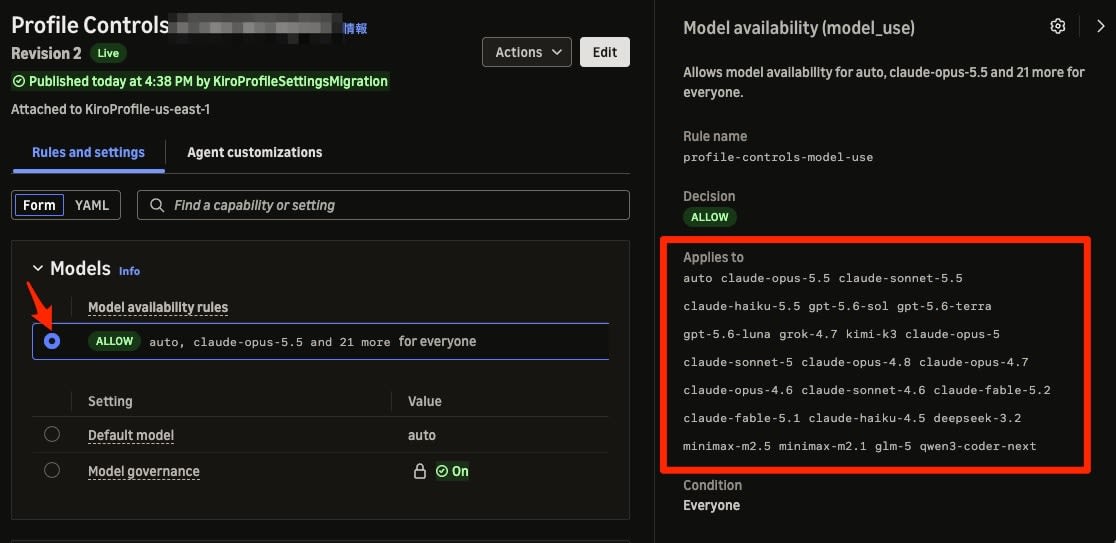
Under Models, the approved list of models was set as an ALLOW rule. In the details panel, the rule name was profile-controls-model-use, Applies to was 23 models, and Condition was Everyone.
The rule fields for MCP, Shell, and Network and web were Ungoverned. The MCP toggle is treated as a setting rather than a rule, and MCP tools was On.
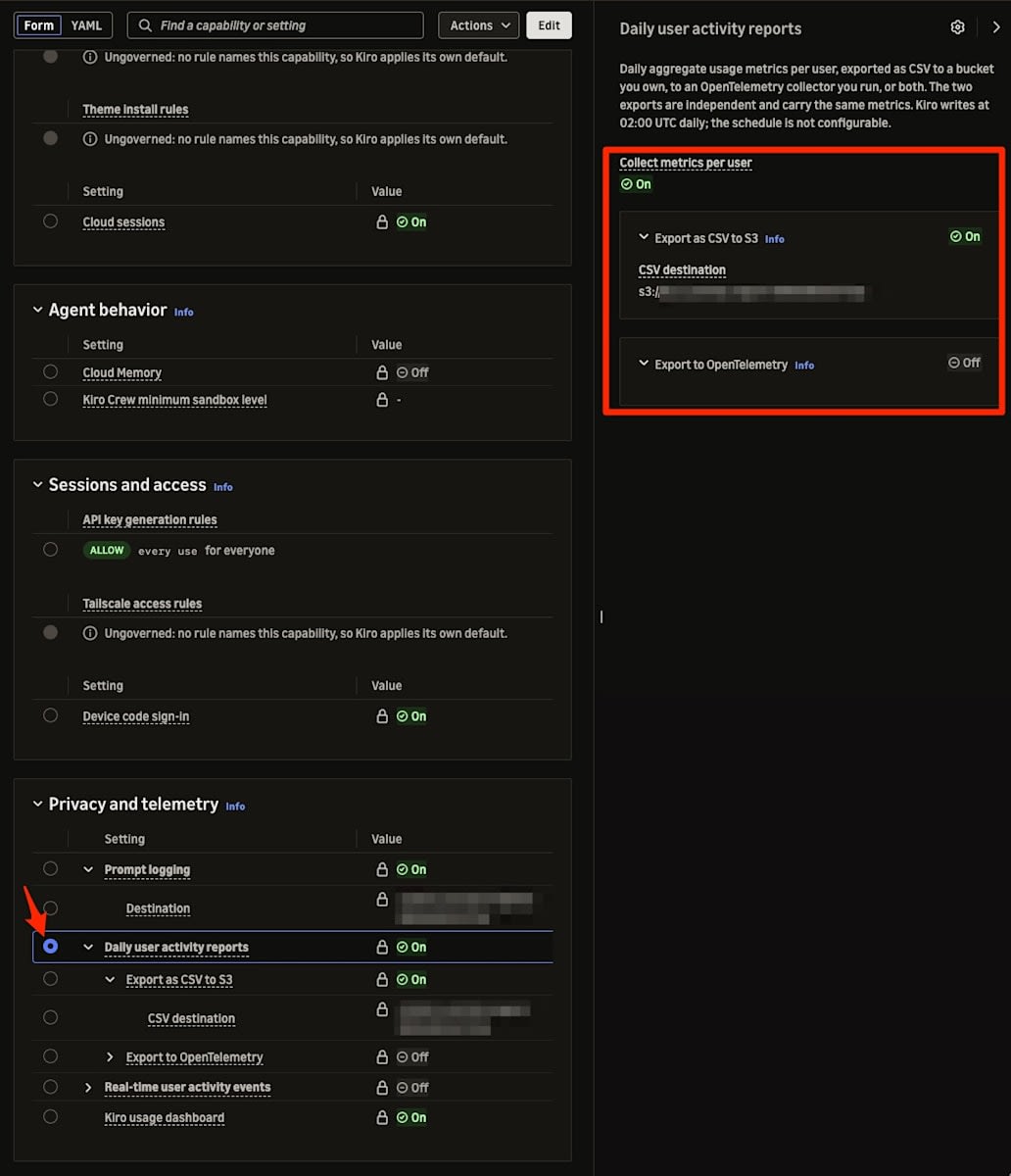
In Daily user activity reports under Privacy and telemetry, Collect metrics per user was On. Export as CSV to S3 was On with a CSV output destination configured, and Export to OpenTelemetry was Off.
YAML View
The YAML view shows the contents of the Form view in KGL (Kiro Governance Language).
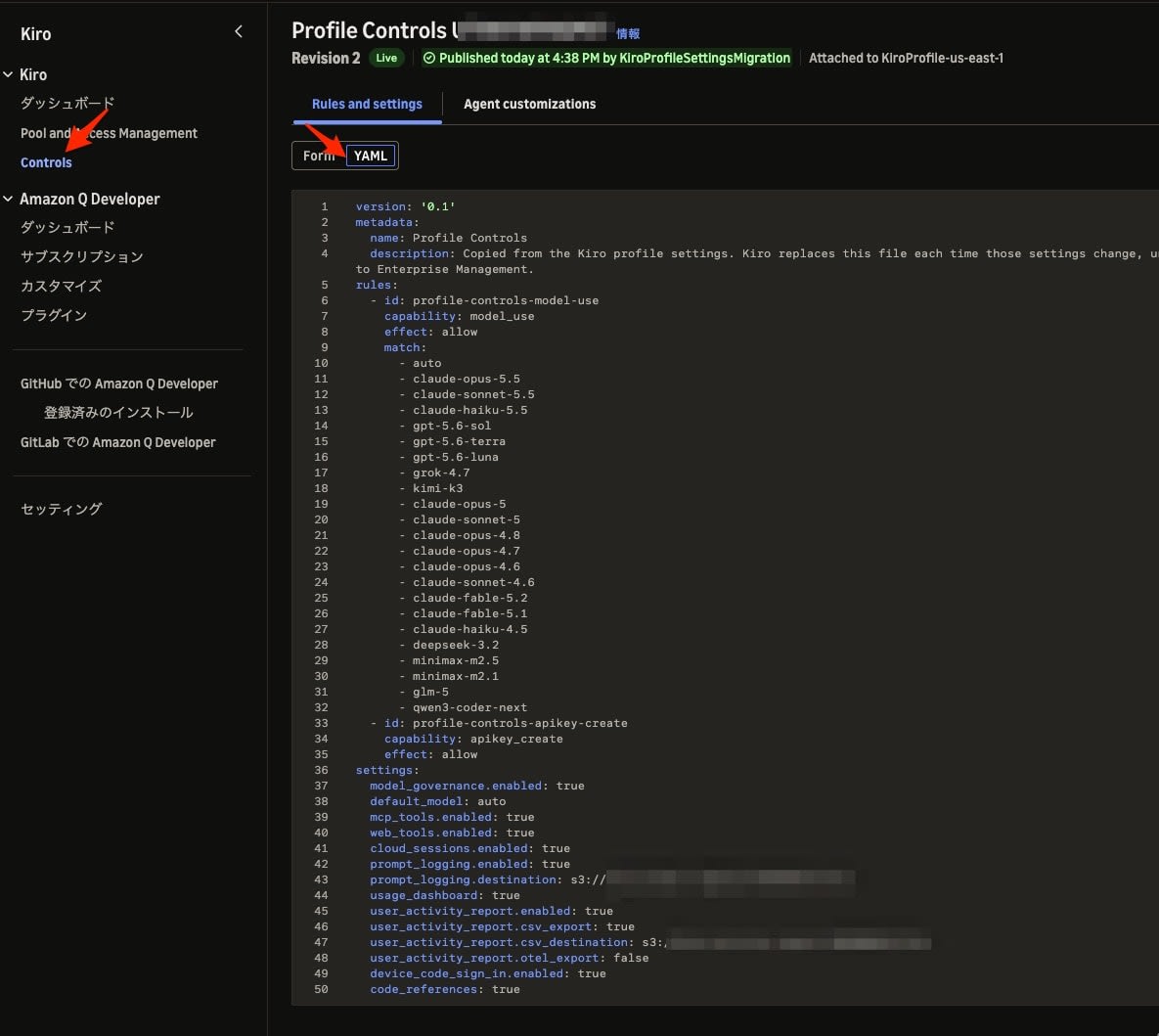
rules contained two entries: model_use (allow, 23 models), which corresponds to the approved list of models, and apikey_create (allow), which corresponds to API key creation. apikey_create is displayed in the Form view as API key generation rules under Sessions and access. settings had 14 items, and MCP and Web were included as mcp_tools.enabled: true and web_tools.enabled: true.
Summary
I confirmed that existing profiles can be migrated to Enterprise Management (preview).
In previous versions of Kiro, model and rule settings had to be configured on the Settings screen in the AWS Console, which made settings hard to reproduce and prone to operational mistakes.
For an example of the previous rule settings, see the following article from October 2026.
With this update, Controls lets you manage settings in YAML, making it easier to keep them in a repository or similar and retain a history.
Additionally, it is now possible to configure Kiro from the AWS CLI as well. This is covered in the following article.