I Tried Setting Up the Open-Source AI Platform LibreChat with Docker, Including Adding Models and MCP

This page has been translated by machine translation. View original
Introduction
Hello, I'm Masaoka from the West Japan Development Team, Generative AI Integration Department, AI Business Division.
Recently, I've had more occasions to think about how to incorporate AI agents and MCP into internal tools. Once you start using multiple models and tools, you also start to wonder how to manage their configurations.
While looking for OSS that could serve this purpose, I found LibreChat, an OSS that lets you manage models, agents, and MCP in a single file called librechat.yaml, so I started by spinning it up with Docker and trying it out.
In this article, I'll go over what kind of OSS LibreChat is, start it up with Docker Compose, and try adding Claude (Sonnet / Haiku) on Amazon Bedrock and an MCP server from librechat.yaml.
What is LibreChat?
LibreChat is an OSS chat platform that bills itself as an "Open-Source AI Platform." Its UI is close to ChatGPT, so it's intuitive to use even on first sight. It introduces adoption by major overseas companies and universities such as Shopify, Daimler Truck, and Boston University.
Main features
LibreChat has many features, but the following caught my attention in particular while trying it out.
- Supports major model providers such as OpenAI, Anthropic, Google, Mistral, Amazon Bedrock, Azure OpenAI, and Ollama
- You can add OpenAI-compatible custom endpoints, making it easy to connect to your own inference infrastructure or internal APIs
- Models, MCP, agents, and UI display can be configured together in
librechat.yaml - Released under the MIT license
In addition, it offers features you'd likely want when using it as an internal AI platform, such as RAG, web search, memory, and OAuth / OIDC / SAML / LDAP.
Tech stack
Let me briefly go over the tech stack, assuming you run it self-hosted.
| Layer | Technology |
|---|---|
| Frontend | React (Vite) + Tailwind CSS + Radix UI |
| Backend | Node.js + Express (API server, port 3080), authentication via Passport.js |
| Main data DB | MongoDB (conversation history, user information, etc.) |
| RAG vector DB | PostgreSQL + pgvector |
| Cache / sessions | Redis |
| Full-text search | Meilisearch (searching conversation history) |
When you start it with Docker Compose, the containers above are all launched together.
What you can do with librechat.yaml
The first thing I found convenient when using LibreChat is that you can consolidate a lot of the configuration into librechat.yaml. Not only model settings but also MCP, agents, and even UI display are handled in the same file.
- Defining custom endpoints (model providers)
- Adding and enabling models, and controlling display names
- Registering MCP servers
- Configuring agents
- Fine-grained control of UI display (such as the order of the model selector)
It's not the kind where you click through settings on an admin screen; you can configure it as a file while looking at diffs, which is convenient. However, since librechat.yaml is excluded in LibreChat's own .gitignore, it doesn't seem to assume that the actual configuration file is included in the repository as is.
Trying it out
From here, I'll actually start LibreChat with Docker, add Claude (Sonnet / Haiku) on Bedrock and an MCP server, and confirm that it works.
Prerequisites
The test environment is as follows.
- OS: macOS Tahoe 26.4.1
- Docker: 29.1.4-rd (via Rancher Desktop 1.22.3)
- Docker Compose: v5.0.1
I'm using Rancher Desktop rather than Docker Desktop, but the steps themselves are the same as long as you have an environment where the docker / docker compose commands work.
Also, beforehand, create an IAM user for testing on the Amazon Bedrock side and issue an access key with the AmazonBedrockFullAccess permission attached.
Starting with Docker Compose
Clone the official repository and copy the sample .env.example to .env.
git clone https://github.com/danny-avila/LibreChat.git
cd LibreChat
cp .env.example .env
Once that's done, start it with Docker Compose. Normally the following command is enough.
docker compose up -d
In my environment, I ran into a permissions error related to bind mounts when starting with Rancher Desktop. After consulting Claude Code several times while handing it the logs, I was finally able to start it by creating the target directories first and then explicitly specifying the UID/GID.
mkdir -p meili_data_v1.35.1 logs images data-node uploads
chown -R $(id -u):$(id -g) meili_data_v1.35.1 logs images data-node uploads
UID=$(id -u) GID=$(id -g) docker compose up -d
The details are summarized in "Notes: Where I Stumbled When Starting Up with Rancher Desktop."
Once startup is complete, access http://localhost:3080. On the first visit, a login screen appears.
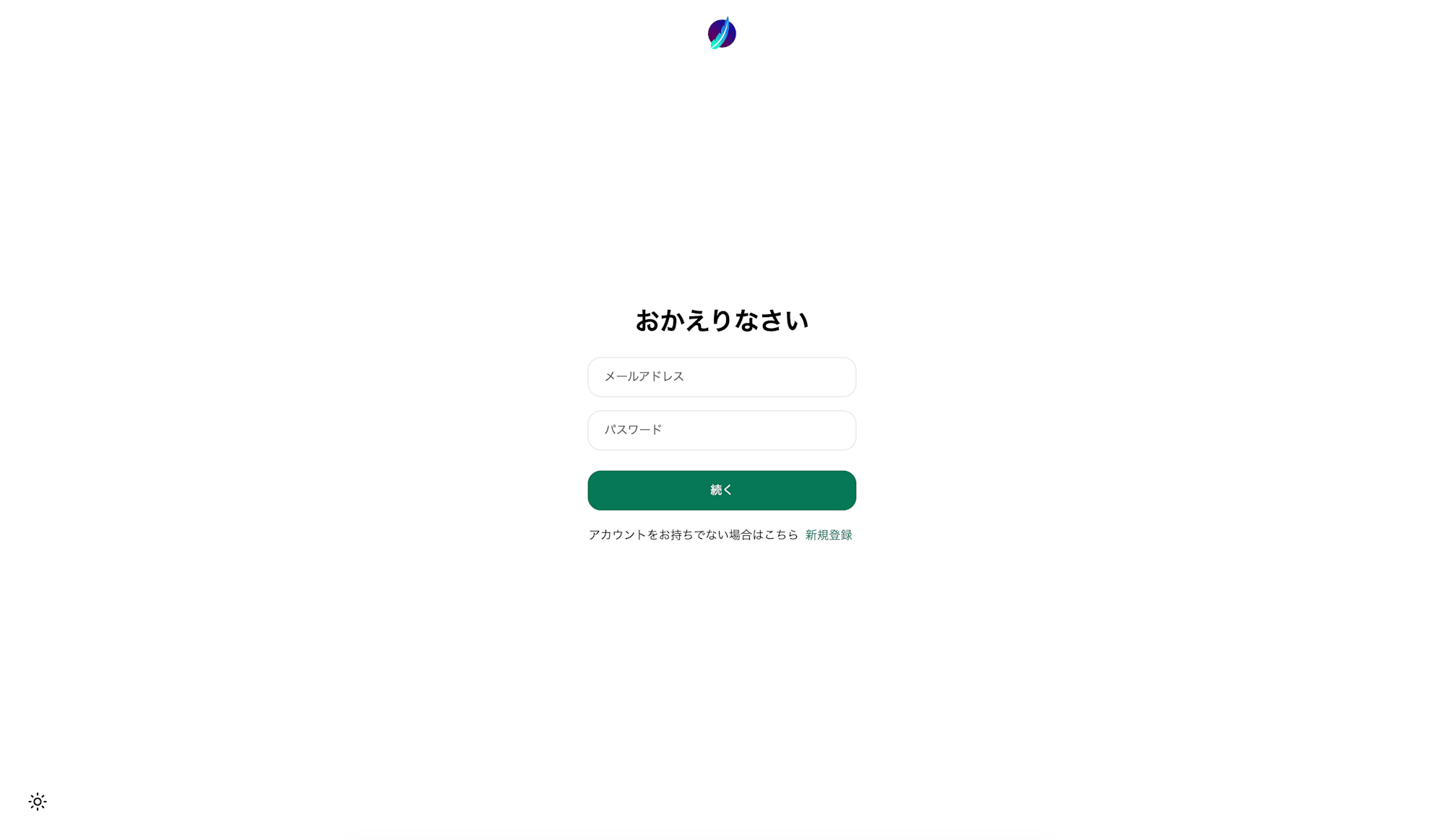
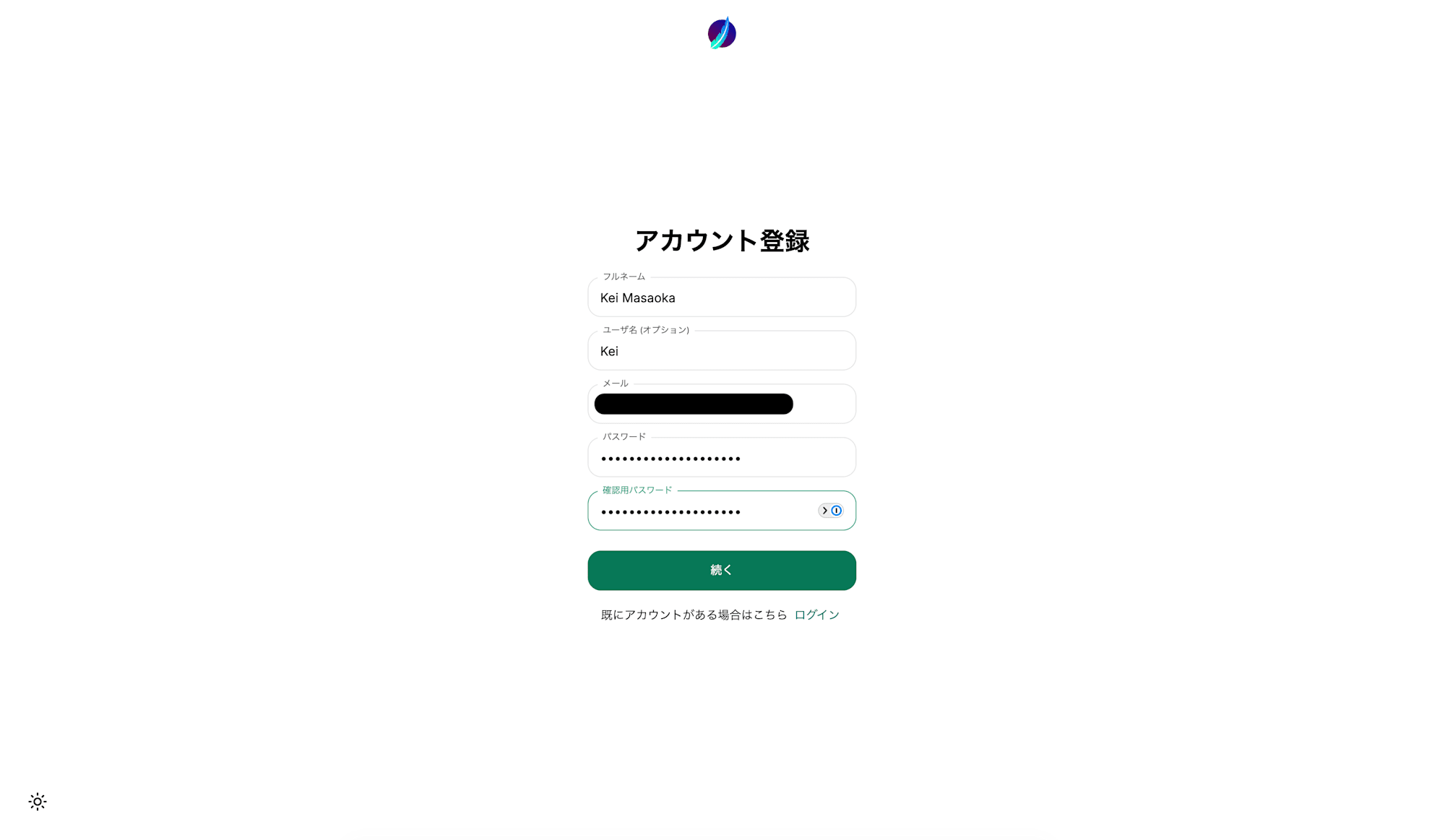
Since we don't have an account yet, click "Create new account" to go to the sign-up screen and fill in the fields to create an account.
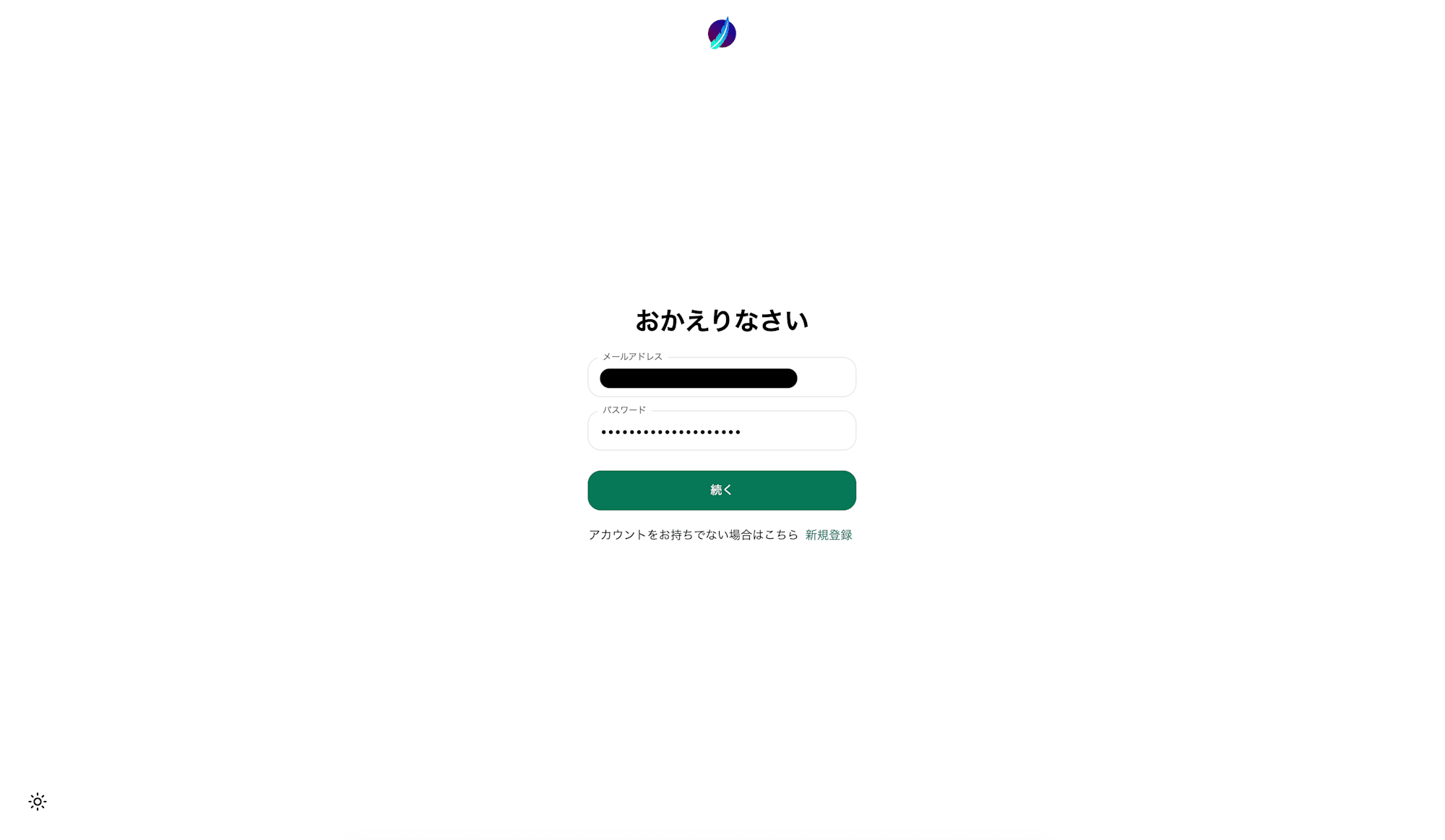
Once the account is created successfully, you'll be redirected to the login screen, so enter the email address and password of the account you just created.
After logging in, a ChatGPT-like chat screen appeared.
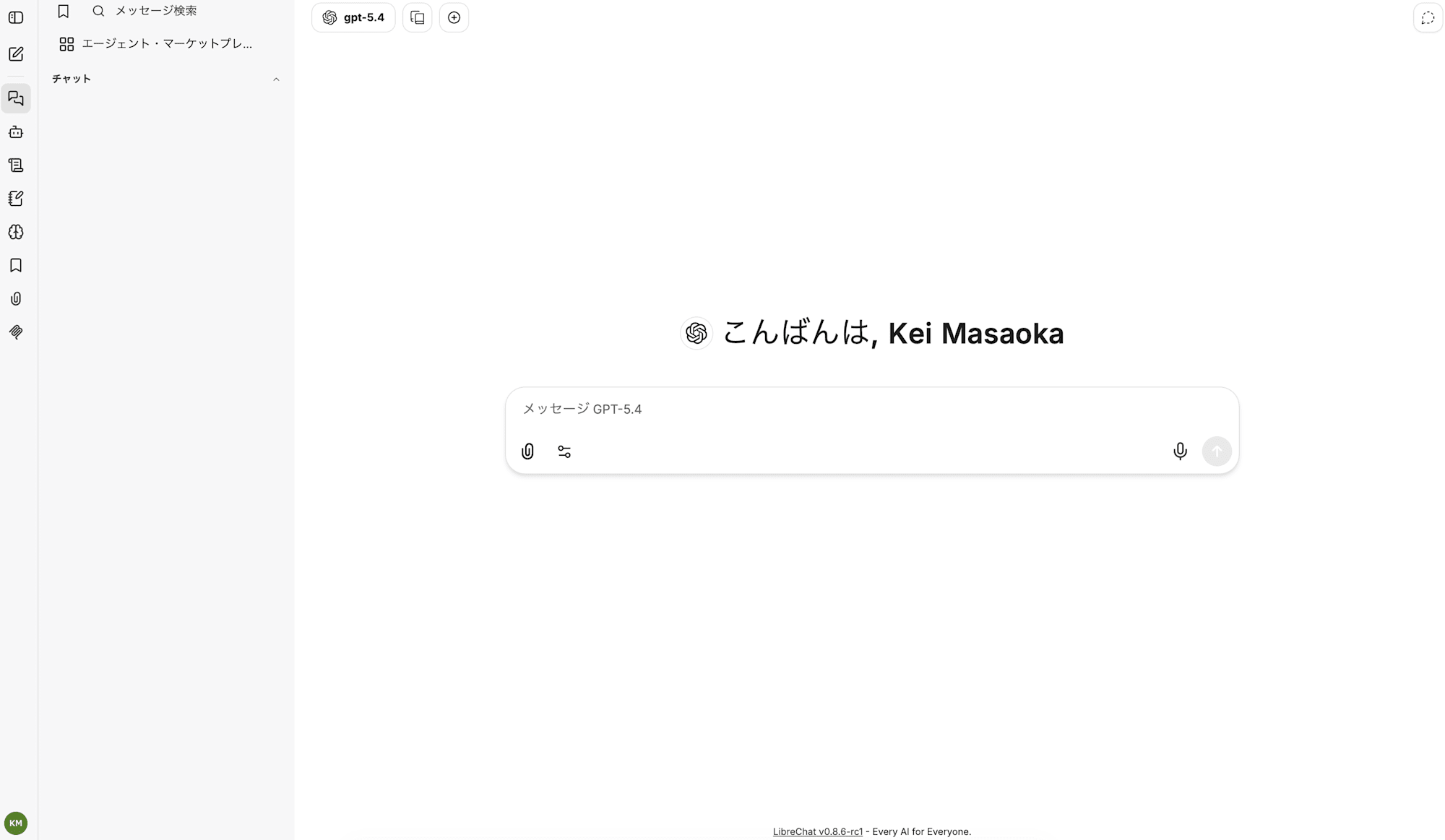
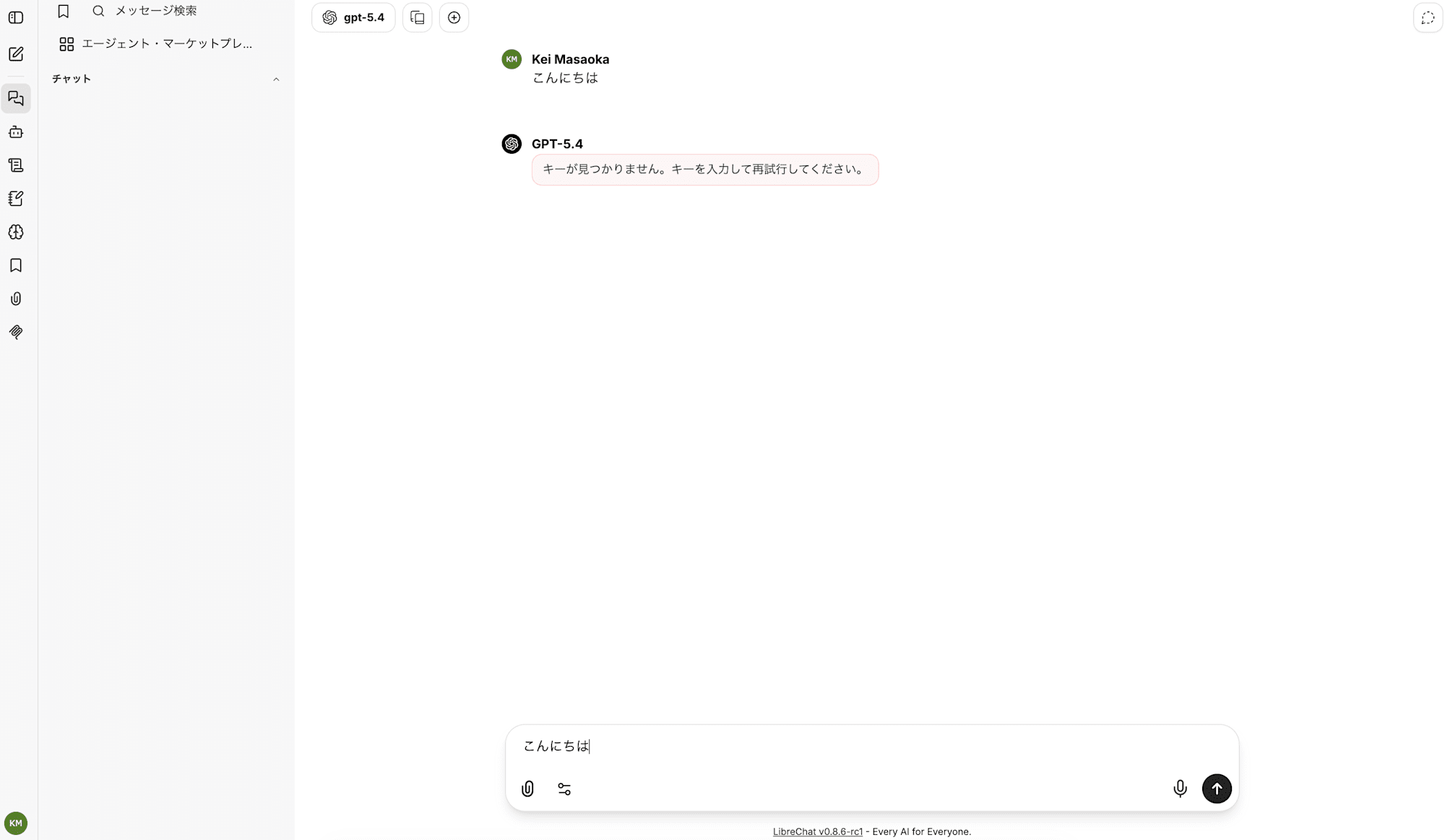
I tried typing "Hello", but since nothing is configured yet, an error message came back.
Also, by default, the settings are such that OpenAI, Google, and Anthropic models are displayed.
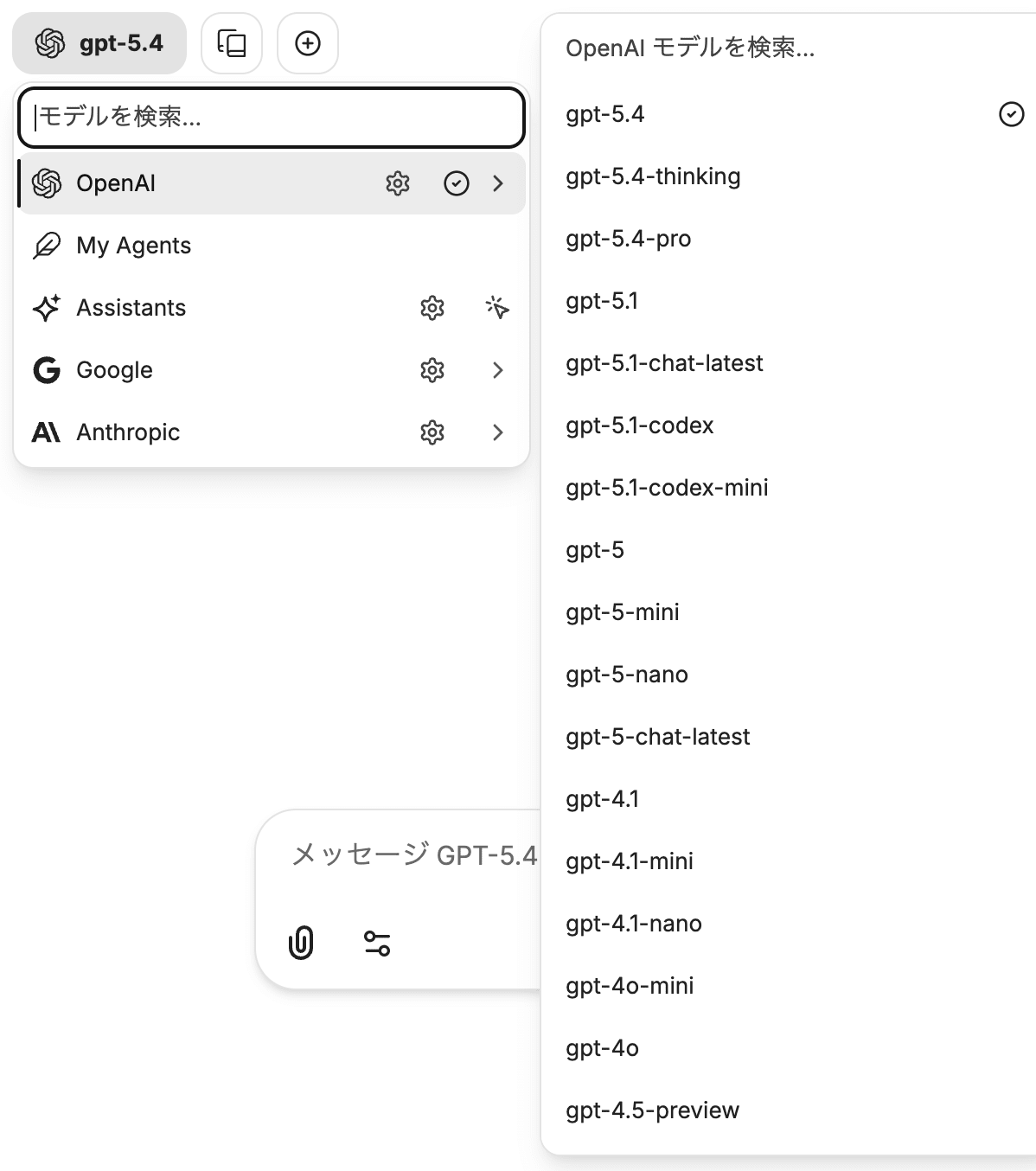
Controlling the UI display here is covered in "Notes: Deciding Where to Put LLM Provider Settings."
Mounting librechat.yaml
Create librechat.yaml in the root of the LibreChat repository and mount it into the Docker container. The officially recommended pattern for mounting is to prepare a docker-compose.override.yml. Add the volume settings for the api service to the docker-compose.override.yml we created earlier for Apple Silicon.
services:
  mongodb:
    image: mongo:4.4.18
+ api:
+ volumes:
+ - type: bind
+ source: ./librechat.yaml
+ target: /app/librechat.yaml
If you're not on Apple Silicon, you don't need the mongodb section; just write the api section.
Adding Claude Sonnet / Haiku on Bedrock
Configuring .env
Set your AWS credentials in .env. Note that LibreChat's environment variables for Bedrock are prefixed with BEDROCK_AWS_*.
Also, since we only want Bedrock to appear in the UI this time, set only bedrock in ENDPOINTS.
#=================#
# AWS Bedrock #
#=================#
BEDROCK_AWS_DEFAULT_REGION=us-east-1
BEDROCK_AWS_ACCESS_KEY_ID=<ここにアクセスキーIDを入力>
BEDROCK_AWS_SECRET_ACCESS_KEY=<ここにシークレットアクセスキーを入力>
#===================================================#
# Endpoints #
#===================================================#
ENDPOINTS=bedrock
Configuring librechat.yaml
Next, add the models you want to use on Bedrock to librechat.yaml. This time, I put the models to show in the UI, the model used for title generation, and the region to use together under endpoints.bedrock.
version: 1.3.11
cache: true
endpoints:
bedrock:
titleModel: 'us.anthropic.claude-haiku-4-5-20251001-v1:0'
availableRegions:
- 'us-east-1'
models:
- 'us.anthropic.claude-sonnet-4-6'
- 'us.anthropic.claude-haiku-4-5-20251001-v1:0'
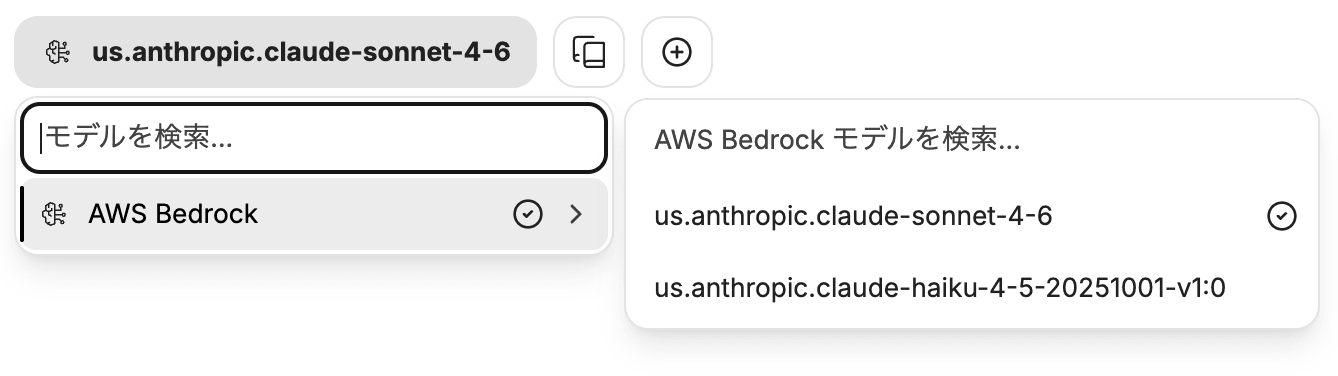
Restart with docker compose down && docker compose up -d and open the model selector in the UI.
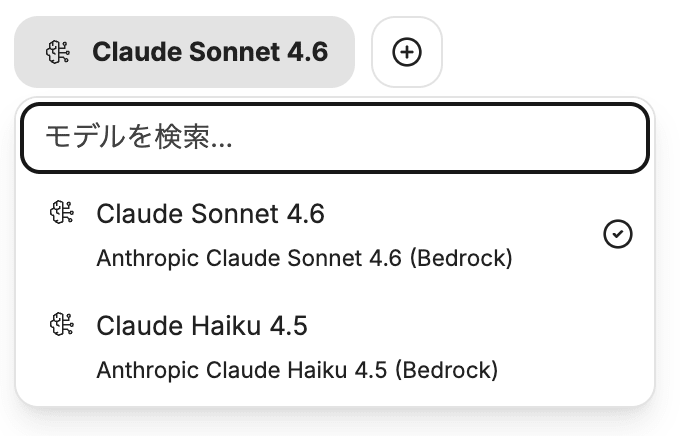
The two models specified in the yaml are displayed! It's incredibly easy.
If you want to change the display names in the UI, add modelSpecs to the yaml file. The details are summarized in the official documentation's Model Specs.
version: 1.3.11
cache: true
endpoints:
bedrock:
titleModel: 'us.anthropic.claude-haiku-4-5-20251001-v1:0'
availableRegions:
- 'us-east-1'
models:
- 'us.anthropic.claude-sonnet-4-6'
- 'us.anthropic.claude-haiku-4-5-20251001-v1:0'
+ modelSpecs:
+ list:
+ - name: 'claude-sonnet-4-6'
+ label: 'Claude Sonnet 4.6'
+ description: 'Anthropic Claude Sonnet 4.6 (Bedrock)'
+ preset:
+ endpoint: 'bedrock'
+ model: 'us.anthropic.claude-sonnet-4-6'
+ region: 'us-east-1'
+ - name: 'claude-haiku-4-5'
+ label: 'Claude Haiku 4.5'
+ description: 'Anthropic Claude Haiku 4.5 (Bedrock)'
+ preset:
+ endpoint: 'bedrock'
+ model: 'us.anthropic.claude-haiku-4-5-20251001-v1:0'
+ region: 'us-east-1'
When you restart again with docker compose down && docker compose up -d, you can confirm that the display names in the model selector have changed.
Verifying behavior
Let's actually send a prompt and confirm that a response comes back.
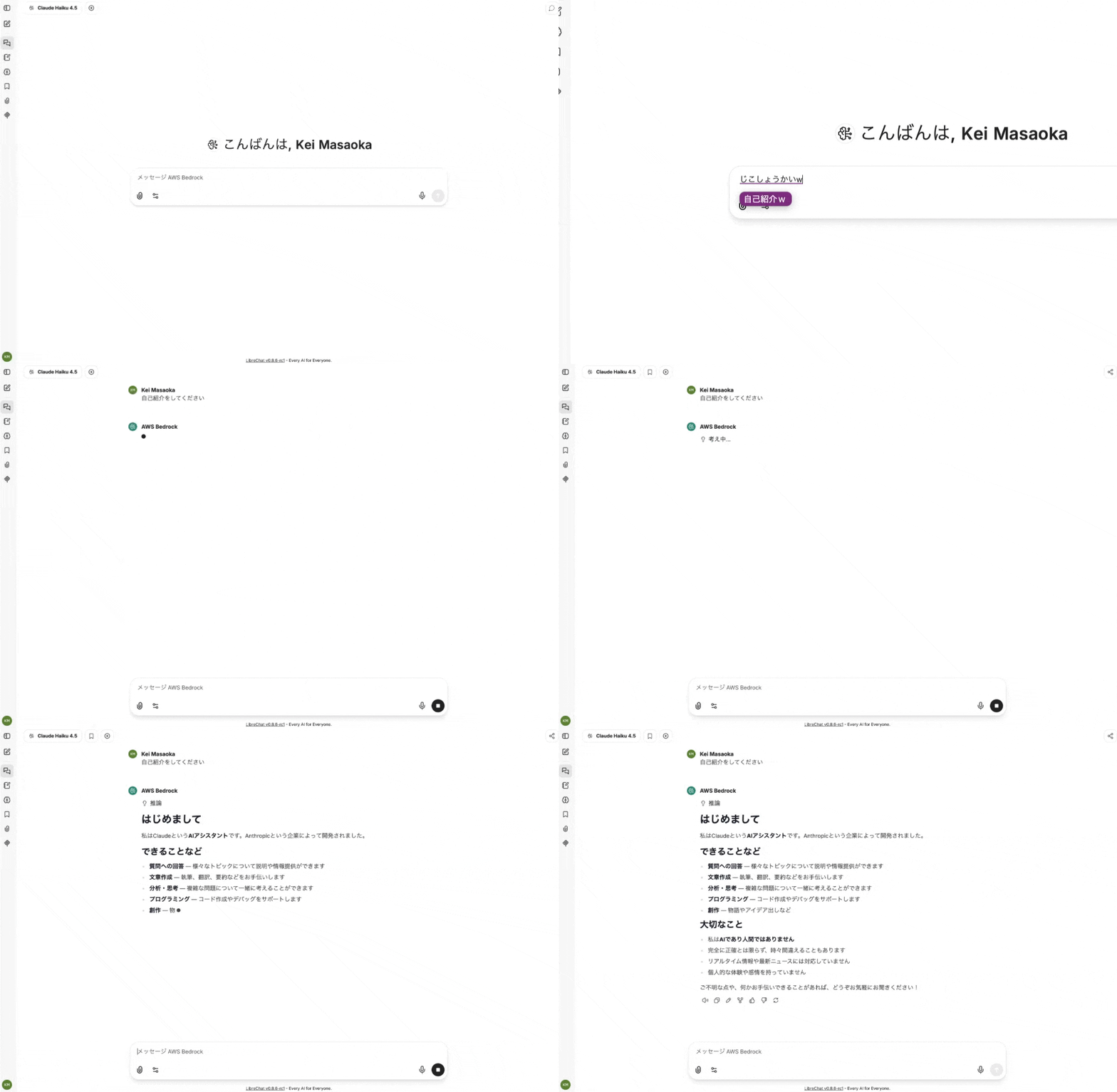
The response was streamed back!
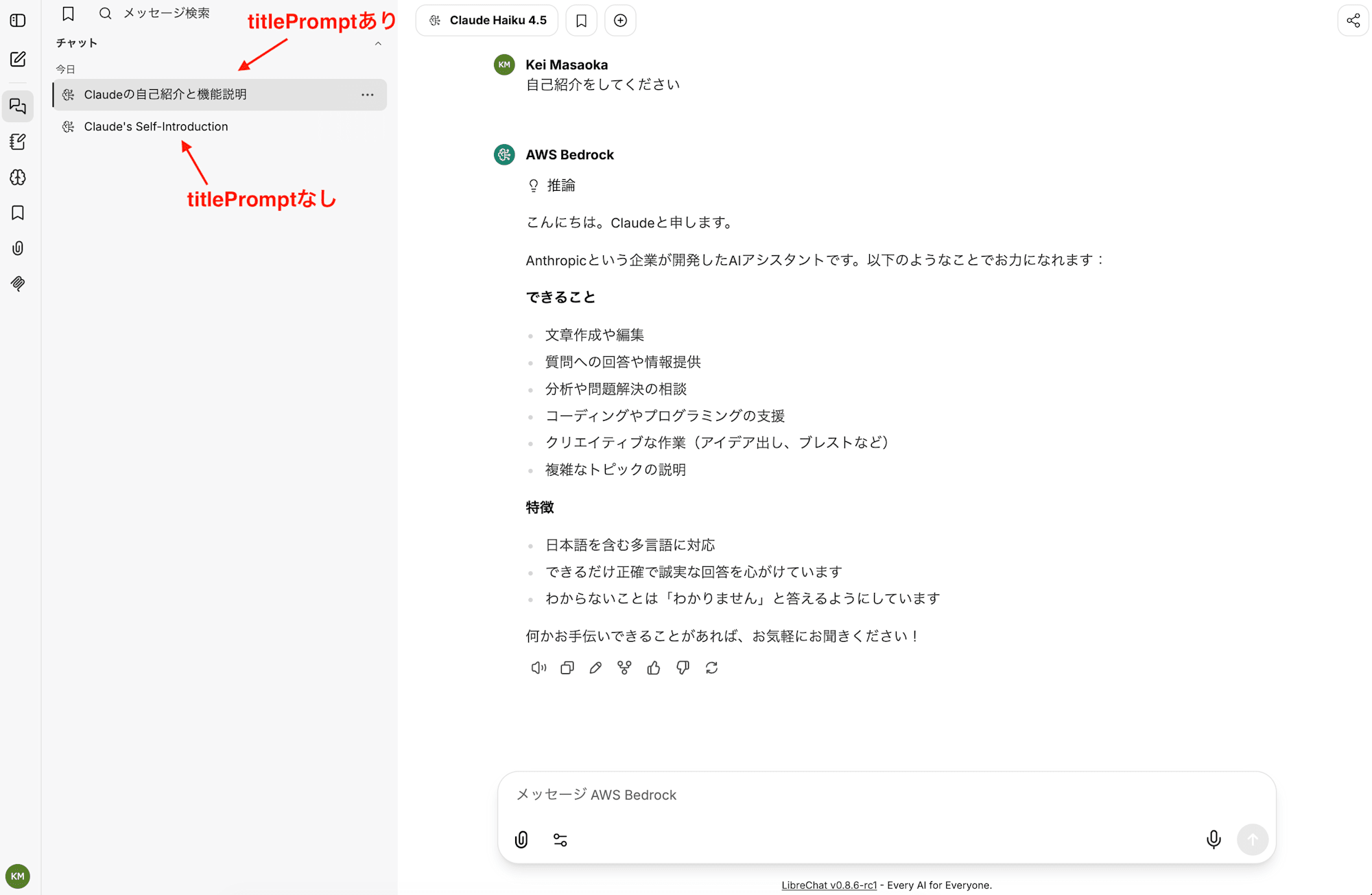
Incidentally, the chat title was automatically generated in English to match the first input.
This uses the model set in endpoints.bedrock.titleModel in the yaml.
If you add endpoints.bedrock.titlePrompt to the yaml, you can rewrite the instruction given to the title-generating LLM itself.
By specifying it as follows, titles will be generated in Japanese.
version: 1.3.11
cache: true
endpoints:
bedrock:
titleModel: 'us.anthropic.claude-haiku-4-5-20251001-v1:0'
+ titlePrompt: |
+ 以下の会話内容から、日本語で簡潔なタイトル(最大5語、句読点・記号なし)を生成してください。
+ 出力はタイトル本文のみとし、前置きや引用符は含めないでください。
+ {convo}
availableRegions:
- 'us-east-1'
models:
- 'us.anthropic.claude-sonnet-4-6'
- 'us.anthropic.claude-haiku-4-5-20251001-v1:0'
You can see that the display differs between the same input with and without titlePrompt set.
Adding an MCP server
You can also add MCP servers in the mcpServers section of the same librechat.yaml as the models. This time, using the AWS Knowledge MCP Server officially provided by AWS as an example, I'll confirm that it can be called from the UI. It's a remote MCP server that can search and retrieve across the official AWS documentation, and at the time of writing (May 2026) it can be used without authentication.
Configuring librechat.yaml
Add an mcpServers section to librechat.yaml.
version: 1.3.11
cache: true
endpoints:
bedrock:
...
modelSpecs:
list:
- name: 'claude-sonnet-4-6'
...
+ mcpServers:
+ aws-knowledge:
+ type: streamable-http
+ url: https://knowledge-mcp.global.api.aws
Restart with docker compose down && docker compose up -d.
Calling it from the UI
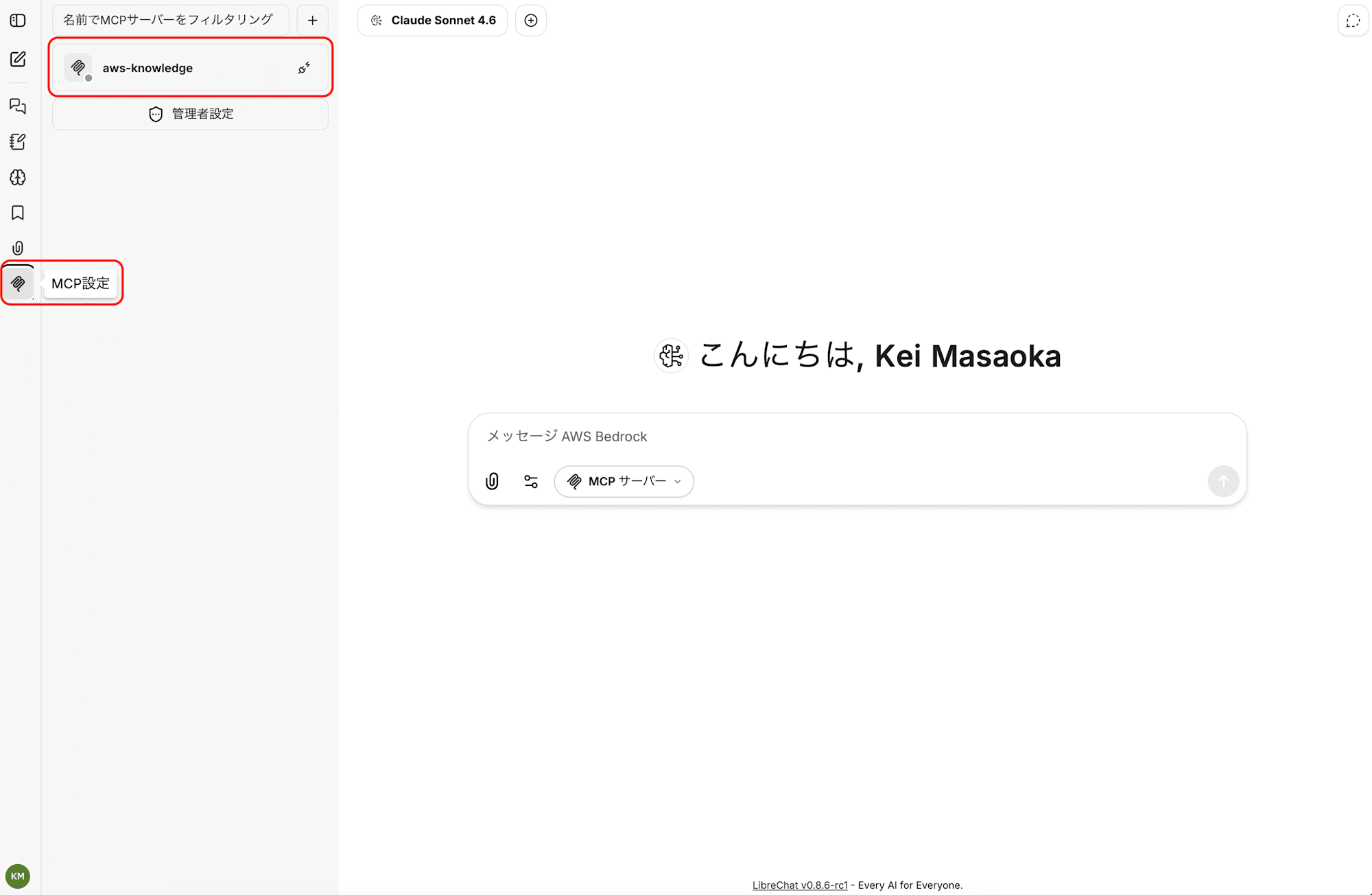
After restarting, the MCP server has been added to the tool selection menu in the chat field.
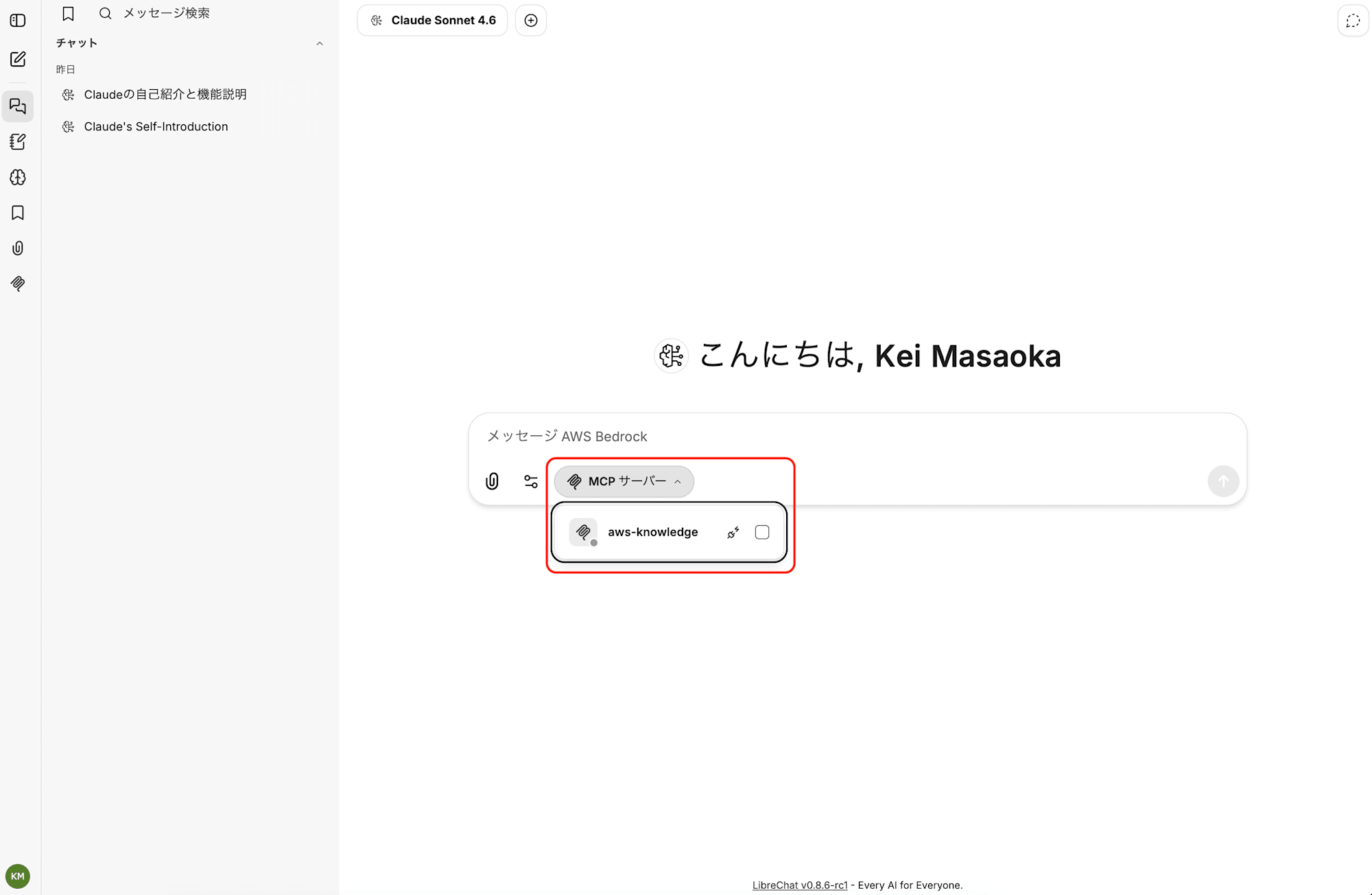
You can also confirm from the sidebar that it's recognized as an MCP server.
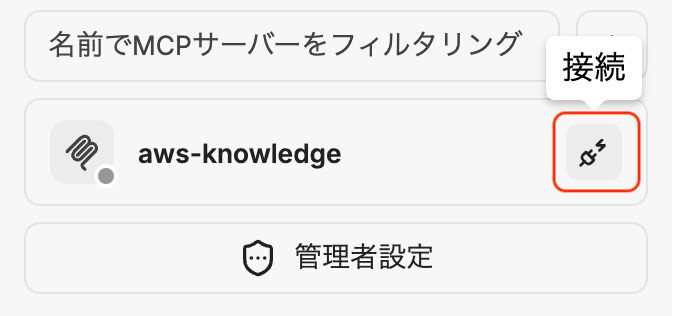
Pressing the connect button established the integration.
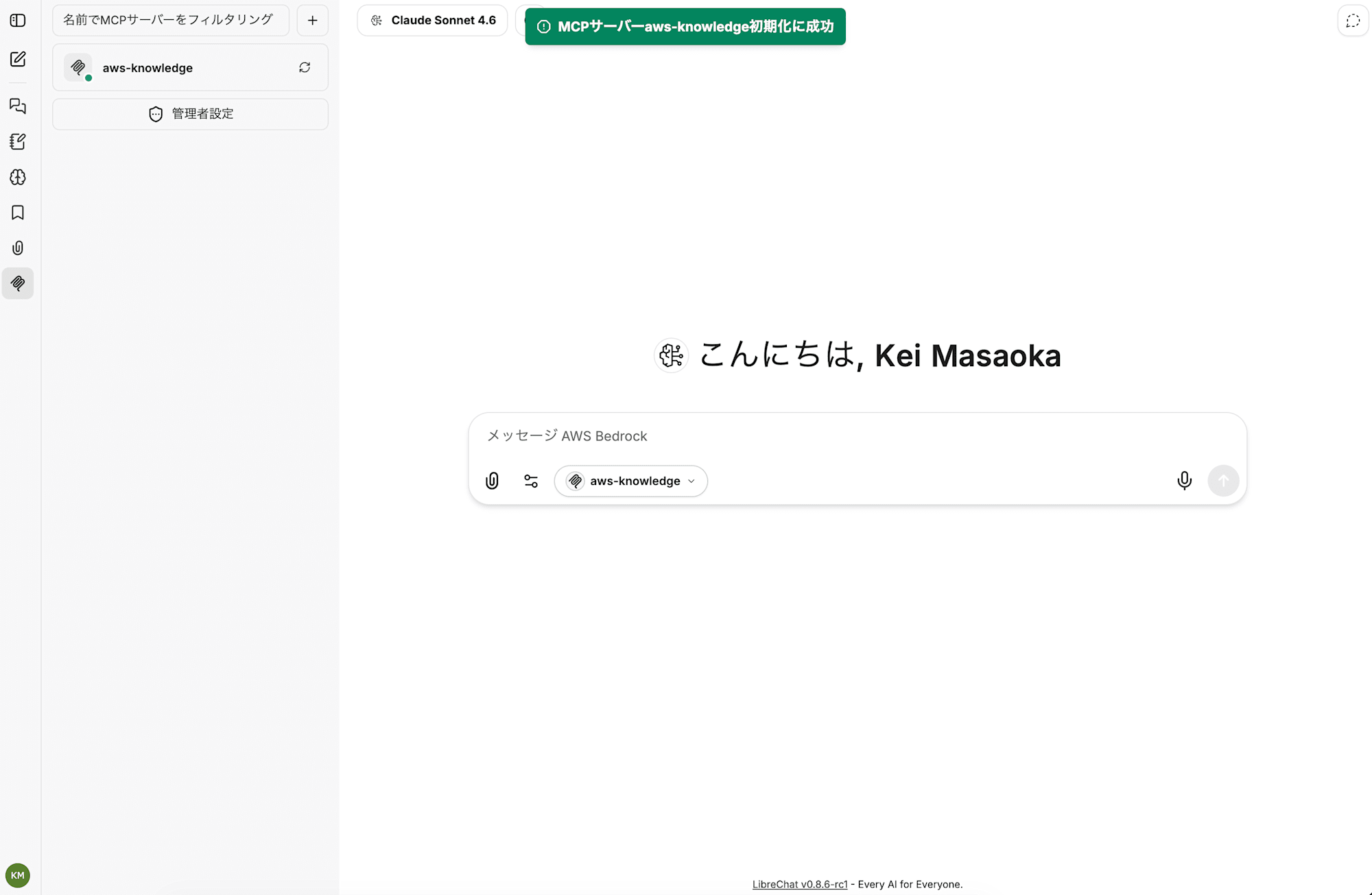
After confirming that the MCP connection target in the chat field was aws-knowledge, I tried asking about Payments, a recently announced AgentCore feature.
Based on the tool execution results, an answer referring to the official AWS documentation came back!
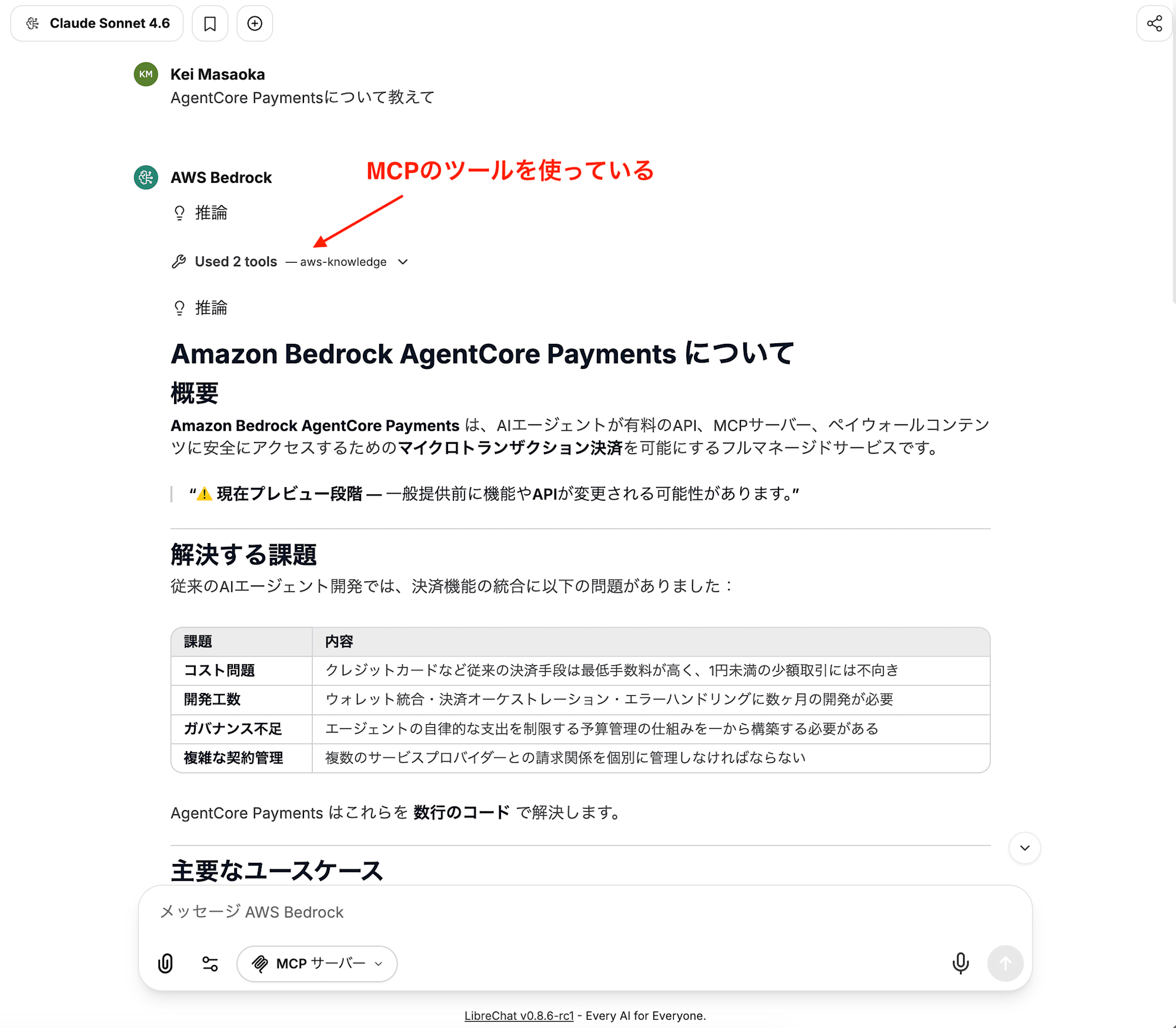
When I asked the same question without the MCP server, the answer did not reference the official documentation.
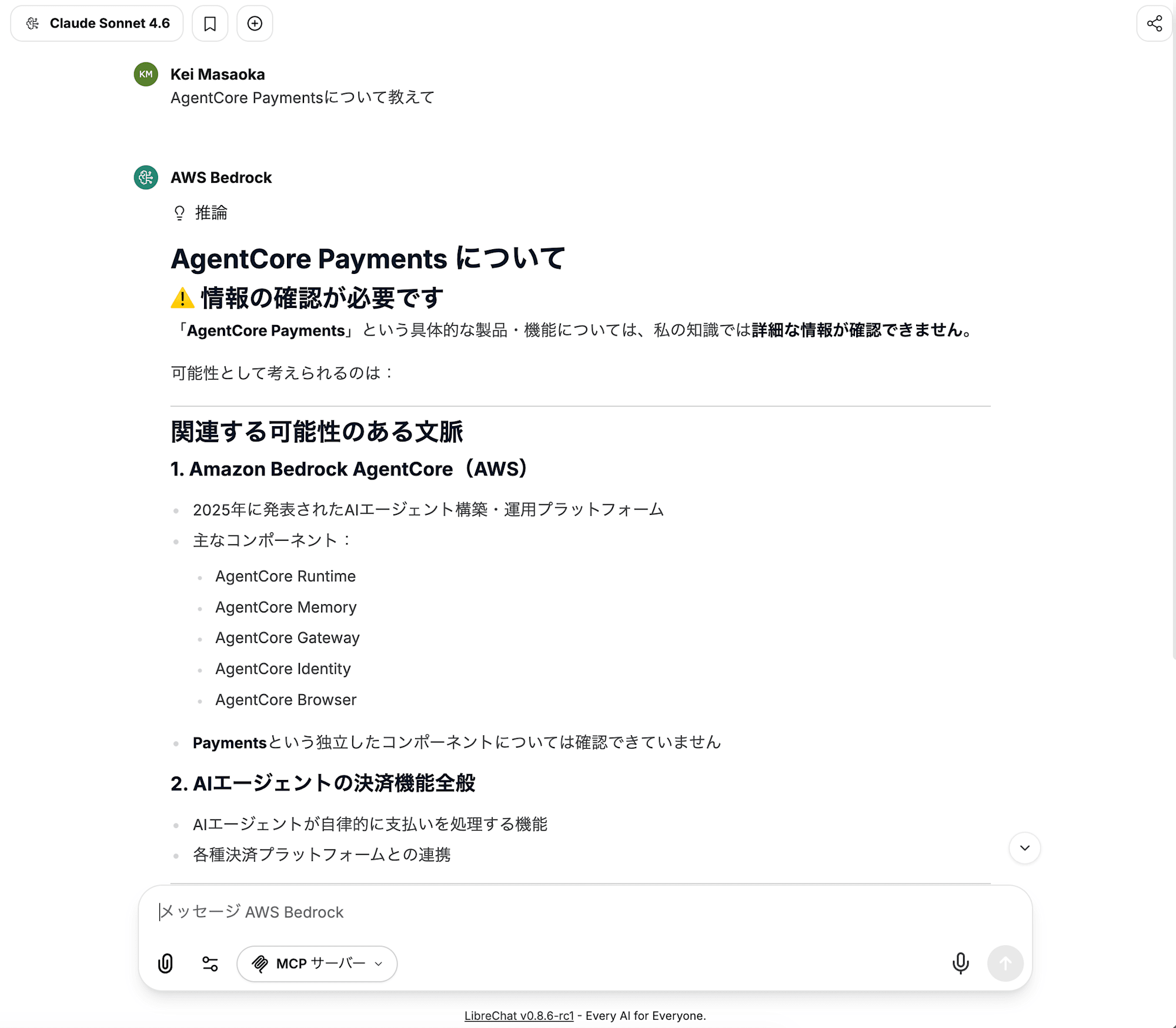
By connecting MCP, I confirmed that you can get answers referencing the official AWS documentation from LibreChat's chat screen.
It's easy to work with that you can manage MCP servers just like models by adding a few lines to librechat.yaml.
Cleaning up
When you're done testing, run the following in the repository root to stop the containers.
docker compose down
If you want to completely delete the data as well, add -v (note that this also deletes things like MongoDB conversation history).
docker compose down -v
If you no longer need the IAM user and access key created for testing, disable or delete them as well.
Summary
I started LibreChat with Docker and confirmed that Claude (Sonnet / Haiku) on Bedrock and an MCP server can be added to librechat.yaml.
Being able to consolidate both models and MCP into the same librechat.yaml felt like a straightforward, easy-to-handle setup for operating an agent platform internally.
On the other hand, once I actually tried it, the division of roles between .env and librechat.yaml, and the extent of what can be controlled with ENDPOINTS, were a little confusing at first. I've summarized these points in the notes, so I hope they're helpful.
Next, I'd like to try how manageable agent settings are in librechat.yaml as well.
Notes: Where I Stumbled When Starting Up with Rancher Desktop
In this testing, I got a bit stuck on starting LibreChat with Rancher Desktop. Rather than reading through the logs entirely on my own, I handed the error logs to Claude Code and had it help with isolating the cause and investigating related Issues.
The first error was a permission denied at the point of creating the MeiliSearch data directory.
Error response from daemon: error while creating mount source path '.../LibreChat/meili_data_v1.35.1': chown .../LibreChat/meili_data_v1.35.1: permission denied
During the back-and-forth, it became clear that the Japanese word for "blog" in the working directory path was suspicious. Since Rancher Desktop mounts host directories via a Lima VM and virtiofs, it apparently can run into problems with paths and ownership. So I changed the directory name from the Japanese word for "blog" to blog.
This made the errors around meili_data_v1.35.1 disappear, but next came UID / GID warnings and a chown error on the images directory.
WARN[0000] The "UID" variable is not set. Defaulting to a blank string.
WARN[0000] The "GID" variable is not set. Defaulting to a blank string.
...
Error response from daemon: error while creating mount source path '.../LibreChat/images': chown .../LibreChat/images: permission denied
For the next error, I had it search for related GitHub Issues. Among LibreChat's Issues were several examples of people hitting similar permission errors on Mac + Colima or Rancher Desktop, and I arrived at the workaround of creating the bind mount target directories before running docker compose up.
The Issues I referred to are here.
- #7414 meilisearch fails with permission error
- #1439 [Bug]: docker compose up leads to npm cache permission error
- #2561 [Bug]: Can't start LibreChat on macOS/colima
In the end, I pre-created the directories and started with the UID/GID explicitly specified, as follows.
mkdir -p meili_data_v1.35.1 logs images data-node uploads
chown -R $(id -u):$(id -g) meili_data_v1.35.1 logs images data-node uploads
UID=$(id -u) GID=$(id -g) docker compose up -d
Notes: Deciding Where to Put LLM Provider Settings
If you leave the UI as is, the model selector lists OpenAI / Anthropic / Google, and each of those providers also offers a large number of models. For this test where I only want to use Bedrock, that's a lot of noise, so let me first go over the reason for this state and where settings should live.
Why are various things displayed by default?
If you copy .env.example as is, the user_provided values are set by default as follows.
ANTHROPIC_API_KEY=user_provided
GOOGLE_KEY=user_provided
OPENAI_API_KEY=user_provided
ASSISTANTS_API_KEY=user_provided
LibreChat behaves such that "providers whose credentials are set in .env are automatically shown in the UI," and user_provided is also treated as "a key is set." user_provided is a special value meaning "the server holds no key, and each user enters their own key from the UI."
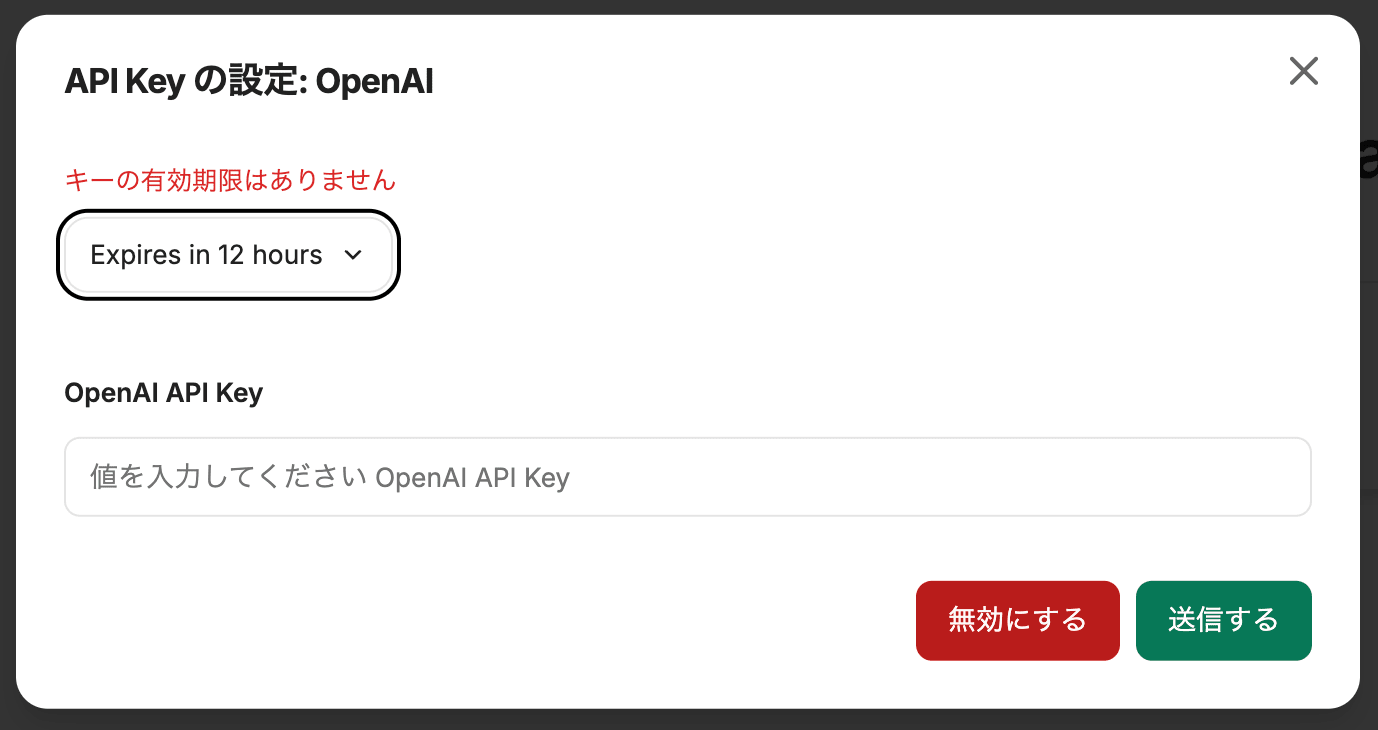
The official documentation also states that leaving it blank disables the provider, and user_provided enables BYOK (Bring Your Own Key) mode.
Division of roles between .env and librechat.yaml
Reading the documentation, you can see that roles are divided by configuration file.
.env: Secrets, credentials, infrastructure settings, authentication, feature flagslibrechat.yaml: Endpoint configuration, model lists, UI customization, rate limits
Types of endpoints and conditions for UI display
There are two types of endpoints in LibreChat, and the conditions under which they appear in the UI differ. I tried several patterns on an actual machine and organized the results.
Built-in endpoints (openAI / anthropic / google / bedrock / azureOpenAI / assistants, etc.)
These are providers built into LibreChat from the start, and they appear in the UI when both of the following are satisfied.
- The corresponding credentials (an API key, or AWS credentials in the case of Bedrock) are set in
.env - They are not excluded by the
ENDPOINTSvariable in.env
Even if you write endpoints.bedrock or similar in librechat.yaml, it won't appear in the UI unless the conditions above are met. The yaml side plays the role of configuring in detail the behavior of already-enabled endpoints (model list, title generation model, region, etc.).
Custom endpoints (under endpoints.custom in librechat.yaml)
This is a slot for adding any provider with an OpenAI-compatible API (Mistral, Groq, OpenRouter, etc.), and there is only one condition for it to appear in the UI.
- It is defined under
endpoints.custominlibrechat.yaml
.env is irrelevant. It appears in the UI as soon as you write it in the yaml. You reference values from .env like apiKey: '${MISTRAL_API_KEY}', but the value is resolved at the time of the actual call, not at startup, so the endpoint itself appears in the UI even if MISTRAL_API_KEY is absent from .env. (Of course, it will merely be displayed in the UI, and sending a message will result in an error.)
Also, the whitelist via the ENDPOINTS variable does not apply to custom endpoints. Even with ENDPOINTS=bedrock, custom endpoints written in the yaml remain in the UI as they are.
The role of the ENDPOINTS variable
The ENDPOINTS variable in .env works as a whitelist of "which built-in endpoints to show in the UI."
# Allow only bedrock. Even if OpenAI / Anthropic / Google have keys in .env, they won't appear in the UI
ENDPOINTS=bedrock
If unset, LibreChat's internal default list (openAI / agents / assistants / azureAssistants / azureOpenAI / google / anthropic / bedrock) is used. The endpoint names you can specify are combinations of the values in this list.
To reiterate, ENDPOINTS is a filter targeting only built-in endpoints and does not affect custom endpoints defined in librechat.yaml.