I tried auto-rotating Datadog credentials with AWS Secrets Manager managed external secrets

This page has been translated by machine translation. View original
Introduction
Hello. I'm Shiina.
AWS Secrets Manager's managed external secrets is a feature that integrates with third-party services and enables automatic rotation of external service credentials through an AWS-managed rotation mechanism.
Recently, Datadog integration was added, making it possible to automatically rotate Datadog credentials.
I actually tried it out, so I've summarized the rotation mechanism and the steps to register secrets.
Managed External Secrets
This is one of the secret types in AWS Secrets Manager.
It integrates with third-party services and enables automatic rotation of secrets.
With Datadog integration now supported, you can automatically rotate Datadog credentials (API keys and application keys).
Previously, to achieve automatic rotation, you needed to create and manage AWS Lambda functions, but now it's available as a managed service.
Datadog Managed External Secrets
The following three Datadog secret types can be registered.
- Datadog API Key (DatadogApiKey)
- Datadog Application Key (DatadogApplicationKey)
- Datadog Admin Key (DatadogAdminKey)
Constraints
The Datadog application key eligible for rotation must be owned by the same service account as the Datadog admin application key.
Rotation Behavior
The Datadog admin key is used to rotate other API keys and application keys.
Therefore, you need to register the Datadog admin key (a pair of Datadog API key and application key) as a secret.
The Datadog admin key itself supports self-rotation.
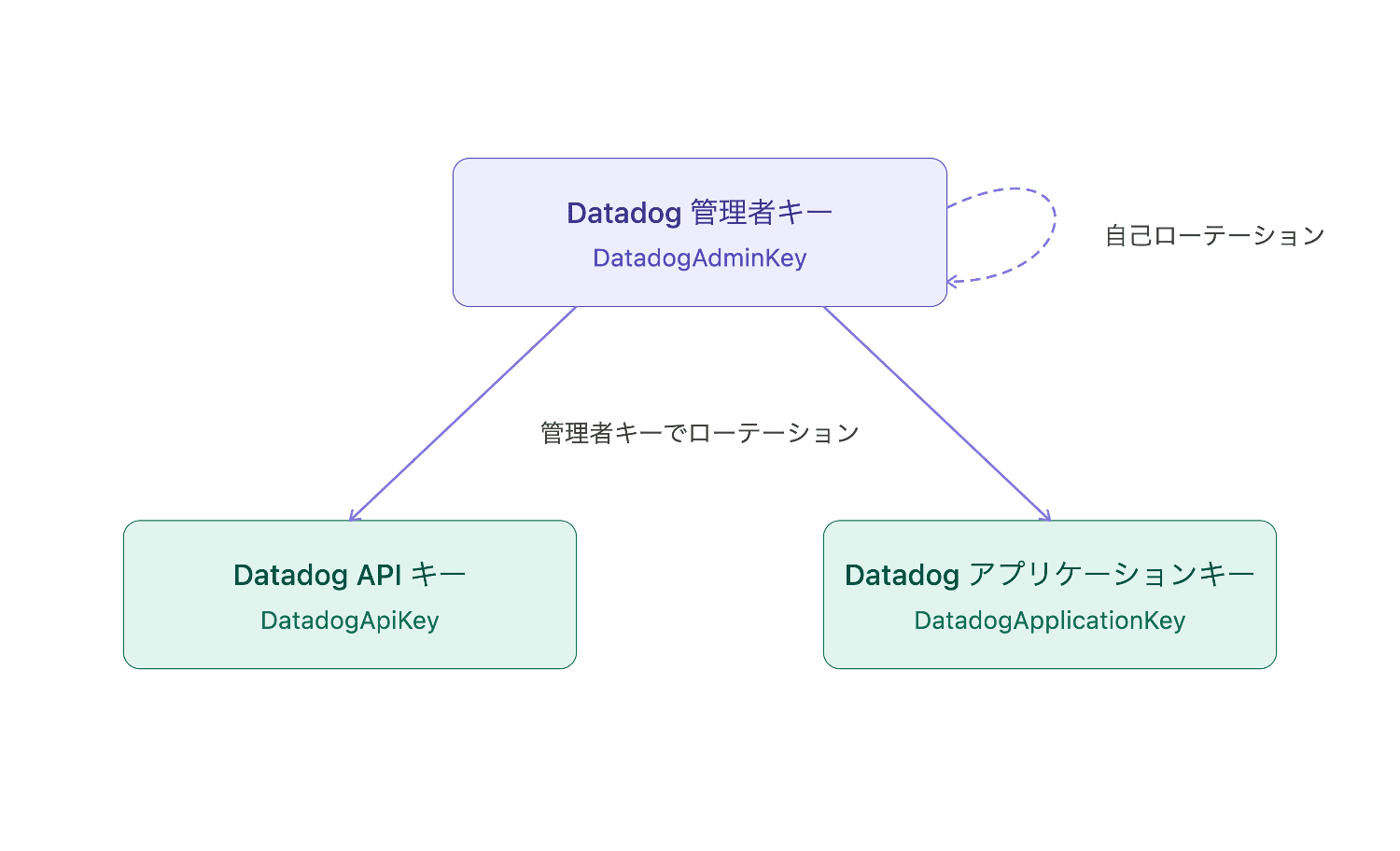
Secrets Manager uses the Datadog admin key to perform rotation as follows.
-
- Verify ownership of the current key
-
- Create a new application key through the Datadog service account API
-
- Then validate the new key, promote it to AWSCURRENT, and delete the old key (※ For Datadog API keys, the key two generations back is deleted)
Datadog Service Accounts
This is a special account for sharing Datadog application keys across a team.
Since regular application keys are owned by individual Datadog accounts, there was a concern that disabling an account would also invalidate the application keys at the same time.
By using a service account, the service account owns the Datadog application keys, avoiding invalidation due to individual account deactivation.
Required Permissions for the Datadog Admin Application Key
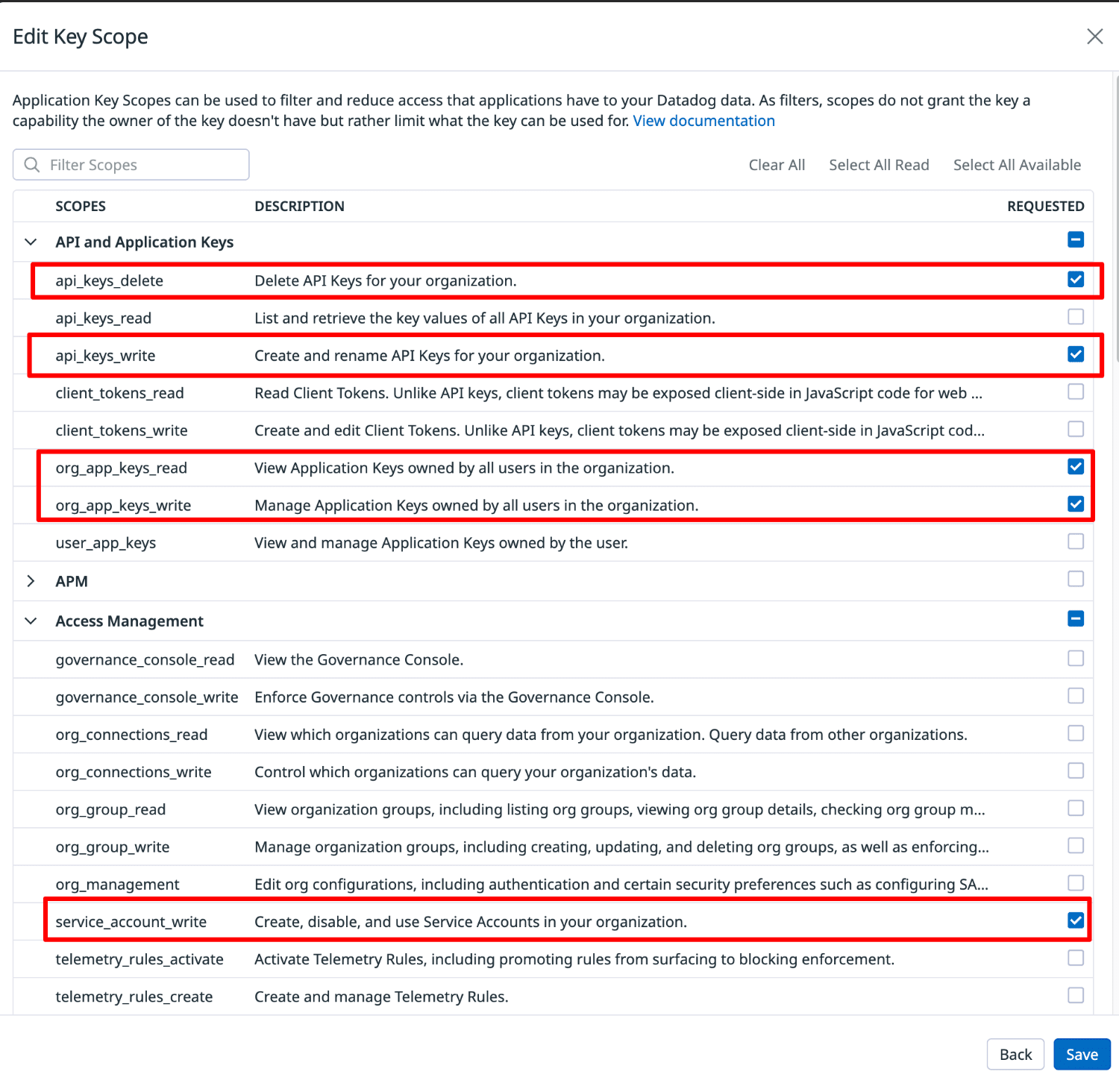
The required permission scopes for the admin application key are as follows.
| Scope | Description |
|---|---|
api_keys_delete |
Delete API keys for the organization |
api_keys_write |
Create and rename API keys for the organization |
org_app_keys_read |
View application keys owned by all users in the organization |
org_app_keys_write |
Manage application keys owned by all users in the organization |
service_account_write |
Create, disable, and use service accounts in the organization |
Since the Datadog admin application key is intended for rotating other API keys and application keys, it is best to assign minimal permissions.
Datadog Setup
1. Register a Service Account
-
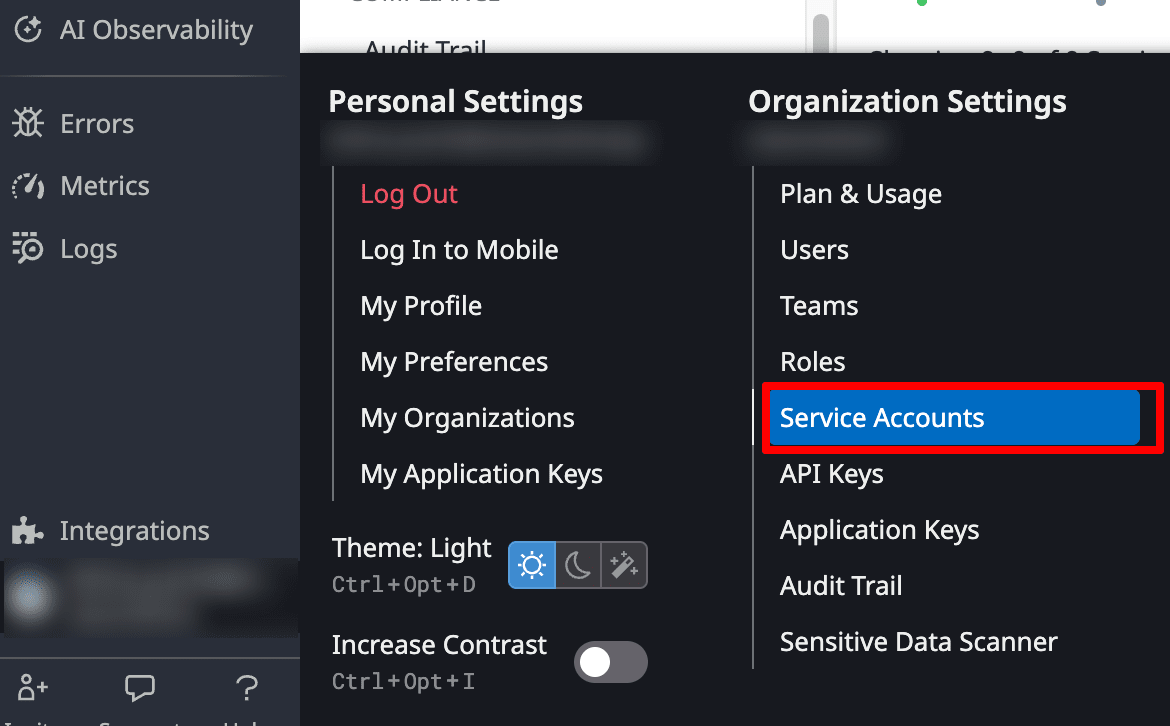
Select "Organization-settings > Service-accounts" from the menu.
-
Select "New Service Account".
-
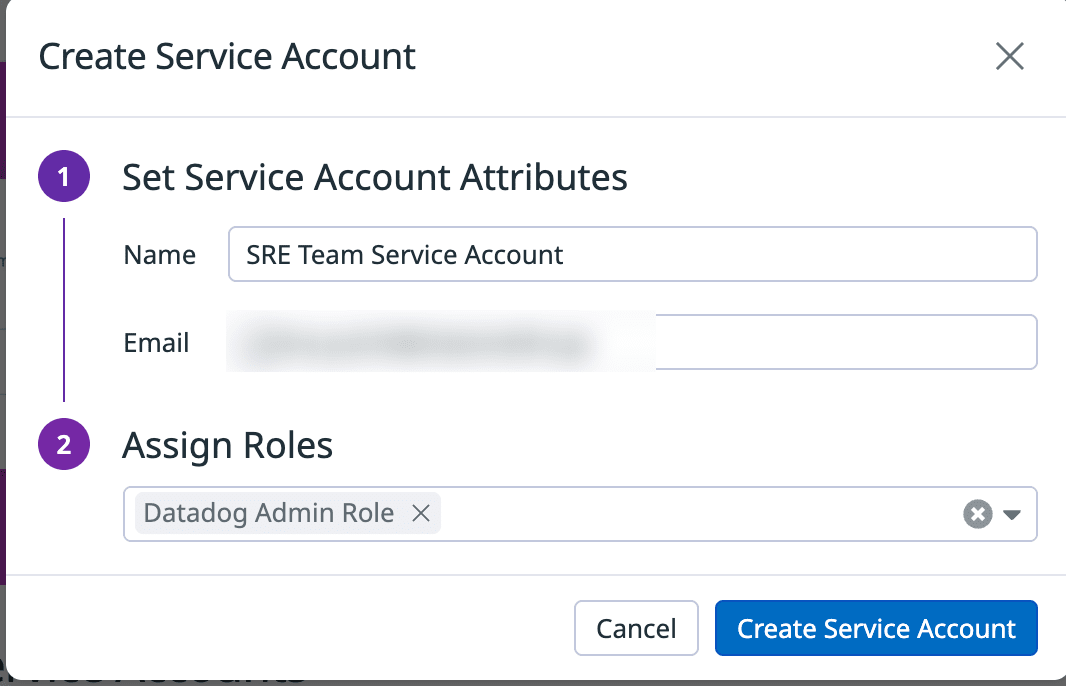
Enter the following and select "Create Service Account".
- Name: Any (e.g., SRE Team Service Account)
- Email: Email address
- Assign Roles: Datadog Admin Role
-
Select the created account from the list.
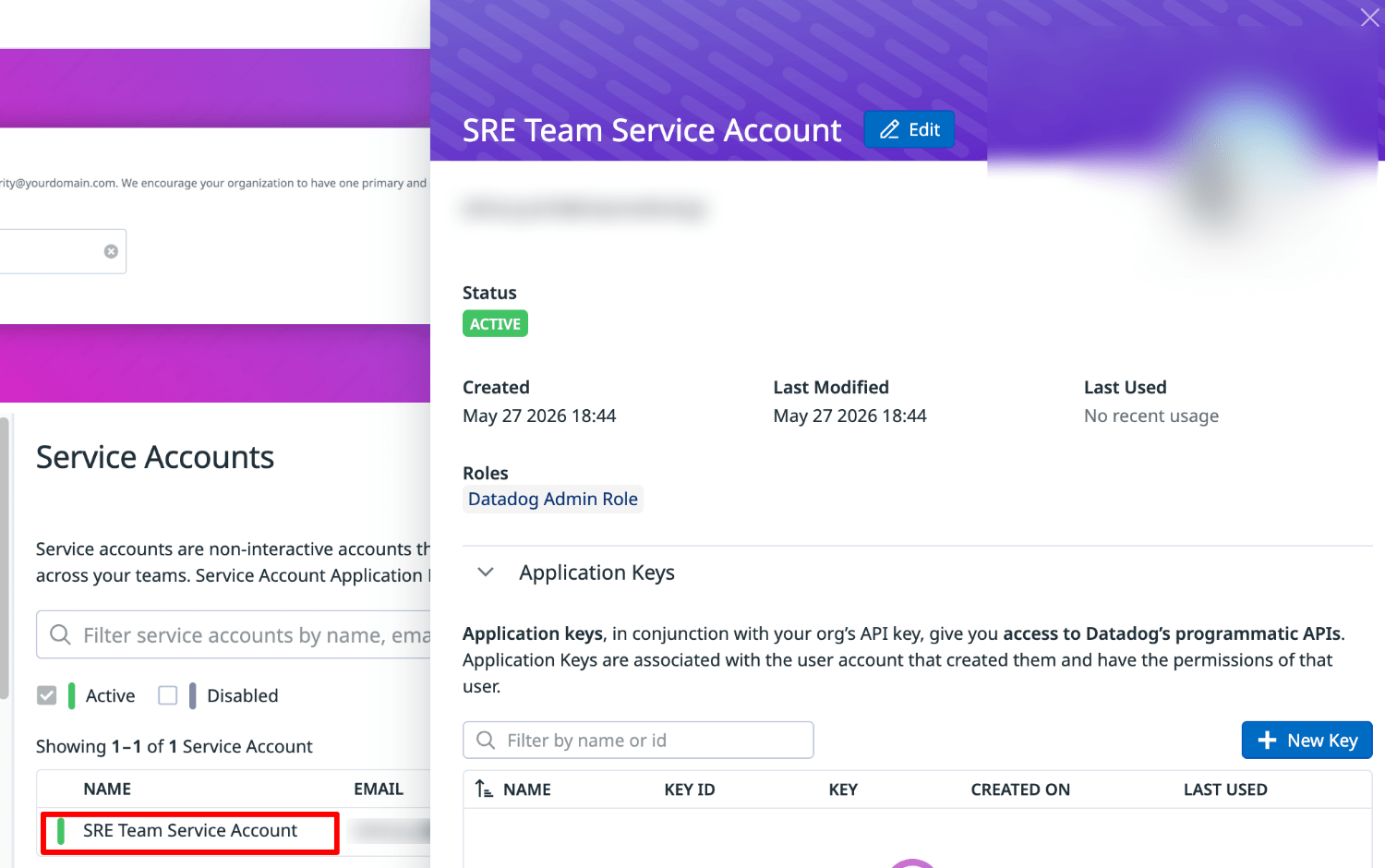
-
Retrieve the Datadog service account ID (UUID) needed for the settings described later from the URL query parameter.
URL format
https://app.datadoghq.com/organization-settings/service-accounts?service_account_id=xxxxxxxxxxx-xxxxx-xxxx-xxxxxxxx
The value of the parameter name service_account_id= is the Datadog service account ID (UUID).
2. Issue an Admin Application Key
-
Select "New Key".
-
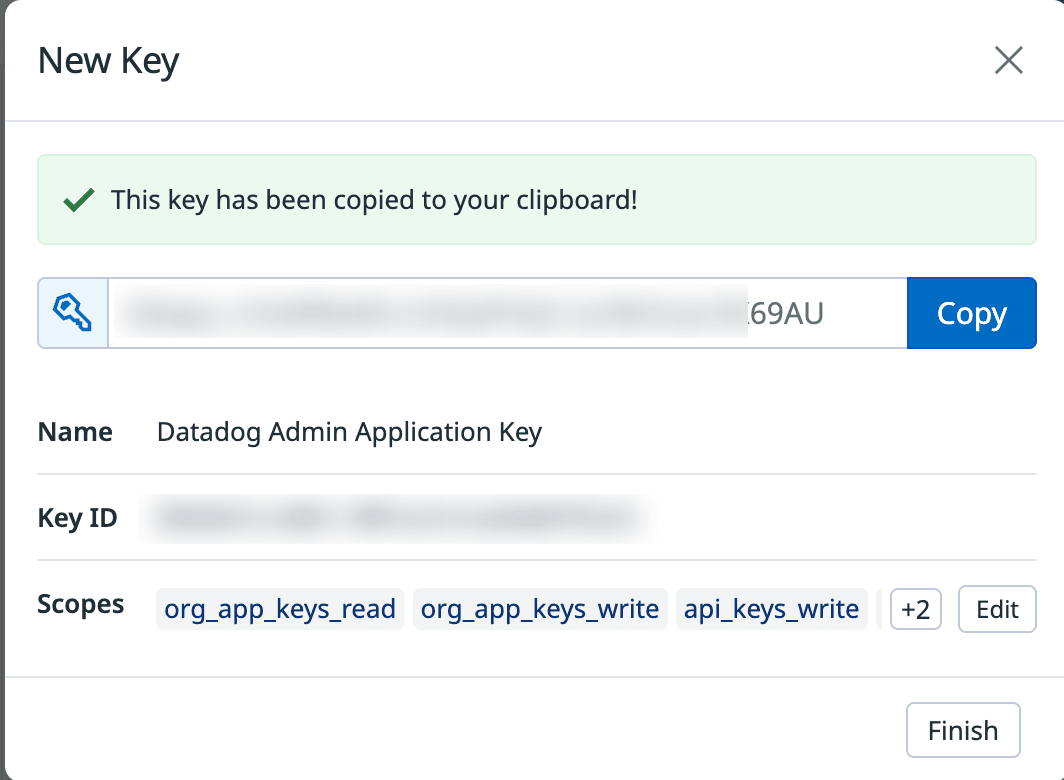
Specify any Name (e.g., Datadog Admin Application Key) and select "Create Key".
-
Note down the key value and KeyID (UUID).
- Select Scopes "Edit".
- Check the following minimal permission scopes and select "Save".
- api_keys_delete
- api_keys_write
- org_app_keys_read
- org_app_keys_write
- service_account_write
- Select "Finish".
3. Issue an Application Key
Next, issue the application key to be automatically rotated.
- Select "New Key".
- Specify any Name (e.g., SRE Team Datadog Application Key) and select "Create Key".
- Note down the key value and KeyID (UUID).
- Select "Finish".
Setting scopes is optional.
If you do configure them, select the scopes appropriate for the APIs you will be calling with the application key.
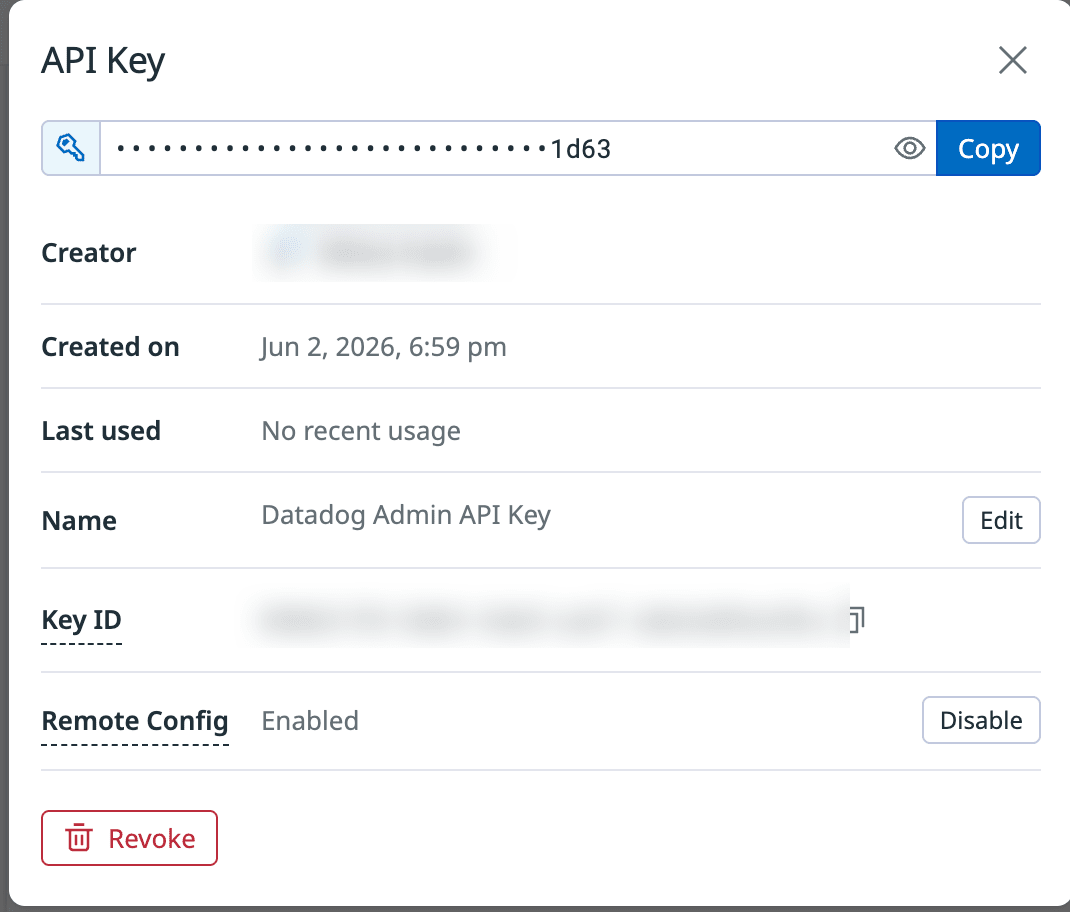
4. Issue an Admin API Key
-
Select "Organization-settings > API Keys" from the menu.
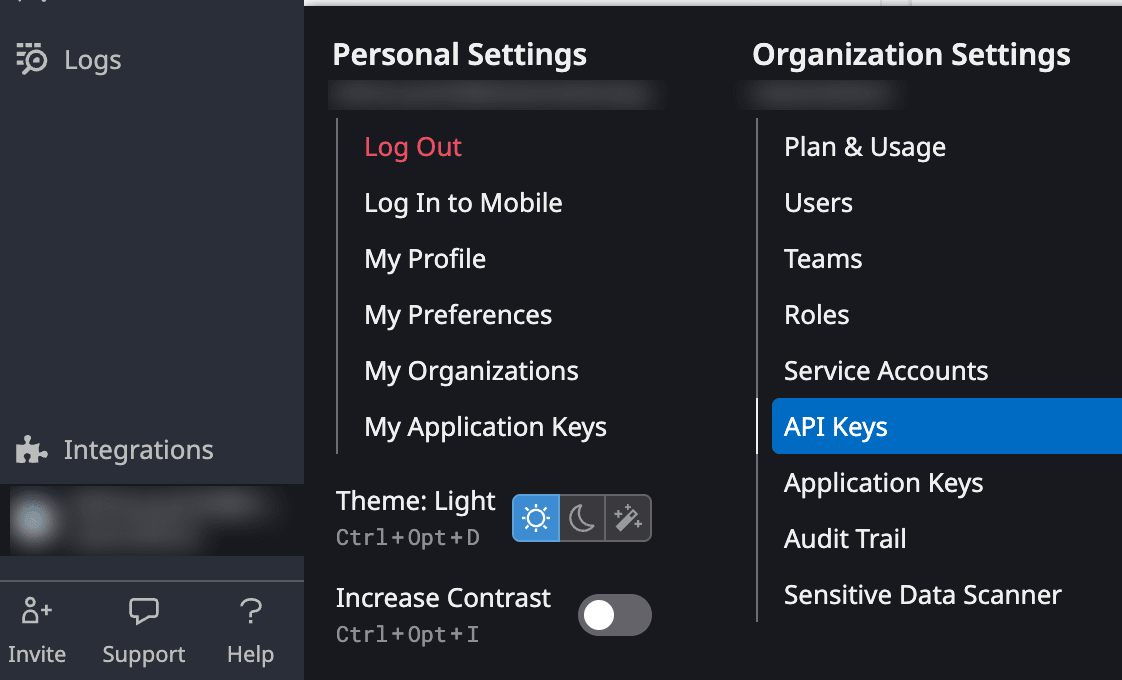
-
Select "New key".
-
Specify any Name (e.g., Datadog Admin Api Key) and select "Create Key".
-
Note down the key value and keyID (UUID), then select "Finish".
5. Issue an API Key
Next, issue the API key to be automatically rotated.
- Select "New key".
- Specify any Name (e.g., SRE Team Datadog Api Key) and select "Create Key".
- Note down the key value and keyID (UUID), then select "Finish".
AWS Secrets Manager Setup
1. Create an IAM Role
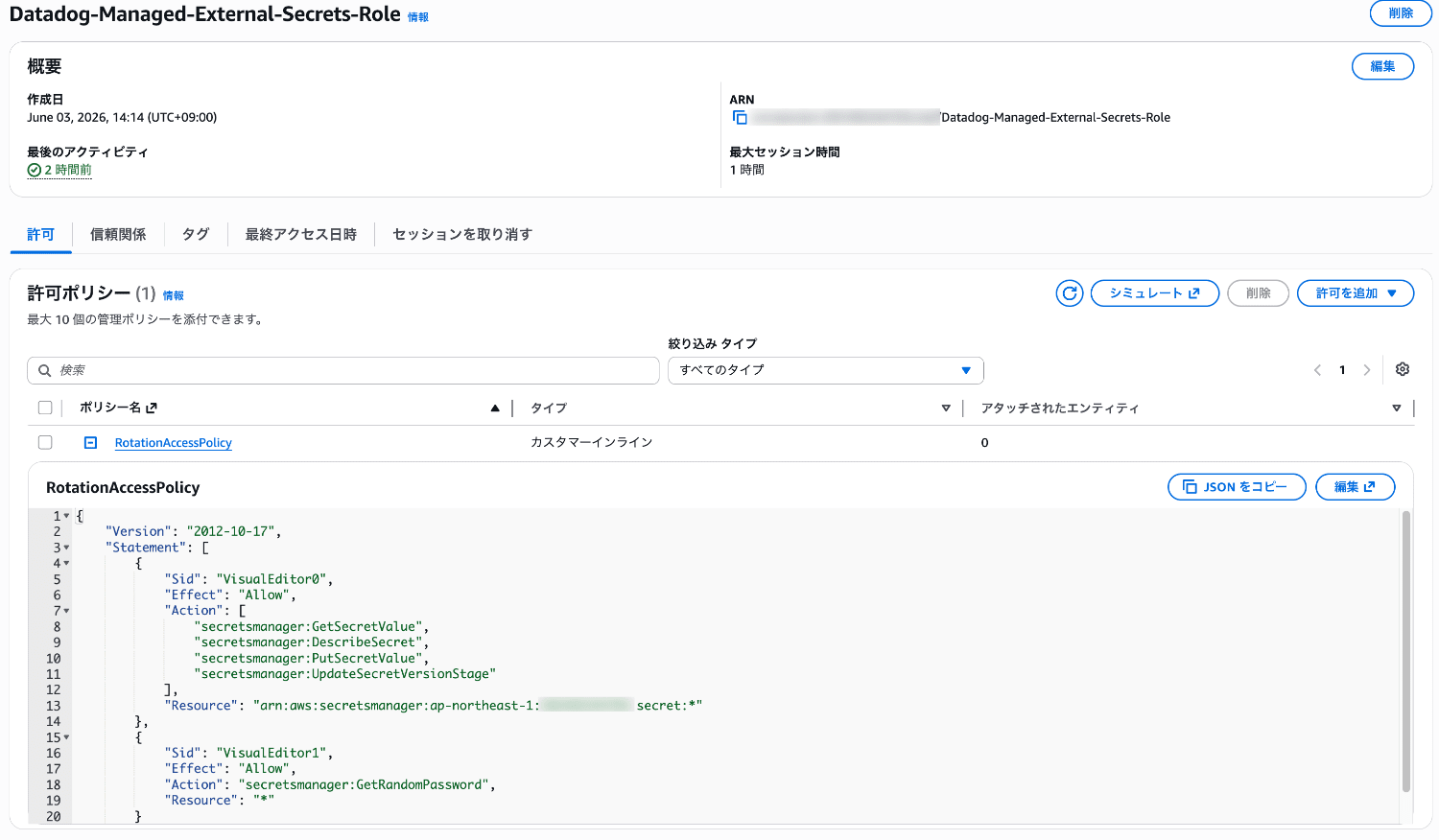
Create a role with the policies required for managed external secret rotation.
The role is shared among the secrets for the API key, application key, and Datadog admin key respectively.
Since the Datadog admin key is used for rotation, you also need to grant GetSecretValue permission on the secret where the Datadog admin key is registered.
The following role policy was used this time.
Role Name
Any (e.g., Datadog-Managed-External-Secrets-Role)
Permission Policy (Inline Policy)
{
    "Version": "2012-10-17",
    "Statement": [
        {
            "Sid": "VisualEditor0",
            "Effect": "Allow",
            "Action": [
                "secretsmanager:GetSecretValue",
                "secretsmanager:DescribeSecret",
                "secretsmanager:PutSecretValue",
                "secretsmanager:UpdateSecretVersionStage"
            ],
            "Resource": "arn:aws:secretsmanager:ap-northeast-1:XXXXXXXXXXXX:secret:*"
        },
        {
            "Sid": "VisualEditor1",
            "Effect": "Allow",
            "Action": "secretsmanager:GetRandomPassword",
            "Resource": "*"
        }
    ]
}
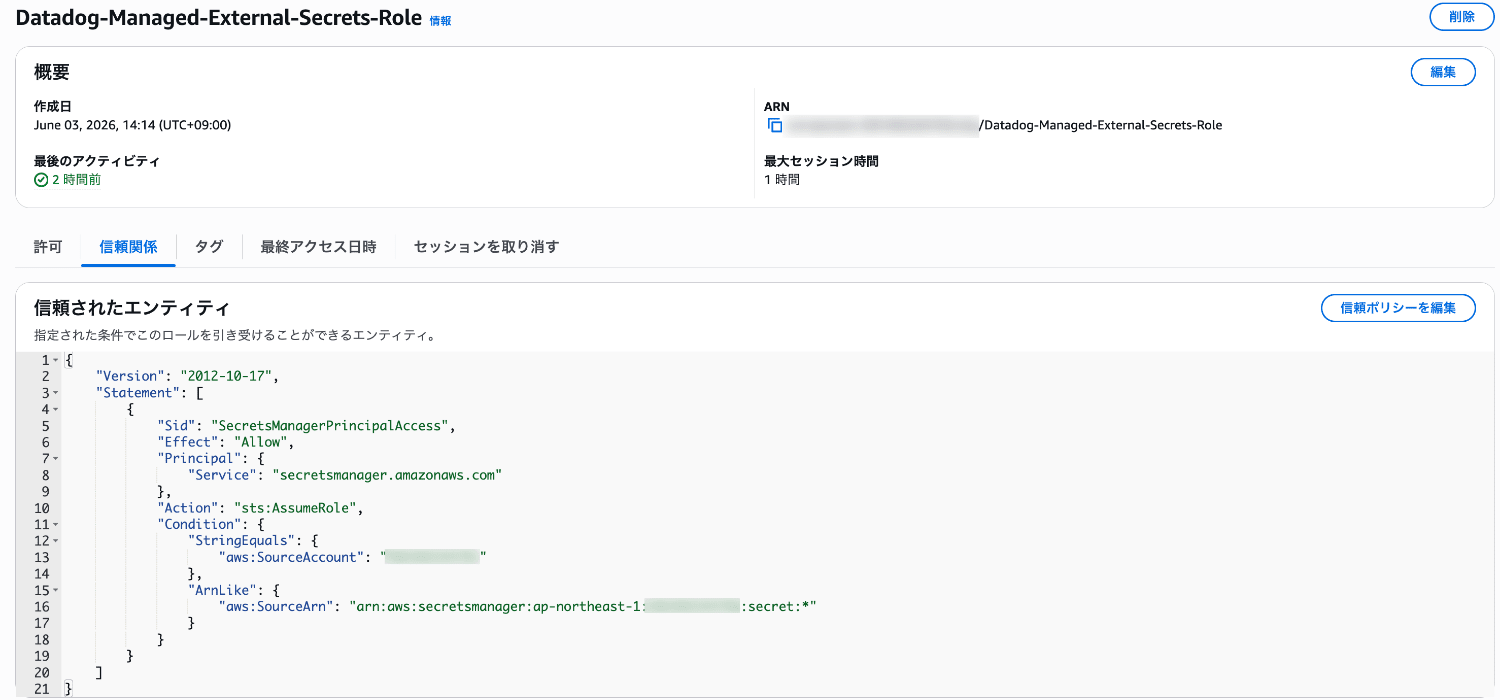
Trust Relationship
{
    "Version": "2012-10-17",
    "Statement": [
        {
            "Sid": "SecretsManagerPrincipalAccess",
            "Effect": "Allow",
            "Principal": {
                "Service": "secretsmanager.amazonaws.com"
            },
            "Action": "sts:AssumeRole",
            "Condition": {
                "StringEquals": {
                    "aws:SourceAccount": "XXXXXXXXXXXX"
                },
                "ArnLike": {
                    "aws:SourceArn": "arn:aws:secretsmanager:ap-northeast-1:XXXXXXXXXXXX:secret:*"
                }
            }
        }
    ]
}
2. Register a Secret (Datadog Admin Key)
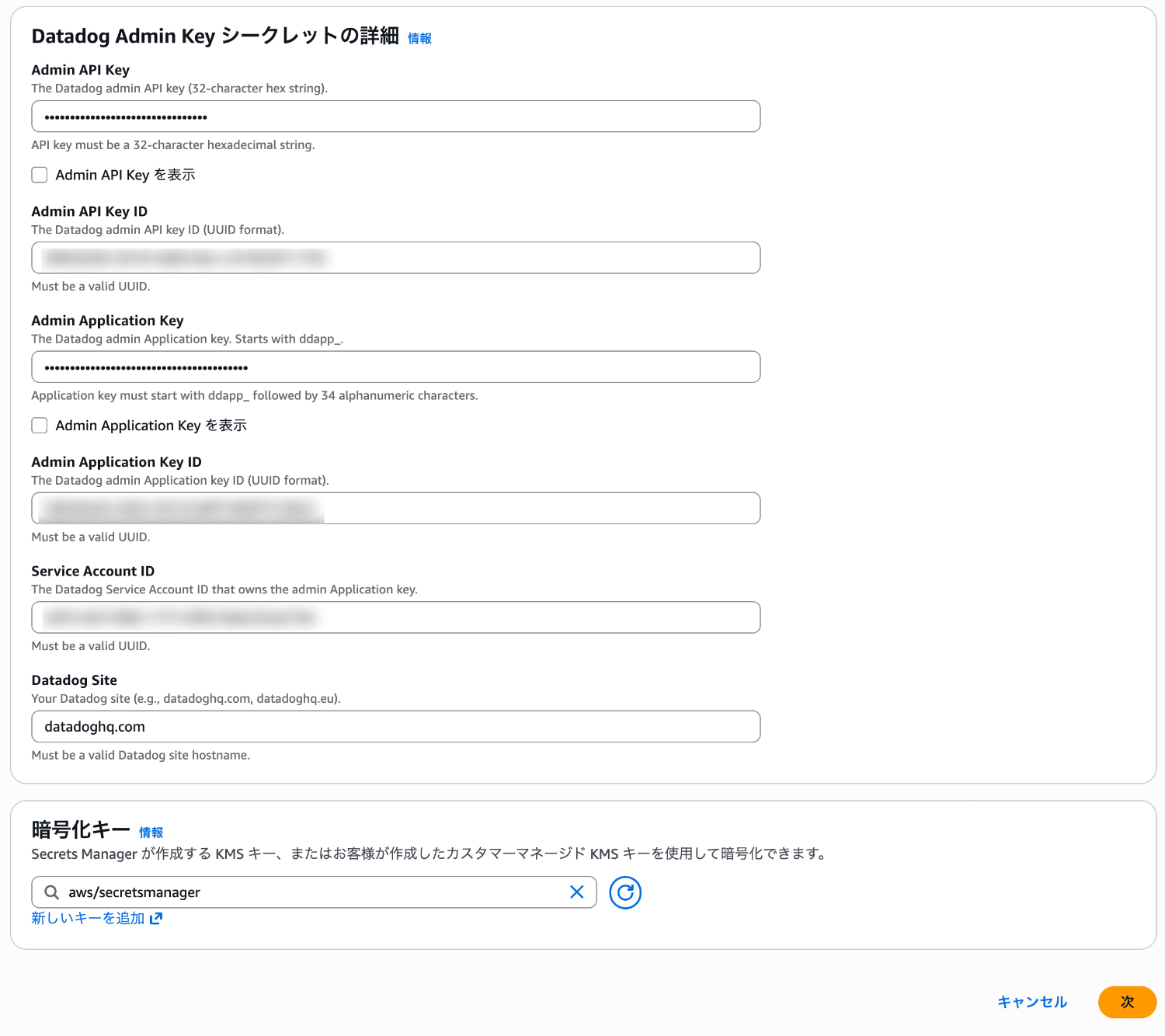
First, register the Datadog admin key as a secret.
- From the AWS Management Console, select "Secrets" from the navigation menu of the "AWS Secrets Manager" service.
- Select "Store a new secret".
- Specify the following.
- Secret type: Managed external secret
- AWS Secrets Manager integrated third-party vendor: Datadog Admin Key
- Admin API Key: Value of the admin API key
- Admin API Key ID: KeyID (UUID) of the admin API key
- Admin Application Key: Value of the admin application key
- Admin Application Key ID: KeyID (UUID) of the admin application key
- Service Account ID: Datadog service account ID (UUID)
- Datadog Site: Site name (e.g., datadoghq.com)
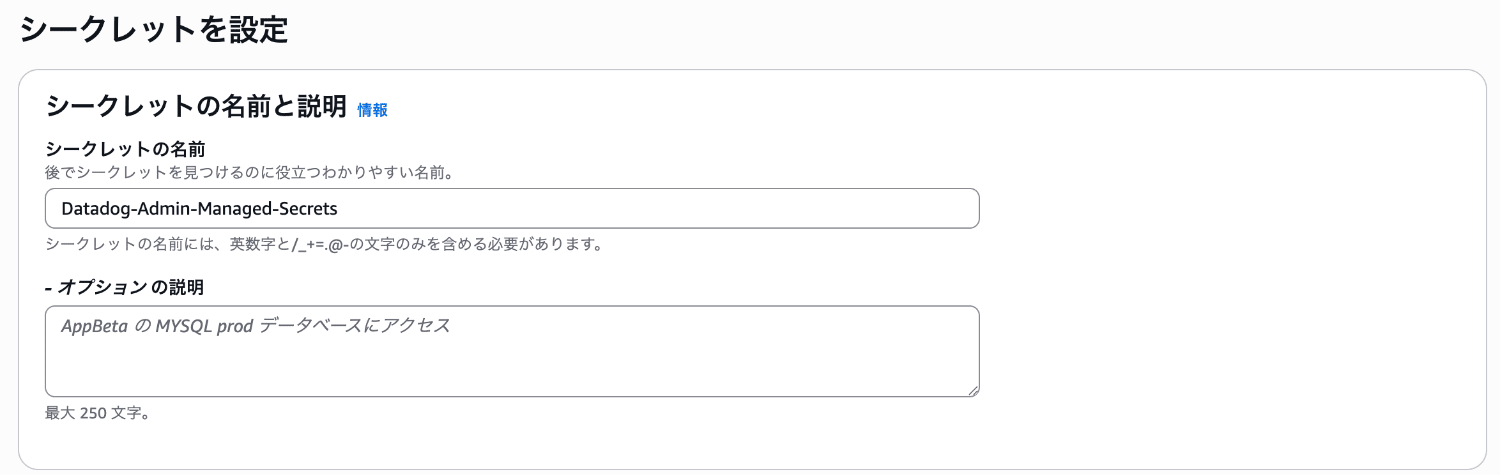
-
Specify any secret name (e.g., Datadog-Admin-Managed-Secrets)
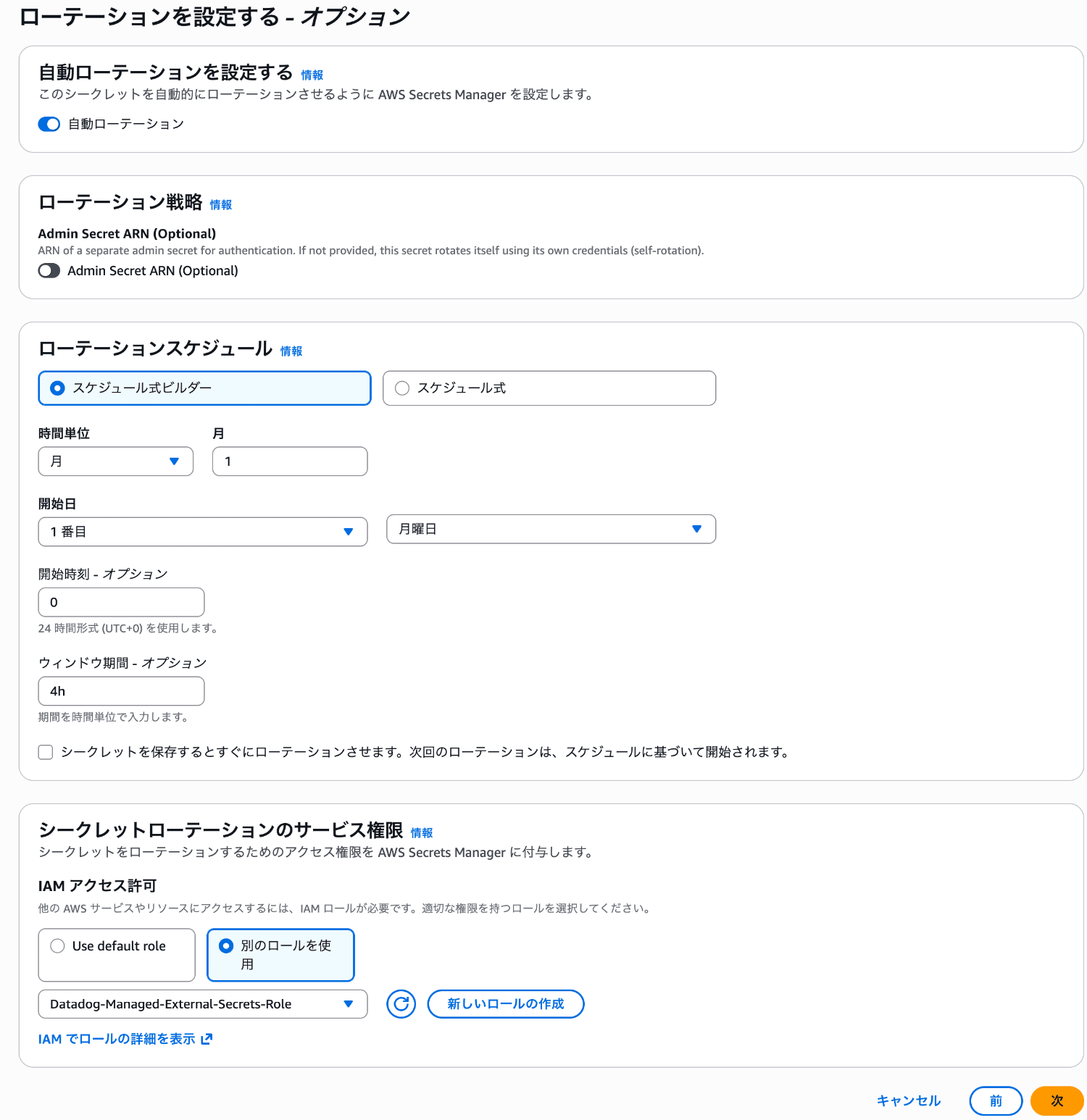
-
Specify the rotation schedule and the created role, then register the secret.
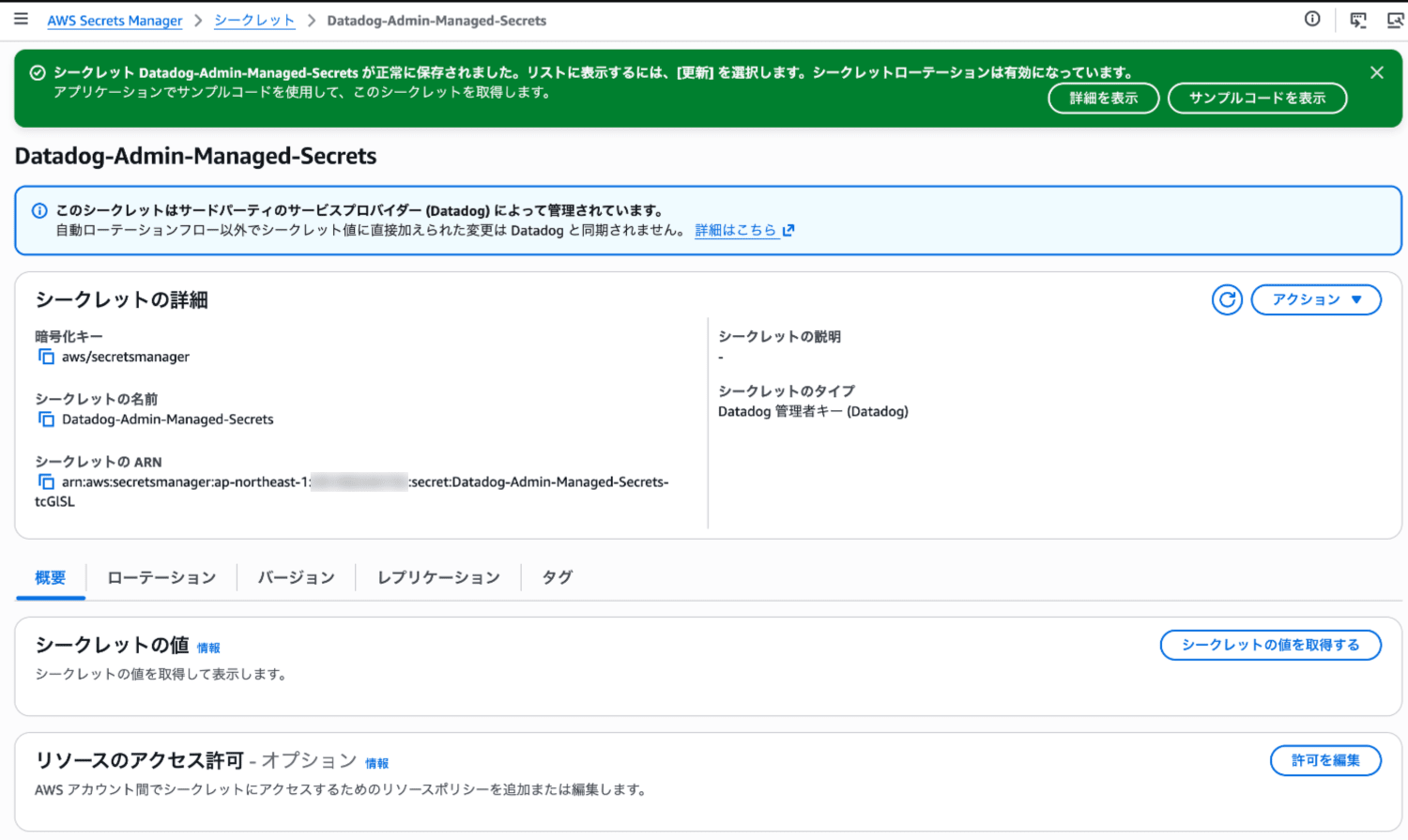
-
Confirm that the secret has been registered.
3. Register a Secret (Datadog Application Key)
Next, register the Datadog application key as a secret.
- Select "Store a new secret".
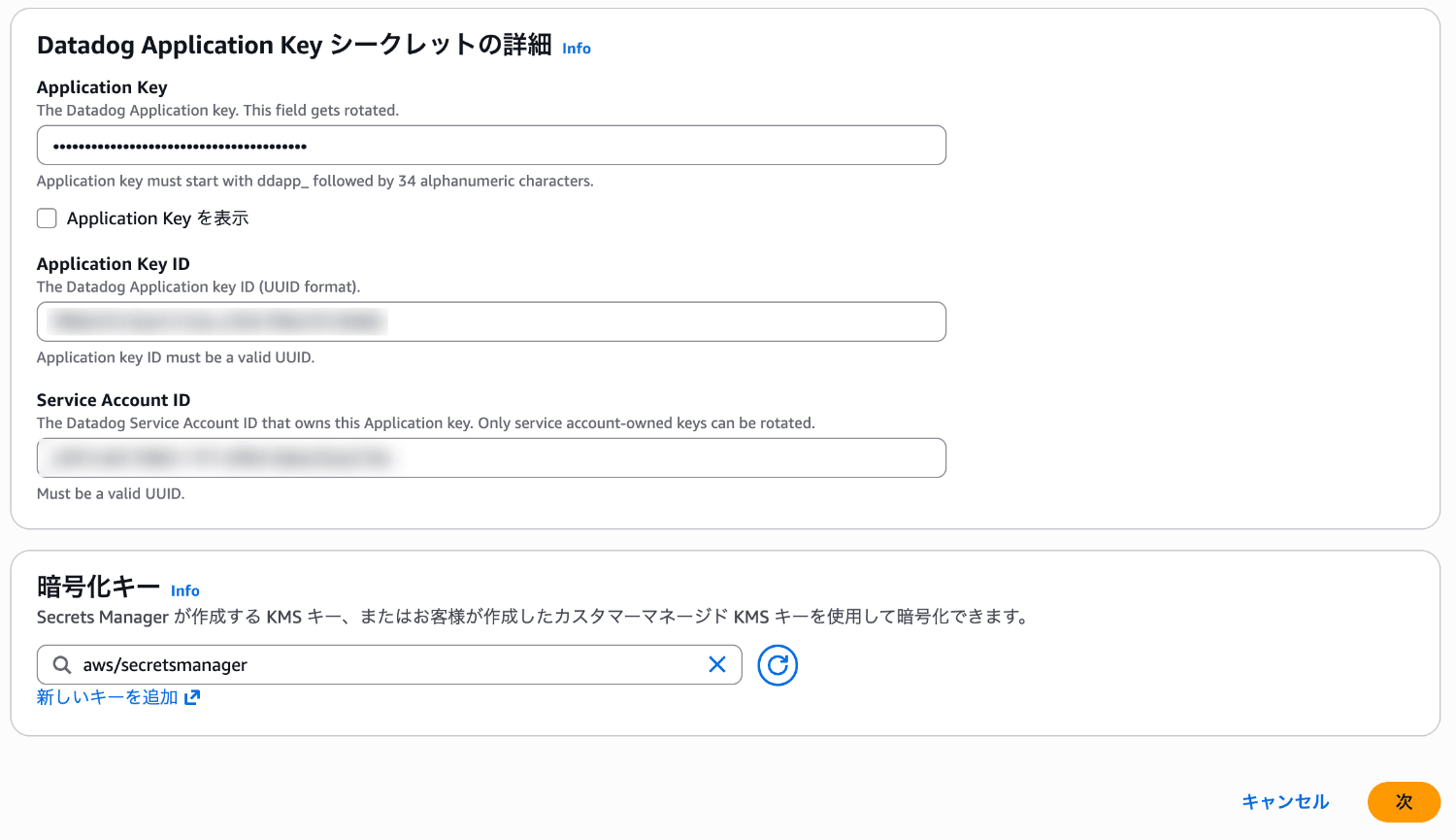
- Specify the following.
- Secret type: Managed external secret
- AWS Secrets Manager integrated third-party vendor: Datadog Application Key
- Application Key: Value of the application key
- Application Key ID: KeyID (UUID) of the application key
- Service Account ID: Datadog service account ID (UUID)
-
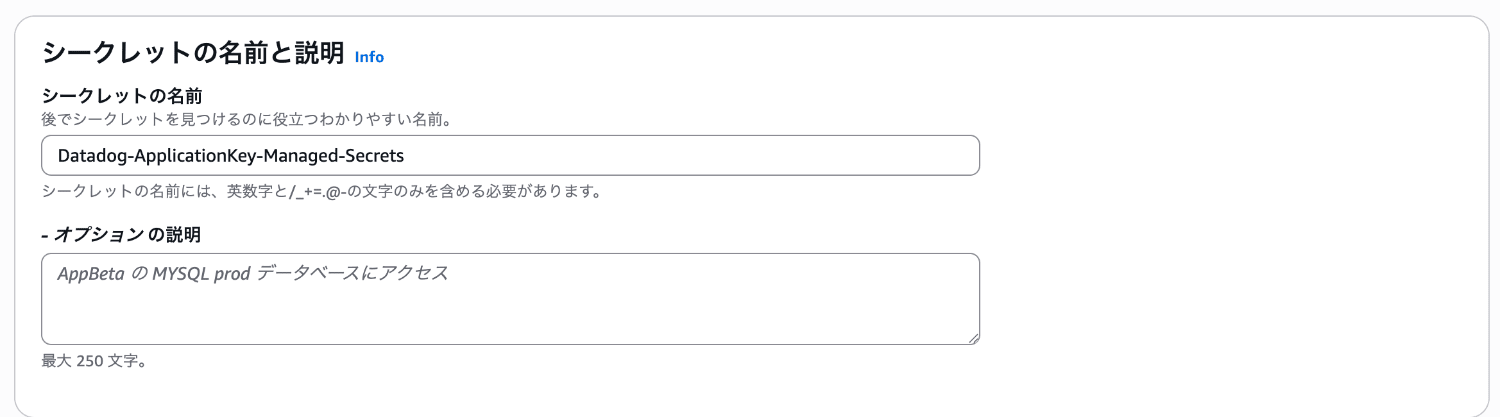
Specify any secret name (e.g., Datadog-ApplicationKey-Managed-Secrets)
-
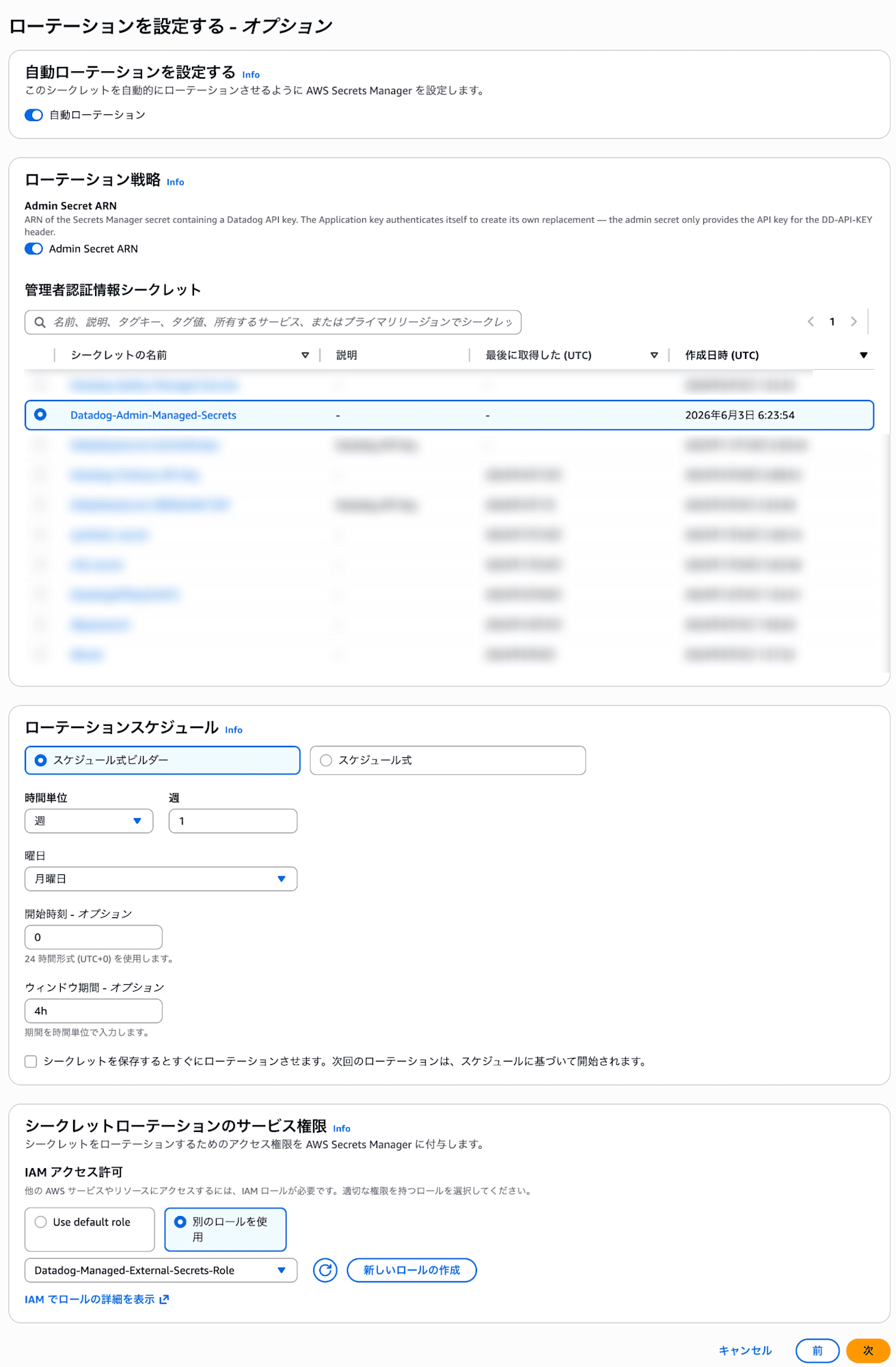
For Admin Secret ARN, select the secret name of the Datadog admin key.
-
Specify the rotation schedule and the created role, then register the secret.
-
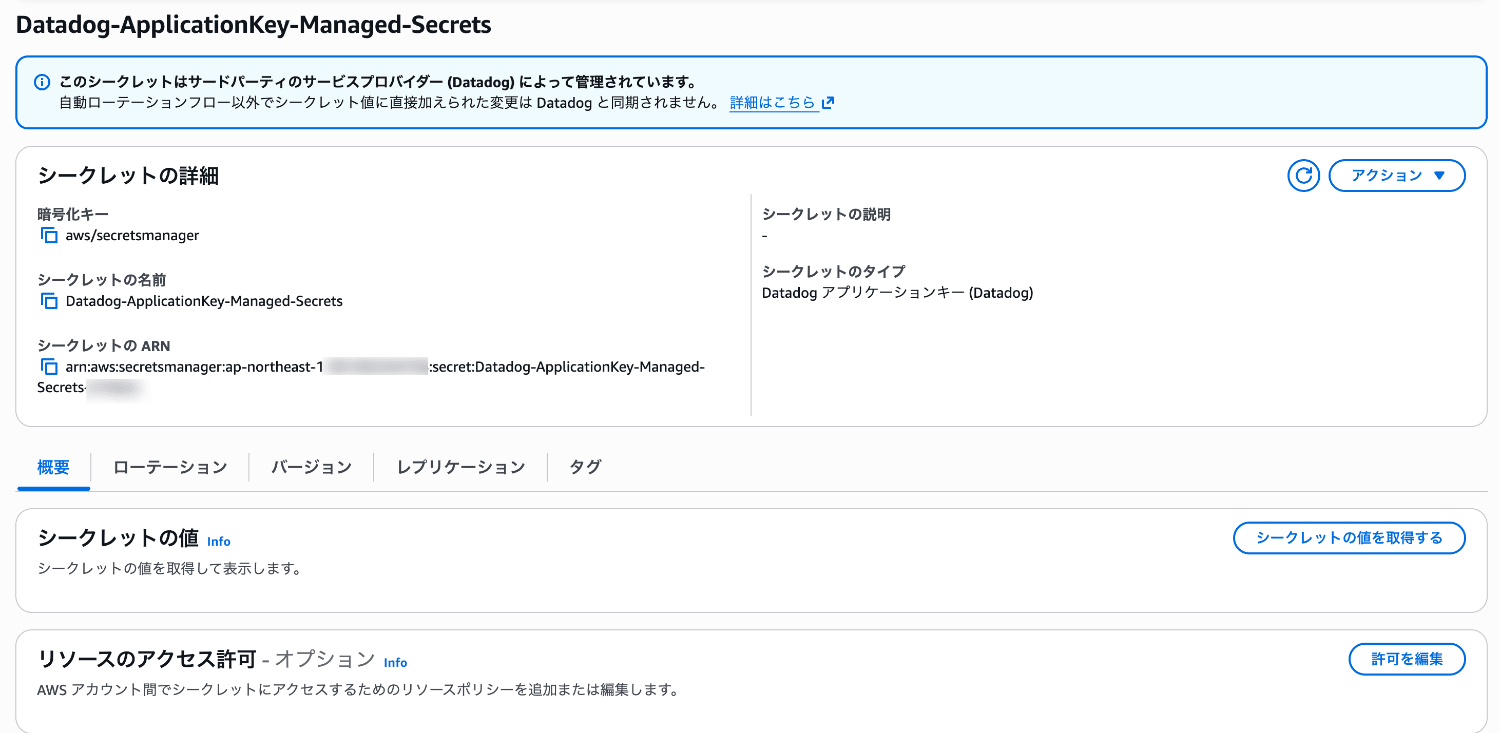
Confirm that the secret has been registered.
4. Register a Secret (Datadog API Key)
Next, register the Datadog API key as a secret.
- Select "Store a new secret".
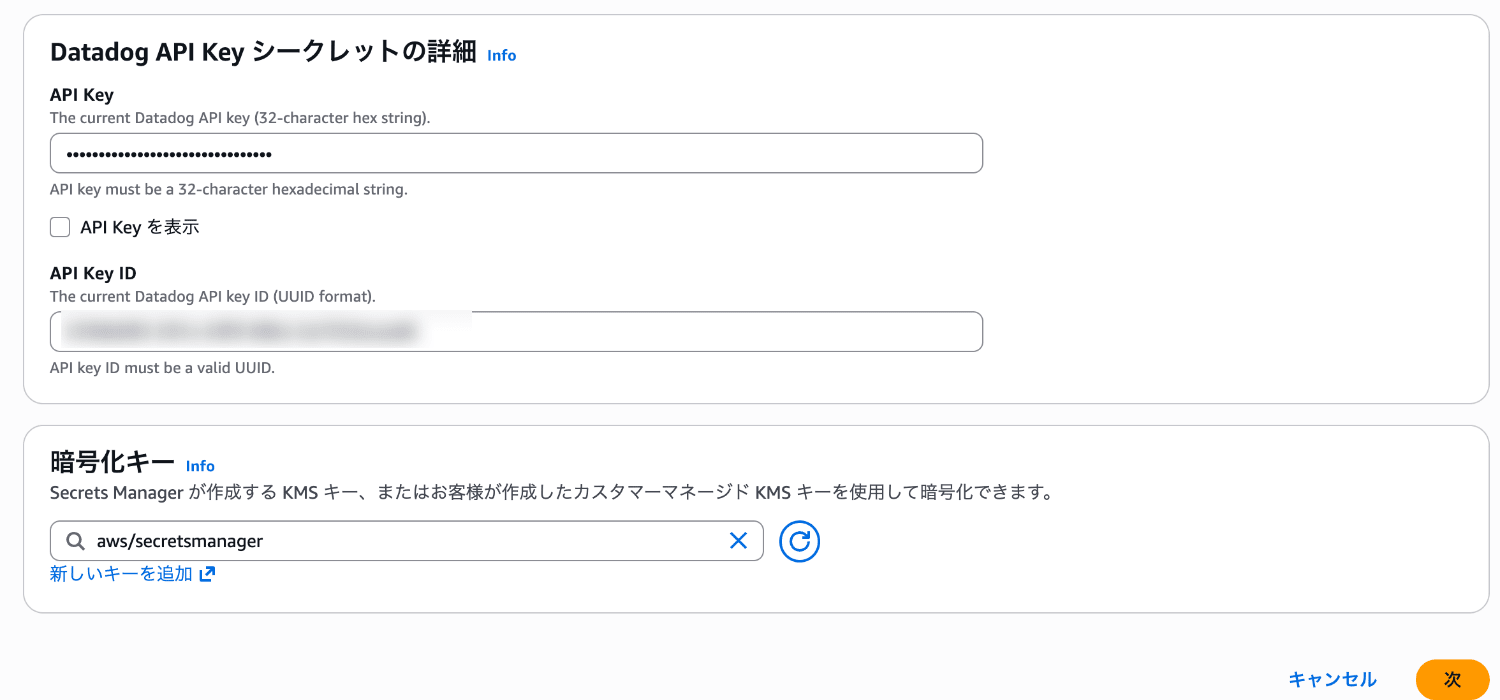
- Specify the following.
- Secret type: Managed external secret
- AWS Secrets Manager integrated third-party vendor: Datadog API Key
- API Key: Value of the API key
- API Key ID: KeyID (UUID) of the API key
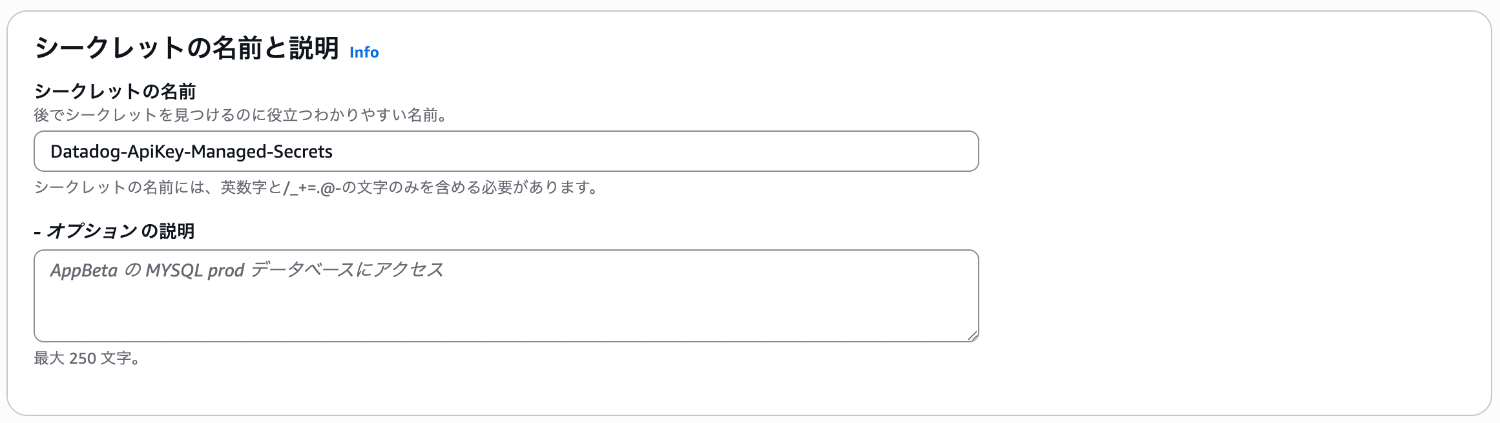
-
Specify any secret name (e.g., Datadog-ApiKey-Managed-Secrets)
-
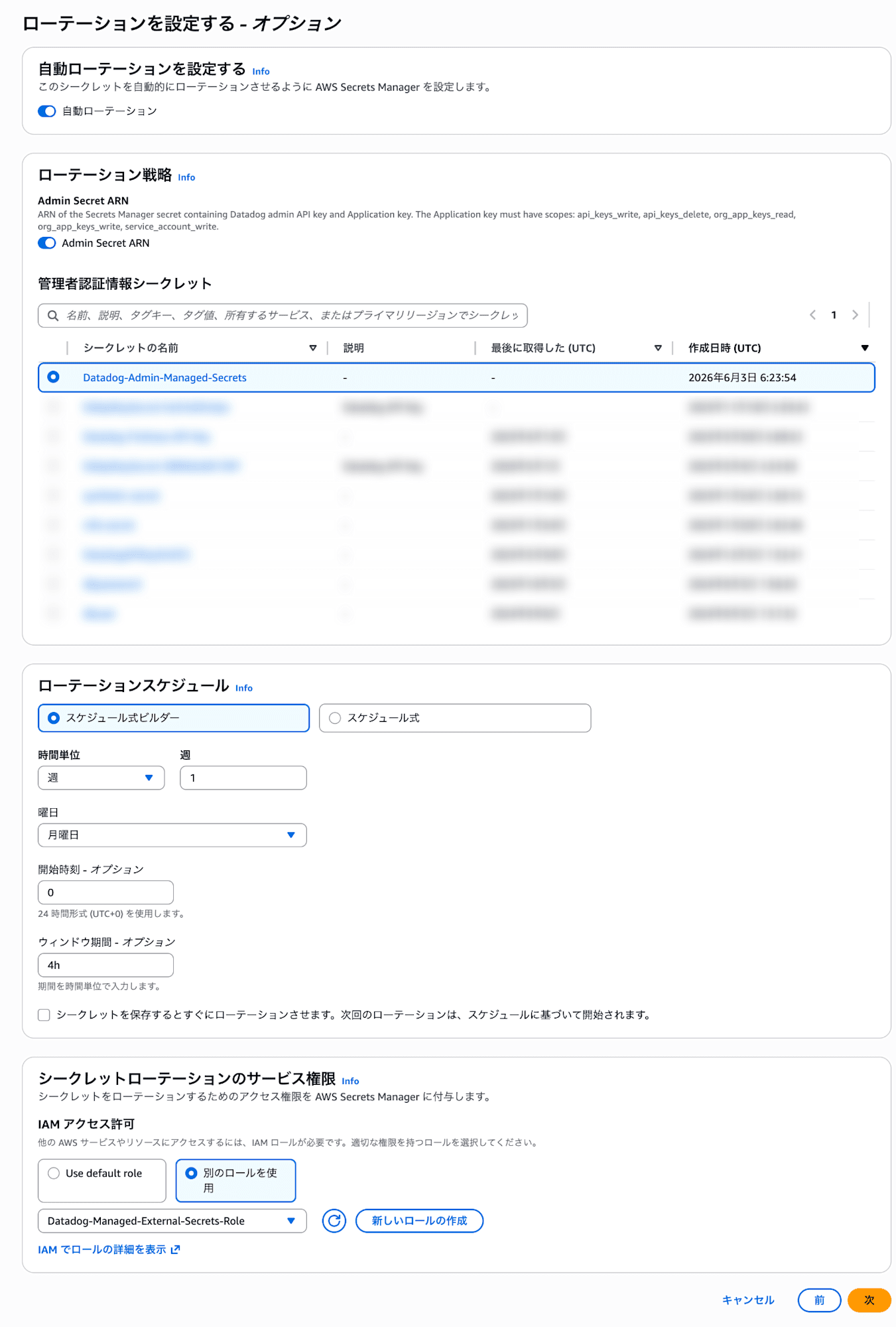
For Admin Secret ARN, select the secret name of the Datadog admin key.
-
Specify the rotation schedule and the created role, then register the secret.
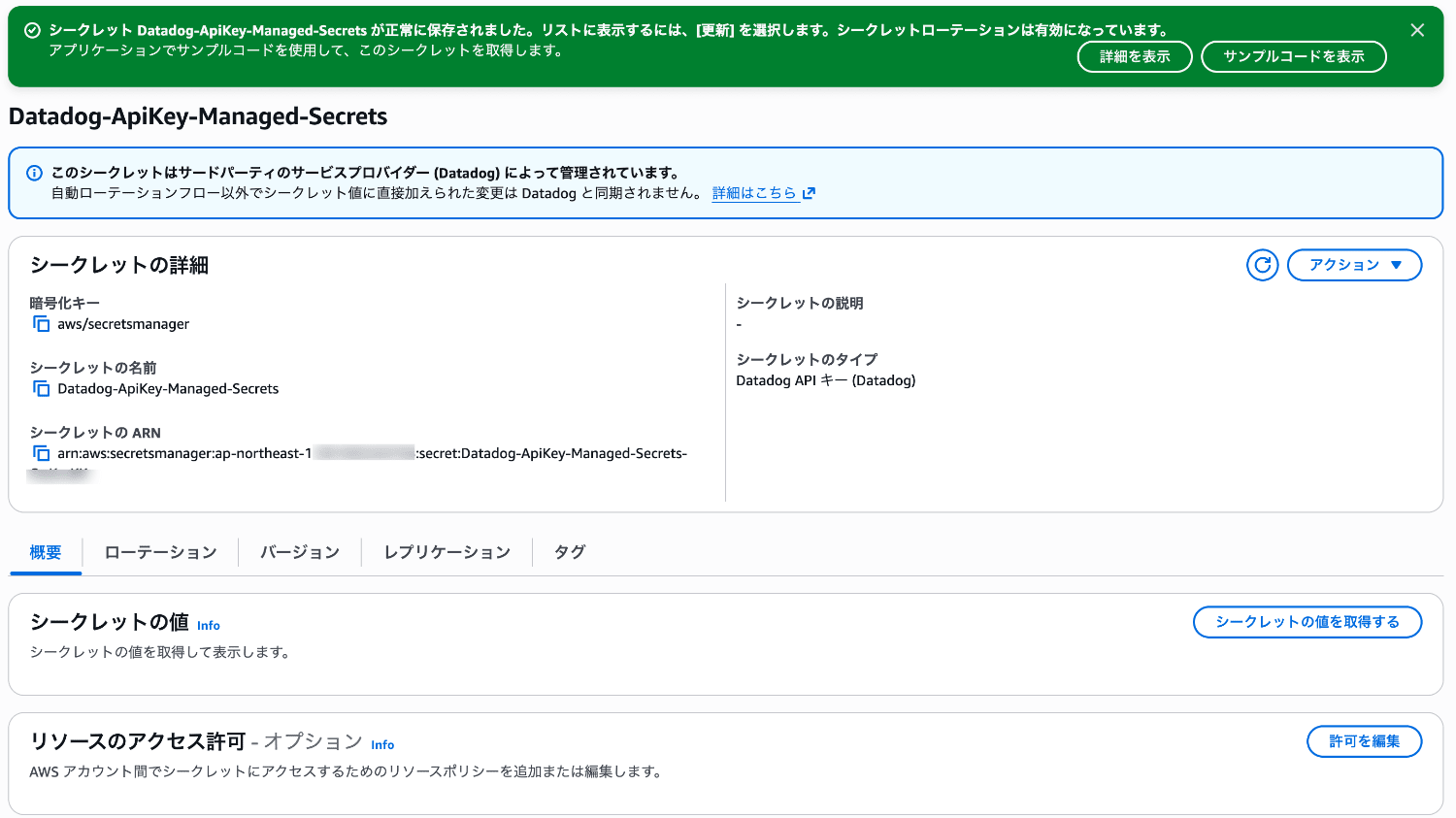
-
Confirm that the secret has been registered.
Trying Out Rotation
Let's manually rotate the application key and check the behavior on both the AWS Secrets Manager and Datadog sides.
Rotating the Application Key
-
From the AWS Management Console, select "Secrets" from the navigation menu of the "AWS Secrets Manager" service.
-
Select the secret to rotate from the list.
-
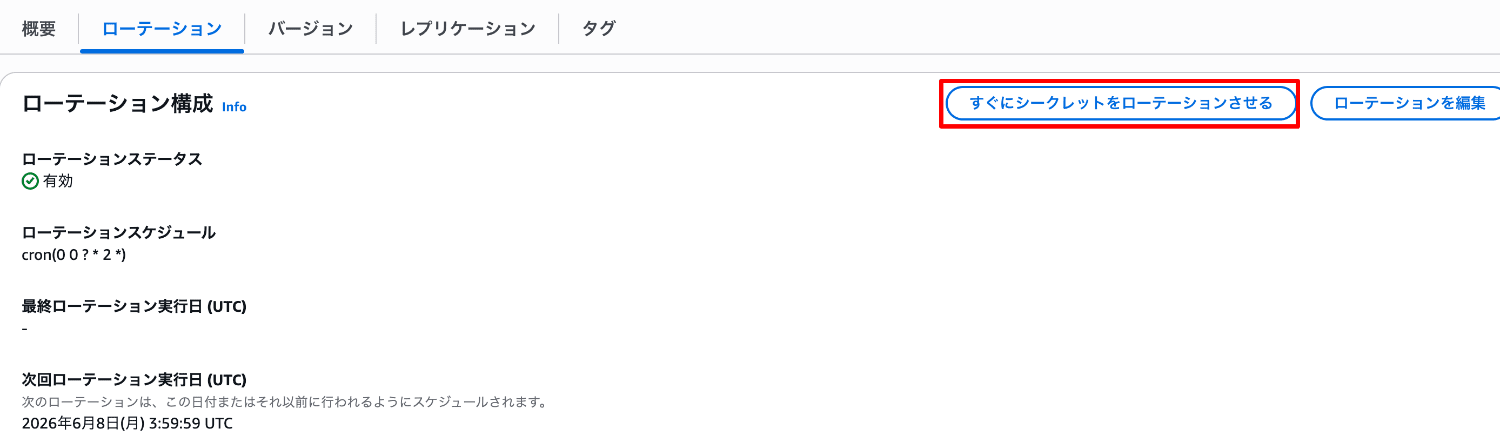
Select the Rotation tab.
-
Select "Rotate secret immediately" to execute the rotation.
After a moment, check whether the secret has been rotated. -
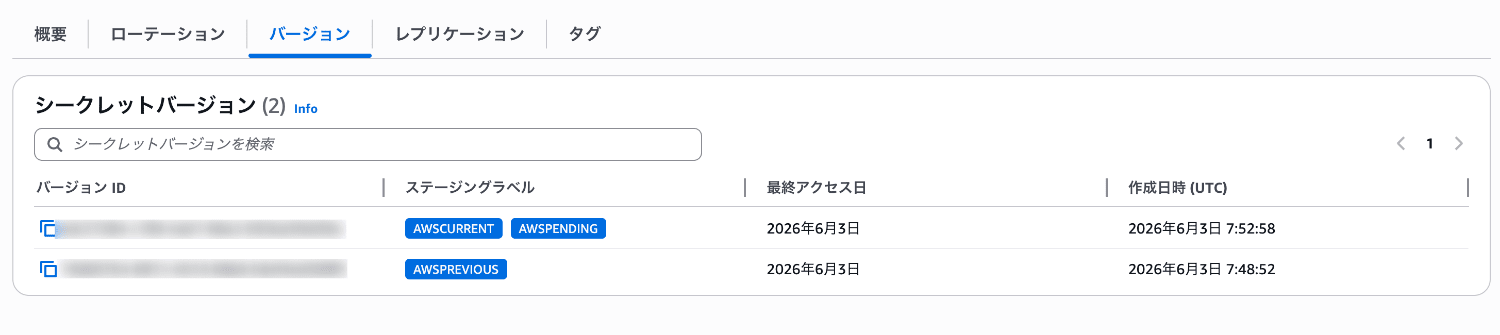
Select the "Versions" tab.
-
If the rotation succeeds, you can confirm that two versions of the secret are registered.
- Staging label: AWSCURRENT, AWSPENDING
- Staging label: AWSPREVIOUS
CloudTrail Events
When rotation is performed, the following CloudTrail events are recorded.
RotateSecretRotationStartedPutSecretValueRotationSucceededUpdateSecretVersionStage
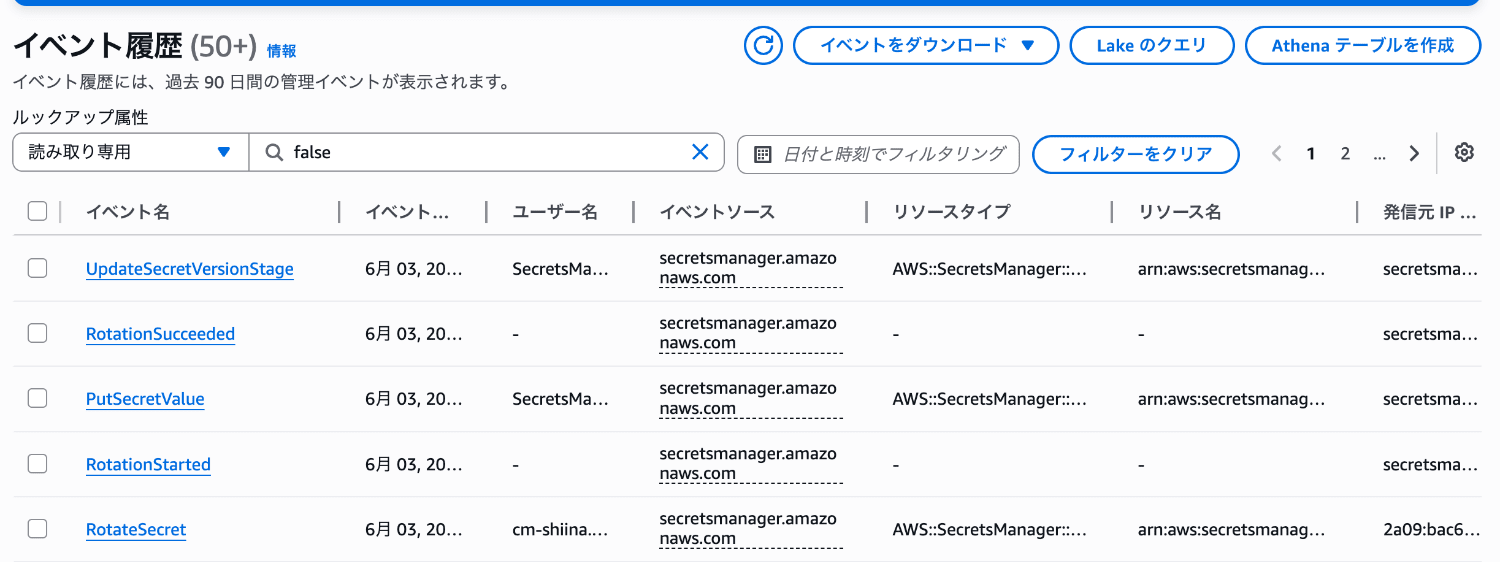
If rotation fails, RotationFailed is recorded.
The cause can be identified from the errorCode record.
Datadog Application Key
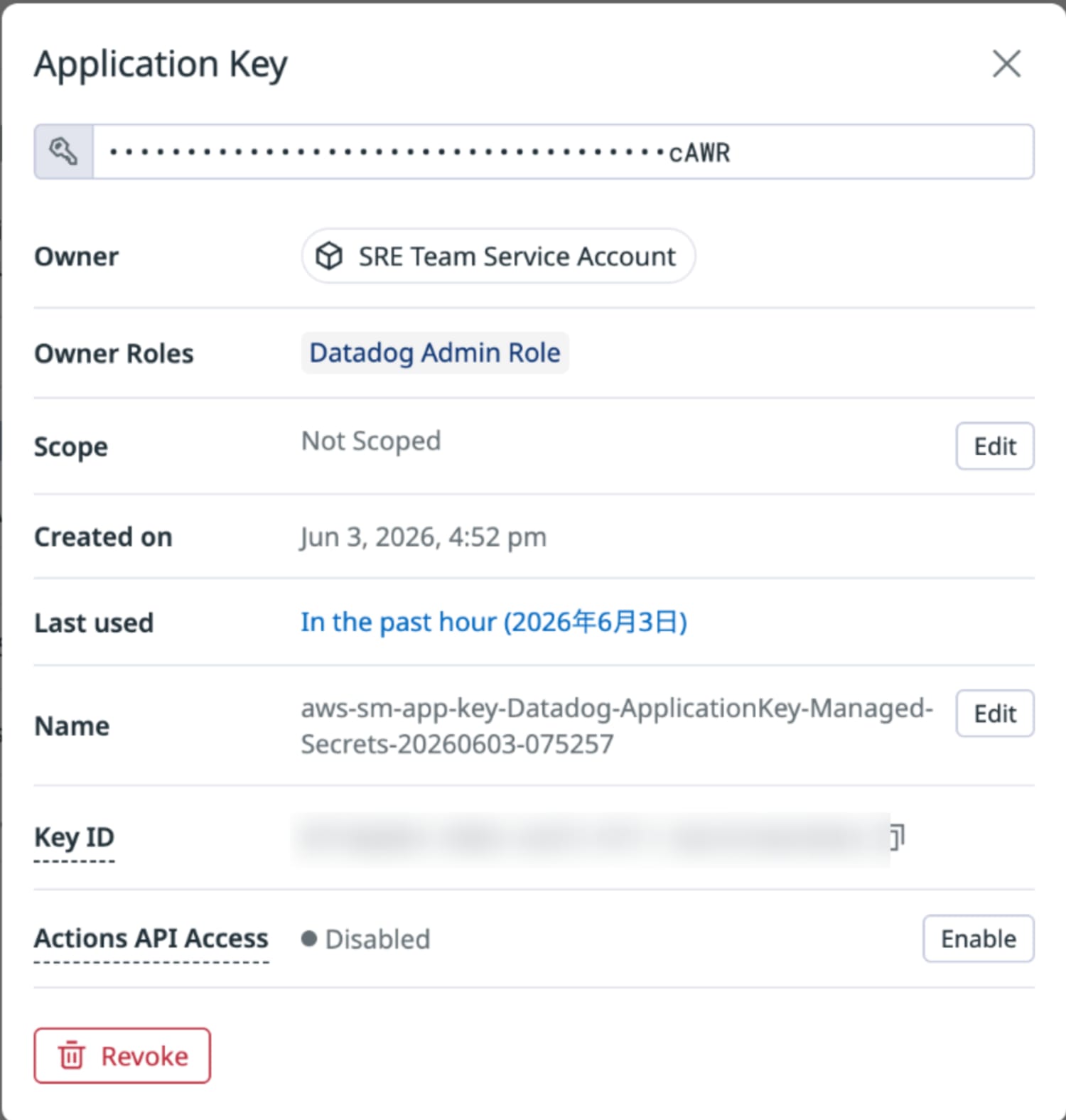
Let's look at the state of the new application key created by rotation.
You can confirm that the key before rotation has been invalidated and a new key has been created.
The name of the new key follows this naming convention.
aws-sm-app-key-Datadog-ApplicationKey-Managed-Secrets-YYYYMMDD-XXXXXX
Datadog AuditTrail Events
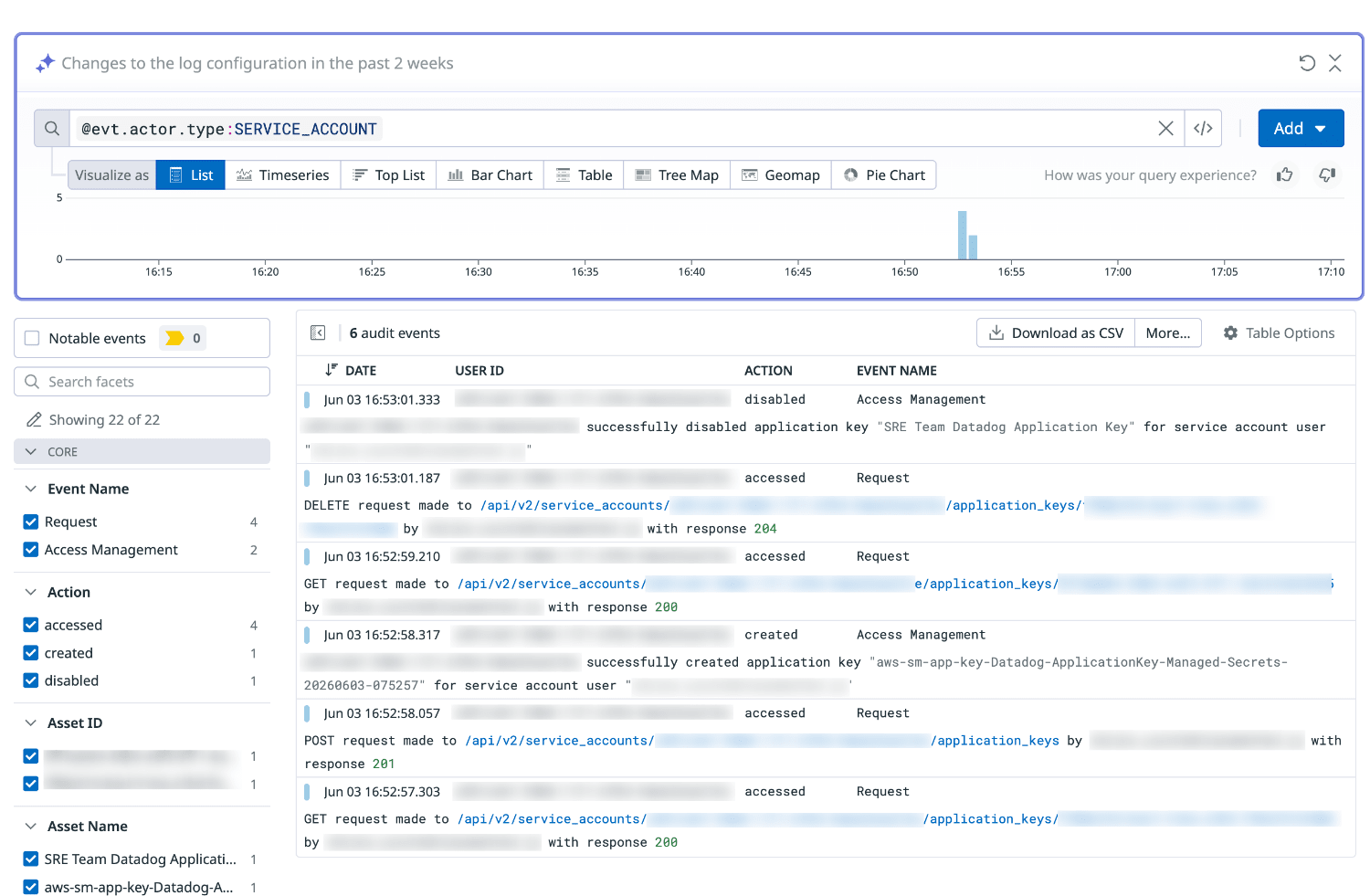
Let's look at the Datadog AuditTrail events.
Filter the actors by service account.
- Filter query example:
@evt.actor.type:SERVICE_ACCOUNT
You can confirm that key creation and invalidation requests have been made.
Troubleshooting
There were cases where rotation did not work properly, so here's a summary of the causes.
Different Service Accounts
RotationFailed error code
Admin key's serviceAccountId (XXXXXX-XXXX-XXXX-XXXX-XXXXXXXXX) must match the Application key's serviceAccountId (XXXXXX-XXXX-XXXX-XXXX-XXXXXXXXX).
The application key to be rotated must belong to the same Datadog service account as the admin application key.
From a privilege escalation perspective, rotation is not supported when the service accounts differ.
Insufficient Permissions on the Admin Key Secret
RotationFailed error code
User: arn:aws:sts::XXXXXXXXXXXX:assumed-role/SecretsManager-ap-northeast-1-DatadogApiKey-1e70ebac-e96e-45/SecretsManager is not authorized to perform: secretsmanager:GetSecretValue on resource: arn:aws:secretsmanager:ap-northeast-1:XXXXXXXXXXXX:secret:Datadog-Admin-Managed-Secrets-RwZLT3 because no identity-based policy allows the secretsmanager:GetSecretValue action (Service: SecretsManager, Status Code: 400, Request ID: XXXXXX-XXXX-XXXX-XXXX-XXXXXXXXX) (SDK Attempt Count: 1)"
The cause was insufficient GetSecretValue permission on the admin key secret for the IAM role set on the secret.
When registering a secret, a default role can be created, but the policy that gets created restricts the secret types for which GetSecretValue is allowed via Condition conditions.
{
    "Version": "2012-10-17",
    "Statement": [
        {
            "Sid": "AllowRotationAccess",
            "Action": [
                "secretsmanager:DescribeSecret",
                "secretsmanager:GetSecretValue",
                "secretsmanager:PutSecretValue",
                "secretsmanager:UpdateSecretVersionStage"
            ],
            "Resource": "arn:aws:secretsmanager:ap-northeast-1:XXXXXXXXXXXX:secret:*",
            "Effect": "Allow",
            "Condition": {
                "StringEquals": {
                    "secretsmanager:resource/Type": "DatadogApiKey"
                }
            }
        },
        {
            "Sid": "AllowPasswordGenerationAccess",
            "Action": [
                "secretsmanager:GetRandomPassword"
            ],
            "Resource": "*",
            "Effect": "Allow"
        }
    ]
}
Summary
I tried out automatic rotation of Datadog credentials using Secrets Manager's managed external secrets.
It's a welcome improvement from an operational standpoint that individual Lambda implementation and management are no longer required, enabling managed rotation.
Understanding the key ownership by service accounts and the rotation mechanism centered on the admin key will help you introduce this smoothly.
If you want to rotate Datadog credentials on a regular basis, please make use of managed external secrets.
I hope this article is helpful.
References