I tried configuring Claude Code in the MacOS Terminal app to allow line breaks with Shift + Enter (Bonus: The historical issue of the Enter key)

This page has been translated by machine translation. View original
Introduction
I normally use Claude Code in the MacOS Terminal app, but there's something that has been bothering me for a while. In editors like VSCode or Cursor, you can create a new line with Shift + Enter, but in the Terminal app, Shift + Enter is treated the same as a regular Enter key, which sends the message immediately.
To create a new line, I need to use Option + Enter, but due to my editor habits, I keep pressing Shift + Enter and accidentally sending messages before I'm ready.
Due to terminal specifications, Enter and Shift + Enter are treated as the same signal (0x0d), so Terminal app settings alone cannot change Shift + Enter to create a new line (explained in more detail in the "History of the Enter Key" section at the end of this article). To solve this, I used Karabiner-Elements, which can convert key inputs at the OS level, to remap Shift + Enter specifically within the Terminal app.
At first, I thought simply mapping Shift + Enter to Option + Enter would work, but as I researched, I found that Ctrl + J (LF: Line Feed) is more widely accepted as a line break key binding in terminal environments, so I ultimately chose to map to Ctrl + J. This article explains the procedure.
At the end of the article, I'll explain the historical background of the Enter key and why Shift + Enter doesn't work in the Terminal app.
Testing Environment
- MacOS (Sequoia) Terminal app
- Claude Code (v2.1.89)
- Homebrew (v5.1.6)
Procedure
1. Installing Karabiner-Elements
brew install --cask karabiner-elements
Once installed, open the app and complete the initial setup (keyboard type selection, permission settings, etc.).
2. Granting Permissions
When first launched, you'll be asked to allow the following permissions:
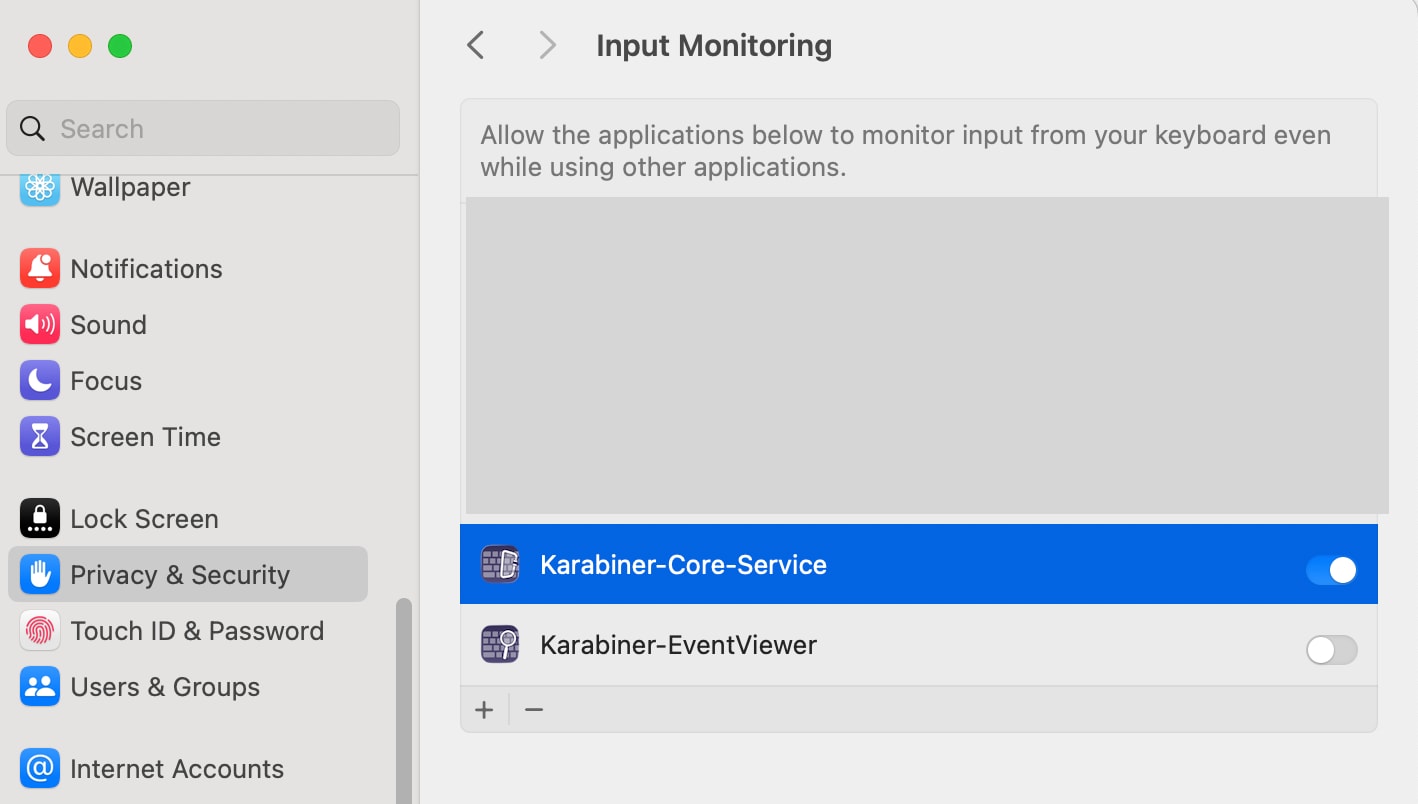
- System Settings → Privacy & Security → Input Monitoring → Enable
Karabiner-Core-Service
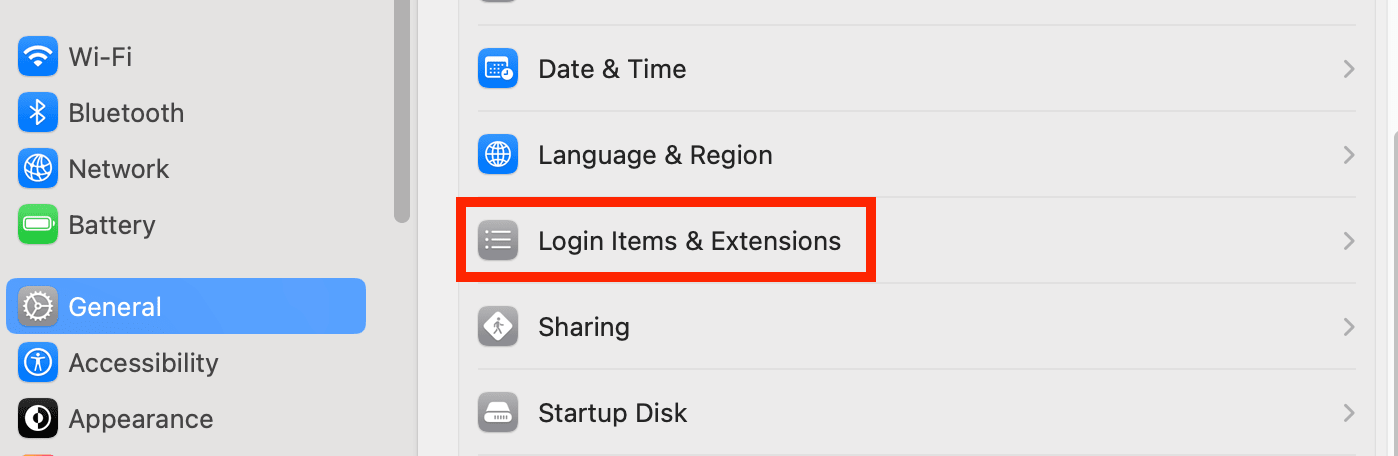
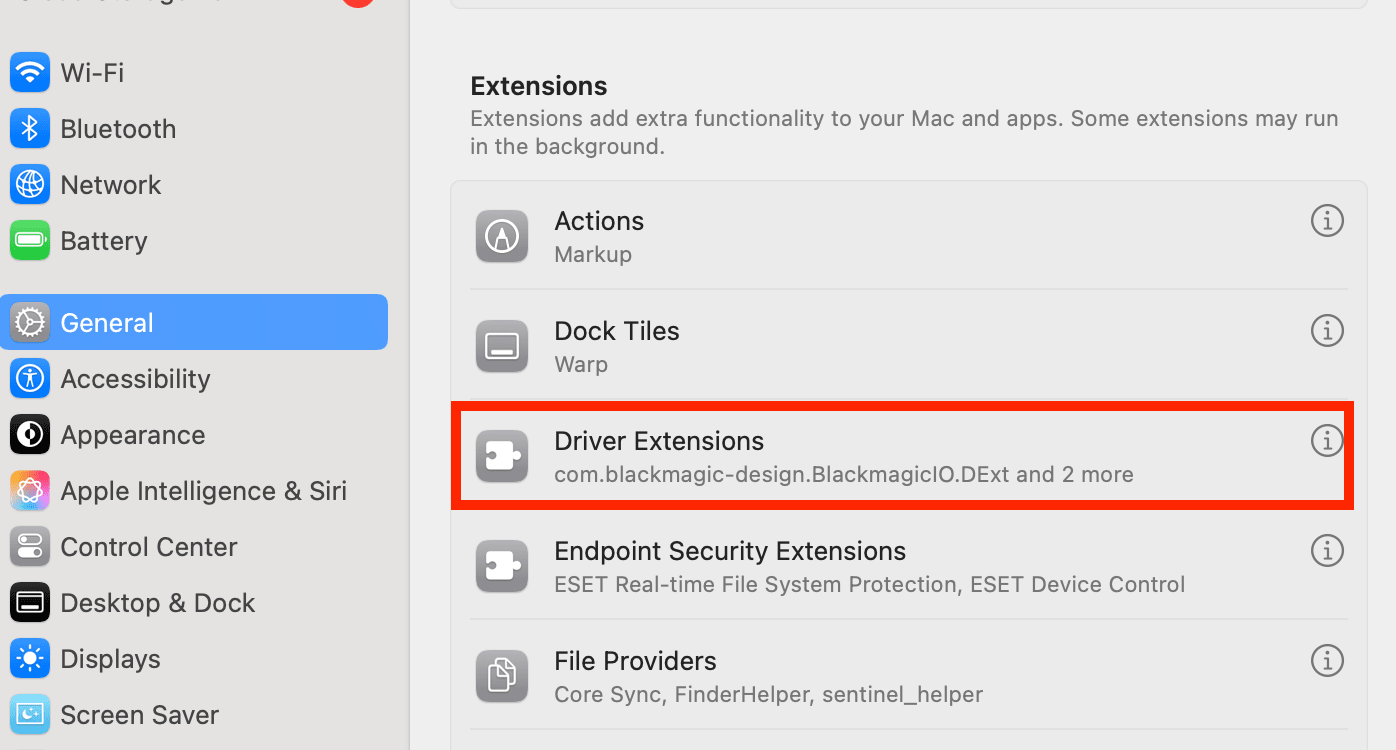
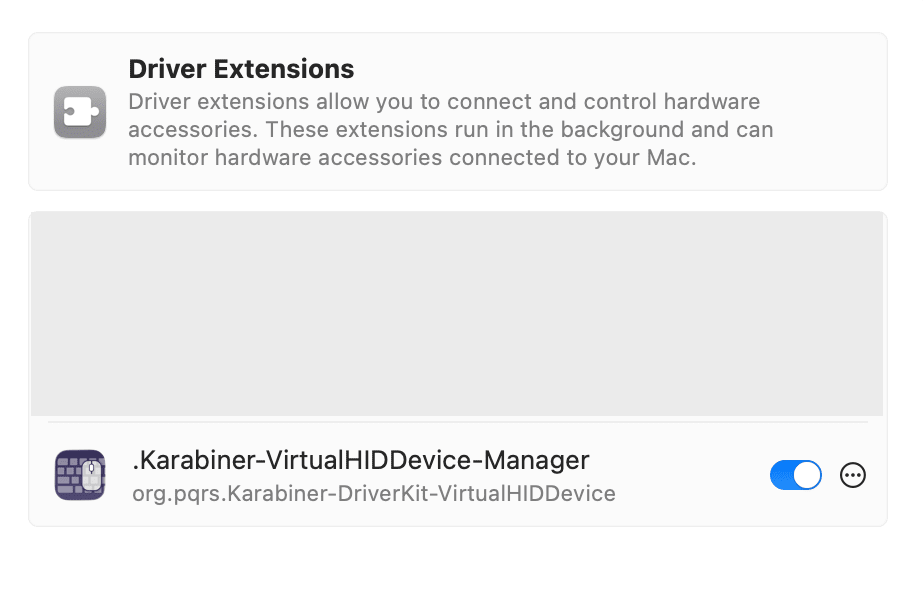
- System Settings → General → Login Items & Extensions → Driver Extensions → Enable
.Karabiner-VirtualHIDDevice-Manager
3. Editing karabiner.json
Edit ~/.config/karabiner/karabiner.json.
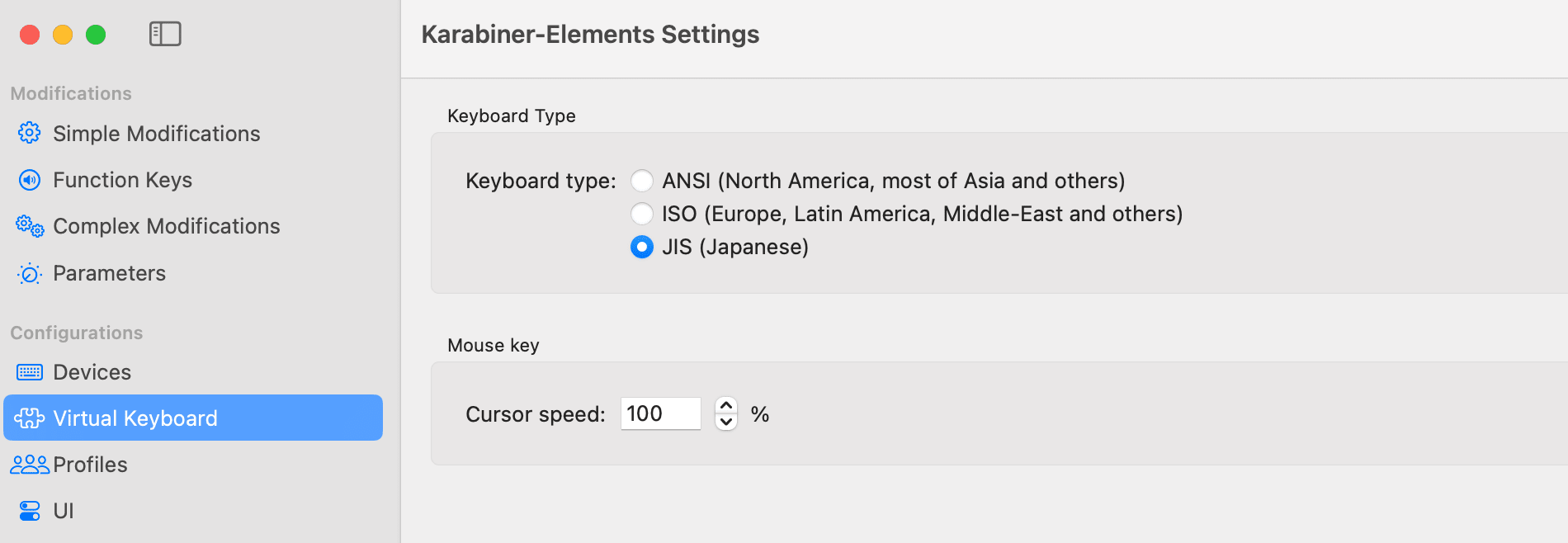
The profiles part is automatically generated during the app's initial setup, so add the rules part to the complex_modifications section. Since my keyboard is a US layout, keyboard_type_v2 is set to "ansi". If you have a Japanese keyboard, choose JIS in the initial setup or in the Karabiner-Elements app's Virtual Keyboard → Keyboard Type settings, and it should be set to "jis".
Here's the configuration to map Shift + Enter to Ctrl + J:
{
    "profiles": [
        {
            "complex_modifications": {
                "rules": [
                    {
                        "description": "Shift+Enter to Ctrl+J in Terminal.app",
                        "manipulators": [
                            {
                                "type": "basic",
                                "from": {
                                    "key_code": "return_or_enter",
                                    "modifiers": {
                                        "mandatory": ["shift"]
                                    }
                                },
                                "to": [
                                    {
                                        "key_code": "j",
                                        "modifiers": ["control"]
                                    }
                                ],
                                "conditions": [
                                    {
                                        "type": "frontmost_application_if",
                                        "bundle_identifiers": [
                                            "^com\\.apple\\.Terminal$"
                                        ]
                                    }
                                ]
                            }
                        ]
                    }
                ]
            },
            "name": "Default profile",
            "selected": true,
            "virtual_hid_keyboard": { "keyboard_type_v2": "ansi" }
        }
    ]
}
If you want to map to Option + Enter instead, replace the content of "to" with:
{
    "key_code": "return_or_enter",
    "modifiers": ["option"]
}
Once you save the settings, Shift + Enter will function as a line break in the Terminal app.
Bonus: The Historical Issue with the Enter Key
Why doesn't Shift + Enter work in the Terminal app? The background lies in the historical specifications of terminal emulators.
How Terminal Key Input Works
MacOS is based on UNIX, and the Terminal app's key input is based on old terminal specifications.
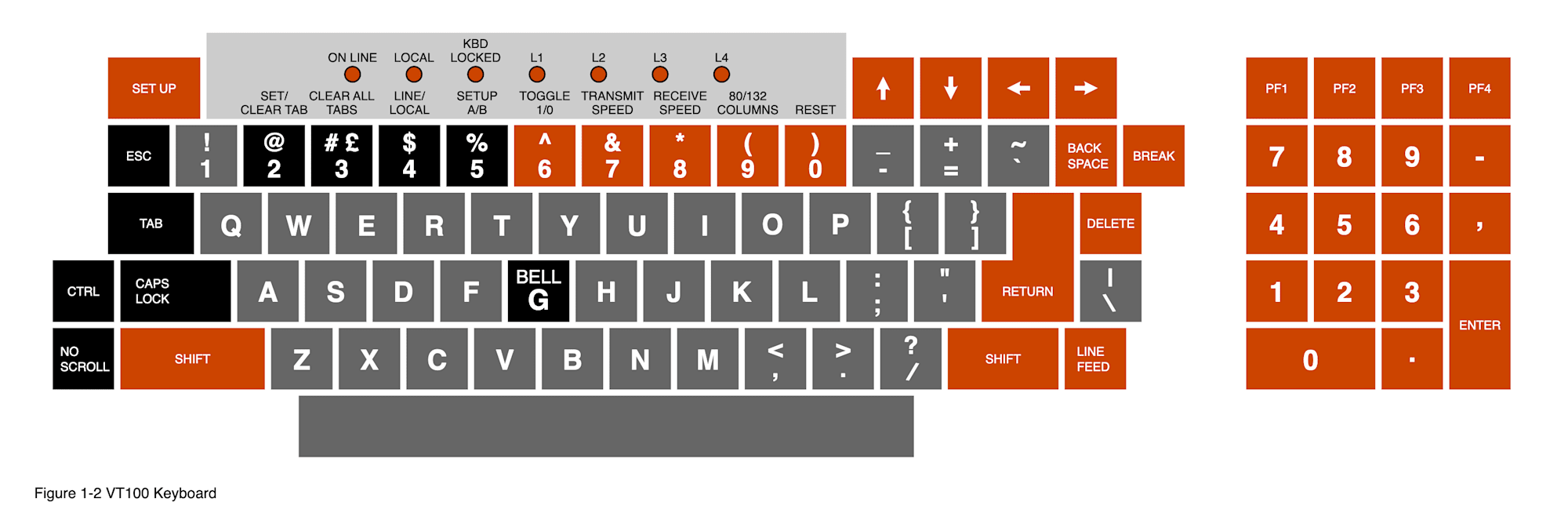
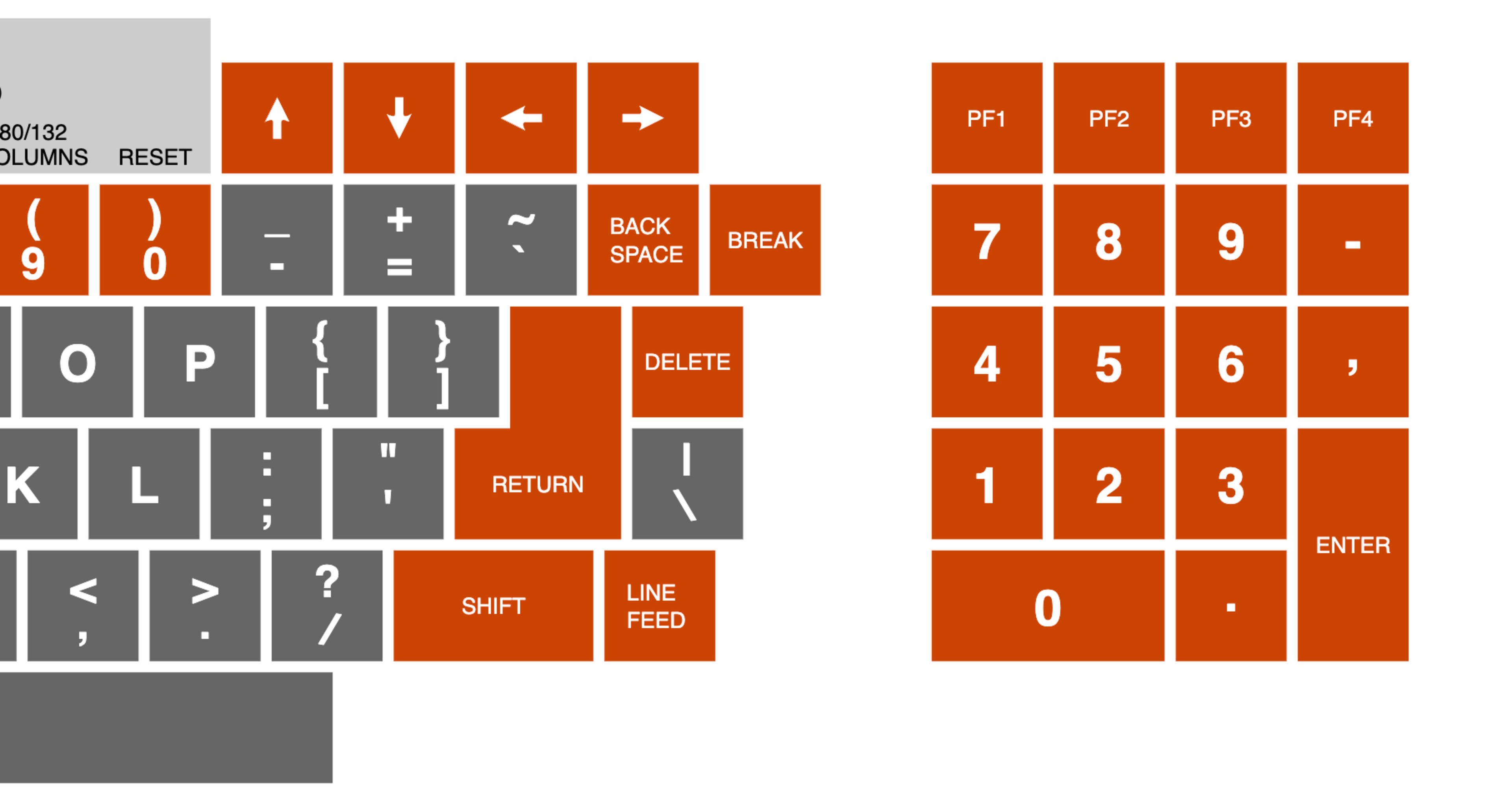
The Enter key originates from the old SS3 (1978, VT100) specification from the numeric keypad era (or even older keyboards with more keys). In contrast, many keys on modern full-sized keyboards conform to the later CSI (1979 onwards, VT220~) specification.
Reference: VT100 User Guide — Chapter 3 (Table 3-8 ANSI Mode Auxiliary Keypad Codes)
SS3 Specification Constraints
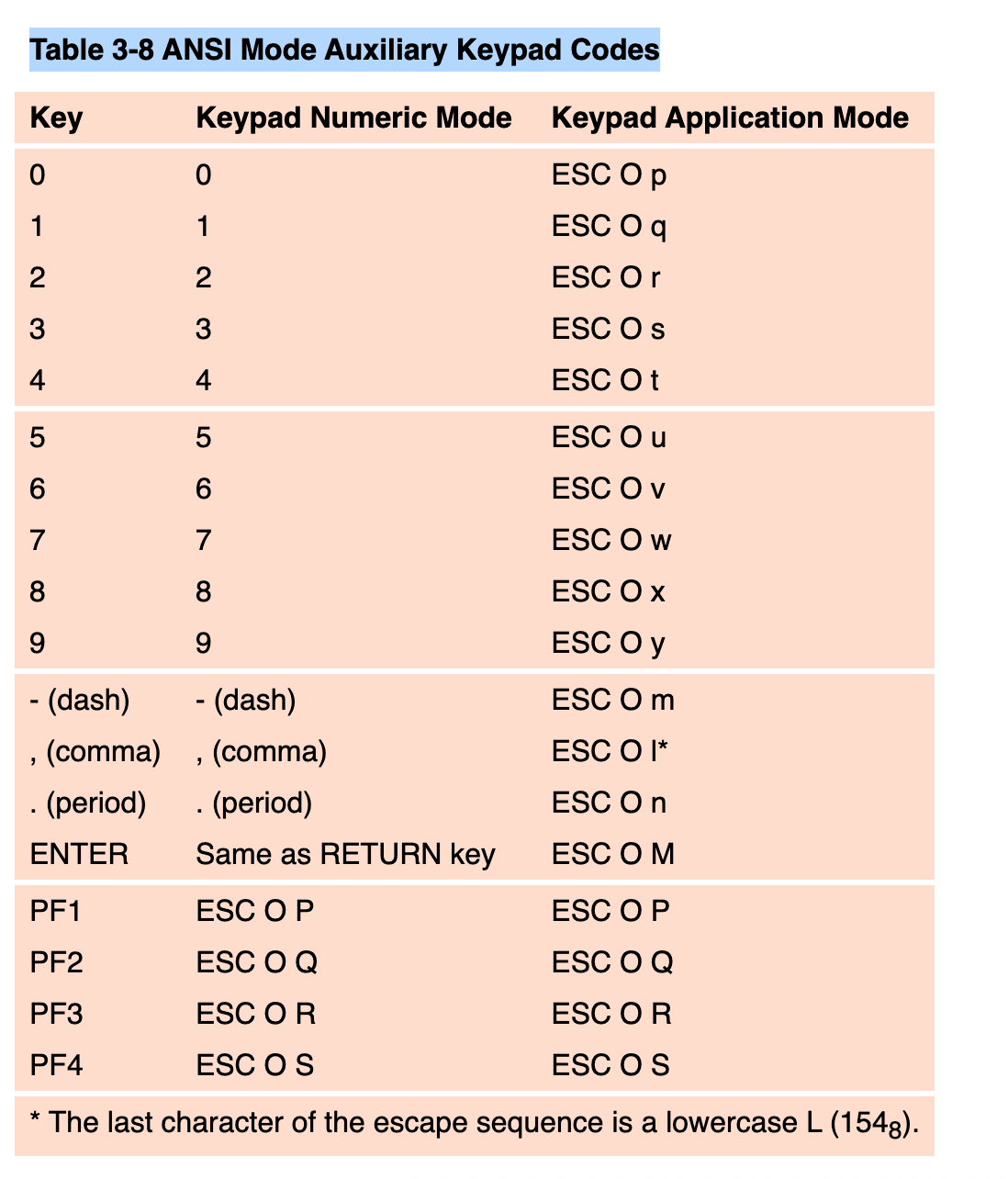
In the SS3 specification, key codes are represented in the following format:
ESC O <1 byte>
Since only 1 byte follows ESC O, there's no room to include modifier key (like Shift) combination information.
Keypad Enter = ESC O M = 0x1b 0x4f 0x4d
Other keys such as CTRL and SHIFT do not transmit codes when typed, but modify the codes transmitted by other keys.
While the VT100 keyboard had a Shift key, it wasn't transmitted as an independent signal, but used as a mode switch that was handled internally by the keyboard. For example, pressing A would send a, and Shift + A would send A. Pressing 1 would send 1, and Shift + 1 would send !, and so on.
Current Behavior in the Terminal App
In other words, the Enter key derived from SS3 has no defined combination with modifier keys, so in the Terminal app, both Enter and Shift + Enter are processed as the same 0x0d (CR: Carriage Return).
You can check the byte codes of key inputs in the Terminal app with the following Python script (exit with Ctrl + C):
python3 -c "
import sys, tty, termios

fd = sys.stdin.fileno()
old = termios.tcgetattr(fd)
tty.setraw(fd)

try:
    while True:
        b = sys.stdin.buffer.read(1)
        if b == b'\x03': break
        sys.stdout.buffer.write(('0x{:02x}\r\n'.format(b[0])).encode())
        sys.stdout.buffer.flush()
finally:
    termios.tcsetattr(fd, termios.TCSADRAIN, old)
"
If you try before mapping with Karabiner-Elements, both Enter and Shift + Enter will give the same result:
0x0d
After mapping Shift + Enter to Ctrl + J, it changes to:
0x0a
0x0d is CR (Carriage Return), and 0x0a is LF (Line Feed = new line). This allows you to create a new line with Shift + Enter in Claude Code on the Terminal app.
Conclusion
The reason Shift + Enter doesn't work in the Terminal app is due to historical constraints derived from the SS3 specification of the VT100 era. By using Karabiner-Elements, you can remap keys specifically in the Terminal app without affecting the behavior of other applications.
I hope this is helpful for those facing the same issue.