I want to use a web browser like a notepad, using only built-in features.

This page has been translated by machine translation. View original
Hello, this is Chiba (Yuki).
Have you ever wanted to jot down a quick note in your web browser? I have.
Suppose you are sharing your web browser screen during a web meeting. In that flow, you write a summary of the meeting in a note, and then paste what you wrote directly into a chat tool or a reply email to a customer. Being able to create the "summary note" where participants can see it makes things go smoothly, doesn't it?
Of course, there are plenty of services where you can write text in a web browser, such as Google Docs and Notion, so they may be enough. However, when you want to quickly write a note while you have a completely unrelated tab open, opening a suitable page or a new blank page is a hassle. Re-sharing the notepad on your computer is a hassle too.
I'll introduce a way to fulfill the wish of opening a new "notepad" in a web browser tab with a single click from a bookmark, without doing anything particularly difficult.
Summary first
- If you enter
data:text/html, <body contenteditable>in the web browser's address bar, you can use it like a notepad - The mechanism is just a combination of the "
data:scheme" and the "contenteditableattribute" - You can tidy up the appearance and add safeguards against accidental operations by adding a little to the URL
Here is what it looks like. The text you type yourself appears as you go. You can also use common shortcuts for bold, italics, and so on.
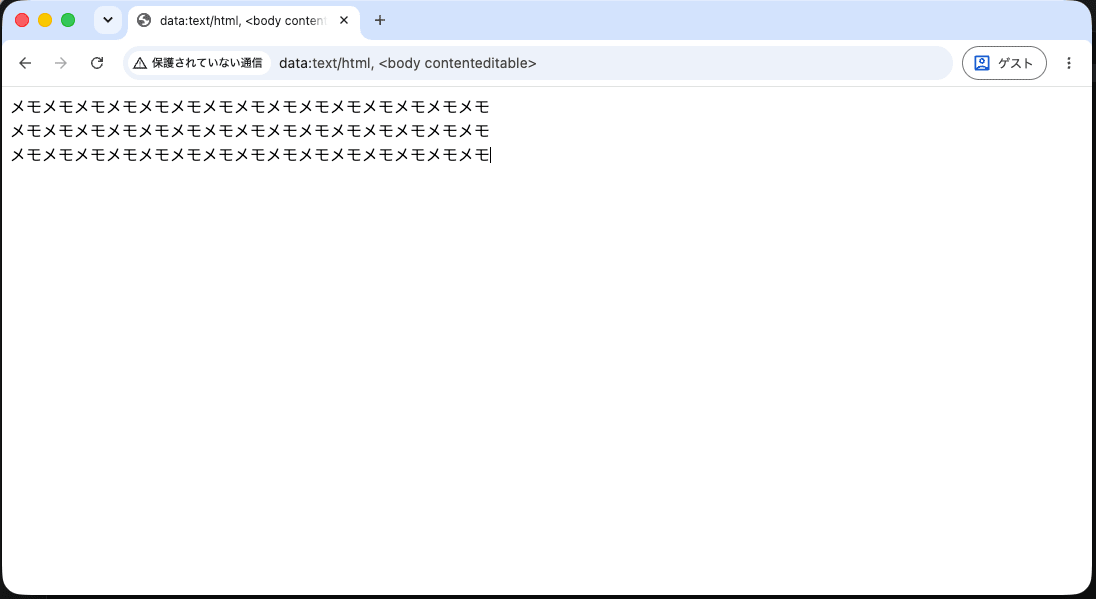
If you register this URL as a bookmark, you can open a "notepad" in your web browser with a single click. I confirmed it works in Google Chrome, but I think it works in most web browsers.
How the web browser "notepad" works
Since we're here, let's check why it works this way.
The data: scheme
The overwhelming majority of URLs you enter in a web browser start with https://. The https: part at the beginning of a URL indicates the protocol to use, and is called a scheme. This time it's the data: scheme.
URLs starting with data: contain the data itself within the URL. It takes the following syntax.
data:[<media-type>][;base64],<data>
<media-type>: A MIME type indicating the type of the data. This time we specifytext/html;base64: Indicates whether the data should be base64-decoded. We omit it this time,: Note that a comma comes in between<data>: The content of the data. This time we specify<body contenteditable>.
To show this URL again, it is as follows.
data:text/html, <body contenteditable>
Since we specified text/html as the MIME type this time, the browser interprets everything after the comma as an HTML document and displays it. In other words, a single web page can exist from the URL alone.
What is the contenteditable attribute?
contenteditable is an HTML attribute that makes the element it is applied to directly editable by the user.
<p contenteditable>この段落は直接書き換えられます</p>
If you apply this to <body>, the entire page becomes editable. In HTML, even if <html> and <head> are omitted, the browser fills them in, so <body contenteditable> alone is enough to make a single page.
The mechanism this time is that combining it with the data: scheme results in "HTML that can be opened directly from a URL and whose entire page is editable."
Making the web browser "notepad" a little more convenient
I want to keep the URL simple, so I bookmark the URL exactly as written at the beginning. However, there are times when that feels a bit inconvenient, so for example you can also try the following tweaks.
Tidy up the title and appearance
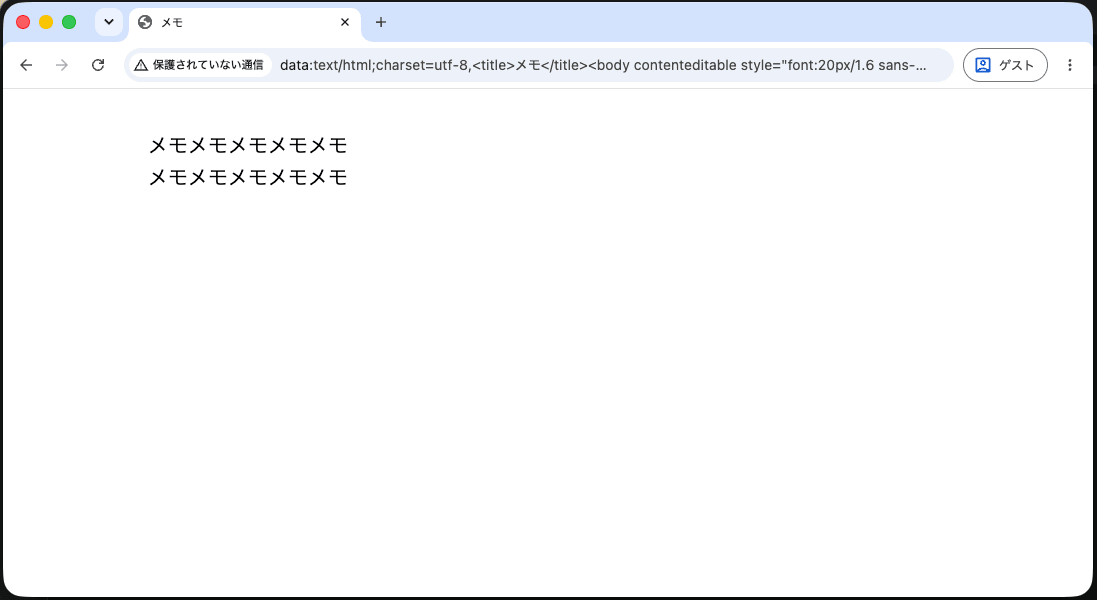
If you include <title>, you can give the tab a name. Also, making the text larger and adding margins on the left and right makes it easier to read.
data:text/html;charset=utf-8,<title>メモ</title><body contenteditable style="font:20px/1.6 sans-serif;max-width:40em;margin:2em auto">
Note that when using Japanese in <title>, add ;charset=utf-8 right after text/html. If you don't, the title will be garbled.
Remove the red squiggly lines
When you write English words, red spellcheck squiggly lines appear. You can remove them by adding spellcheck="false".
data:text/html;charset=utf-8,<title>メモ</title><body contenteditable spellcheck="false" style="font:20px/1.6 sans-serif;max-width:40em;margin:2em auto">
Show a confirmation when closing the tab
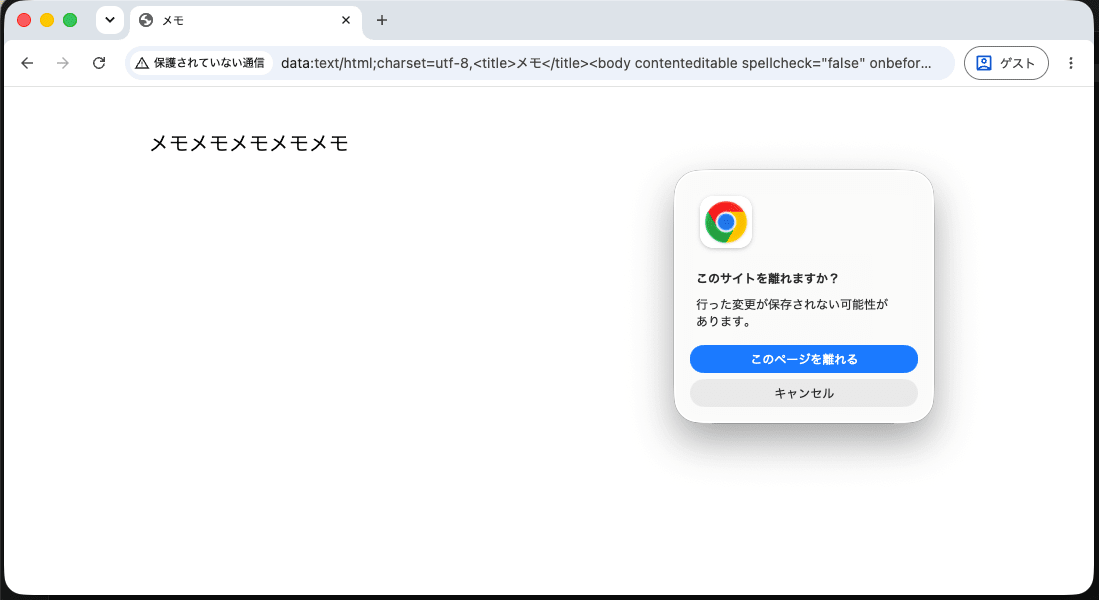
The content you write in this "notepad" is not saved in any way, and it disappears when you close the tab or reload. Adding onbeforeunload="return 1" makes a confirmation dialog appear.
data:text/html;charset=utf-8,<title>メモ</title><body contenteditable spellcheck="false" onbeforeunload="return 1" style="font:20px/1.6 sans-serif;max-width:40em;margin:2em auto">
Change the background color
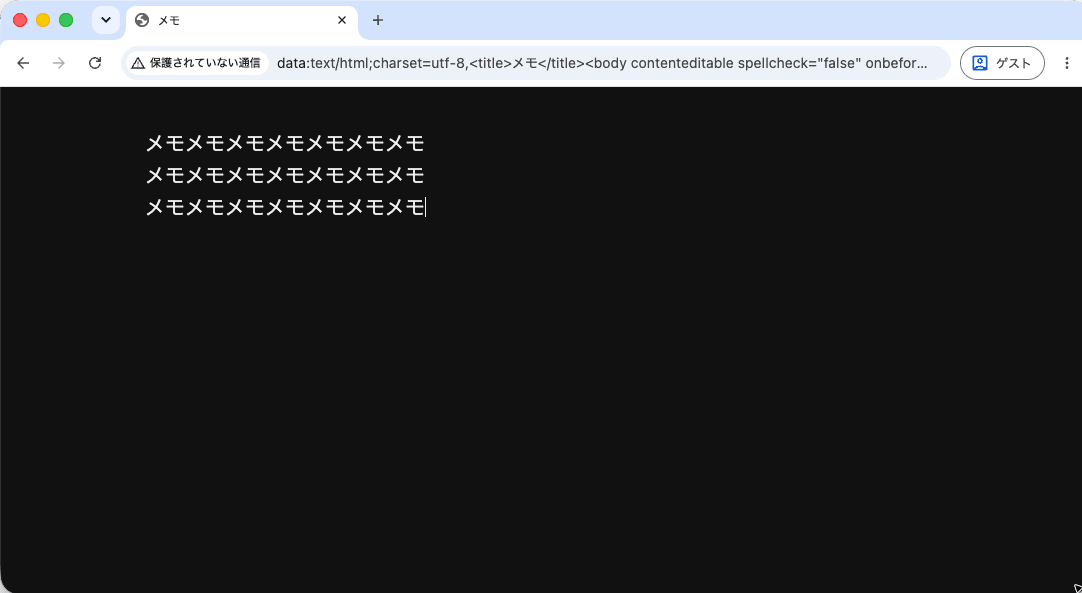
If you want a dark theme, for example, specify colors like background:%23111;color:%23eee". A # in a URL is interpreted as the start of a fragment, so it is replaced with %23.
data:text/html;charset=utf-8,<title>メモ</title><body contenteditable spellcheck="false" onbeforeunload="return 1" style="font:20px/1.6 sans-serif;max-width:40em;margin:2em auto;background:%23111;color:%23eee">
A few things to keep in mind when using the web browser "notepad"
When you paste content copied from elsewhere into the HTML page built this time, it is pasted as rich text. Unnecessary decoration such as text background colors, fonts, and sizes may come along.
If the broken appearance bothers you, work around it by pasting without formatting (Command + Shift + V on macOS, Ctrl + Shift + V on Windows), for example.
If it's a hassle to keep that in mind every time, set the value of contenteditable to plaintext-only.
data:text/html;charset=utf-8,<title>メモ</title><body contenteditable=plaintext-only spellcheck="false" style="font:20px/1.6 sans-serif;max-width:40em;margin:2em auto">
Conclusion
It was simple, but this was a story about wanting to use a web browser like a notepad.
During web meetings with customers, I often talk while displaying project management tools or architecture diagrams in the web browser. Having a new "notepad" that I can open quickly in that situation is convenient, because I can summarize things while looking at them together, saying things like "So the next actions for each of us look like this."
It's not something you'd be in great trouble without, but when you have it, you feel "it's quietly convenient!" in all sorts of situations.
This is a little tip that has been passed down by word of mouth within our company for a long time, but I wanted to spread it more widely, so I've put it together in a blog post again.
I hope this helps someone.
This was Chiba Yuki (@batchicchi).