
Running tasks based on uncommitted changes with mise's --affected

This page has been translated by machine translation. View original
Hello! I'm Yuji Nishimura from the Operations Department!
Suppose you have a single Git repository containing a frontend and a backend, and each defines its own test task. When you edit only the frontend, there are times you want to select and run only the tasks related to the change.
Using mise's --affected, you can select the projects to run based on Git changes. Starting with mise 2026.10.6, not only committed diffs but also your local uncommitted changes are now targeted. The experimental = true setting is also no longer required.
This article introduces a command that targets uncommitted edits and new files, and verifies the execution results with two projects.
Selecting projects with uncommitted changes
A monorepo is a structure that places multiple projects in one repository. If you have mise's monorepo configuration and project information such as workspaces in package.json, you can use the following command at the repository root. If you are setting this up from scratch, the sample below lets you prepare the necessary files.
mise run --affected --affected-uncommitted --affected-untracked test
The trailing test is the task name. Of the test tasks defined in each project, those related to Git changes are run.
The two flags specify the types of changes to target.
--affected-uncommitted: Edits to files tracked by Git. Includes both staged and unstaged changes.--affected-untracked: New files not yet added to Git. Files excluded by Git's ignore settings are not included.
Depending on your purpose, you can choose as follows. When you specify a flag, only the specified types of changes are targeted.
| Changes you want to target | Flags to specify together with --affected |
|---|---|
| Local edits and new files | --affected-uncommitted --affected-untracked |
| Only edits to tracked files | --affected-uncommitted |
| Only new files | --affected-untracked |
| Only committed diffs | --affected-committed |
If you specify only --affected, it includes all of committed diffs, edits to tracked files, and new files. When you want to check only your local work, specify the two flags shown at the beginning.
Trying it with two projects
From here, we'll prepare a small sample that lets you reproduce the same results. The tasks use echo to display which project they were run in. No actual test code is prepared.
The environment used for verification was Ubuntu 24.04.5 / Linux arm64, Git 2.43.0, and mise 2026.10.6. I also confirmed the same selection results with mise 2026.10.8.
1. Define the projects and tasks
In a shell where you can use mise and Git, create a new directory.
mkdir mise-affected-demo
cd mise-affected-demo
git init -q
git config user.name 'Tips Demo'
git config user.email 'tips@example.invalid'
mkdir -p projects/frontend/src projects/backend/src
Enable the monorepo in the root mise.toml and specify where the task configurations are located.
monorepo_root = true

[monorepo]
config_roots = ["projects/frontend", "projects/backend"]
So that mise can determine which project a change belongs to, define the list of projects with workspaces in package.json.
{"private":true,"workspaces":["projects/*"]}
Also create a package.json with a name specified for each project.
printf '{"name":"frontend","version":"1.0.0","private":true}\n' > projects/frontend/package.json
printf '{"name":"backend","version":"1.0.0","private":true}\n' > projects/backend/package.json
Define a test task for each of frontend and backend.
[tasks.test]
run = "echo FRONTEND_TEST"
[tasks.test]
run = "echo BACKEND_TEST"
config_roots is where task configurations are loaded from, and the workspace definition is the information used to understand projects and dependencies. This sample prepares both. You can find details in the official workspace graph documentation. No package installation is required.
Finally, commit the files before the changes and mark the mise configuration you created as trusted.
printf 'initial\n' > projects/frontend/src/demo.txt
printf 'initial\n' > projects/backend/src/demo.txt
git add .
git commit -qm 'Initial demo'
mise trust
2. Create committed changes and local changes
First, commit a change to backend. Then edit frontend and create a new file in backend.
printf 'committed change\n' >> projects/backend/src/demo.txt
git add projects/backend/src/demo.txt
git commit -qm 'Change backend'

printf 'local edit\n' >> projects/frontend/src/demo.txt
printf 'new local file\n' > projects/backend/src/new.txt
git status --short
The current state is as follows.
| Project | Changes |
|---|---|
| frontend | Uncommitted edit to src/demo.txt |
| backend | Change to src/demo.txt is committed; src/new.txt is untracked |
git status --short shows your local changes.
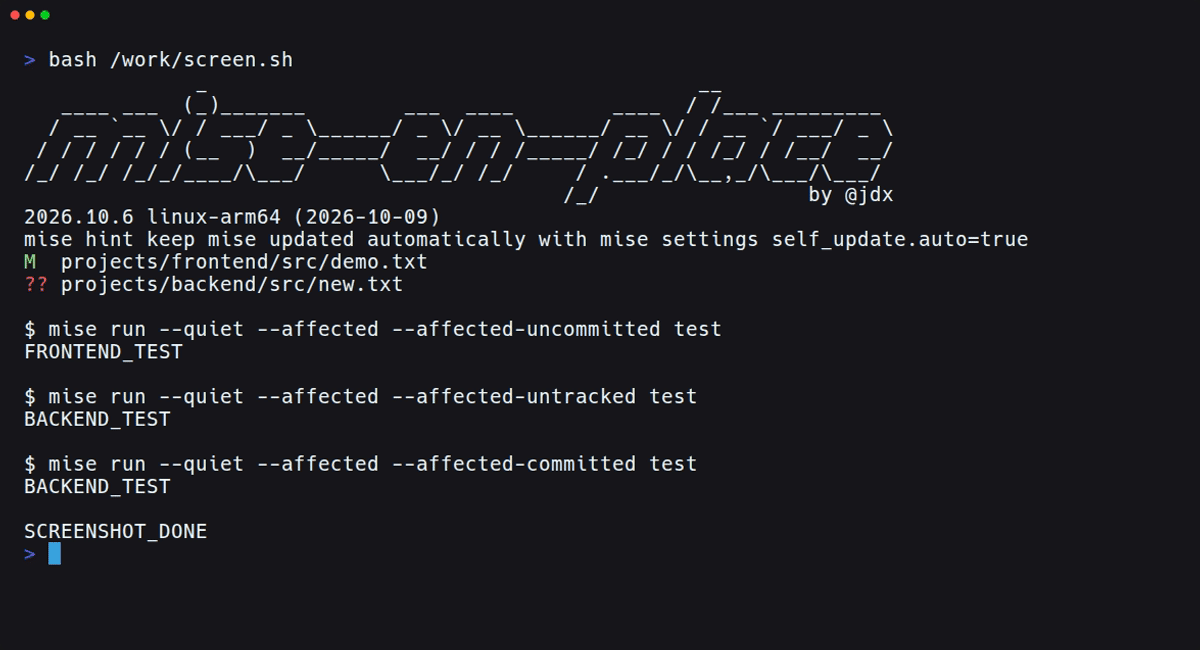
 M projects/frontend/src/demo.txt
?? projects/backend/src/new.txt
3. Run tasks for each type of change
When selecting only edits to tracked files, only frontend's test was run.
mise run --affected --affected-uncommitted test
[//projects/frontend:test] $ echo FRONTEND_TEST
FRONTEND_TEST
When selecting only untracked files, backend's test was run.
mise run --affected --affected-untracked test
[//projects/backend:test] $ echo BACKEND_TEST
BACKEND_TEST
When the two flags were combined as at the beginning, both test tasks were run. The frontend edit and the backend new file were each targeted.
Also, even after staging the edit with git add projects/frontend/src/demo.txt, frontend's test was run with --affected-uncommitted. Even if staged, edits before commit are targeted.
The following image shows the state after staging, with the results of selecting edits, new files, and committed diffs respectively. --quiet was added to keep the output short.
Checking target projects before running
To check the targets before actually running the tasks, add --affected-explain and --dry-run.
mise run --affected --affected-uncommitted --affected-explain --dry-run test
In this result, projects/frontend/src/demo.txt was displayed as the reason frontend was selected. The task is not run, and the echo FRONTEND_TEST that would be run is displayed.
What to check when the targets differ from expectations
In local execution, --affected by default compares HEAD~1 and HEAD to get the committed diff. If you want to exclude local changes and select using only this diff, specify --affected-committed.
The two projects in this sample have no dependencies. The official documentation explains that targets expand through dependencies and shared inputs, and that tasks that are prerequisites of the target tasks are run as usual. If the number of targets grows large in a real repository, you can check the reasons with --affected-explain --dry-run.
Summary
With mise 2026.10.6 and later, --affected can also target changes before commit. To select local edits and new files together, combine --affected-uncommitted --affected-untracked.
If you want to check the targets beforehand, you can add --affected-explain --dry-run. While checking the types of changes and the reasons for selection, you can narrow down the projects that run your existing tasks.
Reference links: