
Use mise config explain to check the meaning of keys in mise.toml and find typos

This page has been translated by machine translation. View original
Hello! I'm Yuji Nishimura from the Operations Department!
When I add settings to mise.toml, I sometimes want to check in the terminal, "What does this key specify?" and "Did I misspell anything?"
mise config explain, added in mise 2026.10.14, displays the keys in a TOML file along with line numbers and descriptions. It points out unrecognized keys and, if it finds a correction candidate, shows that too. For deprecated keys, it also shows what to migrate to.
First, specify a file and inspect it
In an environment with mise 2026.10.14 or later installed, run the following command from the directory containing the target file.
mise config explain --file mise.toml
Key names, line numbers, and the descriptions from the schema are displayed as a list. According to the official reference, if --file is omitted, the target is the loaded configuration file with the highest priority. If a file such as mise.local.toml exists, a different file would be inspected, so I specify the target explicitly with --file. Note that this is not a command that displays the final values after merging multiple configuration files.
The examples below were verified on Ubuntu 24.04.5 LTS (ARM64), Bash, and mise 2026.10.23 (the latest version as of October 29, 2026). The typo example produced the same output on 2026.10.14. I did the verification in an environment with the network disconnected, and I did not install Node.js or run any tasks. I have not tried macOS or Windows, so I have not confirmed whether the display and line numbers are the same as on Linux.
Inspecting a configuration with typos
I created the following mise.toml in a new sample directory. descripton and experimantal are intentionally misspelled so that I could see the correction candidates.
[tools]
node = "24"

[tasks.hello]
run = "echo hello"
descripton = "Say hello"

[settings]
experimantal = true
When I ran the same command, description appeared as a candidate for line 6 and experimental for line 9.
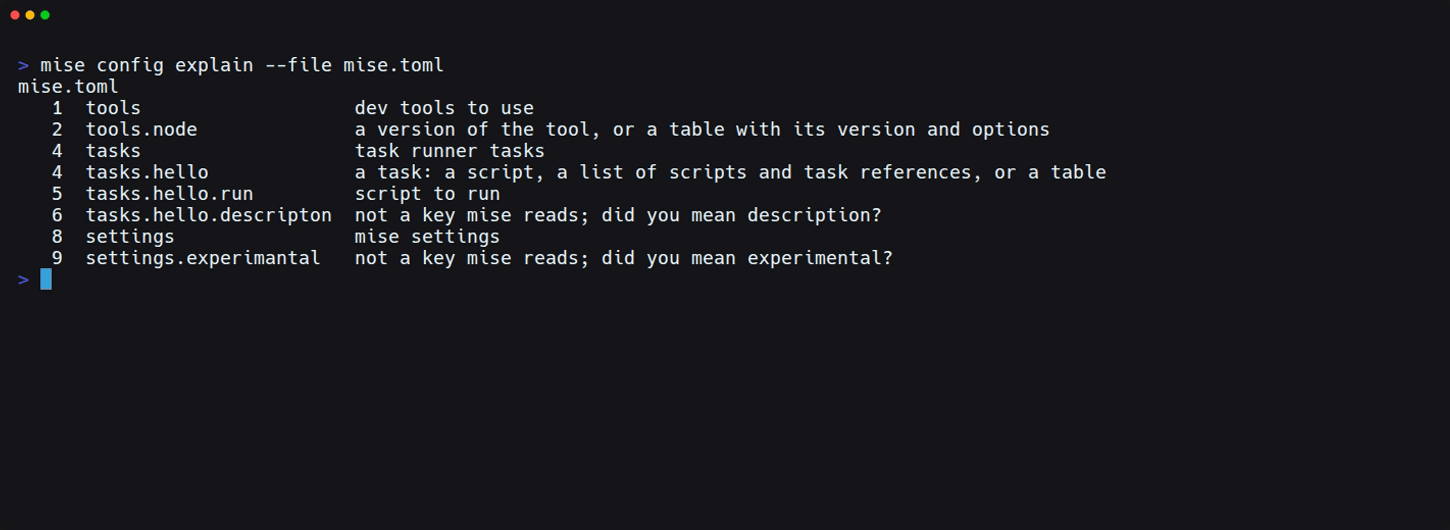
tasks.hello.run was shown as script to run, and the misspelled keys were shown as not a key mise reads; did you mean ...?. Because line numbers are shown, you can also tell where to fix things in your editor.
I confirmed that the file's SHA-256 was identical before and after running the command, so the file is not automatically fixed. After correcting descripton to description and experimantal to experimental and running it again, both were displayed as keys that mise recognizes.
Showing only tasks, or showing JSON
If you want to read only the task settings in a long file, add tasks at the end.
mise config explain --file mise.toml tasks
In this example, only the four lines under tasks were displayed, and tools and settings were not shown.
If you want to handle the results in a script or similar, you can also use --json.
mise config explain --file mise.toml --json
Below is the element for a misspelled key, extracted from the JSON obtained with the mise.toml from before the fix.
{
  "key": "settings.experimantal",
  "path": ["settings", "experimantal"],
  "line": 9,
  "description": null,
  "deprecated": false,
  "known": false,
  "suggestion": "experimental"
}
From known you can tell whether a key is recognized, and from suggestion you can read the correction candidate. To pick up only misspelling candidates, you don't need to parse the English text on standard output; it is enough to look at the elements where known is false.
Deprecated keys are also identified
For keys written in an old style, deprecated: is added at the beginning of the description. I tried it with a file containing only env_path, as follows (verified on mise 2026.10.23).
env_path = ["./bin"]
1 env_path deprecated: PATH entries to add. Deprecated; use env._.path instead. This will be removed in mise 2027.4.0.
You can see the migration target env._.path and even the version in which it is scheduled to be removed. With --json, deprecated becomes true.
Exit code 0 doesn't necessarily mean the configuration is correct
In mise 2026.10.23, the exit code of config explain was 0 even for this file containing typos. Even if you only look at whether the command succeeded in CI or similar, you can't conclude that there are no misspellings.
I also examined a different file where node under [tools] was the integer 24 instead of a string, and tools.node was still known: true. I haven't tried whether mise actually fails when it is written as an integer, but known is an item indicating whether mise recognizes the key, and it does not look at the type of the value.
Even if the key names are correct, cases where fetching a tool or running a task fails cannot be found with this command. Tool installation and task behavior need to be verified separately.
To check while editing, use mise lsp
mise 2026.10.18 added mise lsp, a language server for mise.toml. According to the release notes, mise lsp shows unknown keys and correction candidates, type mismatches, and deprecated keys in the editor while you edit. A value type mismatch like the integer 24 in the previous section can't be detected by config explain, but it is covered by mise lsp's diagnostics. I did not run mise lsp in this verification.
config explain can be used without any editor setup, and lets you check the keys of the whole file as a list. The distinction is: use mise lsp if you want to fix things as you write in your editor, and use config explain if you want to review the whole file in the terminal.
Summary
With mise config explain --file mise.toml, I was able to check the meanings of configuration keys and typo candidates along with line numbers. For deprecated keys, the migration target is also displayed. You can add tasks to narrow the range shown, or --json to handle the output in a script.
The file is not automatically fixed, and you can't judge the correctness of the entire configuration from an exit code of 0 or known: true alone. If you want to check while writing in your editor, you can use mise lsp; if you want to review the whole file in the terminal after writing, you can use config explain.
I hope this is helpful to someone.
Reference links: