![[Gemini × Google Sites] I Made a Web Page for Hands-on Materials with Gemini Even Though I Don't Know HTML!](https://images.ctfassets.net/ct0aopd36mqt/wp-thumbnail-54ccac66f5ee97fdcf2827231917793b/0f9bfc8183782183da61160cd57e4ecf/googleworkspace-logo_1200x630-4.png?w=3840&fm=webp)
[Gemini × Google Sites] I Made a Web Page for Hands-on Materials with Gemini Even Though I Don't Know HTML!

This page has been translated by machine translation. View original
I am chicca from the Account Team in the Customer Support Group of the Operations Department in the Cloud Business Division.
To promote the use of the replaced "Knowledge Base LM," I conducted a hands-on session on NotebookLM within our team.
This blog summarizes the preparation work for that hands-on session.
During preparation, I wanted to try using Gemini's feature to output to Google Sites (web pages), so I'll introduce that experimental process as well.
*Note: The hands-on session was held in early July 2025. While the interface may have changed since then, I'm describing it as it appeared at that time.
1: Introduction
First, let me outline the hands-on session I conducted.
- Target audience: Account team members (non-engineers), approximately 30 people
- Purpose: Introduce AI usage methods and promote AI utilization in daily work
- Understand NotebookLM's basic functions and operations, and envision business applications
- Experience the efficiency of using AI for information gathering and organization
- Hands-on content:
- Adding documents to NotebookLM as sources
- Creating notes using the Studio function
- Creating audio summaries and mind maps
I chose a hands-on format because I wanted everyone to actively use AI in their work going forward.
Writing it out makes the purpose and content seem quite formal.
In reality, it was much more casual, like "Let's all try out this new AI together!"
Also, I had a personal goal of testing "creating materials in Google Sites with content generated by Gemini."
(*At that time, the Google Slides output feature hadn't been implemented yet, so I used Google Sites instead)
2: Creating an Explanatory Web Page with Google Sites
For the hands-on session, I first needed to deepen my own understanding of NotebookLM.
I consulted with Gemini and tried outputting to Google Sites.
I attended an online seminar on NotebookLM hosted by Google on June 23, 2025. I fed those materials into Gemini to create an explanatory web page.
Procedure:
- Enable the "Canvas" feature in Gemini
- Enter the following prompt
Prompt:
I'm conducting a NotebookLM usage hands-on session for IT beginners. Please create materials for the hands-on session from the uploaded resources
- Select "Web page" from "Create" in the upper right of the preview screen
- Check the web page preview
- Select "Code" and click "Share," then "Copy contents"
- Open Google Sites, select "Blank page" > "Insert" > "Embed"
- Paste the copied HTML code into the "Embed code" tab
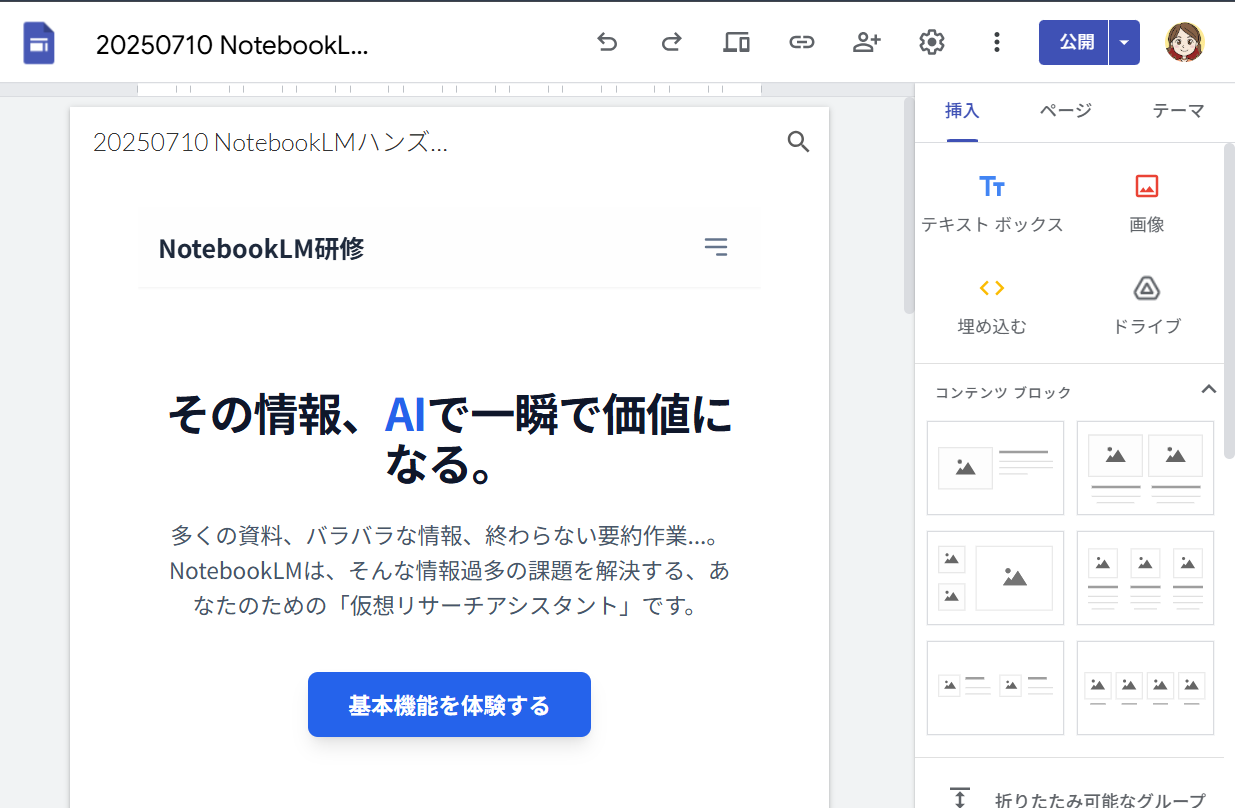
With just these steps, an explanatory web page was created in no time. This base is sufficient.
3: Organizing the Differences Between NotebookLM and Gemini and Outputting to HTML
Next, I wanted to research the "differences between NotebookLM and Gemini" that I planned to explain on the day. I asked Gemini.
Prompt:
I'm conducting a hands-on session on how to use NotebookLM within my company.
The target audience is IT beginners.
Please create a table showing the merits and demerits to help them understand the difference between using NotebookLM and Gemini
Gemini created the following comparison table for me.
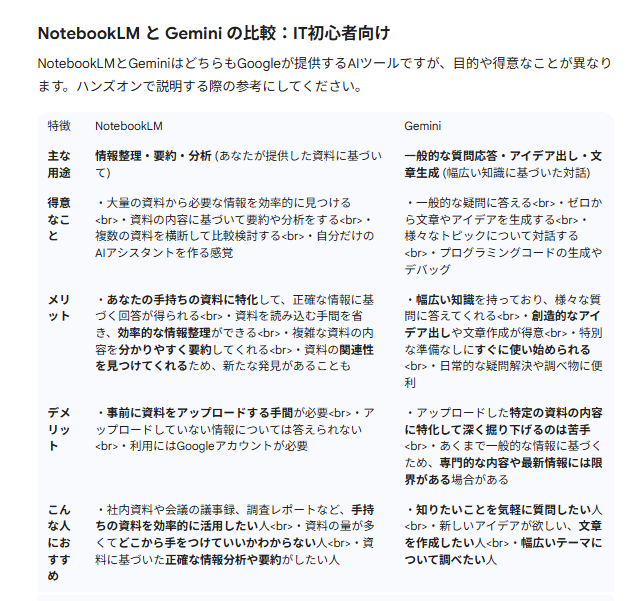
I wanted to include this table in my explanatory web page, so I asked about how to display it.
Prompt:
I want to display this table in Google Sites. How can I do that?
Gemini's response:
Method 1: Paste directly as text (easiest)
(omitted)
Method 2: Embed Google Sheets (recommended)
(omitted)
Method 3: Embed HTML code (more advanced method)
This method involves directly writing the table using HTML and CSS, then embedding it in Google Sites. This might be a bit difficult for IT beginners, but I'll include it for reference.
Create HTML code:
Copy the following HTML code into a text editor.

Comparison table of NotebookLM and Gemini (HTML)
(rest omitted)
Since our chat has been premised on "IT beginners," Gemini presented three methods with varying difficulty levels.
Although I don't have HTML knowledge, I wanted to integrate this with the explanatory web page I'd already created, so I decided to try "Method 3: Embed HTML code."
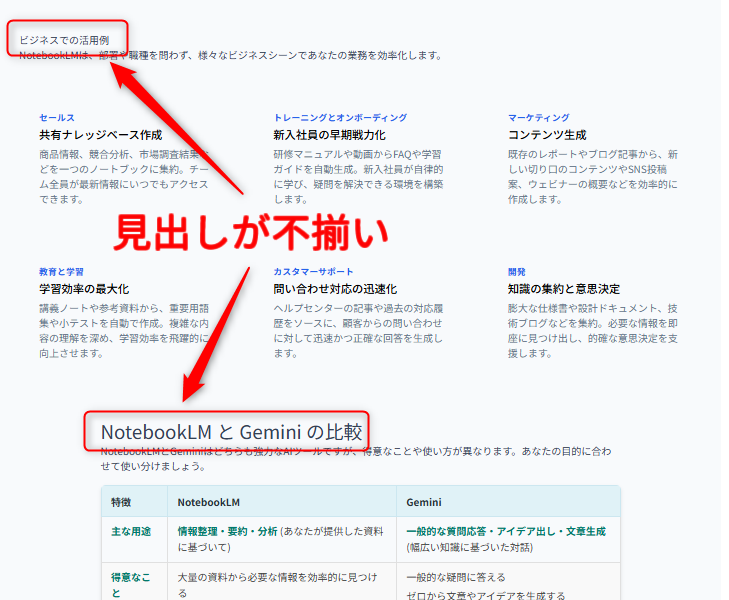
I copied the HTML code for the explanatory web page into a text tool and adjusted the placement while looking at the preview.
The headings are inconsistent, but I'm not concerned about that.
4: Creating Operation Instructions for the Hands-on Session
Next, I created the actual operation instructions (tutorial) section.
Here too, I used Gemini's "Canvas" mode.
Prompt:
I want to explain how to use NotebookLM with a tutorial including screenshots
Please explain how to use the following items

1. Creating a notebook and adding sources
2. Using the chat function to ask questions
3. Using the memo function to organize information
4. Automatically generating output with the Studio function
I output the content generated by Gemini as a "Web page" again and converted it to HTML.
After checking for hallucinations, I confirmed the content was fine and adopted it as-is for the hands-on materials.
5: Setting Up Links on the Created Web Pages
After pasting the output HTML code into Google Sites, I had two complete web pages: one for explanation and one for the hands-on tutorial. I needed to connect them.
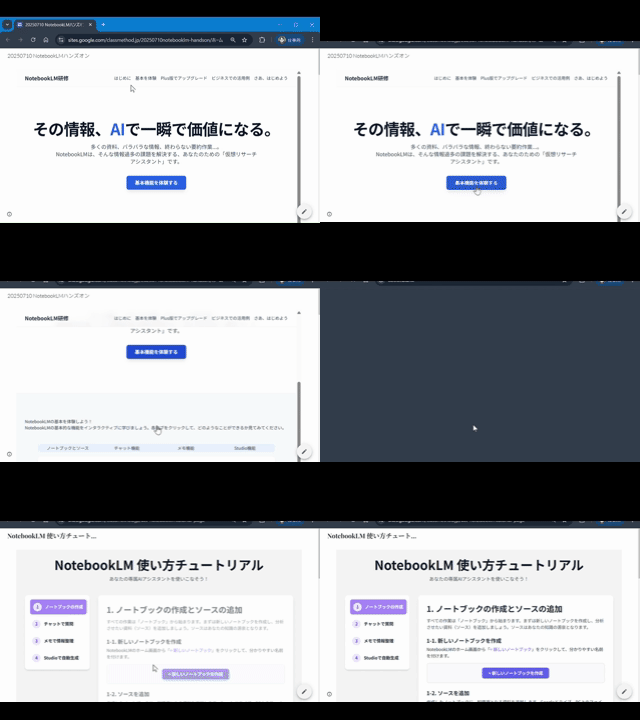
Specifically, I set up a link so that clicking the "Experience basic functions" button would take users to the hands-on web page.
Since I'm not familiar with HTML, I referenced the link descriptions in the code generated by Gemini and set up hyperlinks by trial and error.
Link description I referenced:
<a href="https://notebooklm.google.com/" target="_blank" rel="noopener noreferrer" class="...(omitted)...">
    Try NotebookLM
</a>
I inserted the URL of the hands-on web page after "a href="" in the "Experience basic functions" code line.
With this, I completed a material web page with proper-looking buttons.
Finally, I selected the publication scope of the web page in "Share."
6: Preparation for the Day of the Session
The hands-on session had a 30-minute time slot.
To ensure smooth progress on the day, I asked participants to complete the following preparations in advance:
- Create a folder to store documents for "Sources"
- Create a folder called "20250710Source" on the desktop
- Prepare documents for "Sources"
- Select two pages from procedure manuals
- Convert the selected pages to PDF and store them in the created folder
The aim was to use documents related to their daily work so participants could realize "Oh, this could be useful."
I also made preparations for myself:
- Creating a hands-on overview page (Notion)
- Including URLs for slide materials that everyone would add as "Sources" and other necessary links on the overview page
- Setting up a discussion thread in Slack
7: Conclusion
That's the entire process of creating materials for this hands-on session.
I was able to create web pages without writing code, using Gemini and Google Sites.
I conducted two team study sessions.
The first was the NotebookLM hands-on described here, and the second was an explanation of how to use "Knowledge Base LM."
By using procedure manuals and other documents that team members regularly use as sources, I believe they were able to form concrete images of using AI in their work.
Personally, I gained two significant learnings:
- Experiencing the convenience of the Google Sites output feature
- Being able to organize the characteristics of both Gemini and NotebookLM
Organizing the distinctions between different AI tools was a valuable input, which ultimately helped me prepare for the in-house explanation meeting held in November.
While I can't numerically track how much participants are using AI, they put their work on hold for 30 minutes × 30 people = 900 minutes, so I hope writing this blog helps balance the scales a bit.
I hope this blog will be helpful to someone.
Thank you for reading to the end.