
Confirmed the connection settings and exclusive lock behavior of the official Perforce VS Code extension

This page has been translated by machine translation. View original
Introduction
Have you ever wanted to handle small daily editing tasks in your familiar VS Code while working on a Perforce team? For a long time, Perforce had no official VS Code extension, and users had no choice but to use community-made extensions. In 2026, Perforce finally released an official VS Code extension, P4VSCode (extension ID: PerforceSoftware.p4vscode).
In this article, we will actually connect using version 2026.1.0 of this official extension and verify its behavior.
What is Perforce?
Perforce (Helix Core) is a centralized version control system widely used in development environments that handle large volumes of binary files among many contributors. It is frequently adopted in game development and features an exclusive lock mechanism to protect binaries that cannot be merged. The server process is called p4d, and the client is called p4.
Verification Environment
- macOS
- Helix Core p4d 2026.1
- P4VSCode (
PerforceSoftware.p4vscode) v2026.1.0
Target Audience
- Engineers on a Perforce team who want to perform their daily work in VS Code as well
- Those considering adopting the official P4VSCode extension
References
- P4 for Visual Studio Code (Official Documentation)
- P4VSCode (VS Code Marketplace)
- P4 for Visual Studio Code Release Notes (Official)
Background
The official documentation states that the extension works without separately installing the p4 command-line client, and that Source Control operations can be completed entirely within VS Code. This appears to be a response to the setup overhead that users of the unofficial version have long raised.
However, the extent to which these features actually work as expected is something you cannot know without trying them. In this article, we will verify the behavior of the connection settings, as well as what happens when you try to edit a file for which another user holds an exclusive lock.
Verification Method
We will start p4d locally and prepare two users, vscode_a and vscode_b, each with their own workspace. As targets for verification, we will register one text file and one binary file, and leave the binary file in a state where vscode_b holds an exclusive lock on it.
Starting p4d
Perforce's p4d and p4 can be obtained from the official download page or the official FTP mirror.
mkdir -p p4root
echo "master1" > p4root/server.id
p4d -r "$PWD/p4root" -p 1666 -L "$PWD/p4d.log" -J "$PWD/p4root/journal" -d
export P4PORT=localhost:1666
# Disable authentication for verification purposes. Do not use this in production.
p4 configure set security=0
Preparing Users and Files
We will create workspaces for vscode_a and vscode_b and register a text file and a binary file. The binary file will be registered with type binary+l, and left open for editing by vscode_b.
Script for preparing users and files
# Create the vscode_a workspace and register sample files
export P4USER=vscode_a P4CLIENT=vscode_a
p4 client -i <<EOF
Client: vscode_a
Owner: vscode_a
Root: $PWD/ws_a
View:
	//depot/... //vscode_a/...
EOF
mkdir -p ws_a && cd ws_a
echo "This is a sample file for verifying the VS Code extension." > notes.txt
head -c 65536 /dev/urandom > character.uasset
p4 add notes.txt
p4 add -t binary character.uasset
p4 submit -d "Add initial sample files"
cd ..
# Create the vscode_b workspace and sync
p4 -u vscode_b -c vscode_b client -i <<EOF
Client: vscode_b
Owner: vscode_b
Root: $PWD/ws_b
View:
	//depot/... //vscode_b/...
EOF
p4 -u vscode_b -c vscode_b sync
# vscode_b opens character.uasset for edit with an exclusive lock
p4 -u vscode_b -c vscode_b edit -t binary+l //depot/character.uasset
Installing and Connecting the VS Code Extension
Search for P4VSCode in the VS Code Extensions view and install it.
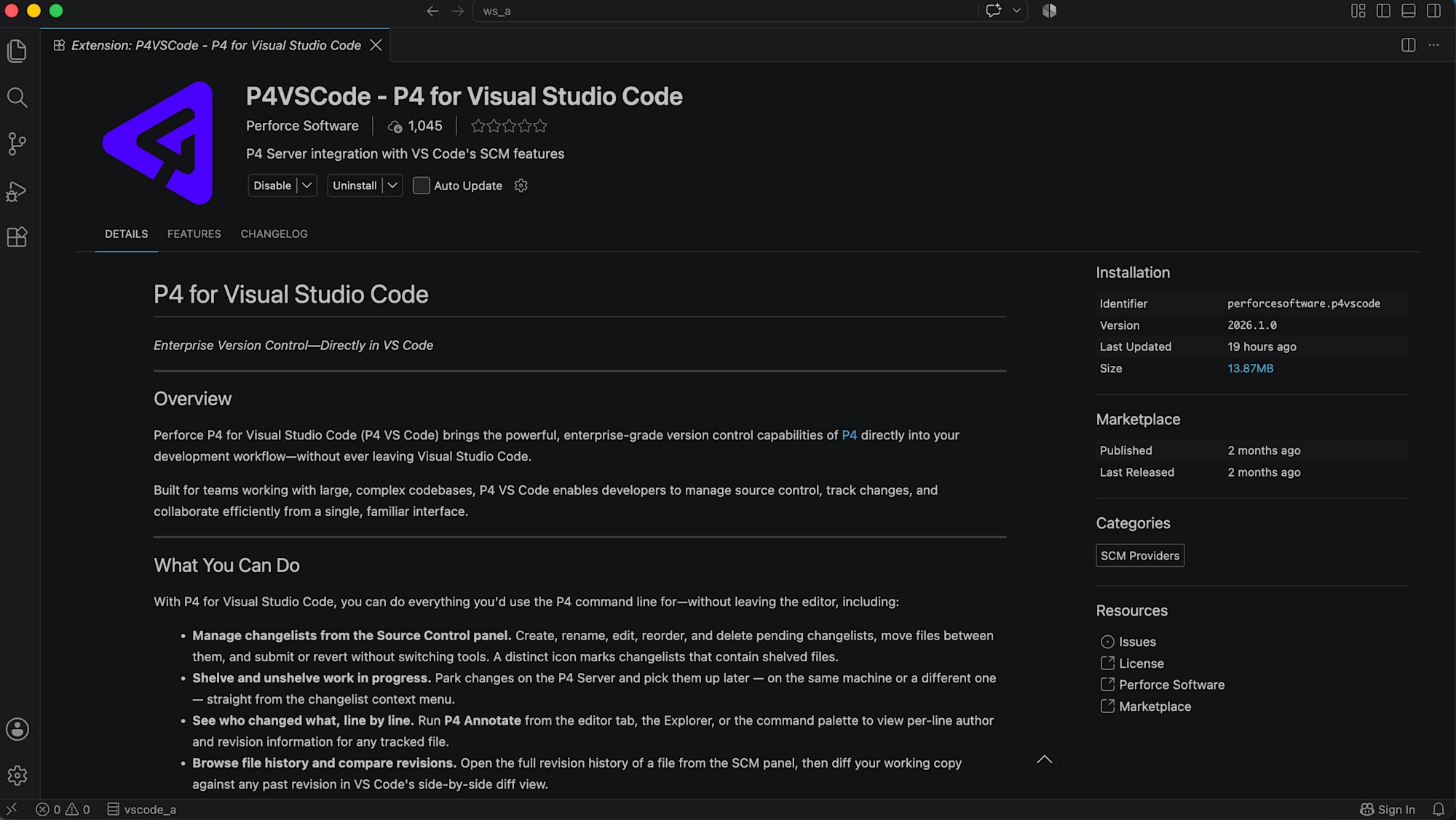
After installation, open the vscode_a workspace folder (ws_a) in VS Code and attempt to connect.
Verification Results
Connection Methods Must Be Chosen Exclusively
We opened the folder with the following .p4config file placed directly under ws_a.
P4PORT=localhost:1666
P4USER=vscode_a
P4CLIENT=vscode_a
The extension's output can be checked in the Output panel > P4 VS Code Log.
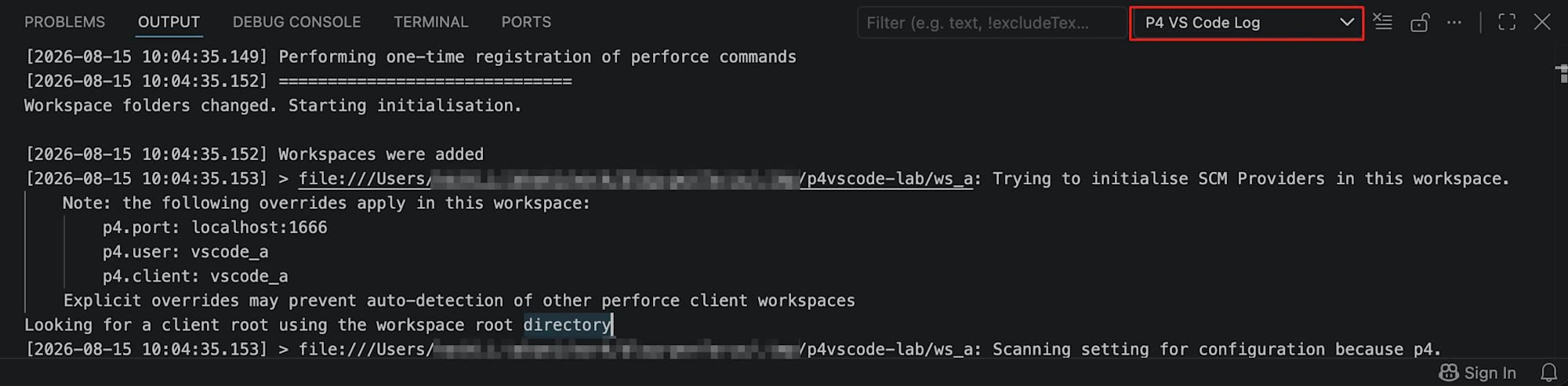
A log message appeared indicating that P4CONFIG files had been scanned, but the connection failed.
Scanning for P4CONFIG files because p4.enableP4ConfigScanOnStartup is set to true
p4 'info'
p4 info failed: Failed to Connect, aborting:
Connect to server failed; check $P4PORT.
TCP connect to perforce:1666 failed.
nodename nor servname provided, or not known
The connection was attempted at perforce:1666, not localhost:1666 as specified in .p4config. We checked shell environment variables, ~/.p4enviro, launchctl environment variables, VS Code user and workspace settings, .vscode/settings.json, and .p4config files in parent directories for the source of this value, but found it in none of them.
Next, we tried specifying p4.port, p4.user, and p4.client directly from the VS Code Settings UI.
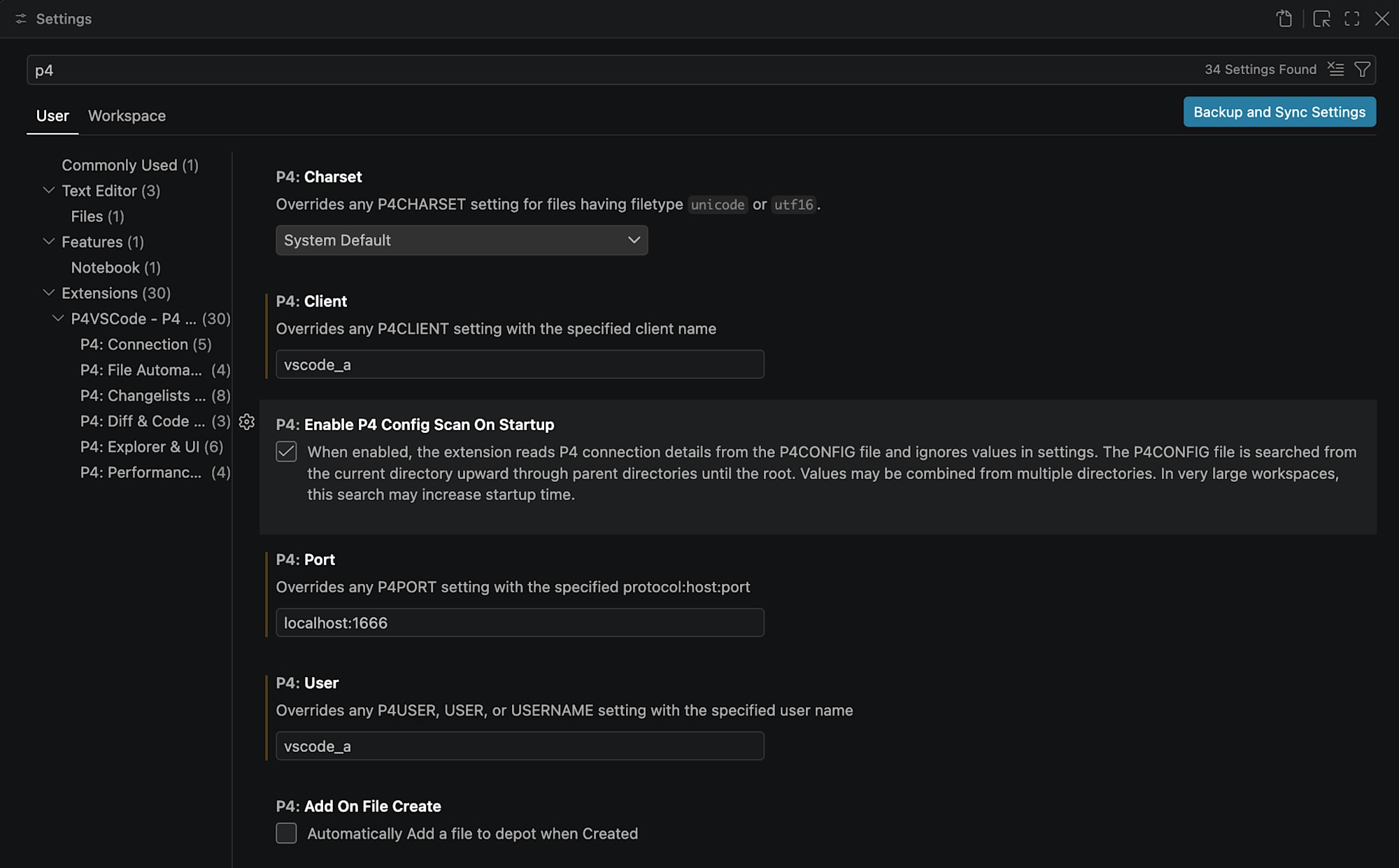
The output log showed that the configured values were being recognized.
Note: the following overrides apply in this workspace:
    p4.port: localhost:1666
    p4.user: vscode_a
    p4.client: vscode_a
...
Scanning for P4CONFIG files because p4.enableP4ConfigScanOnStartup is set to true
p4 'info'
p4 info failed: Failed to Connect, aborting: ... perforce:1666 failed.
However, the connection was still attempted at perforce:1666 and failed. After disabling P4: Enable P4 Config Scan On Startup, the connection succeeded as follows.
Scanning setting for configuration because p4.enableP4ConfigScanOnStartup is set to false
p4 '-p' 'localhost:1666' '-c' 'vscode_a' '-u' 'vscode_a' 'info'
p4 info completed successfully
Found workspace using root directory
Client Root: .../ws_a
Creating SCM provider for vscode_a @ ...
Initialisation done for this workspace. Created 1 provider(s), ignored 0 duplicate(s)
Edit Operation on a File with an Exclusive Lock
After connecting, we compared notes.txt (no lock) and character.uasset (vscode_b holds an exclusive lock) in the vscode_a Explorer, but no difference in icons or color was observed.
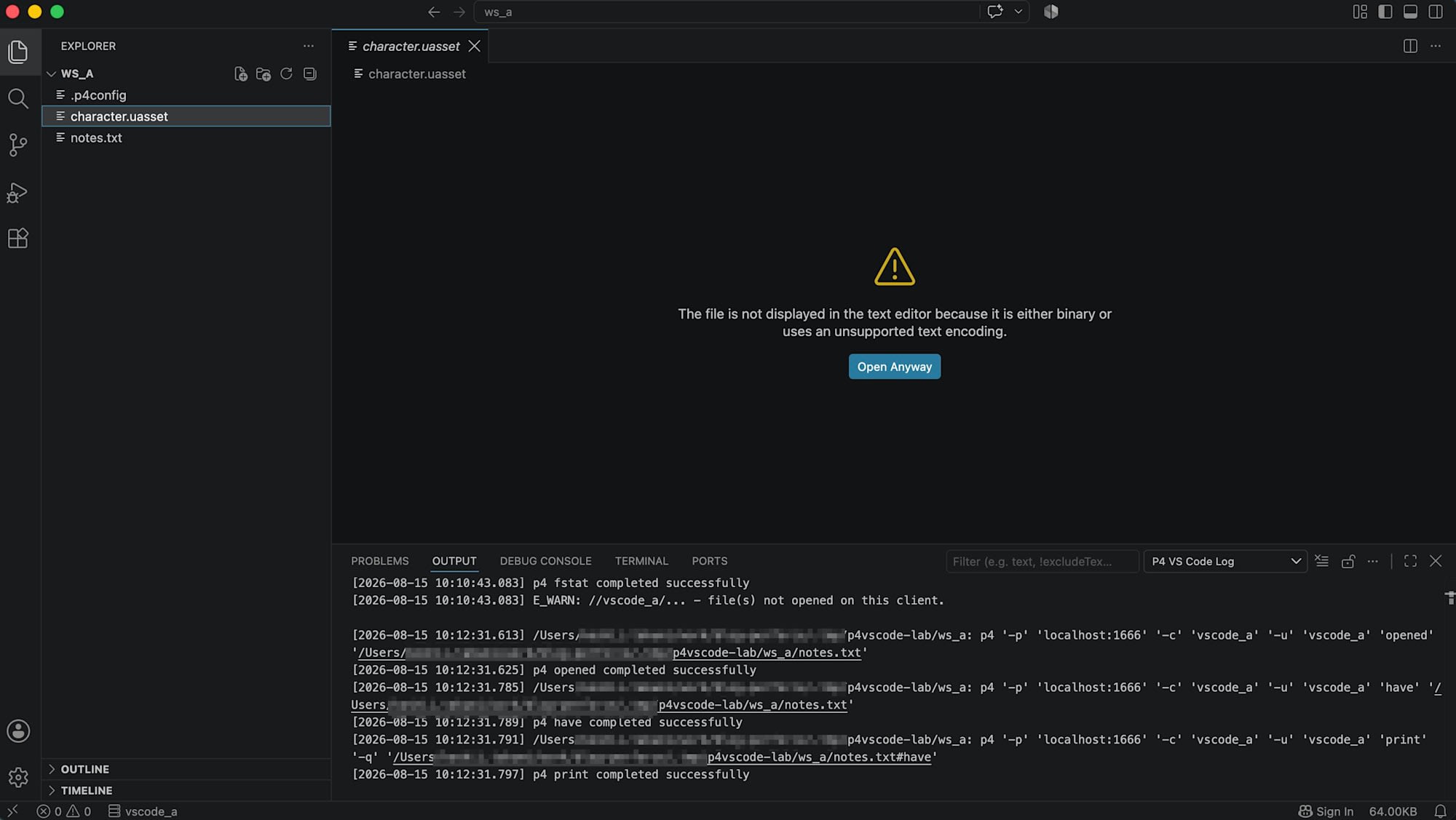
When attempting to open character.uasset, VS Code itself displayed the following message and refused to show it in the text editor.
The file is not displayed in the text editor because it is either binary or uses an unsupported text encoding.
At this point, no p4 command for character.uasset was recorded in the Output panel. This tells us that the operation of opening a binary file is blocked on the VS Code side, and never reaches the extension's processing.
Next, we right-clicked character.uasset and executed P4 > Edit file(s) from the context menu.
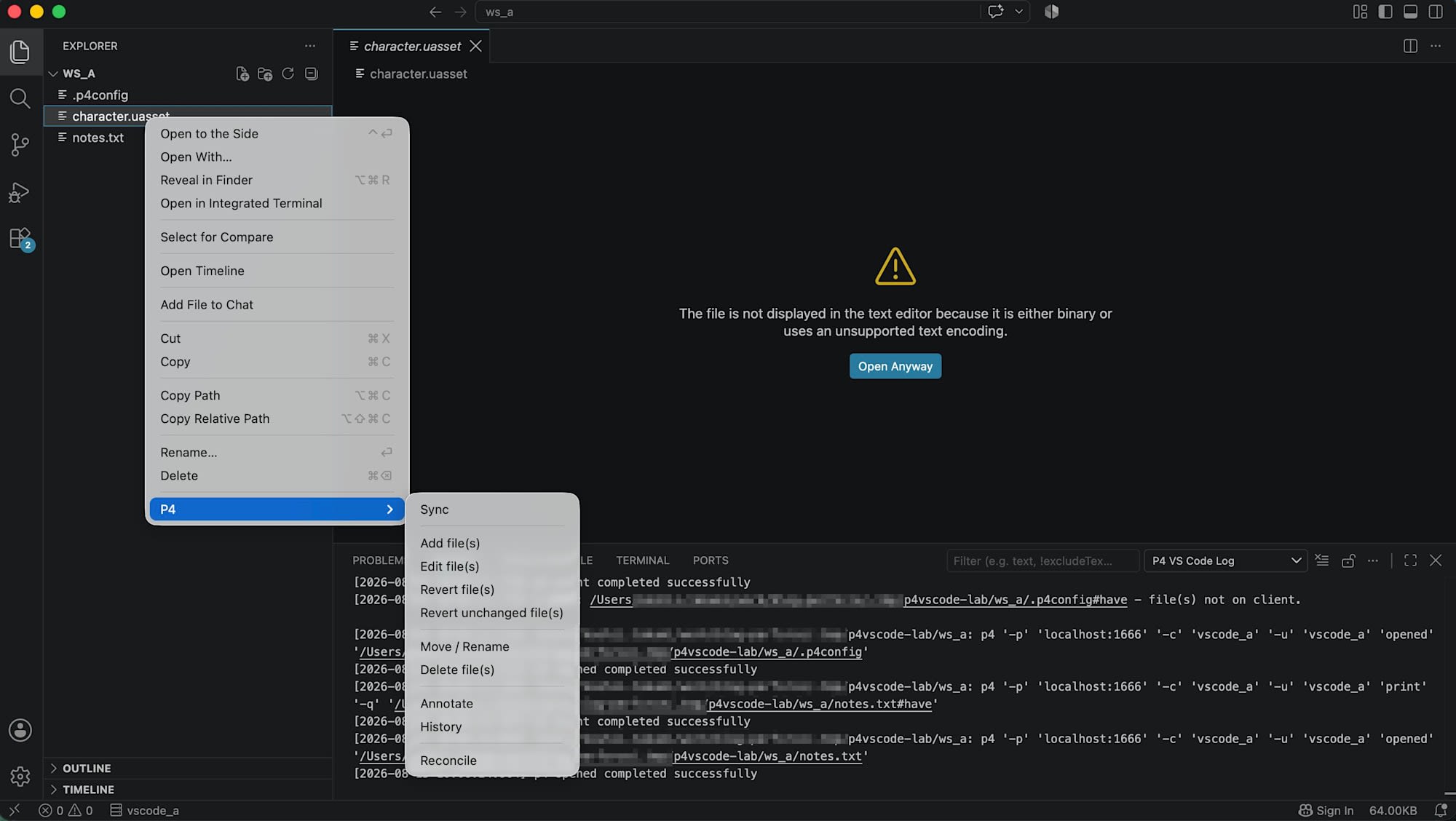
The Output panel recorded the following.
p4 '-p' 'localhost:1666' '-c' 'vscode_a' '-u' 'vscode_a' 'edit' '.../character.uasset'
p4 edit completed successfully
E_WARN: //depot/character.uasset - can't edit exclusive file already opened

< [
  {
    "raw": "//depot/character.uasset - also opened by vscode_b@vscode_b"
  }
]
Operation complete
The actual rejection is shown as E_WARN immediately after the p4 edit completed successfully message. Checking the actual server-side state confirmed that vscode_a had not actually been able to open the file.
$ p4 -u vscode_a -c vscode_a opened
File(s) not opened on this client.
The file permissions for character.uasset also remained read-only (-r--r--r--) before and after the edit operation, with no change. In other words, the rejection by the exclusive lock is itself working correctly.
Discussion
Regarding connection methods, when the P4CONFIG file approach does not work, the current workaround appears to be disabling P4 Config Scan and specifying p4.port and other settings directly from the VS Code Settings UI. These two connection methods are mutually exclusive — even if you enter values in the Settings UI while Config Scan is enabled, the values are recognized but not reflected in the actual connection. If you are unaware of this relationship and only configure the Settings UI, you will end up in a situation where things don't work despite having entered the values.
The fact that the rejection of an edit on an exclusively locked file is not displayed on screen can be seen as a continuation of the behavior observed on the command line: "p4 edit returns exit code 0 even when rejected by an exclusive lock." At the GUI layer as well, it appeared that processing concluded without a clear separation between success and failure. In practice, it will likely be necessary to compensate by, for example, keeping the Perforce Output panel (P4) open in VS Code when performing Perforce operations.
Summary
We actually connected using the official Perforce VS Code extension P4VSCode v2026.1.0 and verified the behavior of connection settings and exclusive lock scenarios. There are two connection methods — the P4CONFIG approach and the VS Code Settings UI approach — and they operate exclusively of each other. While edits to files with exclusive locks are correctly rejected, the result is not visible on screen unless you check the Output panel. We hope this article serves as a useful reference when operating the Perforce VS Code extension.