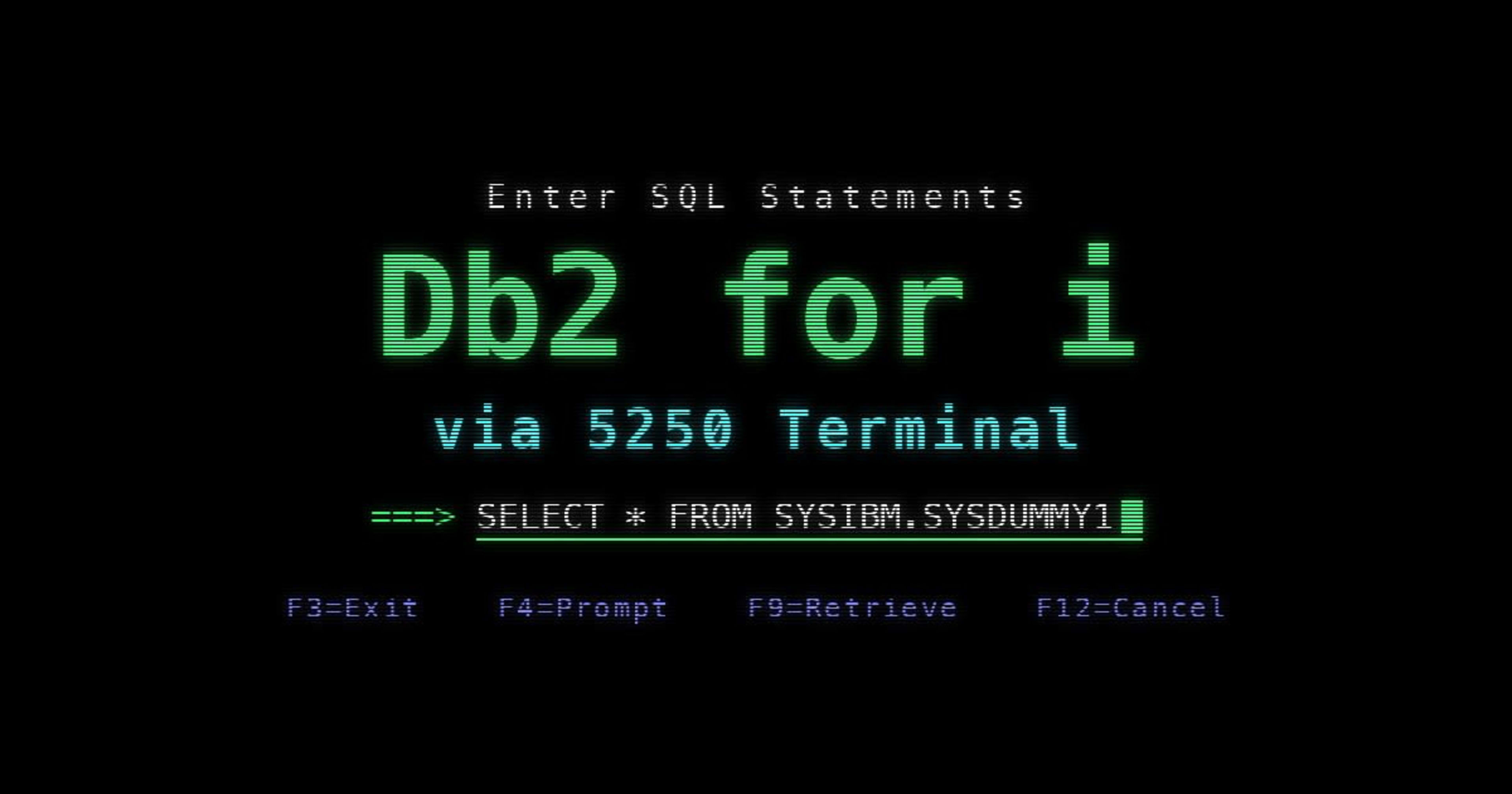
Trying Out Running SQL on Db2 for i from a 5250 Terminal on PUB400.COM, an AS/400 Environment

This page has been translated by machine translation. View original
Introduction
This is Fujikawa from the Data Business Division.
Generative AI continues to evolve at a remarkable pace. Along with topics like being able to modernize legacy systems and convert COBOL to Java to achieve open systems, we often see keywords such as IBM iSeries and its former name, AS/400.
These systems are still in active operation, but I think there are few opportunities to casually get hands-on with a real core-system host machine for testing purposes. You can see them in documents and screen captures, but taking your own screen captures and publishing them online is probably becoming a rare thing to do.
Then I found PUB400, a public environment that gives free access to Db2 for i on IBM i. Commercial use is not allowed and it is limited to personal learning and testing, but out of curiosity I registered and tried it, so I'd like to introduce it. It may be a rare topic even for DevelopersIO.
In this article, I will introduce the steps from registering an account on PUB400, to signing on with a 5250 terminal emulator, to running SQL statements.
Overview
IBM i and Db2 for i
IBM i is an OS that runs on IBM Power servers. It has continued since 1988 while changing its name from AS/400 to iSeries to System i. In Japan, it belongs to the lineage of systems called "offcon" (office computers). Strictly speaking, it is a separate product line from IBM Z (the so-called mainframe), but they have in common that both have supported the core business operations of enterprises for many years.
A feature of IBM i is that the relational database Db2 for i is integrated into the OS. There is no need to install a separate database product, and there is one database per system. The correspondence of terms is as follows.
| SQL term | IBM i term |
|---|---|
| Schema | Library |
| Table | Physical file |
| Row | Record |
PUB400
PUB400 is a public IBM i environment that can be used for free over the internet. As of November 2026, it runs IBM i 7.5, and the sign-on screen displayed "PUB400.COM is now 25 years old." It seems to be an environment that has been operated for a long time.
Because an unspecified number of users share the same system, usage rules are defined. The main rules are not to peek at other users' data and not to put confidential information there. It may also be stopped without notice.
5250 Terminal and tn5250j
The traditional operating screen of IBM i is the screen of a terminal called 5250. It is the so-called "green screen," with green characters on a black background. Today, instead of a physical terminal, a terminal emulator that connects using the TN5250 protocol is used.
There is also the official IBM IBM i Access Client Solutions (ACS), but downloading it requires an IBM ID. This time, I will use the open-source tn5250j. Since it runs on Java, it works as is on macOS too.
Preparation
The environment this time is as follows.
- macOS
Java(installed with mise)tn5250j0.8.0-beta2
tn5250j runs on Java 1.8 or later. Place the following mise.toml in a working directory and install Java.
[tools]
java = "latest"
mise install
java -version
If the version is displayed with java -version, there is no problem.
Next, download and extract tn5250j.
mkdir -p ~/tools
curl -fsSL -o ~/tools/tn5250j-0.8.0-beta2.zip https://github.com/tn5250j/tn5250j/releases/download/0.8.0-beta2/tn5250j-0.8.0-beta2.zip
unzip ~/tools/tn5250j-0.8.0-beta2.zip -d ~/tools
If ~/tools/tn5250j-0.8.0-beta2/tn5250j.jar exists, you are ready.
Trying It Out
Register an Account on PUB400
Open the PUB400 application page in a browser, read the usage rules (the link destination of these notes), and then fill in the form as follows.
IBM i user name is included in schema names and so on, and is visible to other users. Avoid names from which your real name or company name can be guessed.
| Input field | Sample value | Notes |
|---|---|---|
| Your first name | Taro |
Optional. If blank, anonymous |
| Your last name | Yamada |
Optional. If blank, anonymous |
| eMail-Address | taro.yamada@example.com |
Destination of the confirmation email |
| eMail-Address (repeat) | taro.yamada@example.com |
Same value |
| IBM i user name | HELLO0101 |
Up to 9 characters |
| Agreement to usage rules | Check the box |
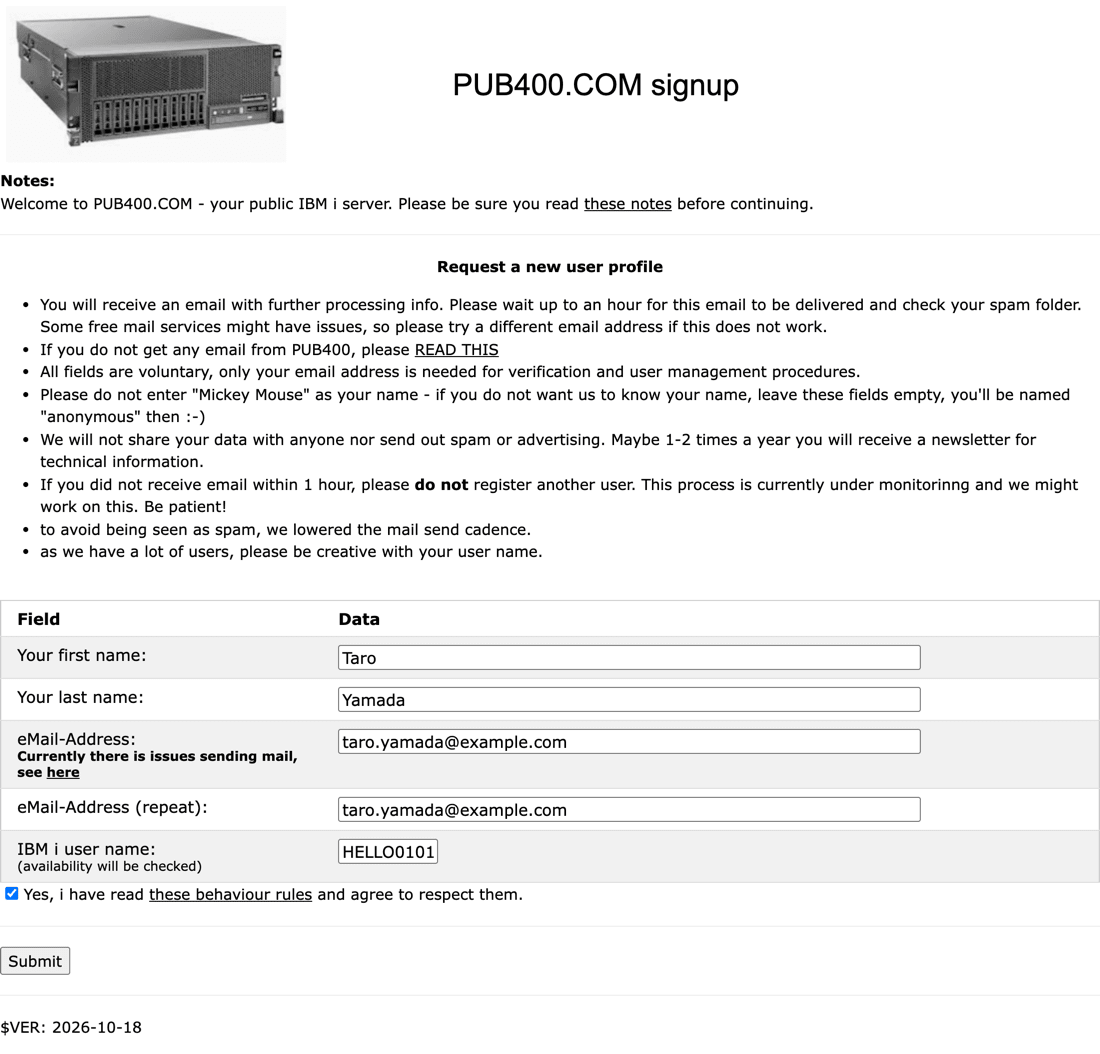
When you click Submit, a confirmation email with the subject PUB400 - your user profile request arrives. According to the site's guidance, it can take up to one hour to arrive.
Once the email arrives, click the confirmation link in the email and wait again.
About 15 minutes later, an email with the subject PUB400 - your user profile arrives, and the initial password is written in the body.
Your user profile <IBM i ユーザー名> has been created for you. Your
initial password for signon is: <初期パスワード>
Register the Connection Destination in tn5250j
Launch tn5250j. Run it in the directory where you placed mise.toml so that it uses the Java from mise.
java -jar ~/tools/tn5250j-0.8.0-beta2/tn5250j.jar
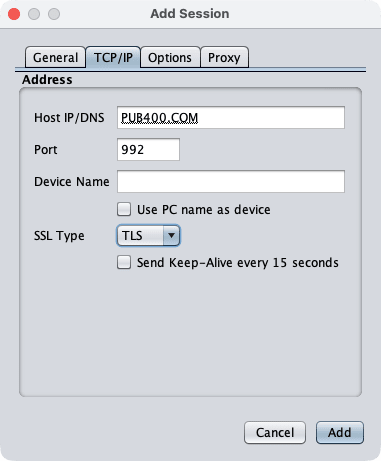
The Connect - Connections dialog opens, so click Add. Enter PUB400.COM in System Name on the General tab, and configure the TCP/IP tab as follows.
The default port 23 is unencrypted Telnet. Since the password would be sent in plain text, use port 992 and TLS.
| Item | Default value | Setting value |
|---|---|---|
Host IP/DNS |
Blank | PUB400.COM |
Port |
23 |
992 |
SSL Type |
NONE |
TLS |
Make the Cursor Easier to See
Select PUB400.COM from the list and click Connect to display the sign-on screen.
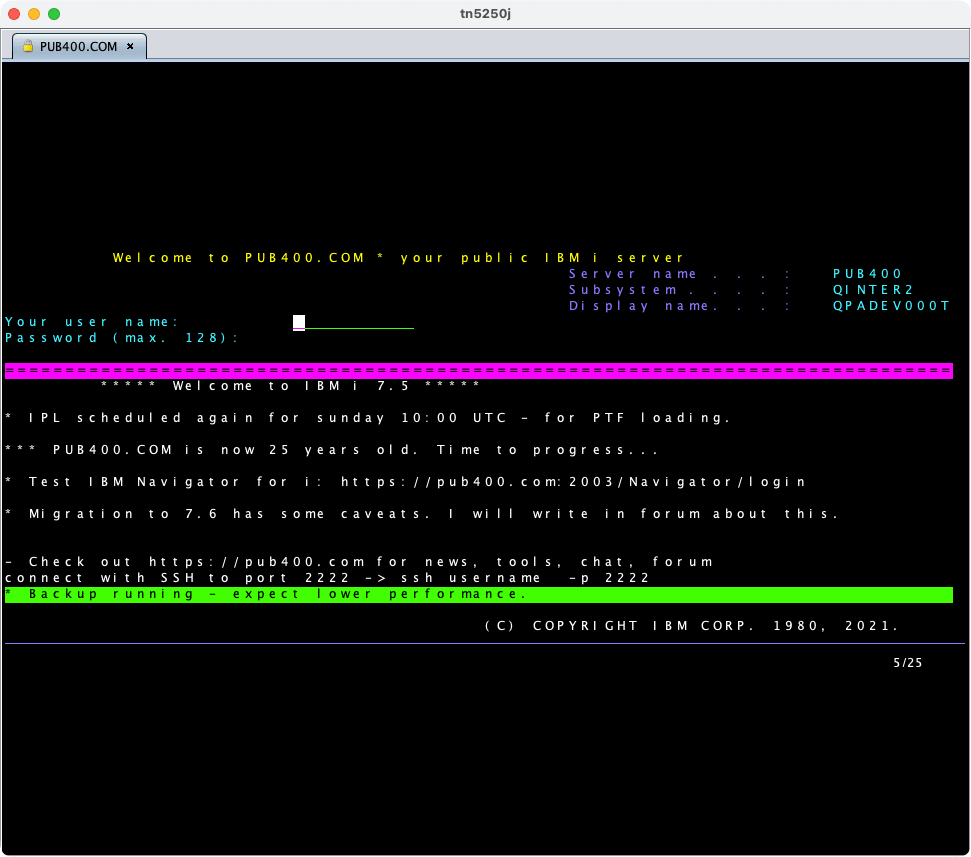
With the default settings of tn5250j, the cursor is hard to see and the input position is unclear, so I recommend changing the settings before signing on.
Right-click on the screen to open Settings..., and configure Cursor in the tree on the left as follows.
| Setting item | Setting value |
|---|---|
Cursor Size |
Full Height |
Ruler |
None |
Blink |
Yes |
Click Apply and then click Save. Save only saves the settings already applied by Apply, so if you reverse the order, the settings will not be saved.
Change the Password at First Sign-on
Enter your user name in Your user name:, move with the Tab key, enter the initial password in Password (max. 128):, and press Enter.
At the first sign-on, the password change screen is displayed. Enter the initial password in Current password and the new password in New password and New password (to verify), then press Enter, and the IBM i Main Menu is displayed.
Save the new password in a password manager or similar.
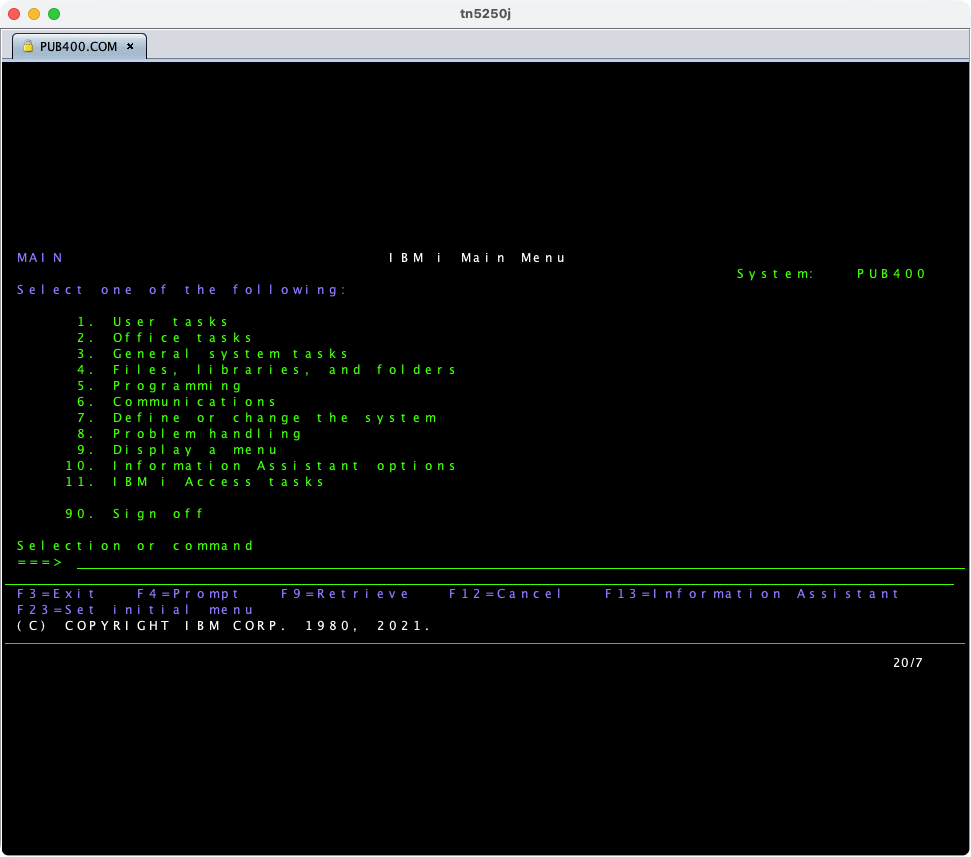
Run SQL with Interactive SQL
Let's run SQL. Enter the following command on the command line (===>) at the bottom of the screen and press Enter.
STRSQL NAMING(*SQL)
STRSQL is the command that starts interactive SQL. If you specify NAMING(*SQL), you can write names in the schema.table format. If omitted, it uses the IBM i-specific format schema/table.
If the Enter SQL Statements screen is displayed and Current connection is to relational database PUB400. is shown, there is no problem.
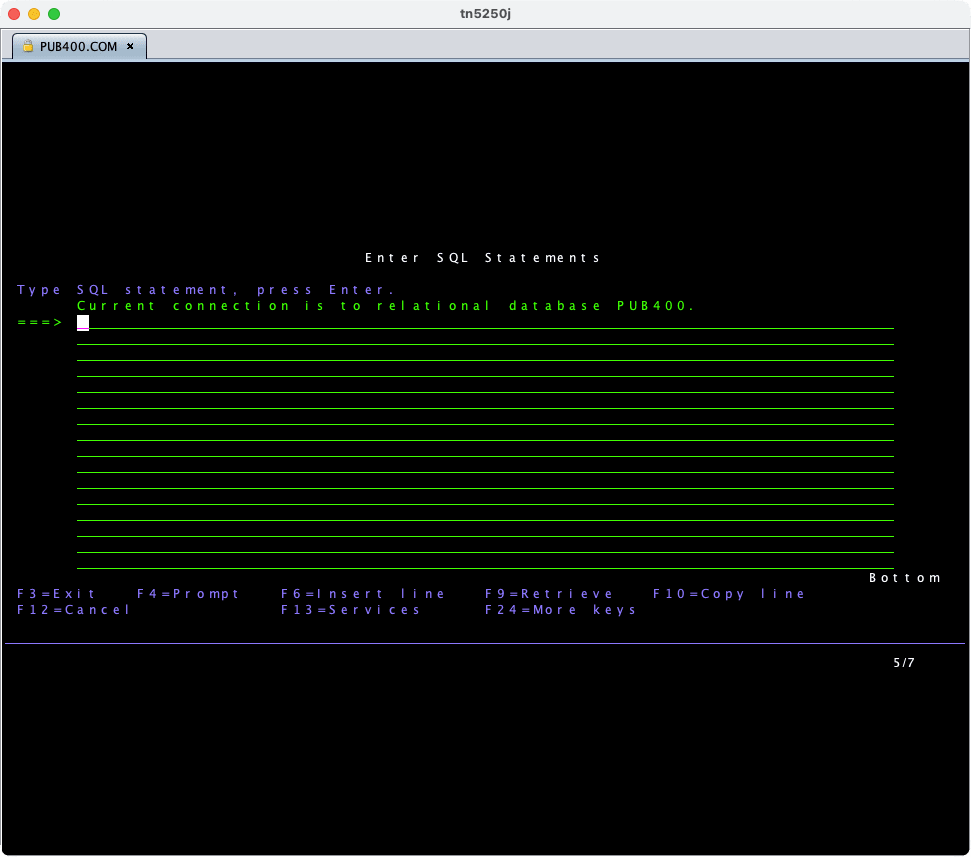
Enter the following SQL on the ===> line and press Enter. SYSIBM.SYSDUMMY1 is a dummy table with just one row, equivalent to the DUAL table of Oracle (brings back memories...).
SELECT * FROM SYSIBM.SYSDUMMY1
The Display Data screen showed one row with the column IBMREQD and the value Y.
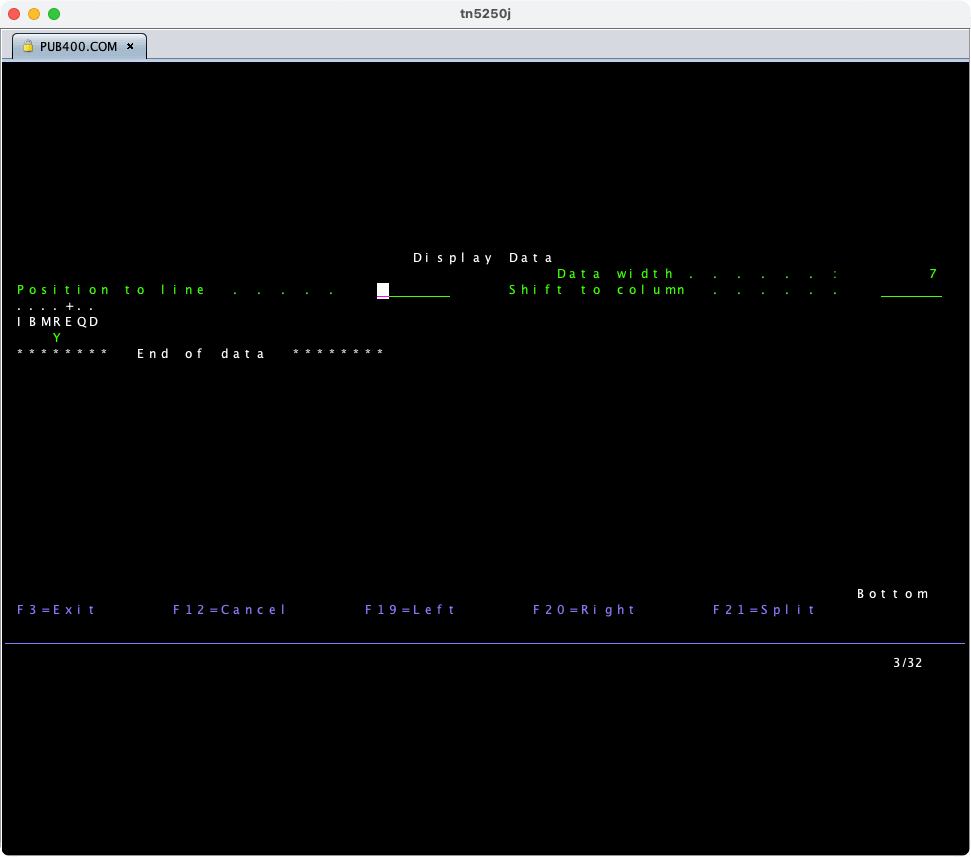
Press F3 to return to the Enter SQL Statements screen. On macOS, function keys such as F3 are assigned to OS features, so press fn + F3. Function keys are used heavily in 5250 screen operations.
You can also run the following SQL in the same way. These check the name of the connected database and the list of tables in your own schema. For <current library>, specify your own library name in uppercase letters.
VALUES CURRENT SERVER
SELECT TABLE_NAME, TABLE_TYPE, TABLE_TEXT
  FROM QSYS2.SYSTABLES
 WHERE TABLE_SCHEMA = '<カレントライブラリー>'
Exit Interactive SQL and Sign Off
When you press F3 on the Enter SQL Statements screen, the Exit Interactive SQL screen is displayed. Confirm that Option is 1 (Save and exit session) and press Enter to return to the IBM i Main Menu.
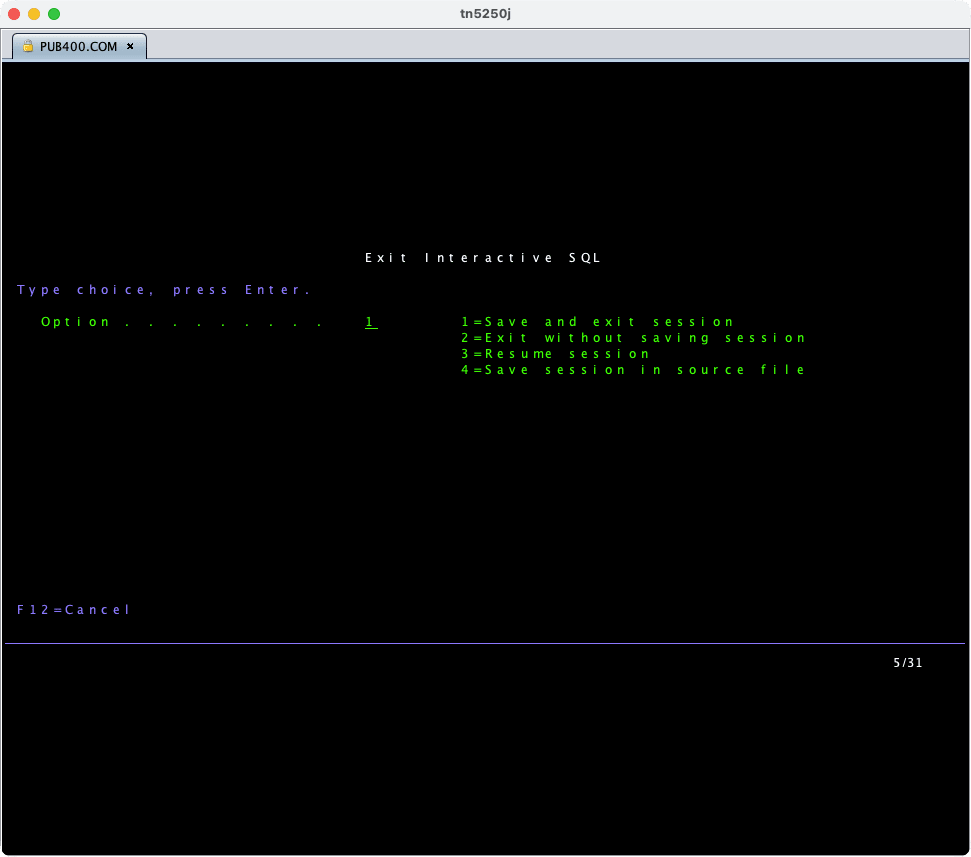
Finally, enter SIGNOFF on the command line and press Enter to sign off.
Conclusion
As you can see, I found that you can try everything from account registration to running SQL on a 5250 terminal in a free environment. There is time spent waiting for emails to arrive, but there is not much hands-on work.
I made a few discoveries from actually using it.
-
You can write SQL normally
InSTRSQL, standard SQL can be run as is.Db2 for ialso has rich catalog views (such asQSYS2.SYSTABLES), so with SQL knowledge you can investigate the structure of the data. -
Don't forget it's a public environment
PUB400is an environment shared by an unspecified number of people. Never put customer data or confidential information there, and do not peek at other users' data. It is strictly for personal learning and testing.
I hope this helps someone.
Introducing tensei
tensei is a support service that uses AI to analyze and convert the source code of legacy systems and migrate them to systems with a modern architecture.
Continuing to operate a legacy system with piled-up issues—such as on-premises hardware operation and maintenance, soaring license costs, vulnerability and EOL countermeasures, and securing engineers familiar with legacy systems—becomes a negative asset.
Please feel free to contact us.