
Let me try the browser feature of Claude Desktop

This page has been translated by machine translation. View original
Introduction
Hello, I'm Shimada from Classmethod's Manufacturing Business Technology Department.
Claude Code recently gained browser functionality, so I set it up for use in frontend development and tried running it in practice.
Since I work with frontend in my daily work, my motivation was to find out whether I could delegate the back-and-forth of fixing code and then checking it in a browser to an agent.
In this article, I walk through everything in tutorial form — from installing the Claude Desktop app (including registering it with the environment setup tool mise) to the full cycle of making fixes and verifying them using the built-in browser. At the end, I also compare it with similar features in Cursor and the ChatGPT app.
Note that this feature has just appeared. This article was verified with the Claude Desktop app and Claude Code around v2.1.206, but behavior and shortcuts may change with future updates.
There Are 2 Types of "Browser Features" in Claude Code
Let me clarify this upfront. The names are similar and easy to confuse, but Claude Code's browser features refer to two separate things.
The first is the Desktop app's built-in browser. A sandboxed browser pane opens inside the Code tab of the Claude Desktop app. It was added during the week of July 6–10, 2026 (v2.1.202 through v2.1.206, Week 28 release notes). Claude opens documents, designs, and arbitrary sites in it, reads the content, and operates it through clicks and input. You can choose whether to persist the session, and a safety classifier reviews operations on external sites. This built-in browser is exclusive to the Desktop app.
The second is Claude in Chrome. It operates your actual local Chrome via a Chrome extension (v1.0.36 or later) (official documentation). It works with both the CLI and the VS Code extension, and shares the browser's logged-in state. You enable it by adding --chrome at launch or with /chrome. Its distinguishing feature is that it can directly operate logged-in web apps and localhost development servers.
It's easier to distinguish them by thinking of the former as a safe browser confined within the app, and the latter as a mechanism that drives your local Chrome directly. This article covers the former.
Setup
Adding the Desktop App to mise
Since I centralize my environment setup in mise's bootstrap, I register the Claude Desktop app there as well.
My mise.toml already had brew-cask:claude-code, but that is the CLI for the terminal. The Desktop app with the built-in browser is a separate thing, and the cask token for it is claude.
I add one line to the cask block under [bootstrap.packages].
"brew-cask:claude" = "latest"       # Claude Desktop app (has built-in browser)
"brew-cask:claude-code" = "latest"  # Existing. CLI for the terminal
Running mise bootstrap -n for a dry run showed that they resolved to separate packages as expected.
$ mise bootstrap -n
install cask claude/1.24012.1,0adcaed55041a881be363f2c4a4729f67a8b27d7
link app /Applications/Claude.app
install cask claude-code/2.1.206
link binary $HOMEBREW_PREFIX/bin/claude
claude is linked as /Applications/Claude.app, and claude-code is linked as the claude binary. Installing individually with brew install --cask claude gives the same result.
Launch the app, sign in, and open the Code tab. The Claude Desktop app has three tabs — Chat, Cowork, and Code — and the Code tab handles software development.
Claude in Chrome, which uses the Chrome extension, can also operate a browser, but it requires a paid plan and the extension installed, and its target is your actual local Chrome. Since this article focuses on the built-in browser, I won't go into that setup here.
Hands-On: The Closed Loop of Frontend Development
I'll try the cycle of "fix the code, check it in the browser, confirm the fix is correct" with a small actual app.
Preparing a Demo App
I'll create a single throwaway Vite + React + TypeScript app for testing.
$ bun create vite browser-demo --template react-ts
$ cd browser-demo && bun install
$ bun run dev
As a subject, I placed a login form with one intentional bug in the validation. The condition for checking the email address format is inverted, causing an error to appear when the email address is correct.
// Intentional bug. The condition is inverted.
if (isValidEmail(email)) {
  setError('The email address format is incorrect')
  return
}
This is the kind of bug that's hard to notice visually and only becomes apparent when you submit the form. It's a suitable subject for having the browser operated to verify.
Verifying with the Built-In Browser
Display the development server preview in the built-in browser pane in the Code tab, and ask Claude the following.
Open this preview, submit the login form with a valid email address
and a password of 8 or more characters, and check if a success message appears
Claude enters the form in the built-in browser, submits it, and reports the result. In this app, despite the correct input, "The email address format is incorrect" appeared, surfacing the bug with the inverted condition.
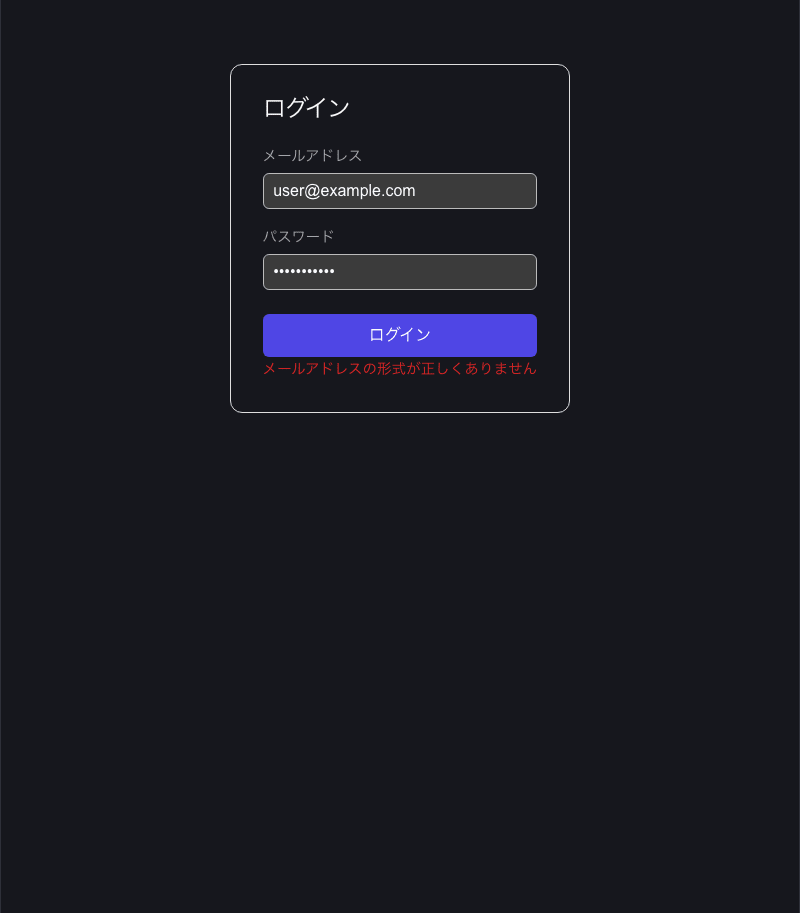
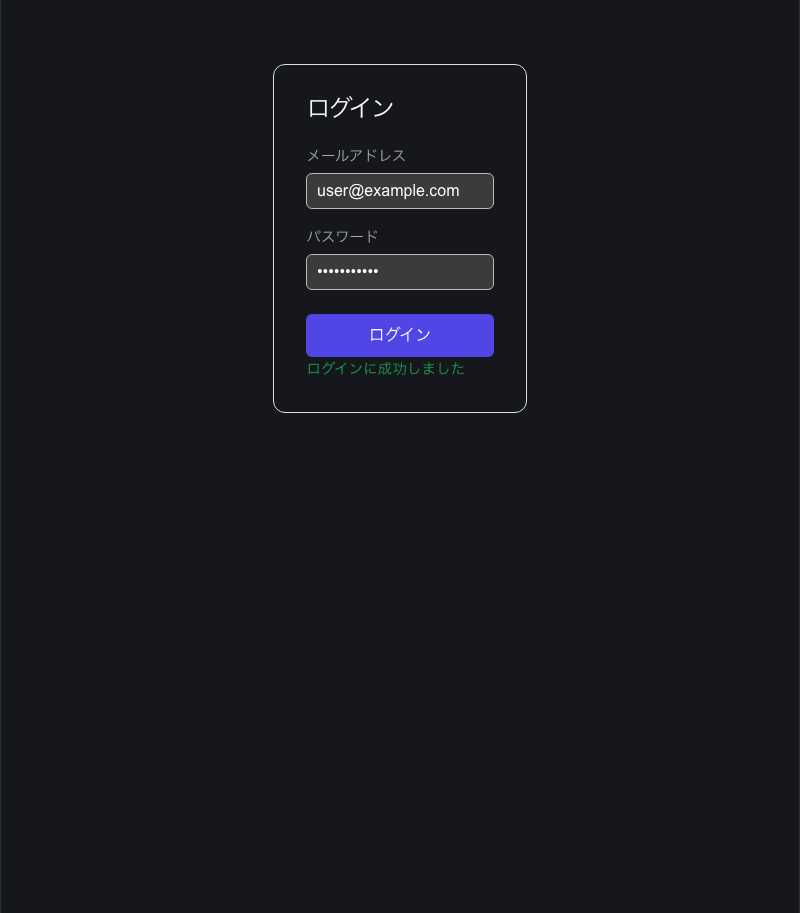
I then asked it to fix the relevant part (changing isValidEmail(email) to !isValidEmail(email)), and after reloading and running the verification again, "Login successful" appeared with the same input. I was also able to confirm that the format error only appears for invalid email addresses. Editing the code and verifying it on screen proceeded continuously within the same Claude session.
The built-in browser runs in a sandbox within the app. When it tries to operate an external site, a safety review kicks in. The first time it operates a site, it asks whether to allow it once, always allow it, or deny it. Permissions are saved per site and can be revoked from settings. You can also choose whether to persist the session.
The Browser pane can be opened with Cmd+Shift+B (or Ctrl+Shift+B on Windows). Elements on the currently displayed page can be selected with Cmd+Shift+S. Shortcuts and UI details may change between versions, so please verify in the app you are using.
Differences from Cursor / the ChatGPT App
Similar "operate a browser from an editor" functionality also exists in Cursor and OpenAI's products. Since their positioning differs, I'll organize the comparison.
Cursor has Cursor Browser. It operates a browser via the Chrome DevTools Protocol and embeds it in a Cursor tab or opens it in a separate window. Agent Mode uses this browser to navigate screens, click, and fill out forms, allowing you to go from implementation to UI verification all within the editor. Furthermore, with Visual Editor, you can click an element and instruct changes in words, and the agent reflects them in the code. Cursor is a VS Code-based IDE, and these browser operations are integrated into the development environment, including the editor and extensions.
On the OpenAI side, browser operation has been offered as one feature of an agent. ChatGPT Atlas is an AI browser for macOS that appeared in October 2025, with an Agent Mode for paid users that handles tasks on the web. However, its direction is more consumer-task oriented and is not primarily aimed at the closed loop of frontend development. Furthermore, Atlas is scheduled to end its standalone availability on August 9, 2026, with its features being consolidated into an integrated ChatGPT desktop app that bundles Chat, Work, and Codex. Codex handles the development agent.
Laid out by dimension, it looks like this:
| Aspect | Claude Built-in Browser | Claude in Chrome | Cursor Browser | ChatGPT / Atlas |
|---|---|---|---|---|
| Execution location | Desktop app (Code tab) | CLI / VS Code extension | Cursor (IDE) | Browser / desktop app |
| Operation target | In-app sandbox | Your actual Chrome | Chromium (CDP) | Actual browser |
| Shared login state | No | Yes | Yes | Yes |
| localhost closed loop | Possible | Possible | Possible | Not primary focus |
| Permission model | Per-site approval + safety review | Per-site (extension side) + approval by operation type | Agent approval | Agent Mode approval |
| Primary use emphasis | Verification and fix iteration in preview, safely operating external sites | Operating authenticated web apps and localhost | Implementation to E2E and visual editing | Consumer-oriented task automation |
Feature Overlap and How to Choose
Checking the official documentation, many of the points often cited as advantages of Cursor are also present in the Code tab of the Claude Desktop app.
The Code tab can arrange panes such as chat, diff, Browser, terminal, and file editor in one window, allowing you to place code, preview, and agent on the same screen. The Browser pane opens with Cmd+Shift+B, and elements on the current page can be selected with Cmd+Shift+S. With each edit, it can run screenshots, DOM checks, and automated verification through clicks and form input. The cycle of pointing to an element, making a fix, and verifying it on the spot can be set up in either tool[1].
The difference lies in which environment you align with. Cursor is a VS Code-based IDE, so you can use your familiar editor and extensions as-is. The built-in browser fits right into development centered on Claude Code. Browser operations are added on top of existing settings like subscriptions, CLAUDE.md, skills, and MCP, and code editing and on-screen verification proceed seamlessly within the same session. There is no need to introduce a separate editor and rebuild your environment.
The approach to safety also differs. The built-in browser runs on a clean profile without login credentials, and every operation on external sites is reviewed. If you want it to run using your existing logged-in state, the separation is to use Claude in Chrome, which uses your local Chrome.
It's less a matter of which is better, and more a matter of choosing based on whether you align with your usual editor or align with a Claude-centered environment.
Conclusion
I went through the full cycle with Claude Code's built-in browser, from installing the Desktop app to the back-and-forth of fixes and verification. In terms of features, there is significant overlap with Cursor, and I concluded that the choice comes down to whether you align with your usual editor or a Claude-centered environment. It seems worthwhile to first understand the differences between the browser features of each tool and their respective positioning.
References
- Claude Code
- Week 28 · July 6–10, 2026 release notes (built-in browser)
- Use Claude Code with Chrome (official documentation)
- Claude Desktop app (official documentation)
- A visual editor for the Cursor Browser
- Introducing ChatGPT Atlas
In both cases, the agent operates and verifies on the spot. If you want to leave tests that can be run repeatedly, in either case you would have the agent write test code using Playwright or similar. ↩︎