Make Mac mini a headless server and operate Claude Code from outside

This page has been translated by machine translation. View original
Introduction
Hello, I'm Shimada from Classmethod's Manufacturing Business Technology Department.
I set up my home Mac mini as a herdr server and created an environment to connect to Claude Code running on it from both my iPhone and MacBook.
herdr is a terminal multiplexer specialized for running agents.
Since the server persists and maintains panes, agents keep running even after you detach the client.
Using this property, you can have work progress even when your local machine is closed.
This article walks through the steps from connecting three devices with Tailscale to being able to give instructions from a MacBook and approve from an iPhone.
I've also left the pitfalls I hit along the way, along with the troubleshooting process.
The versions at the time of testing were macOS 26.5.1 on the Mac mini, herdr 0.7.3, mosh 1.4.0, moshi-hook 0.2.70, and Claude Code 2.1.220.
Configuration
There are three machines involved.
The Mac mini acts as the host, with the MacBook and iPhone joining the same session as clients.
The reason I put the host on the Mac mini is that it's always powered on and doesn't move.
The MacBook I carry around sleeps when I close the lid, and the route to it changes with every move.
It makes more sense to let a stationary machine handle the role of waiting for connections.
I use Tailscale for networking.
The home Mac mini is behind NAT, so normally you'd need to open ports to reach it from outside.
Tailscale builds a WireGuard mesh that traverses NAT, so you don't need to touch the router settings.
It's also safer in that it doesn't expose SSH ports to the internet.
Moshi uses the mosh protocol, which requires UDP.
Tailscale lets UDP flow within the tailnet as-is, which is convenient for this purpose too.
Connecting Three Devices with Tailscale
Install Tailscale on all three devices and log in with the same account.
On the Mac mini, also enable Remote Login in System Settings > Sharing, and disable sleep on display off in Energy settings.
$ brew install mosh tailscale herdr moshi-hook
$ sudo tailscale up
$ tailscale ip -4
Check connectivity by running tailscale ping from the client side.
$ tailscale ping -c 3 mac-mini
pong from mac-mini (100.x.y.z) via 192.168.x.y:41641 in 12ms
The address following via is the route the packet actually took.
If it shows the other machine's LAN-side address, UDP is flowing directly without going through Tailscale's relay server (DERP).
If this shows via DERP, it's going through a relay, which adds latency.
SSH Configuration
With Tailscale working, the next step is placing a public key from the MacBook to the Mac mini.
In the steps below, I refer to the host by the alias mac-mini.
Keep connection information in ~/.ssh/config.
Since ssh uses the local username when none is specified, explicitly set the remote username here.
Host mac-mini
	HostName 100.x.y.z
	User <remote-user>
Place the public key with ssh-copy-id.
$ ssh-copy-id -f -i ~/.ssh/id_ed25519.pub mac-mini
The reason for explicitly specifying the public key with -f -i is that I manage SSH keys through 1Password's agent.
Since the actual private key file ~/.ssh/id_ed25519 doesn't exist, omitting the option causes ssh-copy-id to fail when it can't open the ID file.
Once the key is in place, you can log in without a password.
$ ssh mac-mini 'sw_vers -productVersion'
26.5.1
Setting Up herdr on the Mac mini
The Mac mini had dotfiles deployed, so the herdr config file and plugin files were already in place.
However, the plugins weren't running.
$ ssh mac-mini 'herdr plugin list'
No plugins installed.
Simply placing herdr plugins doesn't activate them.
The information registered with herdr plugin link is held as state on the herdr server side, so it's not included in dotfiles.
It needs to be run on each machine.
$ ssh mac-mini 'herdr plugin link ~/.config/herdr/plugins/claude-on-worktree'
$ ssh mac-mini 'herdr plugin list'
1 plugin installed:
- <user>.claude-on-worktree (Claude on worktree) enabled [local:...]
This plugin launches Claude Code in the initial pane when a worktree is created.
The agent state hook via herdr integration install claude was already installed.
Creating a Worktree from MacBook and Giving Instructions to Claude Code
With everything prepared, I operate the Mac mini's herdr from the MacBook.
The herdr CLI sends instructions to the server over a Unix socket.
This means it doesn't require an interactive terminal and can be used directly by passing commands to ssh.
$ ssh mac-mini 'herdr worktree create --cwd ~/src/github.com/<user>/workspace --branch remote-demo --no-focus'
The worktree was created as a new workspace, and the plugin fired.
$ ssh mac-mini 'herdr plugin log list --limit 5'
... "event":"worktree.created","exit_code":0,"status":"succeeded" ...
The workspace list shows agent status attached.
$ ssh mac-mini 'herdr workspace list'
w1 dotfiles    agent: unknown  panes: 2
w2 workspace   agent: unknown  panes: 1
w3 remote-demo agent: idle     panes: 1
idle is the result of Claude Code starting up and notifying herdr of its state via the hook.
The same information shown by the colored indicator in herdr's sidebar can also be read from the CLI.
Send instructions with herdr pane send-text and newlines with send-keys.
$ ssh mac-mini 'herdr pane send-text w3:p1 "Please create remote-demo-proof.md with just one line."'
$ ssh mac-mini 'herdr pane send-keys w3:p1 enter'
You can read the pane's appearance with herdr pane read.
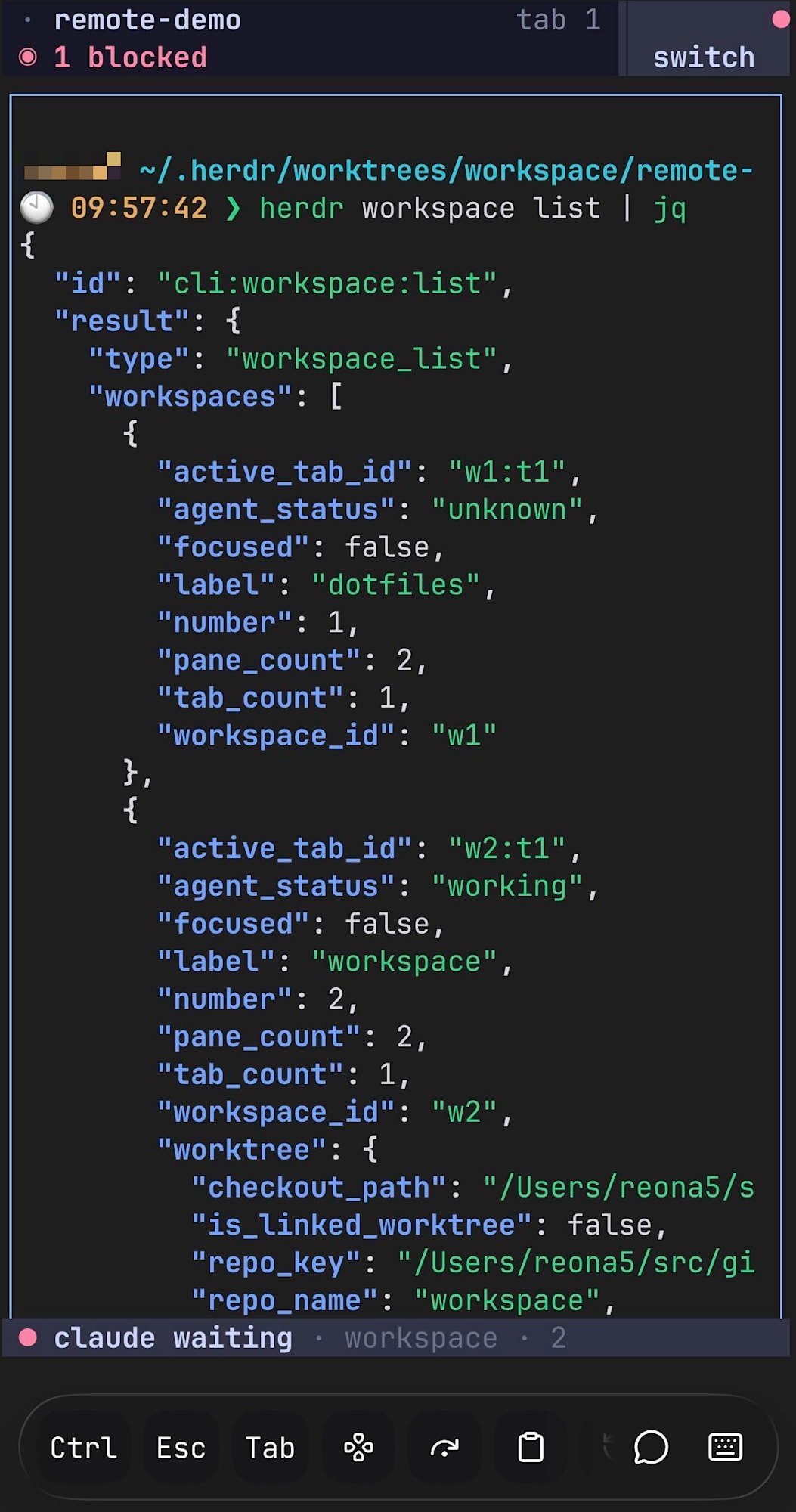
After waiting about 20 seconds, the state became blocked, and reading it showed an approval dialog.
Sending Enter with send-keys to approve it changed the state to done, and the file was actually created.
$ ssh mac-mini 'cat ~/.herdr/worktrees/workspace/remote-demo/remote-demo-proof.md'
Sent instructions to the herdr pane via Tailscale from MacBook
Instructions traveled from the MacBook through Tailscale and SSH, via herdr's socket, to Claude Code on the Mac mini.
Here, the handling of approvals becomes an issue.
When you're at your machine, approvals take only seconds, but while you're away, the agent stays paused for however long you're not looking at the screen.
Where you receive approvals determines whether this setup is practical for daily use.
This is addressed in the moshi-hook section later.
Attaching with herdr --remote
Having confirmed CLI operation works, I'll now attach with the TUI.
$ herdr --remote mac-mini
error: nested herdr is disabled by default.
see configuration if you want to enable it.
My terminal is configured to attach herdr on launch.
So herdr --remote runs from inside a herdr pane, and it was rejected as nested.
The setting to allow this is in the default config file.
[experimental]
# Allow launching herdr from inside a herdr-managed pane.
allow_nested = true
Adding this and running herdr server reload-config lets you attach to the Mac mini's session.
However, in this form, the prefix key is captured by the local herdr.
When using the same config file locally and remotely, both prefixes are ctrl+q, so the outer client receives it first, making it impossible to operate remote panes or tabs.
There's also --remote-keybindings, but this only chooses which config's keybindings the attaching side uses.
It doesn't change the order in which the outer client receives keys, so this collision wasn't resolved.
So instead, I open a new window without herdr running and attach directly from there.
Alacritty can override the terminal's shell settings with -e, allowing me to bypass herdr's auto-start.
#!/bin/sh
exec open -na Alacritty --args -e /bin/zsh -lc "herdr --remote '$HERDR_REMOTE_HOST'"
With no herdr in front, all prefix keys reach the remote.
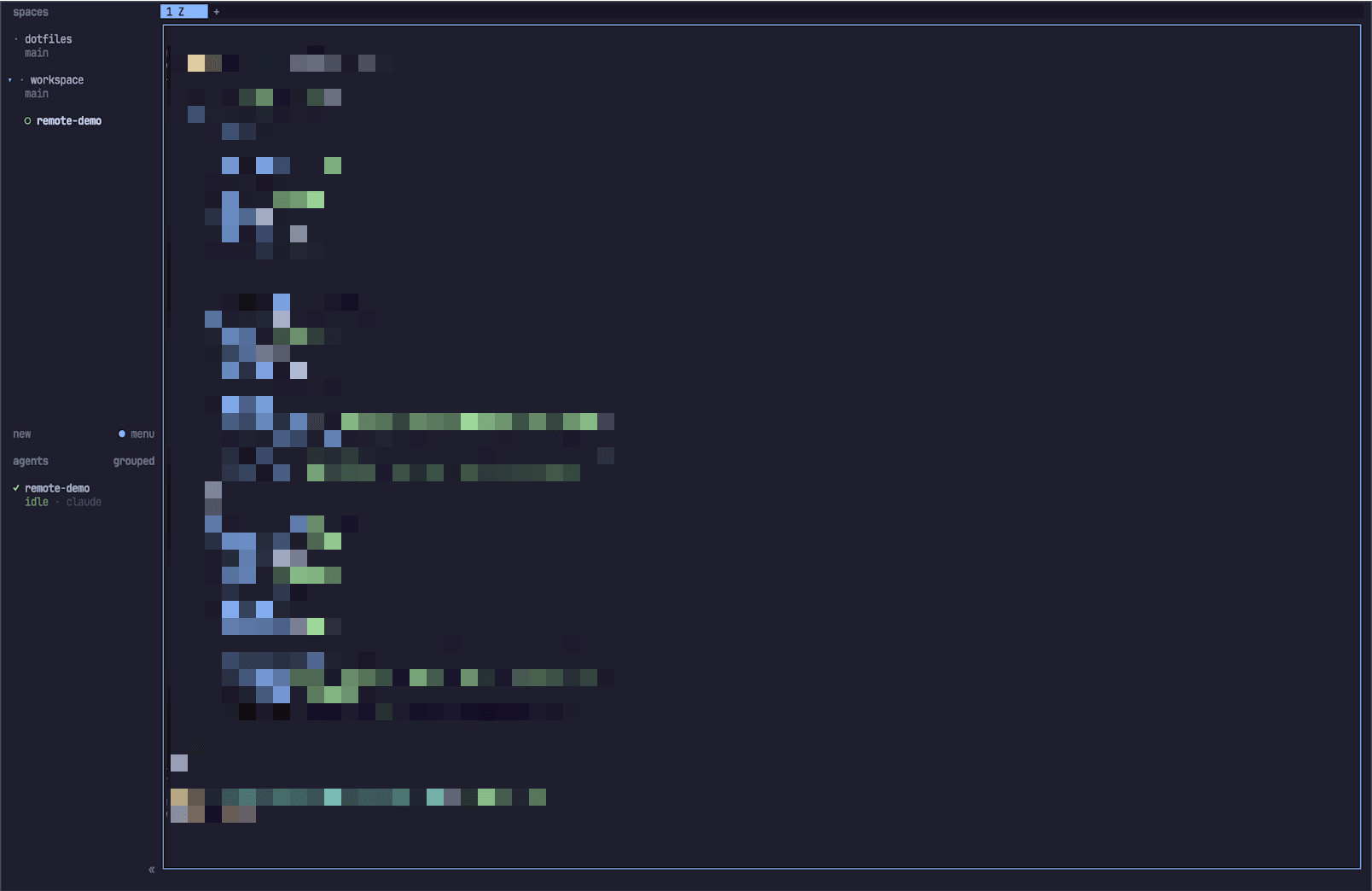
This creates one dedicated remote window, keeping it separate from the local session.
The sidebar shows Mac mini's workspaces, and the workspace created with worktree has Claude Code running in it.
Connecting from iPhone's Moshi
On the iPhone side, I use Moshi.
Moshi is a terminal app that connects via the mosh protocol, keeping sessions alive across network switches and sleep.
You can check Moshi's host registration from the moshi-hook side.
$ ssh mac-mini 'moshi-hook host list'
host_9d7e9285...:FXOxOBTZ  <remote-user>@mac-mini.local:22  SHA256:FXOxOBTZ...  active
host_9d7e9285...:HLQWkiro  <remote-user>@mac-mini.local:22  SHA256:HLQWkiro...  active
Note that the registered destination here is mac-mini.local.
.local can only be resolved within the same LAN, so it's unreachable from outside.
Set the Tailscale address in the app's server settings.
SSH connections and agent hooks are handled as separate mechanisms in Moshi.
Even if moshi-hook status shows unpaired, you can still connect via SSH.
After connecting and running herdr in the shell, I was able to attach to the Mac mini's session.
Checking the processes on the Mac mini side shows that Moshi recognizes herdr.
$ ssh mac-mini 'ps -axo args | grep [m]osh-server'
mosh-server new -s -c 256 -l LANG=C.UTF-8 -- sh -lc ... herdr --session 'default' workspace focus 'w3' >/dev/null 2>&1; exec herdr --session 'default'
It selects a workspace with workspace focus before attaching.
moshi-hook context also has logic to detect herdr, and support for multiplexers other than tmux is progressing.
On the other hand, some parts still assume tmux.
moshi-hook host setup, which prepares SSH and mosh access, requires tmux in its prerequisite check.
host prerequisites failed:
- tmux was not found on PATH
In environments that have removed tmux and migrated to herdr, you can use --force to continue anyway.
Forwarding Approvals to iPhone
Here I'll address the approval problem I deferred earlier.
moshi-hook receives permission requests from Claude Code's hooks and sends them to the iPhone.
Pairing is done by passing a token obtained from the app's Agent Hooks.
Running this over SSH failed.
store pairing token: add generic password: macOS Keychain is locked or unavailable
(security: SecKeychainItemCreateFromContent (<default>): User interaction is not allowed.)
Pairing information is saved to the login keychain.
SSH sessions don't have permission to write to the keychain.
Reading works, so checking existing entries is possible from SSH.
There's also --store file to save the token to a file, but here I went through herdr instead.
The Mac mini's herdr server starts from a GUI login session and runs persistently, so processes running in its panes inherit GUI session permissions.
$ ssh mac-mini 'herdr pane split w2:p1 --direction down --no-focus'
$ ssh mac-mini 'herdr pane run w2:p2 "moshi-hook pair --token <token>"'
$ ssh mac-mini 'herdr pane read w2:p2 --source visible'
Paired as mac-mini.local (host_9d7e9285...)
status:       paired
The persistent herdr can also serve as a path to run commands with GUI session privileges from remote.
Note that even in this state, running moshi-hook status from ssh shows unpaired.
This is because the SSH session can't read the keychain—confirm the pairing result from the pane side.
Next, install the hooks and start the daemon.
$ moshi-hook install --target claude
claude -> installed
$ brew services start moshi-hook
$ moshi-hook probe
installed: true
running:   true
gateway:   true
version:   0.2.70
Here's another change that's easy to miss for dotfiles users.
moshi-hook install replaces ~/.claude/settings.json with a regular file even if it's a symlink to dotfiles.
Since the diff doesn't show up on the dotfiles side, it's easy to miss that the symlink was replaced.
I merged the resulting content back into dotfiles and re-created the symlink to put it back under management.
Nine hooks were added, all calling moshi-hook from Homebrew's absolute path.
Since /opt/homebrew is the common Homebrew path on Apple Silicon, it can be shared via dotfiles.
The existing herdr hooks were merged and preserved.
This enables instructions and approvals to be handled by separate machines.
Send instructions from the MacBook and respond to approvals from the iPhone.
After restarting Claude Code to load the hooks, I sent instructions from the MacBook.
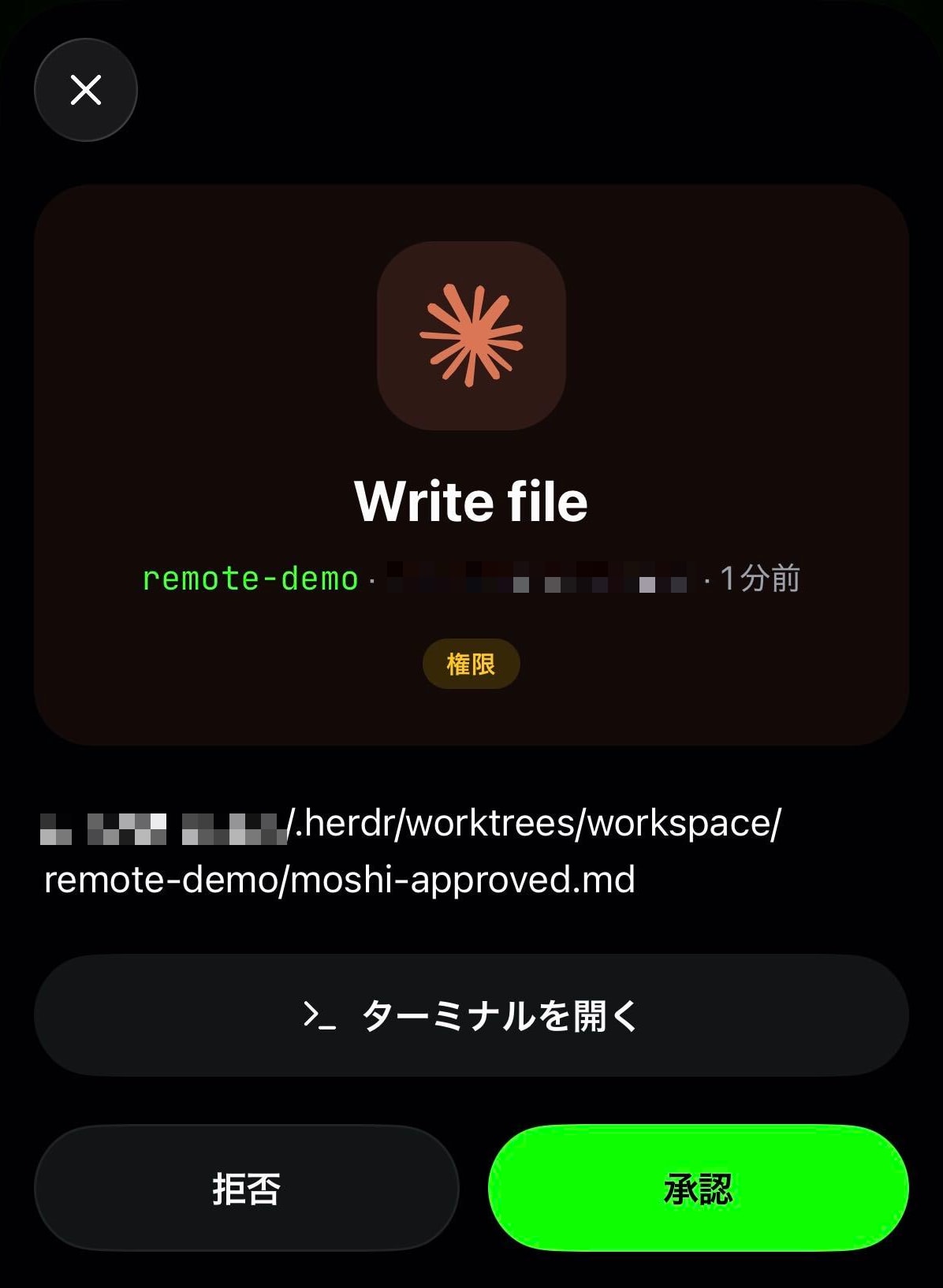
After the state became blocked, approving from Moshi on the iPhone changed it to done and the file was created.
$ ssh mac-mini 'cat ~/.herdr/worktrees/workspace/remote-demo/iphone-approved.md'
Approved from iPhone
The full loop is complete: give instructions from MacBook, approve from iPhone, execute on Mac mini.
Operating herdr from Raycast
For day-to-day herdr operations, I normally use the Raycast Herdr extension.
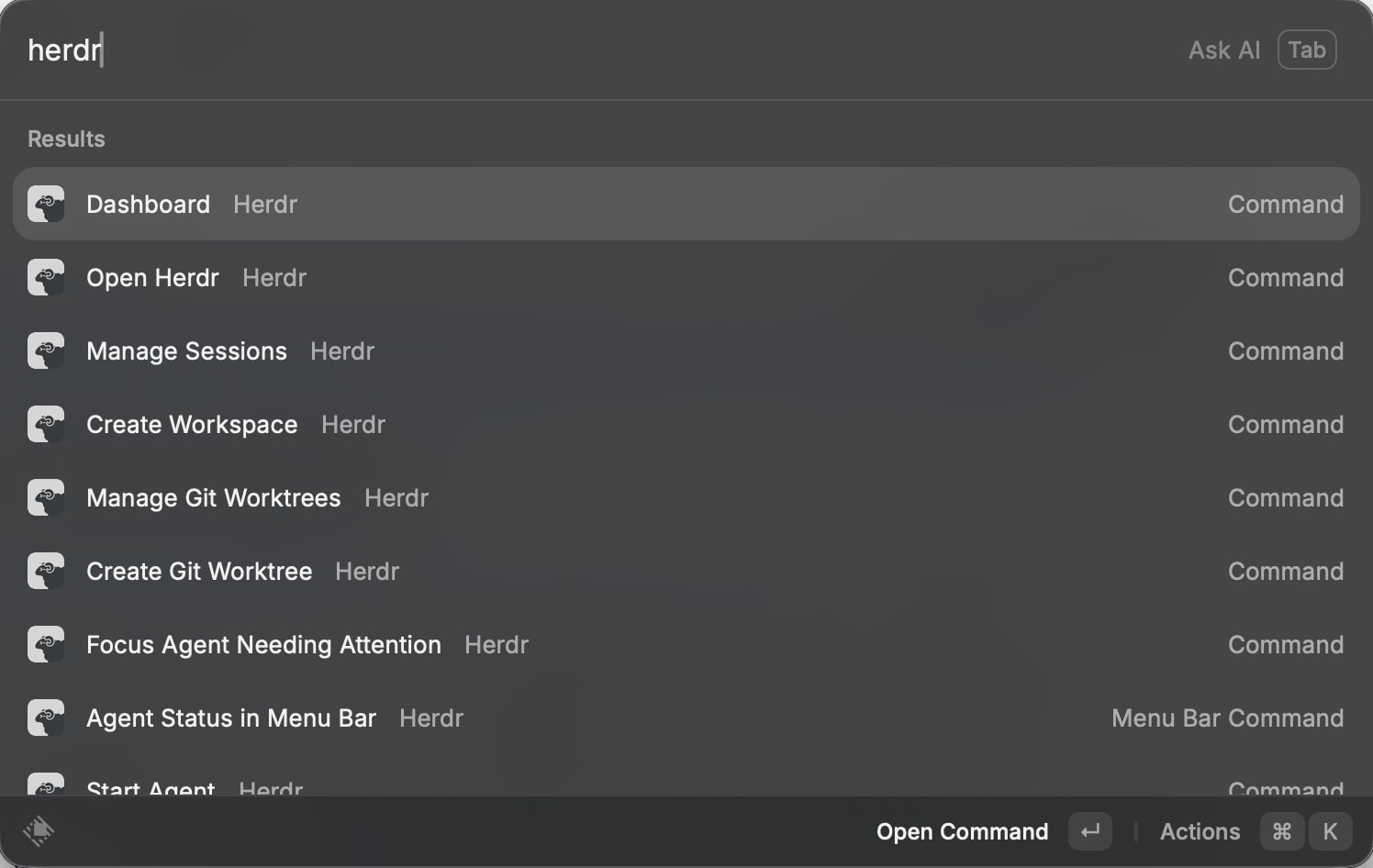
This extension exposes herdr's socket API directly as Raycast commands.
From the Dashboard you can list and switch between workspaces, tabs, panes, and agents, and perform pane splits and zooms.
For agents, commands are available to launch, send instructions, and navigate to agents waiting for approval.
There's also a command to show status in the menu bar, so you can notice when an agent has stalled even without looking at the terminal.
There are also commands for Git repositories, where passing a branch name handles both the worktree checkout and creating the workspace to open it in one step.
Listing and deleting worktrees is available from the same place, making it easy to maintain a workflow of separate workspaces per branch.
In my case, the worktree creation plugin kicks in here, so entering a branch name prepares both a workspace and Claude Code at once.
This extension is also pointed at the Mac mini's server rather than the local herdr server.
The key is that the herdr CLI can swap the target socket using the environment variable HERDR_SOCKET_PATH.
Since SSH can forward Unix domain sockets, pulling the Mac mini's socket locally and pointing the CLI at it means the local herdr command directly operates the remote server.
$ ssh -fnNT -L /tmp/herdr-remote.sock:/Users/<remote-user>/.config/herdr/herdr.sock mac-mini
$ HERDR_SOCKET_PATH=/tmp/herdr-remote.sock herdr workspace list
w1 dotfiles    agent: unknown
w2 workspace   agent: unknown
w3 remote-demo agent: idle
The extension has a setting called "Herdr Binary" where you can specify the executable to call.
So I created a wrapper that sets up the tunnel and then passes through to the real herdr, and pointed the setting at it.
#!/bin/sh
set -eu

env_file="${XDG_CONFIG_HOME:-$HOME/.config}/herdr/remote.env"
[ -f "$env_file" ] && . "$env_file"

sock="${HERDR_REMOTE_SOCK:-/tmp/herdr-remote.sock}"
herdr_bin="${HERDR_REMOTE_BIN:-/opt/homebrew/bin/herdr}"

if [ ! -S "$sock" ] || ! HERDR_SOCKET_PATH="$sock" "$herdr_bin" status server >/dev/null 2>&1; then
  rm -f "$sock"
  remote_home=$(ssh -o BatchMode=yes "$HERDR_REMOTE_HOST" 'printf %s "$HOME"')
  ssh -o BatchMode=yes -fnNT -L "$sock:$remote_home/.config/herdr/herdr.sock" "$HERDR_REMOTE_HOST"
fi

HERDR_SOCKET_PATH="$sock" exec "$herdr_bin" "$@"
The remote host is not hardcoded in the script—it's read from ~/.config/herdr/remote.env, which is outside dotfiles management.
The remote socket path is constructed by querying $HOME, so no configuration is needed even if the home directory differs from local.
When the socket is missing or unresponsive, the tunnel is re-established, so recovery happens on the first attempt without needing a persistent LaunchAgent.
This approach works cleanly because the extension doesn't look at the local filesystem.
Workspaces, panes, and agents are all identified by IDs issued by the server.
Repository commands also specify targets by workspace ID, such as herdr worktree create --workspace <id> --branch <name>.
Since the server resolves repository locations, simply changing the socket target swaps out the entire operation target.
As a result, the Dashboard shows Mac mini's workspaces, and instructions to agents reach Claude Code running on the Mac mini.
The menu bar status also reflects Mac mini's agents, so you can notice when a remote agent has stalled even without anything displayed on your local screen.
There are two things to be careful about when using this.
Since only one Herdr Binary can be specified, the entire extension switches to remote-only mode.
Also, commands that open a terminal will launch a terminal locally.
If you want to open a remote session, set the attach script from the previous section in Custom Terminal Launcher.
Screen Size Matches the Smallest Client
When I attached from the iPhone, the pane height changed.
$ ssh mac-mini 'herdr pane get w3:p1'
... "scroll": {"viewport_rows": 15} ...
Before the iPhone attached it was 94 rows, but after attaching it became 15.
herdr shares one session across multiple clients, so the display area is adjusted to the smallest client.
This is the same behavior as opening the same tmux session from multiple terminals.
Claude Code's display makes use of screen width, so this reduction affects readability.
Situations where both terminals are attached simultaneously may be rare, but when settling in to work on the MacBook, it's more comfortable to detach the iPhone.
What Changed After Moving to This Setup
There are two things gained.
One is being able to decouple where judgments are required from the local machine.
Since approvals can be received on the iPhone, the agent no longer stays paused while I'm away from my desk.
The other is establishing a Single Source of Truth for the development environment on the Mac mini.
Repositories, worktrees, and agent sessions all live on the Mac mini, with the MacBook and iPhone becoming clients that look into it.
Since the same state is visible from any device, there's no need to rebuild an environment when adding another machine.
Conclusion
I introduced a setup where the home Mac mini acts as a herdr server, operated from both a MacBook and iPhone.
Claude Code runs per worktree, and the same session can be accessed from the MacBook via TUI, CLI, and Raycast, and from the iPhone via Moshi.
Every stumbling block only surfaced because of crossing machine boundaries.
herdr plugin registration is required per machine, and in a setup where the terminal auto-starts herdr, a separate window needs to be prepared for attaching.
These are things you wouldn't notice in a single-machine setup.
Next I'm thinking about introducing Hermes Agent.
It's a self-hosted autonomous agent published by Nous Research that can be reached through the same instance via CLI and TUI as well as messaging platforms like Telegram and Slack.
Since it stores memory, skills, and session history in local SQLite, the design means state accumulates the longer it runs.
There are two reasons it fits well into the setup built this time.
herdr's agent detection includes Hermes, and status display integration is also provided.
$ ssh mac-mini 'herdr integration status'
claude: current (v7) (/Users/<remote-user>/.claude/hooks/herdr-agent-state.sh)
hermes: not installed (/Users/<remote-user>/.hermes/plugins/herdr-agent-state/__init__.py)
Since Hermes is also a target for moshi-hook install --target, the approval card routing from this article's setup can be used as-is.
In other words, the sidebar status display and iPhone approval forwarding set up for Claude Code also work directly for Hermes.
The foundation is already in place, and I'll cover actually using it in future articles.