Trying Out the Beta Version of Superlogical's Rex

This page has been translated by machine translation. View original
Introduction
Hello, I'm Shimada from the Manufacturing Business Technology Department at Classmethod.
Superlogical, founded by Mitchell Hashimoto, the founder of HashiCorp and the author of Ghostty, has started public testing of Rex, a terminal app[1].
To participate, you need to register on the waitlist on the official site and receive an invitation.
An invitation arrived for me too, so I installed the macOS version and tried it out.
In this article, I'll go over Rex's architecture and then write up the results of testing the following:
- Whether sessions persist after closing the app
- Whether it can connect to a Rex server running on another Mac
- Whether Rex sessions can be opened from the iOS alpha version
- Whether Claude Code can operate Rex, and whether Claude Code's state can be read from the outside
What is Rex?
Rex is a terminal app that aims to be "a drop-in replacement for the terminal you're using now"[1:1].
It is not a multiplexer that runs inside another terminal like tmux; Rex itself is a terminal app, with persistent sessions, remote connections, and program status display added.
For terminal rendering and emulation, it uses libghostty, a library extracted from Ghostty.
The official announcement states the following points[1:2].
- Rex is free and will remain free. No account is required
- You can host the server yourself on any platform
- The macOS app launches its own Rex server internally. It can also connect to Rex servers on other Macs
- At the time of the announcement, testing is limited to the macOS app for the time being. Clients for iOS, Linux, and Windows are in preparation
Afterward, an iOS alpha version was also distributed to test participants (described later).
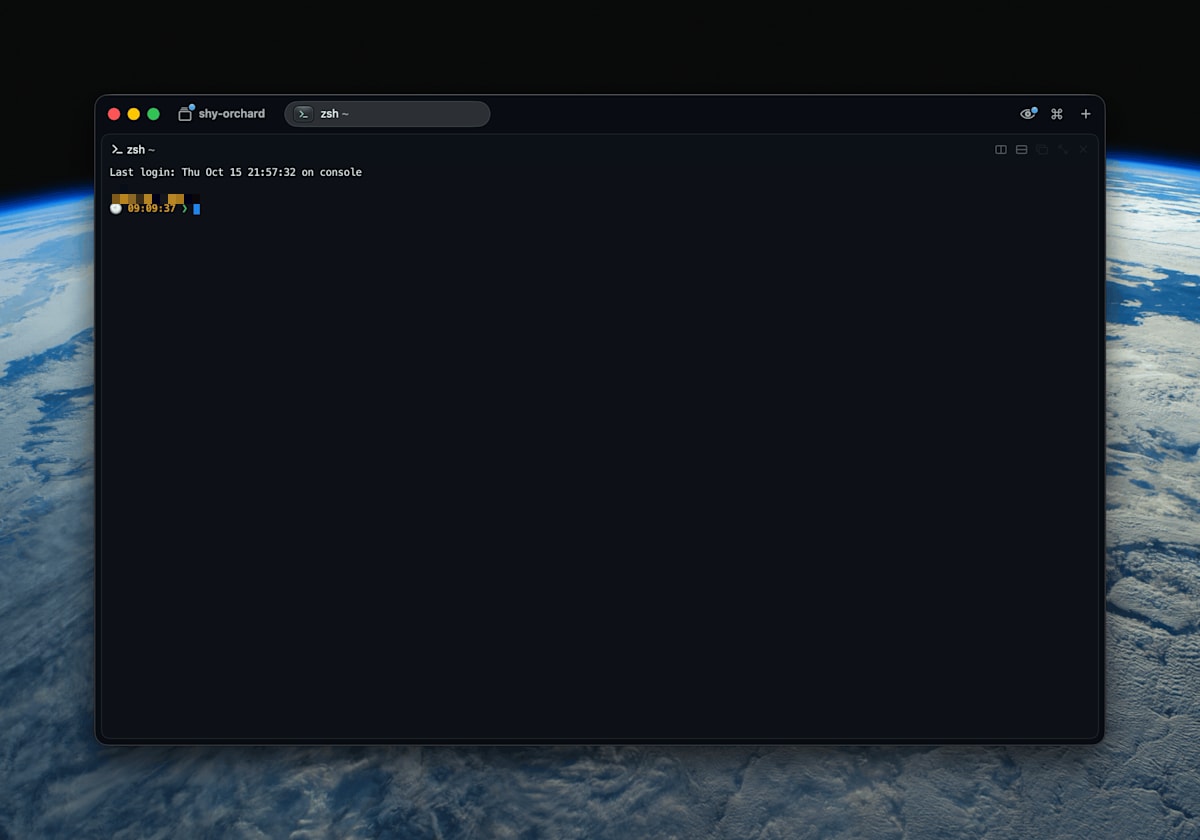
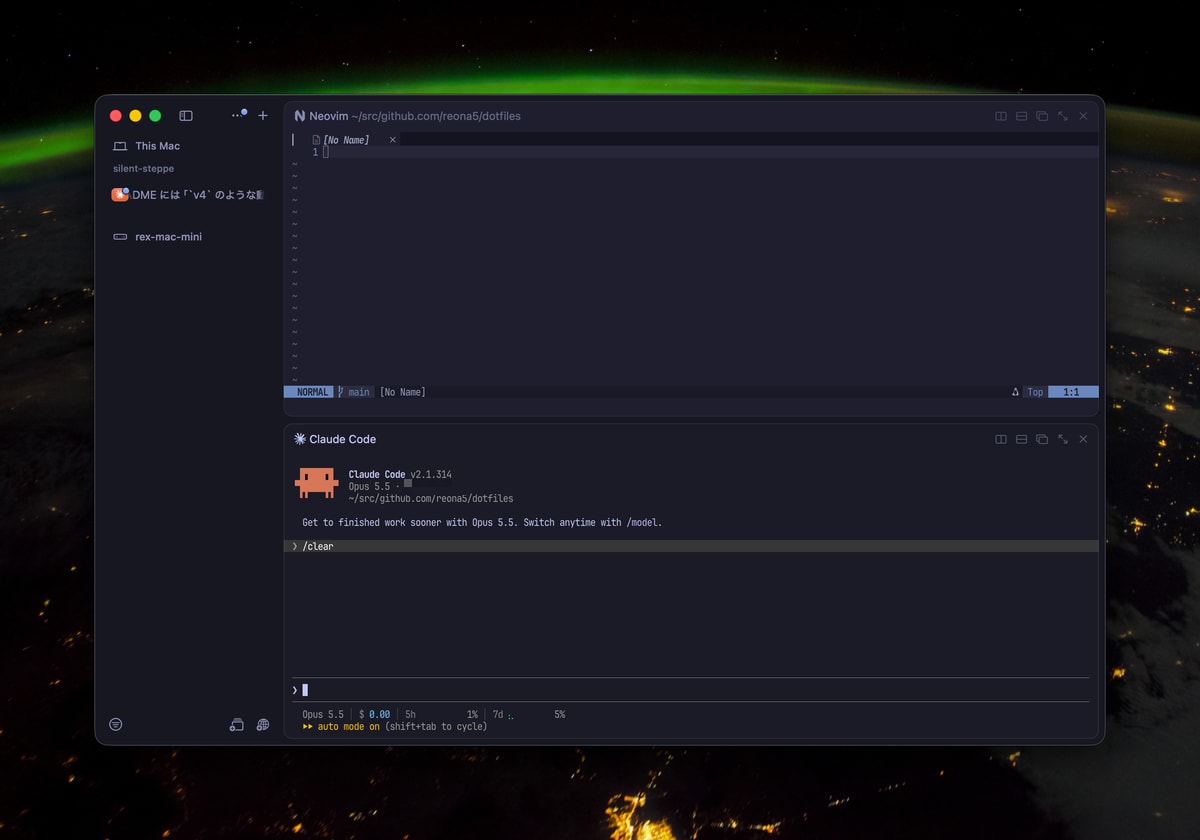
The first launch screen. The shell of the automatically created session (shy-orchard) is open
The relationship between the app and the server
The Rex app bundles the rex command, which is both the server and the CLI.
The app is one of the clients that connect to this server, and the CLI is another client connecting to the same server.
The CLI is inside the app, so it is easier to use if you add it to your PATH.
Inside a Rex terminal, rex is already on the PATH from the start.
alias rex="/Applications/Rex Beta.app/Contents/Helpers/Rex Server.rex/Contents/MacOS/rex"
You can check the state of the server launched by the app with rex server status.
$ rex server status
endpoint: unix:///Users/<user>/Library/Application%20Support/rex/server.sock
version: 0.0.1793299046-g2307b7
api: revision 7 (supports 0 to 7)
sessions: 1
tailscale: disabled
Rex's terminology differs slightly from tmux.
Here is the correspondence in tmux terms.
| Rex | Closest concept in tmux | CLI flag |
|---|---|---|
| server | server | -S |
| session | session | -s |
| window | window (a tab in the app) | -w |
| block | pane | -b |
| client | client (a connected app or CLI) | -C |
CLI commands specify what to operate on using these flags.
The definitions of the terms, and the mechanism by which the target is determined from environment variables when the flags are omitted, are summarized in the official documentation's Command targets.
Do sessions persist after closing the app?
I created a session that prints a counter every second from the CLI, quit the app, and then read its contents.
rex new counter -- bash -c 'i=0; while true; do echo "tick $i $(date +%T)"; i=$((i+1)); sleep 1; done'
osascript -e 'quit app "Rex Beta"'
rex capture -s counter --trim | tail -3
Even after quitting the app, the rex server run process remained, and the counter kept advancing without stopping.
The server itself is placed and runs under ~/Library/Application Support/com.superlogical.rex/RexServer/.
When you reopen the app, it reconnects to the same server.
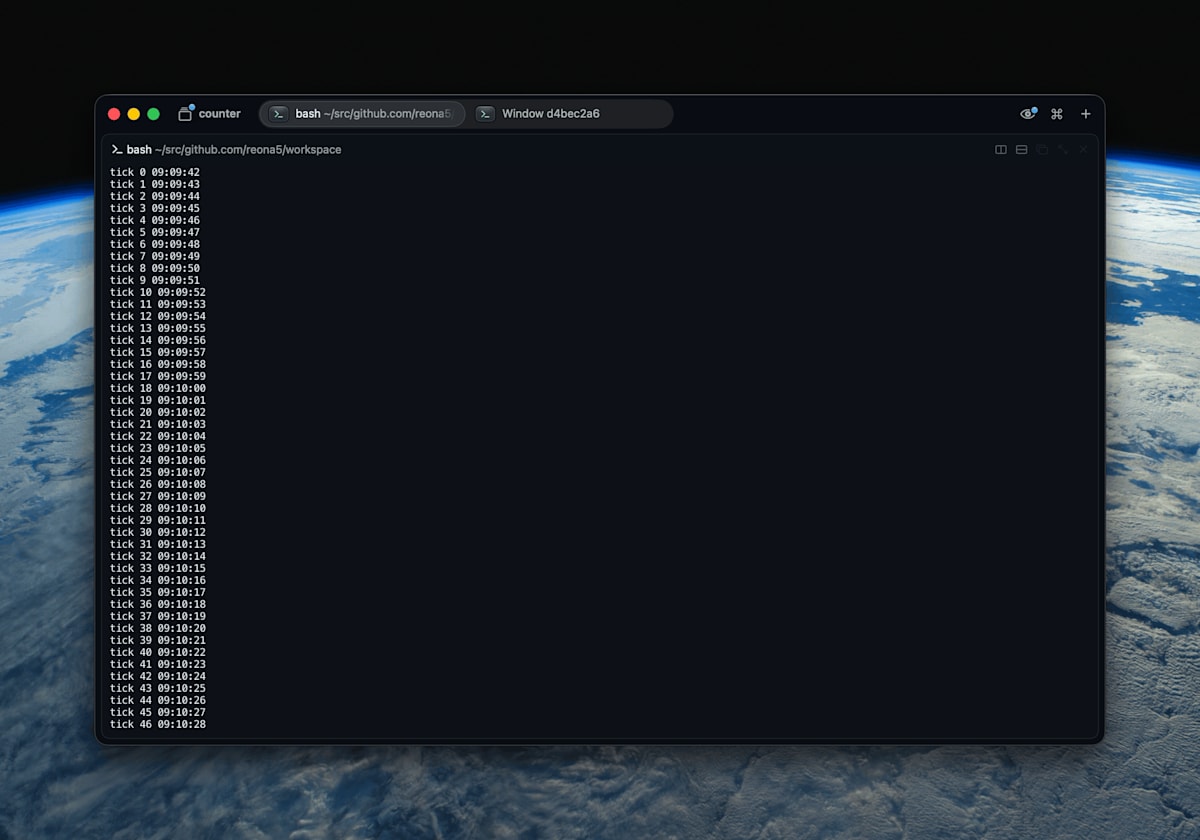
Even after reopening the app, the counter in the counter session keeps advancing without stopping
What you can do with the CLI
The CLI has a full set of commands for operating the terminal from the outside.
Here are the ones you're likely to use often.
rex run: Runs a command in a new block. With--wait, it waits until the command finishes and returns its exit coderex send/rex send-key: Sends characters or keys to a blockrex capture: Extracts a block's screen and scrollback. Three formats: text, HTML, and with escape sequencesrex events --json: Keeps streaming server events as one JSON per linerex api: Lists and calls the server's API
The exit code of run --wait was returned exactly as the child process's.
$ rex run --wait -- sh -c 'exit 3'; echo "exit=$?"
Error: exit status 3
exit=3
Settings are written in Lua in ~/.config/rex/init.lua.
You can change key bindings with rex.bind and define your own actions with rex.action.
I used to use tmux with the prefix C-q, and I moved those bindings to init.lua.
The tmux operation of "press the prefix, then press a key" is written in Rex as a key sequence, keys joined with >, like ctrl+q>v[2].
rex.bind("ctrl+q>v", "pane.split", { direction = "right" })
rex.bind("ctrl+q>h", "pane.focus", { direction = "left" })
There were four things I noticed while migrating.
- Symbols entered with shift, such as
|and&, are written using the key before shift is pressed. On a US layout,|isshift+\and&isshift+7. If you write&directly,rex config checkreportsunknown key "&". - There is no equivalent in key sequences to tmux's
bind -r(a binding that lets you keep typing without pressing the prefix again). So I made it so that resizing once with something likectrl+q>shift+halso enters a key mode for resizing, and while in that mode you can keep changing the size withhjkl. You leave the mode withEscapeorEnter. Unlike tmux, it does not exit automatically after a certain time. - I reproduced tmux's popup by calling
rex.session.new_layer, which creates a floating layer, from a custom action (rex.action). The location it opens in is the working directory of the process running in the focused pane (foreground.cwdof theprocessmethod), falling back to$HOMEif it can't be obtained. I don't use thepwdmethod, because it returns empty if the shell isn't reporting its working directory. - I couldn't find a feature equivalent to tmux's copy mode (moving through the scrollback and selecting with the keyboard). Instead, I made an action where
ctrl+q>[extracts the focused pane's scrollback withrex captureand opens it in nvim in a layer overlaid at the same position as that pane. The pane's position is determined from the layout returned byrex.session.view. When you select with nvim'sv/V/ctrl+vand pressy, it copies to the clipboard and closes. Pasting iscmd+vas usual.
After writing it, verify with rex config check and reload with rex config reload.
With rex keymap, you can list the loaded bindings and the lines where they were written.
$ rex config check
path: /Users/<user>/.config/rex/init.lua
exists: yes
bindings: 46
modes: 1
actions: 5
Full init.lua
local terminal = "com.superlogical.terminal"
local shell = "com.superlogical.terminal.shell"

rex.bind("ctrl+q>ctrl+q", "pane.send_key", { key = "ctrl+q" })

rex.bind("ctrl+q>c", "client.tab.new")
rex.bind("ctrl+q>n", "client.tab.next")
rex.bind("ctrl+q>p", "client.tab.previous")
rex.bind("ctrl+q>,", "client.tab.rename")
rex.bind("ctrl+q>shift+7", "client.tab.close")
for i = 1, 9 do
  rex.bind("ctrl+q>" .. i, "client.tab.goto", { index = i })
end

rex.bind("ctrl+q>s", "session.switch")
rex.bind("ctrl+q>shift+4", "session.rename")
rex.bind("ctrl+q>shift+9", "session.previous")
rex.bind("ctrl+q>shift+0", "session.next")

rex.bind("ctrl+q>shift+\\", "pane.split", { direction = "right" })
rex.bind("ctrl+q>v", "pane.split", { direction = "right" })
rex.bind("ctrl+q>-", "pane.split", { direction = "down" })

rex.bind("ctrl+q>h", "pane.focus", { direction = "left" })
rex.bind("ctrl+q>j", "pane.focus", { direction = "down" })
rex.bind("ctrl+q>k", "pane.focus", { direction = "up" })
rex.bind("ctrl+q>l", "pane.focus", { direction = "right" })

rex.bind("ctrl+q>z", "pane.zoom")
rex.bind("ctrl+q>x", "pane.close")

rex.mode("resize", { exclusive = true })

rex.action{
  name = "resize_repeat",
  title = "Resize Pane and Keep Resizing",
  args = { direction = "string" },
  run = function(ctx, args)
    rex.client.queue("pane.resize", { direction = args.direction })
    rex.client.queue("client.mode.enter", { name = "resize" })
  end,
}

local resize_keys = { h = "left", j = "down", k = "up", l = "right" }
for key, direction in pairs(resize_keys) do
  rex.bind("ctrl+q>shift+" .. key, "resize_repeat", { direction = direction })
  rex.bind("resize/" .. key, "pane.resize", { direction = direction })
  rex.bind("resize/shift+" .. key, "pane.resize", { direction = direction })
end
rex.bind("resize/=", "pane.balance")
rex.bind("resize/enter", "client.mode.exit")

local function current_dir(ctx)
  local p = rex.block.call(terminal, "process", { block_id = ctx.block_id })
  if p and p.foreground and p.foreground.cwd then
    return p.foreground.cwd
  end
  return os.getenv("HOME")
end

local function open_popup(ctx, command, bounds)
  local options = { cwd = current_dir(ctx) }
  if command then
    options.command = command
  end
  local _, err = rex.session.new_layer{
    bounds = bounds or { 0.15, 0.15, 0.7, 0.7 },
    layout = rex.layout.block{ flavor = shell, options = options },
    focus = true,
  }
  if err ~= nil then error(err, 0) end
end

local function find_rect(node, block_id)
  if node == nil then return nil end
  if node.block_id == block_id then return node.rect end
  if node.split then
    return find_rect(node.split.before, block_id) or find_rect(node.split.after, block_id)
  end
  return nil
end

local function pane_bounds(ctx)
  local res = rex.session.view{}
  local view = res and (res.view or res)
  for _, w in ipairs(view and view.windows or {}) do
    for _, layer in ipairs(w.layers or {}) do
      if layer.kind == "tiled" then
        local rect = find_rect(layer.layout, ctx.block_id)
        if rect then return rect end
      end
    end
  end
  return nil
end

rex.action{
  name = "popup_shell",
  title = "Open Popup Shell",
  run = function(ctx) open_popup(ctx) end,
}

rex.action{
  name = "popup_lazygit",
  title = "Open lazygit in Popup",
  run = function(ctx) open_popup(ctx, { "lazygit" }) end,
}

rex.action{
  name = "edit_config",
  title = "Open Config in nvim",
  run = function(ctx)
    local path = os.getenv("REX_CONFIG") or (os.getenv("HOME") .. "/.config/rex/init.lua")
    open_popup(ctx, { "nvim", path })
  end,
}

rex.action{
  name = "copy_mode",
  title = "Copy Mode (Scrollback in nvim)",
  run = function(ctx)
    local script = [[
f=$(mktemp -t rex-scrollback)
rex capture -s "$1" -b "$2" --trim --unwrap > "$f"
nvim -R + -c "luafile $HOME/.config/rex/copy-mode.lua" "$f"
rm -f "$f"
]]
    open_popup(ctx, { "sh", "-c", script, "sh", ctx.session_id, ctx.block_id }, pane_bounds(ctx))
  end,
}

rex.bind("ctrl+q>space", "popup_shell")
rex.bind("ctrl+q>g", "popup_lazygit")
rex.bind("ctrl+q>e", "edit_config")
rex.bind("ctrl+q>[", "copy_mode")
In the copy-mode nvim, I load only the following file in addition.
Nvim's standard clipboard integration doesn't wait for pbcopy to finish writing, so if it closed right after a yank, long selections sometimes weren't copied.
So I made it wait until pbcopy finishes writing before closing.
copy-mode.lua
vim.api.nvim_create_autocmd("TextYankPost", {
  callback = function()
    local ev = vim.v.event
    if ev.operator ~= "y" then
      return
    end
    vim.fn.system({ "pbcopy" }, table.concat(ev.regcontents, "\n"))
    vim.schedule(function()
      vim.cmd("qa!")
    end)
  end,
})
In herdr, which I normally use, I couldn't change key bindings this freely or reproduce a copy mode.
In Rex, I could reproduce my tmux bindings in a similar form, and since the copy mode lets me select with nvim's operations, it became easier to use than tmux.
Themes and sidebar
Themes
Rex themes determine the colors of the app's UI and the terminal's colors together.
There are 41 built-in themes (27 dark, 14 light), and you can choose dark and light ones separately in advance and switch with Switch Appearance Mode.
For themes not built in, you can import a Ghostty or iTerm2 color scheme file with Import Theme File in the command palette.
I wanted to match nvim's Tokyo Night, so I imported the Ghostty file bundled with tokyonight.nvim (extras/ghostty/tokyonight_night)[3].
Imported themes are saved in the app's settings (~/Library/Preferences/com.superlogical.rex.plist) and can't be configured in init.lua.
If you want to use it on other Macs too, import the same file again.
Sidebar
You can choose how tabs are arranged from three options in Settings > Interface > Tabs > Tab Style: Above (regular tabs lined up on top), Left, and Right.
With Left or Right, the tabs are lined up vertically at the side of the window, becoming a sidebar.
When you have many tabs with long names, or when using a tall screen, the sidebar is easier to read.

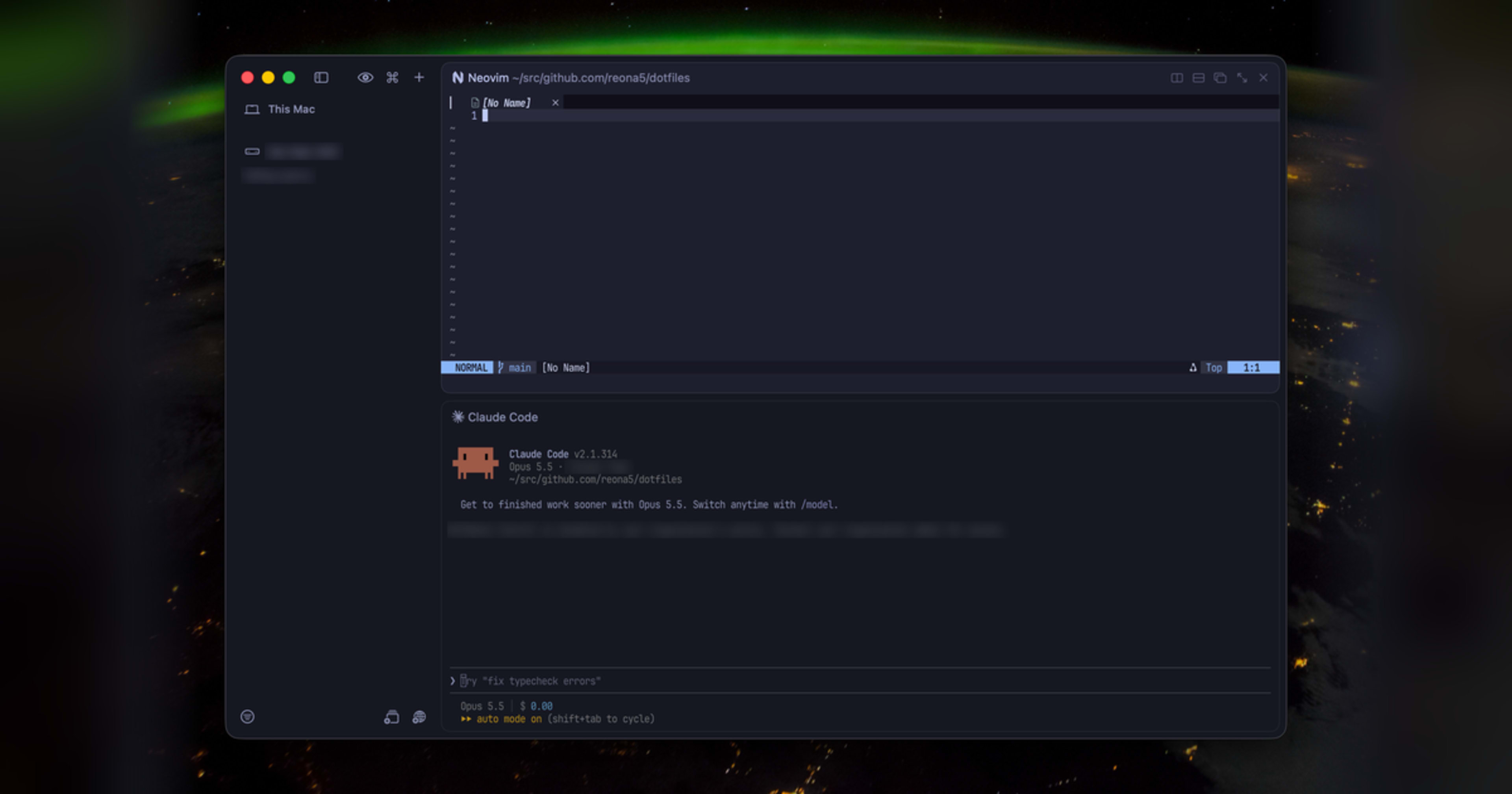
The screen with Tab Style set to Left. Connection targets and sessions are lined up in the sidebar
Program status (OSC 7501, described later) also appears in the app.
According to the documentation, sessions that have finished or are waiting for permission are marked in the session selection screen, and the headings of unfocused tabs show a spinner for work in progress or a symbol for waiting for permission[4].
A screen for viewing the status of multiple agents at once (a unified priority inbox view) is listed as a future plan.
Connecting to a Rex server on another Mac
Next, I ran a Rex server on my Mac mini and connected from the MacBook.
I didn't install the app on the Mac mini; I just copied the server bundle extracted from the app on my main machine (/Applications/Rex Beta.app/Contents/Helpers/Rex Server.rex, 84 MB) and launched it.
Exposing it with the built-in Tailscale
Rex's server has a built-in feature to join a tailnet as a Tailscale node.
When you run the following commands on the Mac mini, a sign-in URL is displayed.
rex server tailscale on --hostname rex-mini
rex server status
tailscale: needs login
  authenticate: https://login.tailscale.com/a/xxxxxxxxxxxx
When you approve the sign-in in the browser, the Rex server joins the tailnet as an independent device named rex-mini.
It appears as a separate device from the host's Tailscale, so the admin console lists both the Mac mini itself and rex-mini.
However, on my tailnet, Rex stopped Tailscale by itself right after approval.
tailscale: disabled
  error: HTTPS certificates are off for this tailnet. Turn them on (it's free) under DNS → HTTPS Certificates at https://login.tailscale.com/admin/dns, then turn Tailscale on again.
The built-in Tailscale presupposes the tailnet's HTTPS certificate feature.
After enabling HTTPS Certificates in the DNS settings of the admin console and running rex server tailscale on again, it began listening at https://rex-mini.<tailnet>.ts.net.
Immediately after enabling, the same error appeared, and it went through when I re-ran it a few dozen seconds later.
From the MacBook, you can connect by passing the URL to -S.
I was identified as myself by my Tailscale login ID and could operate as the user running the server on the Mac mini.
$ rex -S https://rex-mini.<tailnet>.ts.net whoami
you: <tailscale-login> over tailscale via tailscale from <macbook>, acting as <user>
Registering the connection target as a host
To avoid writing the URL every time, you can register the connection target as a host.
The label of a registered host can be passed directly to -S.
rex hosts add mini https://rex-mini.<tailnet>.ts.net
rex hosts check
rex -S mini ls
You can register multiple connection targets for one host, and they are tried in order from the first.
This host list is used by the CLI.
You need to register separately in the app's "Remote Hosts" settings, and hosts registered with the CLI did not appear in the app.
To connect from the app, add https://rex-mini.<tailnet>.ts.net with "Add Remote Host…".
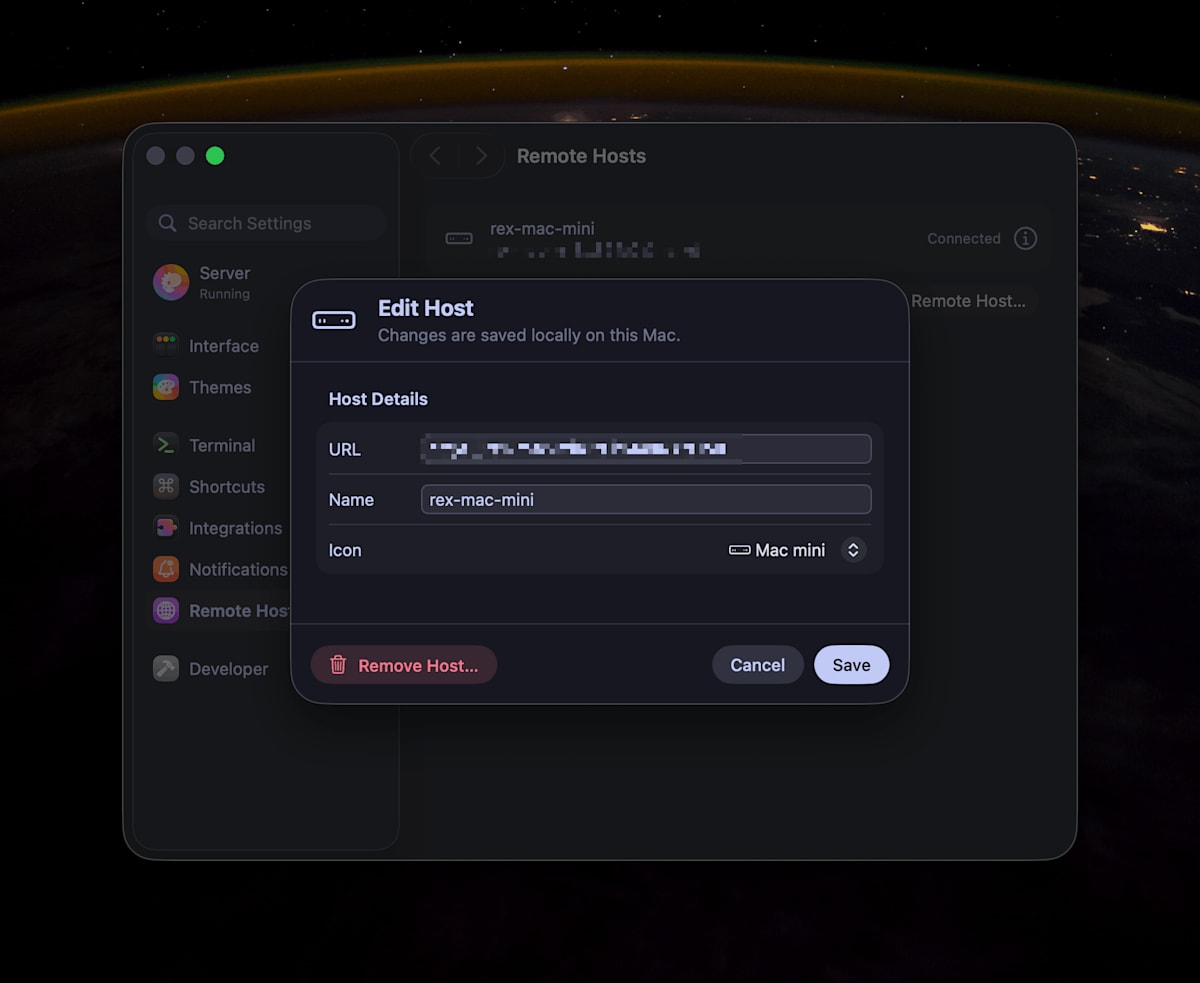
The Mac mini added to Remote Hosts. You can set a name and an icon
You can choose an icon for each connection target, which is also nice because it makes it easy to tell which machine a session belongs to in the sidebar.
What happens to processes run remotely
I ran a counter every second on the Mac mini's server and read it from the MacBook after some time.
Since the process runs on the Mac mini's server, the counter kept advancing even while the MacBook side was not connected.
$ rex -S mini capture -s remote-counter --trim | tail -1
tick 810 mac-mini 09:45:59
A single CLI call (rex -S mini ls) took 0.07 to 0.09 seconds, measured five times.
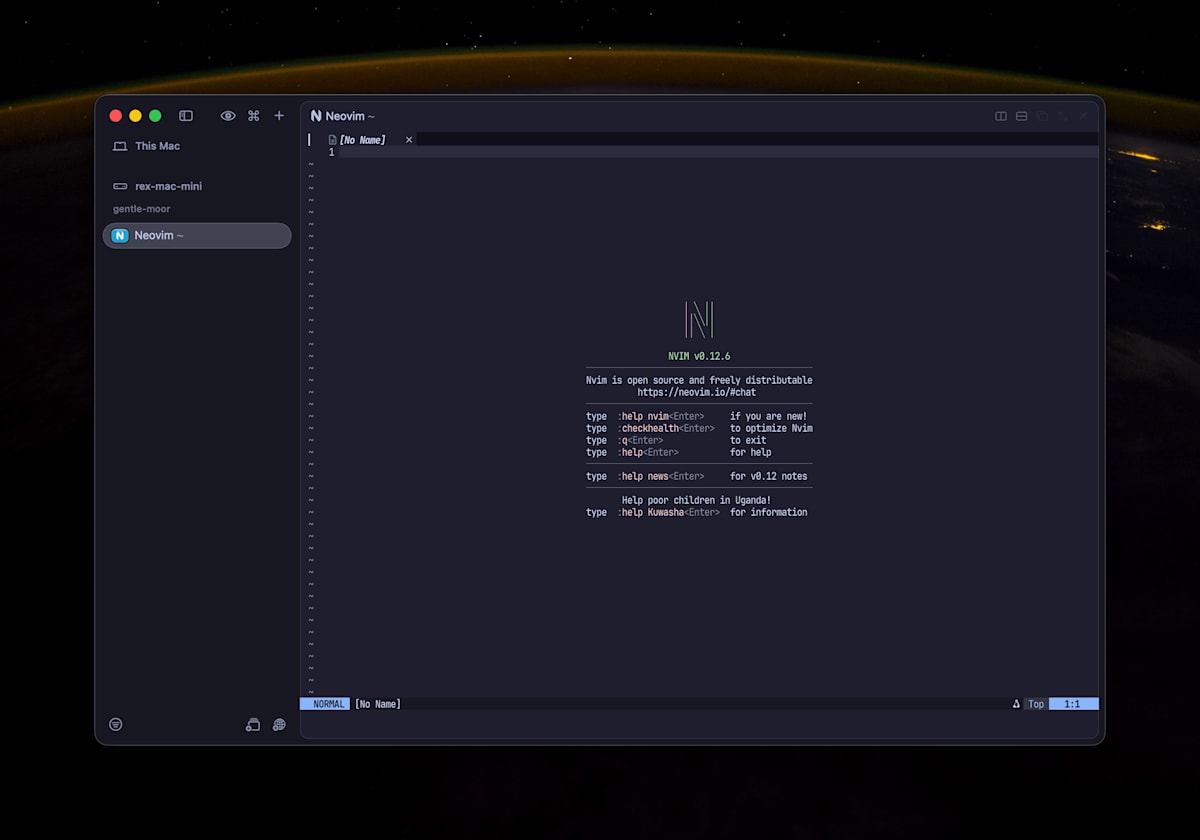
The screen with a Mac mini session opened from the app
When I typed into the Mac mini's session from the app, there was almost no latency, and it felt the same as using a local session.
However, the Mac mini is connected by wired connection, so that may have a large effect.
Opening Rex sessions from an iPhone
Separately from the macOS beta, an iOS alpha version is distributed to test participants through TestFlight.
What I installed is Rex Dev 0.1.0 (1577).
The iPhone app connects to a Rex server made reachable via the tailnet.
If you enable the built-in Tailscale on the MacBook side too, the Rex server joins the tailnet as an independent device named <macbook>-rex, just like with the Mac mini.
I added both the MacBook and Mac mini servers to the iPhone app, and was able to open and operate shells from each one's session list.
The iOS app is still an alpha version, but the feel of using it was very good.
Switching panes is intuitive with a horizontal swipe, and the pane layout on the Mac side is also displayed, so it's easy to tell which pane you're operating.
I hardly felt any latency while typing.
The command palette found in the Mac version of the Rex app can be used as is in the iOS app, which was very convenient.
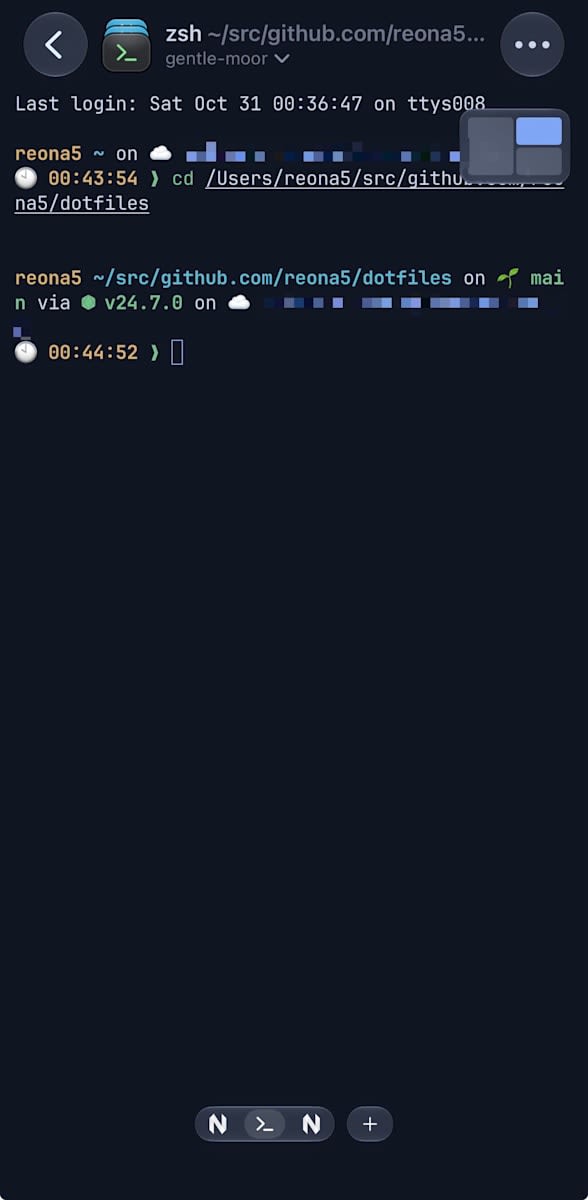
Operating a shell from the iPhone. The diagram at the top right shows which pane is currently open
Looking at rex client ls from the MacBook's CLI, the iPhone app appears as one of the clients alongside the Mac's app and CLI.
It is authenticated with a Tailscale login ID, and platform is ios.
$ rex client ls
LABEL    CLIENT                 KIND  PRINCIPAL
<mac>    Rex Beta 0.1.0 (1642)  app   uid 501 over unix
iPhone   Rex Dev 0.1.0 (1577)   app   <tailscale-login> over tailscale via tailscale from <iphone>
The operations the iOS app has can be listed with rex -C iPhone actions.
They include switching sessions and tabs, splitting panes up, down, left, and right, showing and hiding the software keyboard, and adding remote hosts, so many of the same operations as the Mac version are also available from the iPhone.
Operating Rex from Claude Code
What rex skill setup installs
Rex has a rex skill command that teaches coding agents how to use Rex.
It supports four agents: Claude Code, Codex, OpenCode, and pi.
$ rex skill status
Claude Code (found)
  skill  missing      ~/.claude/skills/rex
  hook   missing      ~/.claude/settings.json

Codex (found)
  skill  missing      ~/.agents/skills/rex
  hook   missing      ~/.codex/hooks.json
...
This time, I installed it only in a repository for testing.
With --project, it is installed into the current repository rather than the whole account.
rex skill setup --project --agent claude
Two things were installed: a skill and a hook.
Since I installed with --project, they went into the repository's .claude/skills/rex and .claude/settings.local.json, not ~/.claude/ as the rex skill status above shows.
The body of the skill is just a few lines: "Run rex __internal skill and follow the displayed instructions."
The body of the instructions is output by the CLI, so when you update Rex, the instructions given to the agent are updated along with it.
{
  "hooks": {
    "SessionStart": [
      {
        "hooks": [
          {
            "type": "command",
            "command": "/bin/sh -c 'rex __internal session-start --agent claude --feature-session-naming=false 2>/dev/null || true'",
            "timeout": 5
          }
        ]
      }
    ]
  }
}
The hook is only SessionStart, and at the start of a session it tells Claude Code which Rex session and block it is running in.
Rex terminals have the environment variables REX_SESSION and REX_BLOCK, and the instructions tell it to use these two when told "here".
Having it run a script in a split pane
I launched Claude Code in a Rex block and sent the following request from the outside with rex send.
hello.sh を作って(1 秒おきに 5 回 hello を出して終わる)、Rex でいまのペインの右に分割したペインで実行し、終了コードと出力を確認して教えて
Claude Code first read the skill's instructions, then assembled and ran the following commands.
rex split -s "$REX_SESSION" -b "$REX_BLOCK" --split=right -c "$PWD" --keep-open --focus=false --label hello --json --wait -- ./hello.sh
rex capture -s "$REX_SESSION" -b $b --trim --unwrap
rex block call -s "$REX_SESSION" -b $b process
$b is the ID of the new block taken from the output of rex split --json.
--keep-open keeps the output after execution, --focus=false doesn't move the focus, and --wait receives the exit code.
After that, it read the output with capture, confirmed the exit status with process, and then reported.
It took about 40 seconds from the request to the report.
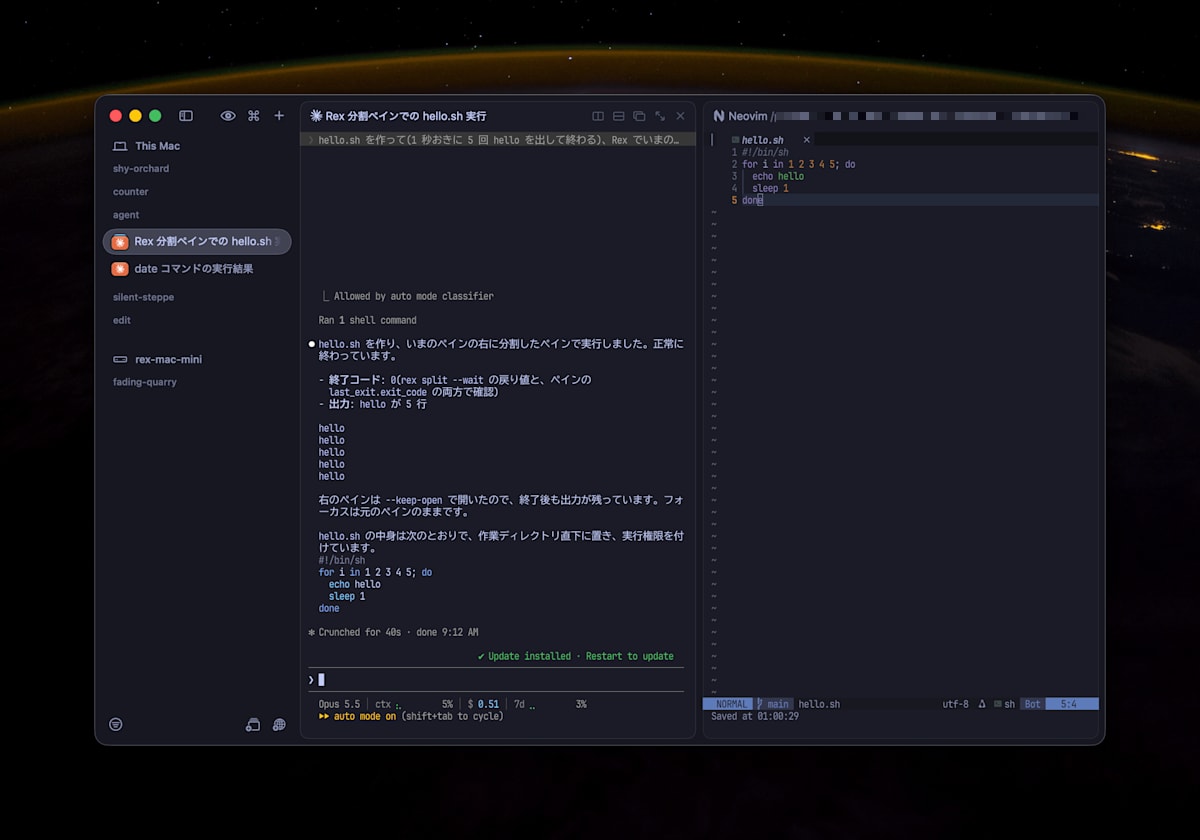
Claude Code ran hello.sh in a pane split to the right and reported the exit code and output
Reading Claude Code's state from the outside
Rex has a mechanism for programs inside the terminal to report their own state.
When a program emits an escape sequence called OSC 7501, Rex records it as a state and exposes it externally through the API and events.
There are five states: idle, working, done, blocked, and error, and blocked comes with what it's waiting for (permission, question, auth).
Claude Code (2.1.312) was reporting this state by itself.
Claude Code added OSC 7501 support in 2.1.295[6].
The hook that Rex installed is only SessionStart and is not involved in state reporting.
The state can be read with rex block call.
rex block call -b <block> program_status
When I read it every 5 seconds while it was processing the request above, it changed as follows.
msg contains a one-line description of what Claude Code is doing right now.
{"state":"idle","app":"claude-code"}
{"state":"working","msg":null}
{"state":"working","msg":"Creating hello.sh and running it in a right split pane"}
...
{"state":"done"}
When I asked Claude Code, launched in the mode that asks for permission (--permission-mode default), to create a file, it became blocked while waiting for permission.
msg contains what permission it is waiting for.
{"state":"blocked","kind":"permission","msg":"approve Write: /path/to/rex-agent-demo/blocked-test.txt"}
When I sent rex send-key -b <block> enter in this state, option 1 (Yes) of the permission dialog was selected, the file was created, and it returned to done.
The same information also flows to rex events --json.
In addition to program_status_changed, the title that Claude Code sets (title_changed) also arrives, so you can build a mechanism outside, such as sending a notification when it starts waiting for permission.
{"type":"block_event","payload":{"name":"program_status_changed","payload":{"record":{"state":"working","app":"claude-code",...}}}}
{"type":"block_event","payload":{"name":"title_changed","payload":{"title":"Rex 分割ペインでの hello.sh 実行",...}}}
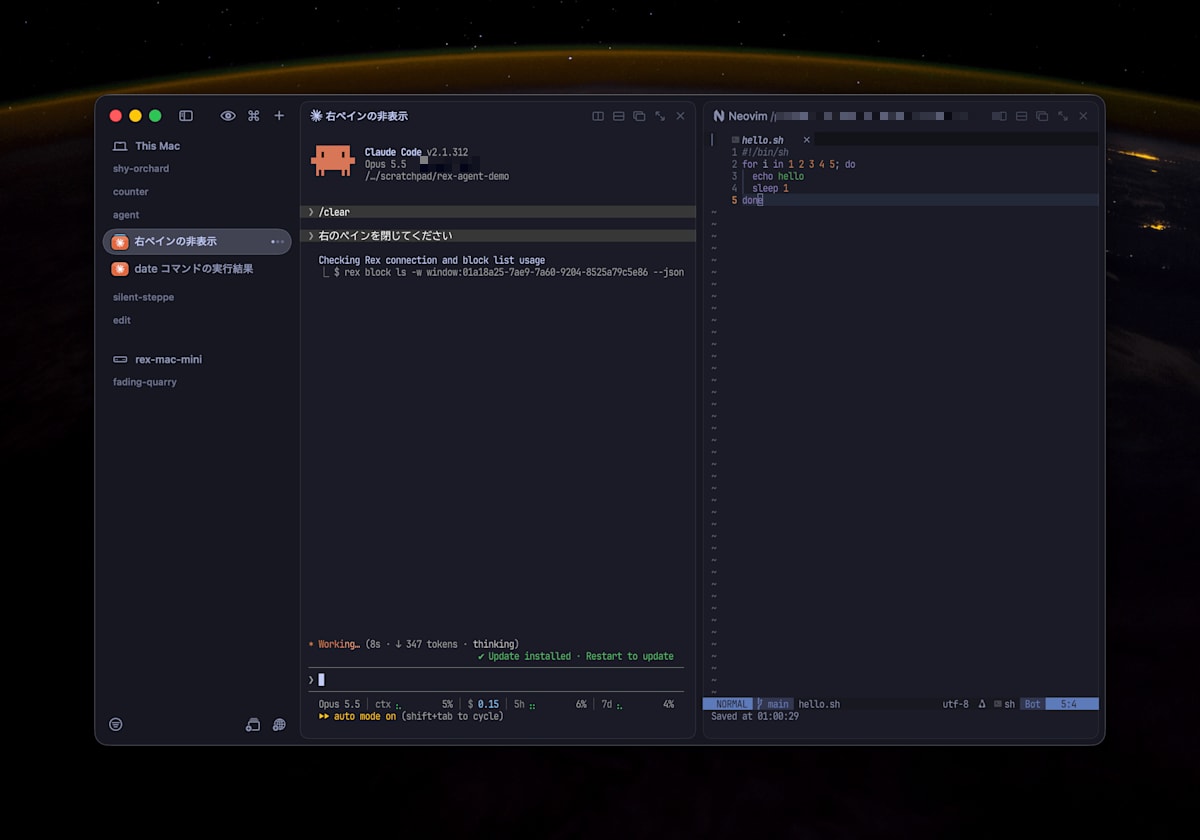
The screen while Claude Code is working. The title that Claude Code sets becomes the sidebar tab name as is
When Claude Code was waiting for permission (blocked), a blue dot appeared on the sidebar tab's icon.
The tab of Claude Code waiting for permission. A blue dot appears on the icon
herdr's desktop app
I usually use herdr, a terminal multiplexer for agents.
herdr has also released a desktop app and herdr-core, which serves as its foundation.
Like Rex, it seems to be built to keep running terminals outside the app, so I'd like to try that as well.
Conclusion
With Rex's beta version, I confirmed that sessions persist after closing the app, that Claude Code can operate Rex, and that its state can be read from the outside.
What especially impressed me was that Tailscale is built in, so integration with multiple devices, including the iOS app, is completed within the Rex ecosystem.
I also felt it was good that the CLI and API are available from the start, and that even a skill for using it from agents is provided.
Also, init.lua let me reproduce tmux-like key bindings, and the copy mode became easier to use than tmux's, which was nice.
Until now I've been using herdr on top of Alacritty, but I plan to use Rex for a while.
If you're interested, please register on the waitlist from the official announcement page.
References
- Superlogical
- Public testing is beginning (Superlogical)
- Rex Docs: CLI (Command targets)
- Announcement of herdr's desktop app (X)
https://www.superlogical.com/updates/public-testing-beginning ↩︎ ↩︎ ↩︎
https://www.superlogical.com/rex/docs/customize/key-sequences ↩︎
https://github.com/folke/tokyonight.nvim/tree/main/extras/ghostty ↩︎
https://www.superlogical.com/rex/docs/build/program-status ↩︎
https://github.com/anthropics/claude-code/blob/main/CHANGELOG.md says "Added Program Status Protocol (OSC 7501) support" under 2.1.295 ↩︎