![[Update] I Tried Out What Gets Flagged in the Recommended Actions of the AWS Secrets Manager Console](https://images.ctfassets.net/ct0aopd36mqt/wp-thumbnail-9e5f20a2043f90ff381c154268f3bdd5/49f6ce675de75d82f2fa3e07b74ef055/aws-secrets-manager?w=3840&fm=webp)
[Update] I Tried Out What Gets Flagged in the Recommended Actions of the AWS Secrets Manager Console

This page has been translated by machine translation. View original
Introduction
On October 1, 2026, the AWS Secrets Manager console started displaying "recommended actions".
Secrets Manager now supports AWS Recommended Actions[1], a mechanism shared across the console, which looks at your secret settings and suggests operations to improve security. There is no additional charge.
The announcement gives two examples of recommendations: "secrets without rotation configured" and "secrets not using a customer managed key." However, the documentation didn't say what other recommendations exist.
In this article, I create secrets with different encryption key and rotation settings and check what is recommended for each.
Trying It Out
You open the recommended actions from the button at the top right of the secrets list screen.
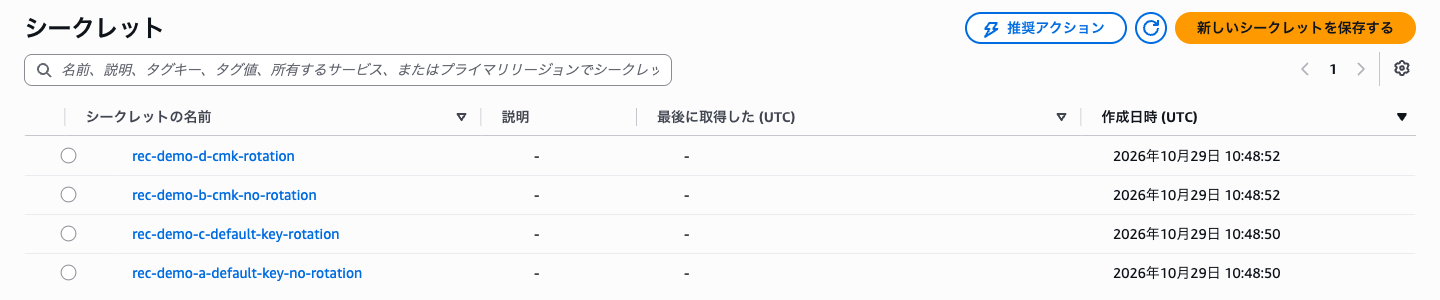
When you click the button, a panel opens on the right side, but on the list screen it only displays "Select a resource to view recommendations." When you select one secret, the recommendations for that secret are displayed.
Next, I'll create secrets for testing. Combining the encryption key and whether rotation is enabled, I created the following secrets.
| Secret | Encryption key | Rotation |
|---|---|---|
| A | AWS managed key | None |
| B | Customer managed key | None |
| C | AWS managed key | Every 30 days |
| D | Customer managed key | Every 30 days |
Now, let's check the recommendations.
Checking each secret, the recommendations displayed were as follows.
| Recommendation | A | B | C | D |
|---|---|---|---|---|
| Setup rotation for this secret | ○ | ○ | × | × |
| Optimize rotation schedule | × | × | ○ | ○ |
| Replicate secret to other regions | ○ | ○ | ○ | ○ |
| Encrypt this secret with a customer managed key. | ○ | × | ○ | × |
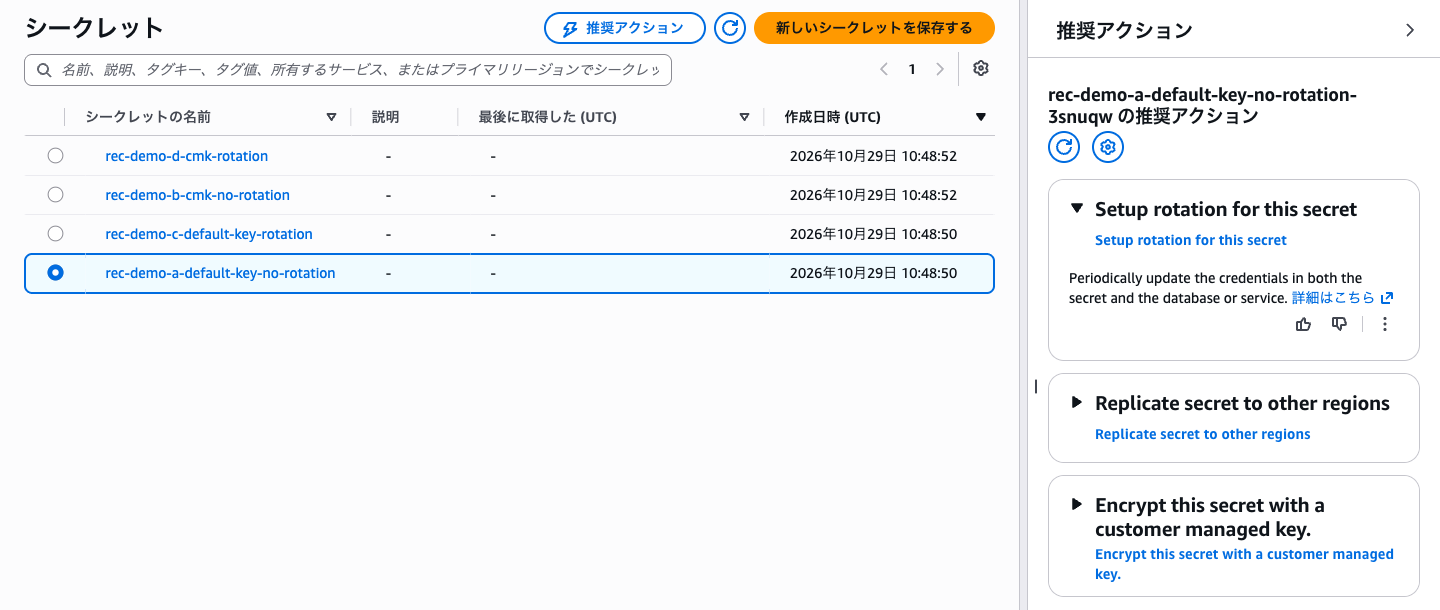
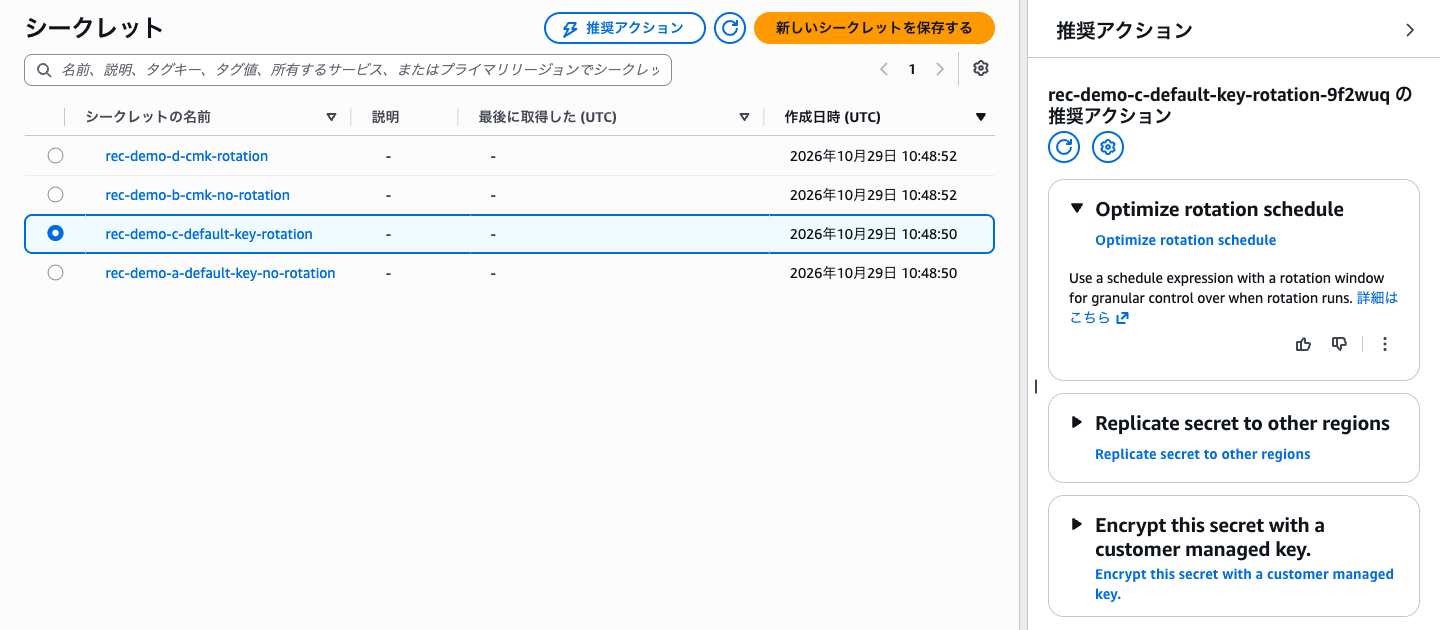
In addition to the two mentioned in the announcement, "replicate to other regions" and "optimize the rotation schedule" are also recommended.
Optimize rotation schedule was displayed only for C and D, which have rotation configured. It seems to recommend using a schedule expression and a rotation window[2] for rotation that is specified only by number of days.
Acting on a Recommendation
Let's act on the recommendation displayed for D and check whether the recommendation disappears.
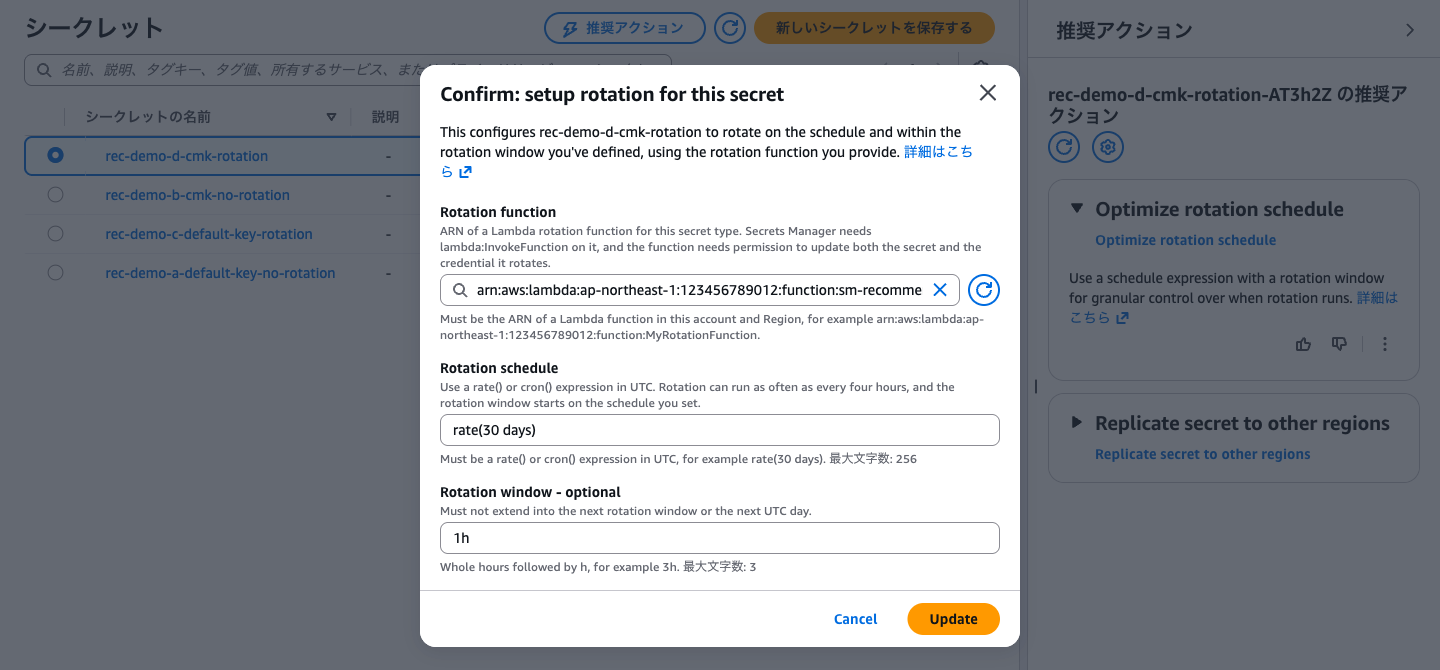
When I clicked the Optimize rotation schedule button on the recommendation card, a dialog for confirming the rotation settings opened. rate(30 days) was already entered for the schedule and 1h for the rotation window, so it seems you can apply the settings as-is by clicking Update. How considerate.
After I clicked Update and reloaded the console, the recommendation was gone! It seems to be reflected about one minute after changing the settings.
Conclusion
It suggested various things beyond the items in the announcement, including replication and the rotation schedule. Since settings can be changed easily with a single button, it looks like a handy way to prompt a review of your settings.
On the other hand, replicas and customer managed keys incur additional charges. Some secrets are fine with a single region, so rather than aiming to clear every recommendation, it seems better for a human to carefully judge whether each is necessary for each secret.