
Practical Techniques for Efficiently Operating the Slack API with Slack CLI

This page has been translated by machine translation. View original
The slack api command has been added to the Slack CLI, allowing you to call any Slack API method directly from the terminal[1].
This article introduces practical use cases that take advantage of being able to call APIs from the CLI.
For setup instructions on how to get started with slack api, please refer to this article.
Passing a JSON file as an argument
Payloads containing Block Kit blocks can be long, so there are times when you want to extract them into a file for easier handling. Let's pass the file contents using shell command substitution.
$ cat message.json
{
  "channel": "C0123456789",
  "text": "Hello",
  "blocks": [
    { "type": "section", "text": { "type": "mrkdwn", "text": "*Hello*" } }
  ]
}

$ slack api chat.postMessage --json "$(cat message.json)"

Running repeatedly with jq and shell loops
Since the output is in JSON format, you can pipe it directly to jq. Here is an example of extracting only the ID and name from a list of channels.
$ slack api conversations.list --app A0123456789 team_id=T0123456789 \
    | jq -r '.channels[] | "\(.id)\t\(.name)"'
C0123456789	general
C0123456780	random
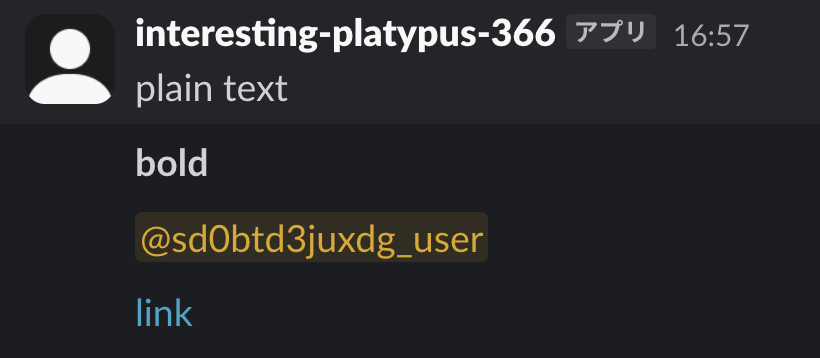
Furthermore, if you want to verify the same command with multiple patterns, you can run them all together using a shell loop.
for text in "plain text" "*bold*" "<@U0123456789>" "<https://example.com|link>"; do
  slack api chat.postMessage --app A0123456789 channel=C0123456789 text="$text" \
    | jq -r '.ok'
done
Swapping out the method to call
Since slack api accepts the method name as a positional argument, you can swap it out using a shell variable. As an example, let's check what can be called with the scopes already granted to the app.
for method in auth.test conversations.list users.list team.info; do
  printf '%s\t' "$method"
  slack api "$method" --app A0123456789 team_id=T0123456789 \
    | jq -r 'if .ok then "ok" else "\(.error)\t\(.needed // "-")" end'
done
auth.test	ok
conversations.list	ok
users.list	missing_scope	users:read
team.info	missing_scope	team:read
In this way, you can check all the scopes that need to be added to the manifest at once.
If you do the same thing with curl, you need to embed the method name in the URL. It is not impossible to write using variable expansion, but since you also have to specify the header and token every time, it is not as straightforward as this.
The token switches when you change projects
Since the token is resolved from the app within the project, all you need to do when you want to try a different app is change directories.
With curl, you would need to swap out the token in the environment variable. This prevents the mistake of forgetting to swap it and accidentally posting to a different workspace.
Summary
The part that handles the output is mostly the same for both, and the difference lies in the effort required to construct the request.
If you only run it once there is not much difference, but when you want to call it multiple times with different projects or parameters, the complexity of the steps starts to vary.
If you frequently need to verify the behavior of the Slack API, please give it a try.
Slack CLI v4.1.0 release notes. https://docs.slack.dev/changelog/2026/05/19/slack-cli/ ↩︎