I tried semi-automating proposal creation with Slack MCP and Claude Cowork

This page has been translated by machine translation. View original
Hello. I'm Kodama from the Generative AI Integration Department, AI Business Division.
I usually work as a generative AI consultant, handling proposals and consulting support for customers on LLM and generative AI utilization, as well as project management.
Out of the blue, but are you using AI to create proposal documents? And are you creating proposal documents in a way that feels "just right"?
Even though AI has made creating proposal documents easier, I still get the sense that things aren't quite working out in practice. (Like not being able to say what needs to be said)
How can we use AI to create proposal documents "easily" and in a "just right" way?
I believe the answer lies in 'context management'.
Actually, I recently tried setting up a semi-automated workflow where I accumulate project information in Slack, have Claude Cowork read it via Slack MCP, and handle everything from project organization to proposal slide creation — and it turned out to work really well.
This article introduces the overall picture and an overview of each setting.
Introduction (Prerequisites)
This article is structured in a way that will be directly useful for those using 'Slack', 'Claude', and 'PowerPoint or Google Slides'.
This is because the proposal creation flow I've built uses those resources mentioned above.
However, I believe the fundamental approach of "where to pull the 'context' from" will apply to many AI users.
Also, the word 'AI' used in this article does not refer to it in the broad sense, but specifically to 'generative AI and AI agents'.
I hope you'll read all the way through.
With that, this section summarizes "what we want to do" as an overview.
Making AI Create Proposal Slides
To begin with, creating a single proposal document by hand takes several hours. Before AI (LLMs) appeared, it was normal for the whole process — from project organization to framework, structure, and slide creation — to take 3 to 5 hours when done manually.
I believe the fundamental problem is not the time required itself, but "the fact that other work stops during that time".
Creating proposal documents is the kind of work where you lose the context if you step away midway, so if you cross into another day or step away to handle another project, the switching cost is simply high.
In other words, you need to block out a solid chunk of time.
On the other hand, if we break down the process of creating a proposal document, I think human judgment is needed for only the following 4 points:
- Defining what the customer's problems and issues are
- What to propose in response to those issues
- What will make the customer happy
- How much (the cost) to present
Conversely, writing the proposal framework into text, turning the structure into slides, and formatting do not need to be done manually.
The approach this time is to hand these tasks off to AI.
Making AI Handle Context Management
Another motivation is "context management".
As the number of projects increases, information such as meeting minutes, customer statements, homework items, and pricing history can no longer all fit in your head. Furthermore, the annoying part is that the cost of remembering "where did I write that?" is surprisingly high, even more so than the information itself.
In other words, even for a single task like creating a proposal document, "cognitive load" gets in the way.
My countermeasure for this is to "keep information in a place where AI can read it, in a form that AI can read".
By doing this, the cognitive load itself can be taken on by AI, which simply means humans can take it easy, and multitasking becomes easier.
Because even if humans forget, they can just ask AI "how was this project going?"
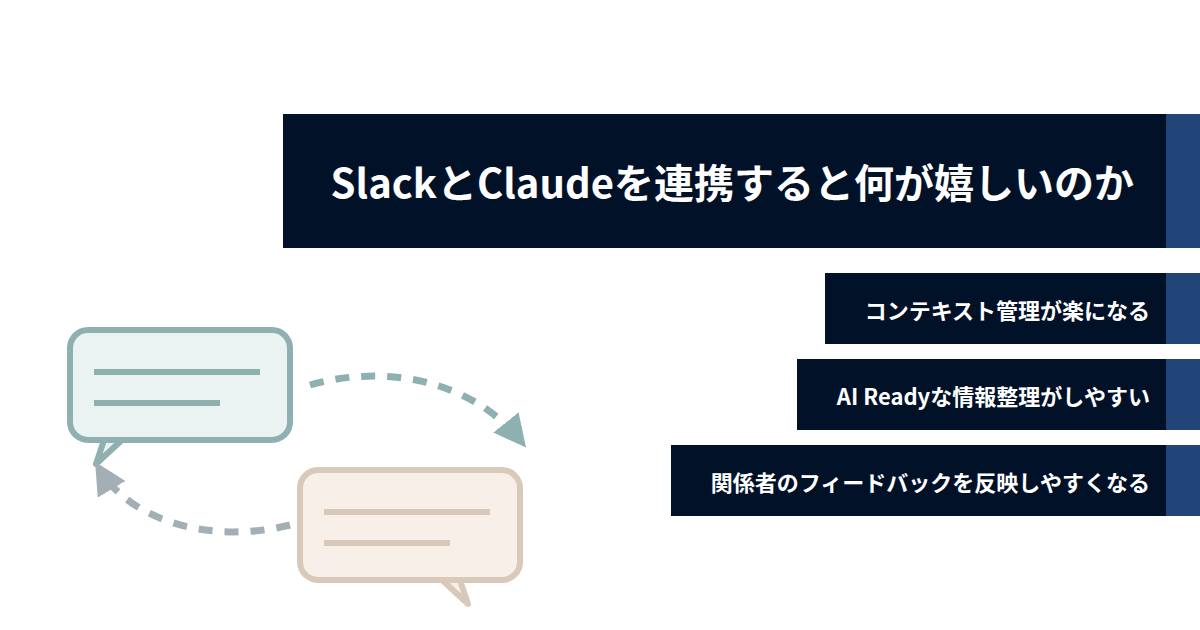
What's Great About Linking Slack and Claude
As options for storing the context needed to create deliverables (information such as meeting minutes, customer statements, homework items, and pricing history), there are also file servers, Notion, Google Drive, and others.
My reason for choosing Slack is simple: it's because Slack is where project information originates in the first place.
Sharing meeting minutes, internal discussions, and exchanges with the sales team all happen in Slack. If we can leave information right where it was generated, the work of transcribing information somewhere else disappears entirely — so the plan is to turn Slack into a data lake.
This section breaks down the benefits (advantages) of that approach.
Reference (about data lakes)
Context Management Becomes Easier
I create one thread per project and accumulate meeting minutes, received materials, and notes there in chronological order. Here, I'm not doing anything that could be called "organizing" — it's more like stacking things from top to bottom as they come in. (See attached image)
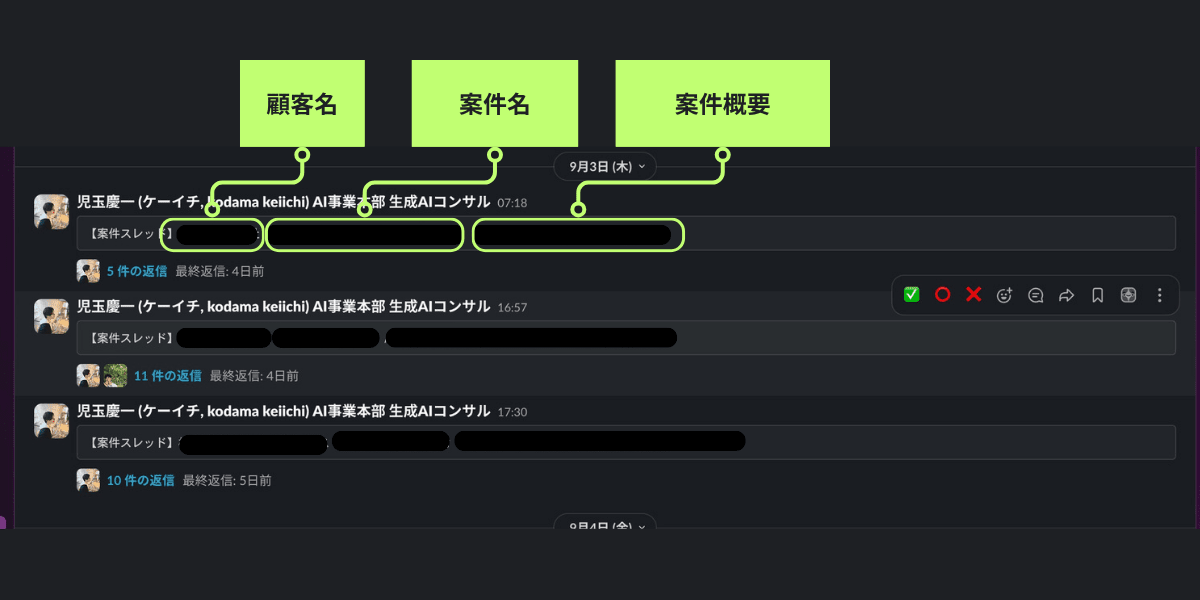
And by compiling the complete history of a project in this thread, the prerequisites for passing appropriate context to AI are gradually assembled.
By giving Claude a single thread URL, it reads the information via Slack MCP, and on the human side, it becomes enough to say "for this project, just look at this thread."
This is precisely the state of "context management has become easier."
AI-Ready Information Organization Becomes Easier
Another great point about linking Slack and Claude is that "AI Ready" information organization becomes easier.
I define "AI Ready" here with the following 3 points:
- Accessibility: Being findable through search
- High quality: Raw information is preserved and can be properly referenced
- Dynamism: Information has a chronological order and changes can be properly tracked
Managing information in Slack threads makes it easy to satisfy all 3 of these points.
In my workflow, I fix the format of the first message in a thread as [Project Thread] Company Name Project Name. By doing this, both Slack search and Claude can easily search using the string "Project Thread".
Also, by consolidating information that gets updated over time (business meetings, exchanges, etc.) into threads, raw information can be managed on a chronological basis. (See attached image)
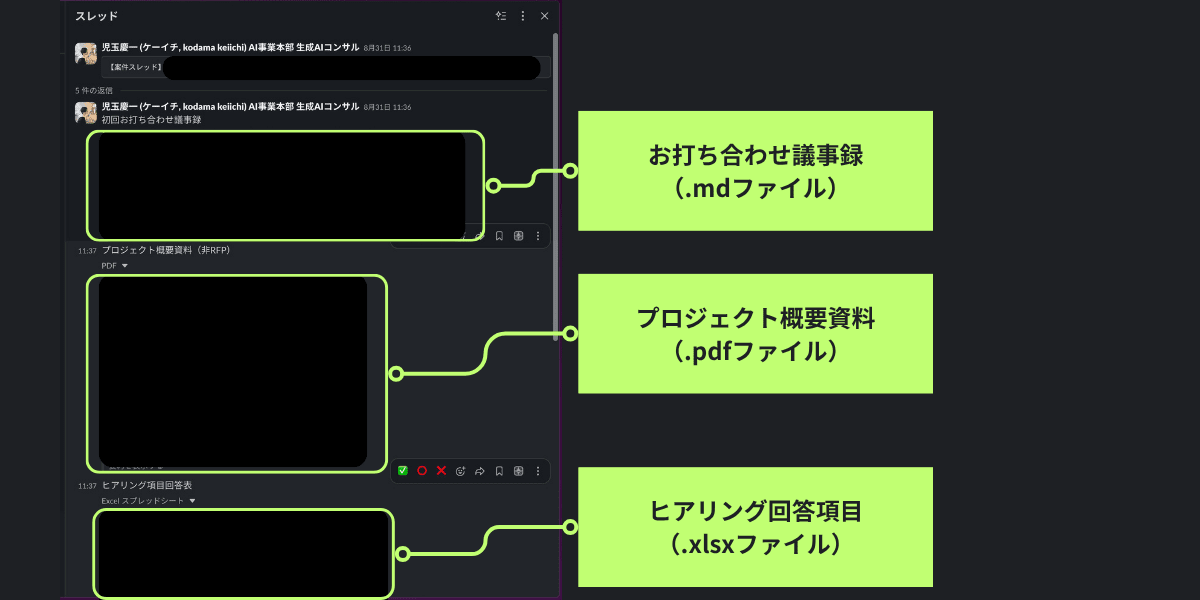
Another tip is to keep the original text (raw data) of meeting minutes, customer emails, etc. without discarding it, while making sure the first information the LLM reads is in a "data-formatted" state.
Raw information is important primary information, but it often contains unnecessary context, and passing it as-is to an LLM can lead to hallucinations or unexpected outputs. (Data noise from unstructured data)
However, when you want to check the history of pricing or the subtle nuances of statements, you also want to refer to the raw information itself. To address this dilemma, I take the approach of "placing both formatted data for the LLM to read and the original text for verification side by side in the same thread."
This will be explained later in 'Slack Thread Operations as Context', so please refer there for details.
Feedback from Stakeholders Becomes Easier to Incorporate
The third great point is that the ease of incorporating feedback improves dramatically.
In the lead-up to creating a proposal document, there are likely opportunities to have conversations with project stakeholders, such as the sales representative and members scheduled to participate or be assigned. (Such as requirements organization and pricing consultation)
Ideally, you'd want to capture those conversations as information too.
In such cases, when stakeholders have conversations within the thread I manage, information about frameworks and pricing is left right there as information, becoming one piece of context to pass to the AI agent.
Based on an example I actually experienced, in one project I posted a v0 framework to a thread and asked a sales member to review it, and I received the feedback: "The description saying our company handles the initial setup is unexpected, so remove it."
This feedback remains as an exchange directly on the thread.
This review exchange itself becomes the next piece of context, and by instructing Claude to "incorporate the review comments from the thread," the hassle of rewriting the feedback as revision instructions disappears.
Basic Architecture for Proposal Slide AI
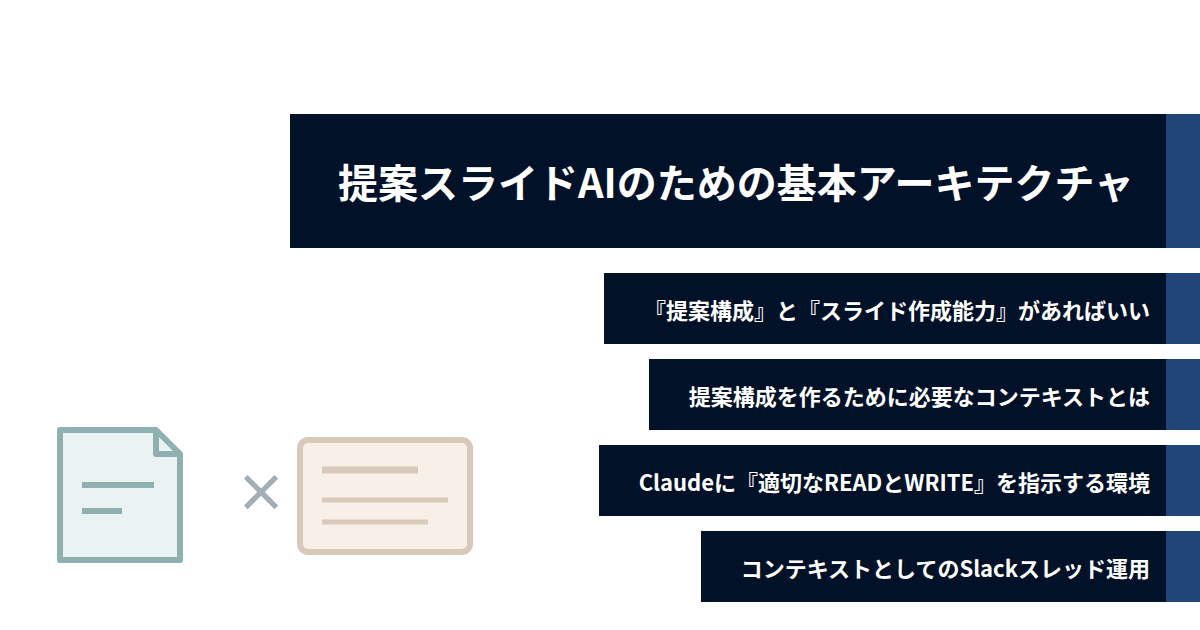
Now, from this section onward, I'll explain an overview of the basic architecture (design) needed to have the AI agent actually create proposal slides.
Since this is the part where we break down "what it means to have AI create a proposal document," if you want to quickly know the specific setup steps, please refer to 'Preparing the Slack MCP (Connector)' and beyond.
All You Need Is 'Proposal Structure' and 'Slide Creation Capability'
I think a proposal document AI can be broken down into the following multiplication:
Proposal Document AI = Proposal Structure (what to say) × Slide Creation Capability (how to present it)
In other words, the former is determined by the quality of context, and the latter is determined by the refinement of templates and creation procedures.
Since these two require completely different capabilities, they need to be designed separately.
Some of you may have tried "slide creation with AI" and gotten mediocre results, but I suspect the cause in most cases is undervaluing the context, which is the former.
Because even if the slides come out beautifully without sufficient context, you'll end up with a proposal document with no substance.
What Context Is Needed to Create a Proposal Structure
Next, let me try to organize what is needed for a proposal structure.
From my experience, I think a basic proposal structure can be created when the following set of 4 items is in place.
| Item | Content |
|---|---|
| Issues & Background | What the customer is struggling with and why they came to consult |
| Support & Service Content | What we will do in response to the issues. Scope IN/OUT |
| Schedule & Structure | From when to when, and who will be involved |
| Unit Price & Estimate Units | Unit price and man-hours. Basis for the amount |
I think a minimum framework can be written if these 4 items are in place.
And where does the specific content of these 4 items typically originate?
- Meeting minutes from the first meeting
- Responses from hearings
- Internal pricing discussions
In other words, (in my case) all of it is information managed in Slack threads.
An Environment for Instructing Claude to Perform 'Appropriate READ and WRITE'
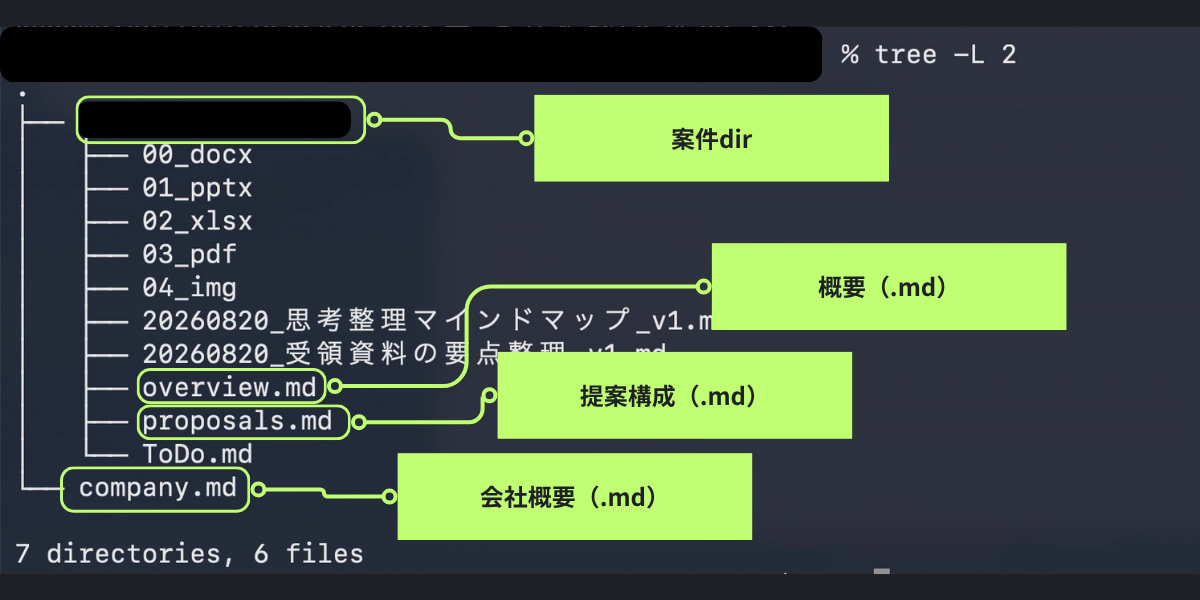
Once the context is in place, the next step is to create an environment that instructs Claude on "what to read, in what order, and what to write, where, and how."
The key to designing the READ side is to fix the reading order.
In my Claude Cowork project 'Document Creation Project', I have it read in the following order:
- Customer information (
company.md) - Project overview (
overview.md) - Related materials linked to the project (meeting minutes, received materials)
- Proposal structure (
proposals.md) - Slide template
The reading order is arranged in the sequence of customer understanding → project understanding → detailed ToDo → expression rules, so that the AI agent doesn't need to build up unnecessary context.
For the WRITE side design, I place importance on clearly documenting the rules.
- Directory conventions (fixing folder structure per customer and project)
- File naming (
YYYYMMDD_document name_vN.pptx) - Operating rules for incrementing versions without deleting old ones
- Visual requirements (template compliance, font size, text tone, etc.)
Also, regarding template work, by turning it into a Skill, the output becomes standardized through background script execution, so it's good to create a Skill with your preferred requirements.
To summarize: don't let it create things too freely; have it create within the rules. However, let the LLM figure out the content writing policy.
Slack Thread Operations as Context
As mentioned earlier, on the Slack side it's important to preserve raw data while also needing to format the data so that AI can easily read it.
(Earlier: What's Great About Linking Slack and Claude > AI-Ready Information Organization Becomes Easier)
For example, from the perspective of "meeting minutes," suppose you want to use a voice transcription file from an online business meeting as context. The transcription file is raw data, but in terms of accuracy it depends heavily on speaker diarization performance and each speaker's own articulation.
In addition, the transcription output itself cannot be called structured data.
As meeting minutes, at minimum you'd want a summary covering 'what the conversation was for,' 'what goal the conversation aimed at,' 'what was discussed,' and 'what to do next.'
So, to make the data easier for AI to read, I think the following two approaches are effective:
- Using online meeting transcription AI such as Gemini or Zoom AI Companion
- Creating your own prompt or skill to summarize transcriptions
In my case, I use the former meeting transcription AI for meeting minutes, and I paste the pre-summarized conversation as a markdown file into the Slack thread.
Preparing the Slack MCP (Connector)
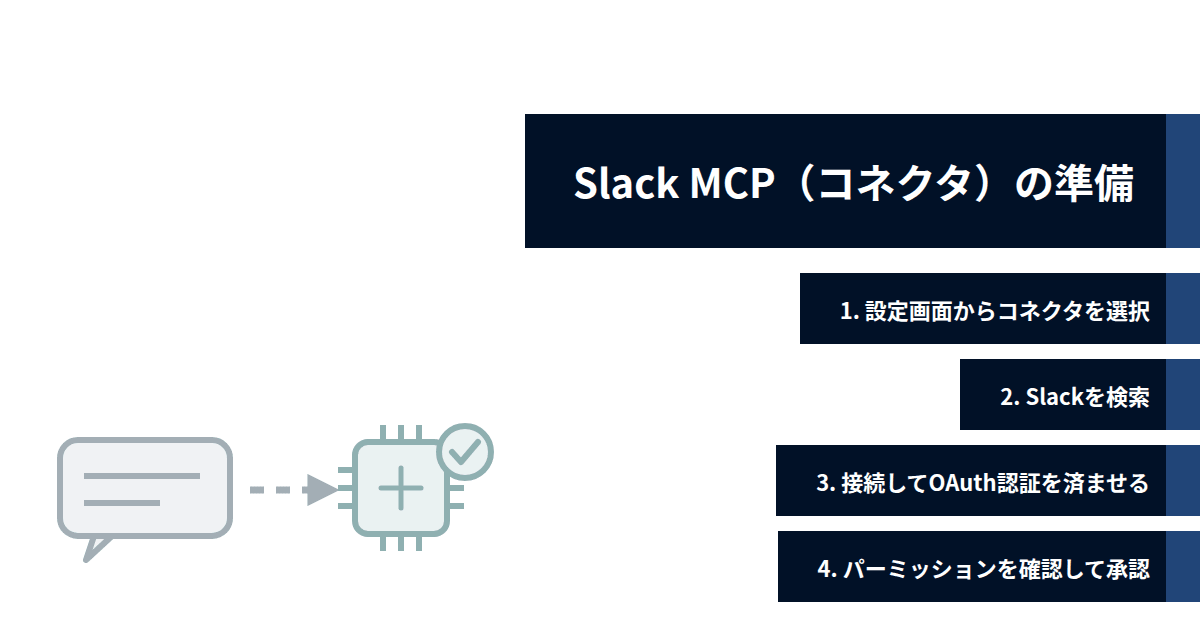
Here are the setup steps. First, let's create the connection with Slack. Claude has a Slack connector (MCP) ready to use, so it can be completed with just screen operations.
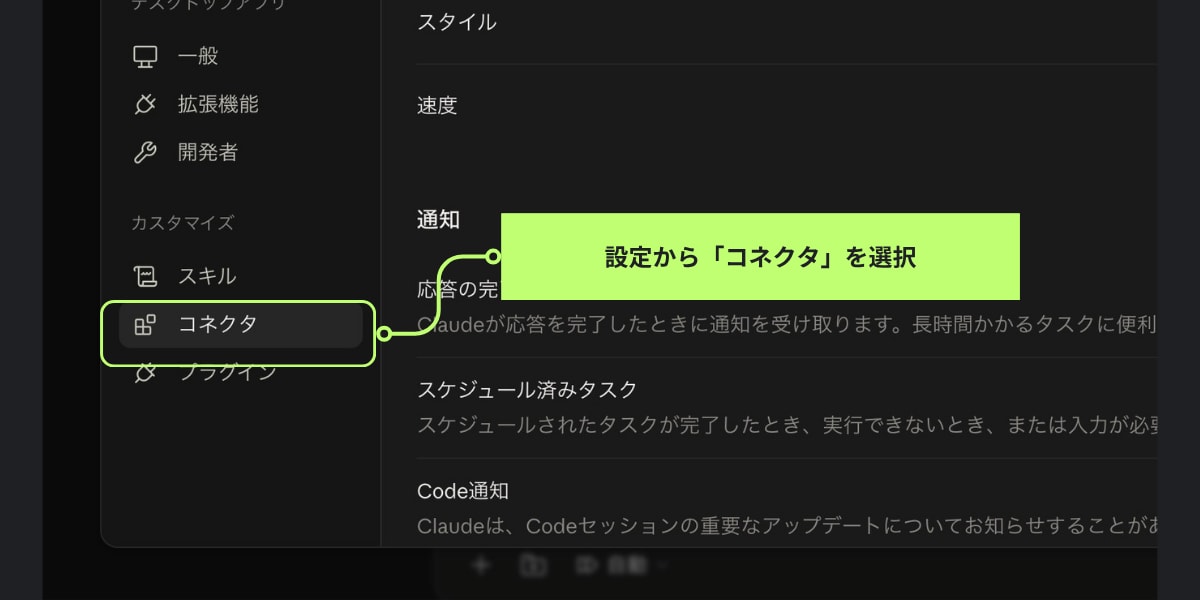
1. Select the Connector from the Settings Screen
First, open the Claude settings screen and select "Connectors."
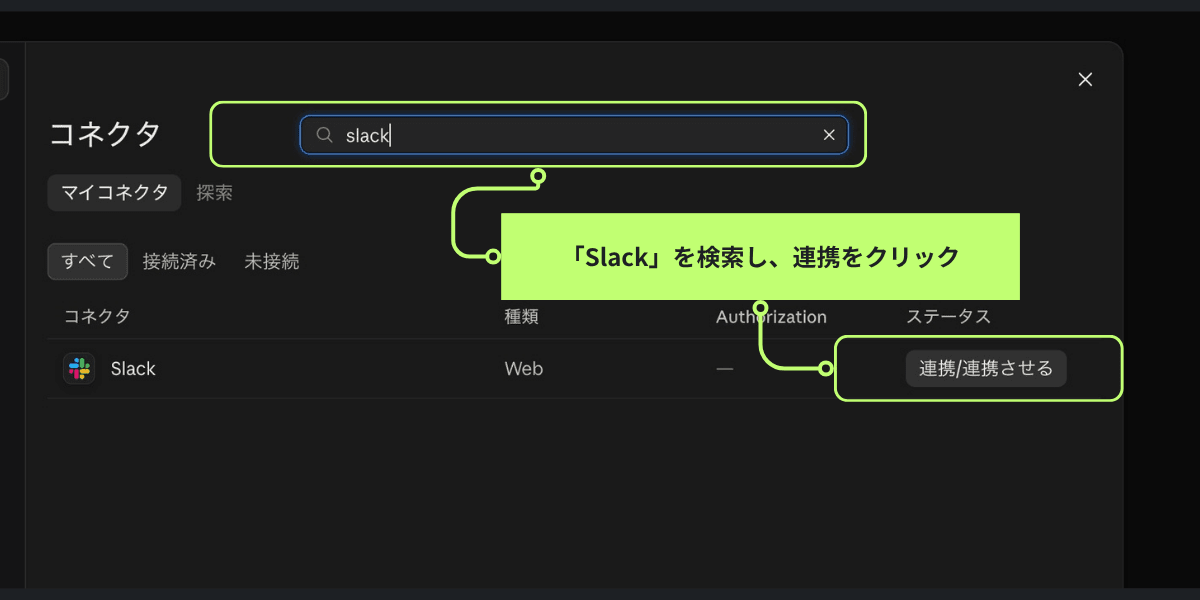
2. Search for Slack
Next, search for "Slack" in the connector list/search screen.
Click the "Connect/Connect it" button on the snippet that appears in the search results.
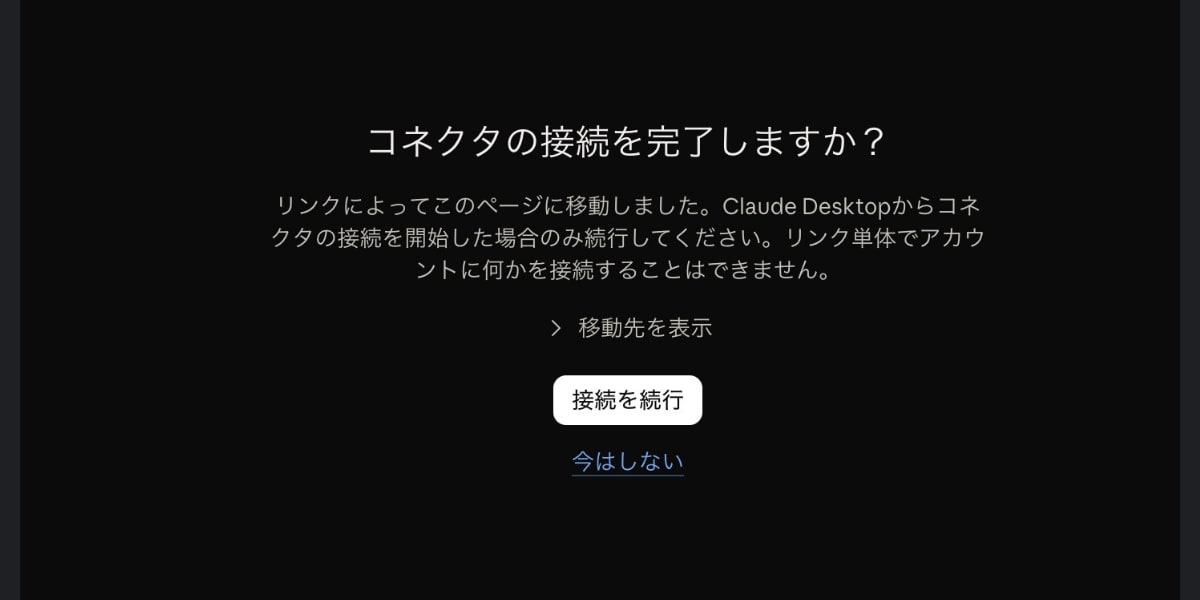
The next screen will show a screen to continue the connection, so proceed to the next step.
3. Connect and Complete OAuth Authentication
Next, you'll be redirected to Slack's OAuth authentication screen.
On the authentication screen, confirm the workspace to connect and allow the authentication.
Just to be safe, check the app permissions being granted at this point.
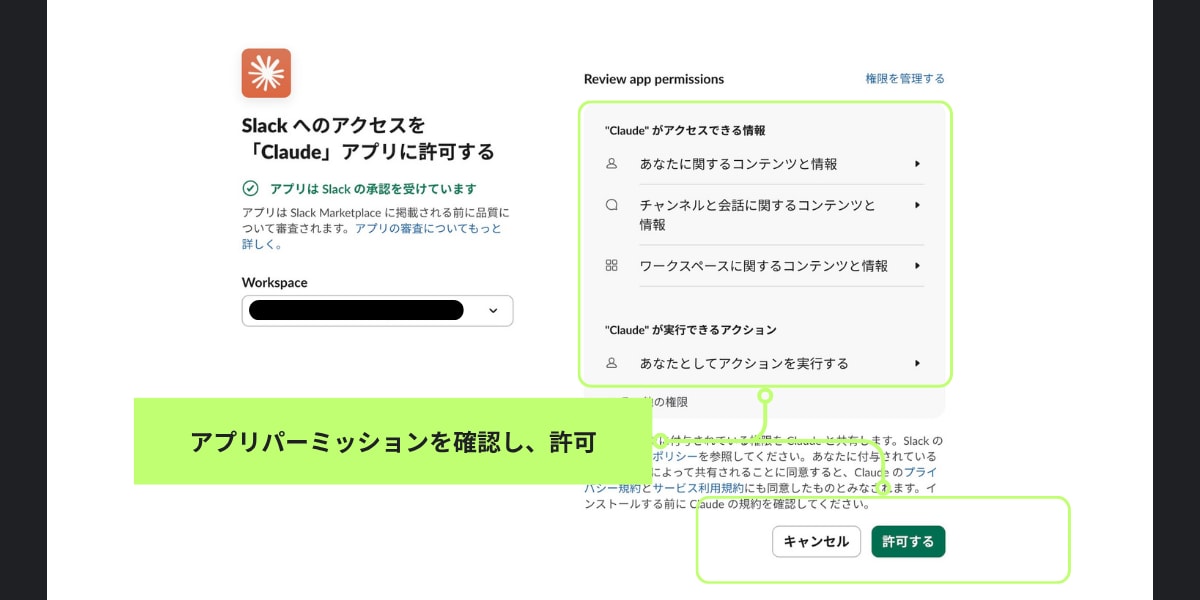
There are 2 supplementary notes.
- For managed workspaces such as Enterprise, you may not be able to connect unless the Slack administrator has pre-approved the app. In that case, you'll need to request approval from your Slack administrator.
- Authentication is per Slack account. The range Claude can read is the same as the range the authenticated person can read on Slack — it cannot exceed that.
Preparing Claude Cowork
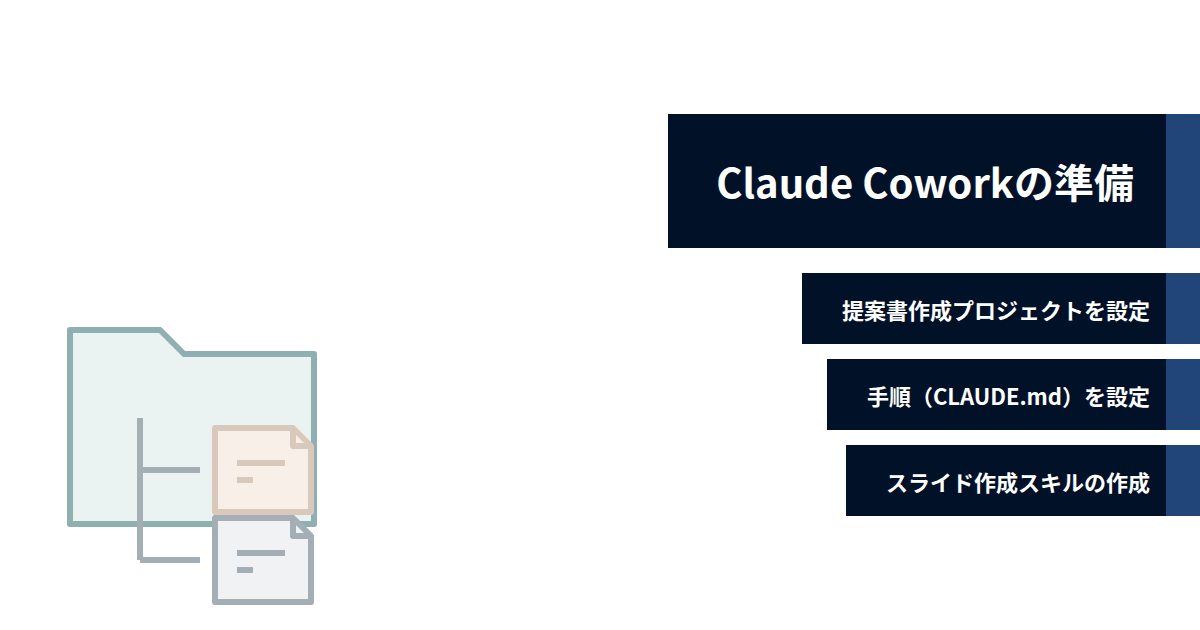
Next is the Claude Cowork side. Here, we prepare 3 elements.
Set Up the Proposal Creation Project
First, create a project for proposal creation and decide where to store the materials. My project folder structure is as follows.
. (project root)
├── Document Templates/
├── Customer A/
│   ├── company.md      # Company overview, key persons, business channels, project history
│   ├── Project A/
│   │   ├── overview.md # Project overview, scope, schedule, document list
│   │   ├── ToDo.md
│   │   ├── 00_docx/
│   │   ├── 01_pptx/
│   │   ├── 02_xlsx/
│   │   ├── 03_pdf/
│   │   └── 04_img/
│   │   └── proposals.md
│   └── Project B/
└── Customer B/
A key configuration point is separating customer-level information (company.md) from project-level information (overview.md).
By doing this, customer understanding can be reused for the second and subsequent projects with the same customer.
Set Up the Procedure (CLAUDE.md)
Next, write the procedures and conventions that Claude should follow in the project's instruction document.
※There are arguments recently that CLAUDE.md isn't that effective, but let's go with the classic approach for now...
The following is an excerpt from what I actually write.
## Basic Principles

- Before starting work related to a customer or project, always read the target customer's company.md and
  the target project's overview.md.
- When creating documents, always refer to the appropriate template
  from under the Document Templates/ directory.

## When Asked to Create Proposal Materials
1. Read in the order: company.md → overview.md → related materials → template.
2. First present a structural proposal (agenda level) to the user,
   and proceed to actual creation only after obtaining agreement.
3. After creation, conduct a self-review.
   - Content consistency review (checking for discrepancies in amounts, dates, proper nouns, and scope)
   - Win condition review (cross-checking with the checklist in the project organization md)
   - Expression review (detecting and correcting AI-like expressions)

## Prohibited Actions
- Do not delete or overwrite existing files without the user's explicit confirmation.
- Do not reuse information from one customer in materials for another customer.
I think there are 2 key design points.
The first is including a step where a human agrees at the structural proposal stage. This is because correcting the structure after the slides are complete causes significant rework, so I want to agree on the agenda level first.
The second is clearly documenting the self-review as a process step.
Since I want to stabilize the quality of feedback, I document the review perspectives and place them in the project.
Creating the Slide Creation Skill
The last part is the slide creation skill. This is the process of consolidating the requirements for "how to visually present things."
- Layout specification compliant with slide templates
- Minimum font size
- Slides created by AI tend to have small text
- I include an instruction to enlarge by 1.2 to 1.5 times after generation
- Text tone specification
- Since the wording AI produces can feel subtly off, I specify the tone
Something that personally feels effective within the tone specification is the machine-based detection of AI-like expressions.
I've listed NG words that tend to appear in proposal documents, and have it inspect with grep after generation.
The following is part of that list.
"realize" "seamless" "the first step toward ~" "maximize value"
→ Do not use
Having AI Create a Proposal Document from a Slack Project Thread
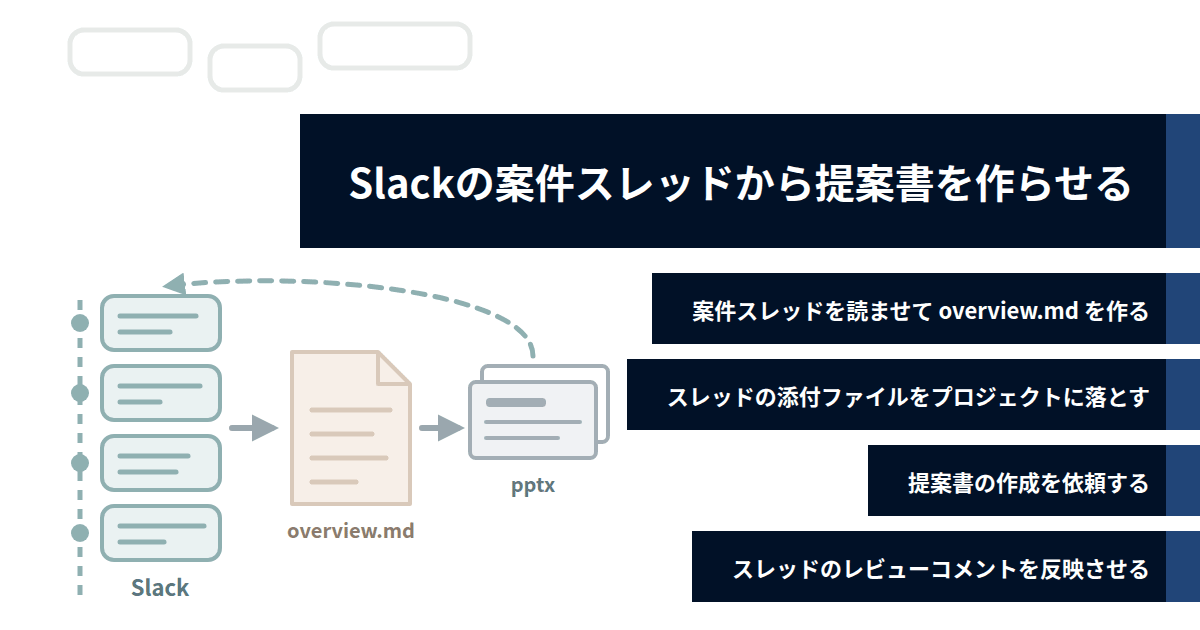
Up to this point, the preparations are in place on both the Slack side (where primary information is stored) and the Claude Cowork side (conventions and workspace).
In this section, I'll introduce the flow of actually connecting these two and having the proposal document created, in the order I normally follow.
The overall picture in advance is these 4 steps:
- Have it read the project thread to create
overview.md - Drop the attached files from the thread into the project
- Request creation of the proposal document
- Have it incorporate review comments from the thread
The key point is that instead of having it read the Slack thread as-is every time, I have it first import into overview.md and then create the proposal document.
The Slack thread serves as "the place where generated information is stacked as-is," while overview.md serves as "the place where that information is organized for proposal documents" — this is the division of roles.
1. Have It Read the Project Thread to Create overview.md
First, open the 'Document Creation Project' folder in Claude Cowork and pass the project thread URL to request project organization.
The prompt I actually submit is almost the following single sentence, and I don't write anything more than this.
Please read this Slack thread and organize the customer information and project information.
https://xxxxx.slack.com/archives/CXXXXXXXX/pXXXXXXXXXXXXXXXX
Claude then reads the thread from top to bottom via Slack MCP, extracts information corresponding to the aforementioned 4-item set (issues & background / support & service content / schedule & structure / unit price & estimate units), and writes it out to overview.md. (See attached image)
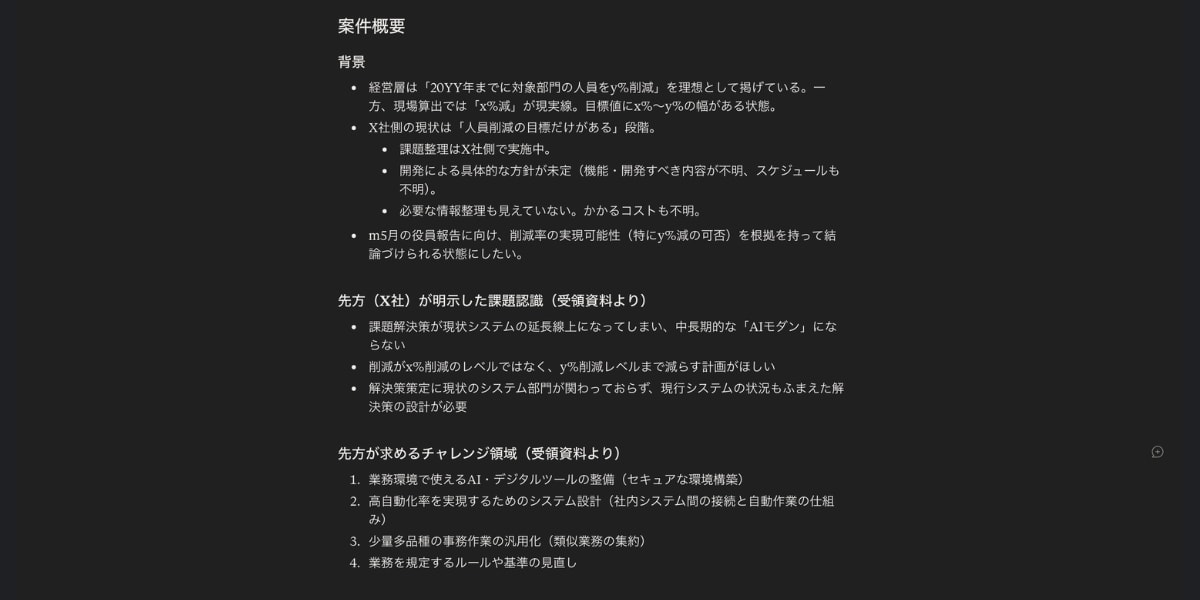
What's "great" here is that even if the pricing in the thread has changed back and forth, it picks up the entire history.
A flow like "initially presented at X million → sales discussed reducing to X million → final agreement at X million" remains in overview.md with its chronology intact. The work of humans having to remember "wait, what amount did we end up agreeing on?" disappears.
Additionally, from the second time onward, you can just ask "re-read the thread and update overview.md" and only the differences will be reflected.
Since CLAUDE.md prohibits unauthorized overwriting of existing files, it gets appended in a form that preserves update history.
(The following is what this step looks like when put into CLAUDE.md)
## When Asked to Import a Project Thread
1. Read the provided Slack thread URL with the Slack connector,
   and extract issues & background / support content / schedule & structure / pricing history.
2. Reflect this in the target project's overview.md.
   Do not overwrite existing content; manage with additions and update history.
3. Points where judgment is divided (pricing, scope) should be
   explicitly marked as "undecided" — do not arbitrarily finalize them.
2. Drop the Attached Files from the Thread into the Project
Next, drop the meeting minutes md files and received materials attached to the thread into the project side.
This too becomes just a matter of asking "save the attached files in the thread by type into 00_docx/, 03_pdf/, etc., and add them to the document list in overview.md."
In my workflow, I post both the summary md output by the meeting transcription AI and the original transcription file to the Slack thread.
And I instruct Claude to start from the summary md when creating the proposal document, and to reference the transcription only when checking the pricing statements or subtle nuances.
In other words, by placing "formatted data for reading" and "original text for verification" side by side in the same thread, I achieve the best of both worlds — suppressing context noise while not discarding primary information.
3. Request Creation of the Proposal Document
Once the materials are gathered, it's finally time for the proposal document.
The request text is also simple, roughly as follows:
Please create a proposal document for Customer A / Project A.
Please use Document Templates/Proposal_Standard.pptx for the template.
From here, the procedures written in CLAUDE.md kick in.
- Read in the order:
company.md→overview.md→ related materials → template - A structural proposal (agenda level) is presented
- The human checks, makes corrections, and agrees
- The slide creation skill runs and a pptx is generated
- Self-review results (content consistency, win conditions, expressions) are returned
The level of detail of the structural proposal that's actually returned is as follows. (See attached image)
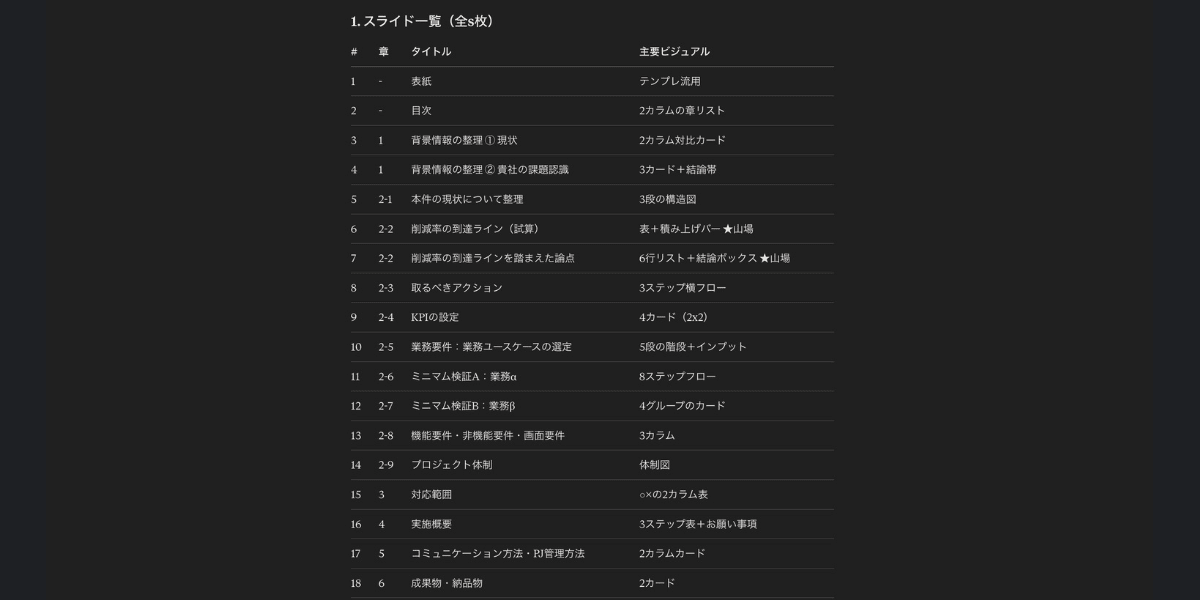
At the structural proposal stage, I only check 2 things: "Does the way the customer's issue is described match the statements in the thread?" and "Is the out-of-scope clearly stated?"
As long as these two are agreed upon, even if the slide content is a bit off, it can be fixed later. Conversely, if these are off and we proceed, the entire document will need to be remade.
After agreement, 01_pptx/YYYYMMDD_Proposal_v1.pptx is generated in a few minutes. (The attached image has been converted to G-Slide)
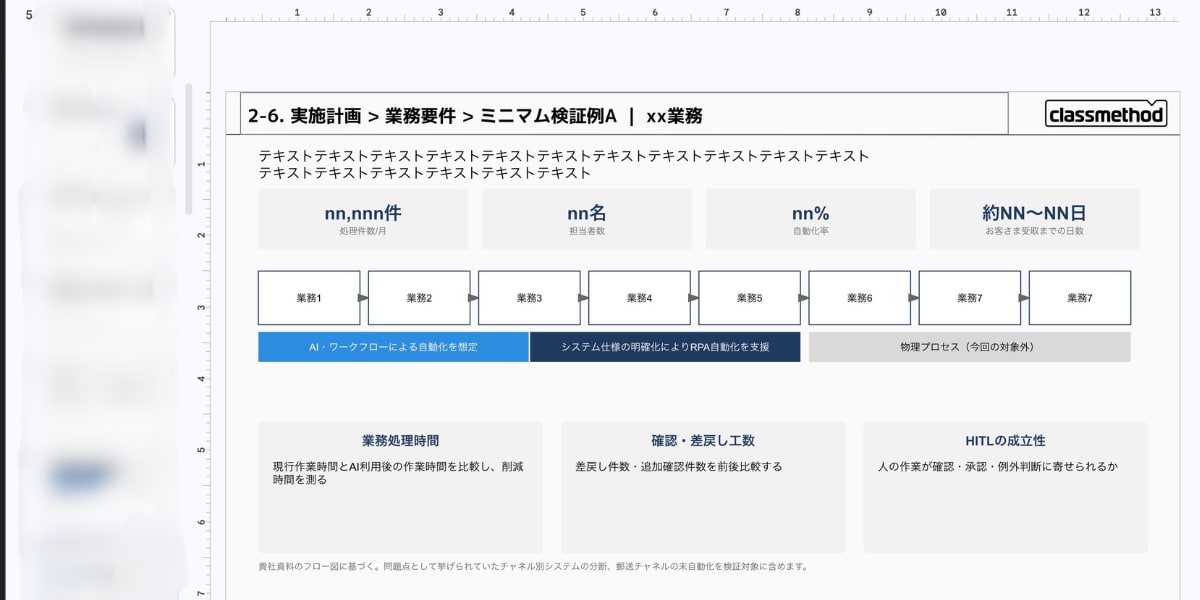
The self-review results also come back together, so checks like "does the amount match overview.md?" and "are there any NG words remaining?" are already completed by Claude before I even get to them.
4. Have It Incorporate Review Comments from the Thread
Finally, incorporating the review feedback.
Post the generated v1 to the Slack project thread and ask the sales team and participating members to review it.
Have them write their feedback directly on the thread. Feedback like the earlier "The description saying our company handles the initial setup is unexpected, so remove it."
I never rewrite the feedback into revision instructions myself — I simply ask Claude as follows:
Please read the review comments posted after the v1 was shared in the project thread,
and create a v2 that incorporates the feedback. Please also provide a list of what was incorporated.
Claude reads the relevant section of the thread and, for each feedback item, produces v2.pptx along with a list of "which slide, which description, and how it was changed."
At this point, if the feedback includes something that affects the project's premises, such as "remove something from scope," I also have it reflected in the overview.md side.
By doing this, the next time a project comes in with the same customer, where things got contentious last time will also remain as context.
This completes one cycle.
The only things humans do are: paste the URL in step 1, agree on the structural proposal in step 3, and request a review in step 4 — just these 3 things.
When Linking Slack and Claude Doesn't Work Well
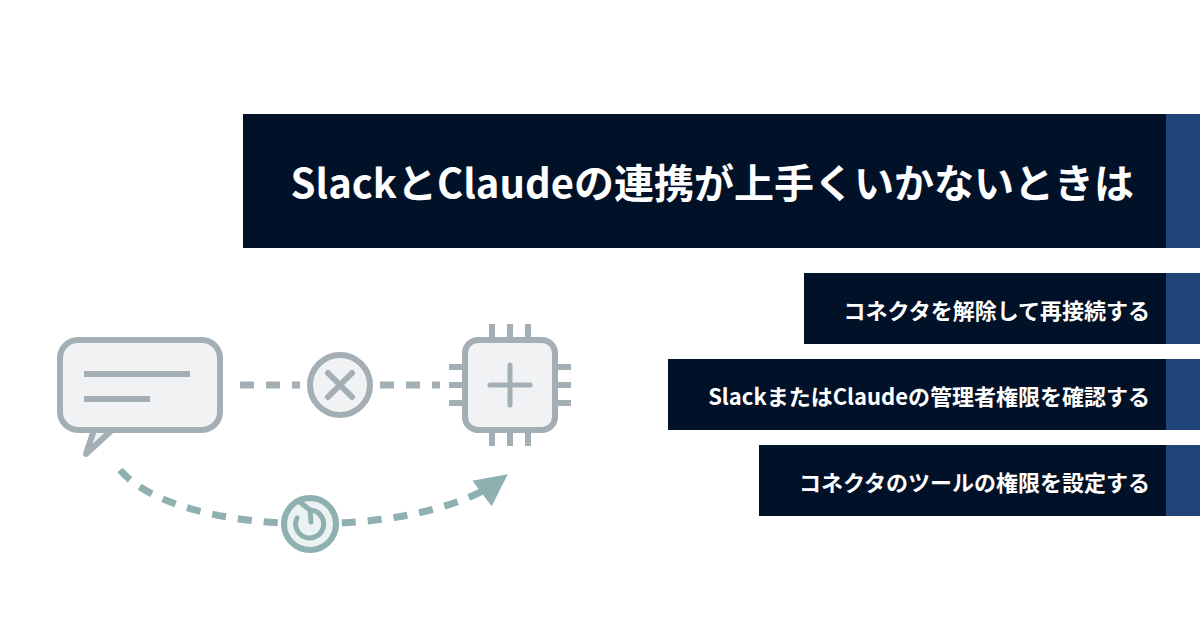
Finally, I'll just note some troubleshooting for when the Slack and Claude integration doesn't work well.
I hope this will be helpful as a reference.
Disconnect and Reconnect the Connector
When the Slack MCP isn't working properly (API can't be called, errors occur), in most cases it's due to authentication token expiration.
In such cases, disconnecting the Slack connector from the settings screen and reconnecting usually fixes it.
It's kind of like the "try restarting it" fix.
Check Administrator Privileges for Slack or Claude
If Slack doesn't even appear in the connector list, or if you're rejected partway through OAuth authentication.
In this case, it can't be resolved with individual settings, and you'll need to check the administrator-side settings.
- Slack side: Check whether the Claude app has been approved in the workspace's app approval policy
- If not approved, request approval from your Slack administrator
- Claude side: For Team plans and Enterprise plans, the organization administrator can control connector availability
- If it's been disabled in the admin console, request it from your organization administrator.
Configure Tool Permissions for the Connector
When the connection is working but you can only search and not post.
Connectors have permission settings per tool (search, channel reading, message posting, etc.). After connecting, check these settings and see if the necessary tools are enabled.
Conclusion
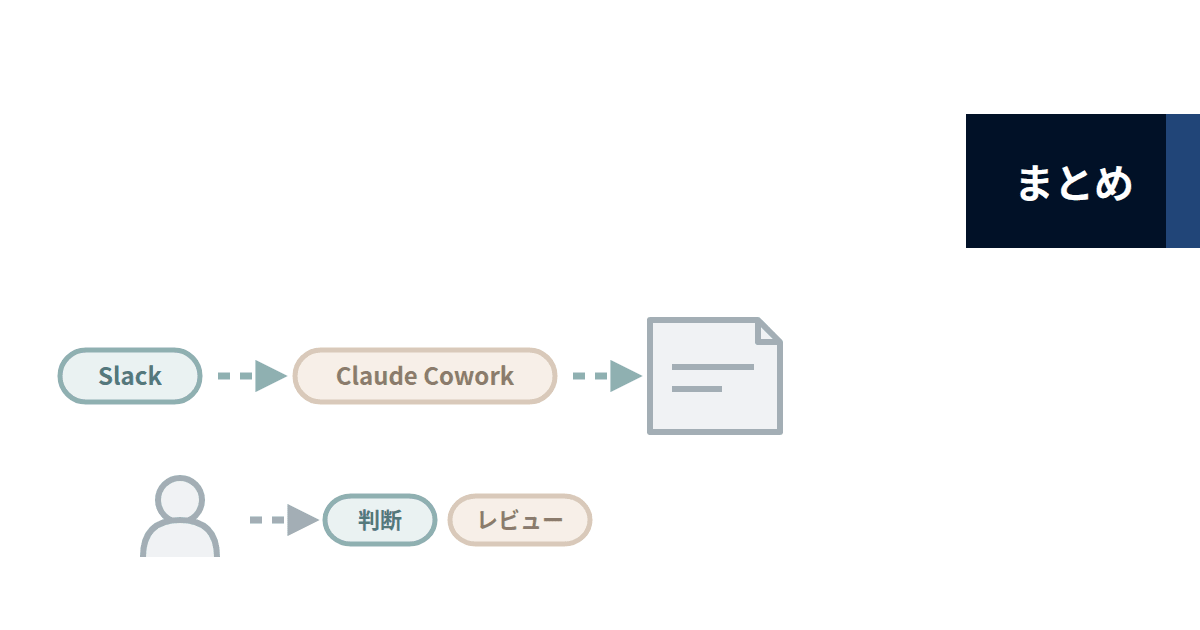
Up to this point, I've introduced a workflow where Slack project threads serve as the place for primary information, Claude Cowork reads them via Slack MCP, and proposal documents are created within a project with documented conventions.
I started this workflow with the intention of making approval and review processes the remaining work for humans, and I plan to continue using and upgrading it going forward.
I hope this will be helpful for those who, like me, are having their time locked up in pre-sales proposal creation.