
[New Feature] Snowflake CoCo for Excel is now in preview, so I tried out natural language queries, CORTEX cell functions, and Intelligent refresh in Excel

This page has been translated by machine translation. View original
I'm Kawabata.
On November 3, 2026, Snowflake CoCo for Excel and Snowflake CoCo for Google Sheets entered preview.
In this article, I install Snowflake CoCo for Excel on Excel for Windows. I try, in order, natural-language data loading, PivotTables and charts, aggregation using a specified Semantic View, CORTEX cell functions, and Intelligent refresh. Then I switch roles and confirm that the masking applied on the Snowflake side is also reflected in the results loaded into Excel.
Overview of Snowflake CoCo for Excel
This feature runs Snowflake CoCo as an Excel add-in and opens a chat pane next to the worksheet. When you make a request in the pane in Japanese, CoCo generates SQL, runs it on Snowflake, and writes the results into Excel as a table. You can also request PivotTables, charts, and formulas from the same conversation.
The data flow is as follows.
- The user signs in from the Excel pane with Snowflake OAuth
- CoCo interprets the request and runs SQL with the user's role
- Before writing, a preview of the changes is shown, and they are applied when the user clicks Accept
- The written values carry citations to the query and metrics they were generated from
The executing principal is always the signed-in user themselves. Access control and data protection policies corresponding to the user's role are applied to queries. In the second half of this article, I confirm that the masking results change when the role is switched.
The official page labels it "Preview Feature — Open", and it is available to all accounts. It is subject to the Preview Terms of Service, so use with production data is not recommended. Billing is based on token consumption, the same as other CoCo features, and there is no per-seat license. Credits for the warehouse that runs the queries are charged separately.
Prerequisites
- Excel from Microsoft 365
- A Snowflake account with Snowflake Cortex and CoCo enabled
- Cross-region inference is needed only if the chosen model is not available in your region
- ACCOUNTADMIN to create the security integration
- A non-admin role that users use to sign in
Preparation
Verification data and Semantic View
From TPCH_SF1 in SNOWFLAKE_SAMPLE_DATA, I copy the customers with customer keys 1 to 1000 and their orders, using easy-to-read column names. In the SQL shown, some object names from the verification environment (such as the warehouse name) have been changed. The objects to create are as follows.
| Object | Description |
|---|---|
| COCO_EXCEL_WH | An XSMALL warehouse (dedicated to the verification roles) |
| REGION / NATION / CUSTOMER / ORDERS in COCO_EXCEL_DB.SALES | Copies of TPC-H. 5 / 25 / 1,000 / 9,894 rows |
| CUSTOMER_FEEDBACK | 10 fictional customer comments for CORTEX cell functions (6 in Japanese, 4 in English) |
| MASK_CUSTOMER_PII | Masking policy for customer names and phone numbers |
| SV_SALES | A Semantic View joining orders, customers, nations, and regions |
The SQL to create the warehouse, database, and tables is as follows. All 10 comments in CUSTOMER_FEEDBACK are fictional.
Data for verification
USE ROLE ACCOUNTADMIN;

CREATE WAREHOUSE IF NOT EXISTS COCO_EXCEL_WH
  WAREHOUSE_SIZE = XSMALL AUTO_SUSPEND = 60 AUTO_RESUME = TRUE INITIALLY_SUSPENDED = TRUE;
CREATE DATABASE IF NOT EXISTS COCO_EXCEL_DB;
CREATE SCHEMA IF NOT EXISTS COCO_EXCEL_DB.SALES;

USE WAREHOUSE COCO_EXCEL_WH;
USE SCHEMA COCO_EXCEL_DB.SALES;

CREATE OR REPLACE TABLE REGION AS
SELECT r_regionkey AS region_key, r_name AS region_name
FROM SNOWFLAKE_SAMPLE_DATA.TPCH_SF1.REGION;

CREATE OR REPLACE TABLE NATION AS
SELECT n_nationkey AS nation_key, n_name AS nation_name, n_regionkey AS region_key
FROM SNOWFLAKE_SAMPLE_DATA.TPCH_SF1.NATION;

CREATE OR REPLACE TABLE CUSTOMER AS
SELECT c_custkey AS customer_key, c_name AS customer_name, c_address AS address, c_nationkey AS nation_key,
       c_phone AS phone, c_acctbal AS account_balance, c_mktsegment AS market_segment, c_comment AS customer_comment
FROM SNOWFLAKE_SAMPLE_DATA.TPCH_SF1.CUSTOMER
WHERE c_custkey BETWEEN 1 AND 1000;

CREATE OR REPLACE TABLE ORDERS AS
SELECT o_orderkey AS order_key, o_custkey AS customer_key, o_orderstatus AS order_status, o_totalprice AS total_price,
       o_orderdate AS order_date, o_orderpriority AS order_priority, o_clerk AS clerk, o_comment AS order_comment
FROM SNOWFLAKE_SAMPLE_DATA.TPCH_SF1.ORDERS
WHERE o_custkey BETWEEN 1 AND 1000;

CREATE OR REPLACE TABLE CUSTOMER_FEEDBACK (
  feedback_id NUMBER, customer_key NUMBER, feedback_date DATE, channel VARCHAR(20), feedback_text VARCHAR(1000)
);

INSERT INTO CUSTOMER_FEEDBACK VALUES
  (1,  12, '2026-10-01', 'web',   '注文から到着まで 2 日で届きました。梱包も丁寧で満足しています。'),
  (2,  25, '2026-10-02', 'phone', '請求書の金額が見積と違っていました。確認に時間がかかり不満です。'),
  (3,  37, '2026-10-03', 'email', 'サポートの返信は早かったものの、回答内容が質問とずれていました。'),
  (4,  41, '2026-10-05', 'web',   '新しい管理画面は見やすくなりました。検索が速くなったのが助かります。'),
  (5,  58, '2026-10-07', 'phone', '配送が 1 週間遅れ、連絡もありませんでした。改善を求めます。'),
  (6,  63, '2026-10-09', 'email', '特に問題はありません。価格が少し高いと感じます。'),
  (7,  77, '2026-10-10', 'web',   'The delivery was fast and the product quality exceeded my expectations.'),
  (8,  84, '2026-10-12', 'email', 'I was charged twice for the same order and still waiting for the refund.'),
  (9,  91, '2026-10-14', 'phone', 'The support agent was polite but could not solve my login issue.'),
  (10, 99, '2026-10-15', 'web',   'Average experience. Nothing special, nothing wrong.');
The masking policy returns the original value when COCO_EXCEL_ANALYST or ACCOUNTADMIN is active in the session, and returns a masked string otherwise. IS_ROLE_IN_SESSION also evaluates role inheritance, so even SYSADMIN, which inherits COCO_EXCEL_ANALYST, sees the original values. For the two roles compared this time, ANALYST sees the original values and VIEWER sees the masked string.
CREATE OR REPLACE MASKING POLICY COCO_EXCEL_DB.SALES.MASK_CUSTOMER_PII AS (val STRING) RETURNS STRING ->
  CASE
    WHEN IS_ROLE_IN_SESSION('COCO_EXCEL_ANALYST') OR IS_ROLE_IN_SESSION('ACCOUNTADMIN') THEN val
    ELSE '*** MASKED ***'
  END;

ALTER TABLE COCO_EXCEL_DB.SALES.CUSTOMER MODIFY COLUMN customer_name
  SET MASKING POLICY COCO_EXCEL_DB.SALES.MASK_CUSTOMER_PII;
ALTER TABLE COCO_EXCEL_DB.SALES.CUSTOMER MODIFY COLUMN phone
  SET MASKING POLICY COCO_EXCEL_DB.SALES.MASK_CUSTOMER_PII;
The Semantic View joins the 4 tables with RELATIONSHIPS and uses revenue, order count, average order value, and customer count as metrics. I added Japanese synonyms so that they can be specified in Japanese from the pane.
Semantic View
CREATE OR REPLACE SEMANTIC VIEW COCO_EXCEL_DB.SALES.SV_SALES
  TABLES (
    orders    AS COCO_EXCEL_DB.SALES.ORDERS   PRIMARY KEY (order_key)    WITH SYNONYMS ('注文', 'sales orders'),
    customers AS COCO_EXCEL_DB.SALES.CUSTOMER PRIMARY KEY (customer_key) WITH SYNONYMS ('顧客', 'clients'),
    nations   AS COCO_EXCEL_DB.SALES.NATION   PRIMARY KEY (nation_key),
    regions   AS COCO_EXCEL_DB.SALES.REGION   PRIMARY KEY (region_key)
  )
  RELATIONSHIPS (
    orders_to_customers  AS orders (customer_key)  REFERENCES customers (customer_key),
    customers_to_nations AS customers (nation_key) REFERENCES nations (nation_key),
    nations_to_regions   AS nations (region_key)   REFERENCES regions (region_key)
  )
  FACTS (
    orders.order_total AS total_price
  )
  DIMENSIONS (
    orders.order_month       AS DATE_TRUNC('MONTH', order_date),
    customers.customer_name  AS customer_name,
    customers.market_segment AS market_segment,
    regions.region_name      AS region_name
  )
  METRICS (
    orders.total_revenue       AS SUM(order_total)   WITH SYNONYMS ('売上', 'revenue'),
    orders.order_count         AS COUNT(order_key)   WITH SYNONYMS ('注文件数'),
    orders.average_order_value AS AVG(order_total)   WITH SYNONYMS ('平均注文金額'),
    customers.customer_count   AS COUNT(customer_key) WITH SYNONYMS ('顧客数')
  );
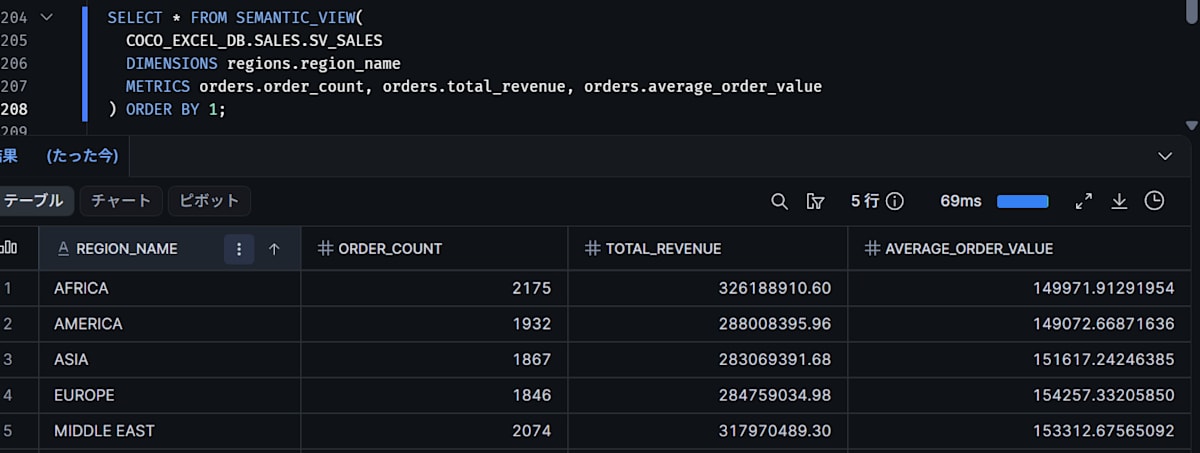
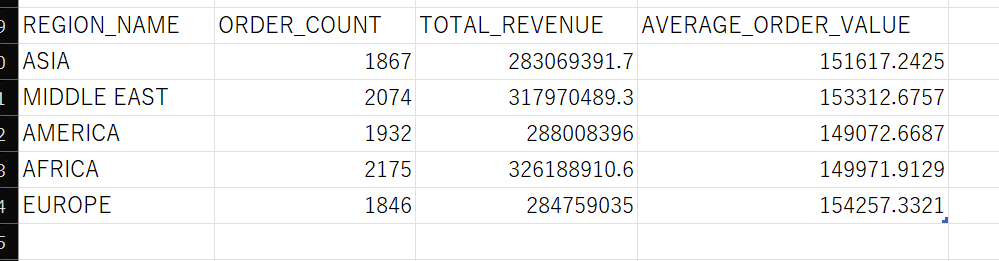
These are the values by region queried directly with the SEMANTIC_VIEW syntax. I use them as a baseline to compare against the results on the Excel side.
User roles
To check the difference in what is visible by switching roles with the same user, I create 2 roles that have the same privileges and differ only in the masking policy evaluation.
| Role | Customer name / phone number |
|---|---|
| COCO_EXCEL_ANALYST | Raw values |
| COCO_EXCEL_VIEWER | *** MASKED *** |
Role setup
USE ROLE ACCOUNTADMIN;
SET coco_user = 'ユーザー名';   -- Snowflake user who signs in to Excel

CREATE ROLE IF NOT EXISTS COCO_EXCEL_ANALYST;
CREATE ROLE IF NOT EXISTS COCO_EXCEL_VIEWER;
GRANT ROLE COCO_EXCEL_ANALYST TO ROLE SYSADMIN;
GRANT ROLE COCO_EXCEL_VIEWER  TO ROLE SYSADMIN;

-- Equivalent to "All Cortex AI features" in CoCo Admin. CORTEX cell functions call the Cortex REST API, so CORTEX_USER is granted
GRANT DATABASE ROLE SNOWFLAKE.CORTEX_USER TO ROLE COCO_EXCEL_ANALYST;
GRANT DATABASE ROLE SNOWFLAKE.CORTEX_USER TO ROLE COCO_EXCEL_VIEWER;

GRANT USAGE ON WAREHOUSE COCO_EXCEL_WH TO ROLE COCO_EXCEL_ANALYST;
GRANT USAGE ON WAREHOUSE COCO_EXCEL_WH TO ROLE COCO_EXCEL_VIEWER;
GRANT USAGE ON DATABASE COCO_EXCEL_DB TO ROLE COCO_EXCEL_ANALYST;
GRANT USAGE ON DATABASE COCO_EXCEL_DB TO ROLE COCO_EXCEL_VIEWER;
GRANT USAGE ON SCHEMA COCO_EXCEL_DB.SALES TO ROLE COCO_EXCEL_ANALYST;
GRANT USAGE ON SCHEMA COCO_EXCEL_DB.SALES TO ROLE COCO_EXCEL_VIEWER;
GRANT SELECT ON ALL TABLES IN SCHEMA COCO_EXCEL_DB.SALES TO ROLE COCO_EXCEL_ANALYST;
GRANT SELECT ON ALL TABLES IN SCHEMA COCO_EXCEL_DB.SALES TO ROLE COCO_EXCEL_VIEWER;
GRANT SELECT ON SEMANTIC VIEW COCO_EXCEL_DB.SALES.SV_SALES TO ROLE COCO_EXCEL_ANALYST;
GRANT SELECT ON SEMANTIC VIEW COCO_EXCEL_DB.SALES.SV_SALES TO ROLE COCO_EXCEL_VIEWER;

GRANT ROLE COCO_EXCEL_ANALYST TO USER IDENTIFIER($coco_user);
GRANT ROLE COCO_EXCEL_VIEWER  TO USER IDENTIFIER($coco_user);

-- The pane has no UI for choosing a warehouse, so set the default warehouse to the verification one
ALTER USER IDENTIFIER($coco_user) SET DEFAULT_WAREHOUSE = COCO_EXCEL_WH;
The official page does not describe how the warehouse is chosen; it only says that refresh runs with "the current role and warehouse". I assume the user's DEFAULT_WAREHOUSE is used, so during verification I set the default warehouse to COCO_EXCEL_WH.
OAuth security integration
The add-in runs in a browser runtime inside Excel, so it cannot hold a client secret. For that reason, I create one Snowflake OAuth security integration that uses a PUBLIC client and PKCE in the account.
CREATE SECURITY INTEGRATION IF NOT EXISTS COCO_EXCEL_OAUTH
  TYPE = OAUTH
  OAUTH_CLIENT = CUSTOM
  OAUTH_CLIENT_TYPE = 'PUBLIC'
  OAUTH_REDIRECT_URI = 'https://ai.snowflake.com/static/excel/oauth/callback.html'
  OAUTH_ENFORCE_PKCE = TRUE
  OAUTH_ISSUE_REFRESH_TOKENS = TRUE
  OAUTH_REFRESH_TOKEN_VALIDITY = 86400
  ENABLED = TRUE
  COMMENT = 'Snowflake CoCo for Excel / Google Sheets add-in (shared)';

DESCRIBE SECURITY INTEGRATION COCO_EXCEL_OAUTH;

-- Specify the integration name in uppercase. Distribute the OAUTH_CLIENT_ID in the result to users
SELECT SYSTEM$SHOW_OAUTH_CLIENT_SECRETS('COCO_EXCEL_OAUTH');
Note: If you recreate the integration with CREATE OR REPLACE, the client ID changes and the refresh tokens of all users become invalid. Make configuration changes with ALTER SECURITY INTEGRATION, and use IF NOT EXISTS for CREATE.
Registering the add-in in Excel
At this stage of the preview, the add-in is distributed by sideloading a manifest. On Windows, you choose between a Trusted Add-in Catalog (which requires a network share) and per-user registry registration. This article uses registry registration, which does not require a shared folder.
$manifestDir  = "$env:LOCALAPPDATA\Snowflake\CoCoExcel"
$manifestPath = "$manifestDir\snowflake-coco-excel.xml"
$developerKey = "HKCU:\Software\Microsoft\Office\16.0\WEF\Developer"

New-Item -Path $manifestDir -ItemType Directory -Force | Out-Null
Invoke-WebRequest -Uri "https://ai.snowflake.com/static/excel/releases/prod/manifest.xml" -OutFile $manifestPath

if (-not (Test-Path $developerKey)) { New-Item -Path $developerKey -Force | Out-Null }
Set-ItemProperty -Path $developerKey -Name "SnowflakeCoCoExcel" -Value $manifestPath

Get-ItemProperty -Path $developerKey
Administrator privileges are not required, and because it writes to HKEY_CURRENT_USER, it applies only to your own Windows user. Excel reads this key at startup, so make sure no Excel process remains before running it. The manifest is read from the registered path every time, so if you move the file, the add-in will no longer appear.
Opening the pane and signing in
Start Excel, open a new blank workbook, and choose Snowflake CoCo from Home > Add-ins > Developer Add-ins.
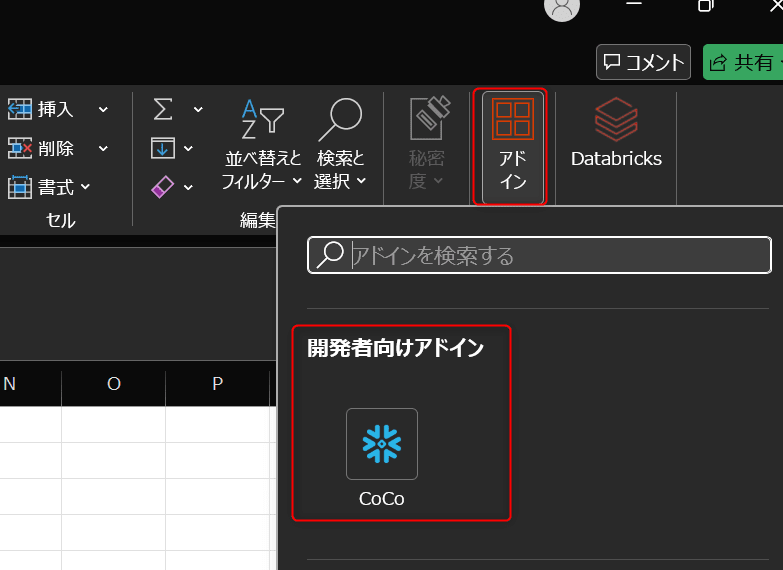
The pane opens on the right and the sign-in screen appears. You enter the following 3 items.
- Account identifier: in the format organization name-account name (e.g., MYORG-MYACCOUNT)
- OAuth client ID: the value noted above
- Role: COCO_EXCEL_ANALYST (leave blank to use the default role)
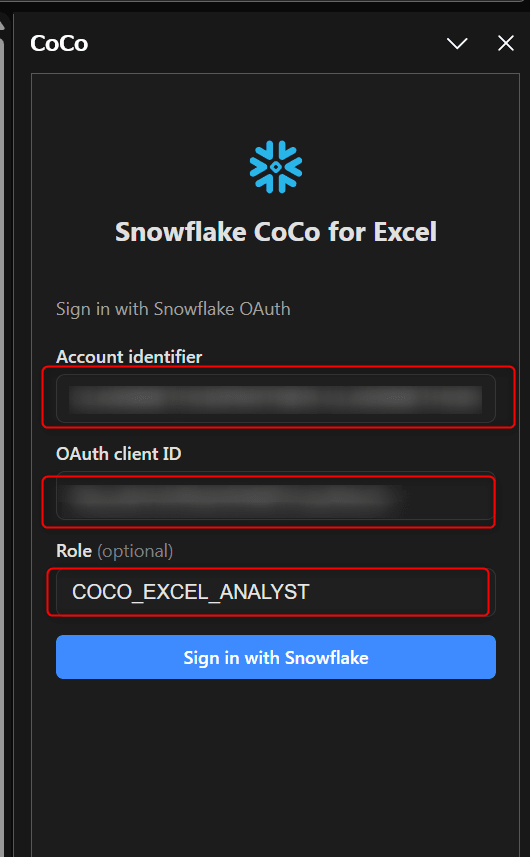
When you click Sign in with Snowflake, the browser opens and takes you to the Snowflake authentication screen.
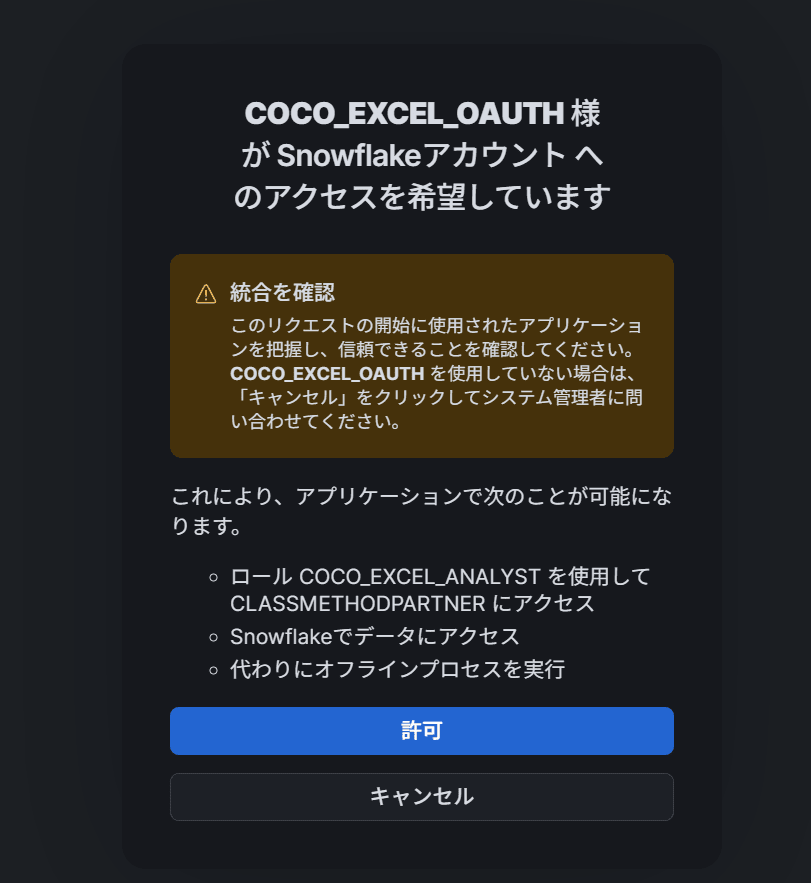
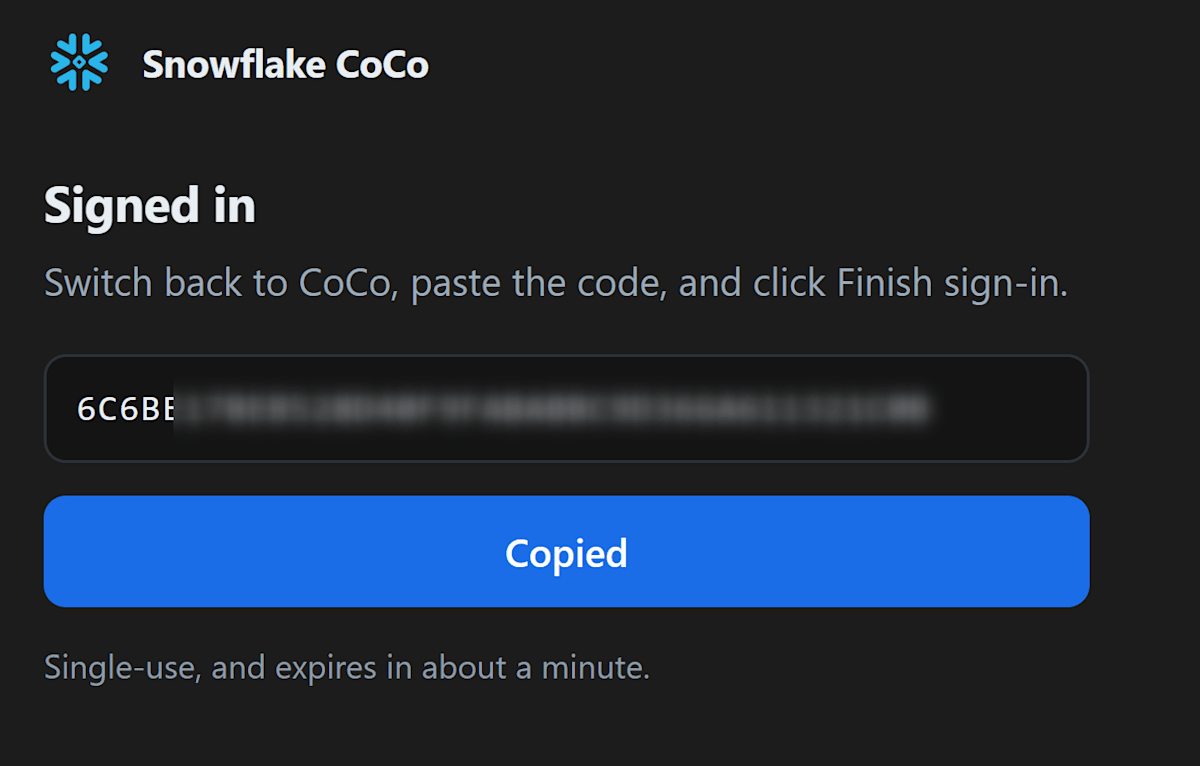
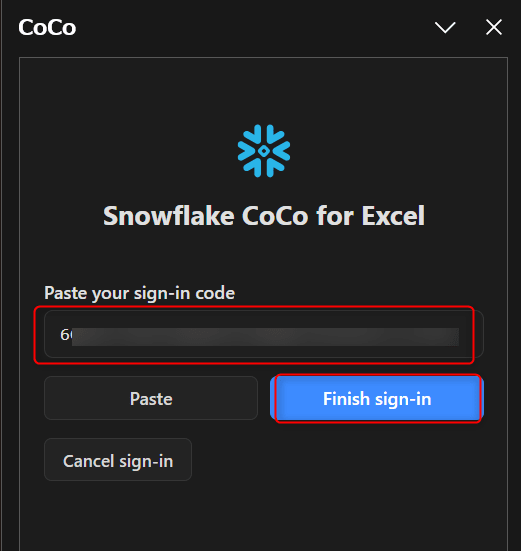
When authentication finishes, a sign-in code is displayed on the screen. Note it with Copy code, paste it into the pane, and click Finish sign-in.
[Entering the code on the Excel side]
You can now use CoCo from Excel.
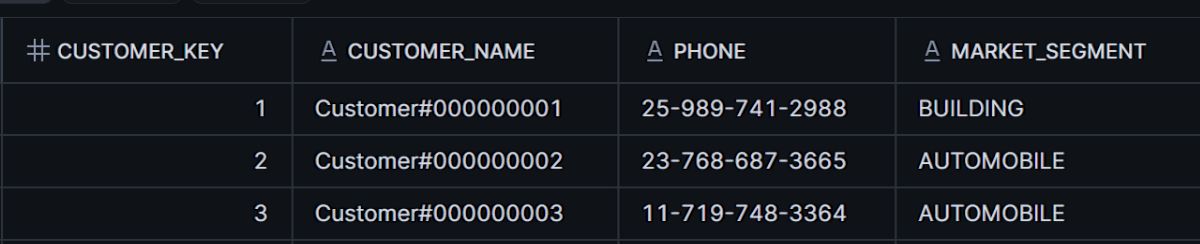
After signing in, before looking at Excel, let's check with SQL how things look for each role.
USE SECONDARY ROLES NONE;
USE ROLE COCO_EXCEL_ANALYST;
SELECT customer_key, customer_name, phone, market_segment
FROM COCO_EXCEL_DB.SALES.CUSTOMER
ORDER BY customer_key
LIMIT 3;
USE SECONDARY ROLES NONE;
USE ROLE COCO_EXCEL_VIEWER;
SELECT customer_key, customer_name, phone, market_segment
FROM COCO_EXCEL_DB.SALES.CUSTOMER
ORDER BY customer_key
LIMIT 3;

Trying it out
Loading data with natural language
I made the following request to CoCo in Excel.
COCO_EXCEL_DB.SALES の注文データで、1998 年の注文を注文日・顧客名・市場セグメント・地域名・注文金額の列で読み込んでください
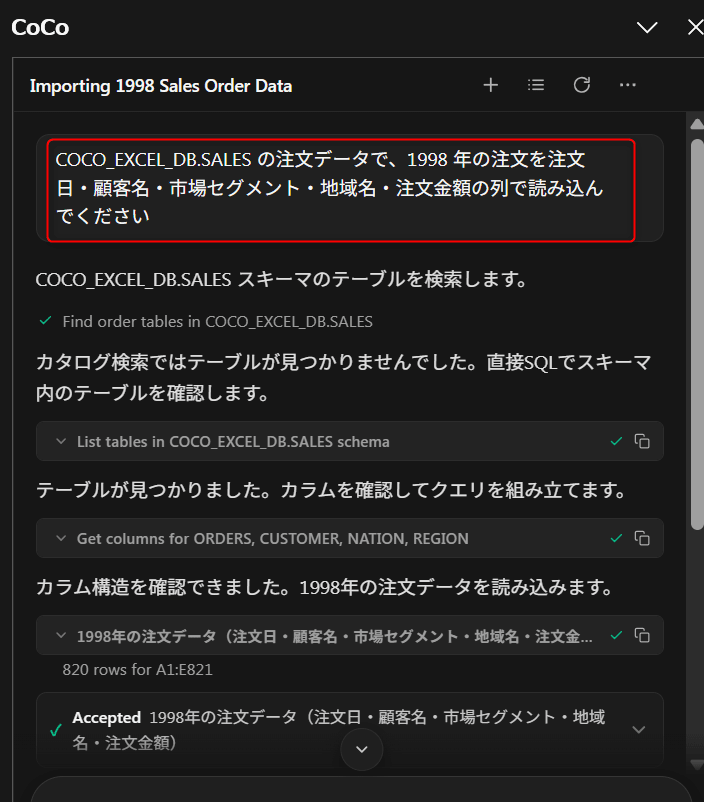
The official page recommends including the database, schema, and target objects in the prompt for accurate results.
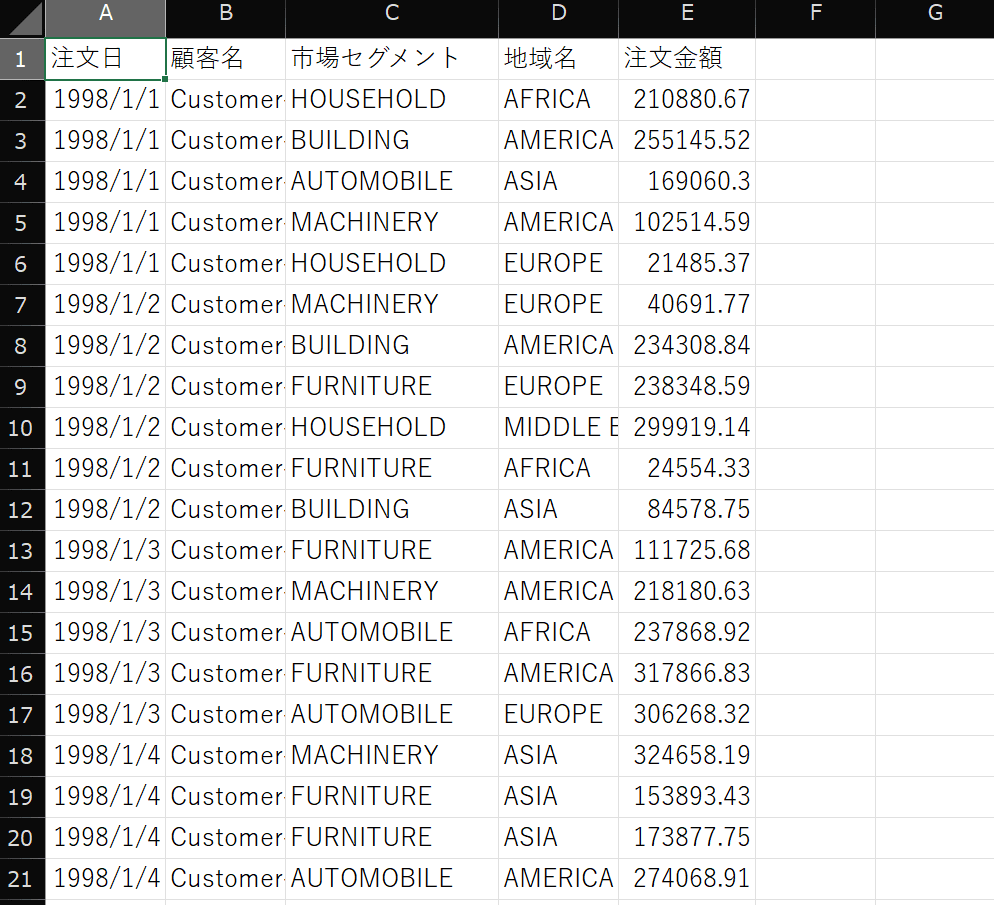
The result was 820 rows, as expected.
Creating a PivotTable and a chart
Next, I enter the following.
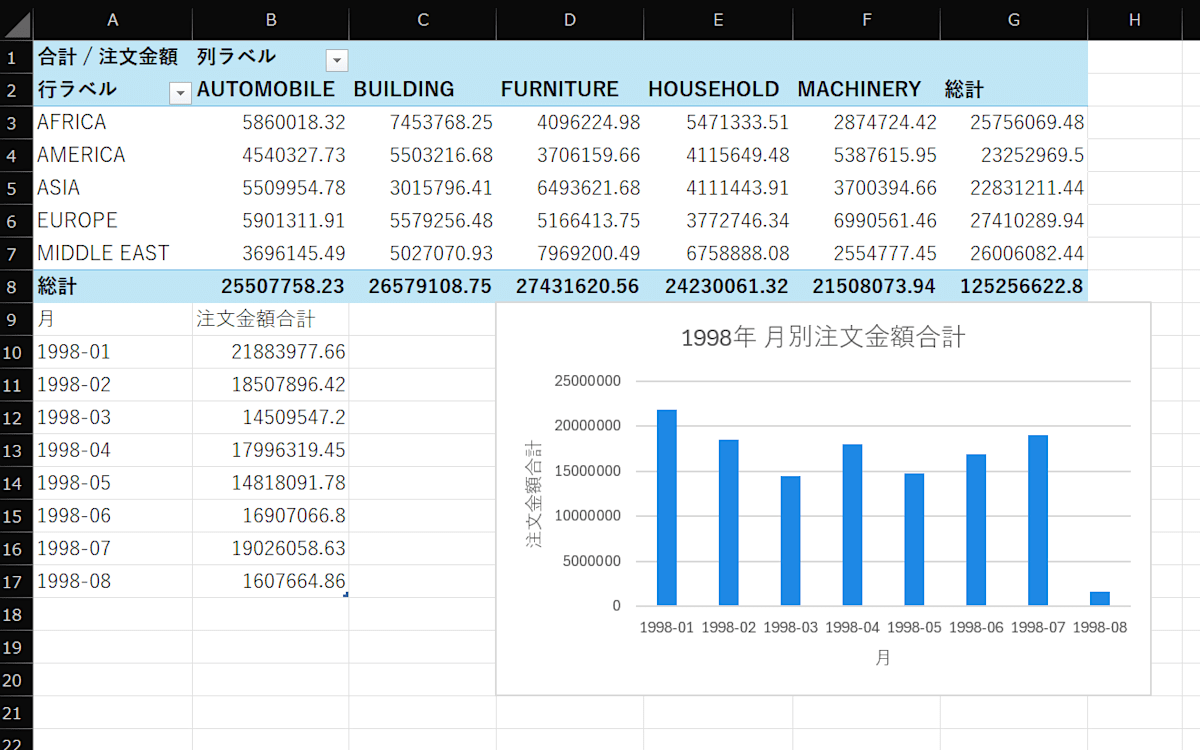
この表から、地域名を行・市場セグメントを列にして注文金額の合計を集計する PivotTable を新しいシートに作ってください。あわせて月別の注文金額合計を棒グラフにしてください
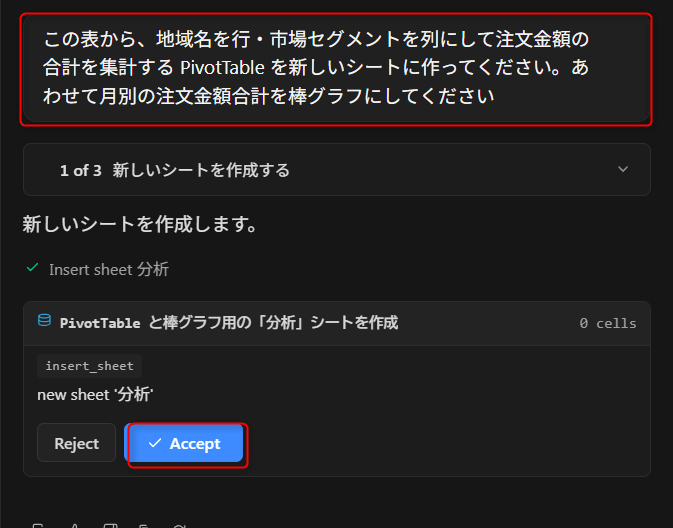
CoCo creates an Excel PivotTable object and a chart. The PivotTable CoCo creates references the entire table, so when the table is updated by the refresh described later, the PivotTable follows. PivotTables that reference a fixed cell range are not covered by this.
Aggregating with a specified Semantic View
I enter the following.
SV_SALES の Semantic View を使って、地域別の注文件数・売上・平均注文金額を出してください
This time, I confirmed that the generated SQL uses the metrics defined in the Semantic View. Because metric definitions can be managed on the Snowflake side, aggregation logic can be shared among users. However, results vary depending on search conditions and on the masking and row access policies applied to the role.
Adding a formula and having Explain with CoCo describe it
I enter the following.
注文金額が 200,000 以上なら「大口」、それ以外は空欄にする列をテーブルの右に追加してください
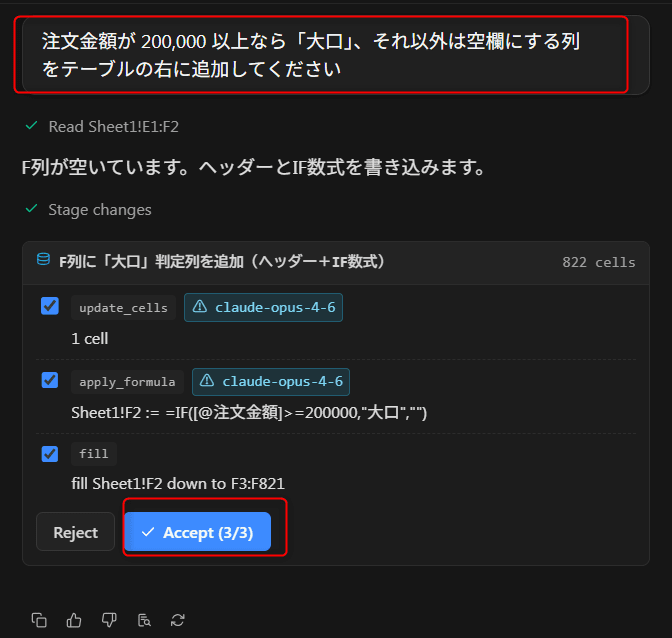
CoCo adds the column with an Excel formula (the IF function).
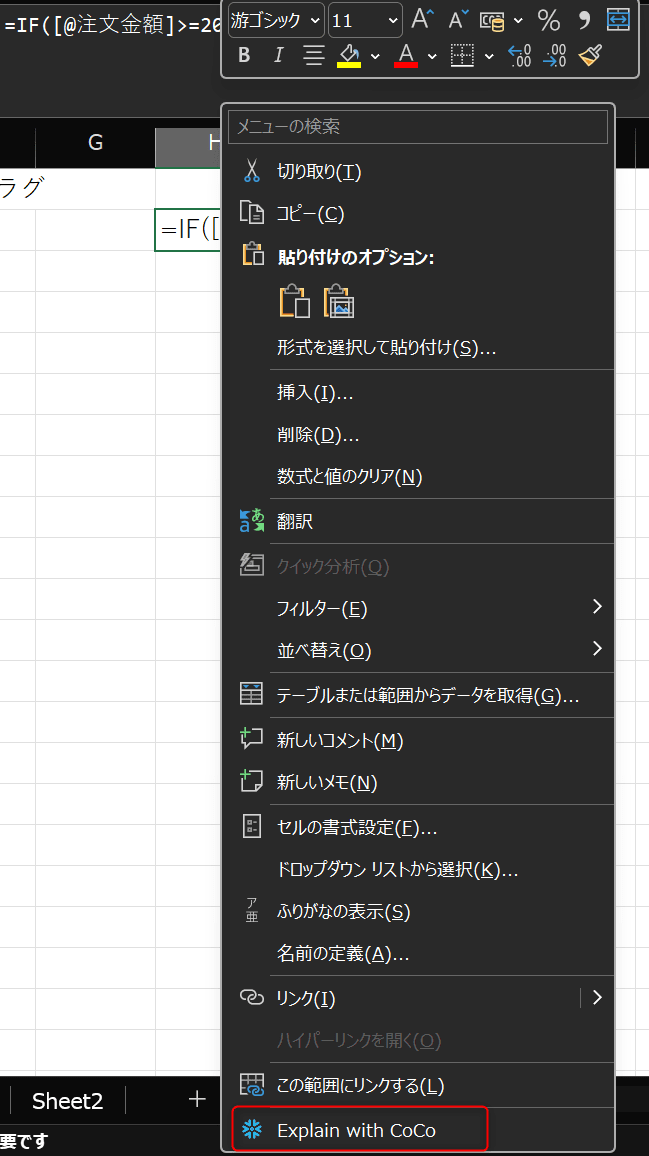
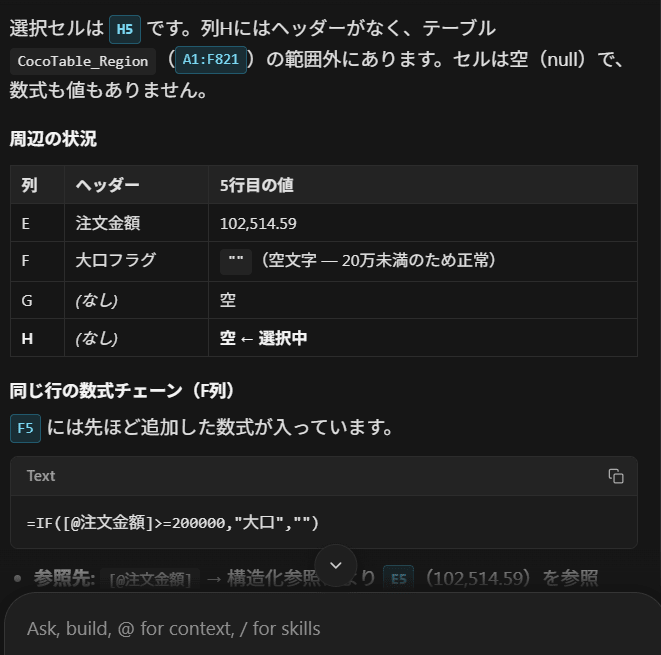
Right-clicking a cell in the added column did not show Explain with CoCo, so I copied the formula to a cell outside the table and checked it there. This is because the items an add-in can add to the right-click menu are limited to the regular cell menu, and they do not appear in the separate menu used by cells inside an Excel table.
Using CORTEX cell functions
On a new sheet, I load CUSTOMER_FEEDBACK and enter CORTEX function formulas.
COCO_EXCEL_DB.SALES.CUSTOMER_FEEDBACK を全列読み込んでください
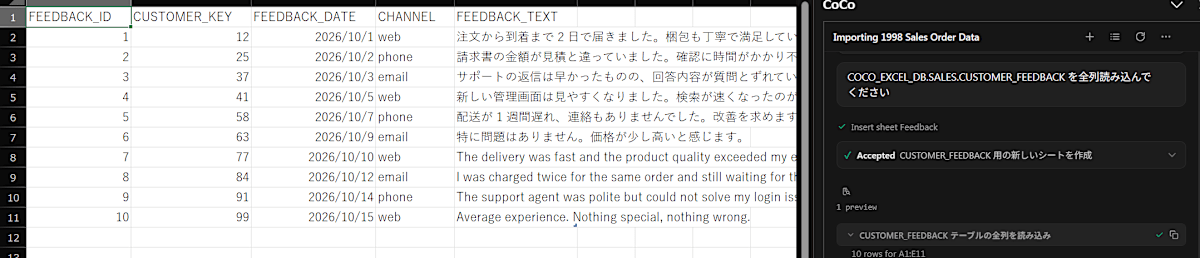
For the 10 loaded comments, I put formulas in the cells. This assumes feedback_text is in column E, starting from row 2.
=CORTEX.SENTIMENT(E2)
=CORTEX.CLASSIFY(E2, "配送", "請求", "サポート", "製品", "その他")
=CORTEX.TRANSLATE(E2, "en")
=CORTEX.FILTER(E2, "顧客は不満を述べていますか")
=CORTEX.SUMMARIZE(E2:E11)
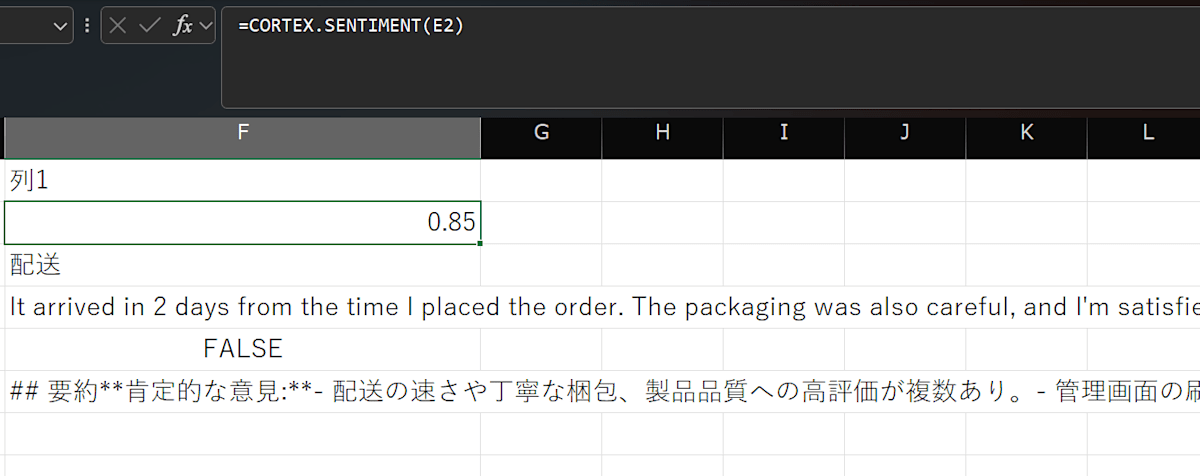
There are 7 functions in the CORTEX namespace.
| Function | Description |
|---|---|
| CORTEX.ASK(prompt, [context]) | Answers a question. You can pass text for it to reference in context |
| CORTEX.COMPLETE(prompt) | Shorthand for ASK. Takes only a prompt |
| CORTEX.SUMMARIZE(text) | Summarizes text or a range |
| CORTEX.SENTIMENT(text) | Returns a sentiment score from -1.0 to 1.0 |
| CORTEX.CLASSIFY(text, labels, ...) | Classifies into one of 2 or more labels |
| CORTEX.TRANSLATE(text, targetLanguage, [sourceLanguage]) | Translates |
| CORTEX.FILTER(text, question) | Answers a yes / no question with TRUE / FALSE |
Each prompt is sent to the model via the Cortex REST API, and the answers of ASK and COMPLETE are streamed into the cell. The functions work only after you sign in on the pane. If you are not signed in, a function waits for sign-in for up to 30 seconds and returns an error if it does not complete.
Updating a table with Intelligent refresh
For tables loaded by CoCo, the SQL they were generated from is saved in the workbook. Refresh re-runs this SQL, previews the result, and then applies it. Tables are identified by the Excel table object, so they are followed even if you insert rows above or rename the sheet. No request to the model occurs and only the query is re-run, so no CoCo tokens are consumed.
I enter the following in the pane to create a monthly table.
COCO_EXCEL_DB.SALES.ORDERS から 1998 年の月別の注文件数と注文金額合計を読み込んでください
[Current values]
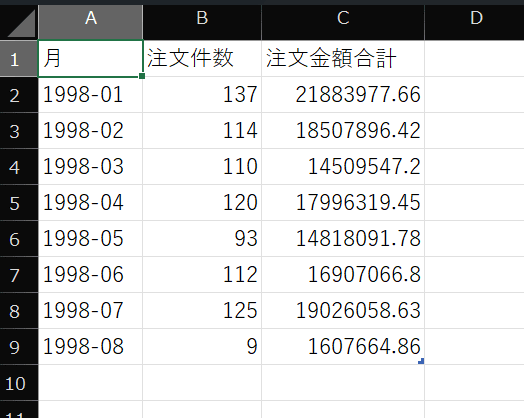
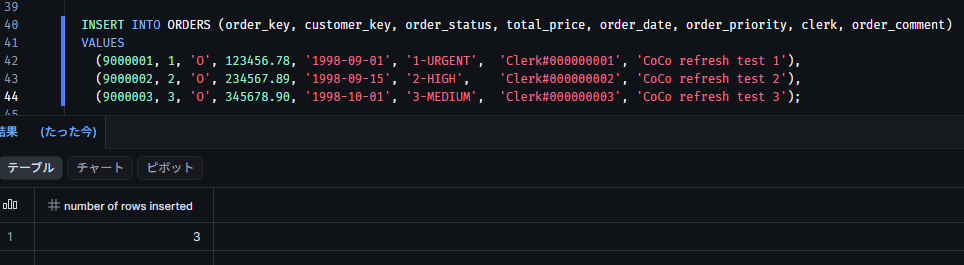
Next, on the Snowflake side, I INSERT 3 orders for September and October 1998.
USE ROLE ACCOUNTADMIN;
USE WAREHOUSE COCO_EXCEL_WH;

INSERT INTO COCO_EXCEL_DB.SALES.ORDERS
  (order_key, customer_key, order_status, total_price, order_date, order_priority, clerk, order_comment)
VALUES
  (9000001, 1, 'O', 123456.78, '1998-09-01', '1-URGENT', 'Clerk#000000001', 'CoCo refresh test 1'),
  (9000002, 2, 'O', 234567.89, '1998-09-15', '2-HIGH',   'Clerk#000000002', 'CoCo refresh test 2'),
  (9000003, 3, 'O', 345678.90, '1998-10-01', '3-MEDIUM', 'Clerk#000000003', 'CoCo refresh test 3');
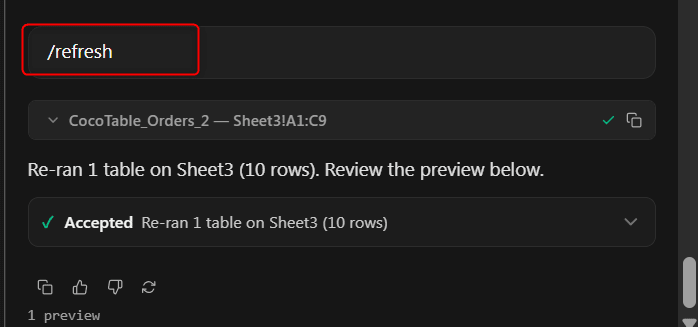
Back in Excel, I open the monthly table sheet and enter /refresh in the pane.
By default, all CoCo tables on the active sheet are targeted. If you want to update only a specific table, select a cell that overlaps that table before running it.
[Values after the update]
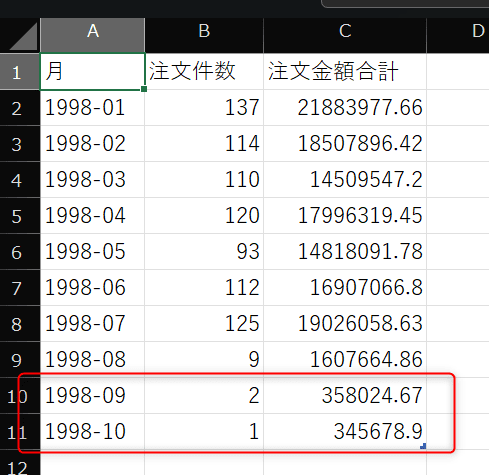
When you click Accept, a PivotTable that references this entire table is also updated together. PivotTables that reference a fixed cell range are not updated.
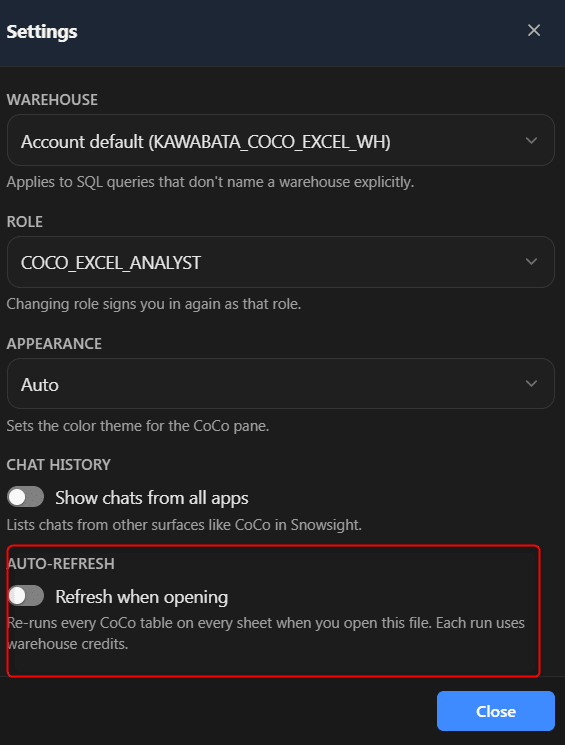
Open More (…) > Settings in the pane header and turn on Refresh when this workbook opens under This workbook. With this setting on, after you open the workbook and sign in, the saved queries you have consented to are re-run and a preview of the updates is shown. It is not executed automatically for those you share the workbook with either; the recipient's own consent is required.
Switching roles to check masking
In the pane header, choose COCO_EXCEL_VIEWER under More (…) > Settings > Role, sign in again, and then enter the following.
COCO_EXCEL_DB.SALES.CUSTOMER から顧客キー・顧客名・電話番号・市場セグメントを先頭 10 件読み込んでください
The masking policy is evaluated on the Snowflake side, so only the masked values reach Excel.
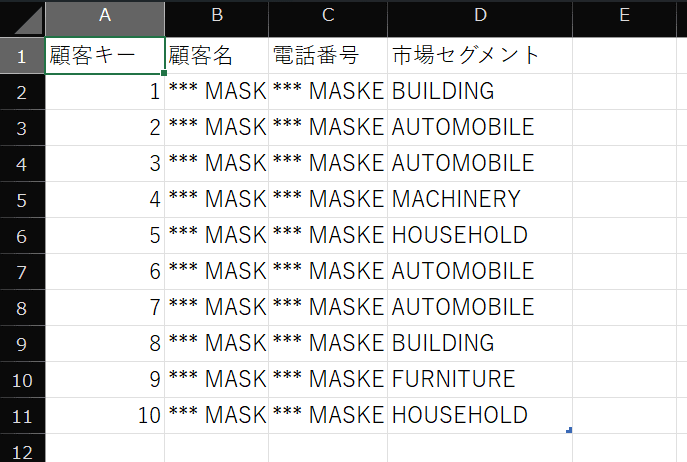
Next, I check with the Semantic View as well.
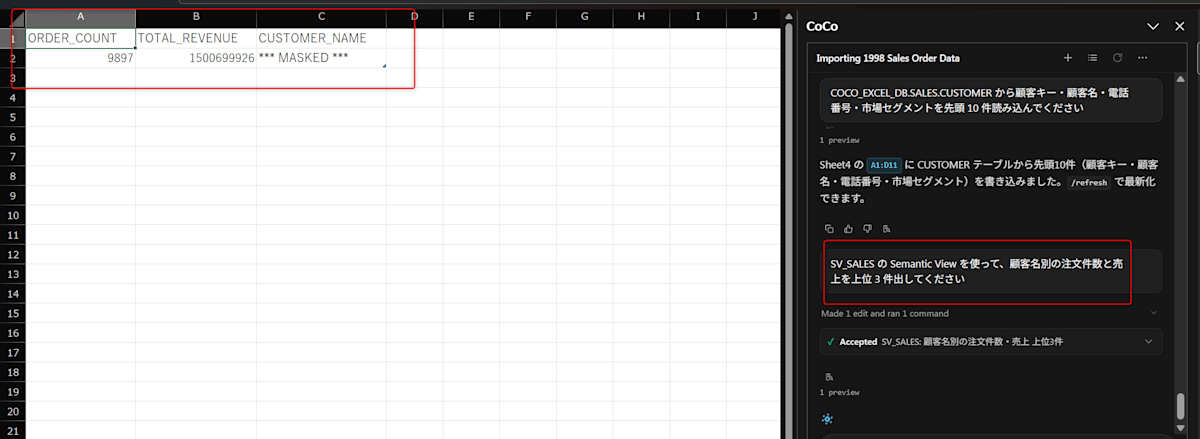
SV_SALES の Semantic View を使って、顧客名別の注文件数と売上を上位 3 件出してください
For ANALYST, 3 customer rows are returned in descending order of revenue. In this per-customer-name aggregation, all of VIEWER's customer names become the same masked string, so the result collapsed into a single *** MASKED *** row.
Finally
With Snowflake CoCo for Excel, you can load Snowflake data using natural language without leaving Excel. Both the metric definitions in the Semantic View and the masking on the Snowflake side are reflected as-is in the loaded results.
It's wonderful that business users can analyze based on shared metrics in the familiar Excel!
I hope this article is helpful to someone!