
Integrating Agent Skills for Snowflake Cortex Agents from GitHub and Using Them from the Agent

This page has been translated by machine translation. View original
I'm Suzuki from the Data Business Division.
Snowflake's Cortex Agents can be configured with Agent Skills.
Skills can be created in CoCo or uploaded from a local environment, but for production use, ideally you would deploy them from something like GitHub.
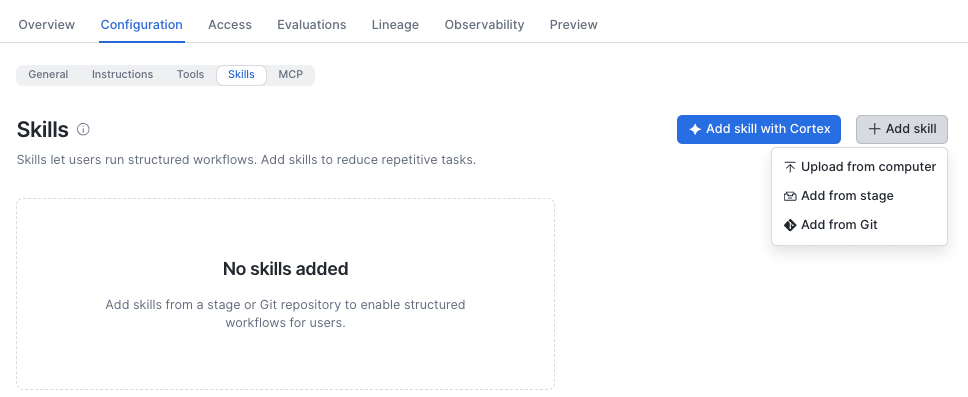
When deploying from GitHub, I think there are the following two options.
- Deploy to a stage from GitHub Actions and use it
- Use Skills in a Snowflake Git repository that is synced with a GitHub repository
I tried both approaches, so let me introduce them.
0. Preparation
i. Creating a Skill for testing
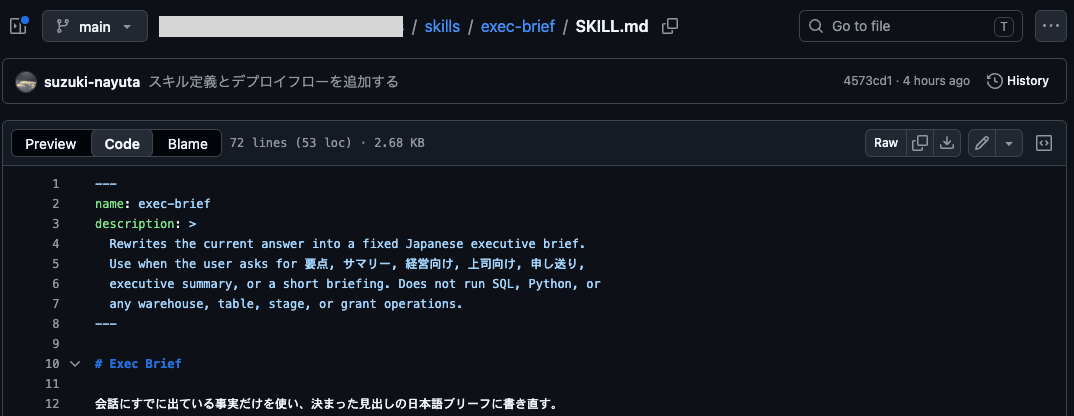
I created a Skill for testing as follows. Since this is just for testing, I made one that can be used by an agent on its own.
skills
└── exec-brief
    └── SKILL.md
When you give it the things decided in a meeting or similar, it summarizes the report content into a fixed format.
I uploaded this to a GitHub repository.
ii. Creating resources for Snowflake
In particular, the "example of deploying to a stage and using it" requires a stage to place the skill definition, so I created a database, schema, and stage (Server-side encryption).
Even in the case of "using a Skill in a Snowflake Git repository synced with a GitHub repository", a database and schema are needed to create the agent and the Git repository.
1. Example of deploying to a stage and using it
First, I tried the example of deploying to a stage and using it. I think uploading to Snowflake from GitHub Actions is the most orthodox and quickest way.
i. Creating the YAML file that defines the workflow
I created .github/workflows/snowflake-deploy.yml as follows.
name: Deploy Cortex Agent skills

on:
  push:
    branches:
      - main
    paths:
      - "skills/**"
      - ".github/workflows/snowflake-deploy.yml"

permissions:
  contents: read
  id-token: write

jobs:
  deploy:
    runs-on: ubuntu-latest
    environment: dev
    env:
      SNOWFLAKE_ACCOUNT: 'デプロイ先のアカウント識別子'
      SNOWFLAKE_DATABASE: ステージのあるデータベース名
      SNOWFLAKE_SCHEMA: ステージのあるスキーマ名
      SNOWFLAKE_STAGE: Skillsを配置するステージ名

    steps:
      - uses: actions/checkout@v4

      - uses: snowflakedb/snowflake-actions@v3
        with:
          use-oidc: true

      - name: Upload skills to stage
        shell: bash
        run: |
          set -euo pipefail

          stage="${SNOWFLAKE_DATABASE}.${SNOWFLAKE_SCHEMA}.${SNOWFLAKE_STAGE}"

          uploaded=0
          for dir in skills/*; do
            [ -d "$dir" ] || continue

            skill_name="$(basename "$dir")"
            skill_file="$dir/SKILL.md"

            [[ "$skill_name" =~ ^[A-Za-z0-9][A-Za-z0-9_-]*$ ]] || {
              echo "Invalid skill folder name: $skill_name"
              exit 1
            }

            [ -f "$skill_file" ] || {
              echo "Missing SKILL.md: $skill_file"
              exit 1
            }

            echo "Uploading: $skill_name"

            snow stage copy \
              "$skill_file" \
              "@${stage}/skills/${skill_name}/" \
              --overwrite \
              --no-auto-compress \
              --refresh \
              -x

            uploaded=$((uploaded + 1))
          done

          if [ "$uploaded" -eq 0 ]; then
            echo "No skills found under skills/"
            exit 1
          fi

          listed="$(
            snow sql \
              -q "LS @${stage}/skills/ PATTERN = '.*SKILL\\\\.md';" \
              --format json \
              --silent \
              -x
          )"

          listed_count="$(
            printf '%s\n' "$listed" |
            jq 'if type == "array" then length else 0 end'
          )"

          echo "Uploaded ${uploaded} skill(s); stage lists ${listed_count} SKILL.md file(s)"
          printf '%s\n' "$listed"

          if [ "$listed_count" -lt "$uploaded" ]; then
            echo "Stage listing is missing uploaded SKILL.md files"
            exit 1
          fi
ii. Creating a user and role for deployment
In the Snowflake account, I created a user and role for deployment as follows.
-- Create the role for deployment
CREATE ROLE IF NOT EXISTS github_actions_skills_deploy_role;

-- Grant privileges to the role
GRANT USAGE ON DATABASE データベース名 TO ROLE github_actions_skills_deploy_role;
GRANT USAGE ON SCHEMA データベース名.スキーマ名 TO ROLE github_actions_skills_deploy_role;
GRANT USAGE ON WAREHOUSE COMPUTE_WH TO ROLE github_actions_skills_deploy_role;

GRANT READ
ON STAGE データベース名.スキーマ名.SKILL_STAGE
TO ROLE github_actions_skills_deploy_role;

GRANT WRITE
ON STAGE データベース名.スキーマ名.SKILL_STAGE
TO ROLE github_actions_skills_deploy_role;

CREATE USER github_actions_skills_deployer
  TYPE = SERVICE
  DEFAULT_ROLE = github_actions_skills_deploy_role
  DEFAULT_NAMESPACE = データベース名.スキーマ名
  DEFAULT_WAREHOUSE = COMPUTE_WH
  WORKLOAD_IDENTITY = (
    TYPE = OIDC
    ISSUER = 'https://token.actions.githubusercontent.com'
    SUBJECT = '`Default subject claim prefix値`:environment:dev'
  );

-- Grant the role to the deployment user
GRANT ROLE github_actions_skills_deploy_role TO USER github_actions_skills_deployer;
I checked the Default subject claim prefix値 (the Default subject claim prefix value) from Settings > Actions > OIDC of the GitHub repository. Since this is a newly created repository, Use immutable subject claim is enabled. If it is disabled, you can see the value by enabling it.
iii. Deploying from GitHub Actions
I created a PR, merged the workflow and Skill into the main branch, and deployed the definition to the Snowflake stage from GitHub Actions.
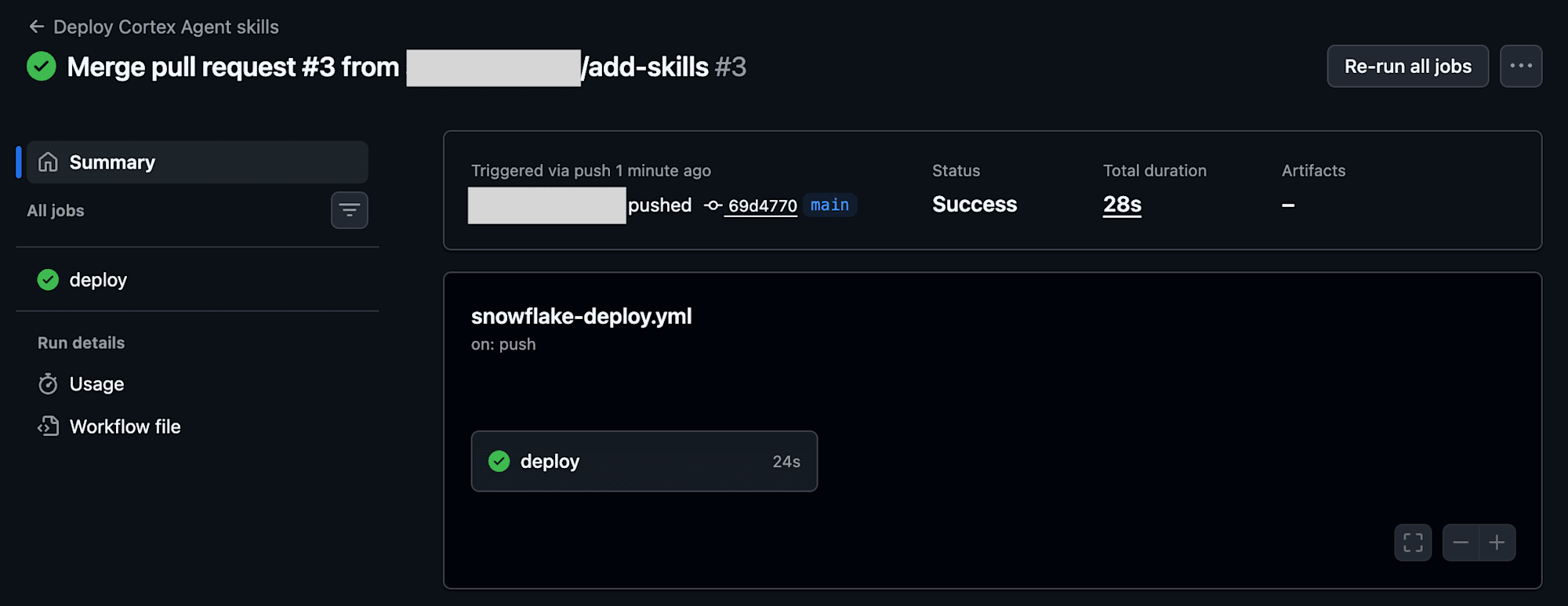
It was deployed as follows.
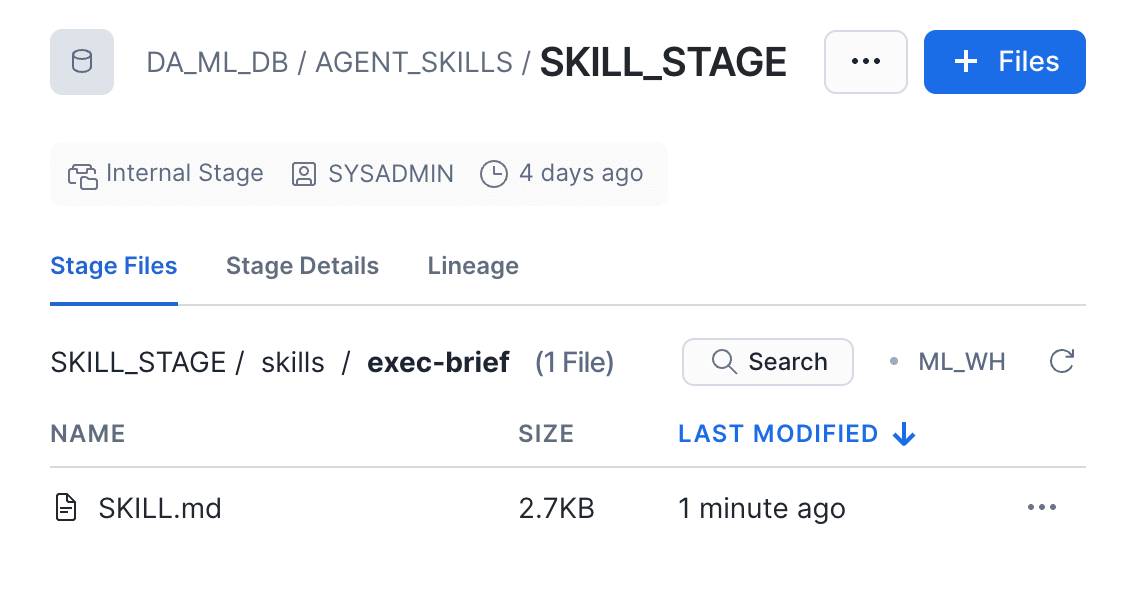
iv. Verifying operation from the agent
I opened the agent to which I wanted to add the Cortex Agents Skill, selected the deployed Skill from Configuration > Skills, and saved.
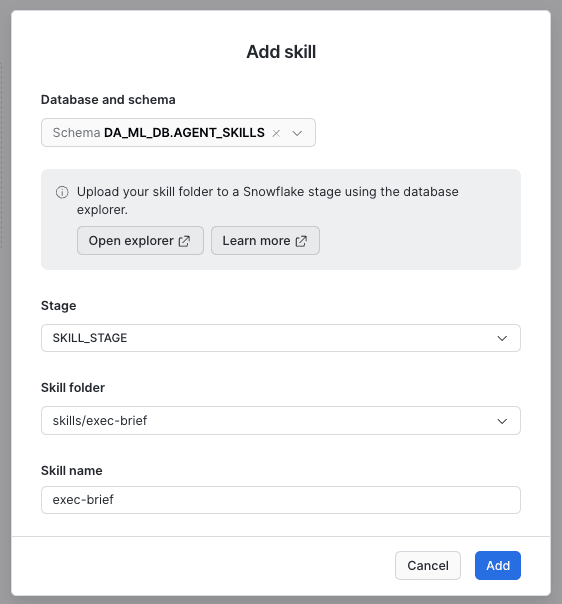
To have it reflected in the agent, I did Save and then Publish.
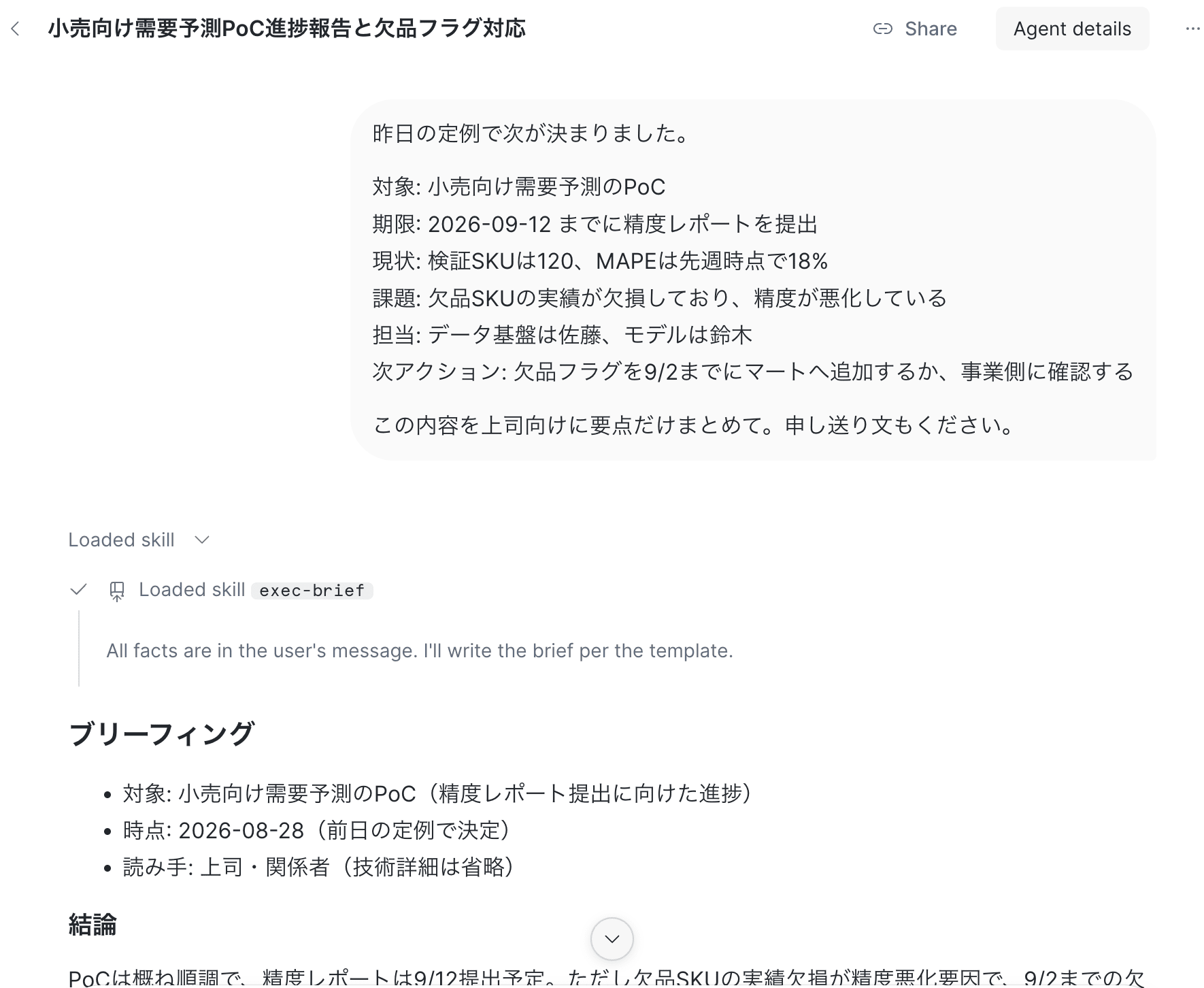
When I asked a question from CoWork, it indeed answered using the Skill.
2. Example of using a Skill in a synced Snowflake Git repository
Next, I'll also check the case of using a Skill in a synced Snowflake Git repository.
i. Creating a Fine-grained token
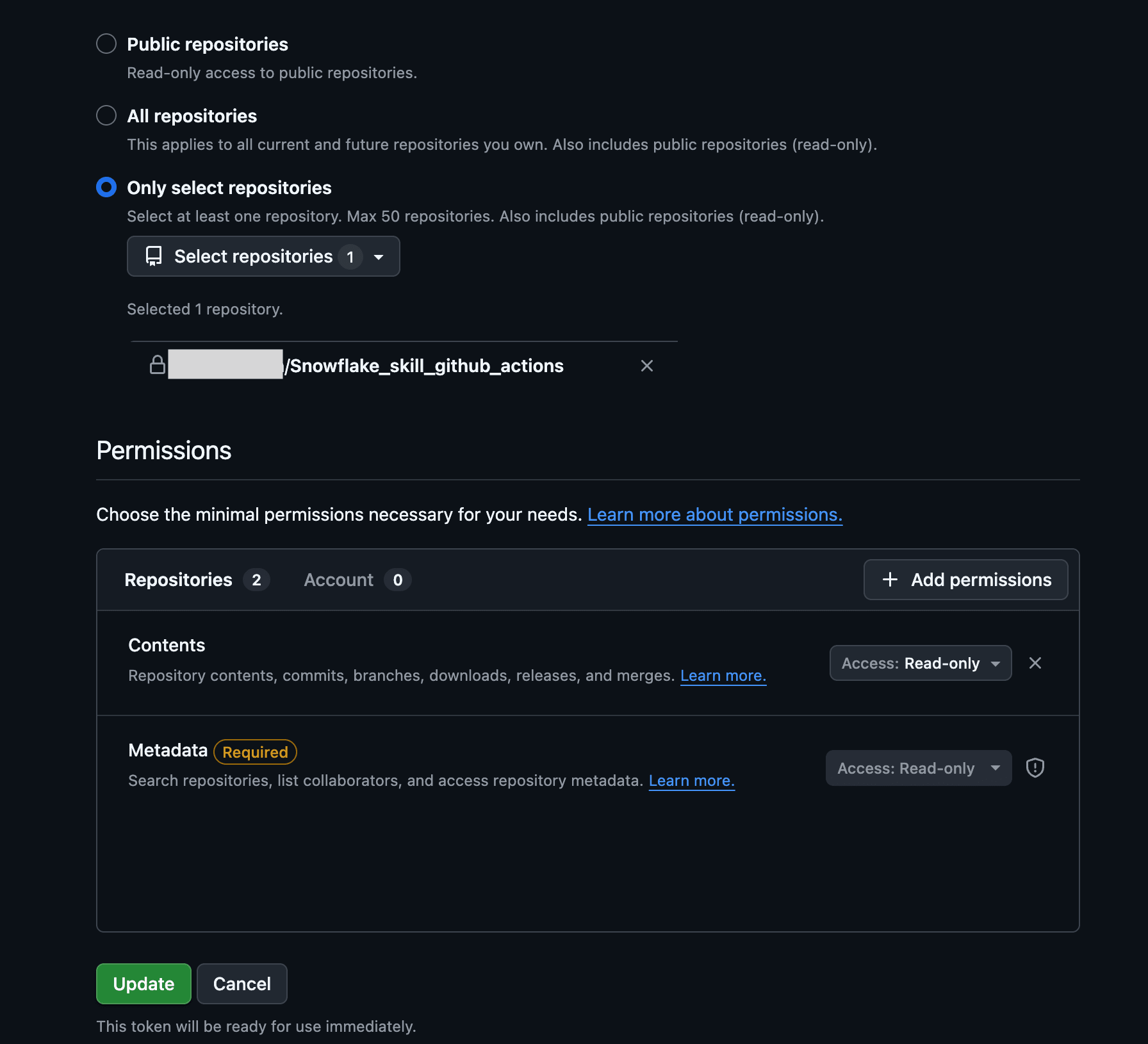
To sync a private repository to a Snowflake Git repository, I created a Fine-grained token.
From Settings > Developer settings > Personal access tokens, I opened Fine-grained tokens, selected the repository containing the Skill this time, and created a token that allows reading contents.
ii. Creating the Snowflake Git repository
Next, I created the Snowflake Git repository with the Snowflake CLI from my local environment.
snow git setup リポジトリ名
When I ran this, I was able to create the repository interactively.
Origin url: Origin url: GitリポジトリのHTTPSリモートURL
Use secret for authentication? [y/N]: y
Secret identifier (will be created if not exists) [SUZUKI_SKILL_REPO_secret]: シークレット名
Secret 'シークレット名' will be created
username: GitHubユーザー名
password/token:
API integration identifier (will be created if not exists) [SKILL_REPO_api_integration]: SKILL_REPO_api_integration
Secret 'シークレット名' successfully created.
API integration 'SKILL_REPO_api_integration' successfully created.

+------------------------------------------------------------+
| status                                                     |
|------------------------------------------------------------|
| Git Repository リポジトリ名 was successfully created. |
+------------------------------------------------------------+
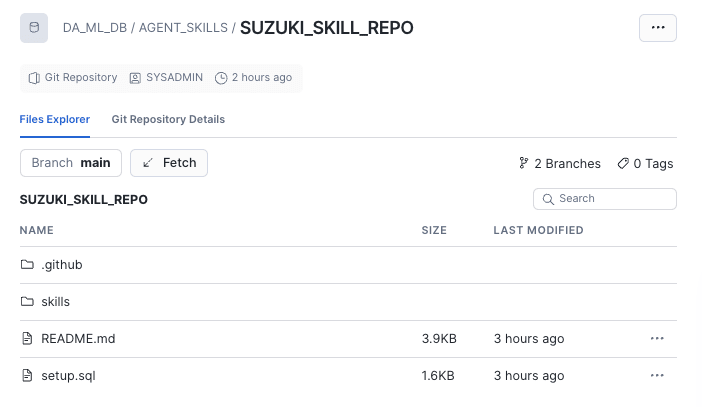
With this operation, the repository was created as follows.
iii. Verifying operation from the agent
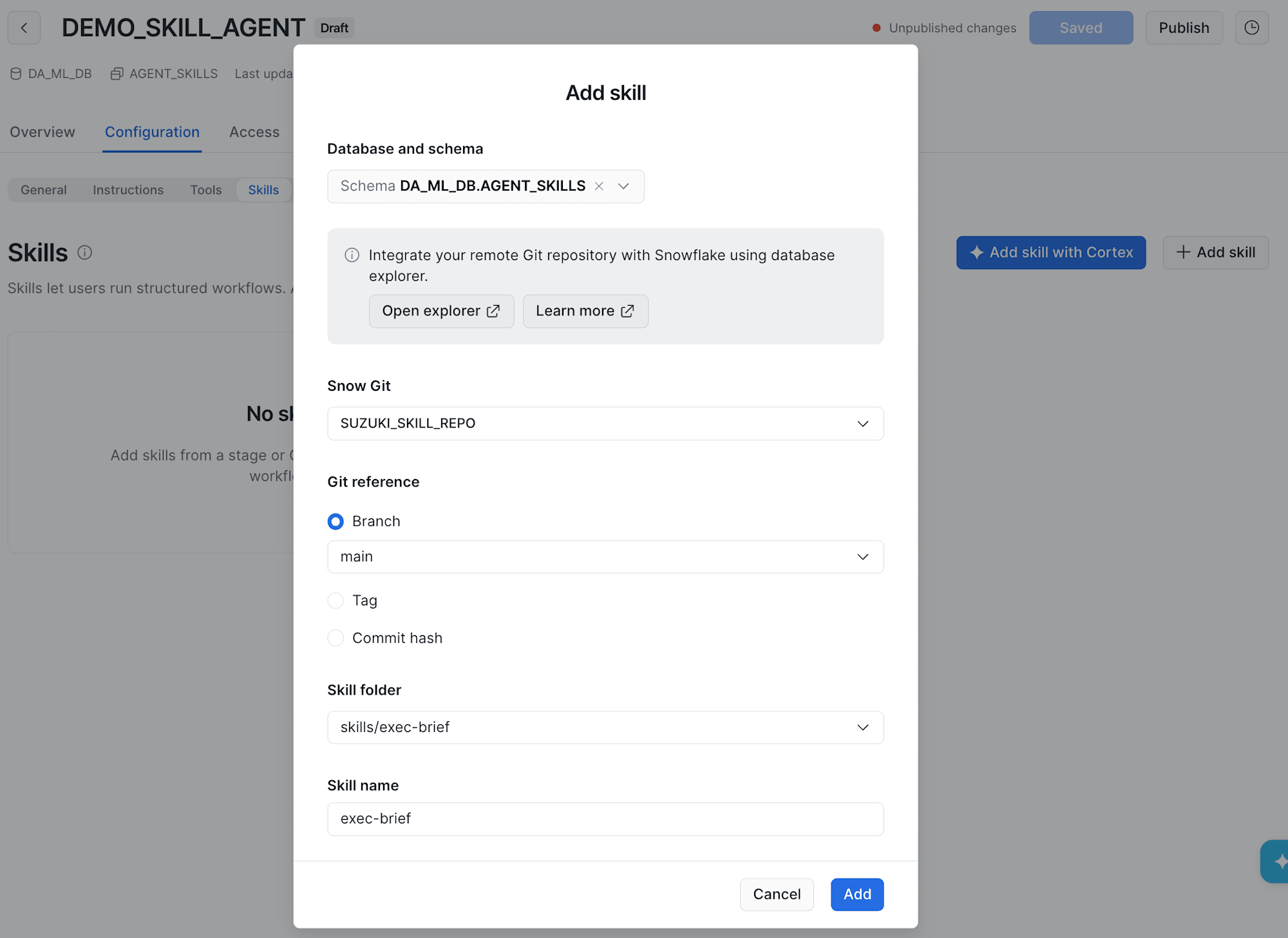
As with the stage, I opened the agent to which I wanted to add the Cortex Agents Skill, selected the deployed Skill from Configuration > Skills, and saved.
This time I set it to reference a branch, but it could also be set with a tag, etc.
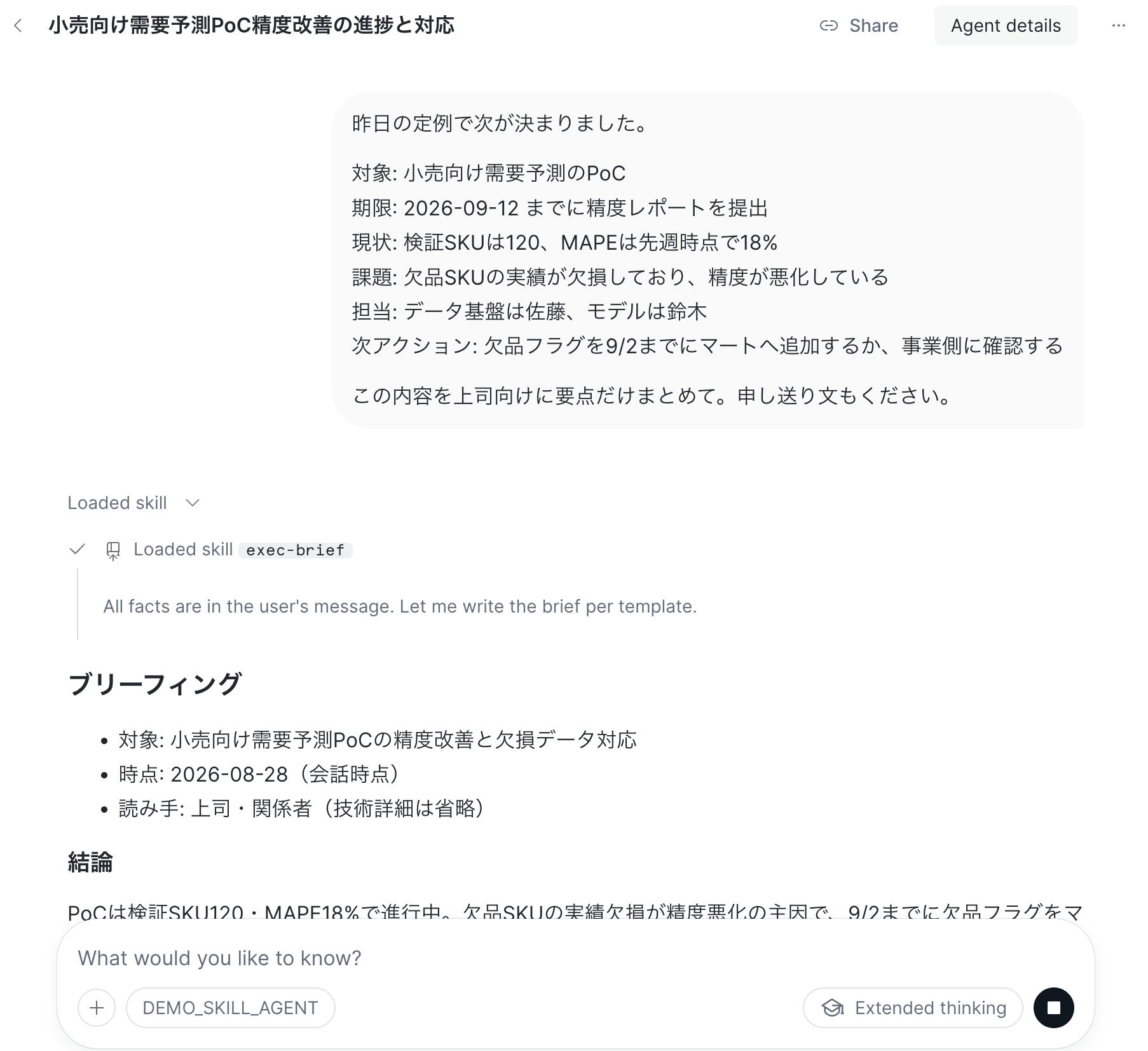
After Save & Publish, I confirmed that the Skill can be used from CoWork.
Conclusion
I introduced two ways to use Skills on GitHub from Cortex Agents on Snowflake.
With Snowflake Git, as described in the guide below, syncing the repository currently requires running a fetch, so I felt there isn't that much difference compared with uploading to a stage.
If you want to configure Git repository references on the Snowflake side, use Git; otherwise use a stage — I think it's fine to use whichever feels right to you.
I hope this is helpful.