![[New Feature] Snowflake Horizon Context is now in Preview, so I tried importing dbt platform models into the Horizon Catalog using the dbt connector](https://devio2024-media.developers.io/image/upload/f_auto,q_auto,w_3840/f_auto,q_auto/v1790874280/eyecatch/wsr0koxw01pat9lxglvp.png)
[New Feature] Snowflake Horizon Context is now in Preview, so I tried importing dbt platform models into the Horizon Catalog using the dbt connector

This page has been translated by machine translation. View original
Kawabata here.
On October 12, 2026, Horizon Context entered preview.
In this article, I use the dbt connector for Horizon Context to ingest dbt platform job artifacts into the Snowflake Horizon Catalog. The subject is the dbt Labs sample project jaffle-shop. I verify the display of inter-model lineage, descriptions, and test results, as well as how things appear per role.
Overview of Horizon Context and the dbt Connector
Horizon Context is a context layer built into the Snowflake Horizon Catalog. In addition to objects within Snowflake, it handles metadata and lineage from external databases, BI dashboards, and pipelines in a single catalog. Metadata connectors read metadata from external systems and are created from Catalog » Connections in Snowsight.
The dbt connector does not connect to dbt itself. It reads build artifacts generated by dbt (manifest.json, catalog.json, run_results.json). It maps the read models to tables and views in warehouses already connected to the Horizon Catalog. Only inter-model lineage and dbt information are added to existing objects; the data itself is out of scope.
It was also partially covered in the "Building a Reliable Semantic Layer from Scratch with Snowflake" session at Snowflake World Tour 2026.
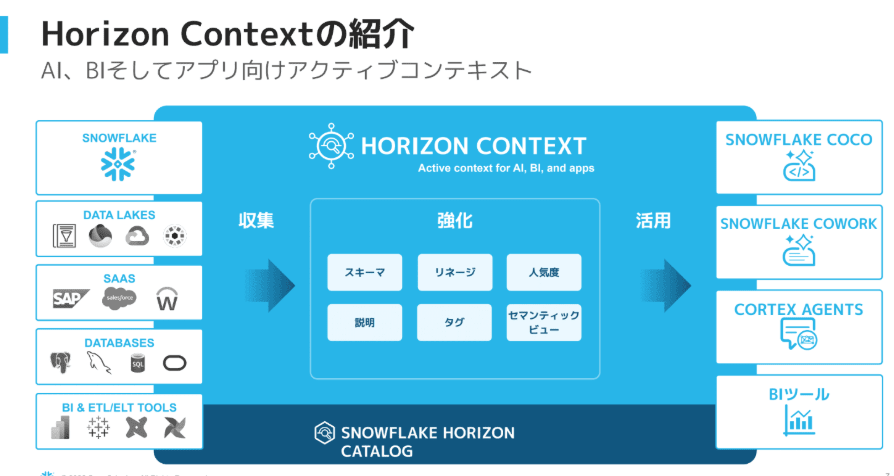
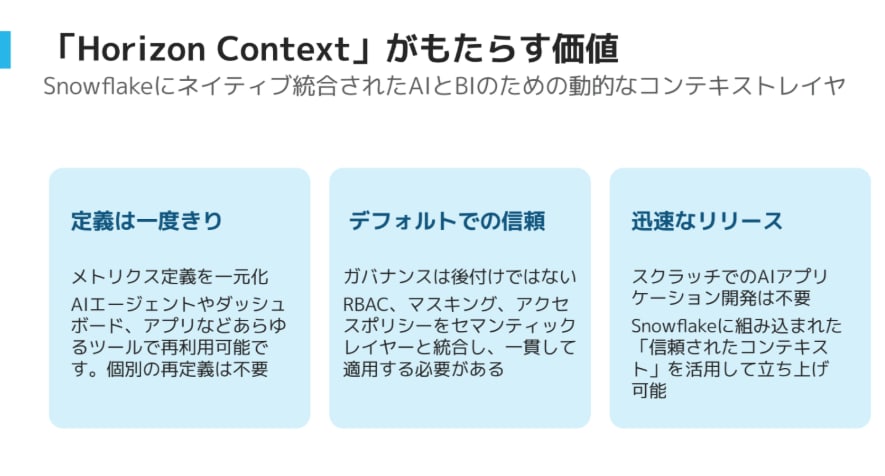
Please refer to the following article for details.
Support Status and Requirements
Summarizing the official documentation:
| Item | Details |
|---|---|
| Feature status | Preview (available for all accounts) |
| Cloud/Region | AWS and Azure commercial regions. Government regions and China regions are excluded |
| Data lineage | Enterprise Edition or higher |
| Supported dbt | dbt platform (referred to as dbt Cloud in documentation) and dbt Core |
| dbt platform authentication | Service token. Enterprise requires Job Viewer and Account Viewer; others require Metadata Only and Read Only |
| dbt platform jobs | Enable Generate docs on run, and include dbt compile --full-refresh and dbt test (or dbt build) |
| Connection target | Warehouse already connected to Horizon Catalog. For Snowflake, object comments rather than dbt descriptions are used for the description on the Snowflake object side |
The difference between dbt platform and dbt Core is in how artifacts are obtained. dbt platform retrieves them from scheduled jobs via the dbt Cloud API, and they are automatically updated with each job run thereafter. dbt Core requires manually uploading 3 files when creating the connection, and re-uploading whenever the project changes. This article verifies dbt platform.
Setup Flow
- In dbt platform, create a job with Generate docs on run enabled, and run it once
- Create a service token in dbt platform
- In Snowflake's Catalog » Connections, create a dbt connection and enter the job ID and service token
- Grant USAGE on the connector to roles that will view it
Prerequisites
- dbt platform Enterprise plan
- dbt platform Account admin privileges (used to create service tokens and jobs)
- Snowflake Enterprise Edition or higher account
- Snowflake ACCOUNTADMIN role (used to create connections and create roles/users)
- Ability to create one user for viewing verification
When creating objects in Snowsight, only the permissions of the currently selected primary role are evaluated. Conversely, when verifying viewing, the permissions of all roles held by the user are combined. Do not grant roles other than the one you want to verify to the viewing verification user.
Verification Environment
| Item | Value |
|---|---|
| dbt platform | Enterprise, AWS multi-tenant |
| dbt version | v1 Latest |
| dbt project | dbt-labs/jaffle-shop main |
| Snowflake | Enterprise Edition (trial), AWS Tokyo region |
| Snowflake database | JAFFLE_SHOP_DB (seeds in RAW schema, models in MAIN schema) |
Preparation
Prepare a dbt platform project to deploy jaffle-shop
Create JAFFLE_SHOP_DB in Snowflake in advance. For the dbt platform Connection, configure a role that can create schemas, tables, and views within this database and use the warehouse.
USE ROLE ACCOUNTADMIN;
CREATE DATABASE JAFFLE_SHOP_DB;
jaffle-shop is a GitHub template repository. In this article, I copied the contents excluding .github/ to the jaffle_shop/ folder of a verification repository, and specified jaffle_shop as the Project subdirectory in the dbt platform project settings.
The deployment environment prod settings are as follows:
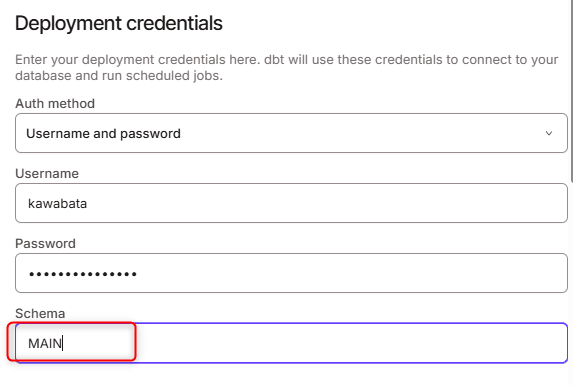
- Go to Orchestration → Environments → Create environment → Deployment to create an environment. Type is General
- Configure the Snowflake Connection and Deployment credentials in Connection profiles. Database is
JAFFLE_SHOP_DB, Schema isMAIN
- Load the seed data once using Studio IDE or dbt Cloud CLI
dbt seed --full-refresh --vars '{"load_source_data": true}'
The jaffle-shop sample seeds are only enabled when the load_source_data variable is true, so running dbt seed alone will not load them. When running in Studio IDE, set the development environment Database to JAFFLE_SHOP_DB as well. The generate_schema_name macro creates seeds in the RAW schema and models in the environment's default schema. After loading, verify that there are 6 tables such as RAW_CUSTOMERS in JAFFLE_SHOP_DB.RAW.
The lineage I will verify in this article is the following path leading to the customers model:
raw_customers ─ stg_customers ─┐
                               ├─ customers
raw_orders ─ stg_orders ─ orders ┘
Adjust descriptions and tests
jaffle-shop's models/marts/customers.yml contains model and column descriptions and an accepted_values test for the customer_type column. To see how descriptions appear in the Horizon Catalog and how failed tests appear, I intentionally cause a failure by removing returning from the test's allowed values. persist_docs is not configured.
# models/marts/customers.yml (excerpt)
      - name: customer_type
        description: Options are 'new' or 'returning', indicating if a customer has ordered more than once or has only placed their first order to date.
        data_tests:
          - accepted_values:
              arguments:
                values: ["new"]  # For verification. Intentionally failing by removing 'returning'
Commit the changes and merge to main. The arguments: syntax for accepted_values is the dbt 2.x style.
Create a job
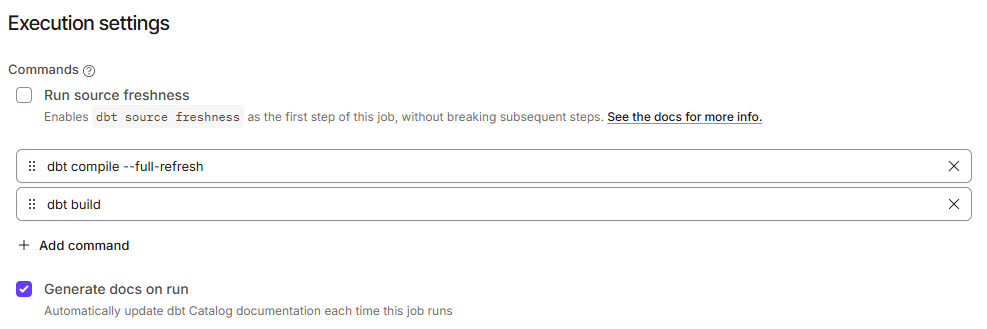
Create a Deploy job with the configuration from the official documentation so that the Horizon Catalog can read the artifacts. Go to Orchestration → Jobs → Create job → Deploy job, with the environment set to prod.
- Enable Generate docs on run (required for
catalog.jsongeneration) - Set
dbt compile --full-refreshfollowed bydbt buildin Commands - Run it once with Run now
dbt compile --full-refresh is needed to produce a manifest.json with lineage including incremental models. Test results are read from dbt test or dbt build runs; they are not executed during dbt compile or docs generation.
This article covers the initial ingestion via Run now. To continuously update metadata, configure a job schedule according to the official documentation. The official documentation recommends running daily at 4:00, with the assumption that the run completes before the Horizon Catalog ingestion. Also verify the configured timezone.
When run, the execution will result in an Error due to the accepted_values test failure. The official documentation states that runs that resulted in an Error due to test failures can still be used for ingestion. The display verification is covered later in "Verifying Test Results."
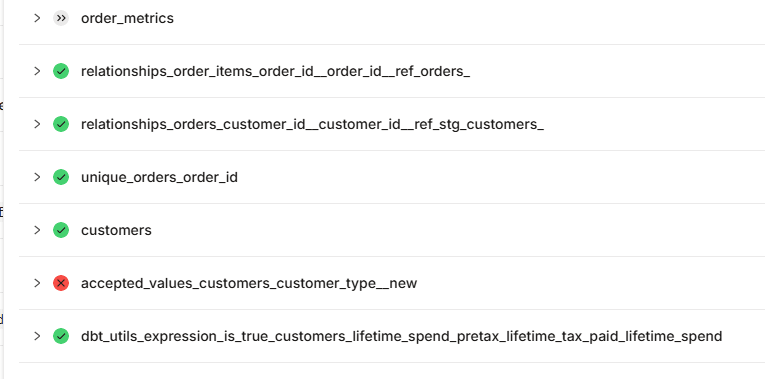
Do not use runs where compilation failed for ingestion. The official documentation states that an incomplete manifest.json may cause models to disappear from the Horizon Catalog.
Open the job and note the number at the end of the URL as the job ID.
https://<access-url>/deploy/<account-id>/projects/<project-id>/jobs/<job-id>
Create a service token
Create the token at Account settings → Service tokens → Create service token.
The token value is only displayed at creation time, so note it down at this point.
※ For this verification, a service token with Account Admin privileges is used. Normally, please limit the permissions to Job Viewer and Account Viewer as recommended in the official documentation.
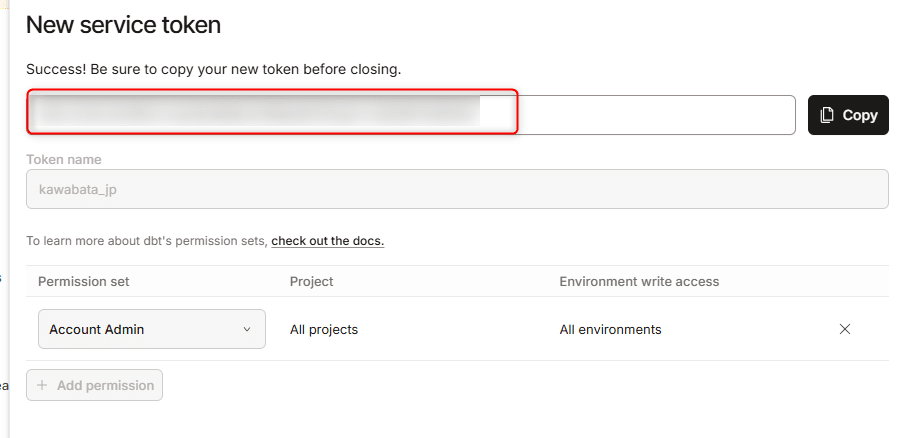
Decide the role to create the connection
In this case, the connection was created with ACCOUNTADMIN. The role that creates the connection becomes the connector owner, and subsequent Configure operations and deletion are also performed with that role.
The permissions required to create with a role other than ACCOUNTADMIN are as follows in the official documentation. When creating a new destination database and schema in the connection wizard, only MANAGE METADATA CONNECTORS and CREATE DATABASE are sufficient. When using an existing destination, USAGE on that database and CREATE METADATA CONNECTOR on the schema are required instead. This configuration is not tested in this article.
-- When creating a new destination (reference)
GRANT MANAGE METADATA CONNECTORS ON ACCOUNT TO ROLE <role_name>;
GRANT CREATE DATABASE ON ACCOUNT TO ROLE <role_name>;
Create a viewing role and user
For viewing verification, I use CATALOG_VIEWER_USER who holds only the HC_CATALOG_VIEWER role. At this point, only the permission to view objects in JAFFLE_SHOP_DB is granted; USAGE on the connector is not granted yet.
USE ROLE ACCOUNTADMIN;

CREATE ROLE HC_CATALOG_VIEWER COMMENT = 'Horizon Catalog read-only viewer';
GRANT USAGE ON WAREHOUSE COMPUTE_WH TO ROLE HC_CATALOG_VIEWER;
GRANT USAGE ON DATABASE JAFFLE_SHOP_DB TO ROLE HC_CATALOG_VIEWER;
GRANT USAGE ON ALL SCHEMAS IN DATABASE JAFFLE_SHOP_DB TO ROLE HC_CATALOG_VIEWER;
GRANT REFERENCES ON ALL TABLES IN DATABASE JAFFLE_SHOP_DB TO ROLE HC_CATALOG_VIEWER;
GRANT REFERENCES ON ALL VIEWS IN DATABASE JAFFLE_SHOP_DB TO ROLE HC_CATALOG_VIEWER;

CREATE USER CATALOG_VIEWER_USER
  PASSWORD = '<password>'
  DEFAULT_ROLE = HC_CATALOG_VIEWER
  DEFAULT_SECONDARY_ROLES = ()
  DEFAULT_WAREHOUSE = COMPUTE_WH
  MUST_CHANGE_PASSWORD = TRUE;
GRANT ROLE HC_CATALOG_VIEWER TO USER CATALOG_VIEWER_USER;
REFERENCES is a privilege that allows referencing an object's existence and column definitions without reading data. Since SELECT is not granted to this role, tables can be seen in the catalog but data cannot be accessed.
Privilege grants using ALL apply only to objects that exist at the time of execution. If models are added later, re-grant permissions or consider using FUTURE as appropriate after reviewing the scope.
To view lineage, VIEW LINEAGE on the account is also required. It is granted to PUBLIC by default, but if it has been revoked in your environment, grant it to the viewing role.
-- If VIEW LINEAGE has been revoked from PUBLIC
GRANT VIEW LINEAGE ON ACCOUNT TO ROLE HC_CATALOG_VIEWER;
Trying It Out
Verify lineage before the connection
For comparison, I verify the standard Snowflake lineage before creating the dbt connector. Open JAFFLE_SHOP_DB.MAIN.CUSTOMERS in Catalog » Explorer and select the Lineage tab.
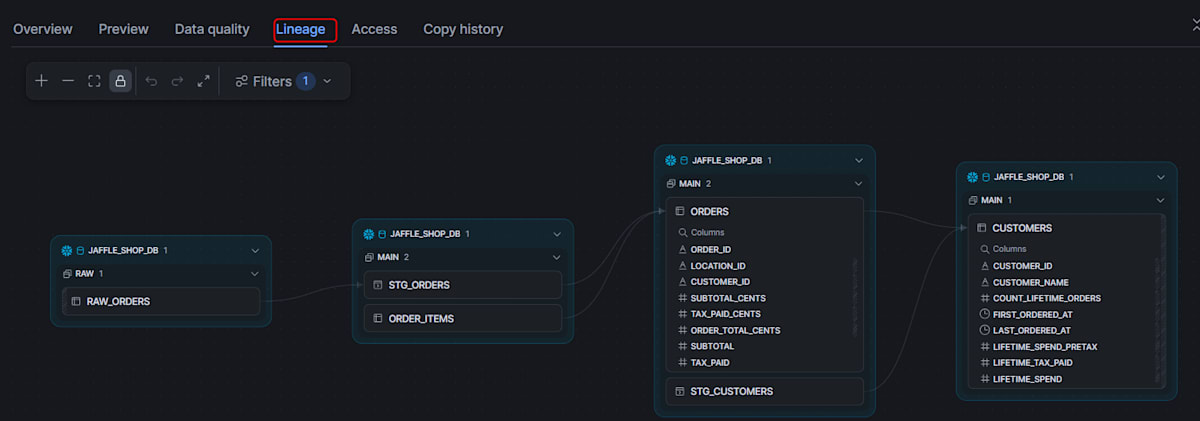
Since CREATE OR REPLACE TABLE ... AS SELECT and CREATE OR REPLACE VIEW issued by dbt are recorded in Snowflake's lineage, the lineage of RAW_ORDERS → STG_ORDERS / ORDER_ITEMS → ORDERS / STG_CUSTOMERS → CUSTOMERS appears even without the connector. At this point, dbt model names, test results, and dbt descriptions are not displayed.
Create the dbt connection
Open Catalog » Connections in Snowsight with ACCOUNTADMIN. Select dbt from Data pipeline tools.
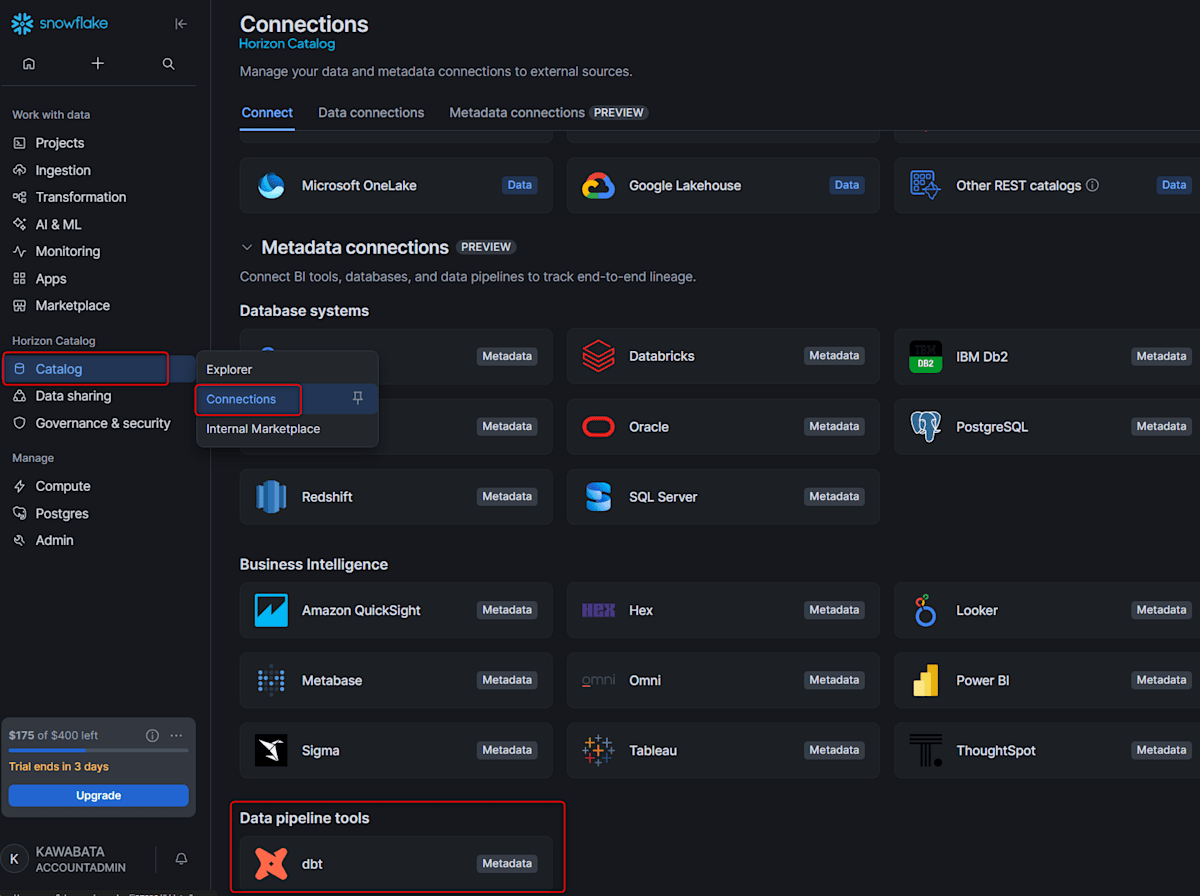
The connection form input values are as follows:
| Item | Input value | Notes |
|---|---|---|
| Display Name | dbt |
Default value |
| Connected Warehouse | No input field | Displays "dbt models will be matched against this account's own Snowflake." and is fixed to the current account |
| dbt type | dbt Cloud |
Select from dropdown |
| Access URL | Account-specific URL (https://<prefix>.<region>.dbt.com/) |
Pre-migration accounts use https://cloud.getdbt.com |
| dbt Job ID | Noted job ID | |
| API Key | Service token | Saved as an encrypted secret |
| Snowflake Database | CONNECTORS |
Default value. Newly created |
| Snowflake Schema | METADATA |
Default value. Newly created |
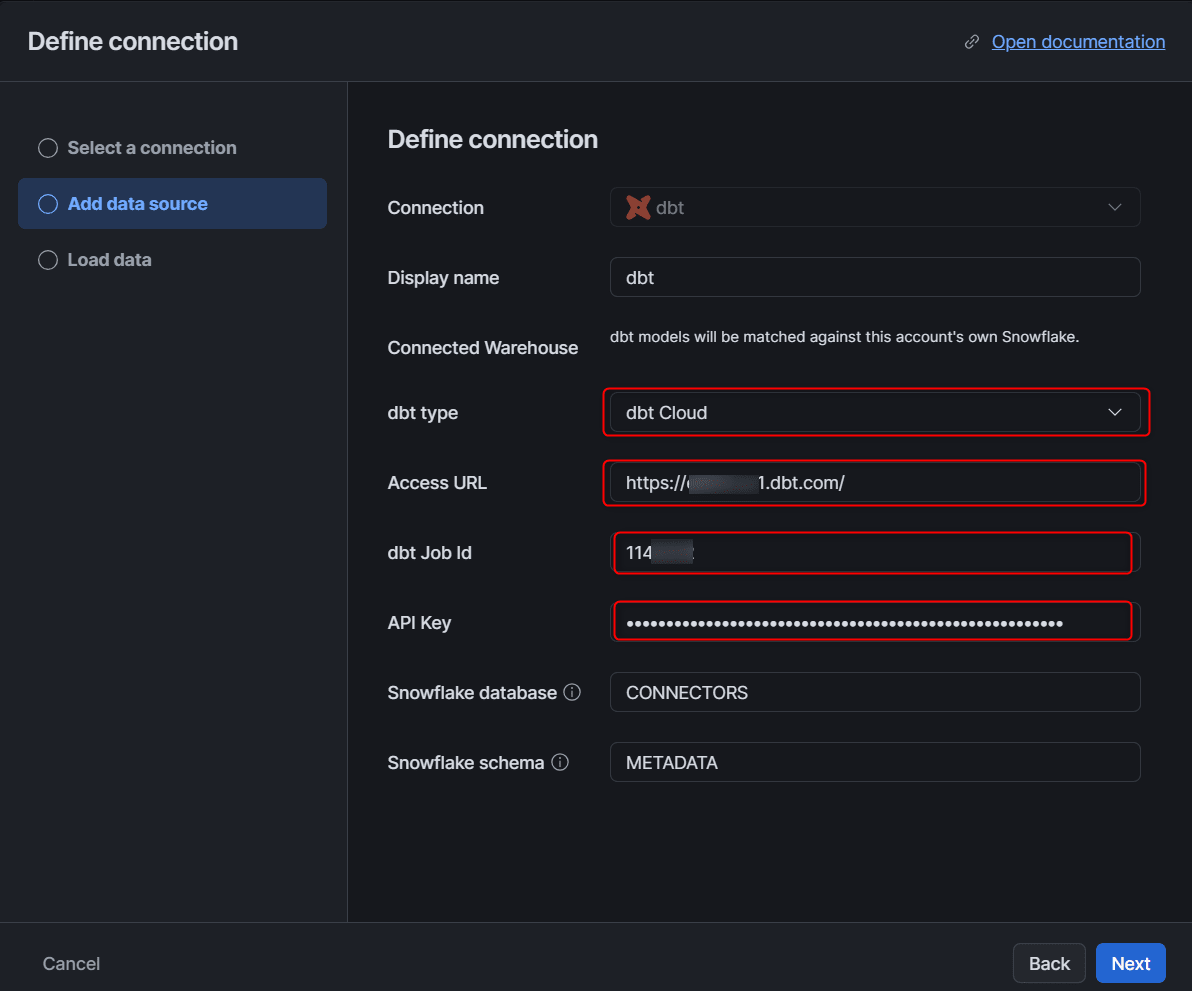
Pressing Next proceeds to the Load data step, where dbt metadata is ingested.
No issues if Load data completes successfully.
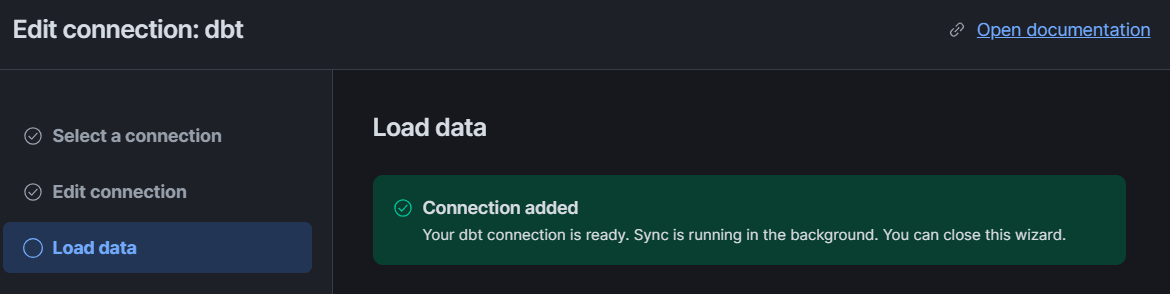
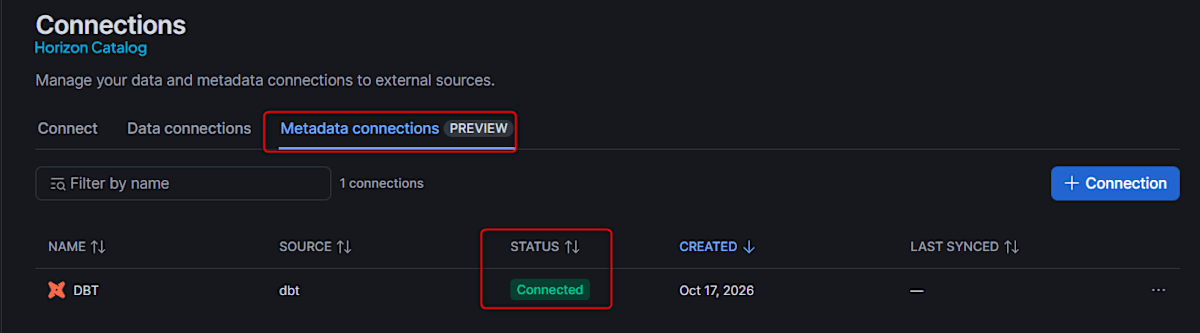
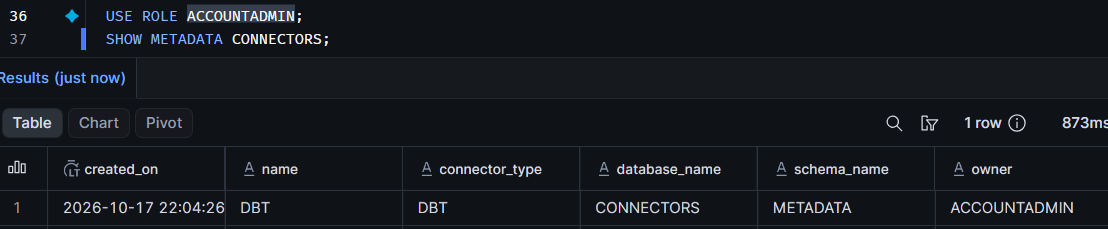
The created connector can also be verified with SQL. In this verification, name was DBT and owner was ACCOUNTADMIN. The Display Name dbt becomes an uppercase identifier.
USE ROLE ACCOUNTADMIN;
SHOW METADATA CONNECTORS;
Verify inter-model lineage
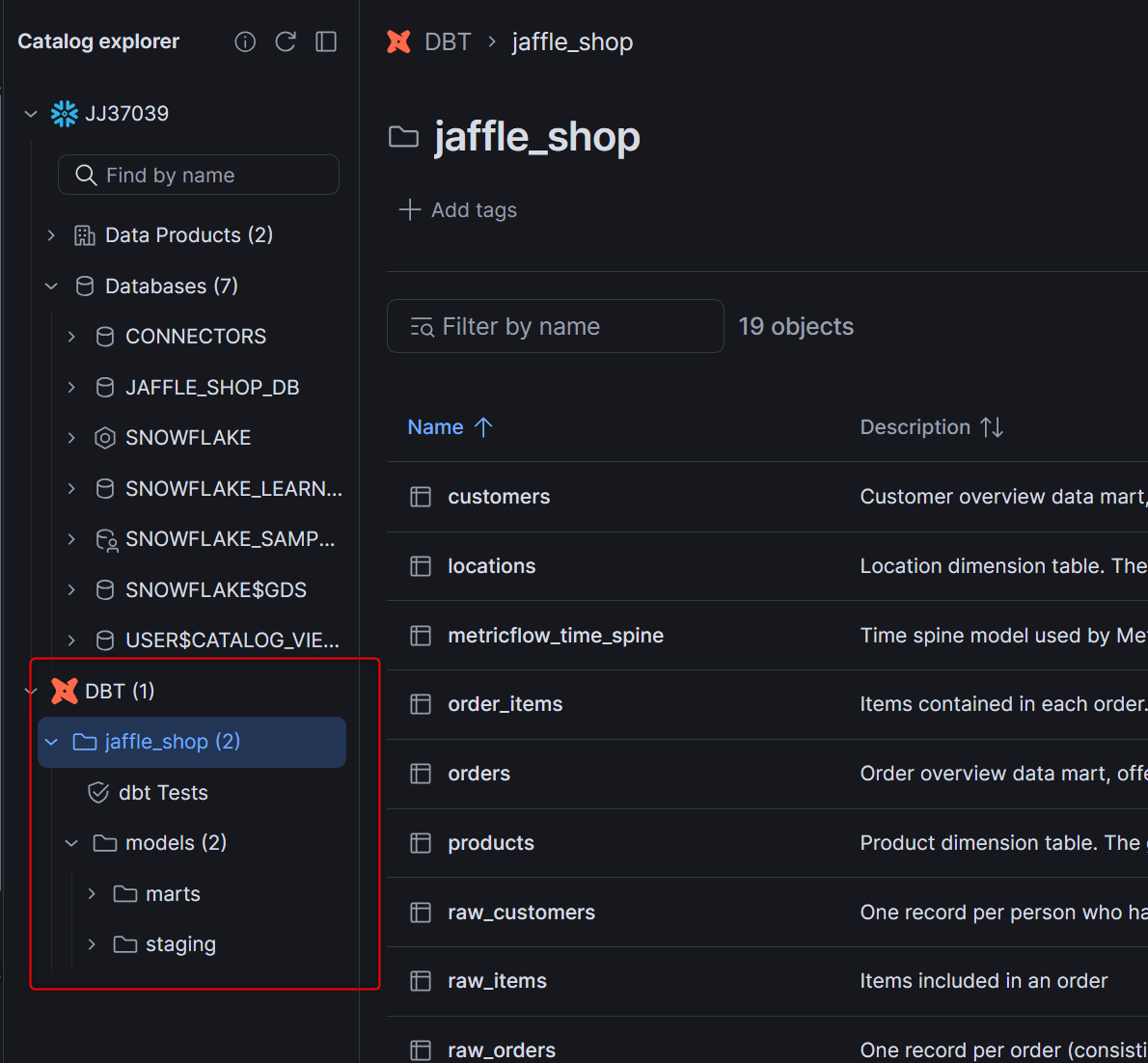
A DBT data source is added to the Catalog » Explorer tree, with jaffle_shop → dbt Tests and models (marts, staging) underneath. I check the Lineage tab for models → marts → customers.
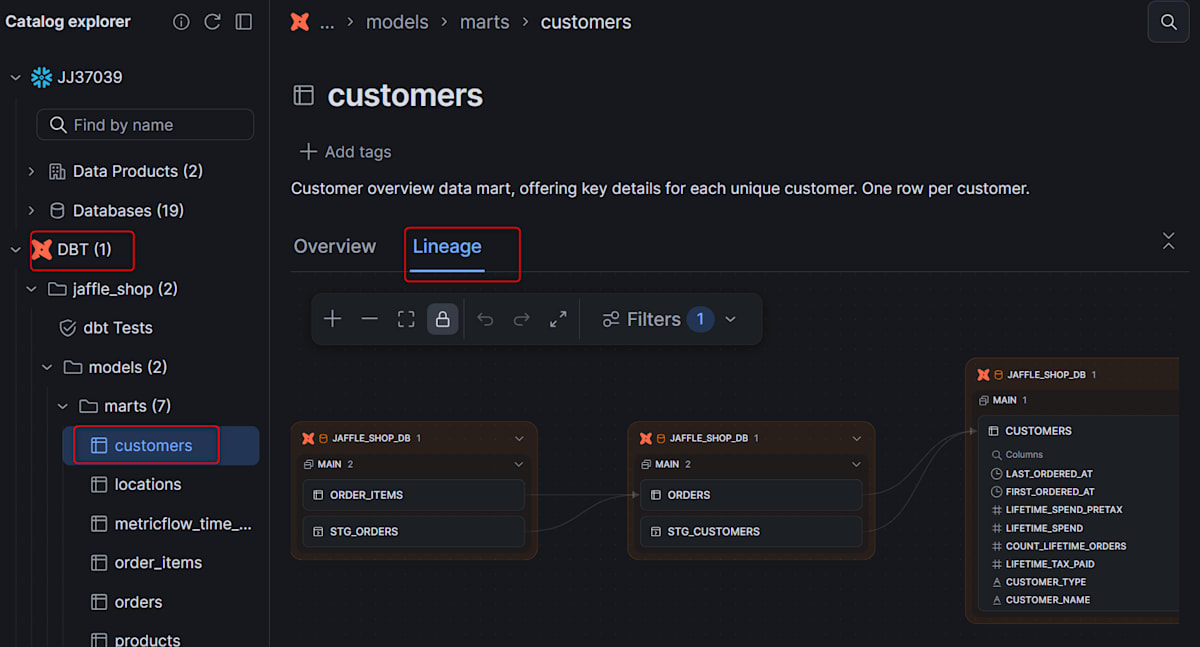
The same JAFFLE_SHOP_DB.MAIN objects as before the connection appear in the graph, with the dbt icon on each group header. This is the state where dbt models are mapped to Snowflake tables and views. The model description written in dbt's customers.yml is displayed above the graph.
Verify description display
I compare description display between Snowflake's JAFFLE_SHOP_DB.MAIN tables and the customers model under the dbt connector.
Since persist_docs is not configured this time, dbt descriptions are not reflected as comments on Snowflake tables and columns. The Description column on the Snowflake object side was empty.
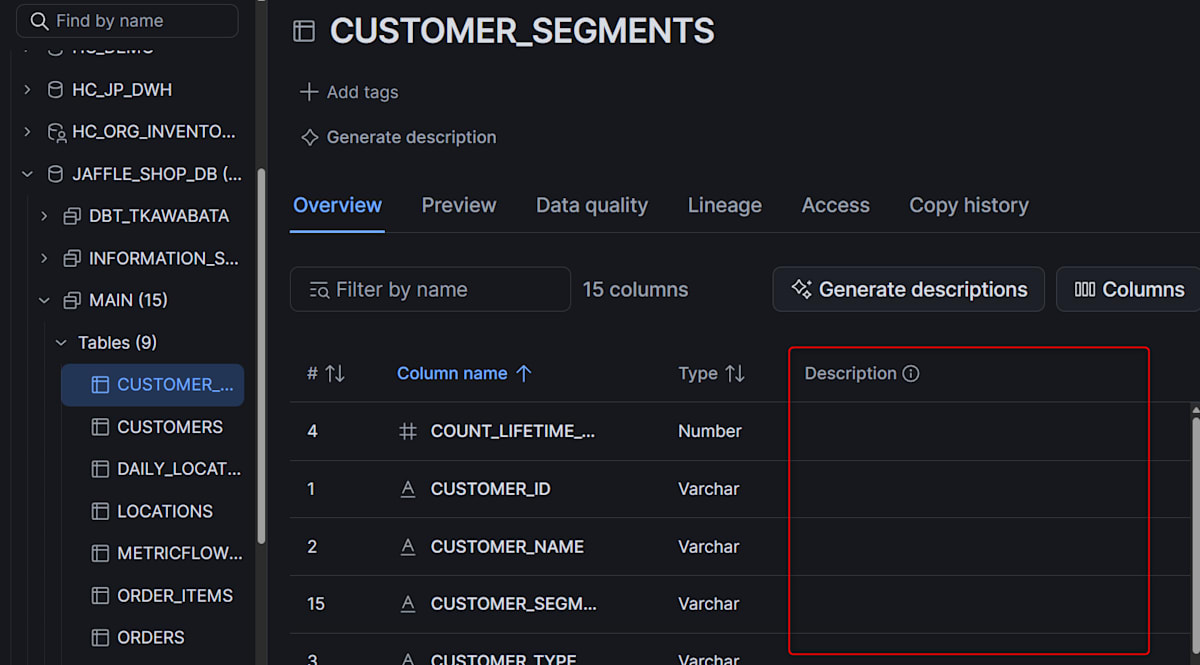
On the other hand, the customers model under the dbt connector displayed the model and column descriptions defined in dbt even without persist_docs.
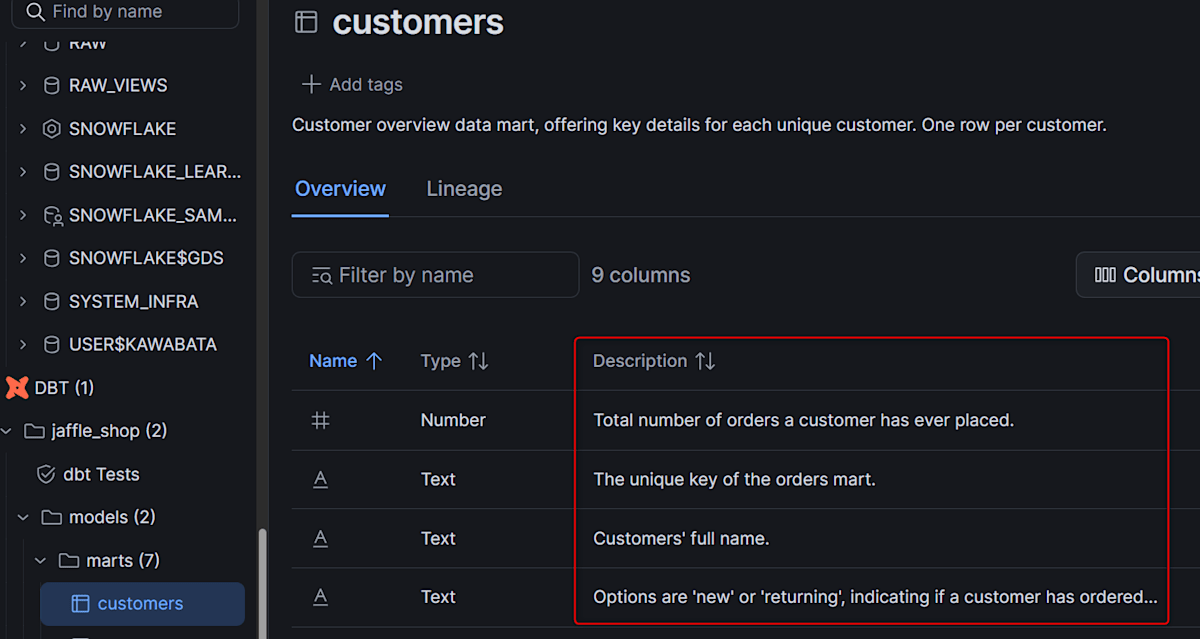
The official documentation's statement "For Snowflake, native object descriptions are used" refers to the description on the Snowflake object side. To reflect dbt descriptions in Snowflake table and column comments as well, use dbt's persist_docs to write them as comments.
Verify test results
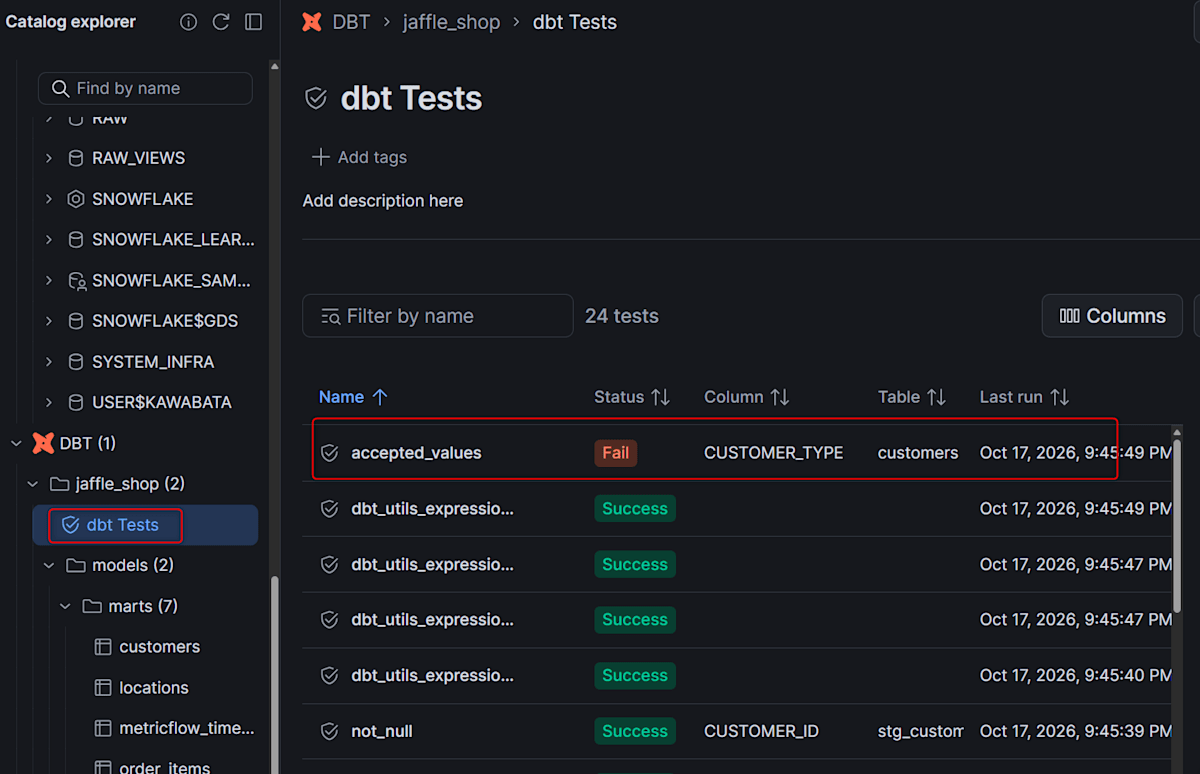
I verify how the results of the job with the intentionally failed accepted_values test appear in the Horizon Catalog.
Under DBT → jaffle_shop, there is a dbt Tests item showing a list with each test's name, Status, target column and table, and last run timestamp. This time, out of 24 tests, only accepted_values on CUSTOMER_TYPE in customers was Fail.
Verify visibility by role
Sign in to Snowsight as CATALOG_VIEWER_USER who holds only the viewing role.
At this point, USAGE on the connector has not been granted.
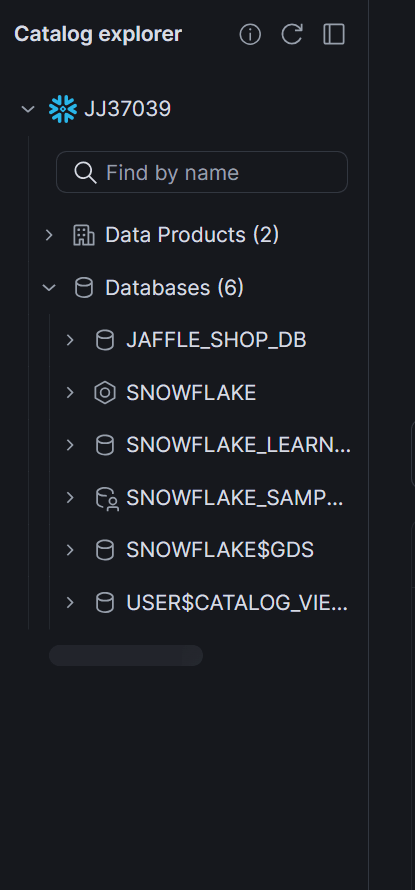
As shown above, JAFFLE_SHOP_DB appears in the tree, but the DBT data source and CONNECTORS database are not displayed. The official documentation states that roles without USAGE on the connector will not see the metadata and lineage collected by the connector.
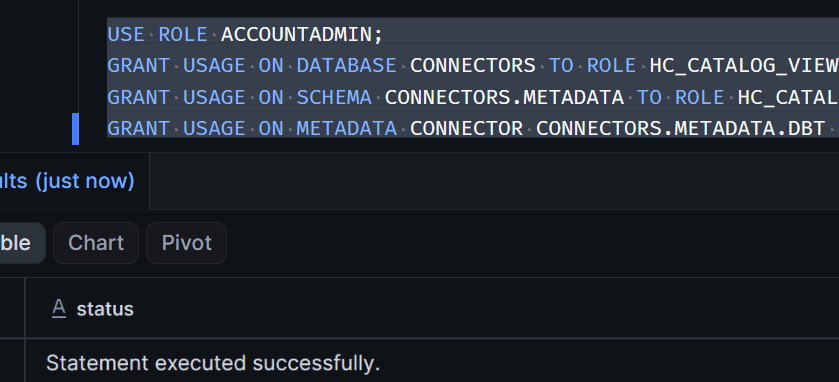
Switch back to ACCOUNTADMIN and grant USAGE on the connector to the viewing role. <connector_name> is the value in the name column of SHOW METADATA CONNECTORS; in this verification it was DBT.
USE ROLE ACCOUNTADMIN;
GRANT USAGE ON DATABASE CONNECTORS TO ROLE HC_CATALOG_VIEWER;
GRANT USAGE ON SCHEMA CONNECTORS.METADATA TO ROLE HC_CATALOG_VIEWER;
GRANT USAGE ON METADATA CONNECTOR CONNECTORS.METADATA.DBT TO ROLE HC_CATALOG_VIEWER;
When CATALOG_VIEWER_USER reloads the page, the DBT data source and CONNECTORS database are displayed, and models and descriptions under jaffle_shop can also be confirmed. No issues if it shows the same display as when viewed with ACCOUNTADMIN.
USAGE on the connector only controls the visibility of collected metadata. Granting USAGE does not expose saved service tokens or grant access to dbt platform itself.
Limitations and Notes
Limitations and Notes
- The Horizon Context metadata connector is a Preview feature. It is not available in government regions or China regions.
- One dbt connection corresponds to one dbt project (one job).
- The ability to add multiple interdependent dbt projects to a single connection and combine cross-project lineage is not supported. Create a separate connection per project.
- Object comments are used for the description on the Snowflake object side.
persist_docsis required to also surface dbt descriptions on the Snowflake side. - The job must include
dbt testordbt buildto ingest test results. - Keep
dbt compile --full-refreshto maintain lineage for incremental models. jaffle-shop has no incremental models, but this follows the official documentation's configuration. - Metadata will not be updated if the job schedule is disabled or if the most recent run had a compilation failure.
- Connection creation in Snowsight is evaluated using only the primary role's permissions, while viewing combines the permissions of all held roles.
- If the connector is deleted and recreated, previous USAGE grants on the old connector are not carried over.
- Data lineage requires Enterprise Edition or higher, with a retention period of 1 year.
- Immediately after ingestion, the Lineage tab for some models (
locations) displayed "Lineage not available." It displays correctly forcustomers. The cause has not been identified. - The procedure for dbt Core (uploading artifacts) is in the following official documentation.
Conclusion
I ingested the jaffle-shop dbt platform project using the dbt connector and verified inter-model lineage and test results in Snowsight.
Being able to view dbt Tests and lineage is great!
I felt it would be even more useful if job execution results and similar information could also be viewed.
I hope this article is helpful to someone!