![[New Feature] I tried out the ability to share Streamlit in Snowflake apps with individual users directly without going through roles](https://devio2024-media.developers.io/image/upload/f_auto,q_auto,w_3840/f_auto,q_auto/v1790874280/eyecatch/wsr0koxw01pat9lxglvp.png)
[New Feature] I tried out the ability to share Streamlit in Snowflake apps with individual users directly without going through roles

This page has been translated by machine translation. View original
This is Kawabata.
On October 12, 2026, the feature to share Streamlit in Snowflake apps with individual users became generally available. Until now, sharing was only possible with roles, so even when you wanted to "show a dashboard to only this one person," you needed to create a dedicated role for that purpose.
In this article, I will deploy a simple dashboard using TPC-H sample data from Snowsight Workspaces to a trial account. Then, I will share it with a single user through three different methods — SQL, the Share dialog, and the Workspaces deploy dialog — and verify what the viewer sees.
【Official Documentation】
Share Streamlit in Snowflake apps with users (Release Notes)
Sharing Streamlit in Snowflake apps
Overview of Per-User Sharing
Sharing of Streamlit in Snowflake apps is controlled by USAGE privileges on the app itself and the DB and schema where it is stored. With this GA release, you can now specify not just roles but also users directly as the grantee.
| Sharing with roles (existing) | Sharing with users (this GA) | |
|---|---|---|
| Grantee | GRANT ... TO ROLE |
GRANT ... TO USER |
| Snowsight operation | Search for role name in Share dialog | Search for user name in the same dialog |
| Permission level | View only / View and share | Same (View and share is equivalent to WITH GRANT OPTION) |
| Missing DB/schema USAGE | Grant separately | Grant via Grant USAGE button inside the dialog |
| Notification | None | In-app Snowsight notification. Email is also sent if email is verified |
| Effective condition | Session where the role is active | Session where all secondary roles are active |
There are three ways to grant access. SQL GRANT, the Share dialog on a deployed app, and the Sharing section in the Workspaces deploy dialog. This article covers all three. Regardless of which method is used to grant access, viewers open the app from their browser. There are two types of app URLs.
| URL | Format | Display |
|---|---|---|
| App-builder URL | https://app.snowflake.com/<org>/<account>/#/streamlit-apps/<db>.<schema>.<app> |
Includes Snowsight toolbar. Edit / Share buttons appear depending on permissions |
| App-viewer URL | https://app.snowflake.com/streamlit/<org>/<account>/#/apps/<url_id> |
App screen only. Anyone with USAGE can open it |
The <url_id> can be found in the url_id column of SHOW STREAMLITS or DESCRIBE STREAMLIT.
Prerequisites
- Viewers need USAGE on three objects: the app itself, the DB, and the schema (either via role or directly on the user)
- Direct grants to users only take effect when all secondary roles are active in the session
- Apps deployed from Workspaces run on the container runtime. The app's owner role requires USAGE on a compute pool and CREATE STREAMLIT on the destination schema
- Not available in government regions. Edition requirements are not mentioned in the documentation (verified to work on a trial account)
Verification was performed on October 22, 2026, using a trial account in the AWS Tokyo region. All operations were performed through the Snowsight browser interface, and SQL was executed from SQL files in a Workspace.
Preparation
Creating Roles, DBs, and Viewer Users
Create the app owner role SIS_APP_OWNER and the storage DB. We intentionally do not create a role for the viewer.
USE ROLE ACCOUNTADMIN;

CREATE ROLE SIS_APP_OWNER;
GRANT ROLE SIS_APP_OWNER TO ROLE SYSADMIN;
GRANT ROLE SIS_APP_OWNER TO USER <your username>;

CREATE DATABASE SIS_SHARE_DB;
CREATE SCHEMA SIS_SHARE_DB.APPS;
GRANT OWNERSHIP ON SCHEMA SIS_SHARE_DB.APPS TO ROLE SIS_APP_OWNER COPY CURRENT GRANTS;
GRANT OWNERSHIP ON DATABASE SIS_SHARE_DB TO ROLE SIS_APP_OWNER COPY CURRENT GRANTS;

-- Data and compute permissions are granted only to the app owner role
GRANT USAGE ON WAREHOUSE COMPUTE_WH TO ROLE SIS_APP_OWNER;
GRANT IMPORTED PRIVILEGES ON DATABASE SNOWFLAKE_SAMPLE_DATA TO ROLE SIS_APP_OWNER;
GRANT READ SESSION ON ACCOUNT TO ROLE SIS_APP_OWNER;
Create one viewer user, SIS_VIEWER. No roles are granted at all (only the default PUBLIC). Authentication credentials are not needed to grant sharing, but a password is set so the viewer can sign in from a browser.
CREATE USER SIS_VIEWER TYPE = PERSON DISPLAY_NAME = 'SIS Viewer'
  PASSWORD = '<any password>' MUST_CHANGE_PASSWORD = FALSE;
When checked with SHOW USERS, the new user's default_secondary_roles was ["ALL"]. The allowed_interfaces is [ALL].
Deploying the Dashboard from Workspaces
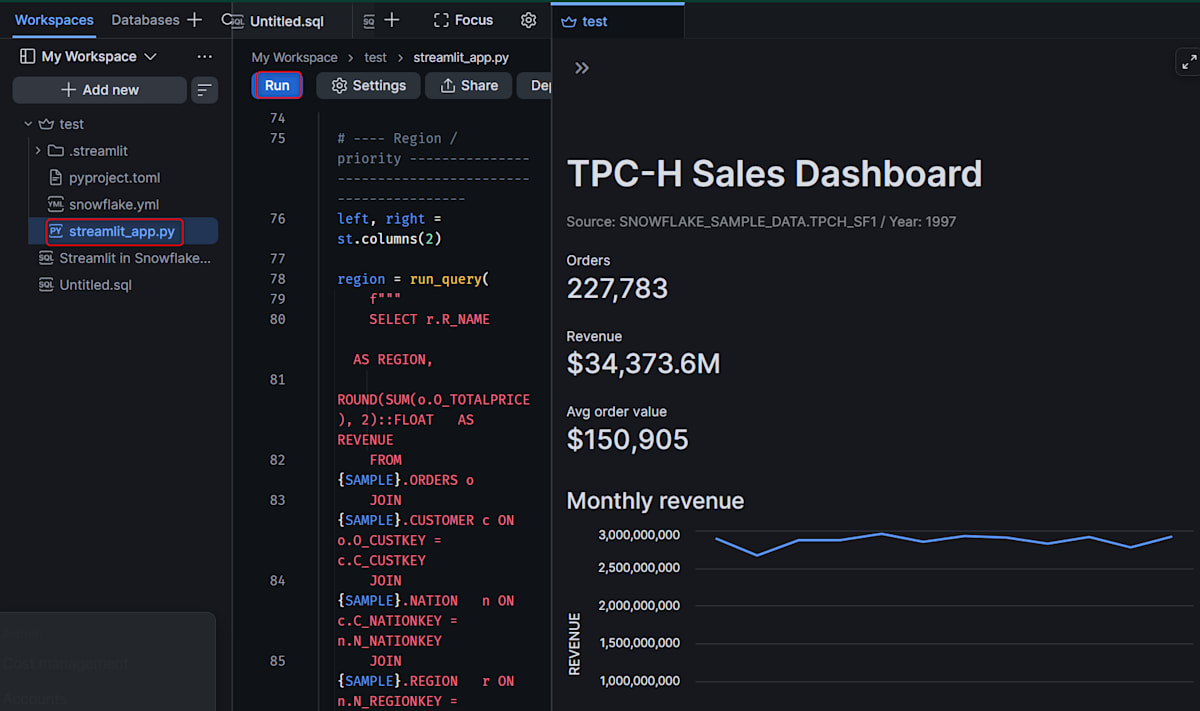
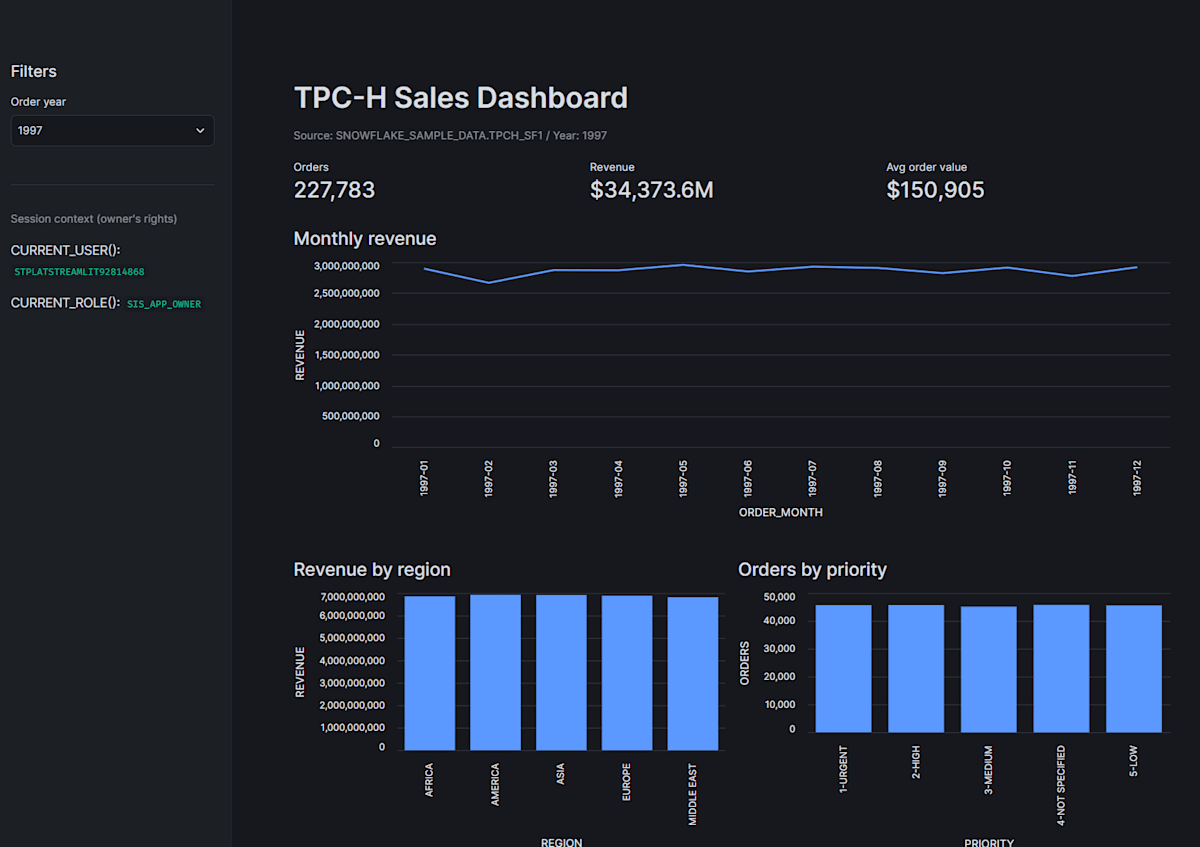
This is a simple dashboard that filters orders from SNOWFLAKE_SAMPLE_DATA.TPCH_SF1 by year and displays four views: KPIs, monthly trends, by region, and by priority.
Dashboard script
import streamlit as st
from snowflake.snowpark.context import get_active_session

st.set_page_config(page_title="TPC-H Sales Dashboard", layout="wide")

session = get_active_session()

SAMPLE = "SNOWFLAKE_SAMPLE_DATA.TPCH_SF1"
YEARS = list(range(1992, 1999))  # TPC-H order dates range from 1992-01-01 to 1998-08-02

@st.cache_data(ttl=600)
def run_query(sql: str, params: tuple):
    """Cache aggregation query results (shared across viewers since results are the same)."""
    return session.sql(sql, params=list(params)).to_pandas()

def session_context():
    """Not cached since values differ per viewer."""
    row = session.sql(
        "SELECT CURRENT_USER() AS CURRENT_USER, CURRENT_ROLE() AS CURRENT_ROLE"
    ).collect()[0]
    return row["CURRENT_USER"], row["CURRENT_ROLE"]

# ---- Sidebar -------------------------------------------------------------
with st.sidebar:
    st.header("Filters")
    year = st.selectbox("Order year", YEARS, index=YEARS.index(1997))
    st.divider()
    st.caption("Session context (owner's rights)")
    try:
        current_user, current_role = session_context()
        st.write(f"CURRENT_USER(): `{current_user}`")
        st.write(f"CURRENT_ROLE(): `{current_role}`")
    except Exception as exc:  # e.g., when READ SESSION is not available
        st.caption(f"context unavailable: {exc}")

# ---- Header ----------------------------------------------------------------
st.title("TPC-H Sales Dashboard")
st.caption(f"Source: {SAMPLE} / Year: {year}")

# ---- KPI -------------------------------------------------------------------
kpi = run_query(
    f"""
    SELECT COUNT(*)                            AS ORDERS,
           ROUND(SUM(O_TOTALPRICE), 2)::FLOAT  AS REVENUE,
           ROUND(AVG(O_TOTALPRICE), 2)::FLOAT  AS AVG_ORDER
    FROM {SAMPLE}.ORDERS
    WHERE YEAR(O_ORDERDATE) = ?
    """,
    (year,),
).iloc[0]

c1, c2, c3 = st.columns(3)
c1.metric("Orders", f"{int(kpi['ORDERS']):,}")
c2.metric("Revenue", f"${kpi['REVENUE'] / 1e6:,.1f}M")
c3.metric("Avg order value", f"${kpi['AVG_ORDER']:,.0f}")

# ---- Monthly trend -----------------------------------------------------------
monthly = run_query(
    f"""
    SELECT TO_CHAR(DATE_TRUNC('month', O_ORDERDATE), 'YYYY-MM') AS ORDER_MONTH,
           ROUND(SUM(O_TOTALPRICE), 2)::FLOAT                   AS REVENUE
    FROM {SAMPLE}.ORDERS
    WHERE YEAR(O_ORDERDATE) = ?
    GROUP BY 1
    ORDER BY 1
    """,
    (year,),
)
st.subheader("Monthly revenue")
st.line_chart(monthly, x="ORDER_MONTH", y="REVENUE")

# ---- Region / priority -------------------------------------------------------
left, right = st.columns(2)

region = run_query(
    f"""
    SELECT r.R_NAME                               AS REGION,
           ROUND(SUM(o.O_TOTALPRICE), 2)::FLOAT   AS REVENUE
    FROM {SAMPLE}.ORDERS o
    JOIN {SAMPLE}.CUSTOMER c ON o.O_CUSTKEY = c.C_CUSTKEY
    JOIN {SAMPLE}.NATION   n ON c.C_NATIONKEY = n.N_NATIONKEY
    JOIN {SAMPLE}.REGION   r ON n.N_REGIONKEY = r.R_REGIONKEY
    WHERE YEAR(o.O_ORDERDATE) = ?
    GROUP BY 1
    ORDER BY 2 DESC
    """,
    (year,),
)
with left:
    st.subheader("Revenue by region")
    st.bar_chart(region, x="REGION", y="REVENUE")

priority = run_query(
    f"""
    SELECT O_ORDERPRIORITY AS PRIORITY, COUNT(*) AS ORDERS
    FROM {SAMPLE}.ORDERS
    WHERE YEAR(O_ORDERDATE) = ?
    GROUP BY 1
    ORDER BY 1
    """,
    (year,),
)
with right:
    st.subheader("Orders by priority")
    st.bar_chart(priority, x="PRIORITY", y="ORDERS")

with st.expander("Region detail"):
    st.dataframe(region, use_container_width=True, hide_index=True)
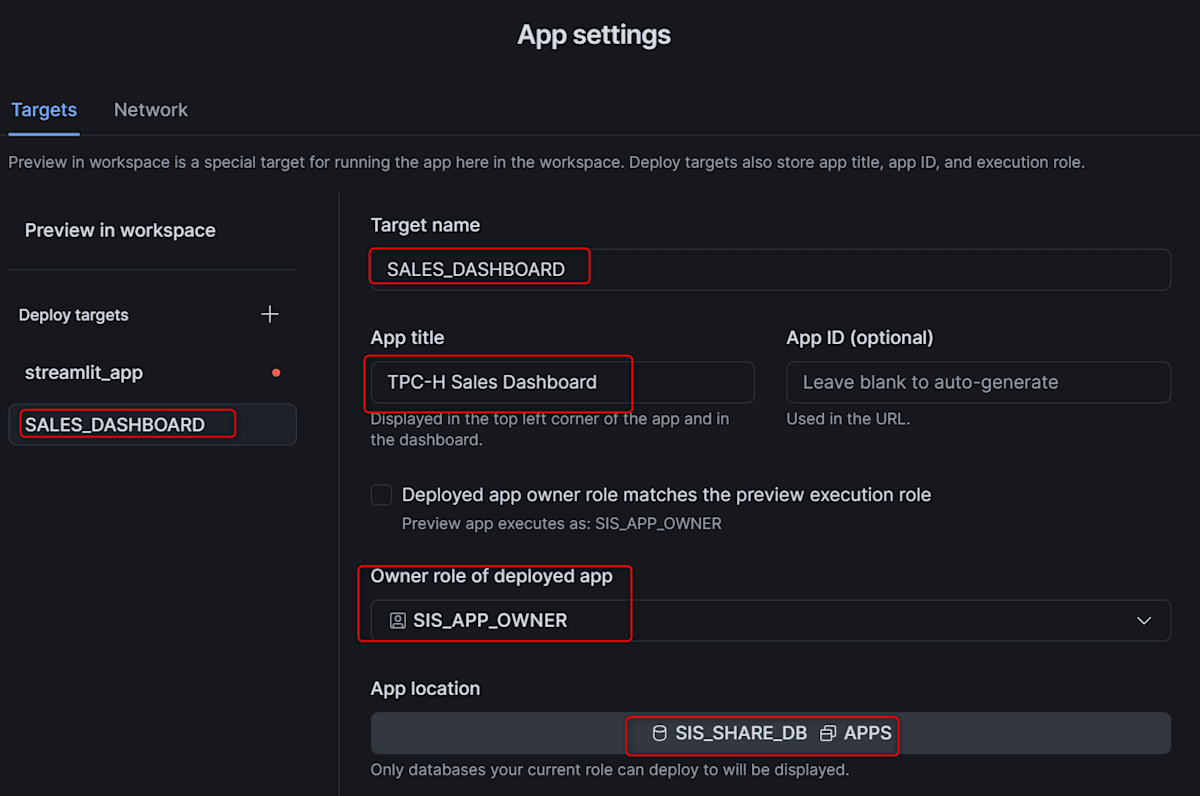
Create an app in Snowsight Workspaces and deploy it.
- Open Projects » Workspaces, and in My Workspace select + Add new » Streamlit app. A folder containing
streamlit_app.py,pyproject.toml,snowflake.yml, and.streamlit/config.tomlwill be created - Set the editor role to
SIS_APP_OWNERand the warehouse toCOMPUTE_WH, then replacestreamlit_app.pywith the code above
-
Press Run to preview a development app that only you can see. Development apps cannot be shared with other users
-
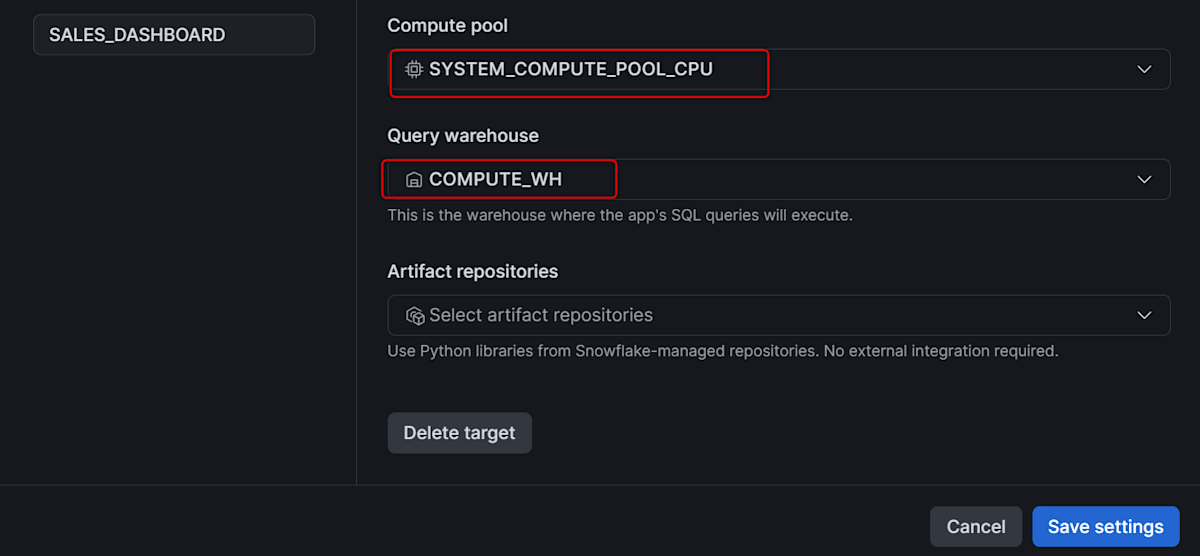
Press Deploy to open the dialog. For Location, set
SIS_SHARE_DBandAPPS; for Execution, set the compute pool and query warehouse
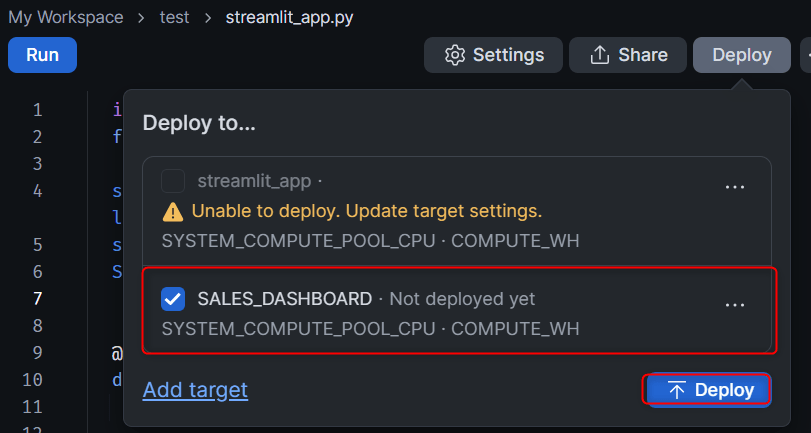
- Leave the Sharing field empty and press Deploy. The method of specifying roles or users here will be covered in a later section
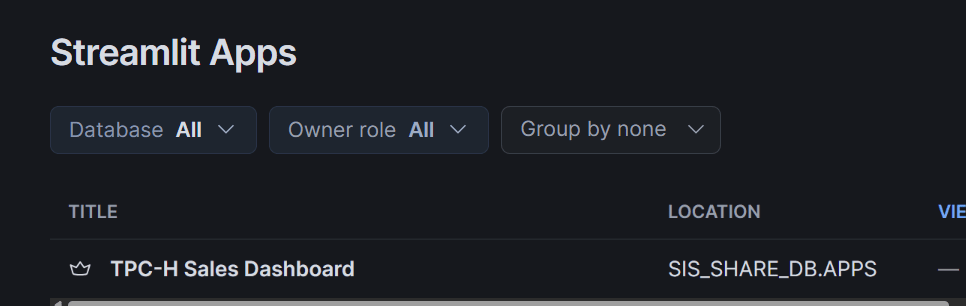
After deployment, a Streamlit object is created in SIS_SHARE_DB.APPS and can be opened from the Projects » Streamlit list. Since the app runs with owner's rights, no permissions for sample data or compute are granted to the viewer.
Not visible to SIS_VIEWER
Trying It Out
Sharing Directly with a User via SQL
Following the official documentation, grant three USAGE privileges with TO USER. The executing role is SIS_APP_OWNER, which owns the DB, schema, and app.
USE ROLE SIS_APP_OWNER;
GRANT USAGE ON DATABASE SIS_SHARE_DB TO USER SIS_VIEWER;
GRANT USAGE ON SCHEMA SIS_SHARE_DB.APPS TO USER SIS_VIEWER;
GRANT USAGE ON STREAMLIT SIS_SHARE_DB.APPS.SALES_DASHBOARD TO USER SIS_VIEWER;

SHOW GRANTS TO USER SIS_VIEWER;
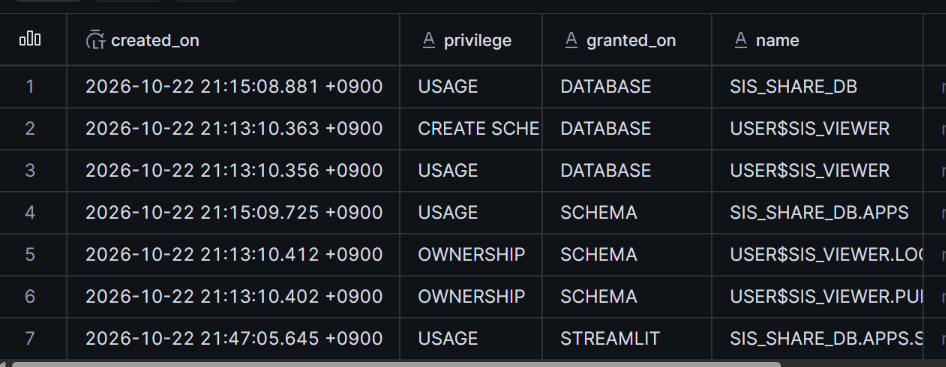
The rows are recorded with granted_to as USER. The same rows are visible with SHOW GRANTS ON STREAMLIT <app name>, making it possible to audit from the app side as well.
Sign in to Snowsight as the viewer SIS_VIEWER from a browser. The app appears in the Projects » Streamlit list, and opening it shows the dashboard. There are no Edit / Share buttons in the toolbar. When granted via SQL, no Snowsight notification is sent.
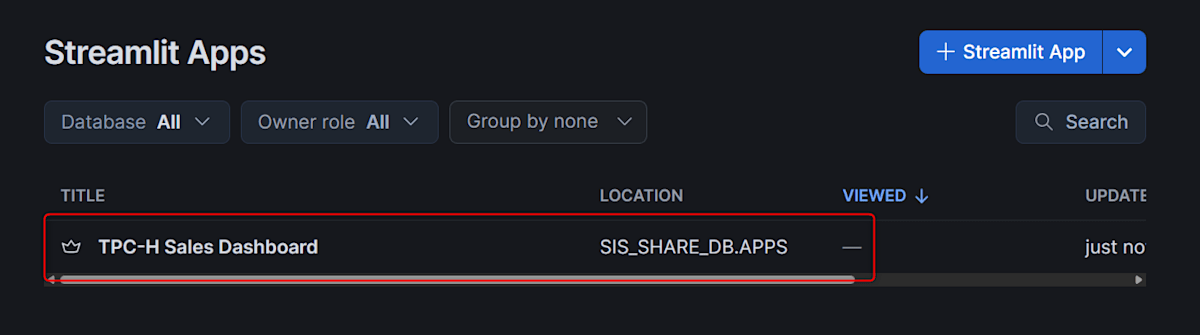
How the permissions work can also be verified by running SQL in the viewer SIS_VIEWER's session. Even though the only role is PUBLIC, the app appears in SHOW STREAMLITS.
SELECT CURRENT_USER(), CURRENT_ROLE(), CURRENT_SECONDARY_ROLES();
-- SIS_VIEWER | PUBLIC | {"roles":"","value":"ALL"}

SHOW STREAMLITS IN ACCOUNT;
-- SALES_DASHBOARD | SIS_SHARE_DB | APPS | TPC-H Sales Dashboard | owner: SIS_APP_OWNER
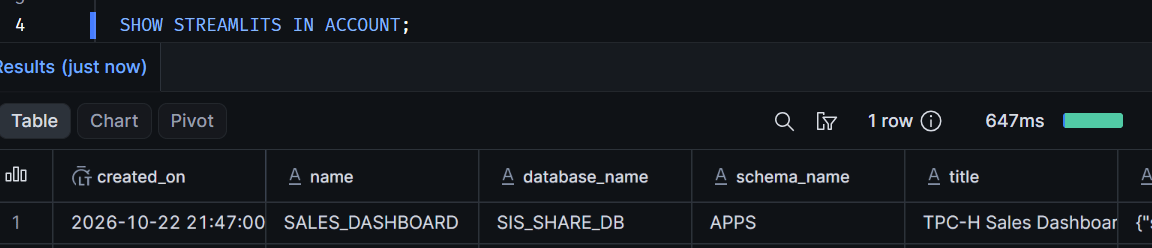
Becomes Invisible When Secondary Roles Are Disabled
The documentation states that direct grants to users only take effect when all secondary roles are active. Let's verify this by switching in the viewer's session.
USE SECONDARY ROLES NONE;
SHOW STREAMLITS IN ACCOUNT;         -- No data
SHOW DATABASES LIKE 'SIS_SHARE_DB'; -- No data

USE SECONDARY ROLES ALL;
SHOW STREAMLITS IN ACCOUNT;         -- SALES_DASHBOARD appears again
Let's also test the user's default value side. After setting DEFAULT_SECONDARY_ROLES = () as an administrator, a new session was started as the viewer.
-- Administrator
ALTER USER SIS_VIEWER SET DEFAULT_SECONDARY_ROLES = ();

-- Viewer (new session)
SELECT CURRENT_SECONDARY_ROLES();   -- {"roles":"","value":""}
SHOW STREAMLITS IN ACCOUNT;         -- No data
SHOW GRANTS TO USER SIS_VIEWER;     -- No data (own grants are also invisible)

Reverting to ('ALL') makes the app and own grants visible again from the next session.
Note: For users with
DEFAULT_SECONDARY_ROLES = (), permissions will not take effect even if shared via the Share dialog.
Re-sharing Is Possible with View and Share
Snowsight's "View and share" is equivalent to WITH GRANT OPTION. Let's re-grant it via SQL and test whether the viewer themselves can re-share with another user. As the re-share target, we prepare a user SIS_VIEWER2 with no permissions at all.
-- Administrator: prepare the re-share target
CREATE USER SIS_VIEWER2 TYPE = PERSON DISPLAY_NAME = 'SIS Viewer 2'
  PASSWORD = '<any password>' MUST_CHANGE_PASSWORD = FALSE;

-- App owner role: re-grant with View and share equivalent
GRANT USAGE ON STREAMLIT SIS_SHARE_DB.APPS.SALES_DASHBOARD
  TO USER SIS_VIEWER WITH GRANT OPTION;

-- Viewer (SIS_VIEWER, only PUBLIC role): re-share with another user
GRANT USAGE ON STREAMLIT SIS_SHARE_DB.APPS.SALES_DASHBOARD TO USER SIS_VIEWER2;
SHOW GRANTS ON STREAMLIT SIS_SHARE_DB.APPS.SALES_DASHBOARD;
The re-share succeeded, and the username was recorded in granted_by and USER was recorded in granted_by_role_type. This allows you to track who shared with whom after the fact.

However, this alone will not show the app in SIS_VIEWER2's Projects » Streamlit list. Viewing also requires USAGE on the DB and schema, but a viewer with View and share can only re-share USAGE on the app itself. DB and schema USAGE must be granted separately by the owner who can grant them.
Even if View and share is granted, sharing cannot be completed entirely between viewers. A practical approach is to distribute DB and schema USAGE broadly via roles, and leave per-app sharing to users.
-- App owner role (SIS_APP_OWNER): allow the re-share target to open it
GRANT USAGE ON DATABASE SIS_SHARE_DB TO USER SIS_VIEWER2;
GRANT USAGE ON SCHEMA SIS_SHARE_DB.APPS TO USER SIS_VIEWER2;
Stopping the Share
The SQL equivalent of the trash icon in Snowsight is to REVOKE only the app's USAGE.
Using CASCADE also revokes grants made by re-sharing. If you want to keep only the re-share target's access, grant USAGE directly to the re-share target from the owner before revoking.
USE ROLE SIS_APP_OWNER;
-- SIS_APP_OWNER
REVOKE USAGE ON STREAMLIT SIS_SHARE_DB.APPS.SALES_DASHBOARD FROM USER SIS_VIEWER CASCADE;
SHOW GRANTS ON STREAMLIT SIS_SHARE_DB.APPS.SALES_DASHBOARD;   -- Only the OWNERSHIP row remains

On the viewer side, SHOW STREAMLITS becomes empty. However, the DB still remains in SHOW DATABASES LIKE 'SIS_SHARE_DB'.
In preparation for verifying the Share dialog next, let's also revoke the DB and schema USAGE to return to a state with no grants.
REVOKE USAGE ON SCHEMA SIS_SHARE_DB.APPS FROM USER SIS_VIEWER;
REVOKE USAGE ON DATABASE SIS_SHARE_DB FROM USER SIS_VIEWER;
Sharing via the Snowsight Share Dialog
Share with the same viewer SIS_VIEWER from Snowsight, starting from a state where nothing has been granted.
-
Open Projects » Streamlit » SALES_DASHBOARD and select Share
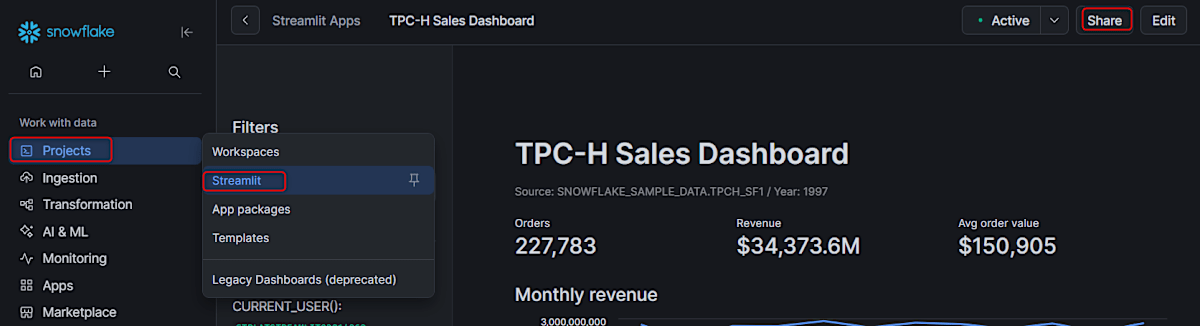
-
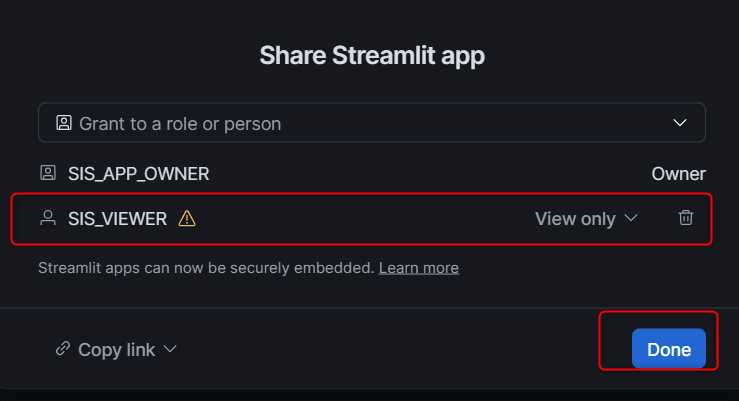
Type
SIS_VIEWERin Grant to a role or person and select from the suggestions -
Since there is no USAGE on the DB or schema, a warning icon appears next to the username
-
Press Grant USAGE to grant DB and schema USAGE before pressing Done
-
Select View only from the dropdown on the right, then press Done
When the shared SIS_VIEWER signs in to Snowsight, a notification with an app sharing notice is delivered. The only difference from granting via SQL is this notification; the app looks the same.
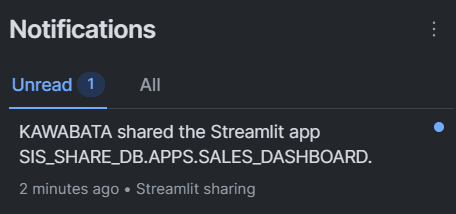
Sharing via the Workspaces Deploy Dialog
The third method is to specify share targets in the Sharing section when deploying from Workspaces. First, return the viewer to a state with no grants, then try this.
- Open the app folder in the Workspace
- Add
SIS_VIEWER2in the Sharing field and set the permission level to View only - Since there is no USAGE on the DB or schema, a warning icon appears. Press Grant USAGE to grant it
- Press Save Grants.
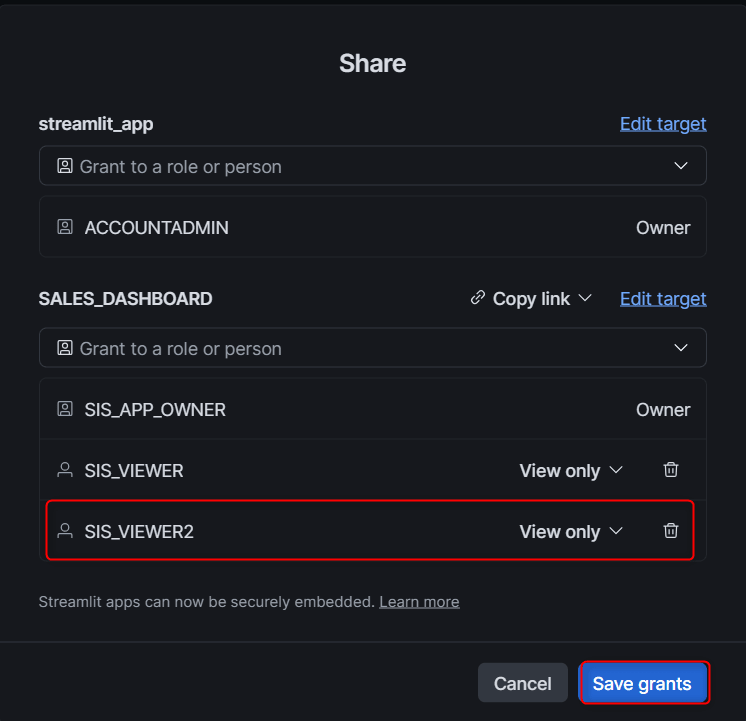
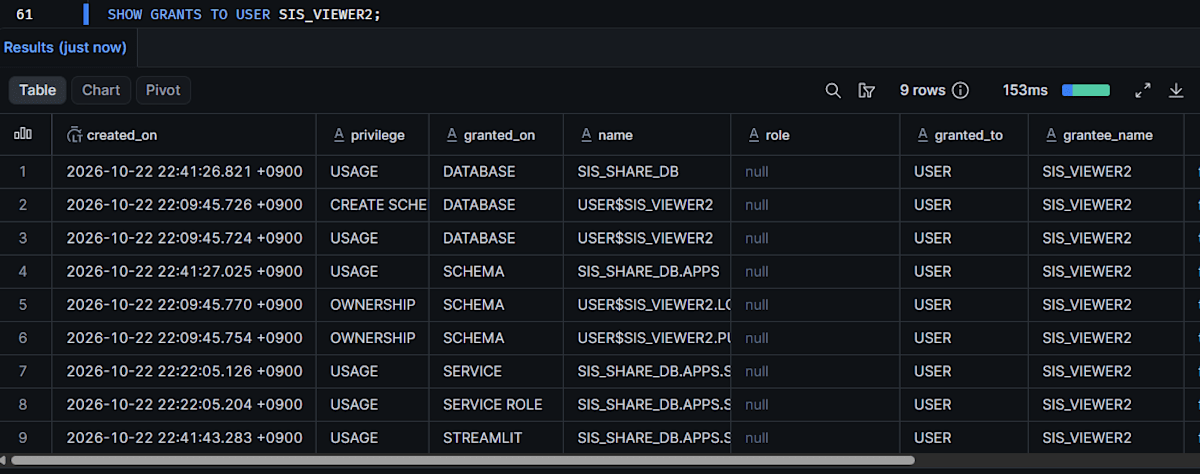
The grant results can be verified via SQL.
SHOW GRANTS TO USER SIS_VIEWER2;
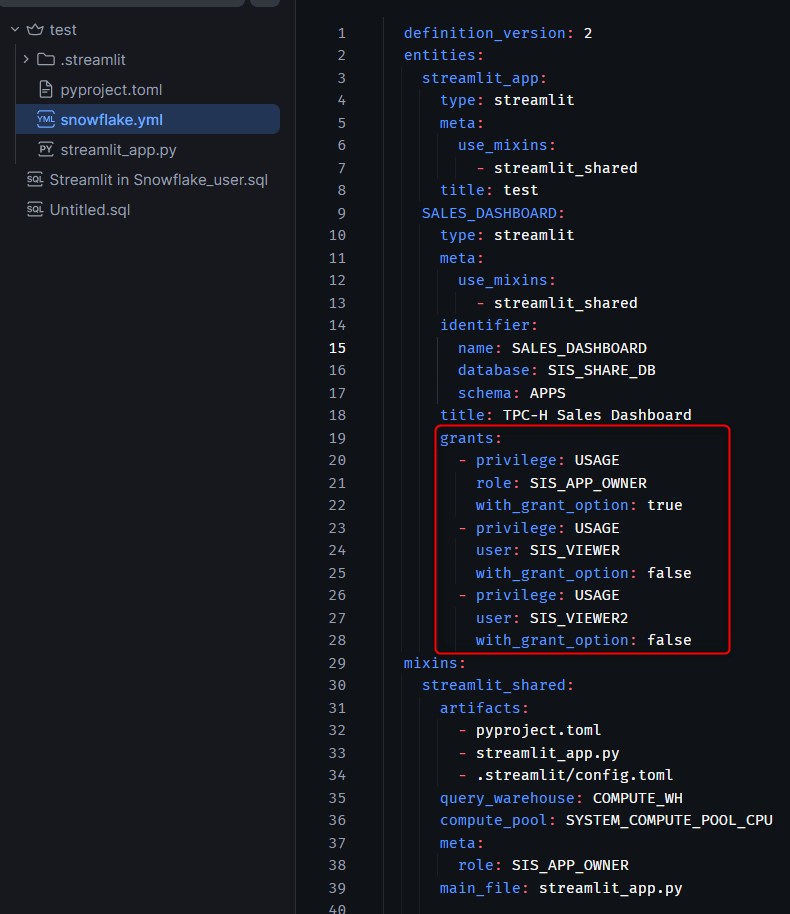
The share list is saved in the Workspace's snowflake.yml, and the same grants are applied on subsequent deployments. There is no need to re-apply the grants via the Share dialog with each deployment.
Making Viewer a Dedicated App-Only User
For users who should only be allowed to view, set ALLOWED_INTERFACES. This is because simply sharing the app-viewer URL gives access to other Snowsight screens as well.
USE ROLE ACCOUNTADMIN;
ALTER USER SIS_VIEWER SET ALLOWED_INTERFACES = (STREAMLIT);
After this setting, SIS_VIEWER can only open app-viewer URLs for apps they have permission to access. Navigating to the Snowsight home or workspace will result in an access error.
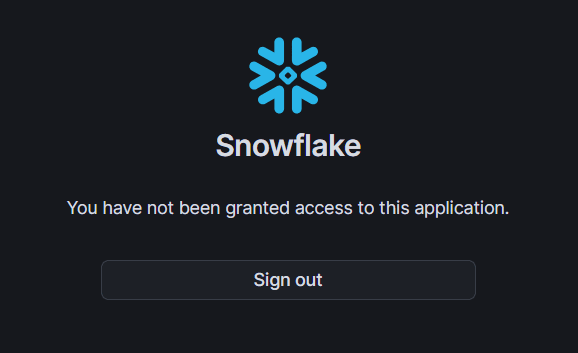
Viewable via app-viewer URL
ALTER USER ... UNSET ALLOWED_INTERFACES reverts it to [ALL].
Limitations and Notes
Limitations and Notes
- Direct grants to users are only effective in sessions where all secondary roles are active. The app will become invisible in sessions where
USE SECONDARY ROLES NONEhas been executed - When stopping a share (trash icon / REVOKE), only the app's USAGE is revoked. DB and schema USAGE remains
- When granted via SQL, neither Snowsight in-app notifications nor email notifications are sent
- The warning icon in the Share dialog is determined solely by whether direct USAGE has been granted to the user. Users who have USAGE via a role can open the app even if a warning is displayed, without needing Grant USAGE
- Viewers who receive an app-viewer URL can by default navigate to other Snowsight screens by modifying the URL. Set
ALLOWED_INTERFACES = (STREAMLIT)for view-only users - Apps from Workspaces only support the container runtime. Development apps (those running with Run) cannot be shared; deployment is required before sharing
- Share targets specified in the deploy dialog are saved in the Workspace's
snowflake.yml, and the same USAGE is granted on subsequent deployments. Only the app owner can edit and redeploy a deployed app - Not available in government regions
Closing Thoughts
Without creating any roles, I was able to share a dashboard using any of the three methods: three SQL GRANT ... TO USER statements, the Share dialog, or the deploy dialog.
Since grants are evaluated via secondary roles, it is safest to also communicate the session settings to viewers.
Combining ALLOWED_INTERFACES = (STREAMLIT) is recommended for view-only recipients.
I hope this article is helpful to someone!