I Tried Moving Data from TiDB Cloud to TiDB Cloud Lake

This page has been translated by machine translation. View original
Hello, I'm sora from the Game Solutions Department.
This time, I'll write about my experience migrating data from a TiDB Cloud cluster to TiDB Cloud Lake.
Inserting Dummy Data into TiDB Cloud
I created one TiDB Cloud Starter cluster and placed two tables, appdb.orders and appdb.app_logs, in the same database.
I'll migrate only the 500,000 rows of app_logs to Lake, while keeping the 50,000 rows of orders in TiDB.
The definition of app_logs is as follows.
CREATE TABLE appdb.app_logs (
    log_id     BIGINT PRIMARY KEY,
    level      VARCHAR(16) NOT NULL,
    service    VARCHAR(64) NOT NULL,
    message    TEXT,
    attributes JSON,
    logged_at  DATETIME NOT NULL,
    KEY idx_logged_at (logged_at)
);
Data was inserted using LOAD DATA LOCAL INFILE.
The 500,000 rows of app_logs took about 54 seconds, and after insertion, the Row-based Storage for the entire cluster including orders was 199.24 MiB.
Exporting from TiDB Cloud to S3
Ingestion into TiDB Cloud Lake goes through S3.
The flow is to export files from TiDB Cloud to S3, and then have the Lake side read them.
I used Dumpling for the export.
There is also an export feature in the TiDB Cloud console, but the files produced by that could not be ingested.
I'll write about that in the latter half.
The usage of Dumpling itself is introduced in this article.
Here is the command I executed.
tiup dumpling \
  -h gateway01.ap-northeast-1.prod.aws.tidbcloud.com -P 4000 \
  -u '<prefix>.root' -p '<password>' \
  --ca /etc/ssl/cert.pem \
  --filter 'appdb.app_logs' \
  --filetype csv \
  --escape-backslash=false \
  --csv-output-dialect snowflake \
  --csv-line-terminator $'\n' \
  -c no-compression \
  -o 's3://<bucket-name>/tidb-cloud-lake/dumpling/' \
  --s3.region ap-northeast-1
Since --filter can narrow down the tables, only app_logs is output and orders is not.
Since you can write the S3 URI directly to -o, there was no need to download it locally.
The last four flags are conditions for ingestion into Lake.
| Flag | What happens without it |
|---|---|
--filetype csv |
Default is sql. Files output as Parquet were not ingested |
--escape-backslash=false |
With the default true, \" is produced, causing a column count mismatch and Failed |
--csv-line-terminator $'\n' |
Output with the default \r\n, which doesn't match the ingestion side's \n |
-c no-compression |
Default is no compression, but with compression the files themselves are not recognized |
I also added --csv-output-dialect snowflake, but this was not about quoting.
According to the official documentation, it is an option that converts binary types to hexadecimal notation (removing the 0x prefix).
Since there are no binary columns in this table, the only flag that actually had an effect was --escape-backslash=false.
The dump of 500,000 rows and 140.1 MB took 1 minute and 57 seconds, and 4 files were output.
$ aws s3 ls s3://<bucket-name>/tidb-cloud-lake/dumpling/ --recursive --human-readable
  133 Bytes tidb-cloud-lake/dumpling/appdb-schema-create.sql
  442 Bytes tidb-cloud-lake/dumpling/appdb.app_logs-schema.sql
  133.6 MiB tidb-cloud-lake/dumpling/appdb.app_logs.000000000.csv
  146 Bytes tidb-cloud-lake/dumpling/metadata
In addition to the data itself, a CREATE DATABASE statement and a CREATE TABLE statement are output.
These will later be used for automatic table creation on the Lake side.
The contents of the CSV turned out like this.
"log_id","level","service","message","attributes","logged_at"
1,"DEBUG","search-api","span exported (req=204b5f50)","{""az"": ""ap-northeast-1a"", ""customer_id"": 3890, ""duration_ms"": 46.5, ""http"": {""method"": ""GET"", ""path"": ""/v1/inventory"", ""status"": 200}, ""trace_id"": ""11398b037a11a01e""}","2026-07-25 10:34:50"
With --escape-backslash=false, " becomes two consecutive "" characters.
This behavior was not explicitly documented in the official documentation, but was confirmed through actual testing.
By the way, when you run Dumpling against TiDB Cloud Starter, you get 3 permission errors for information_schema.cluster_info, mysql.tidb, and information_schema.placement_policies.
This is because Starter restricts access to system tables, and all three are only warnings — the dump itself succeeds.
Registering a Data Source in TiDB Cloud Lake
From here, the work is done in the TiDB Cloud Lake console.
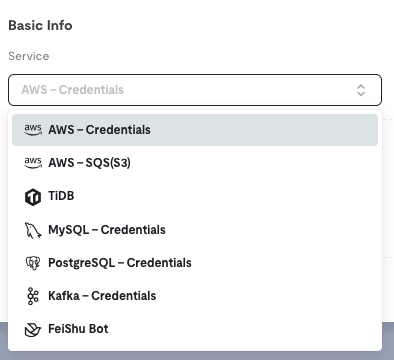
There is a TiDB option in the Service under Data > Data Sources > Create, so select that.
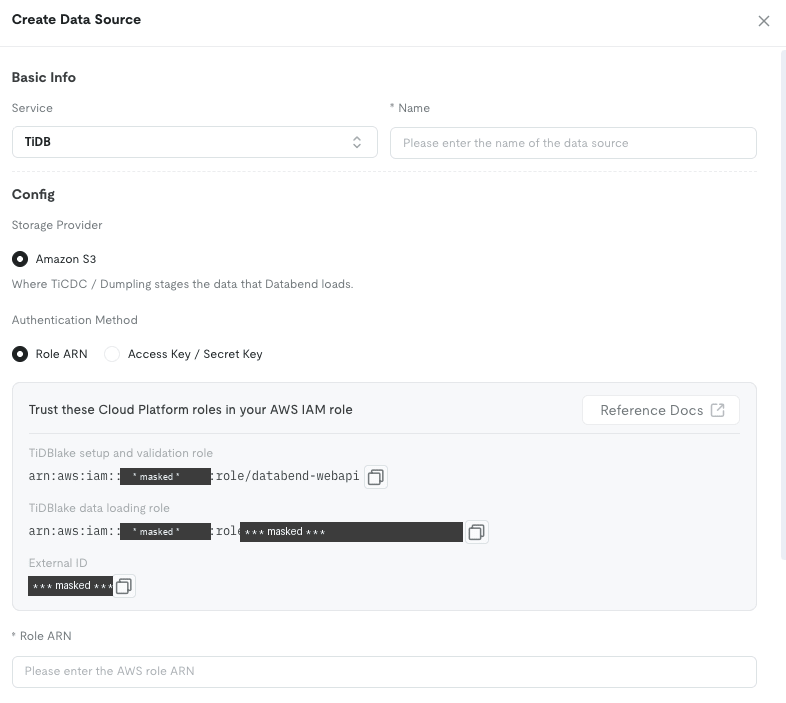
When you open it, there are no fields for hostname, username, or password.
What was listed were the S3 bucket and Role ARN.
Below Storage Provider, there is this sentence.
Where TiCDC / Dumpling stages the data that Databend loads.
In other words, the TiDB data source is not for connecting to a TiDB cluster, but points to the location in S3 where files output by TiCDC or Dumpling are placed.
Lake does not look at TiDB.
It looks at the S3 where the files output by TiDB are placed.
The default for Authentication Method is Role ARN, and I was able to connect using an IAM role without holding access keys.
Note that there is no TiDB page under Data Source Types in the official documentation.
Only 6 types are listed — Amazon S3, Amazon SQS (S3), MySQL, PostgreSQL, FeiShuBot, and Kafka — and TiDB is an option that exists only in the console.
Ingesting with an Integration Task in TiDB Cloud Lake
Create a task in Data > Data Integrations in the TiDB Cloud Lake console.
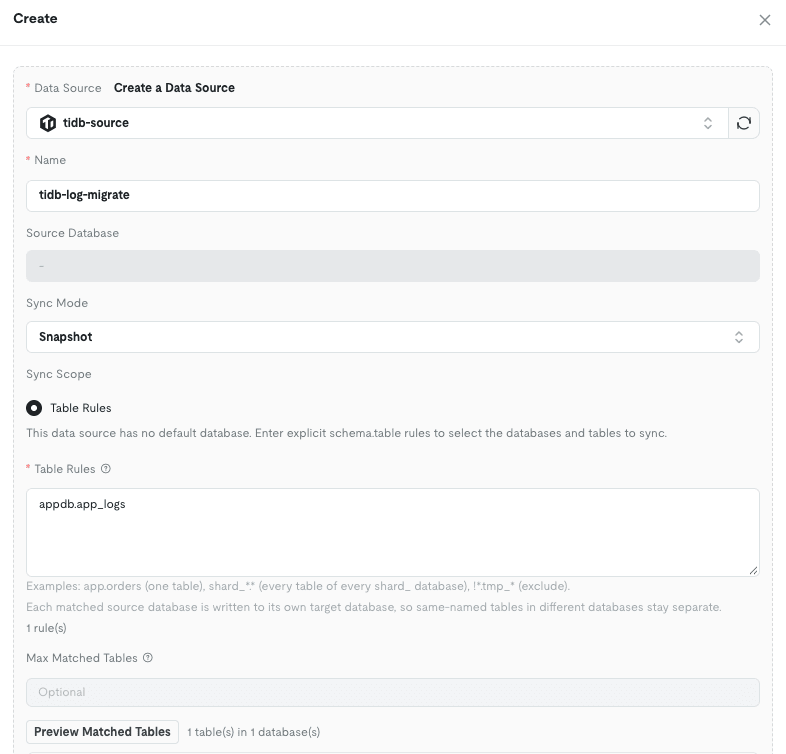
If you write only appdb.app_logs in Table Rules, only that table will be targeted.
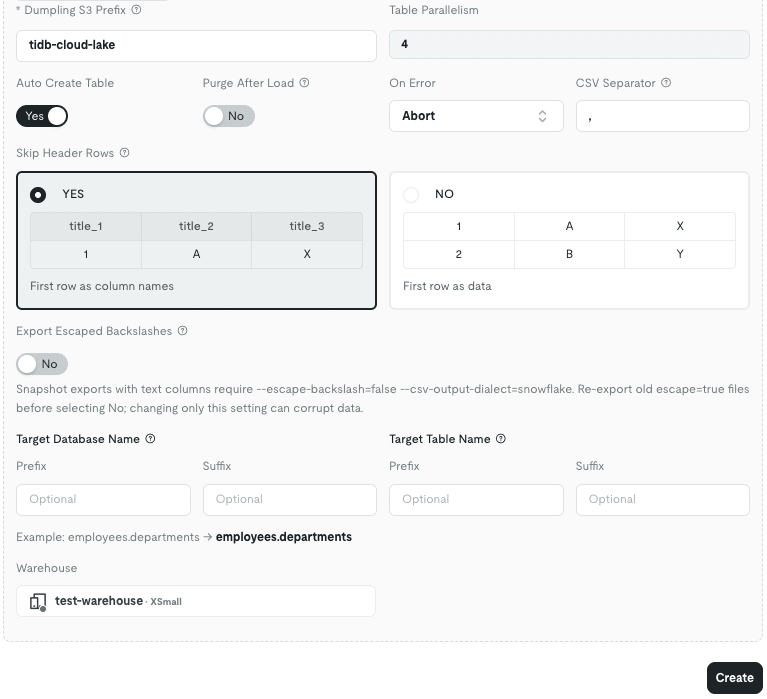
Sync Mode had 3 options.
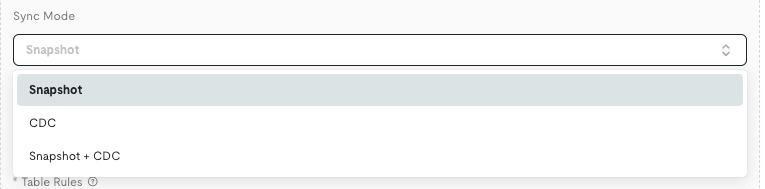
The options are Snapshot / CDC / Snapshot + CDC, where Snapshot receives Dumpling's output and CDC receives TiCDC's change logs.
I'll proceed with Snapshot mode this time.
Pressing Preview Matched Tables lets you check the match results before creating.

Only appdb.app_logs is matched, and orders is not included.
Since this button actually scans S3 and looks for -schema.sql, you can verify the prefix and output format without creating a task or starting the Warehouse.
The details screen's Sync Configuration showed 3 items that were not in the creation form.
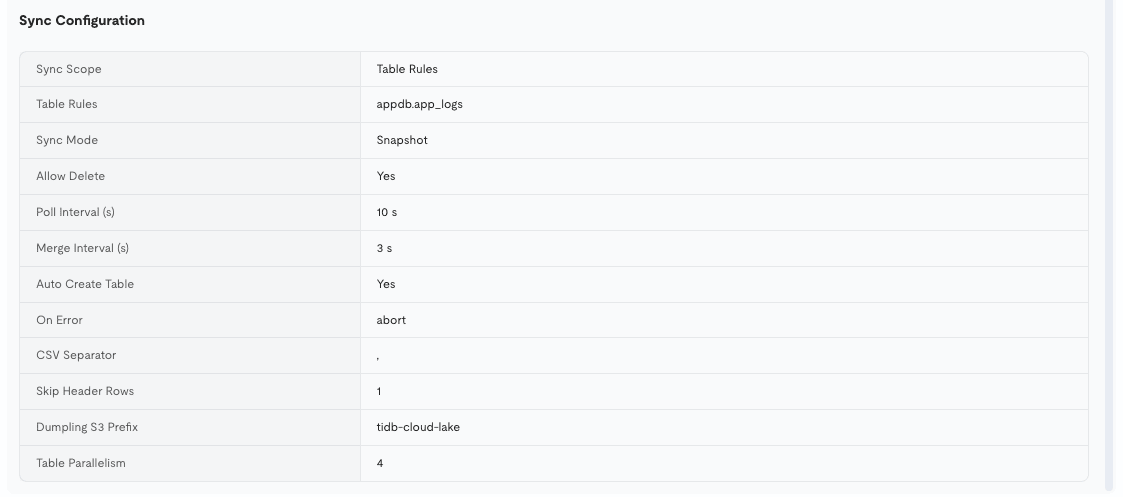
The 3 items are Allow Delete: Yes / Poll Interval: 10 s / Merge Interval: 3 s, and by default it checks S3 every 10 seconds.
Just creating it won't make it run, so press Start.
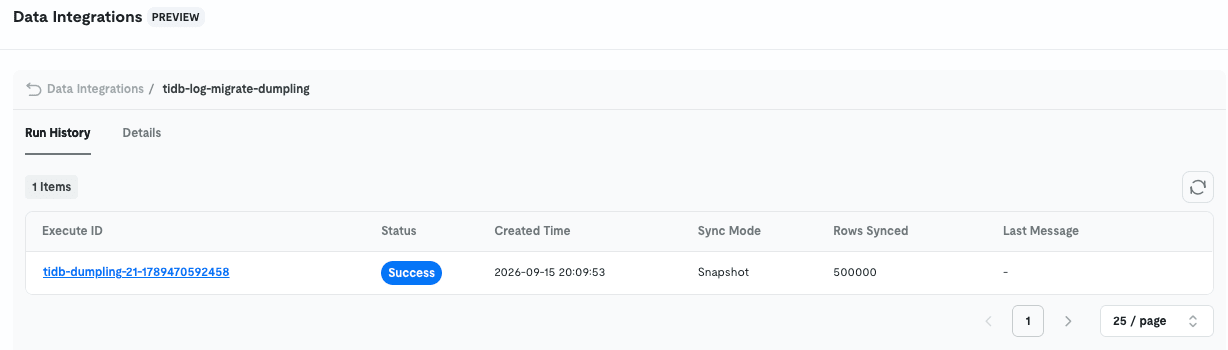
Rows Synced became 500,000.
Since Auto Create Table is Yes by default, the table is also automatically created on the Lake side.
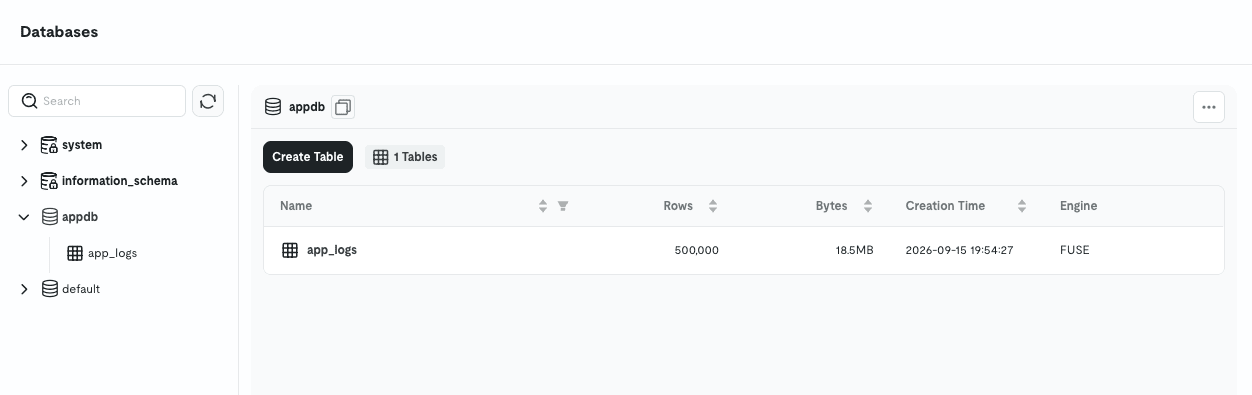
500,000 rows, 18.5 MB, and Engine is FUSE.
Verifying the Ingested Data in TiDB Cloud Lake
I ran verification queries in the TiDB Cloud Lake Worksheet and compared them against expected values taken from the TiDB Cloud side.
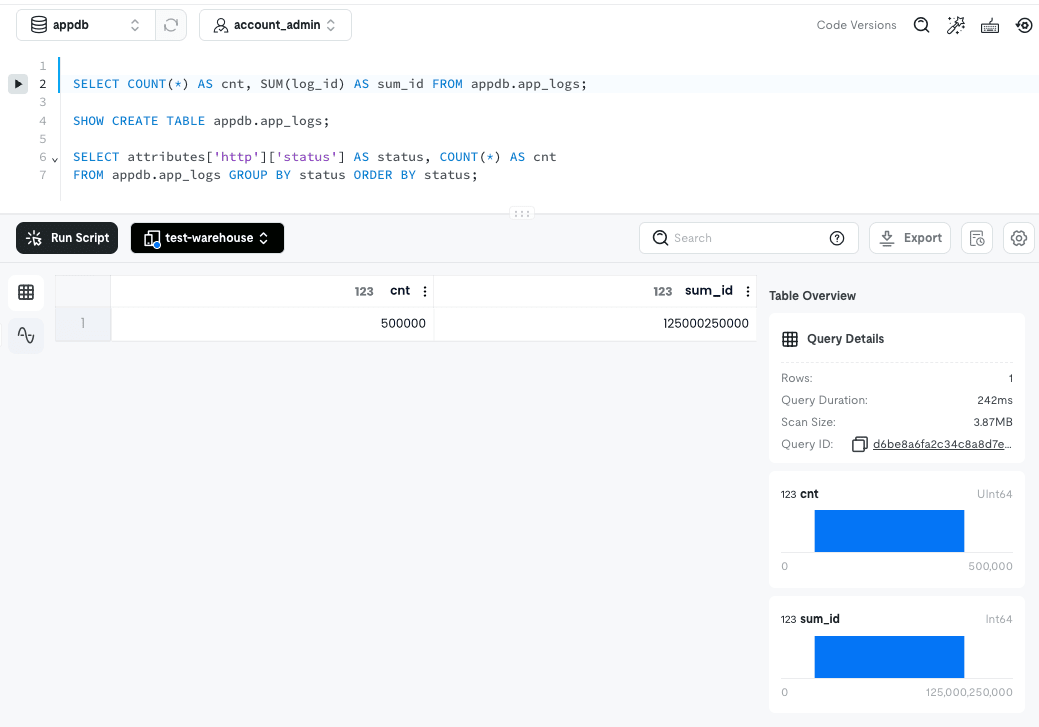
SELECT COUNT(*) AS cnt, SUM(log_id) AS sum_id FROM appdb.app_logs;
COUNT(*) was 500,000 and SUM(log_id) was 125,000,250,000, both matching the TiDB Cloud side.
The breakdown by level and the aggregation by HTTP status also show the same values.
Since the checksums match, the data has been ingested without any missing rows or duplicates.
json becomes VARIANT
Here is the table definition created on the TiDB Cloud Lake side.
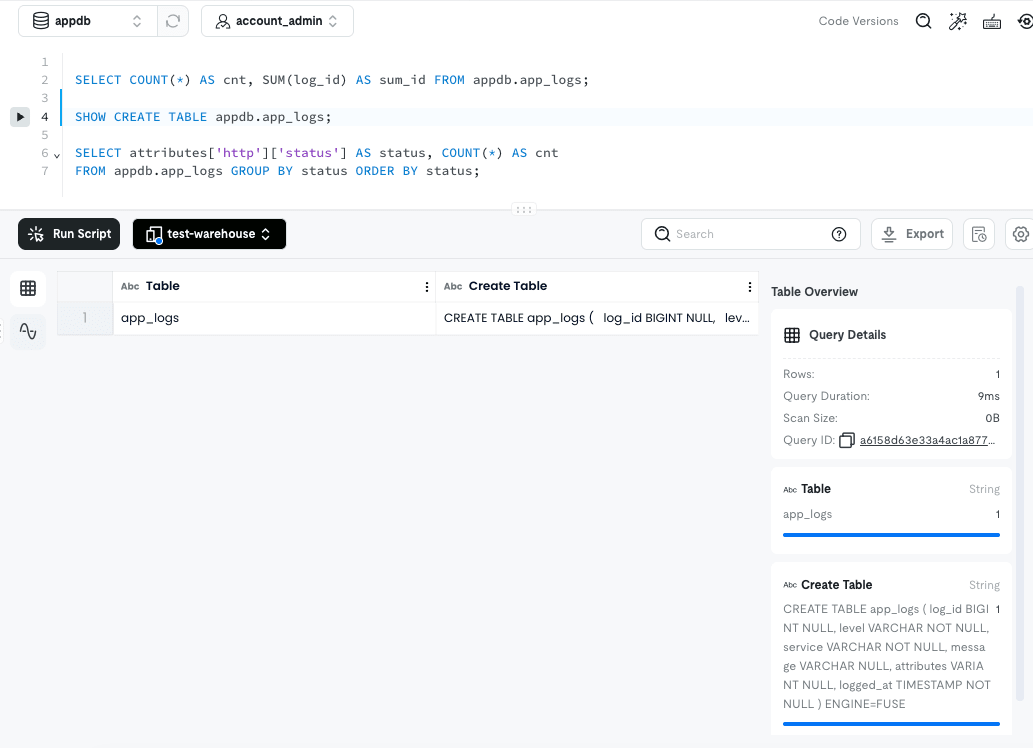
CREATE TABLE app_logs (
  log_id     BIGINT   NULL,
  level      VARCHAR  NOT NULL,
  service    VARCHAR  NOT NULL,
  message    VARCHAR  NULL,
  attributes VARIANT  NOT NULL,
  logged_at  TIMESTAMP NOT NULL
) ENGINE=FUSE
| Column | TiDB Cloud side | Lake side | |
|---|---|---|---|
level |
varchar(16) |
VARCHAR |
Length specification is dropped |
message |
text |
VARCHAR |
No distinction between TEXT and VARCHAR |
attributes |
json |
VARIANT |
As intended |
logged_at |
datetime |
TIMESTAMP |
Since json became VARIANT, you can traverse nested JSON directly.
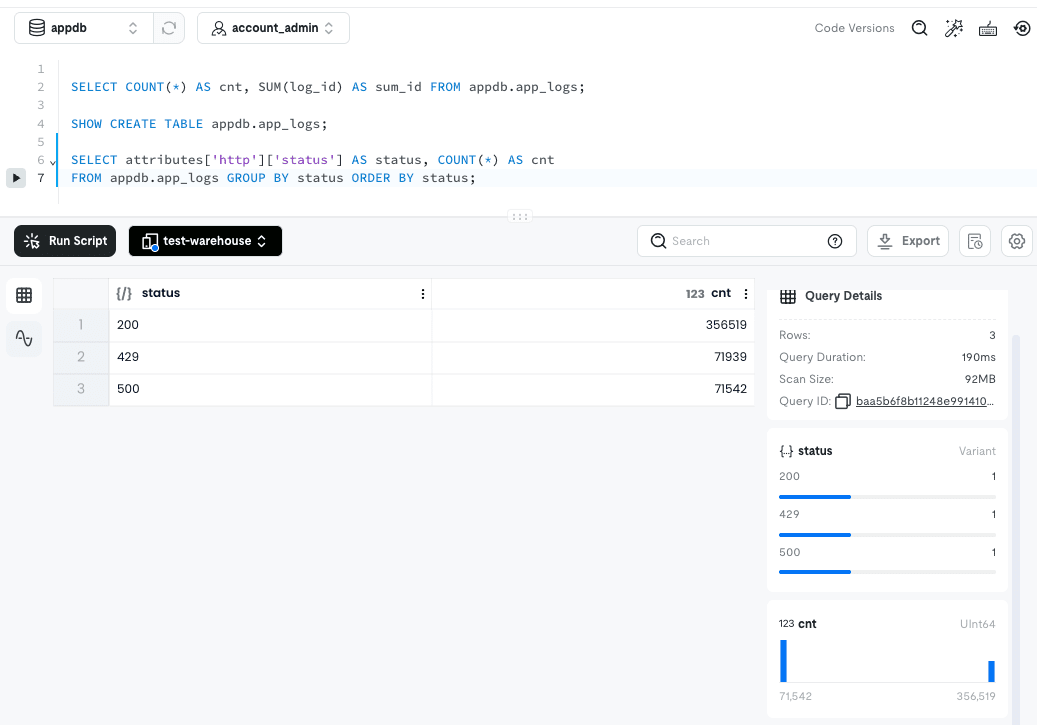
SELECT attributes['http']['status'] AS status, COUNT(*) AS cnt
FROM appdb.app_logs GROUP BY status ORDER BY status;
200 had 356,519, 429 had 71,939, and 500 had 71,542, all matching the TiDB Cloud side.
However, the syntax changes.
While the TiDB Cloud side uses attributes->>'$.http.status', the Lake side uses attributes['http']['status'].
Both produce the same result, but SQL that touches JSON columns cannot be migrated as-is.
It's reasonable for a analytical store to drop primary keys and secondary indexes, but log_id was NOT NULL and became NULL, while attributes was the opposite — it was nullable but became NOT NULL.
It seems likely that the schema is being inferred from the actual data rather than directly reflecting the DDL in -schema.sql, but I haven't been able to confirm this.
Storage was reduced to approximately 1/11
| Size | |
|---|---|
| Row-based Storage on TiDB Cloud side | 199.24 MiB |
| CSV output by Dumpling | 133.6 MiB |
| Table on Lake side (FUSE) | 18.5MB |
The 199.24 MiB on the TiDB Cloud side is the value for the entire cluster including orders, but most of it is from app_logs.
Since neither primary keys nor secondary indexes are carried over to the Lake side, that seems to account for a large portion.
Trial and Error: Could Not Ingest Using TiDB Cloud's Export Feature
From here it's a digression from the main story, but this is the record of what happened before I turned to Dumpling.
There is also an export feature in the TiDB Cloud console, and I initially tried to ingest files exported from there.
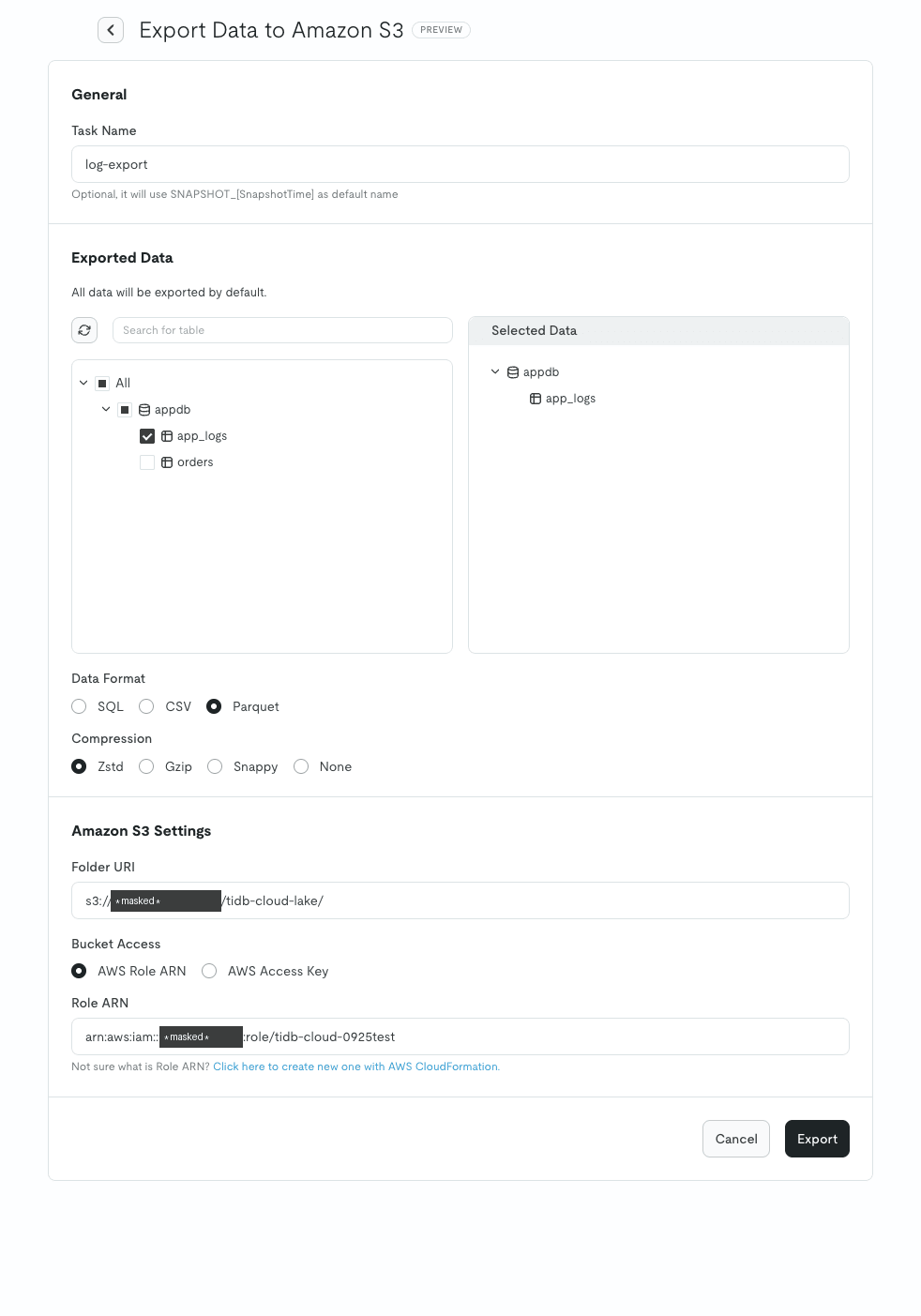
That screen is easier to use.
You can check by table unit from the Exported Data tree, so you can select only app_logs and deselect orders.
Authentication also uses Role ARN, and you can create a role from the CloudFormation link.
The format can be chosen from SQL / CSV / Parquet, and compression from Zstd / Gzip / Snappy / None.
I tried Parquet and CSV each with and without compression, but none of them could be ingested.
Parquet Was Not Ingested
First I exported as Parquet and ran the task.
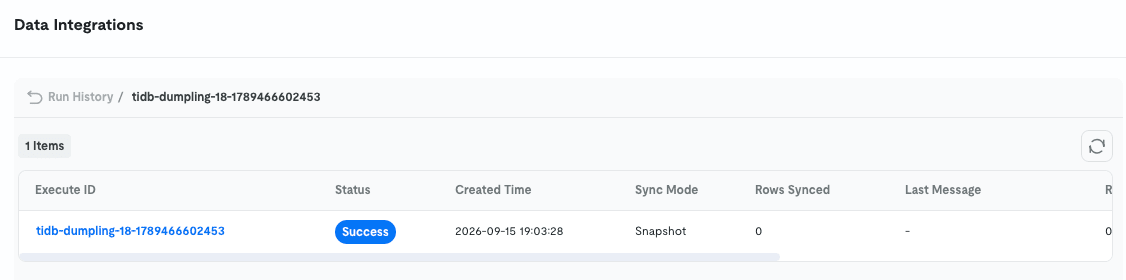
Status was Success and Last Message was empty.
However, Rows Synced was 0, Data Synced was 0 B, and Chunks was 0/0.
Even though a 26.4 MB Parquet file was placed in S3, not a single row was ingested.
There was no error — it was treated as a success in the sense that "the result was 0 target files."
The important point here is that whether data was ingested or not cannot be determined from Status alone — you need to look at Rows Synced.
If you run it periodically and only monitor Success, you might not realize that nothing has actually been ingested.
Looking at Data > Databases on the TiDB Cloud Lake side for troubleshooting, the table itself had been created.
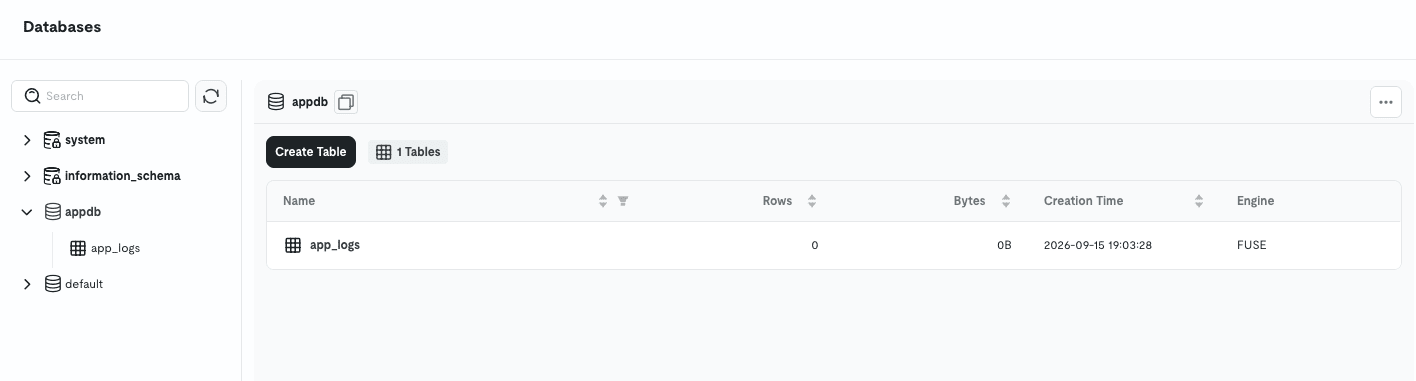
Rows is 0 and Bytes is 0B.
The -schema.sql was read, but only the data files were excluded from the target.
Removing compression produced the same result.
It doesn't seem like the .zst in the filename is the cause.
Chunks were only recognized with CSV, so it appears that Snapshot tasks do not target Parquet.
In fact, there is no field to select the file format in the creation form, and only CSV-specific settings are listed: CSV Separator / Skip Header Rows / Export Escaped Backslashes.
Note that even in the same Lake, Amazon S3 Integration Tasks support CSV / Parquet / NDJSON.
Only CSV passed with TiDB tasks.
With Compression, Even Schema Files Become .zst
I re-exported as CSV.
When I kept Compression as Zstd, it was rejected at the Preview Matched Tables stage.
These rules matched no table under the S3 prefix.
No database was found under the prefix at all. Check the S3 prefix.
Looking at the files output to S3 reveals the reason.
appdb-schema-create.sql.zst              131 B
appdb.app_logs-schema.sql.zst            303 B
appdb.app_logs.0000000010000.csv.zst    22.5 MB
Even the schema SQL is compressed with .zst.
With Parquet, compression was an internal codec within the file, so the .sql files remained as plain files.
Switching to CSV makes compression an outer wrapper, which also envelops the .sql files.
Since the database definition itself cannot be found, the message says "no DB found."
Uncompressed CSV Has Mismatched Escaping and Line Endings
Re-exporting with Compression: None allowed the Preview to pass, and running it produced this result.

Chunks changed from 0/0 to 0/1.
It recognized 1 chunk, tried to read it, and failed.
Last Message is cut off at 1 table(s) failed during full sync: ap... and the full text cannot be read.
What proved useful here was Monitoring > SQL History on the TiDB Cloud Lake side.
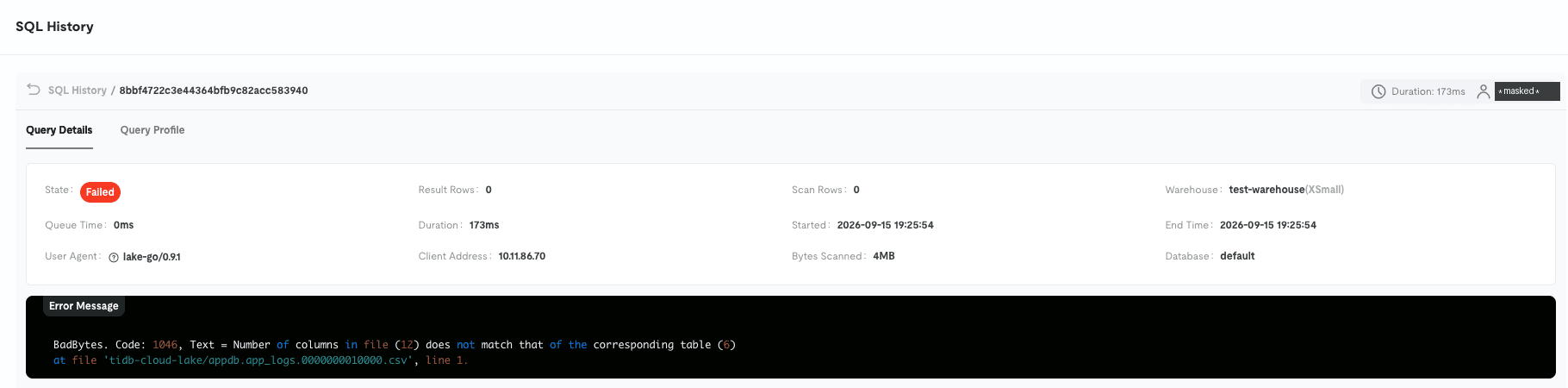
BadBytes. Code: 1046, Text = Number of columns in file (12) does not match that of the corresponding table (6)
at file 'tidb-cloud-lake/appdb.app_logs.0000000010000.csv', line 1.
Integration Task failures are cut off in Run History, but since the actual process runs as SQL on the Warehouse, everything is preserved in SQL History.
Now, app_logs has 6 columns.
The file appears to have 12 columns, a difference of 6.
Let's look at the actual CSV.
1,"DEBUG","search-api","span exported (req=204b5f50)","{\"az\": \"ap-northeast-1a\", \"customer_id\": 3890, \"duration_ms\": 46.5, \"http\": {\"method\": \"GET\", \"path\": \"/v1/inventory\", \"status\": 200}, \"trace_id\": \"11398b037a11a01e\"}","2026-07-25 10:34:50"
The double quotes in attributes are escaped with backslashes.
This is exactly Dumpling's default behavior of --escape-backslash=true (MySQL dialect).
And the difference of 6 matches the number of commas inside the JSON in attributes.
Because the \" escaping is not interpreted, the value does not close as a single field, and the commas inside the JSON are treated as column delimiters.
The SQL being issued by the task was also visible in SQL History.
COPY INTO `appdb`.`app_logs` (`log_id`, `level`, `service`, `message`, `attributes`, `logged_at`)
FROM 's3://<bucket-name>/tidb-cloud-lake/appdb.app_logs.0000000010000.csv'
CONNECTION=(external_id='la***xl', role_arn='ar***le')
FILE_FORMAT=(field_delimiter=',', null_display='\\N', record_delimiter='\n', skip_header=1, type=CSV)
PURGE=false FORCE=false DISABLE_VARIANT_CHECK=false ON_ERROR=abort RETURN_FAILED_ONLY=false
FILE_FORMAT has neither escape nor quote, so it is read with Databend's defaults (RFC 4180's "").
Furthermore, record_delimiter='\n' is specified, but the export outputs \r\n following Dumpling's defaults.
There were two mismatches: the escape method and the line ending.
No Option to Re-export in the Console
I thought that setting Export Escaped Backslashes to Yes in the task would make it readable, but a red warning appeared.
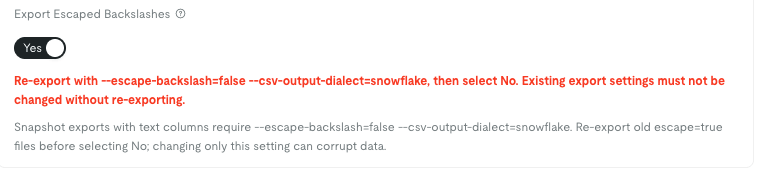
Re-export with
--escape-backslash=false --csv-output-dialect=snowflake, then select No.
Existing export settings must not be changed without re-exporting.
This is not a setting that "can also read escaped files" — it's an instruction saying "those files cannot be read, so re-export them and then select No."
Moreover, setting it to Yes disables the Update button, so it cannot be saved at all.
So the question is whether you can re-export — and TiDB Cloud's export feature does not have those options.
The only things you can change in Edit CSV Configuration in the console are Separator, Delimiter, Null value, and Skip header — there is no way to change the escape method or line ending.
The CLI was the same.
Only --csv.delimiter, --csv.separator, --csv.null-value, --csv.skip-header, and --parquet.compression can be specified — there is no --escape-backslash or --csv-output-dialect.
This is where the earlier reasoning connects: why I added --escape-backslash=false and --csv-line-terminator $'\n' to Dumpling in the first half.
To re-export as stated on the screen, the only option was to run Dumpling myself.
Incidentally, comparing -schema.sql from TiDB Cloud's export and from self-run Dumpling using diff shows no difference — they match byte for byte.
The export feature's underlying implementation is also Dumpling; the only difference is the flags.
Converting the Files Works
If you want to avoid using Dumpling, you can also fix the exported CSV.
There are only 2 things to fix.
$ LC_ALL=C sed 's/\\"/""/g' original.csv | tr -d '\r' > converted.csv
It simply replaces \" with "" and \r\n with \n.
The conversion of 134 MB took 4.9 seconds.
Uploading this back to S3 and running the same task made it succeed.
The previous run had Rows Synced 0, so the success or failure changed based solely on the file contents, without changing any settings.
However, with data that contains backslashes in the actual values, this simple substitution will break.
In this case, I first checked with grep to confirm that neither backslashes nor NULL representations were present in the data before proceeding.
Closing
This time, I tried migrating data from a TiDB Cloud cluster to TiDB Cloud Lake via S3 and verified that the ingested data matched.
To be honest, the TiDB data source is designed with the assumption that you run Dumpling yourself, and the TiDB Cloud console's export feature alone is not sufficient to complete the process.
I hope this article is helpful to someone.