I tried continuously ingesting logs placed in S3 into TiDB Cloud Lake

This page has been translated by machine translation. View original
Hello, I'm sora from the Game Solutions Department.
This time, I tried to see if I could continuously ingest logs that an application keeps outputting to S3, using TiDB Cloud Lake's AWS – SQS(S3) data source and Integration Task.
Conclusion First
- By routing S3 event notifications to SQS, files placed in S3 were automatically ingested into Lake through console operations alone
- The actual ingestion was a
COPY INTOexecuted for each file delivered via event - The settings to delete S3 files after ingestion and to prevent duplicate ingestion of the same file corresponded directly to
COPY INTO'sPURGE/FORCE - If there are rows with missing columns or corrupted rows, by default the entire file fails and retries continue.
Setting it tocontinuediscards only those rows and ingests the rest
Architecture
The architecture for this setup is as follows.
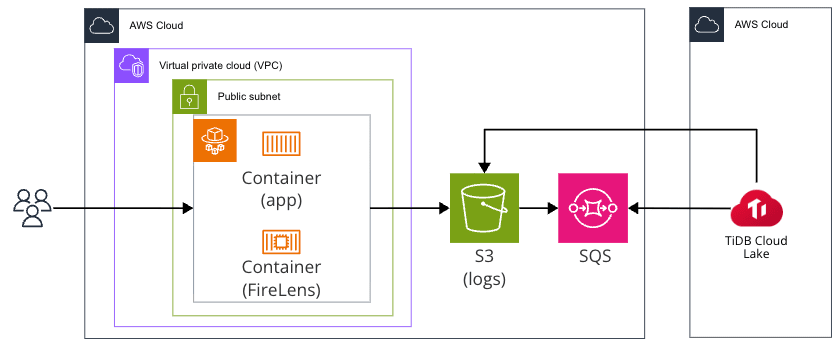
- The ECS Fargate application writes one line of JSON log per request to standard output
- FireLens (Fluent Bit) aggregates them every 10 seconds and places them in S3 as a file with one JSON per line
- Each time a file is created, S3 sends an
ObjectCreatedevent to SQS - TiDB Cloud Lake assumes an IAM role, receives SQS events, reads the files written in them from S3, and ingests them
Among Lake's data sources, the following three can ingest files placed in S3.
| Data Source | Authentication | Ingestible Files |
|---|---|---|
AWS – Credentials |
Access key only | S3 files |
TiDB |
IAM role / Access key | Only files output by Dumpling |
AWS – SQS(S3) |
IAM role | S3 files delivered via SQS events |
Of these, AWS – SQS(S3) was the one that could ingest application log files using an IAM role.
The TiDB data source can also be used with an IAM role, but it can only read Dumpling output.
This point is covered in the following article.
AWS Setup
The AWS side was built with Terraform.
Here I'll only include the parts related to ingestion.
FireLens Output
In the application container's logConfiguration, specify the Fluent Bit S3 output.
logConfiguration = {
  logDriver = "awsfirelens"
  options = {
    Name            = "s3"
    region          = "ap-northeast-1"
    bucket          = aws_s3_bucket.logs.id
    upload_timeout  = "10s"
    total_file_size = "5M"
    use_put_object  = "On"
    s3_key_format   = "/app-logs/%Y/%m/%d/%H%M%S-$UUID.json"
    json_date_key   = "false"
  }
}
The default for upload_timeout is 10 minutes, so I set it to 10 seconds to make behavior easier to follow.
While there are no log lines, no file is created.
The content of files placed in S3 is one JSON per line.
The log router's enable-ecs-log-metadata also appends ECS metadata such as ecs_cluster and container_name to the same line.
{"timestamp":"2026-09-25T03:29:52.310Z","level":"INFO","service":"lake-ingest-app","request_id":"20b41581-...","method":"GET","path":"/api/items","status":200,"latency_ms":10.95,"user_id":90010,"user_agent":"curl/8.7.1","message":"request completed","container_id":"...","container_name":"app","source":"stdout","ecs_cluster":"lake-ingest","ecs_task_arn":"arn:aws:ecs:ap-northeast-1:<account ID>:task/lake-ingest/...","ecs_task_definition":"lake-ingest:3"}
S3 Event Notifications and SQS
Create a standard SQS queue and send S3 ObjectCreated events to it.
Since Lake's AWS – SQS(S3) data source only supports standard queues, FIFO queues cannot be used.
The required settings are described in the following official documentation.
resource "aws_s3_bucket_notification" "logs" {
  bucket = aws_s3_bucket.logs.id

  queue {
    queue_arn     = aws_sqs_queue.s3_events.arn
    events        = ["s3:ObjectCreated:*"]
    filter_prefix = "app-logs/"
    filter_suffix = ".json"
  }

  depends_on = [aws_sqs_queue_policy.s3_events]
}
The queue policy allows only sqs:SendMessage from this bucket.
Note that when you configure notifications, S3 sends one test message called s3:TestEvent.
Since it is a message that doesn't point to a file, I manually deleted it before creating the Lake task this time.
IAM Role Assumed by Lake
In the trust policy, enter the two Platform role ARNs and External ID displayed in the Lake console.
They are displayed on the data source creation screen.
The permissions are S3 read access and SQS message receive/delete.
Since I'm also testing the setting to delete S3 files after ingestion, s3:DeleteObject is also included.
{
  "Statement": [
    {
      "Effect": "Allow",
      "Action": ["s3:ListBucket", "s3:GetBucketLocation"],
      "Resource": "arn:aws:s3:::lake-ingest-<account ID>"
    },
    {
      "Effect": "Allow",
      "Action": ["s3:GetObject", "s3:DeleteObject"],
      "Resource": "arn:aws:s3:::lake-ingest-<account ID>/app-logs/*"
    },
    {
      "Effect": "Allow",
      "Action": [
        "sqs:ReceiveMessage",
        "sqs:DeleteMessage",
        "sqs:GetQueueAttributes",
        "sqs:ChangeMessageVisibility"
      ],
      "Resource": "arn:aws:sqs:ap-northeast-1:<account ID>:lake-ingest-s3-events"
    }
  ]
}
Registering the Data Source
Go to Data > Data Sources > Create and select AWS – SQS(S3) for Service.
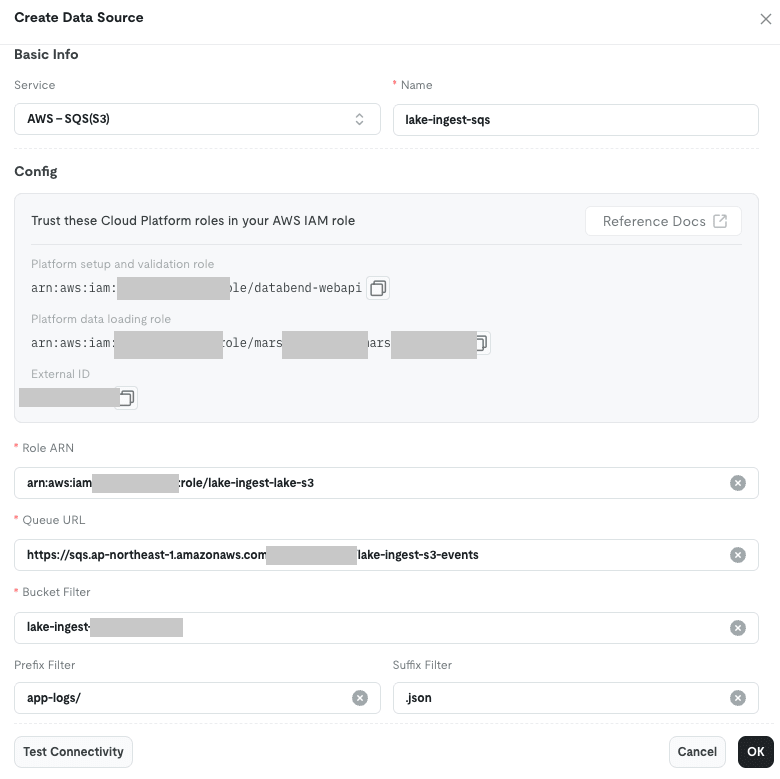
The two Platform role ARNs and External ID shown in the Config section are the values to enter in the IAM role trust policy.
The values to enter are as follows.
| Item | Value |
|---|---|
| Role ARN | ARN of the IAM role created earlier |
| Queue URL | URL of the SQS queue |
| Bucket Filter | Bucket name |
| Prefix Filter | app-logs/ |
| Suffix Filter | .json |
SQS messages contain the bucket name and key of the created file as-is.
Lake does not look through everything under a prefix; it only reads the file written in the message.
Prefix Filter / Suffix Filter are settings that filter which files to ingest based on whether the key matches the conditions.
In this case, I'm using the same values as the S3 notification.
Once Test Connectivity passes, save with OK.
Creating an Integration Task
Go to Data > Data Integrations > Create and select the data source you created.
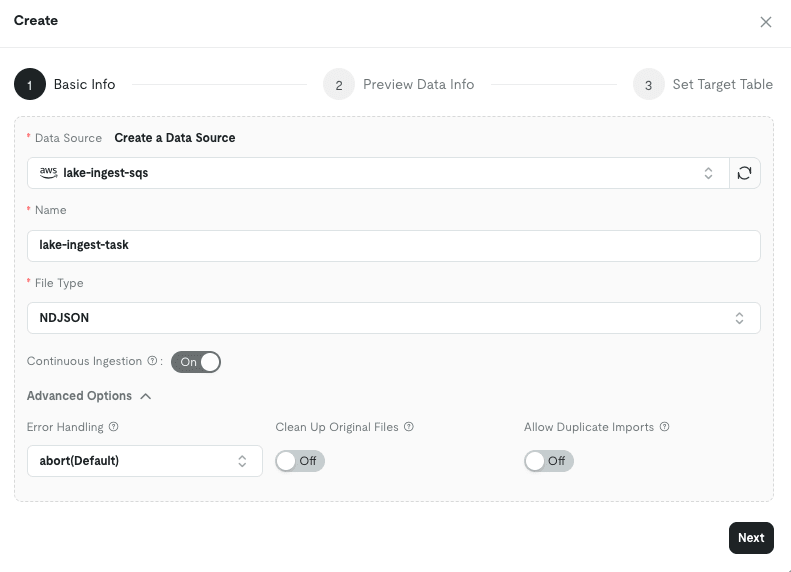
File Type has three options: CSV / PARQUET / NDJSON.
The file extension is .json, but since the content is one JSON per line, select NDJSON.
Selecting NDJSON removes the CSV delimiter and header fields.
Leave the three Advanced Options at their defaults for now.
| Item | Default | Description |
|---|---|---|
| Error Handling | abort |
Whether to stop when there are rows that cannot be ingested (abort / continue) |
| Clean Up Original Files | Off | Whether to delete S3 files after ingestion |
| Allow Duplicate Imports | Off | Whether to ingest an already-ingested file again |
I'll verify the behavior of each in the latter half.
Clicking Next shows a preview.
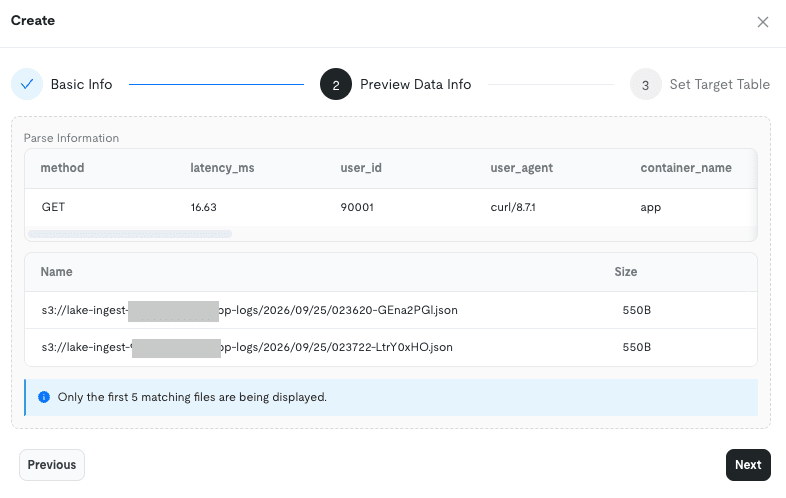
At that time there were three files in S3, but only two appeared in the preview.
The one that didn't appear was a file created before the event notification was configured.
The preview is looking at the event files in SQS, not the S3 listing.
On the next screen, specify the Warehouse and the target table for ingestion.
I had created the database in Worksheet beforehand.
CREATE DATABASE IF NOT EXISTS ingest;
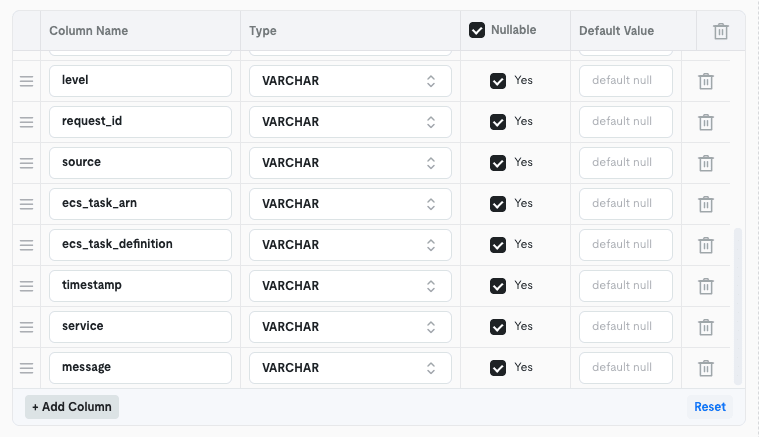
Columns and types are inferred from the preview data.
timestamp was inferred as VARCHAR, so I changed it to TIMESTAMP.
This is because it appears as a string like "2026-09-25T02:36:20.351Z" in the JSON, so it isn't identified as a time column.
By changing it to TIMESTAMP, it was converted directly during ingestion.
After clicking Create, the task is created in a Stopped state.
Verifying Ingestion
Clicking Run executed each of the two events that had arrived in SQS once each.
Events that arrived before the task was created were also ingested if they remained in the queue.
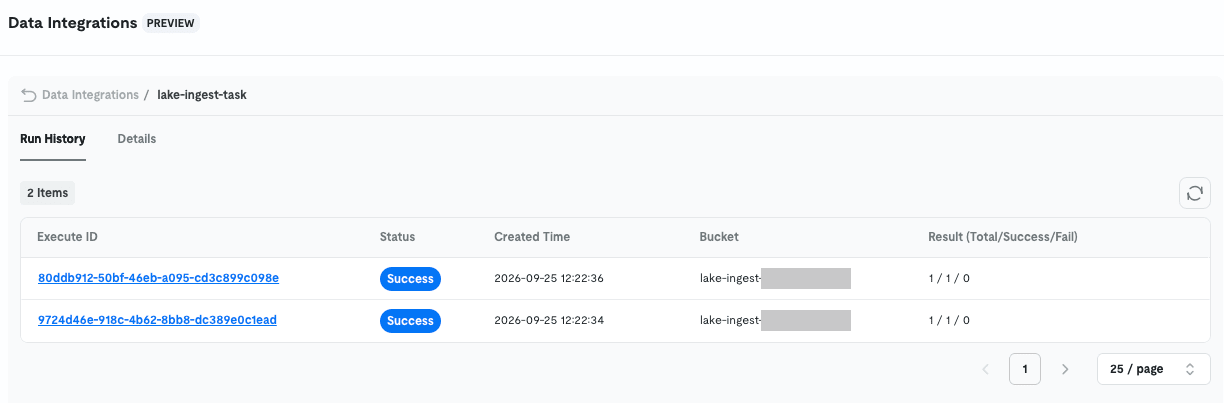
After ingestion, the SQS messages were deleted.
Since Clean Up Original Files is Off, the S3 files remain.
What's running behind the scenes can be seen in Monitoring > SQL History.
However, it won't appear if you leave the User set to yourself.
Ingestion runs under a user called system:serviceaccount:<tenant ID>, and the User Agent was lake-sqs-s3-consumer.
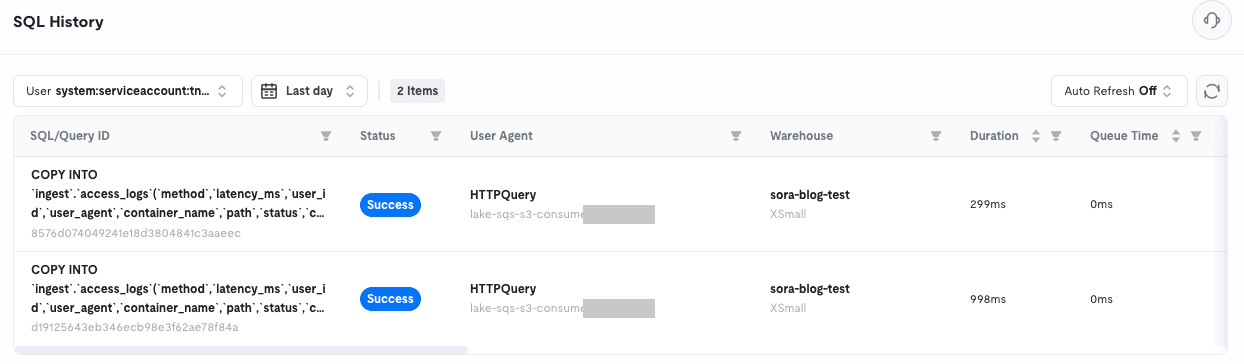
Opening one shows the contents are COPY INTO.
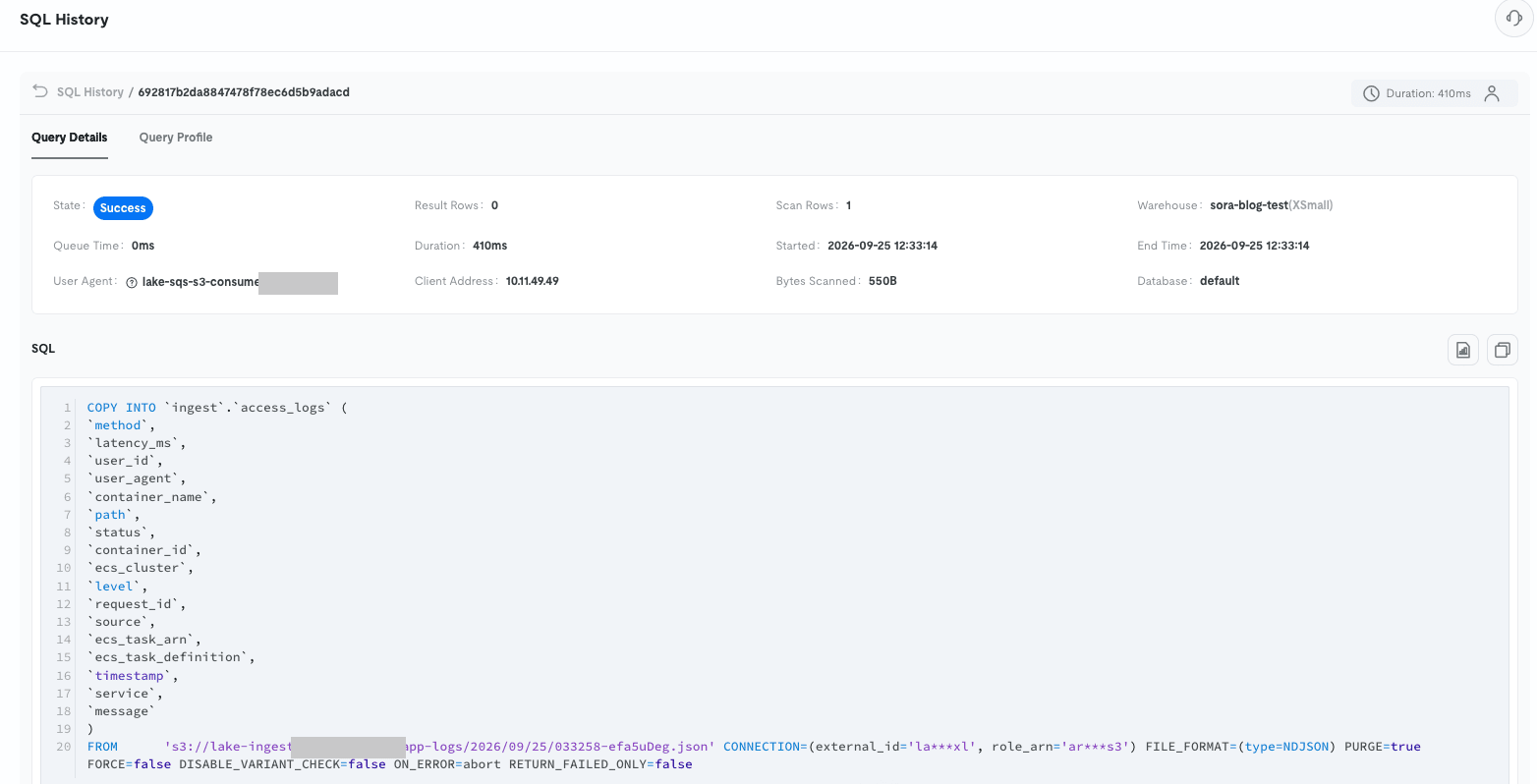
COPY INTO `ingest`.`access_logs` (`method`, `latency_ms`, ..., `message`)
FROM 's3://lake-ingest-<account ID>/app-logs/2026/09/25/033258-efa5uDeg.json'
CONNECTION = (external_id = '***', role_arn = '***')
FILE_FORMAT = (type = NDJSON)
PURGE = true
FORCE = false
DISABLE_VARIANT_CHECK = false
ON_ERROR = abort
RETURN_FAILED_ONLY = false
FROM contains only the single file delivered via the event, and authentication is passed directly via CONNECTION without using a Stage.
The console settings corresponded directly to the COPY INTO options.
| Console Setting | COPY INTO Option |
|---|---|
| Clean Up Original Files | PURGE |
| Allow Duplicate Imports | FORCE |
| Error Handling | ON_ERROR |
The Warehouse was running on sora-blog-test, which was specified in the task.
Since the Warehouse starts up each time a file arrives, in an environment where logs keep flowing, the Warehouse will also keep running.
When I called the application once in this state, COPY INTO was executed as soon as the file was created in S3, and the row count increased.
The wait time was almost entirely the time Fluent Bit takes to aggregate files (upload_timeout), with almost no wait on the Lake side.
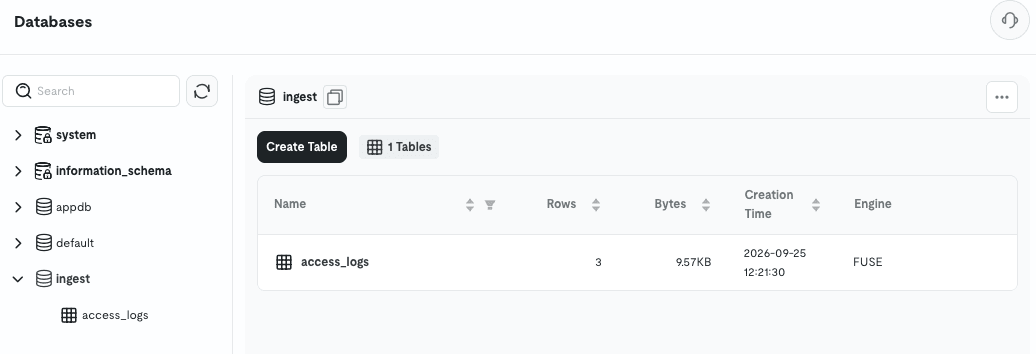
Note that timestamp is stored as a UTC value, but it was displayed in Japan time in Worksheet.
When comparing with the timestamps of S3 files, it will appear 9 hours off.
Calls made to the application while the task was Stopped were also ingested when it was Started again.
Since events remain in SQS, as long as they are within the SQS message retention period, nothing is missed even while stopped.
Verifying Clean Up Original Files
In the task editing screen, change Clean Up Original Files to On.
This could be changed even after creation.
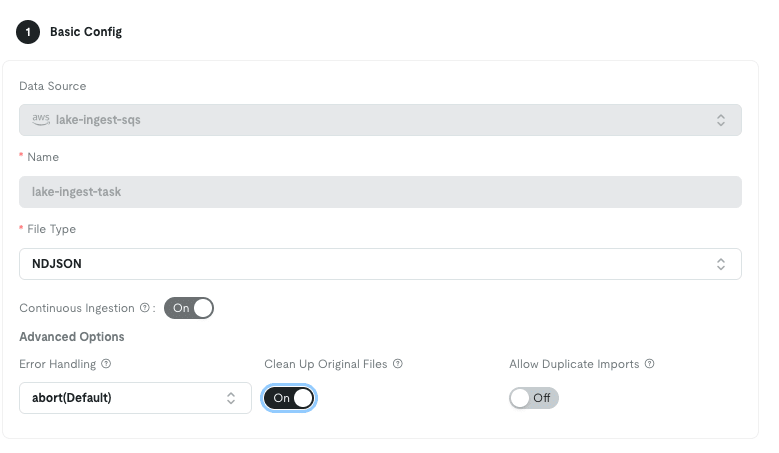
When I called the application in this state, the S3 file was deleted after ingestion.
COPY INTO was also executed with PURGE = true.
Files ingested when it was Off remained in S3.
Only files ingested after turning it On were deleted.
Verifying Duplicate Ingestion
Both S3 event notifications and standard SQS queues can deliver the same message twice.
So I re-uploaded a file with the same key and same content that had already been ingested, and sent the same file's event again.
aws s3 cp s3://lake-ingest-<account ID>/app-logs/2026/09/25/032952-L28IvVIt.json ./032952.json
aws s3 cp ./032952.json s3://lake-ingest-<account ID>/app-logs/2026/09/25/032952-L28IvVIt.json
COPY INTO was executed, but Scan Rows was 0 and no rows were added.
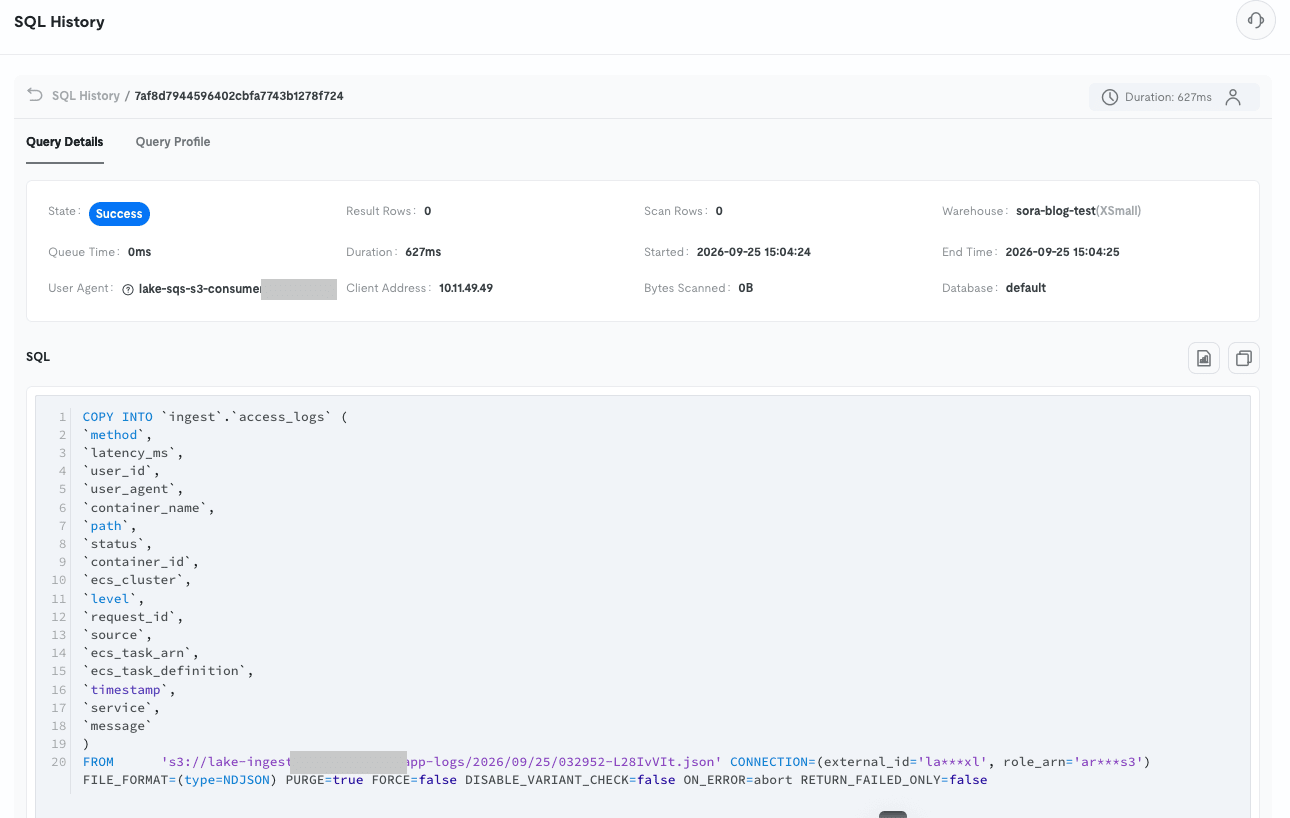
Since Allow Duplicate Imports is Off (FORCE = false), it was skipped as an already-ingested file.
Even if the same event is delivered twice, it won't be ingested twice.
Clean Up was On at this time, but the skipped file was not deleted from S3.
PURGE only deletes files that were ingested in that execution.
Even if you intend to keep S3 empty with Clean Up, skipped files will remain.
Verifying Behavior When There Are Non-Ingestible Rows
Finally, I placed a file containing non-ingestible rows directly in S3.
When Error Handling is abort
First, I placed a row missing some of the table's columns.
It was a row from the application log with the ECS metadata columns removed.
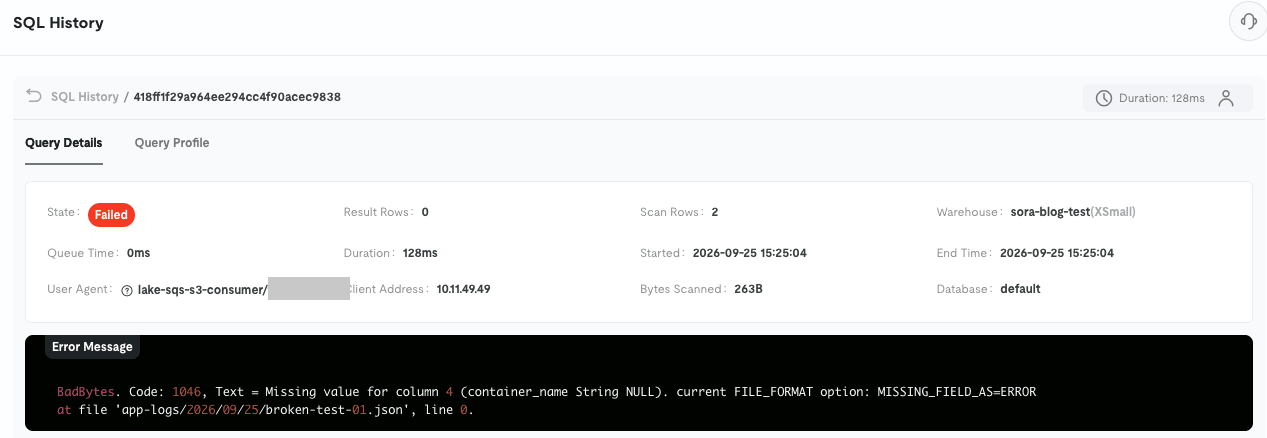
BadBytes. Code: 1046, Text = Missing value for column 4 (container_name String NULL). current FILE_FORMAT option: MISSING_FIELD_AS=ERROR
at file 'app-logs/2026/09/25/broken-test-01.json', line 0.
NDJSON ingestion defaults to MISSING_FIELD_AS=ERROR.
If even one row is missing a table column, the entire file fails.
If rows with different fields — such as application startup logs — are mixed in with request logs, that alone will cause a halt.
Failed messages were not removed from SQS and were retried repeatedly.
In Run History's Last Run, the error from the same execution is updated each time a retry occurs.
When Error Handling is continue
I replaced the file with two rows — one correct row with all columns and one row that is not JSON — and changed Error Handling to continue.
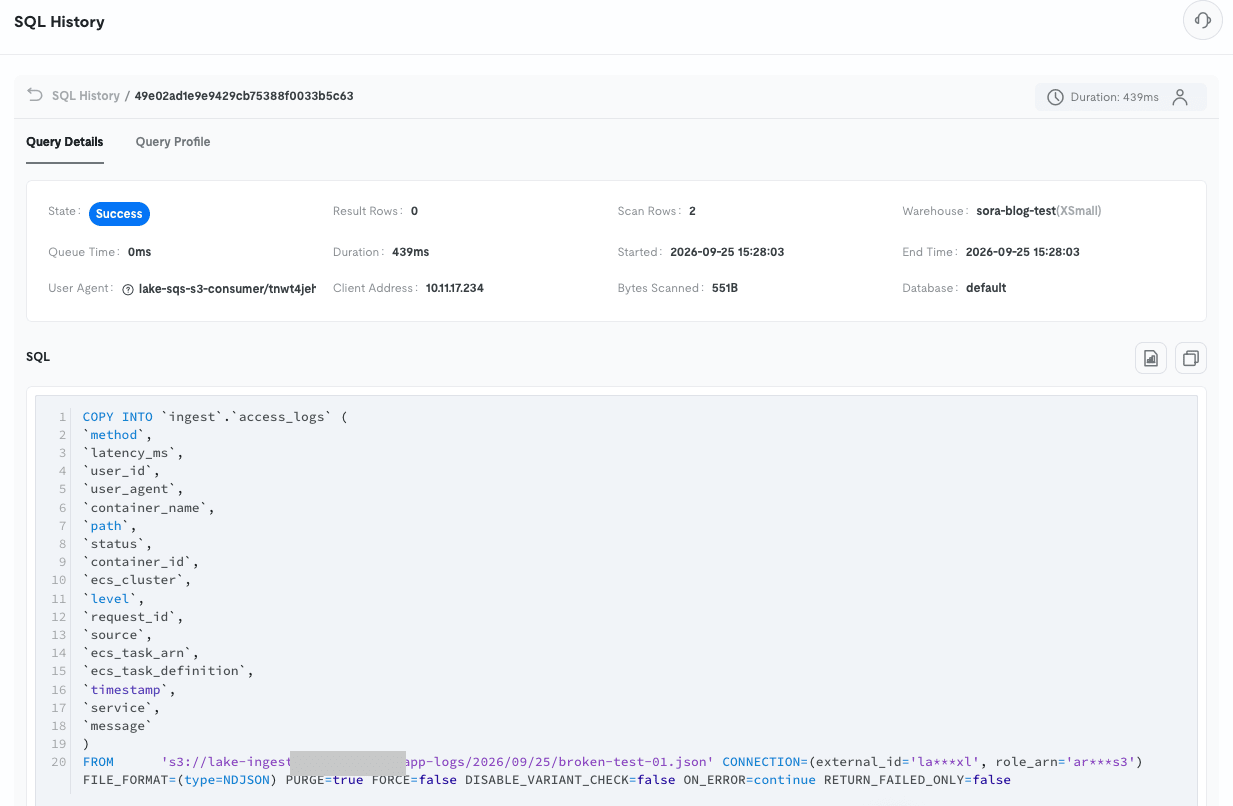
COPY INTO was executed with ON_ERROR = continue, and only the correct row was ingested.
The non-JSON row was discarded.
The changed setting was also applied to messages that had been waiting for retry.
It seems the choice would be: use abort if you want to notice and stop, and continue if you want to keep ingesting even with some missing rows.
Supplement: Using SQL
There is also a method of periodically ingesting with a SQL Task using COPY INTO without using SQS.
In the official guide, logs placed in S3 by Vector are ingested in this way.
The AWS side only requires S3, but ingestion happens at intervals set in the Task rather than when a file is created.
Closing
This time, I tried to see if I could continuously ingest logs that an application keeps outputting to S3, using TiDB Cloud Lake's AWS – SQS(S3) data source and Integration Task.
By routing S3 event notifications to SQS, I was able to keep ingesting logs placed in S3 through console operations alone.
I hope this article is helpful to someone.