Customizing the Appearance of Twilio Flex with React Plugins

Customizing the Appearance of Twilio Flex with React Plugins

Twilio Flex React Contact Center UI — Complete Customization Guide --- ## Overview Twilio Flex is a programmable contact center platform whose entire UI is built in React. Customizations are delivered as Plugins — isolated JavaScript bundles that hook into Flex's component and action system at runtime. This guide covers: 1. Local development environment setup 2. Color scheme customization 3. Header branding 4. Copy and text string changes 5. Custom ringtones 6. Lifecycle from local dev to production --- ## 1. Environment Setup ### Prerequisites ```bash node --version # 18.x recommended npm --version # 9.x+ ``` ### Install Flex Plugin CLI ```bash npm install -g @twilio-labs/plugin-flex twilio plugins:install @twilio-labs/plugin-flex ``` ### Scaffold a new plugin ```bash twilio flex:plugins:create my-brand-plugin \ --install \ --flexui2 # target Flex UI 2.x (React 18) cd my-brand-plugin ``` ### Project structure ``` my-brand-plugin/ ├── public/ │ └── appConfig.js # local account SID / auth ├── src/ │ ├── MyBrandPlugin.js # plugin entry point │ ├── components/ # custom React components │ ├── theme/ # design tokens │ └── assets/ # audio files, images ├── package.json └── plugin.config.js ``` ### Configure local credentials ```js // public/appConfig.js var appConfig = { accountSid: "ACxxxxxxxxxxxxxxxxxxxxxxxxxxxxxxxx", flexConfigServiceUrl: "https://flex-api.twilio.com/v1/Configuration", }; ``` ### Start dev server ```bash twilio flex:plugins:start # Opens https://localhost:3000 with your plugin hot-reloaded ``` --- ## 2. Color Scheme Customization Flex UI 2.x uses **Paste Design System** with CSS custom properties exposed through the theme object. ### 2-1. Define design tokens ```js // src/theme/brandTheme.js export const brandTheme = { // Paste token overrides colorBackgroundPrimary: "#1A1A2E", colorBackgroundBody: "#16213E", colorBackgroundStrong: "#0F3460", colorTextLink: "#E94560", colorTextLinkStrong: "#FF6B6B", colorText: "#EAEAEA", colorTextWeak: "#A0A0B0", colorBorderPrimary: "#E94560", // Sidebar / navigation colorSidebar: "#0F3460", colorSidebarActive: "#E94560", // Agent state pill colors colorAgentAvailable: "#06D6A0", colorAgentBusy: "#FFB703", colorAgentOffline: "#6C757D", // Button brand colors colorButtonPrimary: "#E94560", colorButtonPrimaryHover: "#C73652", }; ``` ### 2-2. Apply the theme in the plugin entry point ```js // src/MyBrandPlugin.js import React from "react"; import { FlexPlugin } from "@twilio/flex-plugin"; import { brandTheme } from "./theme/brandTheme"; const PLUGIN_NAME = "MyBrandPlugin"; export default class MyBrandPlugin extends FlexPlugin { constructor() { super(PLUGIN_NAME); } async init(flex, manager) { // ── Theme ────────────────────────────────────────────── manager.updateConfig({ colorTheme: { overrides: brandTheme, isLight: false, // false = dark base palette }, }); // Additional customizations registered below... this.customizeHeader(flex); this.customizeStrings(manager); this.customizeRingtone(manager); } } ``` ### 2-3. Component-level style override (Paste / Emotion) ```js // src/components/AgentDesktopView/AgentDesktopView.styles.js import { css } from "@emotion/react"; export const wrapperStyles = css` background: linear-gradient(135deg, #1a1a2e 0%, #16213e 100%); border-left: 3px solid #e94560; `; ``` ```jsx // src/components/AgentDesktopView/AgentDesktopView.jsx import React from "react"; import { wrapperStyles } from "./AgentDesktopView.styles"; export const AgentDesktopView = ({ children }) => ( <div css={wrapperStyles}>{children}</div> ); ``` --- ## 3. Header Branding ### 3-1. Replace the default Flex logo ```jsx // src/components/BrandHeader/BrandHeader.jsx import React from "react"; import styled from "@emotion/styled"; import companyLogo from "../../assets/logo.svg"; const HeaderBar = styled.div` display: flex; align-items: center; height: 56px; padding: 0 24px; background-color: #0f3460; border-bottom: 2px solid #e94560; box-shadow: 0 2px 8px rgba(233, 69, 96, 0.3); `; const Logo = styled.img` height: 32px; width: auto; `; const ProductName = styled.span` margin-left: 12px; font-size: 18px; font-weight: 700; color: #eaeaea; letter-spacing: 0.5px; `; const Badge = styled.span` margin-left: 8px; padding: 2px 8px; font-size: 10px; font-weight: 600; background: #e94560; color: white; border-radius: 10px; text-transform: uppercase; `; export const BrandHeader = () => ( <HeaderBar> <Logo src={companyLogo} alt="Company Logo" /> <ProductName>Support Center</ProductName> <Badge>Live</Badge> </HeaderBar> ); ``` ### 3-2. Register the header component in the plugin ```js // inside init(flex, manager) in MyBrandPlugin.js customizeHeader(flex) { // Remove the default Flex header flex.MainHeader.defaultProps.logoUrl = ""; // Replace the entire header with the brand component flex.MainHeader.Content.remove("logo"); flex.MainHeader.Content.remove("title"); flex.MainHeader.Content.add( <BrandHeader key="brand-header" />, { sortOrder: 0, align: "start", } ); // Add agent name display on the right side of the header flex.MainHeader.Content.add( <AgentStatusBadge key="agent-status" />, { sortOrder: 10, align: "end", } ); } ``` ### 3-3. Agent status badge component ```jsx // src/components/AgentStatusBadge/AgentStatusBadge.jsx import React from "react"; import { useFlexSelector } from "@twilio/flex-ui"; import styled from "@emotion/styled"; const Wrapper = styled.div` display: flex; align-items: center; gap: 8px; margin-right: 16px; `; const Dot = styled.span` width: 10px; height: 10px; border-radius: 50%; background-color: ${({ activity }) => activity === "Available" ? "#06D6A0" : activity === "Busy" ? "#FFB703" : "#6C757D"}; `; const AgentName = styled.span` font-size: 13px; color: #eaeaea; font-weight: 500; `; export const AgentStatusBadge = () => { const workerName = useFlexSelector( (state) => state.flex.worker.attributes?.full_name ?? "Agent" ); const activity = useFlexSelector( (state) => state.flex.worker.activity?.name ?? "Offline" ); return ( <Wrapper> <Dot activity={activity} /> <AgentName>{workerName}</AgentName> </Wrapper> ); }; ``` --- ## 4. Copy and Text String Customization ### 4-1. Define string overrides ```js // src/strings/brandStrings.js export const brandStrings = { // Task list panel TaskHeaderLine1: "{{task.attributes.name}}", TaskHeaderLine2: "{{task.attributes.from}}", // No tasks placeholder NoTasks: "No active contacts — you're all caught up ✓", NoTasksTitle: "Ready for the next customer", // Incoming call IncomingCallTitle: "Incoming Call", IncomingCallAccept: "Answer", IncomingCallReject: "Decline", // Task actions TaskCanvasHeader: "Contact Details", CallCanvasWorkerName: "{{worker.attributes.full_name}}", // Wrapup / disposition WrapupTimerLabel: "Wrap-up time remaining:", CompleteTaskButton: "Complete Contact", // Agent desktop AgentDesktopCollapse: "Collapse Panel", AgentDesktopExpand: "Expand Panel", // Sidebar navigation WorkerCanvasTitle: "My Profile", QueuesStatsTitle: "Queue Dashboard", // Notifications SupervisorBarge: "{{worker.attributes.full_name}} has joined your call", // Error messages ErrorTaskNotFound: "Contact could not be loaded. Please refresh.", }; ``` ### 4-2. Apply strings in the plugin ```js // inside init(flex, manager) in MyBrandPlugin.js customizeStrings(manager) { manager.strings = { ...manager.strings, // keep all default strings ...brandStrings, // override with brand copy }; } ``` ### 4-3. Dynamic strings with template variables ```js // Custom strings support Handlebars-style {{ }} interpolation // Available contexts: task, worker, queue, call export const dynamicStrings = { // Displays resolved customer name from task attributes IncomingCallTitle: "Call from {{task.attributes.name}}", // Queue-aware greeting TaskHeaderLine2: "Queue: {{task.queueName}} · Priority: {{task.priority}}", // Duration display CallDuration: "Connected for {{call.formattedDuration}}", }; ``` ### 4-4. Locale-aware strings (i18n pattern) ```js // src/strings/index.js import { brandStrings as en } from "./brandStrings.en"; import { brandStrings as ja } from "./brandStrings.ja"; import { brandStrings as es } from "./brandStrings.es"; const localeMap = { en, ja, es }; export function getStrings(locale = "en") { return localeMap[locale] ?? localeMap.en; } ``` ```js // Usage in plugin init customizeStrings(manager) { const locale = manager.workerClient?.attributes?.locale ?? navigator.language.slice(0, 2); manager.strings = { ...manager.strings, ...getStrings(locale), }; } ``` --- ## 5. Custom Ringtone ### 5-1. Add audio assets ``` src/assets/sounds/ ├── incoming-call.mp3 # primary ringtone ├── incoming-call.ogg # fallback (Firefox) ├── task-assigned.mp3 # new chat / task alert └── call-ended.mp3 # disconnect chime ``` ### 5-2. Audio manager utility ```js // src/utils/AudioManager.js class AudioManager { constructor() { this.sounds = {}; this.currentLoop = null; } register(name, mp3Src, oggSrc = null) { const audio = new Audio(); // Use OGG if supported, else MP3 if (oggSrc && audio.canPlayType("audio/ogg") !== "") { audio.src = oggSrc; } else { audio.src = mp3Src; } audio.preload = "auto"; this.sounds[name] = audio; return this; } play(name, { loop = false, volume = 0.7 } = {}) { const sound = this.sounds[name]; if (!sound) { console.warn(`[AudioManager] Sound "${name}" not registered`); return; } sound.loop = loop; sound.volume = volume; sound.currentTime = 0; sound.play().catch((err) => { // Autoplay policy: will play after first user interaction console.warn("[AudioManager] Autoplay blocked:", err.message); }); if (loop) this.currentLoop = sound; } stop(name) { const sound = this.sounds[name]; if (!sound) return; sound.pause(); sound.currentTime = 0; if (this.currentLoop === sound) this.currentLoop = null; } stopAll() { Object.values(this.sounds).forEach((s) => { s.pause(); s.currentTime = 0; }); this.currentLoop = null; } } export const audioManager = new AudioManager(); ``` ### 5-3. Register sounds and hook into Flex actions ```js // src/MyBrandPlugin.js import incomingCallMp3 from "./assets/sounds/incoming-call.mp3"; import incomingCallOgg from "./assets/sounds/incoming-call.ogg"; import taskAssignedMp3 from "./assets/sounds/task-assigned.mp3"; import callEndedMp3 from "./assets/sounds/call-ended.mp3"; import { audioManager } from "./utils/AudioManager"; // Inside init(flex, manager): customizeRingtone(manager) { // 1. Register all sounds audioManager .register("incomingCall", incomingCallMp3, incomingCallOgg) .register("taskAssigned", taskAssignedMp3) .register("callEnded", callEndedMp3); // 2. Hook: incoming voice call reserved manager.workerClient.on("reservationCreated", (reservation) => { if (reservation.task.taskChannelUniqueName === "voice") { audioManager.play("incomingCall", { loop: true, volume: 0.8 }); } else { // Chat, SMS, etc. audioManager.play("taskAssigned", { loop: false, volume: 0.6 }); } }); // 3. Hook: call accepted — stop ringing manager.workerClient.on("reservationAccepted", () => { audioManager.stop("incomingCall"); }); // 4. Hook: reservation rejected / timed out manager.workerClient.on("reservationRejected", () => { audioManager.stop("incomingCall"); }); manager.workerClient.on("reservationTimedOut", () => { audioManager.stop("incomingCall"); }); // 5. Hook: call completed manager.workerClient.on("reservationCompleted", () => { audioManager.stop("incomingCall"); audioManager.play("callEnded", { volume: 0.5 }); }); } ``` ### 5-4. Volume control UI component ```jsx // src/components/VolumeControl/VolumeControl.jsx import React, { useState } from "react"; import styled from "@emotion/styled"; import { audioManager } from "../../utils/AudioManager"; const Wrapper = styled.div` display: flex; align-items: center; gap: 8px; padding: 4px 12px; `; const Label = styled.span` font-size: 11px; color: #a0a0b0; text-transform: uppercase; letter-spacing: 0.5px; `; const Slider = styled.input` accent-color: #e94560; width: 80px; cursor: pointer; `; export const VolumeControl = () => { const [volume, setVolume] = useState(70); const handleChange = (e) => { const val = Number(e.target.value); setVolume(val); // Update all registered sounds Object.values(audioManager.sounds).forEach((sound) => { sound.volume = val / 100; }); }; return ( <Wrapper> <Label>🔔</Label> <Slider type="range" min="0" max="100" value={volume} onChange={handleChange} title={`Ringtone volume: ${volume}%`} /> <Label>{volume}%</Label> </Wrapper> ); }; ``` --- ## 6. Complete Plugin Entry Point ```js // src/MyBrandPlugin.js import React from "react"; import { FlexPlugin } from "@twilio/flex-plugin"; import { BrandHeader } from "./components/BrandHeader/BrandHeader"; import { AgentStatusBadge } from "./components/AgentStatusBadge/AgentStatusBadge"; import { VolumeControl } from "./components/VolumeControl/VolumeControl"; import { brandTheme } from "./theme/brandTheme"; import { getStrings } from "./strings"; import { audioManager } from "./utils/AudioManager"; import incomingCallMp3 from "./assets/sounds/incoming-call.mp3"; import incomingCallOgg from "./assets/sounds/incoming-call.ogg"; import taskAssignedMp3 from "./assets/sounds/task-assigned.mp3"; import callEndedMp3 from "./assets/sounds/call-ended.mp3"; export default class MyBrandPlugin extends FlexPlugin { constructor() { super("MyBrandPlugin"); } async init(flex, manager) { this.applyTheme(manager); this.customizeHeader(flex, manager); this.customizeStrings(manager); this.customizeRingtone(manager); } // ── 1. Theme ───────────────────────────────────────────── applyTheme(manager) { manager.updateConfig({ colorTheme: { overrides: brandTheme, isLight: false, }, }); } // ── 2. Header ──────────────────────────────────────────── customizeHeader(flex, manager) { flex.MainHeader.Content.remove("logo"); flex.MainHeader.Content.remove("title"); flex.MainHeader.Content.add(<BrandHeader key="brand-header" />, { sortOrder: 0, align: "start", }); flex.MainHeader.Content.add( <VolumeControl key="volume-control" />, { sortOrder: 5, align: "end" } ); flex.MainHeader.Content.add( <AgentStatusBadge key="agent-status" />, { sortOrder: 10, align: "end" } ); } // ── 3. Strings ─────────────────────────────────────────── customizeStrings(manager) { const locale = manager.workerClient?.attributes?.locale ?? navigator.language.slice(0, 2); manager.strings = { ...manager.strings, ...getStrings(locale), }; } // ── 4. Ringtone ────────────────────────────────────────── customizeRingtone(manager) { audioManager .register("incomingCall", incomingCallMp3, incomingCallOgg) .register("taskAssigned", taskAssignedMp3) .register("callEnded", callEndedMp3); manager.workerClient.on("reservationCreated", (reservation) => { const channel = reservation.task.taskChannelUniqueName; if (channel === "voice") { audioManager.play("incomingCall", { loop: true, volume: 0.8 }); } else { audioManager.play("taskAssigned", { volume: 0.6 }); } }); ["reservationAccepted", "reservationRejected", "reservationTimedOut"] .forEach((event) => { manager.workerClient.on(event, () => audioManager.stop("incomingCall") ); }); manager.workerClient.on("reservationCompleted", () => { audioManager.stop("incomingCall"); audioManager.play("callEnded", { volume: 0.5 }); }); } } ``` --- ## 7. Deployment Lifecycle ### Conceptual pipeline overview ``` Local Dev → QA / Staging → UAT → Production │ │ │ │ localhost Flex SID Real All hot-reload Test env agents agents ``` --- ### Stage 1 — Local Development ```bash # Hot-reload dev server twilio flex:plugins:start # What happens internally: # - Webpack dev server on https://localhost:3000 # - Plugin loaded via appConfig.js (local override) # - Twilio Flex UI fetched from CDN # - Your plugin injected at runtime # - Changes reflect within ~2 seconds (HMR) ``` --- ### Stage 2 — Build and Validate ```bash # Production build twilio flex:plugins:build # Output: # build/ # └── plugin-my-brand-plugin.js (minified bundle) # Validate bundle before upload twilio flex:plugins:validate ``` --- ### Stage 3 — Deploy to Twilio Assets ```bash # Upload bundle to Twilio's serverless asset infrastructure twilio flex:plugins:deploy \ --changelog "Brand refresh: new colors, logo, ringtone" \ --description "v1.2.0 - MyBrand theme" # This command: # 1. Uploads plugin-my-brand-plugin.js to Twilio Assets # 2. Creates a new Plugin Version in Flex Plugins API # 3. Does NOT activate it yet — safe to deploy without impact ``` --- ### Stage 4 — Release Management ```bash # Create a release (bundle of plugin versions) twilio flex:plugins:release \ --plugin my-brand-plugin@1.2.0 \ --name "v1.2.0 Brand Refresh" \ --description "Tested on QA, approved by product team" # A Release is immutable — it pins exact plugin versions # You can have multiple releases and switch between them ``` --- ### Stage 5 — Activation ```bash # Activate the release → all agents see it on next page load twilio flex:plugins:release:activate <release-sid> # For gradual rollout (percentage-based), use Flex Configuration API: curl -X POST https://flex-api.twilio.com/v1/PluginService/Releases \ -u $TWILIO_ACCOUNT_SID:$TWILIO_AUTH_TOKEN \ -d "Plugins=my-brand-plugin@1.2.0" \ -d "Percentage=10" # Start with 10% of agents ``` --- ### Stage 6 — Rollback ```bash # Instantly roll back by activating the previous release twilio flex:plugins:release:activate <previous-release-sid> # Rollback is immediate — no redeploy required # Agents see the previous version on next page load ``` --- ### Full lifecycle diagram ``` ┌─────────────────────────────────────────────────────────────────┐ │ DEVELOPMENT │ │ git branch → code → localhost:3000 → review → commit │ └────────────────────────┬────────────────────────────────────────┘ │ twilio flex:plugins:build ▼ ┌─────────────────────────────────────────────────────────────────┐ │ DEPLOY (upload only) │ │ twilio flex:plugins:deploy │ │ → Twilio Assets (plugin-my-brand-plugin.js) │ │ → Plugin Version created (inactive) │ └────────────────────────┬────────────────────────────────────────┘ │ QA sign-off ▼ ┌─────────────────────────────────────────────────────────────────┐ │ RELEASE │ │ twilio flex:plugins:release │ │ → Immutable snapshot of plugin versions │ │ → Associated with a Release SID │ └────────────────────────┬────────────────────────────────────────┘ │ UAT approval ▼ ┌─────────────────────────────────────────────────────────────────┐ │ ACTIVATION │ │ twilio flex:plugins:release:activate <sid> │ │ → All agents receive update on next load │ │ → Previous release preserved for instant rollback │ └─────────────────────────────────────────────────────────────────┘ ``` --- ### CI/CD integration (GitHub Actions example) ```yaml # .github/workflows/flex-plugin-deploy.yml name: Deploy Flex Plugin on: push: branches: [main] jobs: deploy: runs-on: ubuntu-latest steps: - uses: actions/checkout@v4 - name: Setup Node uses: actions/setup-node@v4 with: node-version: "18" cache: "npm" - name: Install dependencies run: npm ci - name: Install Twilio CLI run: | npm install -g twilio-cli twilio plugins:install @twilio-labs/plugin-flex - name: Build plugin run: twilio flex:plugins:build - name: Deploy plugin env: TWILIO_ACCOUNT_SID: ${{ secrets.TWILIO_ACCOUNT_SID }} TWILIO_AUTH_TOKEN: ${{ secrets.TWILIO_AUTH_TOKEN }} run: | twilio flex:plugins:deploy \ --changelog "Deployed from commit ${{ github.sha }}" - name: Create release env: TWILIO_ACCOUNT_SID: ${{ secrets.TWILIO_ACCOUNT_SID }} TWILIO_AUTH_TOKEN: ${{ secrets.TWILIO_AUTH_TOKEN }} run: | twilio flex:plugins:release \ --plugin my-brand-plugin@latest \ --name "Release ${{ github.sha }}" \ --description "Auto-deployed from main branch" # Manual approval gate recommended before activation # Add a GitHub Environment with required reviewers for production ``` --- ## Summary | Area | API / Approach | Key Method | |---|---|---| | Color scheme | Paste design tokens | `manager.updateConfig({ colorTheme })` | | Header branding | Component injection | `flex.MainHeader.Content.add/remove` | | Text strings | String map override | `manager.strings = { ...overrides }` | | Ringtone | Web Audio API + worker events | `workerClient.on("reservationCreated")` | | Deploy | Flex Plugins CLI | `flex:plugins:deploy` | | Release | Immutable version bundle | `flex:plugins:release` | | Activate | Switch active release | `flex:plugins:release:activate` | | Rollback | Activate previous release | Same command, previous SID | The key architectural insight is that **deploy and activate are separate steps** — you can upload and even release a plugin version without any agents seeing it, enabling safe staging and instant rollback at any time.
2026.04.30

This page has been translated by machine translation. View original

Introduction

Twilio Flex is a contact center platform provided by Twilio. The agent-facing UI is built with React, so React engineers can insert their own components to customize the appearance and behavior.

ui customize

This article targets React developers who are new to Flex and covers the following 4 topics on a local development server.

  • Rewriting the color theme
  • Inserting custom brand text into the header
  • Replacing English text in the UI with Japanese
  • Playing a beep sound with the Web Audio API when a call comes in

The goal is limited to a local dev server, but toward the end of the article, I'll introduce the lifecycle up to production deployment on a conceptual basis. The structure is designed to help you envision the flow from development to production deployment in an actual call center operation scenario.

For Twilio account activation and initial Flex project setup, please refer to the following article.

https://dev.classmethod.jp/articles/twilio-flex-first-call-receive/

This article assumes that state as a starting point, and begins with the Plugin development setup.

What is Twilio Flex

Twilio Flex is a cloud-based contact center platform that consolidates channels such as phone, SMS, web chat, and email into a single agent-facing UI. A key feature is that the screen agents use for customer interactions is built with React. You can extend its appearance and behavior with JavaScript modules (Plugins) that you write yourself.

Is a custom server required?

For typical usage, no. The Flex UI itself, Plugin delivery, TaskRouter (task routing), and backend services such as Voice / SMS / Studio are all handled by SaaS hosted by Twilio. Plugins are also uploaded to the Twilio Plugins Service and delivered from there.

The local dev server that appears during development is separate from a server in production operations. What starts with twilio flex:plugins:start is essentially a webpack-dev-server, used only to locally build and serve the JavaScript bundle of your Plugin. The browser opens http://localhost:3000/, but from there the Flex UI itself is loaded from Twilio's CDN (assets.flex.twilio.com). It's more accurate to understand this not as a Flex that runs entirely on localhost, but as a state where only your Plugin is injected locally into the Flex UI hosted by Twilio.

Additional server operations on the user side only arise when you want to incorporate custom backend integrations (such as querying your company's CRM or calling custom APIs).

Architecture Overview

When a customer makes a call or sends a message, it is received by Voice / SMS / Conversations on the Twilio cloud side. Studio Flow (a no-code flow definition tool) handles the response logic, and TaskRouter distributes tasks to agents. Agents receive tasks in the Flex UI. The overall flow is that custom Plugins are loaded into the Flex UI via the Plugins Service.

Target Audience

  • React engineers new to Twilio Flex
  • Developers and operators who want to customize the appearance of the contact center screen with Plugins
  • Those who want to understand the flow from local development to production deployment at a conceptual level

References

Development Environment Setup

From here, we get into hands-on work. The environment for this verification is as follows.

  • macOS, WebStorm
  • Node.js v22 (using v22 due to the constraints described below)

Node.js Version

Twilio CLI version 6 (the latest) and Flex Plugins CLI version 7 each have Node.js version constraints. In particular, @twilio/flex-plugin-scripts v7.1.2 requires ^16 || ^18 || ^20 || ^22 in the engine field, and in environments running Node v24 or higher, twilio plugins:install @twilio-labs/plugin-flex after npm i -g twilio-cli will fail with an engine "node" is incompatible error.

My environment had Node v24 as the default, but I switched to v22 via nvm for this work. If you're using v22 or higher, please use nvm or fnm to run v22 alongside your current version.

nvm install 22
nvm use 22

Installing Twilio CLI and Flex Plugins CLI

npm i -g twilio-cli
twilio plugins:install @twilio-labs/plugin-flex

If successful, the following commands will work.

twilio --version
twilio flex:plugins --help

Creating an Authentication Profile

The Twilio CLI can hold authentication information as named profiles. On macOS, it is stored in the OS Keychain.

twilio profiles:create AC<your-account-sid> --auth-token <your-auth-token> -p flex-playground
twilio profiles:use flex-playground

AC<your-account-sid> and <your-auth-token> can be obtained from the Account tab in the Twilio Console. Please follow the secret management policy of your organization.

Creating and Starting a Plugin Template

The Flex Plugins CLI provides a subcommand to generate a template.

twilio flex:plugins:create plugin-flex-playground --install

The --install option also fetches npm dependencies at the same time. The main files in the generated directory are as follows.

  • src/index.js
    Plugin entry point. Simply passes the Plugin class to loadPlugin
  • src/FlexPlaygroundPlugin.js
    The Plugin class body. Write customizations inside the init method
  • src/components/CustomTaskList/CustomTaskList.jsx
    A sample React component included from the start for verifying template behavior
  • public/appConfig.js
    Settings for Flex UI startup, such as enabling the Plugin Service and log level

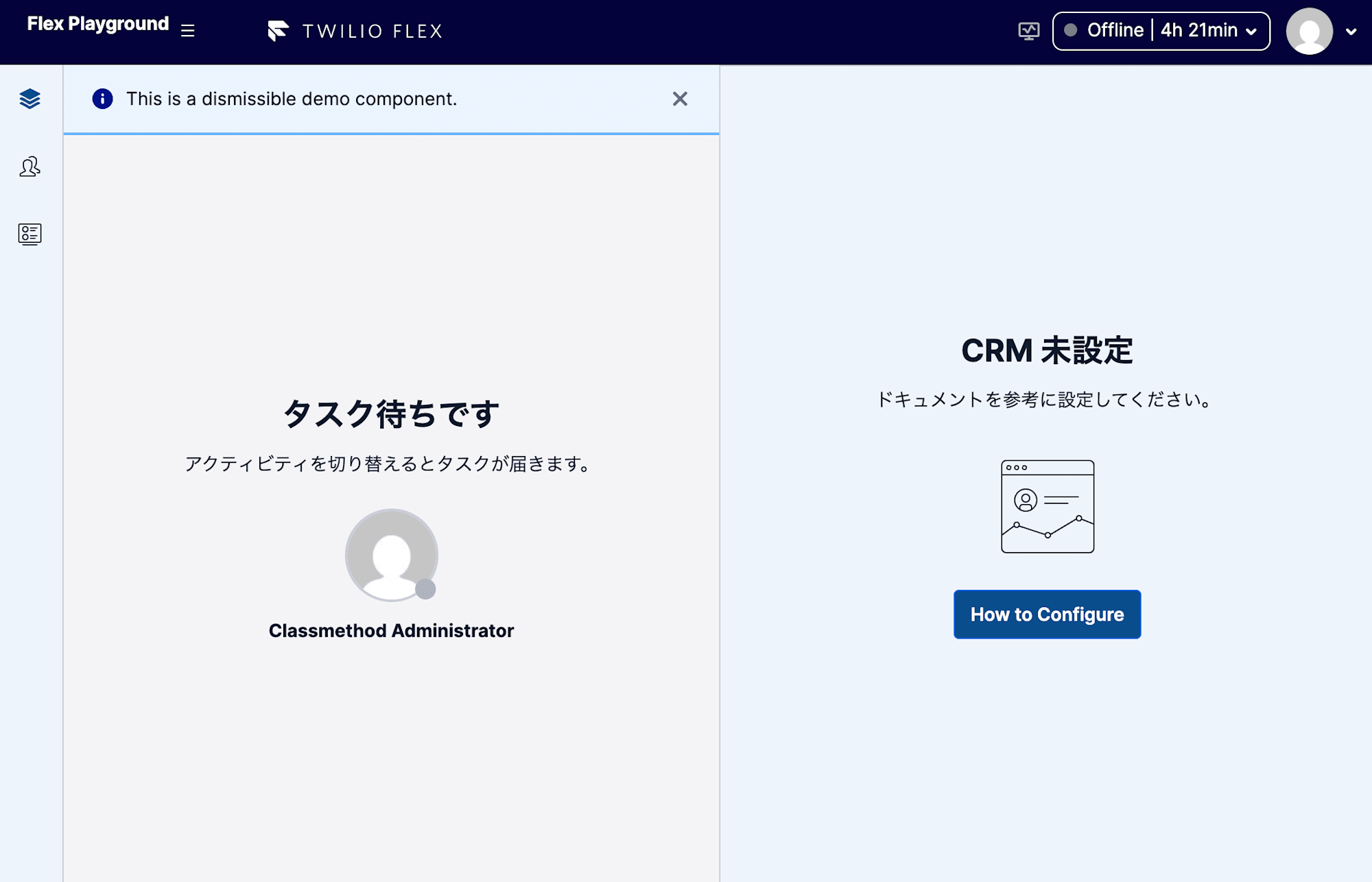
CustomTaskList is a sample React component included in the template from the start that simply displays the text This is a dismissible demo component.. Since it is not the main focus of customization in this article, we'll leave it as is.

Start the dev server.

cd plugin-flex-playground
twilio flex:plugins:start

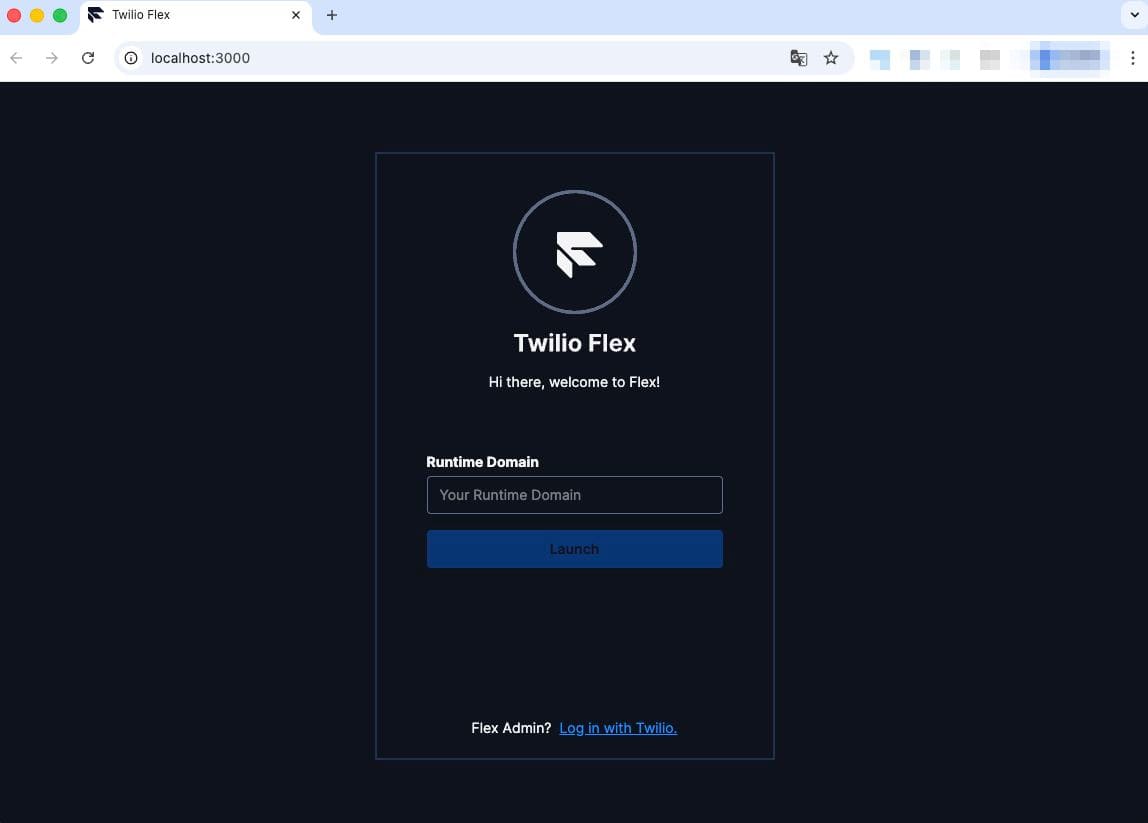
When started, a browser will open and you can see the Flex login screen at http://localhost:3000/.

login page

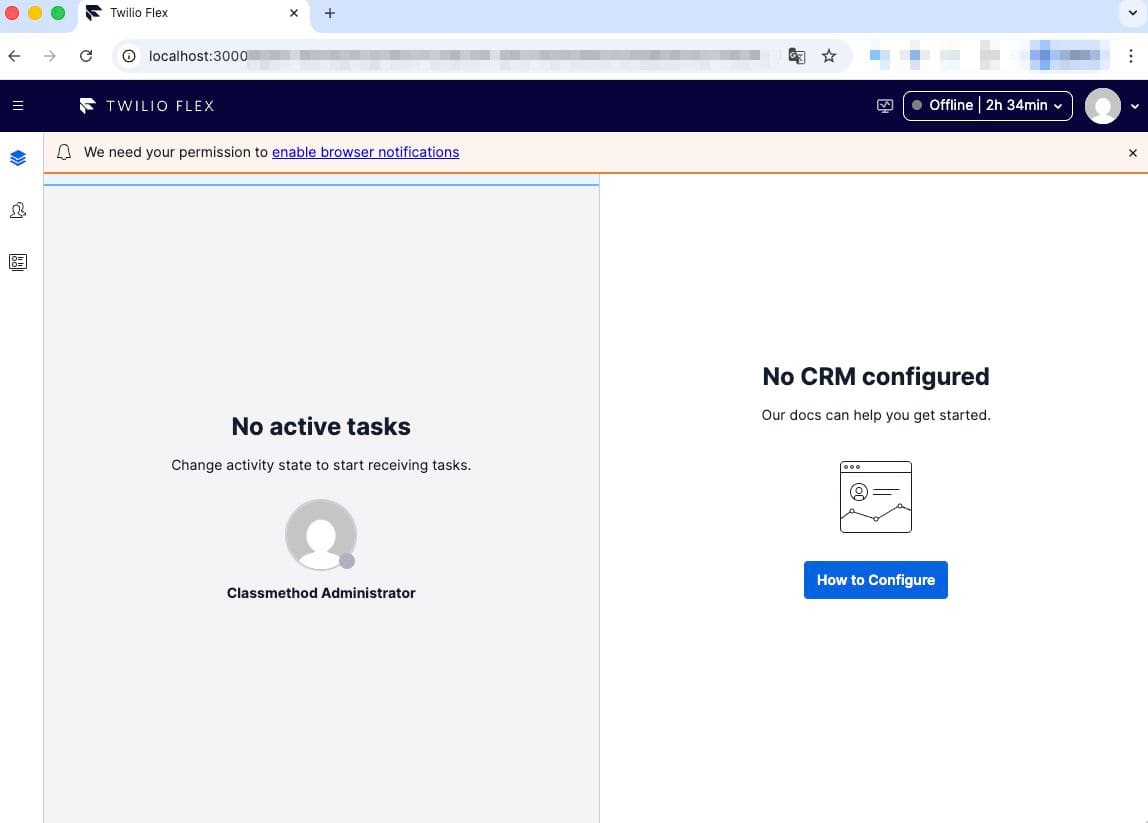
Log in via SSO from Log in with Twilio and the Flex UI will be rendered.

console top

Customizing the Appearance

Here's the main content. We'll add customization code to the init method of src/FlexPlaygroundPlugin.js. I'll show the complete final code first, then quote the relevant parts while explaining each subsection.

import React from 'react';
import { FlexPlugin } from '@twilio/flex-plugin';

import CustomTaskList from './components/CustomTaskList/CustomTaskList';

const PLUGIN_NAME = 'FlexPlaygroundPlugin';

export default class FlexPlaygroundPlugin extends FlexPlugin {
  constructor() {
    super(PLUGIN_NAME);
  }

  async init(flex, manager) {
    this.applyThemeOverrides(manager);
    this.applyStringOverrides(manager);
    this.addHeaderBrand(flex);
    this.attachIncomingTaskNotification(manager);

    flex.AgentDesktopView.Panel1.Content.add(
      <CustomTaskList key="FlexPlaygroundPlugin-component" />,
      { sortOrder: -1 },
    );
  }

  applyThemeOverrides(manager) {
    manager.updateConfig({
      theme: {
        isLight: true,
        tokens: {
          backgroundColors: {
            colorBackgroundBody: '#eef4fa',
            colorBackgroundPrimary: '#0a4d8c',
            colorBackgroundPrimaryStrong: '#083e72',
          },
          textColors: {
            colorTextLink: '#0a4d8c',
          },
        },
      },
    });
  }

  applyStringOverrides(manager) {
    Object.assign(manager.strings, {
      NoTasks: 'Waiting for tasks',
      NoTasksHintNotAvailable: 'Switch your activity to receive tasks.',
      NoCRMConfigured: 'CRM not configured',
      NoCRMHint: 'Please refer to the documentation to configure it.',
    });
  }

  addHeaderBrand(flex) {
    flex.MainHeader.Content.add(
      <span
        key="flex-playground-brand"
        style={{ fontWeight: 700, marginLeft: 12 }}
      >
        Flex Playground
      </span>,
      { sortOrder: -100, align: 'start' },
    );
  }

  attachIncomingTaskNotification(manager) {
    if (!manager.workerClient || typeof manager.workerClient.on !== 'function') {
      return;
    }
    manager.workerClient.on('reservationCreated', () => {
      this.playBeep();
      this.tryVibrate();
    });
  }

  playBeep() {
    try {
      const AudioCtx = window.AudioContext || window.webkitAudioContext;
      if (!AudioCtx) {
        return;
      }
      const ctx = new AudioCtx();
      const osc = ctx.createOscillator();
      const gain = ctx.createGain();
      osc.connect(gain);
      gain.connect(ctx.destination);
      osc.type = 'sine';
      osc.frequency.value = 880;
      gain.gain.value = 0.1;
      osc.start();
      window.setTimeout(() => {
        osc.stop();
        ctx.close();
      }, 300);
    } catch (e) {
      console.warn('FlexPlayground: audio playback failed', e);
    }
  }

  tryVibrate() {
    if (typeof navigator !== 'undefined' && typeof navigator.vibrate === 'function') {
      navigator.vibrate([200, 100, 200]);
    }
  }
}

The reason for breaking things out into calls from init is to make the responsibilities of each customization easier to see. Below, I'll quote the relevant parts and explain them by topic. Note that the Plugin's init is executed only once when the page loads. If you change the Plugin code, a browser reload is required.

Overriding the Color Theme

applyThemeOverrides(manager) {
  manager.updateConfig({
    theme: {
      isLight: true,
      tokens: {
        backgroundColors: {
          colorBackgroundBody: '#eef4fa',
          colorBackgroundPrimary: '#0a4d8c',
          colorBackgroundPrimaryStrong: '#083e72',
        },
        textColors: {
          colorTextLink: '#0a4d8c',
        },
      },
    },
  });
}

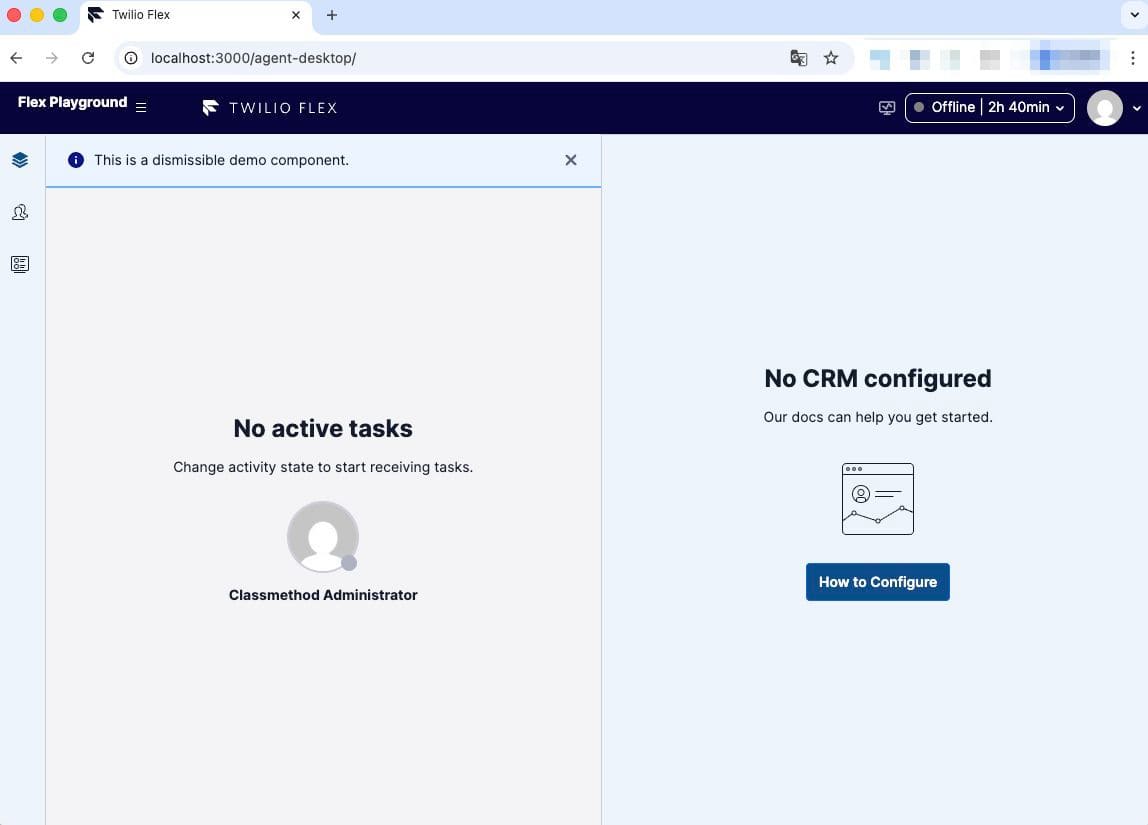
The theme of Flex UI v2 is composed of Twilio Paste design tokens. Design tokens are a dictionary of values that make colors, font sizes, spacing, and other properties referenceable by name. Paste is a proprietary design system provided by Twilio, and the Flex UI is built on top of it.

The tokens passed via manager.updateConfig({ theme: ... }) are partially overwritten on top of the default values. They are divided by category such as background colors, text colors, and border colors. In the above, we changed backgroundColors and textColors. Token names are aligned with the Paste documentation.

blue background

Adding Brand Text to the Header

addHeaderBrand(flex) {
  flex.MainHeader.Content.add(
    <span
      key="flex-playground-brand"
      style={{ fontWeight: 700, marginLeft: 12 }}
    >
      Flex Playground
    </span>,
    { sortOrder: -100, align: 'start' },
  );
}

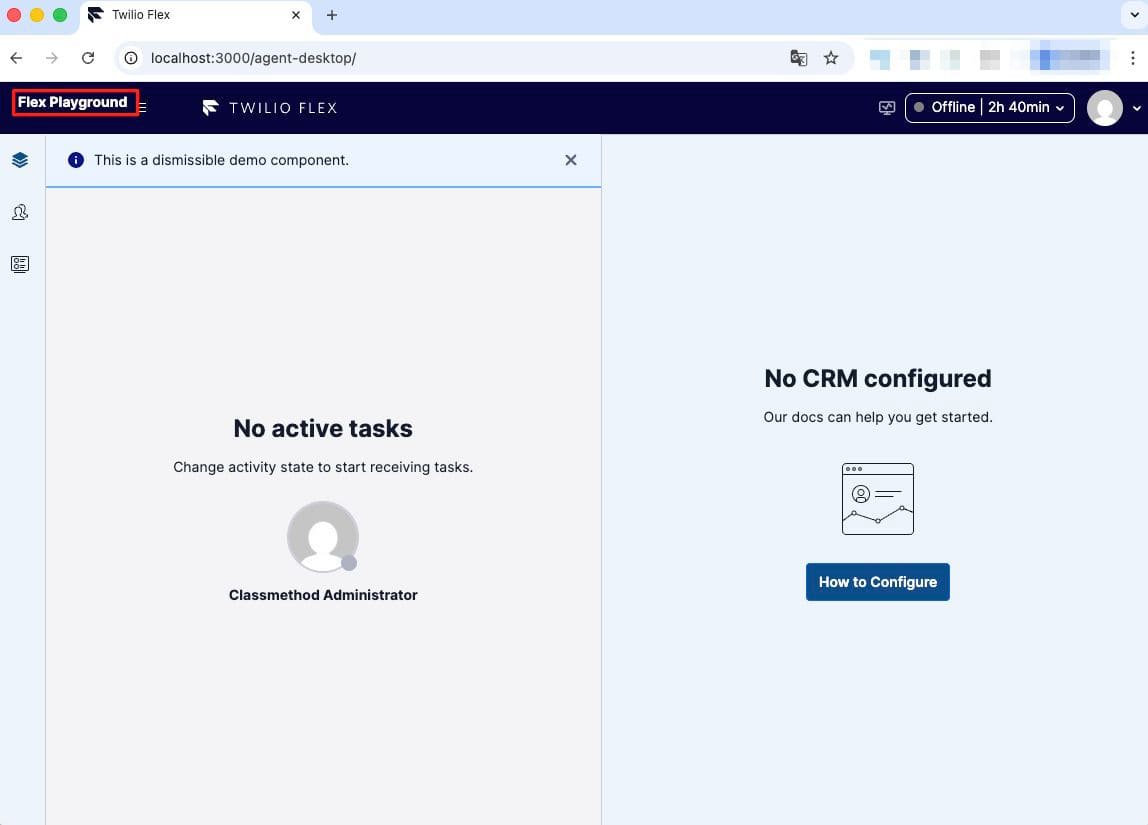
flex.MainHeader.Content.add() uses an extension mechanism of Flex UI called Programmable Components. Programmable Components is a collective term for extensible components pre-built into the Flex UI, and each component has methods such as Content.add(), .replace(), and .remove().

sortOrder places elements closer to the front the smaller the number. The default is 0, and -100 was specified above because we wanted it to appear to the left of existing header elements. align takes start or end and switches between left-aligned and right-aligned in the header.

edit header

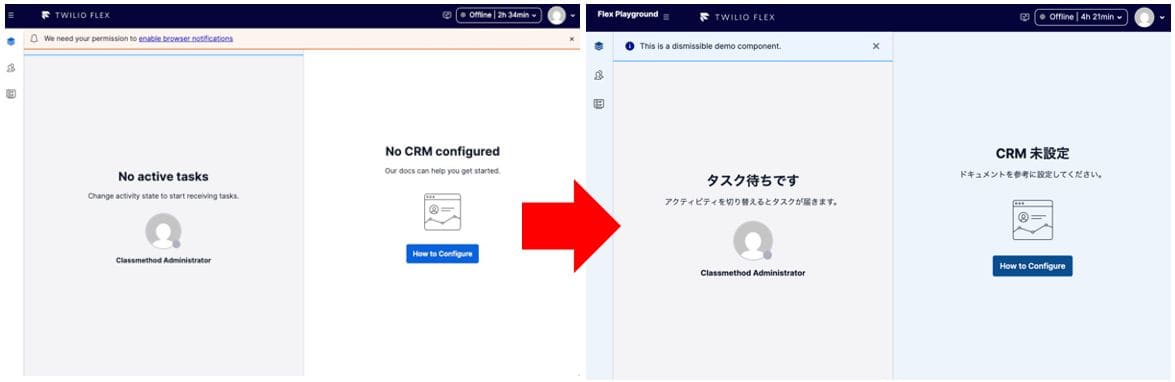
Localizing Text

applyStringOverrides(manager) {
  Object.assign(manager.strings, {
    NoTasks: 'Waiting for tasks',
    NoTasksHintNotAvailable: 'Switch your activity to receive tasks.',
    NoCRMConfigured: 'CRM not configured',
    NoCRMHint: 'Please refer to the documentation to configure it.',
  });
}

The text in the Flex UI is managed by a dictionary object called manager.strings. By specifying a key name and overwriting its value, the display in the UI is replaced.

How many keys does this dictionary actually have? After Manager initialization, retrieving Object.keys(manager.strings).length returned 1,611 (with Flex UI v2.16.0 at the time of verification). To find the desired key name from among 1,611 keys, you can either look directly at manager.strings in the browser's developer tools, or perform a text search on the Flex UI bundle (bundle/twilio-flex.prod.js from @twilio/flex-ui). When searching, targeting the characters before and after the English text shown on screen will help you find the corresponding key name.

Text That Cannot Be Overridden

Among the text, there are some items that cannot be overridden via manager.strings. The most representative examples are Activity names (Available / Unavailable / Offline / Break). These are the names registered as Activity resources in the TaskRouter Workspace, and are separate from the Flex UI string dictionary. If you want to change these, you need to edit the TaskRouter Workspace Activities via the Twilio Console or API.

Text representing call states (CALL ENDED, Connected, etc.) also has a separate set of keys that can be overridden in manager.strings, but we won't go into depth on that in this article. If you're interested, try searching for the keys in your local Flex.

Japanese messages

Playing a Sound on Incoming Calls

So far we've talked about appearance, but let's also try a more dynamic customization. As a bit of fun for React developers, let's play a beep sound when a call comes in.

Hooking into Events

attachIncomingTaskNotification(manager) {
  if (!manager.workerClient || typeof manager.workerClient.on !== 'function') {
    return;
  }
  manager.workerClient.on('reservationCreated', () => {
    this.playBeep();
    this.tryVibrate();
  });
}

When a call comes in, a Reservation is created for the agent from TaskRouter. You can hook into the Reservation creation event with manager.workerClient.on('reservationCreated', ...).

Generating a Beep Sound with the Web Audio API

playBeep() {
  try {
    const AudioCtx = window.AudioContext || window.webkitAudioContext;
    if (!AudioCtx) {
      return;
    }
    const ctx = new AudioCtx();
    const osc = ctx.createOscillator();
    const gain = ctx.createGain();
    osc.connect(gain);
    gain.connect(ctx.destination);
    osc.type = 'sine';
    osc.frequency.value = 880;
    gain.gain.value = 0.1;
    osc.start();
    window.setTimeout(() => {
      osc.stop();
      ctx.close();
    }, 300);
  } catch (e) {
    console.warn('FlexPlayground: audio playback failed', e);
  }
}

This is an implementation that plays a sine wave at 880Hz for 300 milliseconds using the Web Audio API. It's simple because you don't need to prepare a separate audio file.

As a caveat, browsers have autoplay restrictions. Sound may not play if the user has not yet interacted with the page at all. In this verification, the agent had already switched their Activity to Available before the call came in, so there was no problem. If you're trying this yourself, make sure to click something after logging in before receiving a call to be safe.

Vibration (Web Vibration API)

tryVibrate() {
  if (typeof navigator !== 'undefined' && typeof navigator.vibrate === 'function') {
    navigator.vibrate([200, 100, 200]);
  }
}

We're also calling navigator.vibrate(...) while we're at it. The Web Vibration API executes the pattern of 200ms vibration → 100ms pause → 200ms vibration on Android Chrome. On desktop browsers and iOS Safari, calling it does nothing. We haven't verified this on an actual Android device in this article, but it's left in as a fun touch for cases where Flex is opened on Android devices.

Call Verification

After reflecting the above implementation with a browser reload, let's actually receive a call.

  1. Switch the activity in the lower left of the Flex UI to Available
  2. Call the phone number secured in Twilio from a personal mobile phone
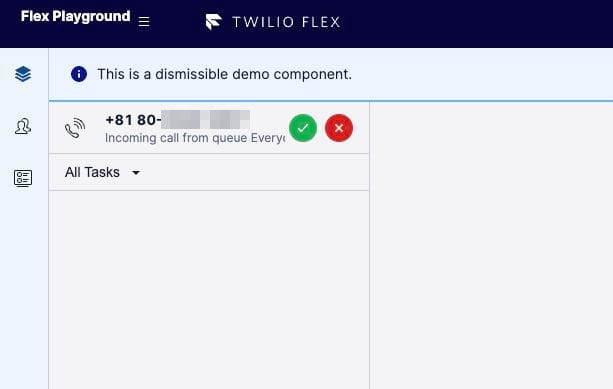
  3. After the Studio Flow Voice IVR answers, an incoming task card appears in the Flex UI
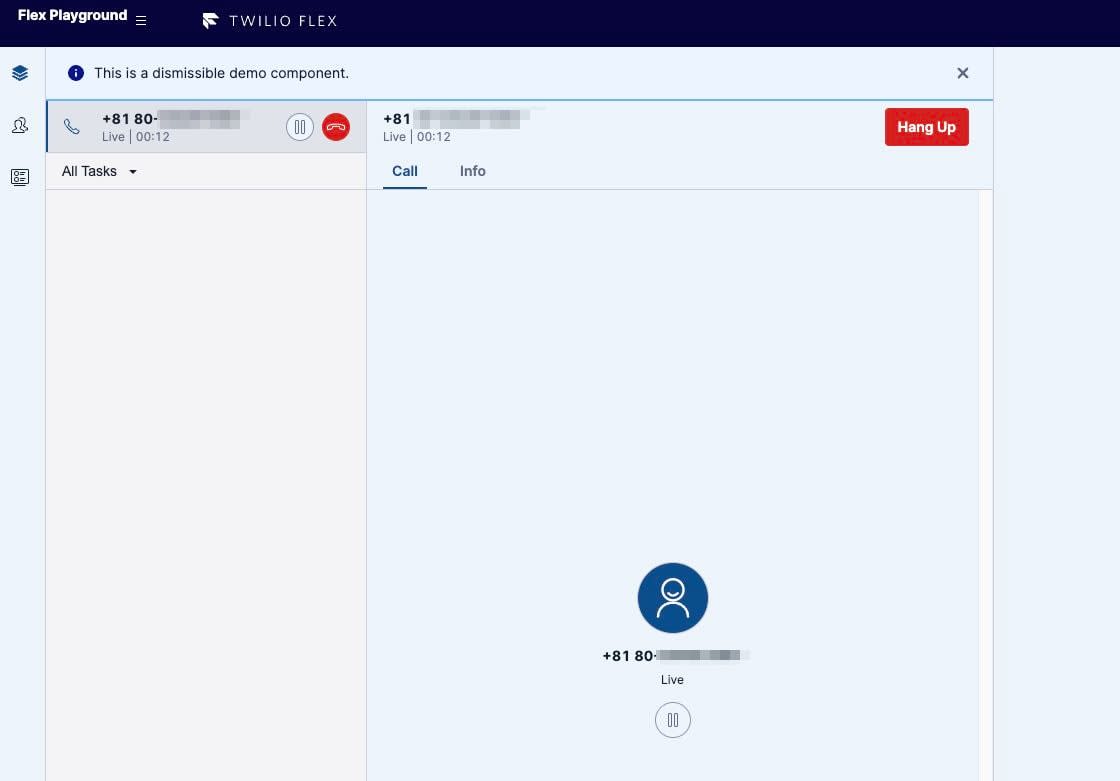
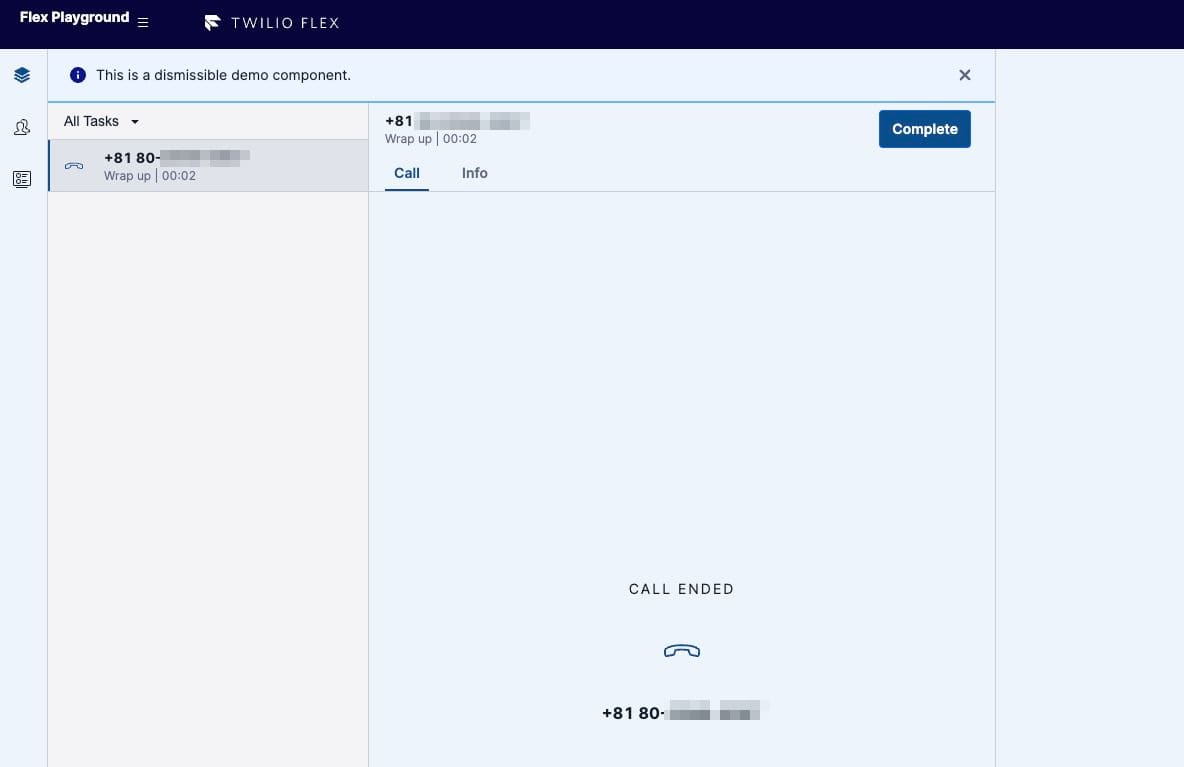
  4. Answer with the green check button → Talk → After the call ends, complete with the Complete button that appears

get call

Incoming task card

calling

Screen during a call

call end

After the call ends

We were able to confirm that the sine wave from playBeep played at the timing of the incoming call.

Lifecycle to Production Deployment (Conceptual Only)

Up until now, we've been running things on a local dev server. When actually operating a call center, there's a process to put the Plugin that worked locally onto production Flex. This article won't demonstrate the commands, but I'll introduce on a conceptual basis the flow that developers and operators will need to tackle next.

The process proceeds in three command stages.

  • twilio flex:plugins:build ・・・ Generates an optimized bundle for production using webpack. Since the subsequent deploy calls this internally, explicit execution can be omitted
  • twilio flex:plugins:deploy ・・・ Uploads the built bundle to Twilio's Plugins Service and registers it as a Plugin Version (e.g., 0.0.1). Versions are immutable once created
  • twilio flex:plugins:release ・・・ Creates a new Configuration pointing to a combination of Plugin Versions, and switches it as the current Release. This causes your Plugin to be loaded in the browser of agents who open flex.twilio.com in production

The conceptual hierarchy is as follows.

  • Plugin
    The JavaScript module you write. Uniquely identified by Plugin name
  • Plugin Version
    The artifact of a specific version. Immutable once deployed — cannot be changed
  • Configuration
    A named bundle of Plugin Version combinations you want to enable. Also immutable once created
  • Release
    A mutable pointer to the currently active Configuration. Rewriting this reflects changes in production

Rolling back is simply a matter of creating a new Release pointing to a past Configuration. Since Configurations never disappear, you can always return to any past combination at any time.

Environment Separation

Twilio Flex does not have built-in concepts for dev / staging / prod. Generally, one of the following approaches is used.

  • Separate accounts for development and production, and switch Twilio CLI profiles to deploy
  • Differentiate Plugin behavior using Worker attributes or feature flags, and operate so as not to increase the number of Plugin Versions too much

Adding --include-remote to the local dev server startup options allows you to inject only your local Plugin on top of Plugins that have already been released to production. This is useful for pre-production checks, as it allows you to preview in a state close to production.

Summary

In this article, we walked through the process of customizing the Twilio Flex React UI with a Plugin and verifying its behavior on a local dev server. We implemented color theme, header branding, text strings, and incoming call sounds, and also confirmed that labels derived from the TaskRouter Workspace, such as Activity names, cannot be changed through the string dictionary.

Deploying to production involves a build / deploy / release lifecycle via the Plugins Service, which this article covered only conceptually. We hope this article serves as a useful reference for those working on Twilio Flex customization.


Twilioの導入支援はクラスメソッドにお任せください!

クラスメソッドでは、Twilioの導入から運用までしっかりサポートいたします。
コミュニケーションツールの導入や最適化をお考えの方は、ぜひお気軽にご相談ください。

Twilioの詳細を見る

Share this article