I'll try running Claude Code in a sandboxed development environment at Ubuntu Workshop

This page has been translated by machine translation. View original
Introduction
Hello everyone, I'm Akaike.
Coding agents like Claude Code are convenient, but it's a bit scary to have them touching host files and credentials with dangerous operations (like rm or shady curl | sh), so you'd want to run them in an isolated environment.
Recently, Canonical announced "Workshop," a new Ubuntu feature, and it seems like it could be used for exactly this kind of use case.
So this time, I tried building a sandbox environment for Claude Code using Workshop.
What is Workshop?
Workshop is a development environment management tool for Ubuntu published by Canonical in May 2026, which allows you to build sandboxed development environments using YAML files.
It's actually a snap application, and internally it uses Canonical's LXD (system container/VM manager).
On Canonical's official blog, Workshop's features are described as "reproducibility, isolation, and access control."
- Reproducibility
- Since environments are declared in YAML files, they can be managed in Git as text, shared with teams, and the same environment can be recreated on another machine
- Isolation
- It runs in LXD's unprivileged system containers, not Docker's "application containers"
- It feels like a single machine, yet it's separated from the host
- Access control
- Host resources are explicitly granted access through snapd-derived Plugs/Slots (interfaces)
- If nothing is specified, access remains blocked
I thought this approach of "blocked by default, only explicitly allow what's needed" would be a good fit for the need to safely run AI agents.
Workshop is a tool that makes LXD easier to use as a development environment
First, to clarify: Workshop is built on LXD.
While Docker and Dev Containers are basically "application containers" that run a single process, LXD system containers run init (systemd), can keep multiple services resident, and are nearly equivalent to a regular Ubuntu install. They can be handled like a single machine.
So what does Workshop do? It's a layer that makes LXD easy to use as a "development environment".
Specifically, it has the following features:
- Environments are defined in YAML files and can be built/updated with
workshop init/launch/refresh - Programming languages and tools you want to use can be added as reusable components called "SDKs" from the SDK Store
- Access to host resources (GPU, ssh-agent, ports, etc.) can be explicitly controlled through "interfaces"
You could do the same things with LXD alone, but Workshop's positioning is that it makes this easy to use through "YAML files."
Prerequisites
As mentioned above, Workshop depends on LXD, so it can only run in Linux-based environments.
That said, the supported range is surprisingly broad — it's supported not just on Ubuntu but on any Linux distribution that can use snap, and it can also be used with WSL2.
This article assumes the following environment:
- A Linux environment where snap is available, such as Ubuntu 24.04 LTS (other snap-compatible distributions or WSL2 are also fine)
- LXD 6.8 or later
- Some subscription contract that allows you to use Claude Code
Let's Try It
Setup
The official documentation has detailed information on specific options, so please refer to that as well.
Installation
First, let's install LXD and Workshop itself.
# Install LXD 6.8 or later (6/stable channel)
sudo snap install --channel=6/stable lxd

# Install Workshop itself
sudo snap install --classic workshop
After installation, you're good to go if you can check the version.
# Check version
workshop --version
0.9.2
Check Available SDKs
Workshop adds language runtimes and AI tools to the environment in units called "SDKs."
SDK searching and information display is done with the sdk command, not workshop.
- Search for SDKs in the SDK Store
sdk find claude-code
NAME          VERSION      PUBLISHER       SUMMARY
claude-code   2.1.179      Dmitry Lyfar    Claude Code CLI
hermes-agent  2026.5.29.2  Matias Piipari  Hermes Agent — self-improving AI agent from Nous Research
- Check channels and supported bases for a specific SDK
sdk info claude-code
name:       claude-code
publisher:  Dmitry Lyfar (dlyfar)
license:    https://www.anthropic.com/legal/commercial-terms
website:    https://github.com/canonical/claude-code-sdk

This SDK provides the Claude Code CLI for AI-assisted coding within a
workshop. The agent is sandboxed in the workshop container. Credentials are
persisted between workshop updates.

CHANNELS
  CHANNEL           VERSION  BUILD       BASE  REV     SIZE
  latest/stable     2.1.179  2026-06-25  all    27  62.16MB
  latest/candidate  ↑
  latest/beta       ↑
  latest/edge       ↑
Note that you should always use sdk find <name> to confirm whether the desired SDK exists and its exact name (for example, sdk find claude-code for Claude Code).
It's also a good idea to check the configuration examples in this article before running them.
If you want to browse what SDKs are available in a list, there's a catalog at canonical/reference-sdks on GitHub, so it's best to refer to that.
Launch the Claude Code Sandbox
Claude Code has an auto-approval mode that runs without confirmation, which is convenient but a little scary to give full access to on the host. Since there's an SDK for Claude Code (claude-code), let's use it.
First, prepare a project.
mkdir -p ~/claude-code-workshop && cd ~/claude-code-workshop
git init
Use workshop init to create a definition with the claude-code SDK.
The environment definition is placed in .workshop/<name>.yaml directly under the project.
workshop init dev --sdks claude-code/latest/stable --base ubuntu@24.04
The generated .workshop/dev.yaml looks like this:
name: dev
base: ubuntu@24.04
sdks:
  - name: claude-code
    channel: latest/stable
You can confirm that Workshop recognizes the definition with the following command:
workshop list
WORKSHOP  STATUS  NOTES
dev       Off     -
WARNING: There is 1 new warning. See "workshop warnings".
All that's left is to start it.
The first time, it will download the base image and SDKs.
(There's a WARNING, but I'll explain that later)
- Build and launch the environment by reading the definition
workshop launch
"dev" launched
WARNING: There is 1 new warning. See "workshop warnings".
- Check the status after launching
workshop info
name:      dev
base:      ubuntu@24.04
project:   ~/claude-code-workshop
hostname:  dev.claude-code-workshop.wp
status:    ready
notes:     –
sdks:
  system:
    installed:  (2)
  claude-code:
    tracking:   latest/stable
    installed:  2.1.179  2026-06-25  (27)
    mounts:
      claude-config:
        host-source:      …/97c30ea5/dev/mount/claude-code/claude-config
        workshop-target:  /home/workshop/.claude
WARNING: There is 1 new warning. See "workshop warnings".
- Check SDK volumes stored on the machine
sdk list
NAME         VERSION  REV      SIZE
claude-code  2.1.179   27  115.23MB
system       -          2   25.09kB
- Confirm Claude Code is available
workshop exec dev -- claude --version
2.1.179 (Claude Code)
WARNING: There is 1 new warning. See "workshop warnings".
- Add .workshop.lock to .gitignore
echo ".workshop.lock" >> .gitignore
Once it's started, let's enter the shell and look inside.
workshop shell
workshop@dev:/project$ pwd
/project

workshop@dev:/project$ whoami
workshop

workshop@dev:/project$ ls -la
total 18
drwxrwxr-x  4 workshop workshop 4096 Jun 28 20:03 .
drwxr-xr-x 22 root     root       26 Jun 28 20:06 ..
drwxrwxr-x  7 workshop workshop 4096 Jun 28 20:00 .git
drwxr-xr-x  2 workshop workshop 4096 Jun 28 20:01 .workshop
-rw-r--r--  1 workshop workshop    8 Jun 28 20:03 .workshop.lock

workshop@dev:/project$ ls -la /
total 25
drwxr-xr-x  22 root     root       26 Jun 28 20:06 .
drwxr-xr-x  22 root     root       26 Jun 28 20:06 ..
lrwxrwxrwx   1 root     root        7 Apr 22  2024 bin -> usr/bin
drwxr-xr-x   2 root     root        2 Feb 26  2024 bin.usr-is-merged
drwxr-xr-x   2 root     root        2 Jun 15 22:50 boot
drwxr-xr-x   9 root     root      540 Jun 28 20:06 dev
drwxr-xr-x 104 root     root      196 Jun 28 20:06 etc
drwxr-xr-x   4 root     root        4 Jun 28 20:06 home
lrwxrwxrwx   1 root     root        7 Apr 22  2024 lib -> usr/lib
drwxr-xr-x   2 root     root        2 Apr  8  2024 lib.usr-is-merged
lrwxrwxrwx   1 root     root        9 Apr 22  2024 lib64 -> usr/lib64
drwxr-xr-x   2 root     root        2 Jun 15 22:43 media
drwxr-xr-x   2 root     root        2 Jun 15 22:43 mnt
drwxr-xr-x   2 root     root        2 Jun 15 22:43 opt
dr-xr-xr-x 574 nobody   nogroup     0 Jun 28 20:06 proc
drwxrwxr-x   4 workshop workshop 4096 Jun 28 23:08 project
drwx------   3 root     root        5 Jun 15 22:46 root
drwxr-xr-x  20 root     root      640 Jun 28 20:06 run
lrwxrwxrwx   1 root     root        8 Apr 22  2024 sbin -> usr/sbin
drwxr-xr-x   2 root     root        2 Mar 31  2024 sbin.usr-is-merged
drwxr-xr-x   2 root     root        3 Jun 28 20:06 snap
drwxr-xr-x   2 root     root        2 Jun 15 22:43 srv
dr-xr-xr-x  13 nobody   nogroup     0 Jun 28 23:12 sys
drwxrwxrwt  11 root     root      220 Jun 28 23:04 tmp
drwxr-xr-x  12 root     root       12 Jun 15 22:43 usr
drwxr-xr-x  13 root     root       16 Jun 28 20:06 var

workshop@dev:/project$ lsb_release -a
No LSB modules are available.
Distributor ID:	Ubuntu
Description:	Ubuntu 24.04.4 LTS
Release:	24.04
Codename:	noble
From these results, we can see the following:
- The current directory is
/project, and the host-side project directory is automatically mounted here - The executing user is a non-root user called
workshop
The / visible in ls -la / is the container's own OS. It is completely separated from the host filesystem, and the contents of /home belong only to the container's workshop user — it is not the host's home directory.
The only connection to the host side is the automatically mounted /project.
Therefore, even if a coding agent executes a dangerous operation, the damage is contained within the container.
After that, you can use Claude Code by logging in with any method you prefer.
It's super easy.
claude login
Supplement: About the WARNING
Let's check the WARNING that appeared during setup.
workshop warnings
It appears to be a warning that "network communication may be blocked," and as the message indicates, Docker is likely the cause.
last-occurrence:  today at 22:57 JST
warning: |
  firewall rules may be blocking network traffic on the workshopbr0 bridge: the FORWARD chain policy
  is set to DROP with no rules allowing traffic through the bridge. This is likely caused by Docker.
  To resolve, run: sudo nft insert rule ip filter DOCKER-USER iifname workshopbr0 accept \; sudo nft
  insert rule ip filter DOCKER-USER oifname workshopbr0 ct state related,established accept (see
  https://documentation.ubuntu.com/lxd/latest/howto/network_bridge_firewalld/)
Because Docker sets the FORWARD chain policy in nftables to DROP, communication through the workshopbr0 bridge used by Workshop (LXD) also gets blocked, which can prevent the container from reaching the outside.
The fix is straightforward: just add rules to the DOCKER-USER chain to allow traffic through workshopbr0, as described in the warning.
# Allow traffic from workshopbr0
sudo nft insert rule ip filter DOCKER-USER iifname workshopbr0 accept

# Allow return traffic (established/related) to workshopbr0
sudo nft insert rule ip filter DOCKER-USER oifname workshopbr0 ct state related,established accept
Running the exec command again no longer shows the WARNING, so it appears to be resolved.
workshop exec dev -- claude --version
2.1.179 (Claude Code)
Customizing the YAML Definition
Once the sandbox is up, you can evolve the environment by editing .workshop/dev.yaml.
Changes like swapping the base image, adding SDKs, and switching channels are all declared in this file.
For example, let's add the Python tool uv.
name: dev
base: ubuntu@24.04
sdks:
  - name: claude-code
    channel: latest/stable
  - name: uv
After changing the definition, apply it to the environment with workshop refresh.
Unlike launch, refresh will roll back to the previous state if it fails midway, so it won't break your environment.
workshop refresh
After the update completes, you can confirm that uv is installed.
workshop exec dev -- uv --version
uv 0.11.24 (1e11c3925 2026-06-26 x86_64-unknown-linux-gnu)
WARNING: There is 1 new warning. See "workshop warnings".
The operations Workshop has performed up to this point can be reviewed as history with workshop changes.
workshop changes
ID  STATUS  SPAWN                   READY                   SUMMARY
1   Done    yesterday at 20:04 JST  yesterday at 20:06 JST  Launch "dev" workshop
2   Done    yesterday at 20:08 JST  yesterday at 20:08 JST  Execute command "claude"
3   Done    yesterday at 22:57 JST  yesterday at 23:07 JST  Execute command "bash"
4   Done    yesterday at 23:07 JST  yesterday at 23:08 JST  Execute command "bash"
5   Done    yesterday at 23:10 JST  yesterday at 23:16 JST  Execute command "bash"
6   Done    yesterday at 23:17 JST  yesterday at 23:18 JST  Refresh "dev" workshop
7   Done    yesterday at 23:18 JST  yesterday at 23:18 JST  Execute command "uv"
8   Done    yesterday at 23:56 JST  yesterday at 23:56 JST  Execute command "curl"
9   Done    yesterday at 23:57 JST  yesterday at 23:57 JST  Refresh "dev" workshop
10  Done    yesterday at 23:58 JST  yesterday at 23:58 JST  Execute command "claude"
From the initial launch through running claude and bash, to the refresh when uv was added — all past operations are lined up chronologically.
Each line is a unit of operation called a change, and a STATUS of Done means it completed successfully.
Workshop applies changes atomically and rolls back to the previous state on failure, so this history serves as a record of "what was done and how the environment changed."
If you want to dig deeper into individual operations, you can use workshop tasks <ID> to trace the detailed tasks that actually ran within that change (base image download, SDK retrieval, hook execution, etc.).
workshop tasks 7
STATUS  DURATION  SUMMARY
Done       129ms  Exec command "uv"
Controlling Access to Host Resources with Plug/Slot
One of Workshop's important security features is the "interface" mechanism.
This works by having SDKs publish resources as slots, which are then consumed as plugs to make a connection.
For example, host-side features like cameras and GPUs are published as slots through an SDK called system.
- plug
- The requesting side from the SDK (e.g.,
gpu,mount,ssh-agent,tunnel)
- The requesting side from the SDK (e.g.,
- slot
- The side that provides resources (provided by the
systemSDK or other SDKs)
- The side that provides resources (provided by the
Which plugs/slots an SDK has is defined on the SDK side, and connection status can be checked and changed with commands.
# List current connection status
workshop connections
INTERFACE  PLUG                           SLOT              NOTES
mount      dev/claude-code:claude-config  dev/system:mount  -
mount      dev/uv:cache                   dev/system:mount  -
You can enable or disable connections with the following commands:
# Connect / Disconnect (specify plug and slot)
workshop connect dev/<sdk>:<plug> :<slot>
workshop disconnect dev/<sdk>:<plug>
The key point is that not everything connects automatically.
Some things, like claude-code:claude-config (mounting credentials), connect automatically at startup, while others, like ssh-agent, can't be used without explicitly connecting them.
It's a safety-conscious design that doesn't include everything by default.
Authenticating with GitHub via ssh-agent
If you're using Claude Code, GitHub is essential, so let's add ssh-agent.
First, add the ssh-agent plug to the claude-code SDK.
name: dev
base: ubuntu@24.04
sdks:
  - name: claude-code
    channel: latest/stable
    plugs:
      ssh-agent:
        interface: ssh-agent
  - name: uv
Even after applying the definition, ssh-agent won't connect automatically. Connect it manually with workshop connect.
workshop refresh
workshop connect dev/claude-code:ssh-agent
You can verify the connection with workshop connections --all. You're good if the ssh-agent row appears with manual.
workshop connections --all
INTERFACE  PLUG                           SLOT                  NOTES
mount      -                              dev/uv:venv           -
mount      dev/claude-code:claude-config  dev/system:mount      -
mount      dev/uv:cache                   dev/system:mount      -
ssh-agent  dev/claude-code:ssh-agent      dev/system:ssh-agent  manual
Once connected, a socket that bridges to the host's SSH agent is set in the workshop user's $SSH_AUTH_SOCK. Let's verify from inside the container.
workshop shell
echo $SSH_AUTH_SOCK
/var/lib/workshop/run/ssh-agent.sock

ssh-add -l
(The keys loaded on the host side are listed)
If the keys are listed, you can do git push and similar operations from inside the container through the same agent.
The private key itself isn't copied into the container — it's only used through the agent — so you don't need to place keys inside the container.
When it's no longer needed, you can disconnect with workshop disconnect dev/claude-code:ssh-agent.
The mechanism is the same for using a GPU.
For example, the ollama SDK has a gpu plug that auto-connects to system:gpu, so you just need to select the appropriate channel (like cuda/stable) to use the GPU.
Enabling Connection from VS Code
You can also connect to the sandbox from VS Code, not just from the command line. Install the Remote Development extension (Remote-SSH) in VS Code beforehand, then add the vscode-remote SDK to your definition to be able to open the container's /project via Remote-SSH.
Add the vscode-remote SDK to the definition.
name: dev
base: ubuntu@24.04
sdks:
  - name: claude-code
    channel: latest/stable
    plugs:
      ssh-agent:
        interface: ssh-agent
  - name: uv
  - name: vscode-remote
After updating and looking at the tasks:
workshop refresh
workshop tasks
The connection address and guidance are displayed as follows:
2026-06-29T00:51:58+09:00 INFO VS Code → Open Remote Window → Connect to host → workshop@XX.XX.XX.XX
or from the terminal,
code --folder-uri vscode-remote://ssh-remote+workshop@XX.XX.XX.XX/project
There are two methods, but you can connect with either one — use whichever you prefer.
- In VS Code's Command Palette, select "Open Remote Window" → "Connect to Host" and specify the displayed address
- Run
code --folder-uri vscode-remote://ssh-remote+workshop@XX.XX.XX.XX/projectin the terminal
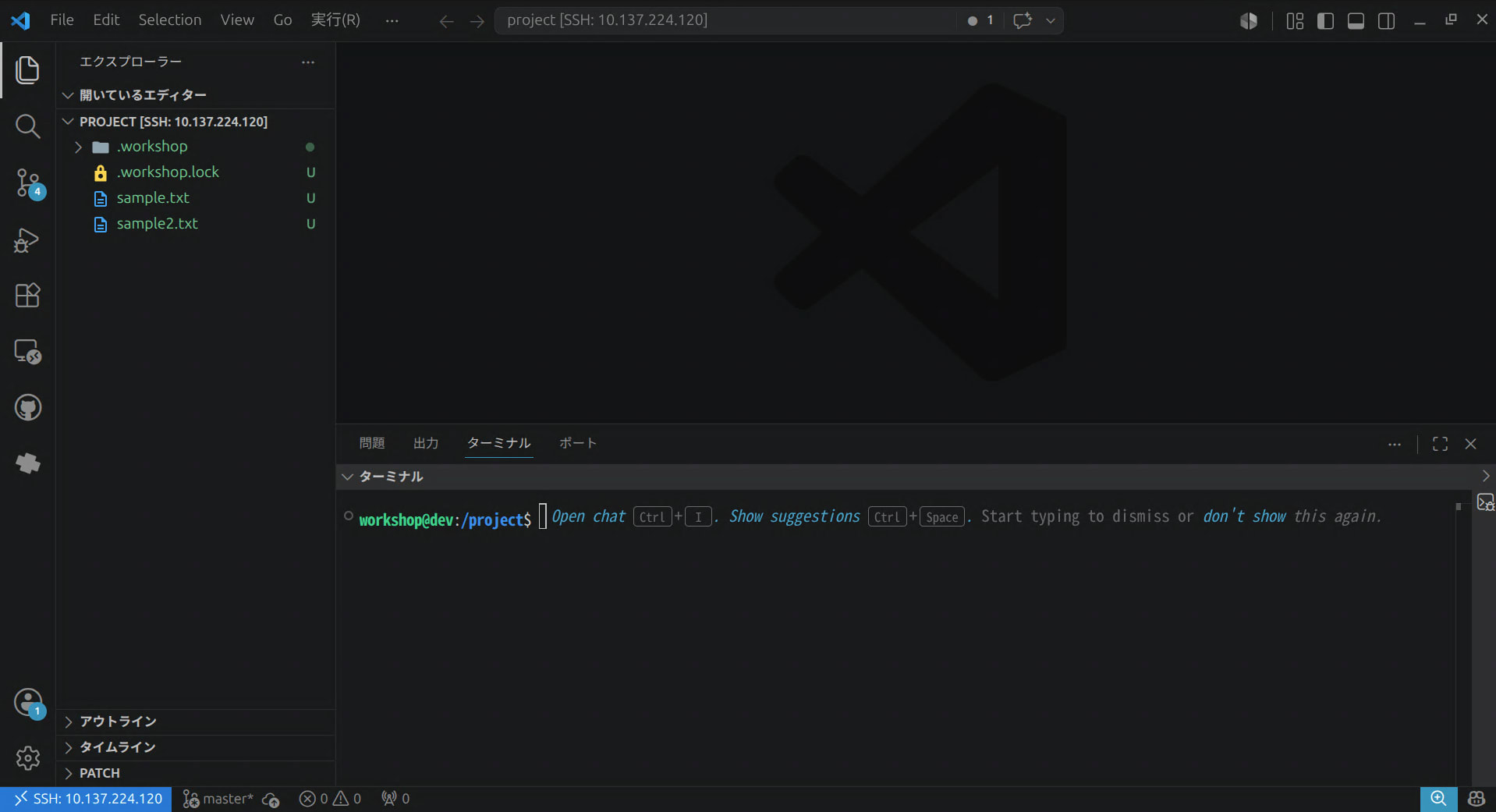
Once connected, the VS Code window connects to the container side and you can open /project directly.
Since the editor, terminal, and extensions all run inside the container, you can launch Claude Code from here to use a sandboxed agent right within your usual editor.
Impressions
Cases Where Workshop Seems Well-Suited
- Running agents like Claude Code in auto-approval mode without worry on Linux or WSL2
- The environment with Claude Code launched quickly with just
workshop initandlaunch, which was very convenient - Host resources can't be used without explicitly connecting them via
workshop connectand similar, so it seems relatively safe - Persistence of credentials and similar is specified on the SDK side, so users don't need to worry about mount settings
- The environment with Claude Code launched quickly with just
- Starting ML/LLM experiments using GPU without polluting the host (CUDA/ROCm)
- Using LXD system containers as the foundation felt like a good fit for development environments that keep multiple processes resident
- Acquired SDKs appear to be cached, so rebuilding with
workshop refreshseemed fast
Cases Where Workshop Seems Less Well-Suited
- Wanting to use the same setup across various operating systems
- Since Workshop requires Linux (or WSL2), if you want to use it broadly including on macOS, Docker / Dev Containers have the advantage in portability (using Workshop on Mac would require going through a VM or remote Linux environment)
- Wanting the absolute lightest possible isolation
- Since it spins up a full system container, it's heavier than process-level isolation
- Wanting to use tools that don't have an SDK available
- The SDK lineup is still limited, and for tools that aren't available you'd need to define your own SDK (how to do this is covered in the sketch SDK and SDKcraft chapters of the tutorial)
- What
sdk infoshows is only a summary and publisher, so there were moments of uncertainty about whether an SDK could be trusted
Closing Thoughts
That's it for building a sandbox environment for Claude Code using Workshop.
My impression from trying it out is that Workshop, compared to Docker / Dev Containers, feels like a tool for "spinning up an entire machine to develop safely."
For that reason, it seems especially well-suited for the use case of running AI agents in isolation, and the ease of getting a Claude Code-ready environment up with just a few commands is also an attractive point.
On the other hand, that ease of use only applies within the range of available SDKs — if you want to add a tool that isn't in the SDK store, you'll need to create your own SDK, and that felt a bit cumbersome.
Since it was released recently, I'm hoping the SDK lineup and ecosystem will mature and make it even more usable going forward.