
How to Upload Large Numbers of Files to S3 Without IAM Access Keys - Techniques for Avoiding Timeouts Using CloudShell and s3 sync

This page has been translated by machine translation. View original
Introduction
When using AWS in client projects, there are cases where IAM access keys (programmatic access) cannot be issued due to security policy restrictions.
You can log in to the console with email + password + MFA, but only the access keys used with CLI or SDK are unavailable——even in such a situation, I needed to upload a large number of files to S3.
When I tried using the upload button in the console, uploads with many files (around 150MB) would time out and terminate midway. When attempting to upload again, the console's upload feature has no skip functionality, so you have to start over from the beginning.
In this article, I will introduce a method to stably perform large-scale uploads to S3 without access keys by combining AWS CloudShell with aws s3 sync.
Prerequisites / Environment
- Already logged into the AWS console (IAM user, email + password + MFA)
- No permission to issue IAM access keys
- Files to upload exist locally (approximately 150MB, over 1000 files in this case)
- Has access permissions to the destination S3 bucket
Why Console Uploads Are Painful
The S3 upload feature in the AWS console performs PUT operations directly from the browser, which causes the following issues as the number of files or volume increases:
- Terminates midway due to browser timeout
- Even when it fails, it's unclear how far the upload succeeded
- During re-execution, all already-uploaded files are overwritten again (no skipping)
Solution Using CloudShell
AWS CloudShell is a browser-based terminal environment accessible from the console. Since the console's session credentials are inherited as-is, no access keys are required.
1. Compress Files into a Zip (Local)
cd /path/to/your/data
zip -r files.zip your-folder/
2. Open CloudShell
Click the CloudShell icon in the top navigation bar of the AWS console.
3. Upload the Zip to CloudShell
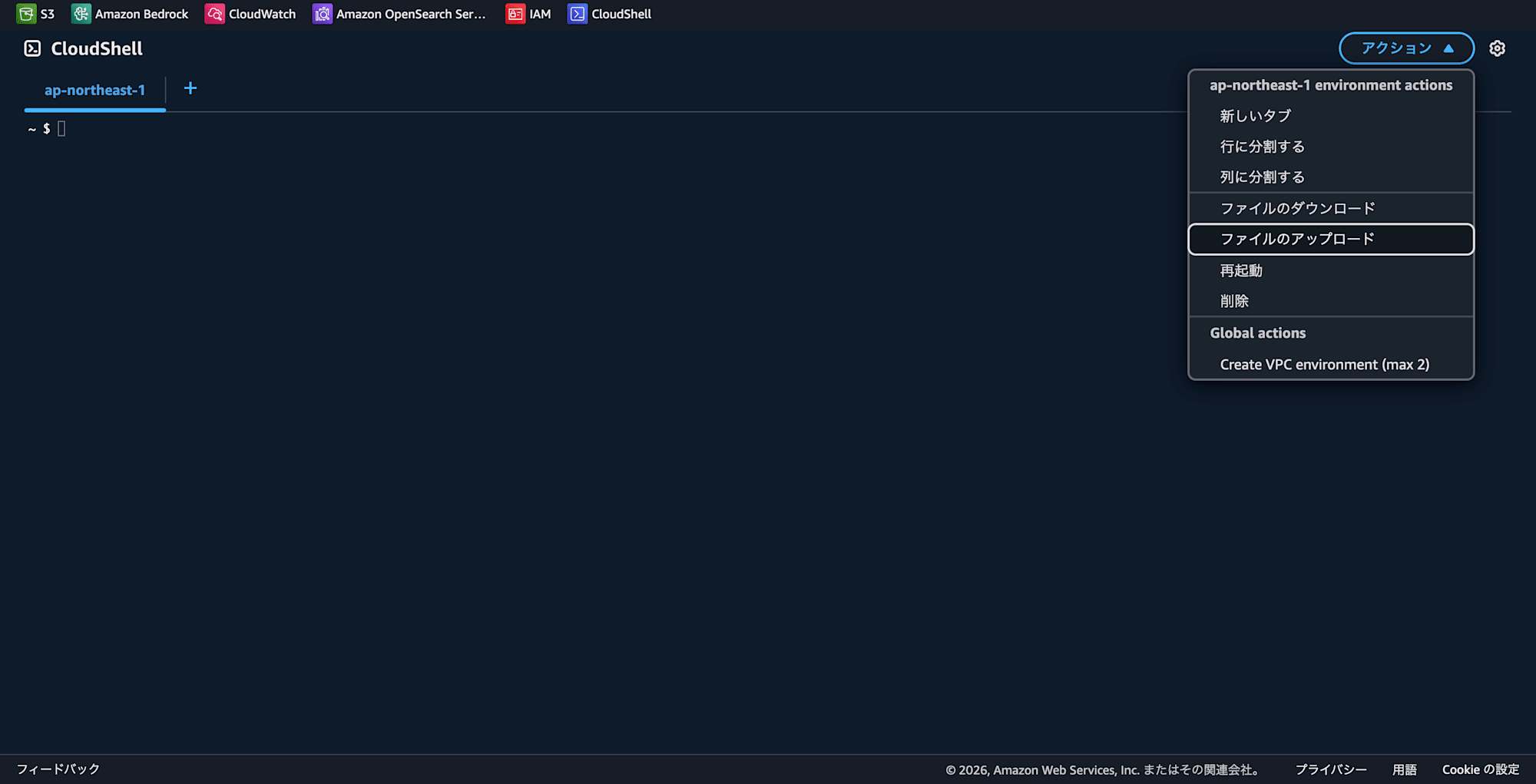
Select the local zip file from "Actions" → "Upload file" in the upper right of the CloudShell window.
4. Extract and Run s3 sync
unzip files.zip
aws s3 sync ./your-folder/ s3://your-bucket-name/
aws s3 sync compares ETAGs (MD5 hashes) of objects on S3 with local files and skips files with no changes. Even if the network is interrupted midway, re-running it will resume uploading only the incomplete files.
5. Delete Files on CloudShell After Completion
CloudShell storage is persisted across sessions (reset after approximately 120 days of inactivity). Be sure to explicitly delete unnecessary files.
rm -rf your-folder/ files.zip
Comparison Between Console Upload and s3 sync
| Console Upload | CloudShell + s3 sync | |
|---|---|---|
| Access Keys | Not required | Not required |
| Timeout Resistance | Weak | Strong (resumable midway) |
| Skip Feature | None | Available (no changes = skip) |
| Large File Handling | Painful | Excellent |
Summary
Even in environments where IAM access keys cannot be used, CloudShell allows operations equivalent to the CLI. In particular, s3 sync is resilient to timeouts and has a skip feature upon re-execution, so I found it something I'd want to actively use for uploading large numbers of files.
When you get stuck with console operations, it might be worth first considering whether CloudShell can solve the problem.