
I tried creating a writing environment where pressing ⌘⌥Z in VS Code lets you view Markdown in Zenn preview

This page has been translated by machine translation. View original
Hello, I'm Keima.
When writing Markdown in VS Code, have you ever felt that the standard preview feature's layout and fonts look a bit plain, and found yourself bothered by the appearance while writing?
If you're going to do it anyway, you'd want to write while checking your work in that beautiful and easy-to-read layout of "Zenn," provided by our Classmethod group.
Normally, Zenn CLI's preview feature only supports specific directories, but I thought "I want to be able to open a Zenn preview on the side for any Markdown file, just by pressing ⌘⌥Z!" — and that's how I built this setup.
I hope this serves as a helpful reference for anyone who wants to create a comfortable Markdown preview environment.
0. Prerequisites
| Item | Value |
|---|---|
| OS | macOS 26.5.1 |
| Node.js | v25.9.0 |
| VS Code | 1.117.0 |
| zenn-cli | 0.5.2 |
1. Overview of the System
There are three components involved.
⌘⌥Z (VS Code keybinding)
  │
  ▼
Mini VS Code extension (zennPreview.open command)
  │ Save the open file → Run sync script → Open Simple Browser
  ▼
Sync script zenn-preview.sh
  │ ① Convert and copy Markdown to ~/zenn-content/articles/preview-current.md
  │ ② Start zenn preview server (localhost:8000)
  │ ③ Resident daemon monitors file saves and keeps syncing
  ▼
Zenn CLI Preview Server
  └ http://localhost:8000/articles/preview-current
The key point is that the article file itself is never moved — instead, it is continuously converted and copied to a preview file with a fixed slug. Zenn CLI only looks inside ~/zenn-content/articles/, but with this approach, you can preview articles from anywhere.
2. Setting Up Zenn CLI
Create a working directory for previewing and install Zenn CLI.
mkdir ~/zenn-content && cd ~/zenn-content
npm init -y
npm install zenn-cli
npx zenn init
Running npx zenn init will create ~/zenn-content/articles/ and ~/zenn-content/books/. Verify it works.
npx zenn preview
👀 Preview: http://localhost:8000
If you can open the displayed URL in a browser, it's working. Once confirmed, stop it with Ctrl+C for now.
3. Creating the Sync Script
Create it as ~/zenn-content/zenn-preview.sh (change the path to match your environment).
This script's job is to "continuously convert articles located anywhere into a form that Zenn can preview, and deliver them inside ~/zenn-content." Here's how the related files are arranged.
~/blog/my-article/              ← Articles can be placed anywhere
├── my-article.md               ← The article being written (source file; never modified)
└── screenshot.png              ← Image referenced from the article with a relative path

~/zenn-content/                 ← Zenn CLI's preview directory
├── zenn-preview.sh             ← This script
├── articles/
│   └── preview-current.md      ← Converted copy of the article (overwritten each time)
└── images/
    └── preview → ~/blog/my-article/   ← Symlink to the article folder

/tmp/
├── zenn-preview.pid            ← Process ID of the resident daemon
└── zenn-preview.target         ← Path of the article currently being tracked
Since the Zenn preview server cannot access anything outside ~/zenn-content, articles are converted and copied with a fixed slug to ~/zenn-content/articles/preview-current.md, and images are made visible as ~/zenn-content/images/preview/ via a symlink to the entire article folder.
There are four things it does.
- Frontmatter conversion: Converts the frontmatter of the local article (title/tags) into Zenn format (title/emoji/type/topics/published) and writes it to
~/zenn-content/articles/preview-current.md - Displaying local images: Symlinks the directory containing the article to
~/zenn-content/images/preview, and rewrites relative-path image references in the body to/images/preview/...(the original file is not modified) - Starting the server and auto-recovery: If localhost:8000 is not responding, starts
npx zenn previewin the background. The daemon checks health every 15 seconds and restarts it if it has stopped - Save monitoring: The resident daemon checks the specified file for updates every second and syncs whenever it is saved
The settings are consolidated in the variables at the top of the script. ZENN_DIR points to the Zenn CLI directory created in Chapter 2. If you created it in a different location, change this accordingly.
~/zenn-content/zenn-preview.sh:
#!/bin/bash
# Location: ~/zenn-content/zenn-preview.sh
# Continuously syncs the specified Markdown to the Zenn preview folder (~/zenn-content)
# Usage: zenn-preview.sh <path to md file>
set -u
ZENN_DIR="$HOME/zenn-content"
SLUG="preview-current"
DEST="$ZENN_DIR/articles/$SLUG.md"
PIDFILE="/tmp/zenn-preview.pid"
TARGETFILE="/tmp/zenn-preview.target"
URL="http://localhost:8000/articles/$SLUG"
# Convert frontmatter to Zenn format and sync
sync_file() {
python3 - "$SRC" "$DEST" <<'PYEOF'
import json, os, re, sys
src, dest = sys.argv[1], sys.argv[2]
text = open(src, encoding="utf-8").read()
# Make local images displayable in preview:
# Symlink the directory containing the article to ~/zenn-content/images/preview,
# and rewrite relative-path image references to /images/preview/... (original file is not modified)
src_dir = os.path.dirname(os.path.abspath(src))
img_root = os.path.join(os.path.expanduser("~"), "zenn-content", "images")
os.makedirs(img_root, exist_ok=True)
link = os.path.join(img_root, "preview")
if os.path.islink(link):
os.remove(link)
if not os.path.exists(link):
os.symlink(src_dir, link)
def _rewrite_img(m):
alt, path = m.group(1), m.group(2)
if re.match(r"^(https?://|/|data:)", path):
return m.group(0)
return f""
# Parse frontmatter
meta, body = {}, text
if text.startswith("---"):
parts = text.split("---", 2)
if len(parts) == 3:
body = parts[2].lstrip("\n")
for line in parts[1].strip().splitlines():
if ":" not in line:
continue
k, v = line.split(":", 1)
k, v = k.strip(), v.strip()
try:
meta[k] = json.loads(v)
except Exception:
meta[k] = v.strip("\"'")
body = re.sub(r"!\[([^\]]*)\]\(([^)\s]+?)(?:\s+\"[^\"]*\")?\)", _rewrite_img, body)
title = meta.get("title")
if not title:
m = re.search(r"^#{1,2} (.+)$", body, re.M)
title = (m.group(1) if m else "Untitled")[:80]
emoji = str(meta.get("emoji") or "📝")
topics = []
for t in meta.get("tags") or []:
t = re.sub(r"[^a-z0-9]", "", str(t).lower())
if t:
topics.append(t)
topics = topics[:5]
if not topics:
# Insert a placeholder because Zenn preview shows a warning if topics is empty
topics = ["preview"]
fm = (
"---\n"
f"title: {json.dumps(title, ensure_ascii=False)}\n"
f"emoji: \"{emoji}\"\n"
"type: \"tech\"\n"
f"topics: {json.dumps(topics)}\n"
"published: false\n"
"---\n\n"
)
open(dest, "w", encoding="utf-8").write(fm + body)
PYEOF
}
# Start the preview server (localhost:8000) if it is not running
ensure_server() {
if ! curl -s -o /dev/null --max-time 2 http://localhost:8000; then
(cd "$ZENN_DIR" && nohup npx zenn preview >/tmp/zenn-preview.log 2>&1 &)
for _ in $(seq 1 20); do
curl -s -o /dev/null --max-time 1 http://localhost:8000 && break
sleep 0.5
done
fi
}
# --daemon: The monitoring daemon body (monitors saves of the specified file and keeps syncing)
if [ "${1:-}" = "--daemon" ]; then
trap '' HUP
if [ -f "$PIDFILE" ]; then
old=$(cat "$PIDFILE")
[ "$old" != "$$" ] && kill "$old" 2>/dev/null
fi
echo $$ > "$PIDFILE"
ensure_server
last_key=""
tick=0
while true; do
sleep 1
# Check server health every 15 seconds and auto-recover if it has stopped
tick=$(( (tick + 1) % 15 ))
[ "$tick" = "0" ] && ensure_server
# Exit if this process is no longer the official daemon (self-resolving double-start)
[ "$(cat "$PIDFILE" 2>/dev/null)" = "$$" ] || exit 0
# Target: the most recently explicitly specified file
f=$(cat "$TARGETFILE" 2>/dev/null)
[ -n "$f" ] && [ -f "$f" ] || continue
key="$f:$(stat -f %m "$f" 2>/dev/null)"
if [ "$key" != "$last_key" ]; then
last_key="$key"
SRC="$f" sync_file
fi
done
fi
# Normal startup: sync the specified file and start the daemon if absent
SRC="${1:-}"
ensure_server
if [ -z "$SRC" ] || [ ! -f "$SRC" ]; then
SRC=$(cat "$TARGETFILE" 2>/dev/null)
fi
if [ -n "$SRC" ] && [ -f "$SRC" ]; then
echo "$SRC" > "$TARGETFILE"
sync_file
fi
# Start the daemon if it is not running
if [ ! -f "$PIDFILE" ] || ! kill -0 "$(cat "$PIDFILE")" 2>/dev/null; then
nohup "$0" --daemon >/dev/null 2>&1 &
fi
echo "Preview: $URL"
Grant execute permissions and verify it works on its own.
chmod +x ~/zenn-content/zenn-preview.sh
~/zenn-content/zenn-preview.sh ~/path/to/your-article.md
Preview: http://localhost:8000/articles/preview-current
If you open this URL in a browser and the specified article is displayed, it's working. From here on, the daemon runs in the background and automatically syncs every time the article is saved.
4. Creating the VS Code Extension
To do "save → run script → display in Simple Browser" all at once with ⌘⌥Z, we'll create a small custom extension. There's no need to publish it to the Marketplace — just place a folder locally.
Create ~/.vscode/extensions/local.markdown-zenn-preview-1.0.0/ and place 2 files inside.
~/.vscode/extensions/local.markdown-zenn-preview-1.0.0/package.json:
{
    "name": "markdown-zenn-preview",
    "displayName": "Markdown Zenn Preview",
    "description": "Display the open Markdown in Simple Browser via Zenn preview",
    "publisher": "local",
    "version": "1.0.0",
    "engines": {
        "vscode": "^1.80.0"
    },
    "capabilities": {
        "untrustedWorkspaces": {
            "supported": true
        }
    },
    "main": "./extension.js",
    "contributes": {
        "commands": [
            {
                "command": "zennPreview.open",
                "title": "Markdown: Open Zenn Preview"
            }
        ]
    }
}
~/.vscode/extensions/local.markdown-zenn-preview-1.0.0/extension.js:
const vscode = require("vscode");
const cp = require("child_process");
const util = require("util");

const execFile = util.promisify(cp.execFile);
const SCRIPT = `${process.env.HOME}/zenn-content/zenn-preview.sh`;
const PREVIEW_URL = "http://localhost:8000/articles/preview-current";

function activate(context) {
    context.subscriptions.push(
        vscode.commands.registerCommand("zennPreview.open", async () => {
            const editor = vscode.window.activeTextEditor;
            let file = "";
            if (editor && editor.document.uri.scheme === "file") {
                // If there are unsaved changes, save first then make it the preview target
                if (editor.document.isDirty) {
                    await editor.document.save();
                }
                file = editor.document.uri.fsPath;
            }
            // Since the script waits until the server has fully started before exiting,
            // we wait for completion before opening the browser (to prevent connection refused errors)
            try {
                await execFile("/bin/bash", file ? [SCRIPT, file] : [SCRIPT], { timeout: 30000 });
            } catch (err) {
                vscode.window.showErrorMessage(`Zenn preview sync failed: ${err.message}`);
            }
            await vscode.commands.executeCommand(
                "simpleBrowser.api.open",
                vscode.Uri.parse(PREVIEW_URL),
                { viewColumn: vscode.ViewColumn.Beside, preserveFocus: true }
            );
        })
    );
}

function deactivate() {}

module.exports = { activate, deactivate };
Placing a folder in the publisher.name-version format directly under ~/.vscode/extensions/ causes VS Code to load it as an extension on startup. No build or vsix packaging is required.
5. Configuring the Keybinding
Open "Preferences: Open Keyboard Shortcuts (JSON)" from the Command Palette and add the following to keybindings.json.
[
    {
        "key": "cmd+alt+z",
        "command": "zennPreview.open"
    }
]
Restart VS Code (or run "Developer: Reload Window" from the Command Palette) to load the extension.
6. Verification
Open a Markdown file located anywhere in VS Code and press ⌘⌥Z. When complete, it will look like this (Markdown on the left, Zenn preview on the right).
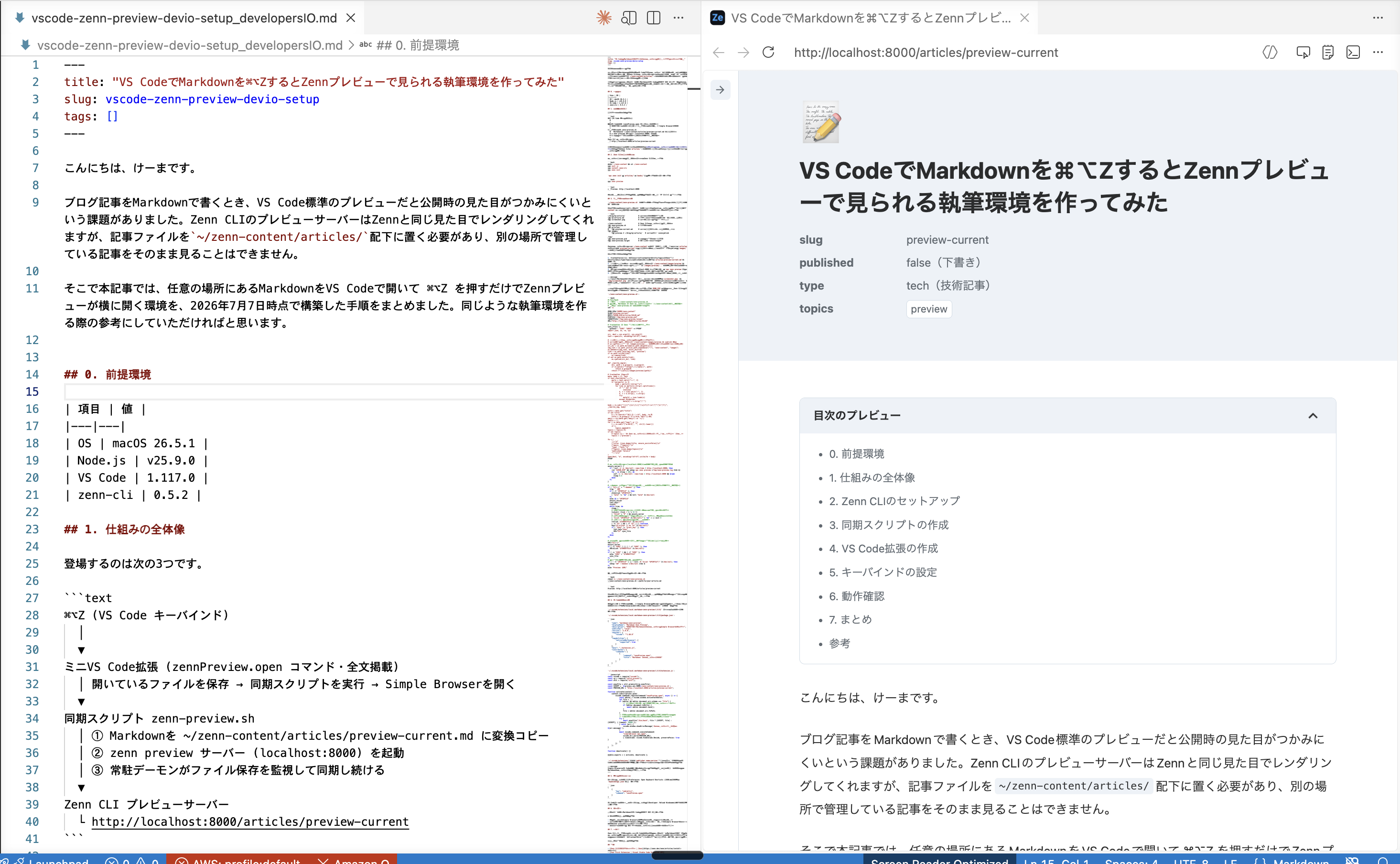
✅ If the following behavior occurs, it's working correctly.
- Simple Browser opens beside the editor and the article is displayed in Zenn's style
- When you edit and save the article, the preview updates within 1–2 seconds (no need to reload the Simple Browser side; zenn preview handles hot reloading)
- Pressing ⌘⌥Z on a different article file switches the preview to that file
7. Summary
Using three components — Zenn CLI, a sync script, and a custom VS Code extension — we built an environment where you can preview any Markdown file anywhere in Zenn's style with a single ⌘⌥Z. Because of the "convert and copy to a preview file with a fixed slug" approach, it can be adapted to different article storage locations or frontmatter formats simply by swapping out the conversion part.