
"Survival Guide for 'Switching' from Windows to Mac"

This page has been translated by machine translation. View original
Introduction
I've compiled a simple summary of the initial confusing points developers face when migrating from Windows to MacBook.
This is a quick reference guide + introduction to useful tools to solve "How do I do that shortcut on Mac?"
1. Keyboard "Translation"
When replacing familiar Windows operations on Mac, they correspond as follows:
| Operation | Windows | Mac |
|---|---|---|
| Delete | Del |
Fn + Delete |
| Screen Lock | Win + L |
Cmd + Ctrl + Q |
| Quit App | Alt + F4 |
Cmd + Q |
| Copy / Paste | Ctrl + C / Ctrl + V |
Cmd + C / Cmd + V |
On Mac, many shortcuts use the Cmd key instead of Ctrl. Getting used to this feeling is the first hurdle.
2. Browser & Development Tools
Shortcuts web developers use daily.
| Operation | Windows | Mac |
|---|---|---|
| Inspect Tool (DevTools) | F12 / Ctrl + Shift + I |
Cmd + Option + I |
| Hard Reload | Ctrl + Shift + R |
Cmd + Shift + R |
Also, Spotlight Search (Cmd + Space) allows you to launch apps instantly by just typing "Terminal" or "VS Code". It feels similar to Windows Start menu search.
3. Screenshots (PrintScreen key alternative)
Mac's screenshot functionality is extremely powerful out of the box. You can select areas or specify windows without third-party tools.
| Operation | Shortcut |
|---|---|
| Full Screen | Cmd + Shift + 3 |
| Area Selection | Cmd + Shift + 4 |
| Window Selection | Cmd + Shift + 4 → Space |
Captured screenshots are saved to the desktop by default.
Pressing Cmd + Shift + 5 allows you to change options like save location or timer.
Taking screenshots to both "save" and "copy to clipboard" simultaneously
In macOS, screenshot "save to disk" and "copy to clipboard" are mutually exclusive by default. Cmd + Shift + 4 saves to file, adding Ctrl copies to clipboard only. If you want to do both simultaneously, here are some methods:
Method 1: Use thumbnail preview (no setup required)
- Take a screenshot as usual with
Cmd + Shift + 4(or 3 / 5) - Click on the thumbnail preview that appears in the bottom right corner
- Press
Cmd + Cin the markup screen to copy to clipboard - Click Done
This saves the file and copies to clipboard simultaneously.
Method 2: Automate with Shottr (recommended)
For seriously streamlining screenshot workflows, Shottr is optimal. It's free, lightweight, and operates faster than native macOS tools.
Shottr Features:
- Save + Copy simultaneously: Press a key to complete both file saving and clipboard copying in one go
- Custom file names: Set a filename template to maintain the same naming convention as macOS standard
- Fast operation: As a compiled native app, it responds faster than the Shortcuts app or system standard tools
Setup Steps:
- Download and install from Shottr official site
- Open Shottr settings

- Navigate to the Hotkeys tab and press the "Open System Settings" button
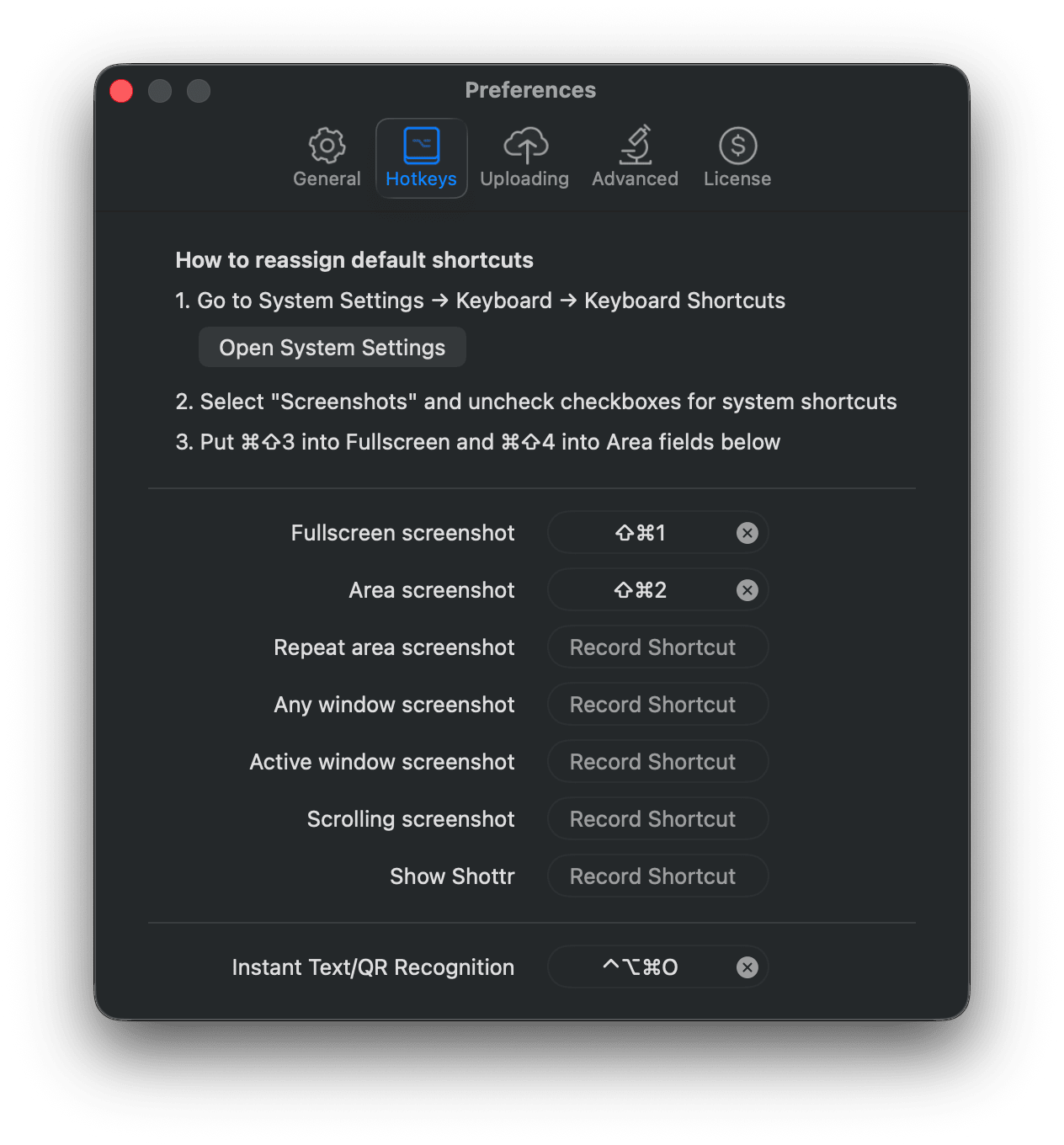
- Uncheck all options as we'll override the existing behavior
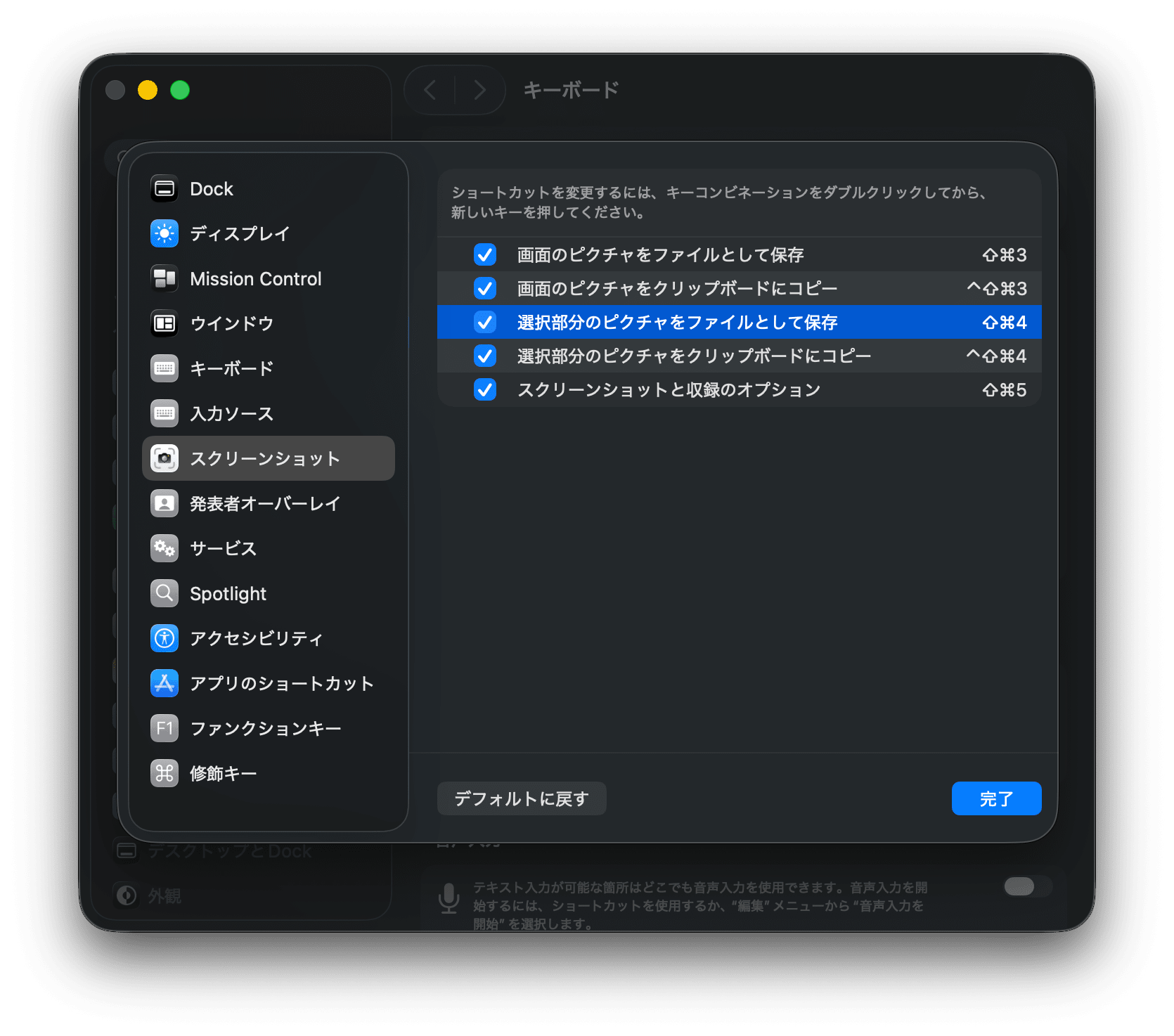
- Return to settings and set hotkeys to
Cmd + Shift + 3andCmd + Shift + 4
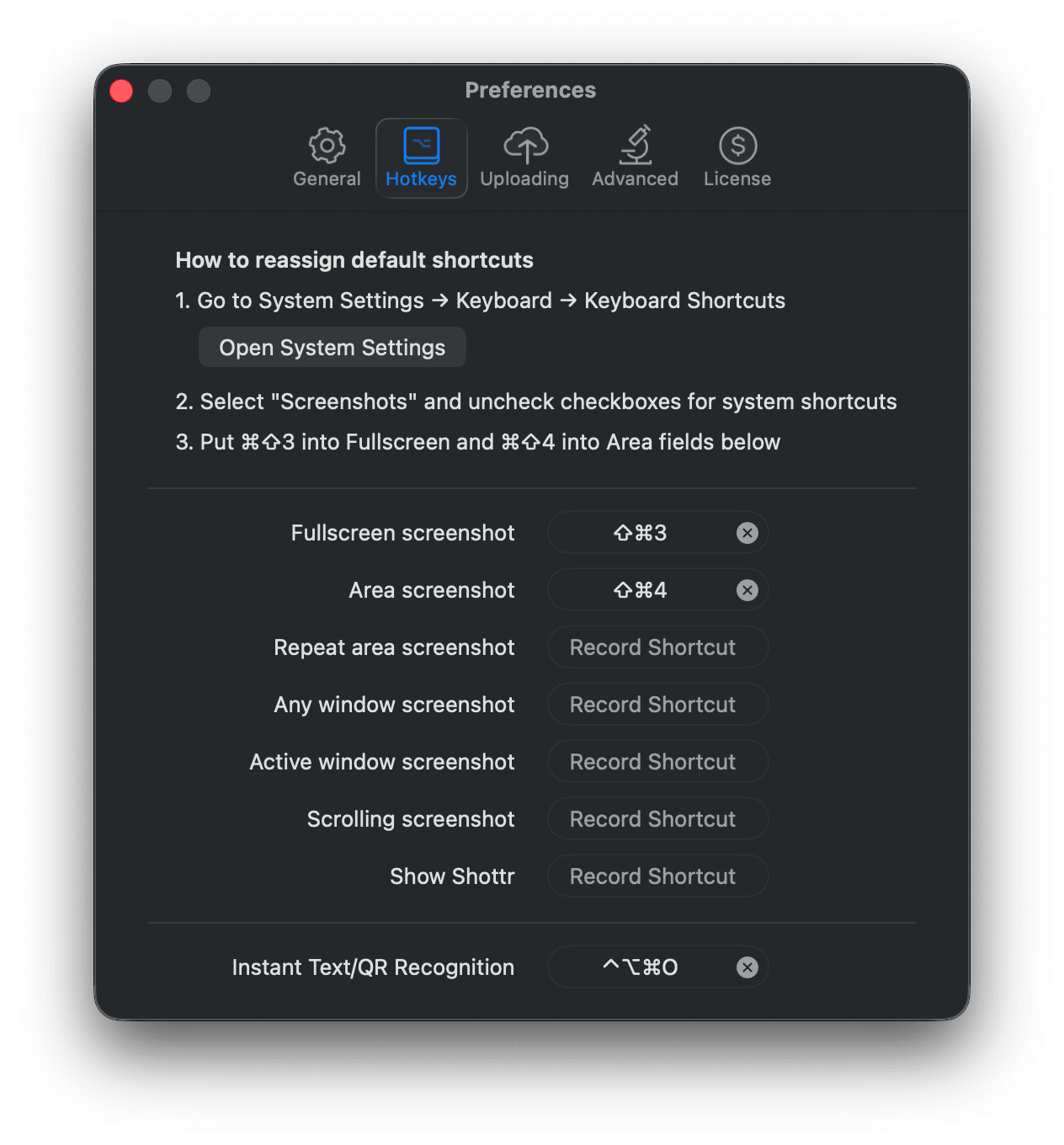
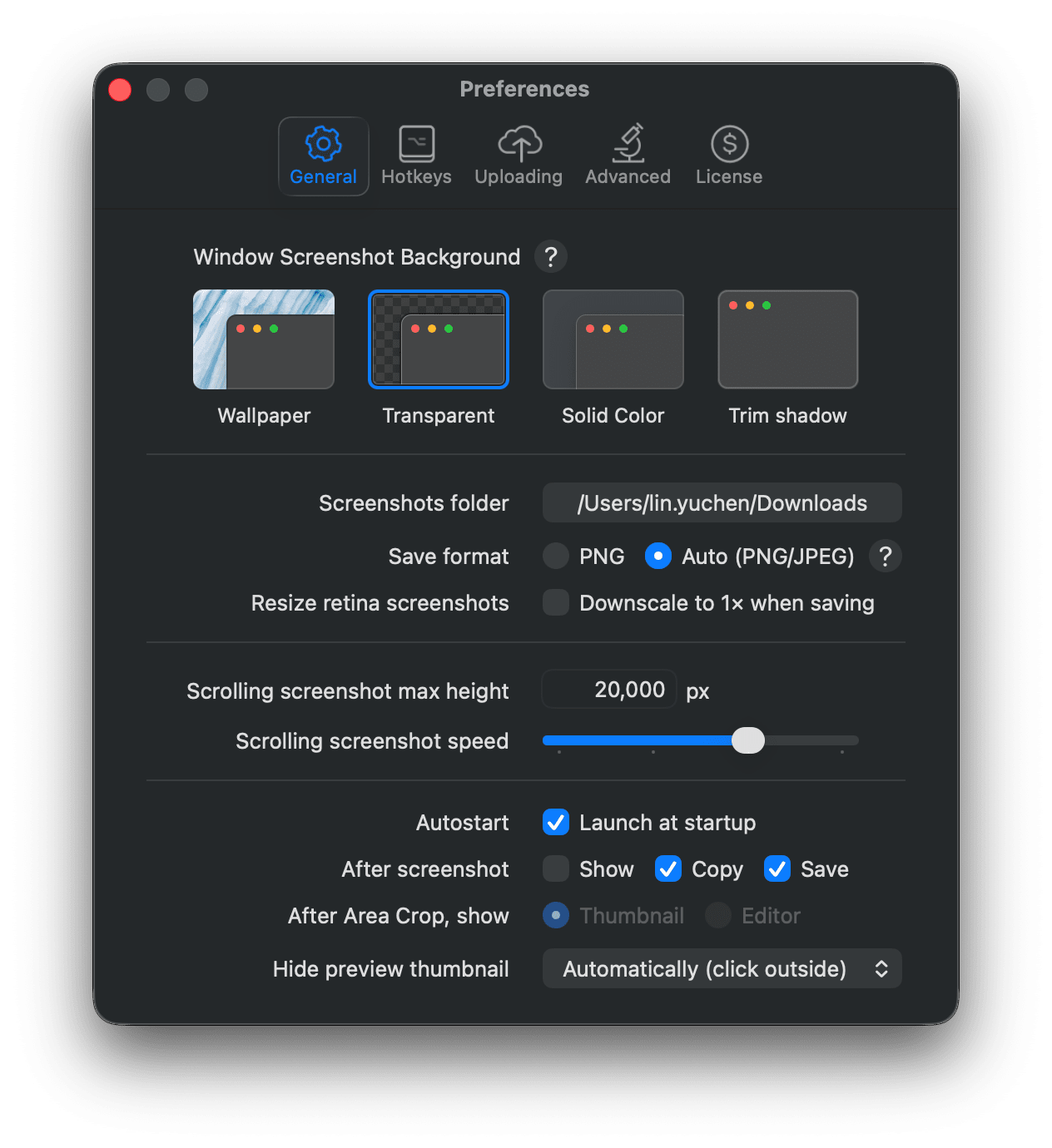
- Navigate to the Hotkeys tab and check both
CopyandSaveunder After Screenshot
4. Enhance Clipboard History with Raycast
If you're used to Windows' Win + V (clipboard history), Mac's "only saves one item" default can be frustrating. To solve this, many engineers use external tools.
My personal recommendation is Raycast.
- What can it do?: Beyond clipboard history, it accelerates app launching, calculations, window resizing, and all kinds of operations
- Shortcut Example:
Cmd + Space(Launch Raycast) → Search for "clipboard History" and right-click to selectConfigure Command
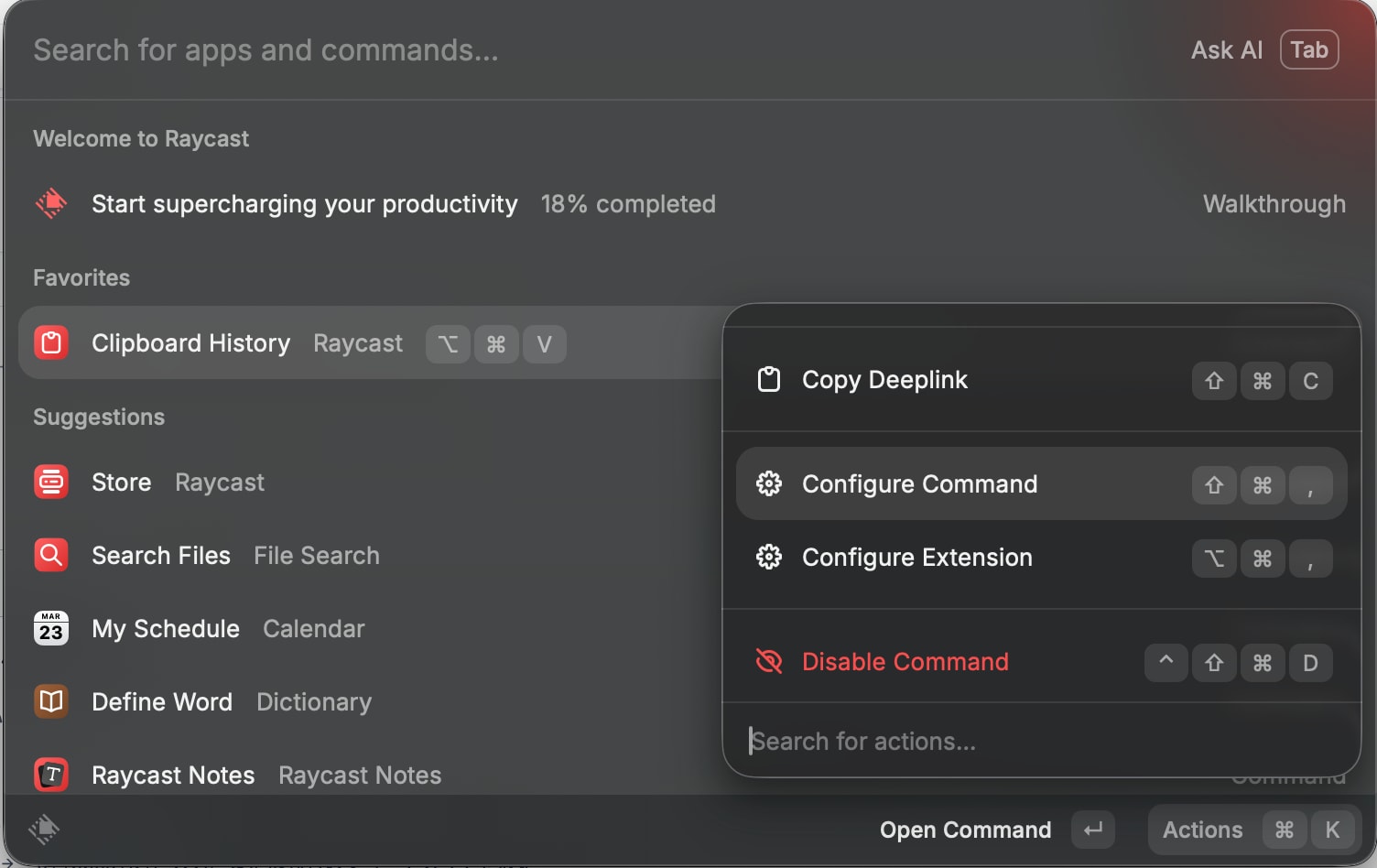
Author's Configuration Example:
I've assigned clipboard history toCmd + Option + V. This lets me access previous copy contents with the same feeling as Windows'Win + V.
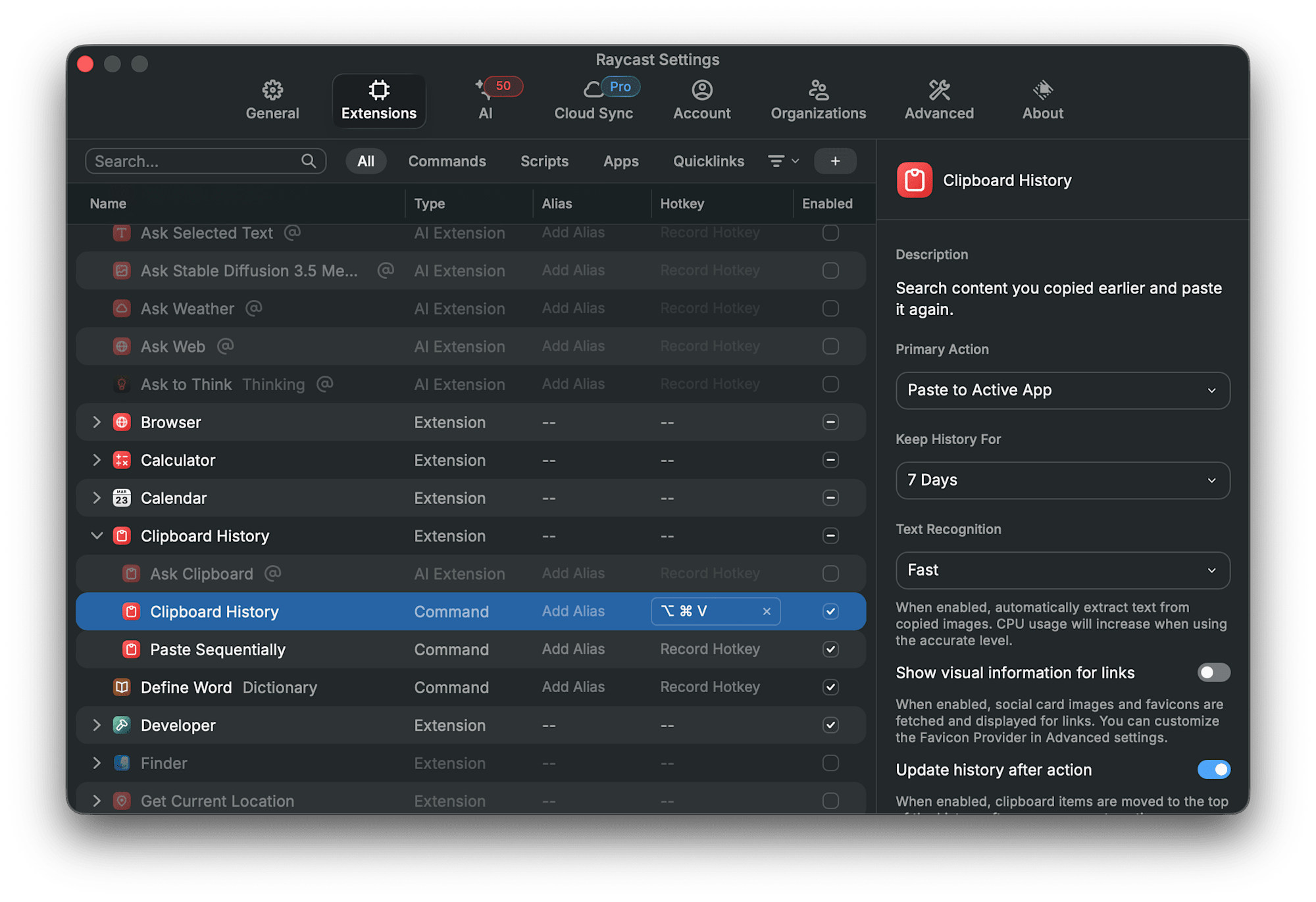
Also, pasting from Raycast's clipboard history defaults to plain text (without formatting). This is very convenient for situations where you want to paste text copied from web pages or documents without extra fonts, colors, or sizes. With standard macOS Cmd + V, content is pasted with formatting, requiring Cmd + Option + Shift + V for plain text pasting, but with Raycast you don't need to worry about this.
5. Multi-monitor Management with Raycast
Setup is easy - just enable the Window Management extension (a core extension that's pre-installed).
Assigning a Shortcut to "Next Display"
To move windows to adjacent displays, use the "Next Display" command. Here's how to set up the shortcut:
- Launch Raycast (default is
Option + Space) - Type "Extensions" and press
Enter
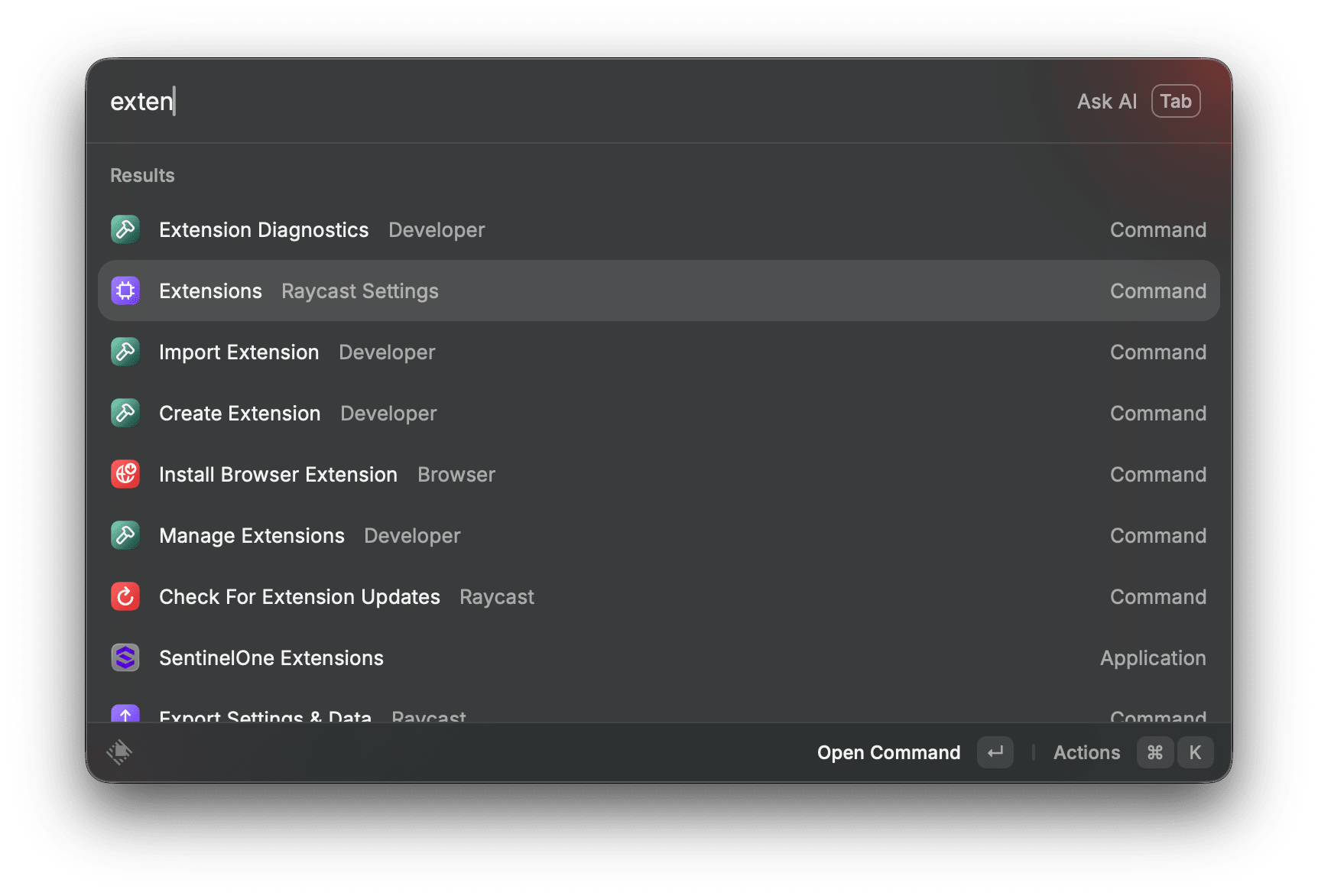
- Search for Next Display
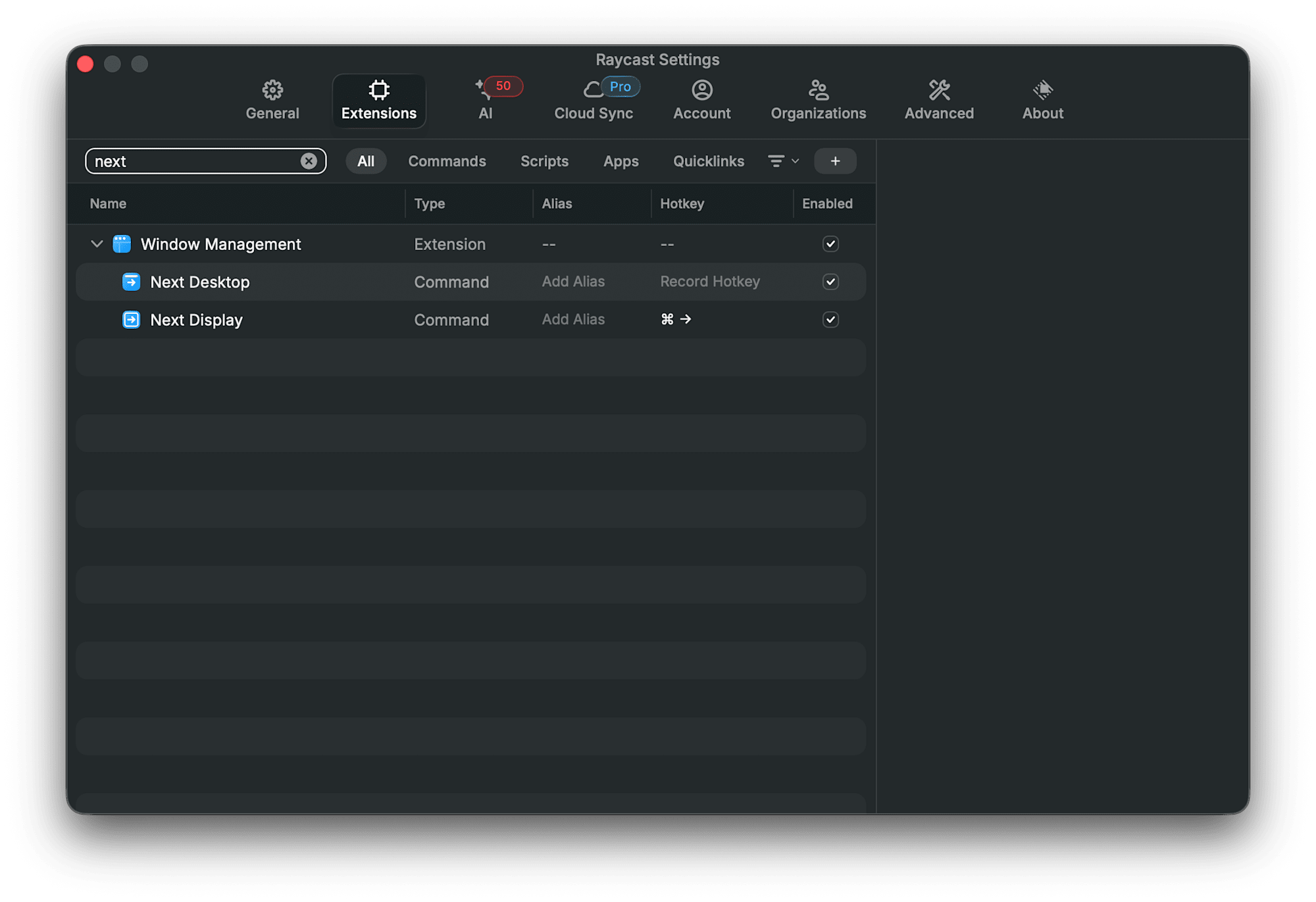
- Click the Hotkey field to register a shortcut
Recommendation: Setting it to
Cmd + →creates a feel similar to Windows operations.
Creating Window Layouts
If you use the same window arrangement daily (e.g., Slack on left screen, browser on right), Raycast's "Create Window Layout" command is handy.
- Position all windows to preferred locations and sizes
- Save as a layout
- From then on, a single Raycast command will automatically position all apps to specified screens and sizes
6. Helpful Tips to Know
The Enter Key Trap
When selecting a file in Finder and pressing Enter, it renames the file rather than opening it. To open files, use Cmd + O. This is a common pitfall for Windows users.
Window Switching
- App-level switching:
Cmd + Tab(similar to Windows'Alt + Tabbut app-based) - Window switching within the same app:
Cmd + ~(backtick)
While Windows' Alt + Tab switches between windows, Mac's Cmd + Tab switches between apps. To switch between multiple windows of the same app, you need to use Cmd + ~.
Copying Folder Paths from Finder
Press Cmd + Option + C in Finder to copy the folder path.
Hidden Files (Dot Files) Not Visible
In macOS, files and folders beginning with a dot (.) (so-called "dot files") are hidden by default. This prevents accidental deletion or movement of configuration files like .env or .git.
There are two ways to show them:
Keyboard Shortcut (Fastest)
Simply press the following shortcut in a Finder window:
Cmd + Shift + .(period)
Press once to show hidden files semi-transparently, press again to hide them.
Terminal Command for Permanent Setting
If shortcuts don't work or you prefer command line configuration:
defaults write com.apple.finder AppleShowAllFiles -bool true
killall Finder
To revert: Use the same command but change
truetofalse.
Accessing the "Library" Folder
The ~/Library folder is also hidden by default but isn't a dot file. In Finder's menu bar, click Go and hold the Option key to see "Library" appear as an option.
Showing Hidden Files in File Selection Dialogs
Even if you've configured Finder to show hidden files, they might not appear in file upload dialogs in browsers.
Solution: Use the shortcut within the dialog
While the file selection window is active, press Cmd + Shift + .. macOS remembers this setting for each dialog, so files will remain visible in future instances.
Conclusion
While transitioning from Windows to Mac might be confusing at first, it becomes surprisingly smooth once you grasp the basic shortcut "translations". Focus on these points to make it easier:
- Train yourself to replace
CtrlwithCmd - Accelerate app launching with Spotlight (or Raycast)
- Adopt a clipboard history tool early
- Remember
Cmd + Shift + .to display hidden files - Utilize tools like Shottr if you need save + copy for screenshots
I hope this article helps alleviate that "I don't know anything" feeling on your first day of Mac migration.