
I tried to use Workspace Studio and GAS to automatically aggregate Meet minutes, convert them to Markdown, and make them usable locally

This page has been translated by machine translation. View original
Introduction
I'm kasama from the Data Business Division.
In this article, I'd like to share how I created a system that automatically converts Google Meet minutes into Markdown and synchronizes them locally using Google Workspace Studio and Google Apps Script, so they can be used as context for AI Agents.
Prerequisites
Google Workspace Studio
Google Workspace Studio is a no-code platform for creating, managing, and sharing AI agents on Google Workspace. You can build workflows across Workspace apps like Gmail, Drive, and Sheets just by describing what you want to automate in natural language. It was announced in December 2025 and is being rolled out gradually. I'm using the Gemini Enterprise plan. Google Workspace Studio is not available for personal (free) accounts. For details on supported editions, please check the official page.
Purpose
Meeting minutes generated in Meet are scattered as Google Docs across shared drives and personal drives. When working on multiple projects simultaneously, you end up relying on Google Drive search to find these docs. By converting these minutes into Markdown with YAML frontmatter and synchronizing them locally, AI Agents like Claude Code can read them directly as context. The goal here is to make meeting minutes locally available.
Architecture
The overall process is illustrated in the following two diagrams:
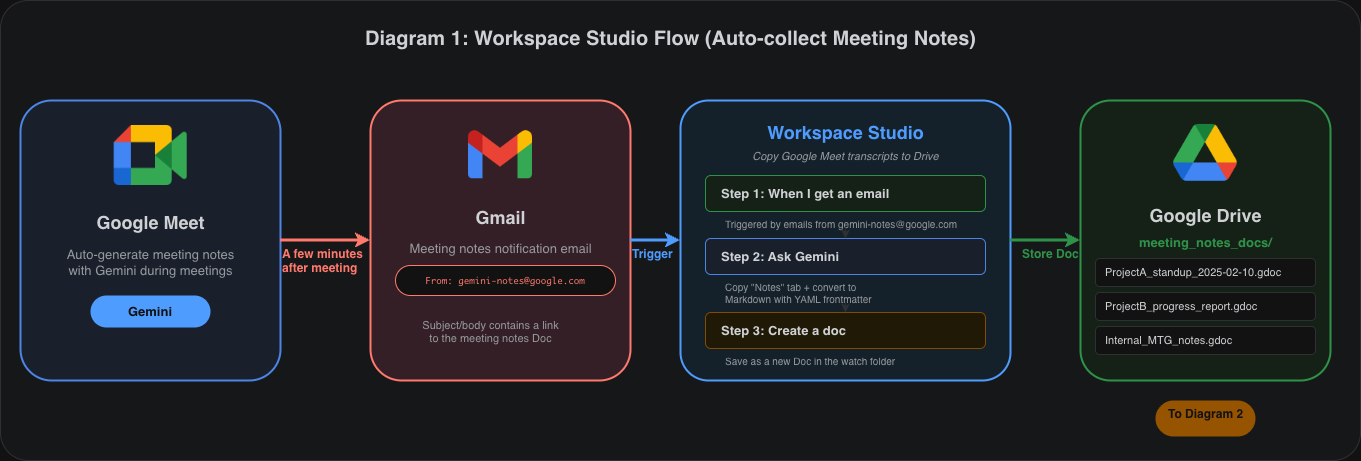
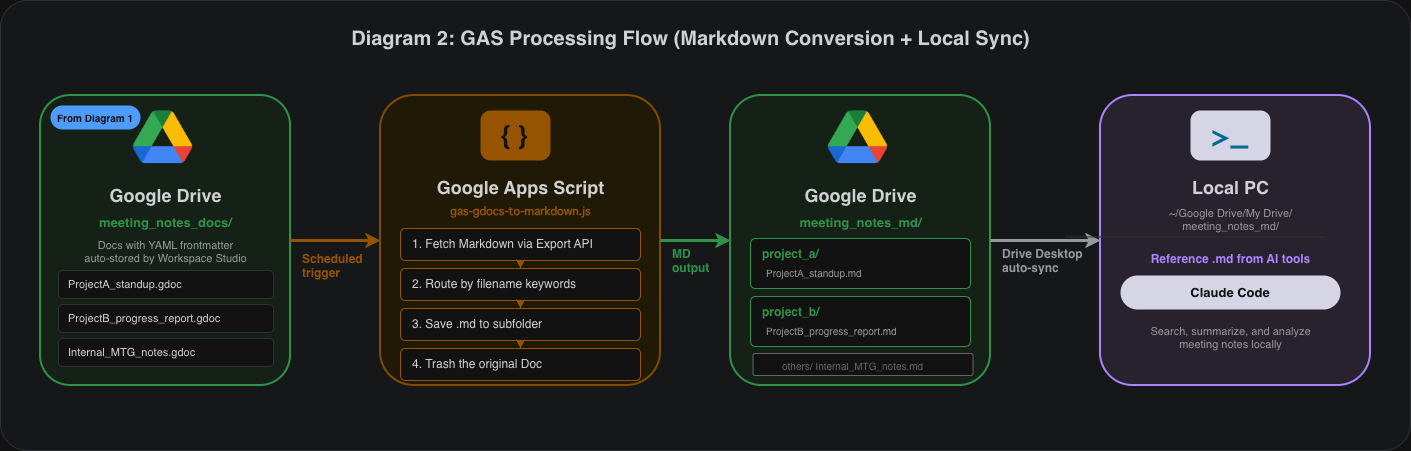
The process is divided into three main phases:
- Google Workspace (automatic): First, Gemini automatically generates minutes in Meet. A few minutes after the meeting ends, a notification email arrives from
gemini-notes@google.com, which triggers the Workspace Studio flow. In the flow, Gemini converts the minutes into a Markdown structure with YAML frontmatter and saves it as a new Google Doc in the monitored folder in My Drive. - GAS + Drive Desktop (automatic): A GAS time trigger checks for new and updated files in the monitored folder. It converts targeted Google Docs to Markdown using Drive API v3 Export API and routes them to project-specific subfolders based on keywords in the filenames. The converted Markdown files are automatically synchronized locally via Google Drive Desktop.
- Local utilization: The locally synchronized .md files can be directly read by AI Agents like Claude Code as context.
Google Drive Folder Structure
My Drive/
├── meeting_notes_docs/    ← Monitored folder (Docs placed flat)
│   ├── ProjectA_Regular_2025-02-10.gdoc
│   ├── ProjectB_Progress_Report.gdoc
│   └── Internal_MTG_Notes.gdoc
└── meeting_notes_md/      ← Output folder (.md output)
    ├── project_a/          ← Files containing "ProjectA" in name → auto-routed
    ├── project_b/          ← Files containing "ProjectB" in name → auto-routed
    └── others/            ← No keyword match → others
No subfolders are created in the monitored folder; all Docs are placed flat. The subfolders in the output folder are automatically created by GAS based on ROUTING_RULES.
Implementation
The implementation code is stored on GitHub.
64_gas_gdocs_to_markdown/
├── gas-gdocs-to-markdown.js    # GAS script
└── README.md                   # Setup instructions
Workspace Studio Flow
I built a three-step flow in Workspace Studio. You can access Workspace Studio here:
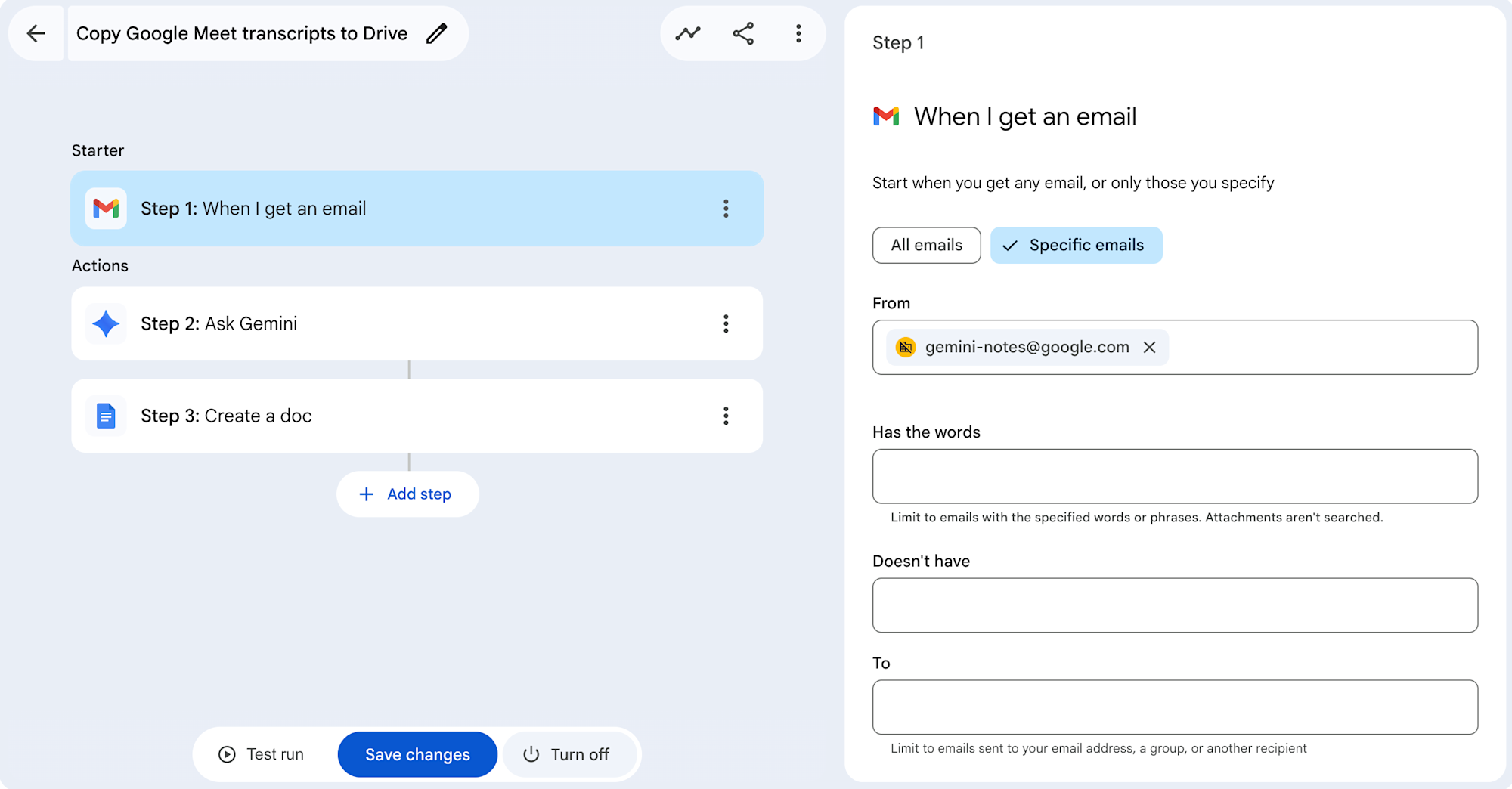
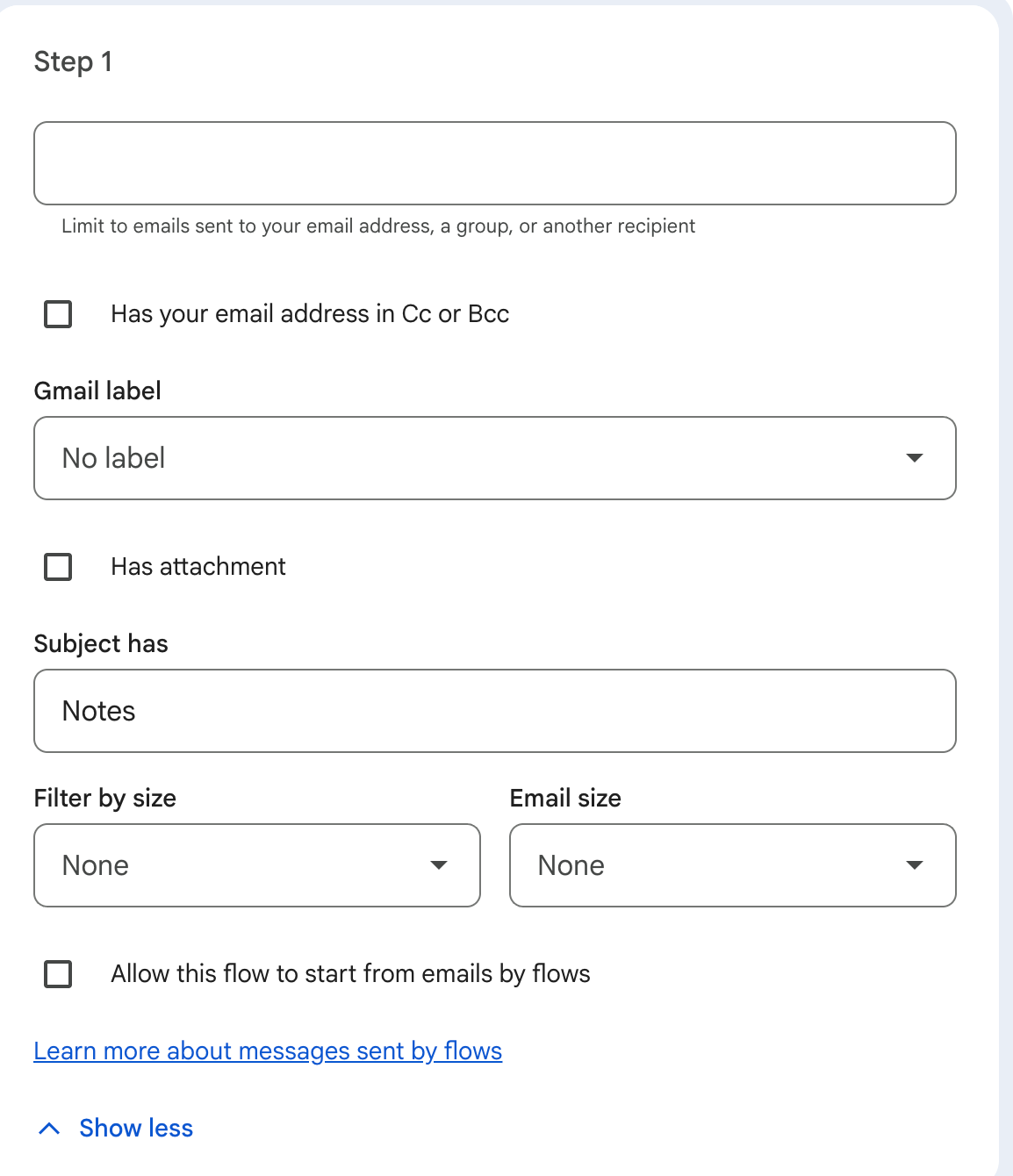
In Step 1, I set up the email trigger. When minutes are generated in Meet, a notification email with the subject "Notes:" arrives from gemini-notes@google.com a few minutes after the meeting ends. By setting this sender address and subject in the From and Subject has fields, the flow is automatically triggered when minutes are generated.
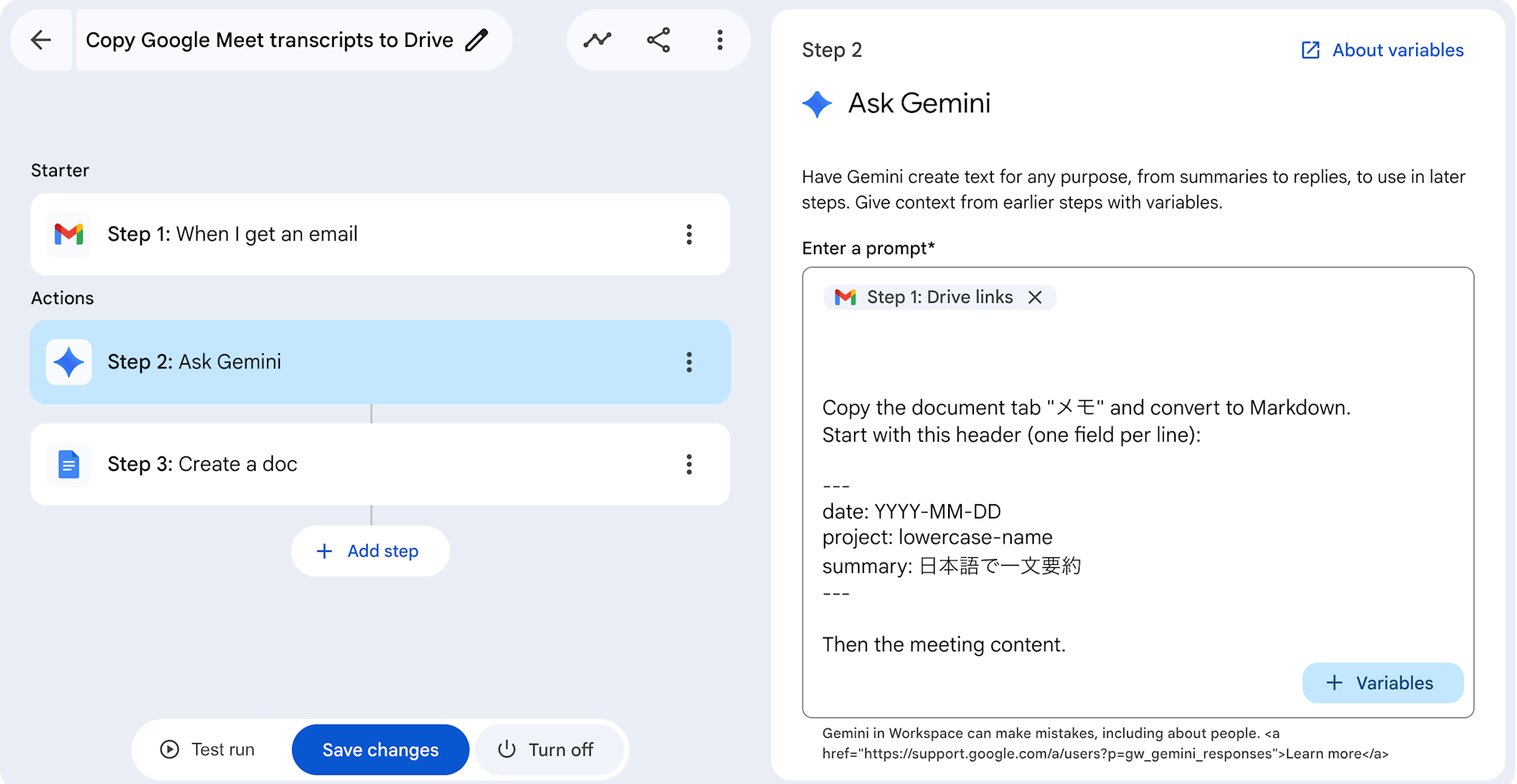
In Step 2, I use Ask Gemini to structure the minutes. I copy the content from the "Notes" tab of the generated minutes Doc and convert it to a Markdown structure with YAML frontmatter using the following prompt. I also set up Variables with the Drive links received in the email from Step 1. This could probably also be done with Email attachments file name, but I succeeded with Drive links so I'm using that. This variable allows Gemini to read the link to the document included in the email.
Copy the document tab "メモ" and convert to Markdown.
Start with this header (one field per line):

---
date: YYYY-MM-DD
project: lowercase-name
summary: one-line summary in Japanese
---

Then the meeting content.
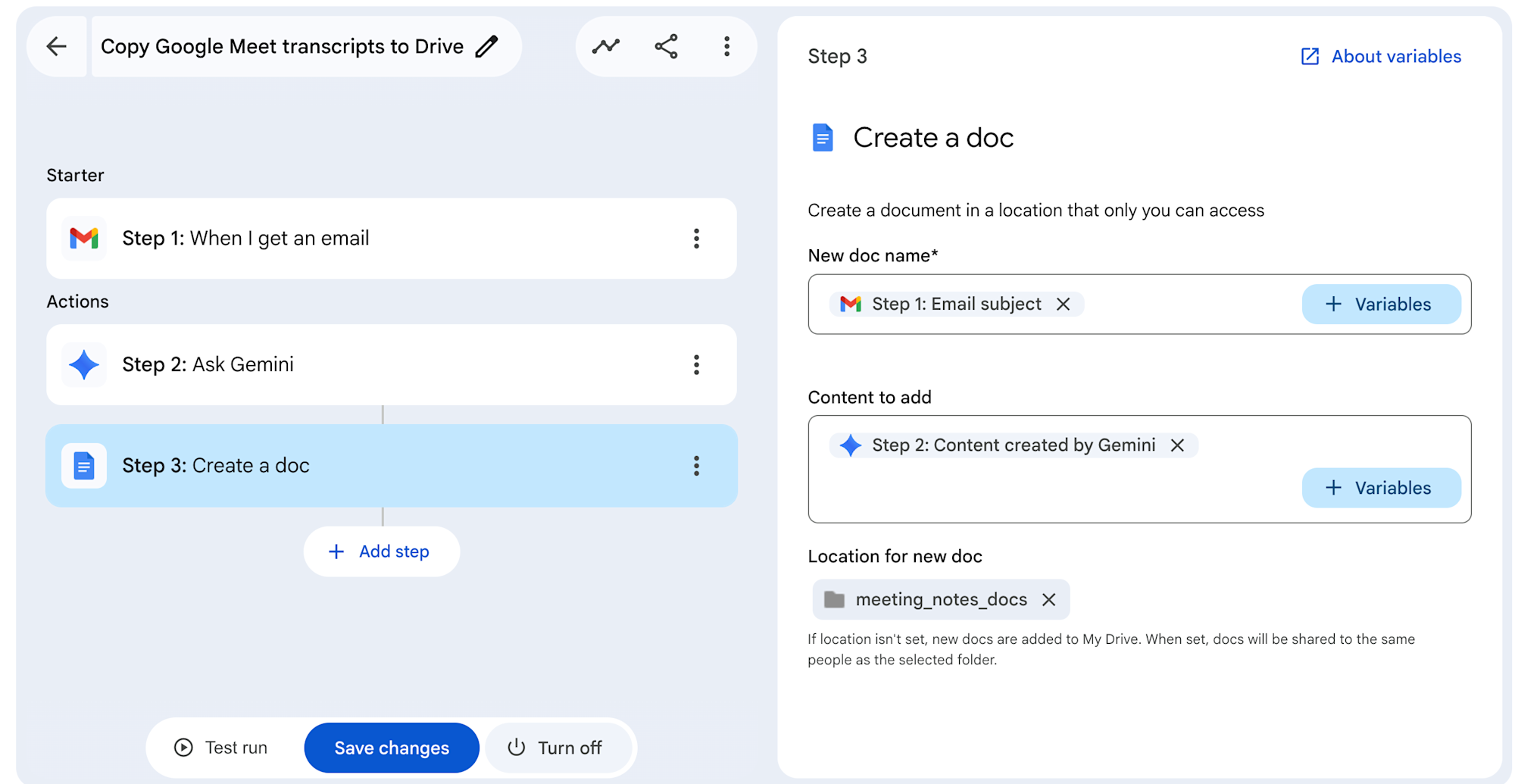
In Step 3, I use Create a doc to save the structured content as a new Google Doc in meeting_notes_docs. The filename is set to the email subject, and the Content is set to the Gemini output from Step 2. This Doc will be converted to Markdown by GAS in the next stage.
Google Apps Script
The GAS trigger periodically executes the exportChanged function. It only processes Google Docs that have been updated since the last execution time, determining the routing destination based on keywords in the filename. After successful conversion, the original Google Doc is moved to the trash.
/**
 * Load configuration from Script Properties.
 */
function getConfig_() {
  const props = PropertiesService.getScriptProperties();

  // ROUTING_RULES format: "keywordA:folder_a,keywordB:folder_b"
  const routingRaw = props.getProperty('ROUTING_RULES') || '';
  const routingRules = routingRaw
    ? routingRaw.split(',').map((rule) => {
        const [keyword, folder] = rule.split(':').map((s) => s.trim());
        return { keyword, folder };
      })
    : [];

  return {
    watchFolderId: props.getProperty('WATCH_FOLDER_ID'),
    outputFolderId: props.getProperty('OUTPUT_FOLDER_ID'),
    routingRules,
  };
}

/**
 * Determine the routing subfolder name from a file name.
 * Returns "others" if no rule matches.
 */
function resolveFolder_(fileName, routingRules) {
  for (const rule of routingRules) {
    if (fileName.includes(rule.keyword)) {
      return rule.folder;
    }
  }
  return 'others';
}

// ============================================================
// Main functions
// ============================================================

/**
 * Main: convert Docs that have been added or updated since the last run.
 */
function exportChanged() {
  const config = getConfig_();
  const props = PropertiesService.getScriptProperties();
  const lastRun = props.getProperty('last_run_at');
  const watchFolder = DriveApp.getFolderById(config.watchFolderId);
  const outputRoot = DriveApp.getFolderById(config.outputFolderId);
  const query = buildQuery_(lastRun);
  const files = watchFolder.searchFiles(query);

  let count = 0;
  while (files.hasNext()) {
    const file = files.next();
    try {
      count += processFile_(file, outputRoot, config);
    } catch (e) {
      Logger.log(`Error: ${file.getName()}`);
    }
  }

  props.setProperty('last_run_at', new Date().toISOString());
  Logger.log(count > 0 ? `Done. ${count} file(s) exported.` : 'No changes detected.');
}

/**
 * Force-export all files (for initial run).
 */
function exportAll() {
  const config = getConfig_();
  const props = PropertiesService.getScriptProperties();
  const watchFolder = DriveApp.getFolderById(config.watchFolderId);
  const outputRoot = DriveApp.getFolderById(config.outputFolderId);
  const query = 'mimeType = "application/vnd.google-apps.document"';
  const files = watchFolder.searchFiles(query);

  let count = 0;
  while (files.hasNext()) {
    const file = files.next();
    try {
      count += processFile_(file, outputRoot, config);
    } catch (e) {
      Logger.log(`Error: ${file.getName()}`);
    }
  }

  props.setProperty('last_run_at', new Date().toISOString());
  Logger.log(`Done. ${count} file(s) exported.`);
}

/**
 * Process a single file: convert to Markdown, route to subfolder, delete original.
 * @return {number} 1 on success, 0 on failure
 */
function processFile_(file, outputRoot, config) {
  const docName = file.getName();
  const subName = resolveFolder_(docName, config.routingRules);
  const outputSub = getOrCreateSubFolder_(outputRoot, subName);
  const md = exportAsMarkdown_(file.getId());
  const fileName = `${sanitizeFileName_(docName)}.md`;

  saveToFolder_(outputSub, fileName, md);
  Logger.log(`${docName} → ${subName}/${fileName}`);

  file.setTrashed(true);
  Logger.log(`Deleted: ${docName}`);

  return 1;
}

// ============================================================
// Search and export
// ============================================================

/**
 * Build a search query (Google Docs filtered by modified date).
 */
function buildQuery_(lastRunIso) {
  let q = 'mimeType = "application/vnd.google-apps.document"';
  if (lastRunIso) {
    q += ` and modifiedDate > "${lastRunIso}"`;
  }
  return q;
}

/**
 * Fetch Markdown text from a Google Doc via Drive API v3 REST export.
 */
function exportAsMarkdown_(docId) {
  const url = `https://www.googleapis.com/drive/v3/files/${docId}/export?mimeType=${encodeURIComponent('text/markdown')}`;
  const response = UrlFetchApp.fetch(url, {
    headers: { Authorization: `Bearer ${ScriptApp.getOAuthToken()}` },
  });
  return response.getContentText('UTF-8');
}

// ============================================================
// Utilities
// ============================================================

/**
 * Get an existing subfolder by name, or create one if it doesn't exist.
 */
function getOrCreateSubFolder_(parentFolder, subName) {
  const folders = parentFolder.getFoldersByName(subName);
  if (folders.hasNext()) {
    return folders.next();
  }
  return parentFolder.createFolder(subName);
}

/**
 * Save a .md file to a folder (overwrite if it already exists).
 */
function saveToFolder_(folder, fileName, content) {
  const existing = folder.getFilesByName(fileName);

  if (existing.hasNext()) {
    const file = existing.next();
    file.setContent(content);
  } else {
    folder.createFile(fileName, content, 'text/markdown');
  }
}

/**
 * Remove characters that are invalid in file names.
 */
function sanitizeFileName_(name) {
  return name.replace(/[\/\\?%*:|"<>\s]/g, '_').trim();
}
In gas-gdocs-to-markdown.js, I combine configuration loading, Markdown conversion, and file routing into a single script.
getConfig_() loads all settings from script properties. ROUTING_RULES is in a comma-separated keyword:folder_name format, determining the output subfolder based on keywords in the filename. Files that don't match any keyword are routed to the others folder.
exportAsMarkdown_() exports Google Docs to text/markdown format using the Drive API v3 REST endpoint. It gets an OAuth token with ScriptApp.getOAuthToken() and calls the API with UrlFetchApp.fetch(). The response is converted to a string with getContentText("UTF-8").
processFile_() is the processing unit for a single file. It handles the flow of MD conversion → saving to the routing subfolder → moving the original Doc to trash.
There are two main functions: exportChanged and exportAll. exportChanged is a differential export that only targets Docs updated since the last execution time (last_run_at) and is called from the time trigger. exportAll targets all files for the initial run.
Deployment
Create Folders in Google Drive
Create a monitoring folder (meeting_notes_docs) and an output folder (meeting_notes_md) in My Drive. Copy the folder ID from each folder's URL.
https://drive.google.com/drive/folders/[THIS_IS_THE_FOLDER_ID]
Create a GAS Project
- Open GAS (https://script.google.com)
- Click "New project"
- Enter a project name (e.g.,
Docs to Markdown) - Delete all the default code
- Paste the entire contents of
gas-gdocs-to-markdown.js - Press Ctrl+S (Mac: Cmd+S) to save
Note that functions won't be recognized until you save. After saving, the "No functions" in the top toolbar will change to a function list.
Set Script Properties
Register the following in the GAS editor's left menu "Project Settings" → "Script Properties":
| Property Name | Value | Description |
|---|---|---|
WATCH_FOLDER_ID |
<Monitoring folder ID> |
ID of the folder to monitor |
OUTPUT_FOLDER_ID |
<Output folder ID> |
ID of the parent folder for .md output |
ROUTING_RULES |
ProjectA:project_a,ProjectB:project_b |
Filename keyword:Output subfolder |
Multiple rules can be set in ROUTING_RULES separated by commas.
Sync with Google Drive Desktop
Set up Google Drive Desktop following the official instructions.
Post-Deployment Verification
Workspace Studio Test Run
First, verify that the Workspace Studio flow works correctly. Click "Test run" at the bottom of the flow screen, select an existing email, and click "Start".
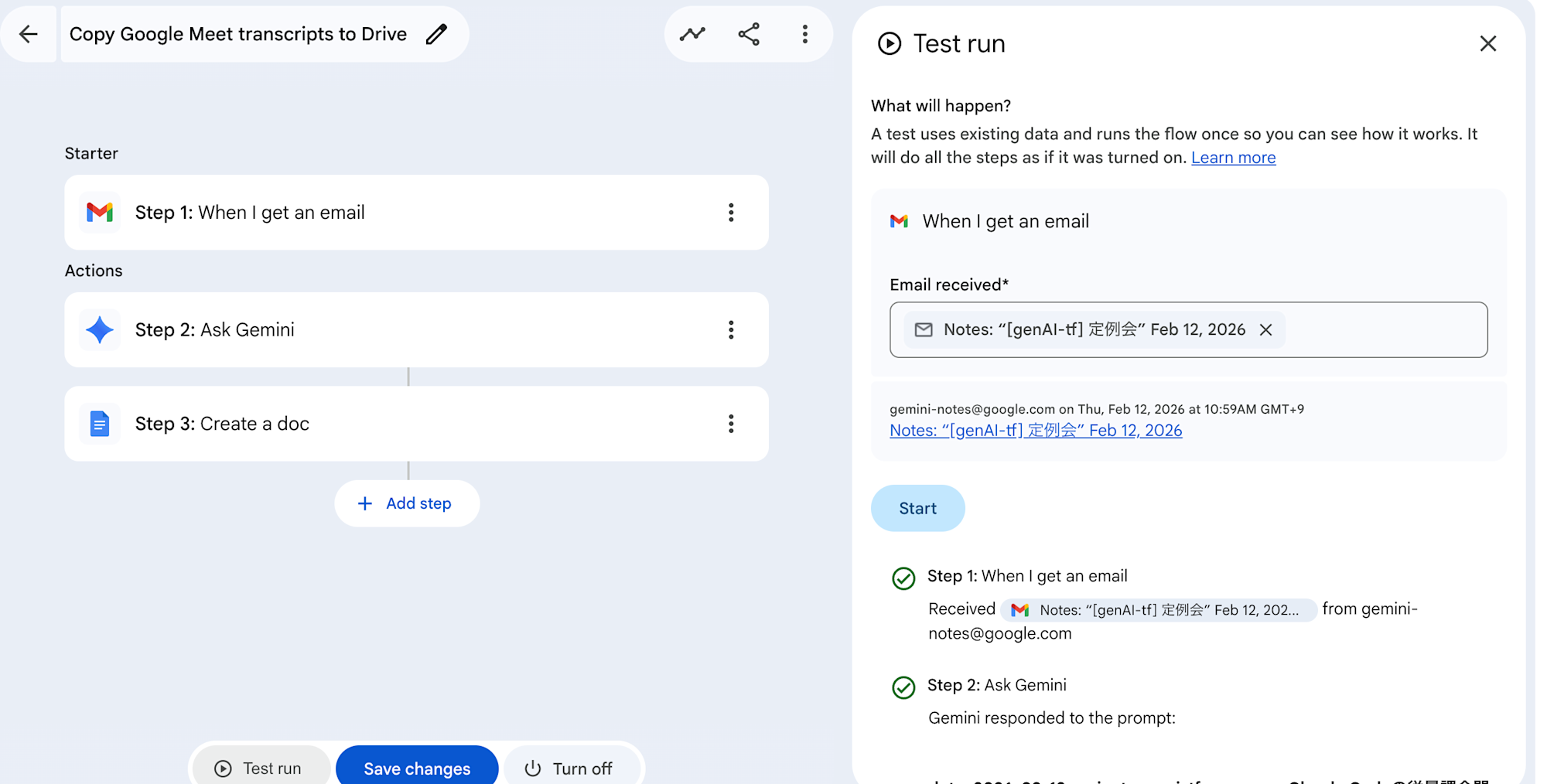
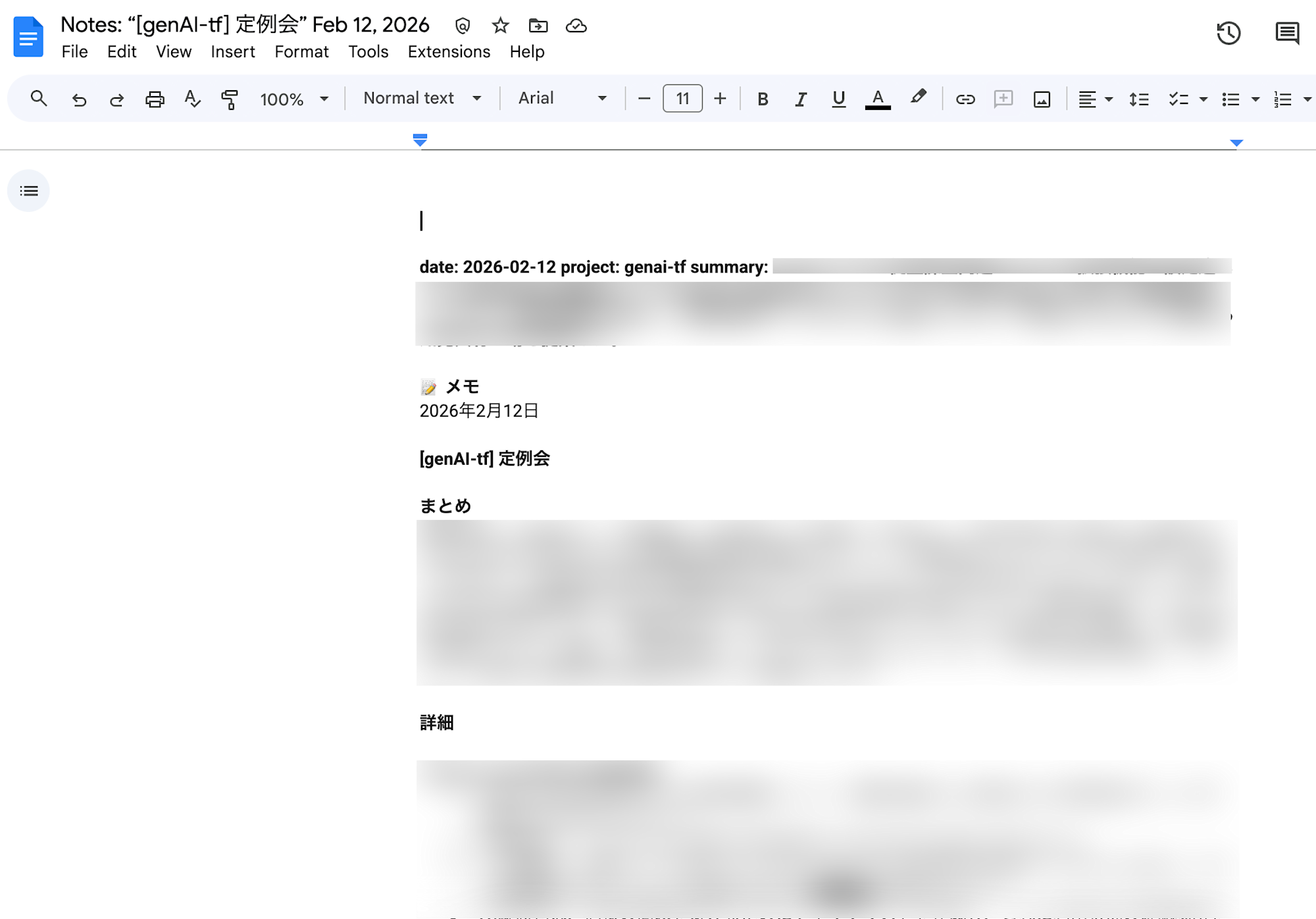
If the test is successful, a structured Google Doc will be created in the monitored folder (meeting_notes_docs).
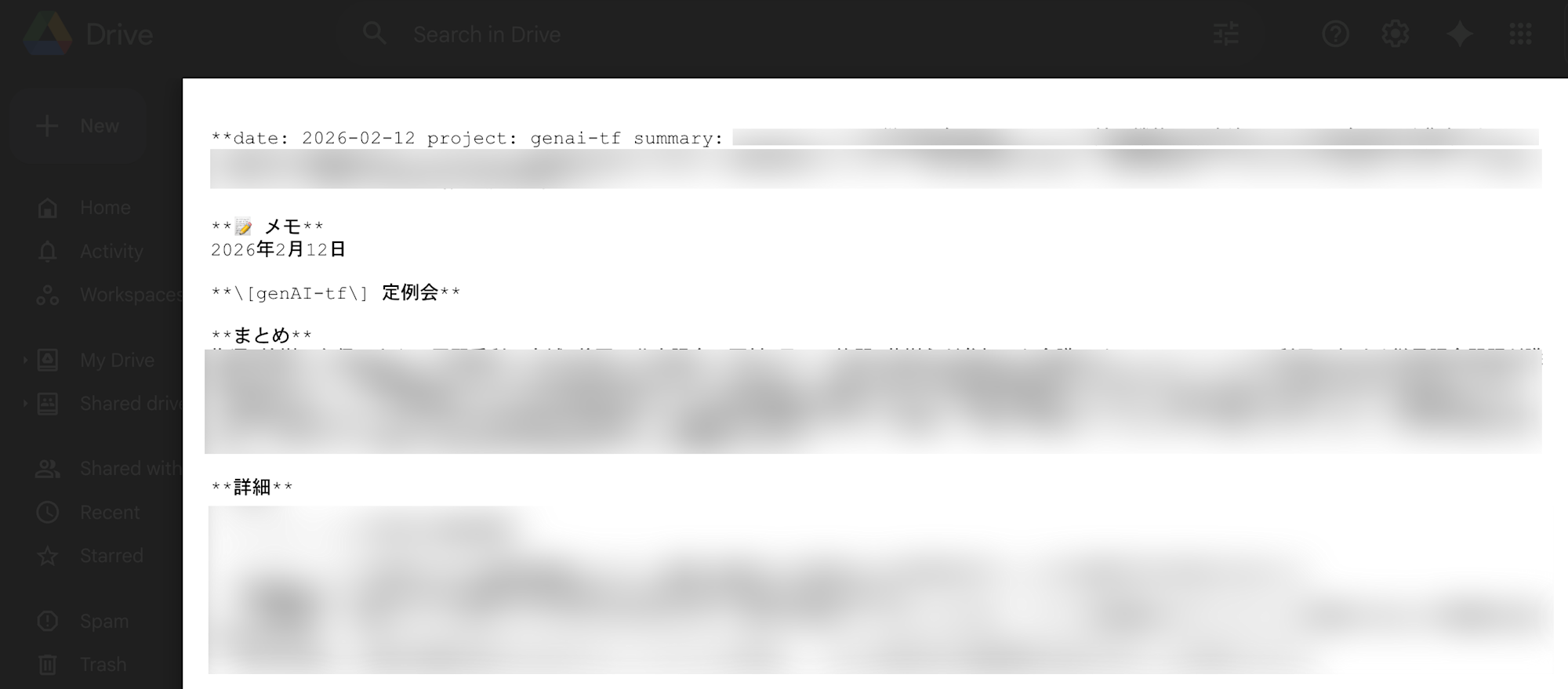
After several attempts, I noticed that the line breaks in the YAML frontmatter weren't always output as intended. Please adjust the Gemini prompt as needed.
GAS Initial Run
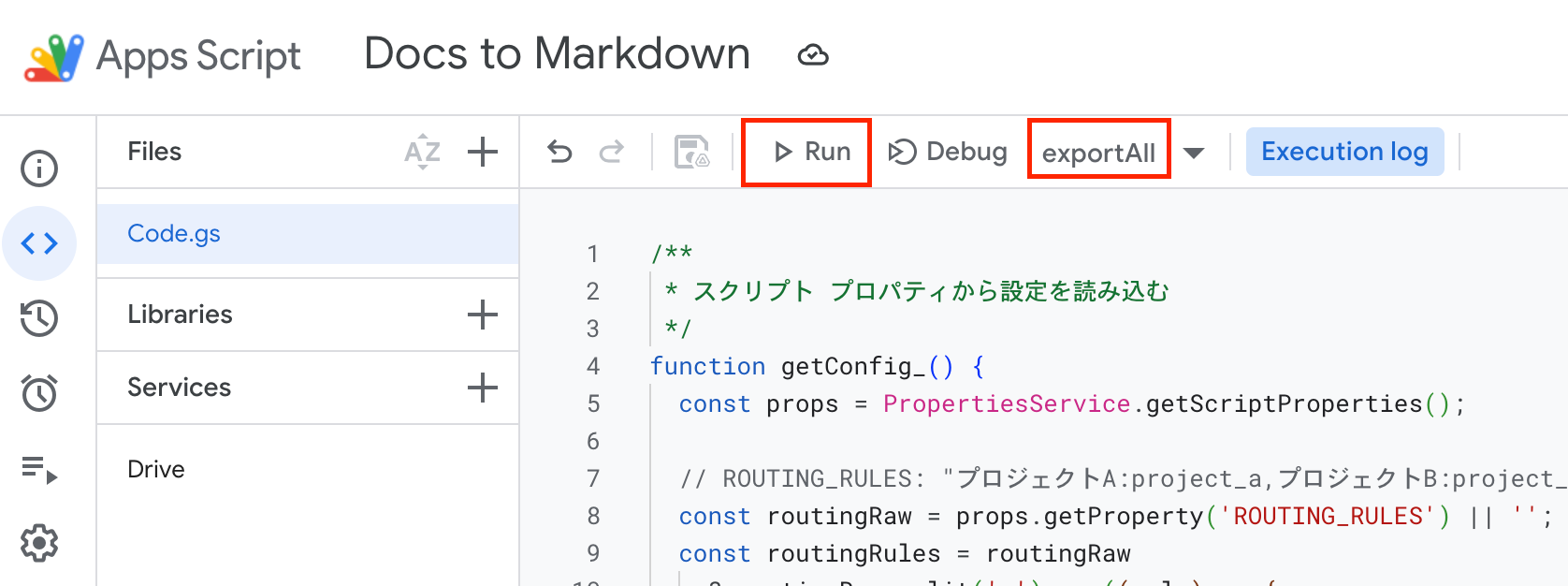
Select exportAll from the function dropdown in the GAS toolbar and click Run.
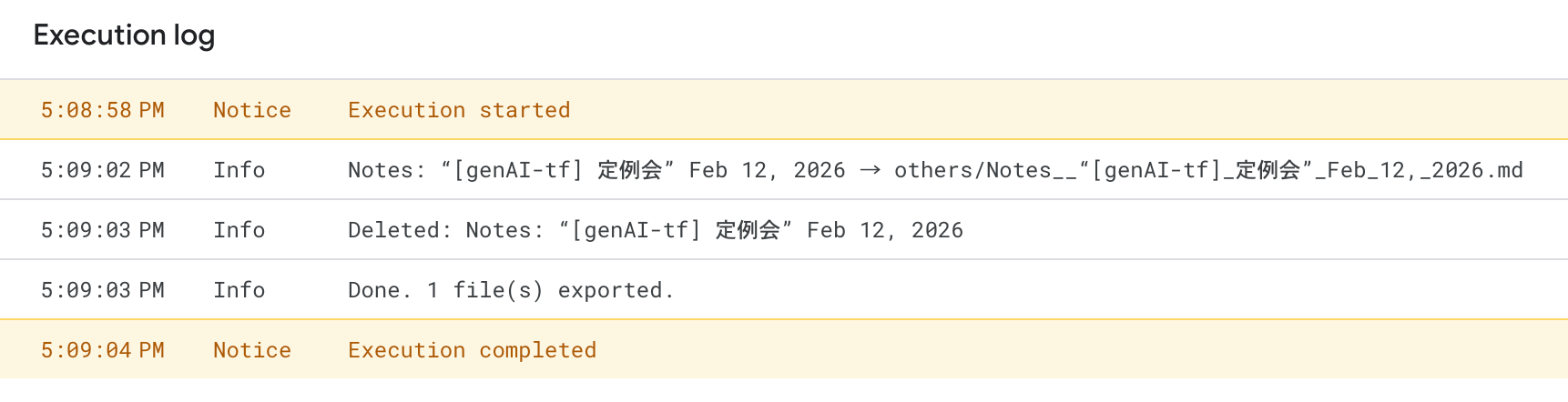
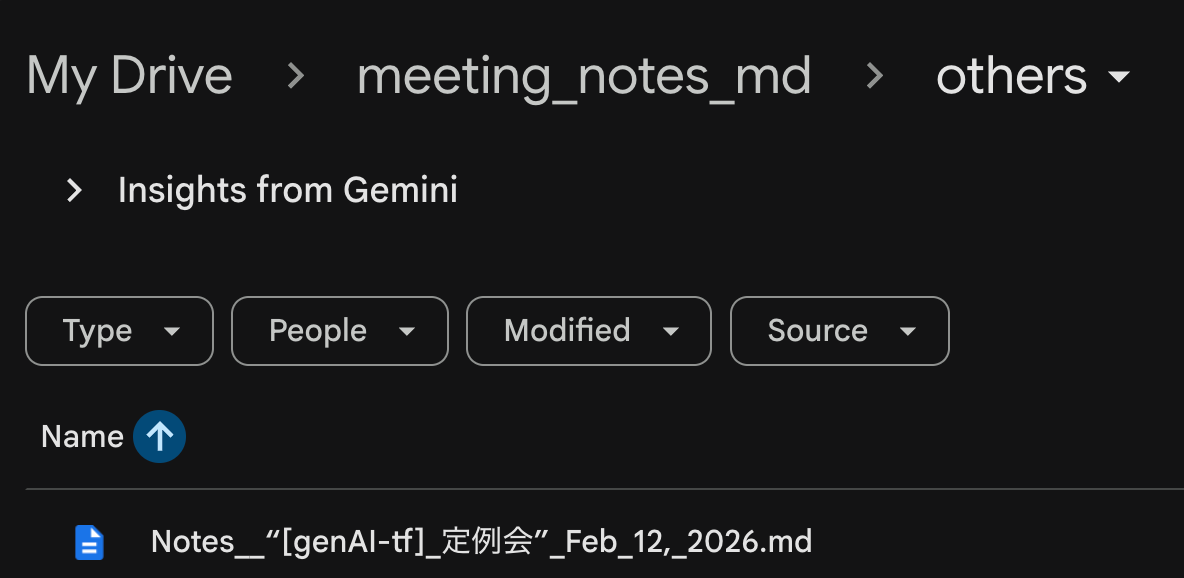
Markdown files are generated in the output destination.
Set Up a Time Trigger
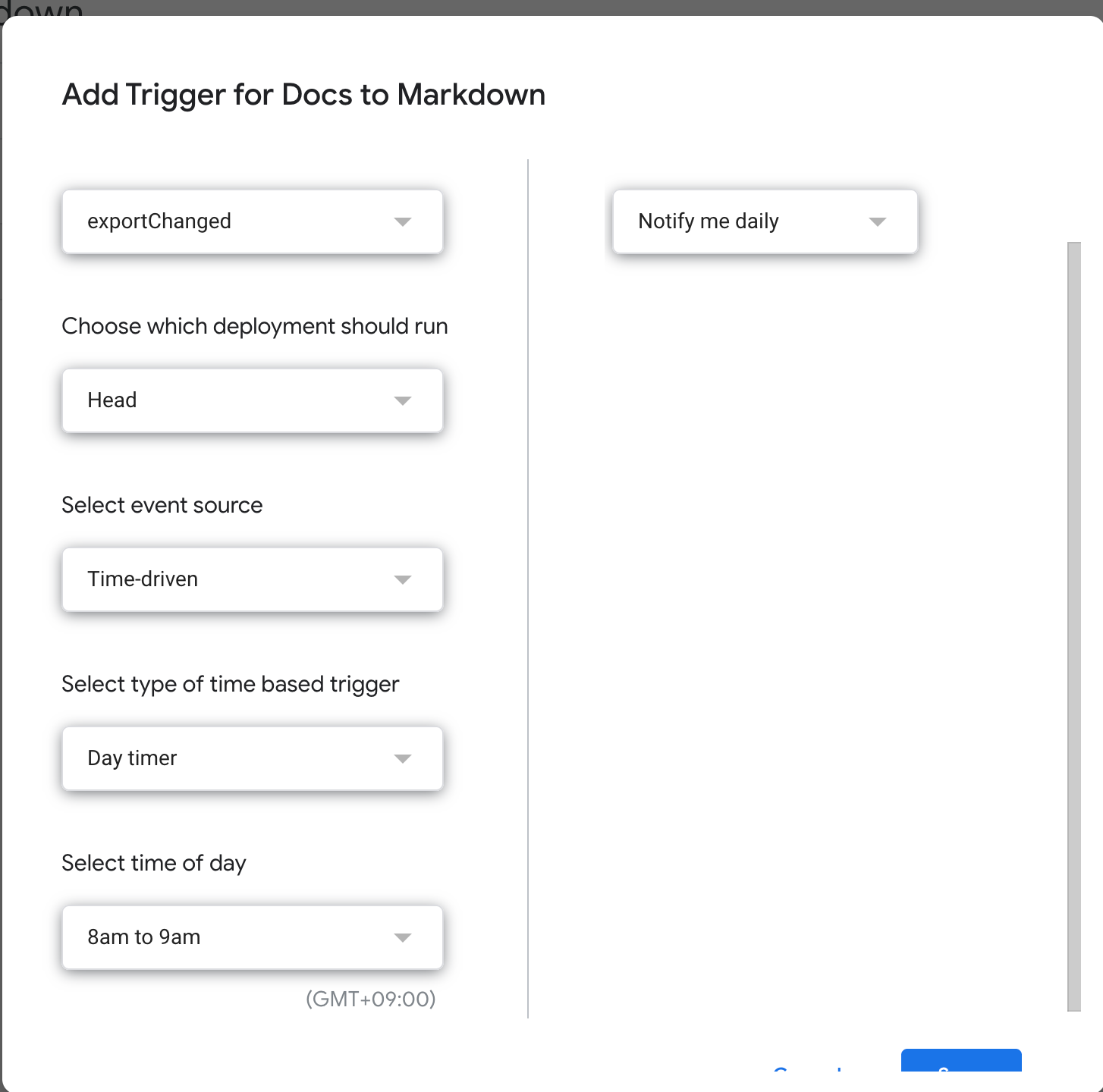
Click "Triggers" (clock icon) in the left menu of the GAS editor, then "Add Trigger" in the bottom right to configure. Set the time settings to your preferred interval.
- Choose which function to run:
exportChanged - Choose which deployment should run:
Head - Select event source:
Time-driven - Select type of time based trigger:
Day timer - Select time of day:
8am to 9am - Failure notification settings:
Notify me daily
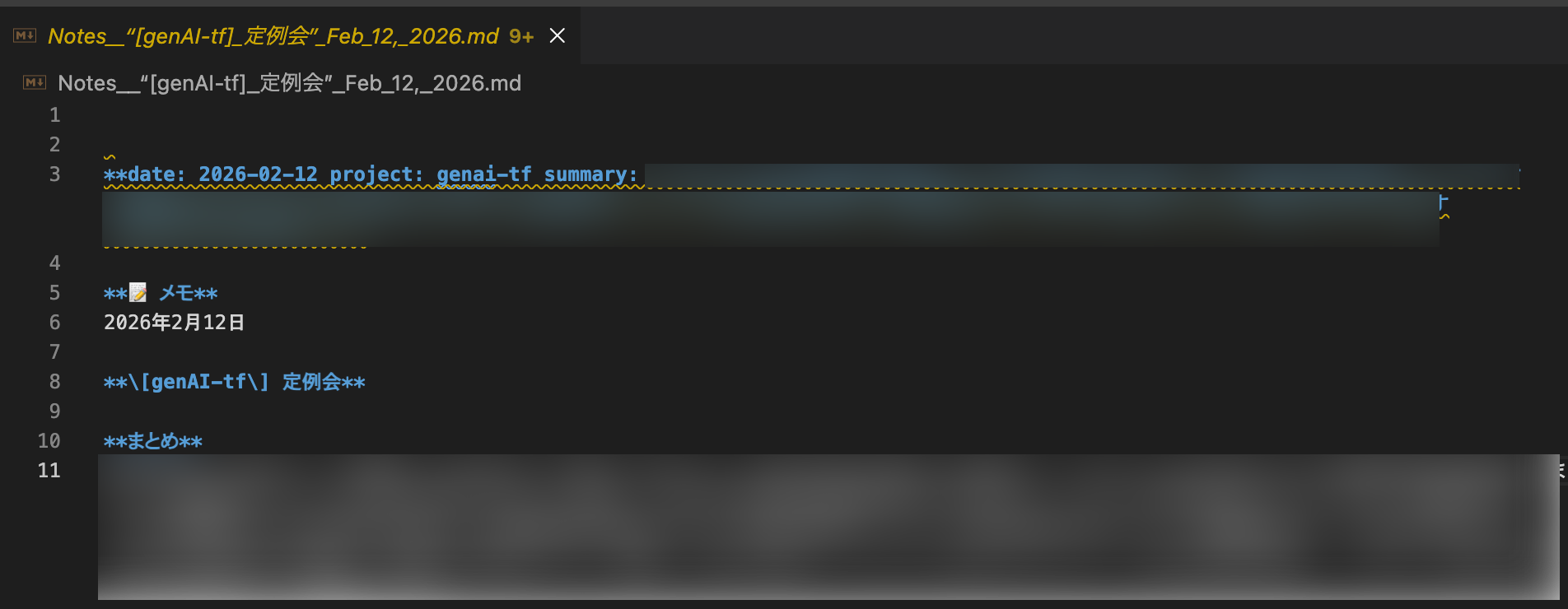
Once output to Markdown, you can reference it locally in VS Code or have it read by AI.
Conclusion
With this setup, you should be able to easily summarize, analyze, and search your meeting minutes using AI Agents. I've only been operating this system for a few days, so I'll update this blog if I find any issues. I hope this is useful to someone.