![[Tip] How to Fix the Issue of Being Unable to Access \\wsl.localhost\Ubuntu in WSL](https://devio2024-media.developers.io/image/upload/f_auto,q_auto,w_3840/v1790772025/user-gen-eyecatch/ws5wf97bf5me7qwbrdbd.png)
[Tip] How to Fix the Issue of Being Unable to Access \\wsl.localhost\Ubuntu in WSL

This page has been translated by machine translation. View original
I'm emi, a coffee lover.
When I tried to open \\wsl.localhost\Ubuntu from Windows Explorer, it showed "Invalid address" and I was unable to access Ubuntu files.
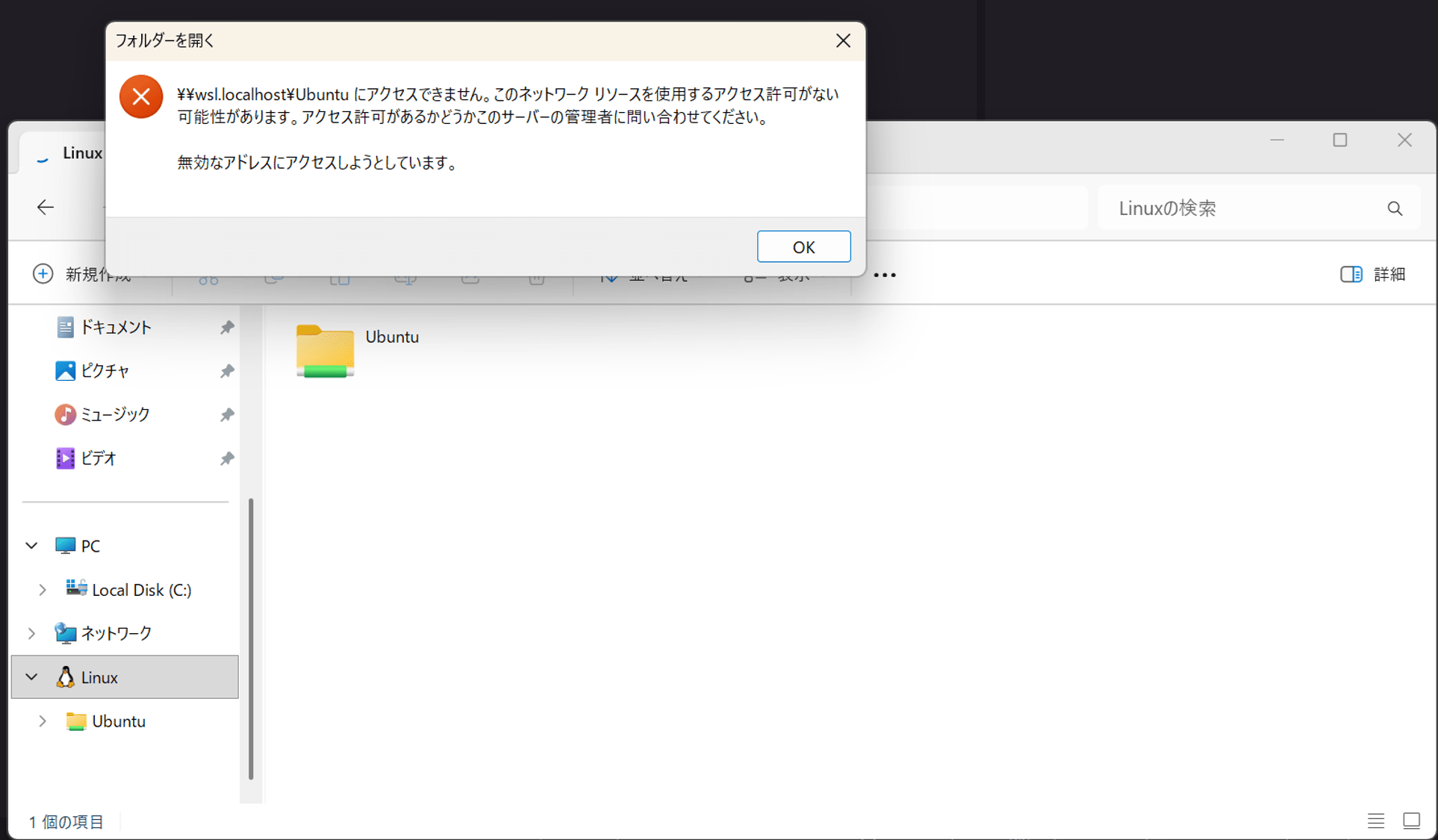
It often came back after reloading, but no matter how many times I tried, it wouldn't open, and a sad "ding..." sound echoed.
Since I carried out both the investigation and resolution of the issue, I'll share what I found.
Conclusion
- In this case, Ubuntu and WSL2 itself were functioning normally
- On the Windows side, only the UNC path (a path representing a network location)
\\wsl.localhost\Ubuntucould not be resolved - During troubleshooting, I was able to access the same Ubuntu files via
\\wsl$\Ubuntu - The cause was likely a temporary malfunction on the
WslServiceside, not WSL or Ubuntu itself
After running the following 2 commands in an administrator PowerShell, I was able to access \\wsl.localhost\Ubuntu.
Restart-Service WslService
wsl --shutdown
The conclusion is essentially a restart, but before reaching that point, I checked various things to narrow down the cause.
Environment
The environment I verified is as follows.
- Windows 11 (Version 25H2, Build 10.0.26200.9448)
- WSL Version 3.0.1.0 (Kernel 6.18.40.1-1, default is WSL2)
- Ubuntu (default distribution)
Version check commands
WSL version
PS ...> wsl --version
>>
WSL version: 3.0.1.0
Kernel version: 6.18.40.1-1
WSLg version: 1.0.79
MSRDC version: 1.2.7214
Direct3D version: 1.611.1-81528511
DXCore version: 10.0.26100.1-240331-1435.ge-release
Windows version: 10.0.26200.9448
PS ...> wsl --status
PS ...> wsl --status
>>
Default distribution: Ubuntu
Default version: 2
WSL1 is not supported on the current machine configuration.
To use WSL1, please enable the "Windows Subsystem for Linux" optional component.
PS ...>
Windows version and build number
PS ...> [System.Environment]::OSVersion.Version

Major  Minor  Build  Revision
-----  -----  -----  --------
10     0      26200  0

PS ...>
PS ...> (Get-ItemProperty "HKLM:\SOFTWARE\Microsoft\Windows NT\CurrentVersion").DisplayVersion
>>
25H2
PS ...>
Checking whether WSL2 and Ubuntu are running
First, I checked the WSL list and status in PowerShell, then started Ubuntu directly. The actual commands and output are as follows.
PS C:\Users\{username}> wsl -l -v
  NAME      STATE           VERSION
* Ubuntu    Running         2
PS C:\Users\{username}>
PS C:\Users\{username}> wsl -d Ubuntu
emiki@<hostname>:/mnt/c/Users/{username}$
emiki@<hostname>:/mnt/c/Users/{username}$ exit
logout
PS C:\Users\{username}>
Ubuntu is Running and is starting normally as WSL2.
When I ran wsl -d Ubuntu, the Ubuntu shell also started normally.
At this point, I understood that it was not a case of Ubuntu itself having disappeared or being unable to start.
The reason the current directory after starting is /mnt/c/Users/{username} is because I ran wsl -d Ubuntu from PowerShell's C:\Users\{username}, inheriting the current directory from the Windows side.
Stopping WSL and restarting Ubuntu
To check whether it was a temporary malfunction, I stopped WSL and restarted Ubuntu.
PS C:\Users\{username}> wsl --shutdown
PS C:\Users\{username}>
PS C:\Users\{username}> wsl -d Ubuntu
emiki@<hostname>:/mnt/c/Users/{username}$
Even after restarting, the Ubuntu shell opened normally. However, I still could not access \\wsl.localhost\Ubuntu from Explorer.
Since Ubuntu itself was running, there was a possibility of opening it via a different route.
WSL files can be accessed from \\wsl$ in addition to \\wsl.localhost. So I entered the following path in the Explorer address bar.
\\wsl$\Ubuntu
I was able to access Ubuntu files from here. It seems the problem was limited to the \\wsl.localhost route, not the entire WSL filesystem.
Checking name resolution from both Ubuntu and Windows
Since only \\wsl.localhost couldn't be opened, I checked whether the name wsl.localhost could be resolved. This time I used ping, which is used for connectivity checks. When you run ping, the address that the target name resolved to is shown first, so I looked at that part. First, I checked from the Ubuntu side.
emiki@<hostname>:/mnt/c/Users/{username}$ ping wsl.localhost
PING wsl.localhost(ip6-localhost (::1)) 56 data bytes
64 bytes from ip6-localhost (::1): icmp_seq=1 ttl=64 time=0.023 ms
64 bytes from ip6-localhost (::1): icmp_seq=2 ttl=64 time=0.047 ms
64 bytes from ip6-localhost (::1): icmp_seq=3 ttl=64 time=0.049 ms
64 bytes from ip6-localhost (::1): icmp_seq=4 ttl=64 time=0.049 ms
64 bytes from ip6-localhost (::1): icmp_seq=5 ttl=64 time=0.081 ms
64 bytes from ip6-localhost (::1): icmp_seq=6 ttl=64 time=0.085 ms
^C
--- wsl.localhost ping statistics ---
6 packets transmitted, 6 received, 0% packet loss, time 5112ms
rtt min/avg/max/mdev = 0.023/0.055/0.085/0.021 ms
emiki@<hostname>:/mnt/c/Users/{username}$
Next, I also checked from the PowerShell side.
PS C:\Users\{username}> ping wsl.localhost

Pinging wsl.localhost [::1] with 32 bytes of data:
Reply from ::1: time<1ms
Reply from ::1: time<1ms
Reply from ::1: time<1ms
Reply from ::1: time<1ms

Ping statistics for ::1:
    Packets: Sent = 4, Received = 4, Lost = 0 (0% loss),
Approximate round trip times in milli-seconds:
    Minimum = 0ms, Maximum = 0ms, Average = 0ms
PS C:\Users\{username}>
Checking the resolved address shown at the top, both resolved wsl.localhost to ::1, which is the IPv6 loopback address. Name resolution seems to be fine.
Checking whether the UNC path can be opened from PowerShell
To determine whether it was a problem specific to Explorer, I tried retrieving the contents of \\wsl.localhost\Ubuntu from PowerShell.
PS C:\Users\{username}> Get-ChildItem \\wsl.localhost\Ubuntu
Get-ChildItem : Cannot find path '\\wsl.localhost\Ubuntu' because it does not exist.
At line:1 char:1
+ Get-ChildItem \\wsl.localhost\Ubuntu
+ ~~~~~~~~~~~~~~~~~~~~~~~~~~~~~~~~~~~~
    + CategoryInfo          : ObjectNotFound: (\\wsl.localhost\Ubuntu:String) [Get-ChildItem], ItemNotFoundException
    + FullyQualifiedErrorId : PathNotFound,Microsoft.PowerShell.Commands.GetChildItemCommand

PS C:\Users\{username}>
PowerShell also returned that the path does not exist.
It appears that not just the Explorer display, but the UNC path \\wsl.localhost\Ubuntu itself cannot be processed on the Windows side.
Checking the WSL Service status and restarting it
I'll check whether the WSL Service on the Windows side is running.
PS C:\Users\{username}> Get-Service WslService

Status   Name               DisplayName
------   ----               -----------
Running  WslService         WSL Service

PS C:\Users\{username}>
WslService is Running.
Next, I'll restart the service from PowerShell.
PS C:\Users\{username}> Restart-Service WslService
Restart-Service : Failed to stop service 'WSL Service (WslService)' due to the following error: Cannot open WslService
service on computer '.'.
At line:1 char:1
+ Restart-Service WslService
+ ~~~~~~~~~~~~~~~~~~~~~~~~~~
    + CategoryInfo          : CloseError: (System.ServiceProcess.ServiceController:ServiceController) [Restart-Service
   ], ServiceCommandException
    + FullyQualifiedErrorId : CouldNotStopService,Microsoft.PowerShell.Commands.RestartServiceCommand

PS C:\Users\{username}>
It failed because I was running in a normal-privilege PowerShell and didn't have sufficient permissions. I'll reopen it with administrator privileges and run it again.
Search for PowerShell in the Start menu, right-click, and reopen it by selecting "Run as administrator".
PS C:\WINDOWS\system32> Restart-Service WslService
PS C:\WINDOWS\system32>
PS C:\WINDOWS\system32> wsl --shutdown
PS C:\WINDOWS\system32>
PS C:\WINDOWS\system32> wsl -d Ubuntu
emiki@<hostname>:/mnt/c/WINDOWS/system32$
emiki@<hostname>:/mnt/c/WINDOWS/system32$ exit
logout
PS C:\WINDOWS\system32>
PS C:\WINDOWS\system32> Get-ChildItem \\wsl.localhost\Ubuntu

    Directory: \\wsl.localhost\Ubuntu

Mode                 LastWriteTime         Length Name
----                 -------------         ------ ----
d-----        2023/01/04      6:41                snap
d-----        2024/10/26     16:33                wslmicKBN
d-----        2026/09/30     20:59                sys
d-----        2023/01/04      6:40                media
d-----        2023/03/17     14:55                home
d-----        2026/09/30     20:59                run
d-----        2026/09/30     20:59                dev
d-----        2026/09/30     20:59                proc
d-----        2025/09/17     15:58                wslhbPfIK
d-----        2023/03/17     14:53                lost+found
d-----        2026/09/30     20:59                etc
d-----        2023/01/04      6:41                var
d-----        2025/09/17     15:58                wslPOhfCM
d-----        2025/09/17     15:58                wslJGeMAM
d-----        2023/01/04      6:40                usr
d-----        2022/04/18     19:28                boot
d-----        2025/09/17     15:58                wslhfNBDM
d-----        2024/10/26     16:33                wslCaofJL
d-----        2023/01/04      6:40                srv
d-----        2023/01/04      6:40                opt
d-----        2024/10/26     16:33                wslHpbdIL
d-----        2025/09/17     15:58                wsloOfHCM
d-----        2024/10/26     16:33                wslbmDmDM
d-----        2026/09/30     17:25                tmp
d-----        2024/12/08     19:46                root
d-----        2024/10/26     16:33                wslMEIAdM
d-----        2023/03/17     14:53                mnt
-----l        2023/01/04      6:40              9 lib64
-----l        2023/01/04      6:40             10 libx32
-----l        2023/01/04      6:40              8 sbin
------        2026/09/26      8:31        3430904 init
-----l        2023/01/04      6:40              9 lib32
-----l        2023/01/04      6:40              7 lib
-----l        2023/01/04      6:40              7 bin

PS C:\WINDOWS\system32>
The list is displayed and access to \\wsl.localhost\Ubuntu has been restored!!!
Closing
The cause this time is thought to have been a temporary malfunction on the WslService side, not WSL or Ubuntu.
After running Restart-Service WslService and wsl --shutdown in an administrator PowerShell and restarting Ubuntu, I was able to access \\wsl.localhost\Ubuntu.
For questions or requests regarding this article, please contact us via "Feedback for DevelopersIO" at the bottom of the screen.