
I tested if Xcode 16.4 works on macOS 26.2

This page has been translated by machine translation. View original
I'm currently using Xcode 16.4 and working on updating to Xcode 26 to support the new "Liquid Glass" UI effect introduced in iOS 26/macOS 26. With long-running apps, it's difficult to easily transition to the new UI design style, making it hard to adopt the Liquid Glass effect. Therefore, I need to continue using Xcode 16.4 as my main development environment for a while.
In this situation, macOS 26.2 was released on December 12, 2025. I investigated whether Xcode 16.4 can be used with macOS 26.2.
This article introduces how to check Xcode compatibility before updating macOS, along with my findings.
Test Environment
- macOS 26.2 + Xcode 16.4
- macOS 26.2 + Xcode 26.2
Challenges with Traditional Verification Methods
Until now, I've been using separate personal and work computers. I would configure my personal computer to match my work environment, then update the OS on my personal computer first. After confirming Xcode launches properly, I would update my work computer.
However, this process is quite time-consuming. I investigated if there were more efficient methods.
Websites for Pre-checking Xcode Compatibility
My investigation revealed websites that allow checking Xcode compatibility in advance. There are two types: community-managed resources and official Apple documentation.
1. xcodereleases.com
This is the most recommended site in the developer community. It provides detailed information about all Xcode versions and their required macOS versions. When you open the page, all Xcode versions are displayed in descending order. You can check the required macOS version in the "Requires" column.
2. Apple Developer - Xcode Support (Official)
This is Apple's official support page. It summarizes recent Xcode versions in a table format, including compatible macOS versions, SDKs, deployment targets, and device support ranges. As official Apple information, it's highly reliable, and the "Supported macOS Versions" column allows you to check the upper limit of the support range.
This page was particularly important for my investigation.
Official Site's Major Version Compatibility Table (as of December 2025)
| Xcode Version | Supported macOS Versions | SDKs | Swift |
|---|---|---|---|
| 26.1 | macOS Sequoia 15.6 or later | iOS 26.1, macOS 26.1, tvOS 26.1, watchOS 26.1, visionOS 26.1 | 6.2.1 |
| 26.0.1 | macOS Sequoia 15.6 or later | iOS 26, macOS 26, tvOS 26, watchOS 26, visionOS 26 | 6.2 |
| 26 | macOS Sequoia 15.6 or later | iOS 26, macOS 26, tvOS 26, watchOS 26, visionOS 26 | 6.2 |
| 16.4 | macOS Sequoia 15.3 - macOS Tahoe 26.1.x | iOS 18.5, macOS 15.5, tvOS 18.5, watchOS 11.5, visionOS 2.5 | 6.1 |
| 16.3 | macOS Sequoia 15.2 - macOS Sequoia 15.x | iOS 18.4, macOS 15.4, tvOS 18.4, watchOS 11.4, visionOS 2.4 | 6.1 |
From this table, I found:
- Xcode 26 series: "15.6 or later" = no upper limit (works with macOS 26.2)
- Xcode 16.4: "15.3 - 26.1.x" = does not work with 26.2
- Xcode 16.3 and earlier: "Sequoia 15.x" = not compatible with Tahoe (26)
Investigation Results
According to Apple's official site, Xcode 16.4 supports "macOS 15.3 to macOS 26.1.x".
This means macOS 26.2 is outside the supported range. When I actually tried to launch Xcode 16.4 on macOS 26.2, the following dialog appeared:
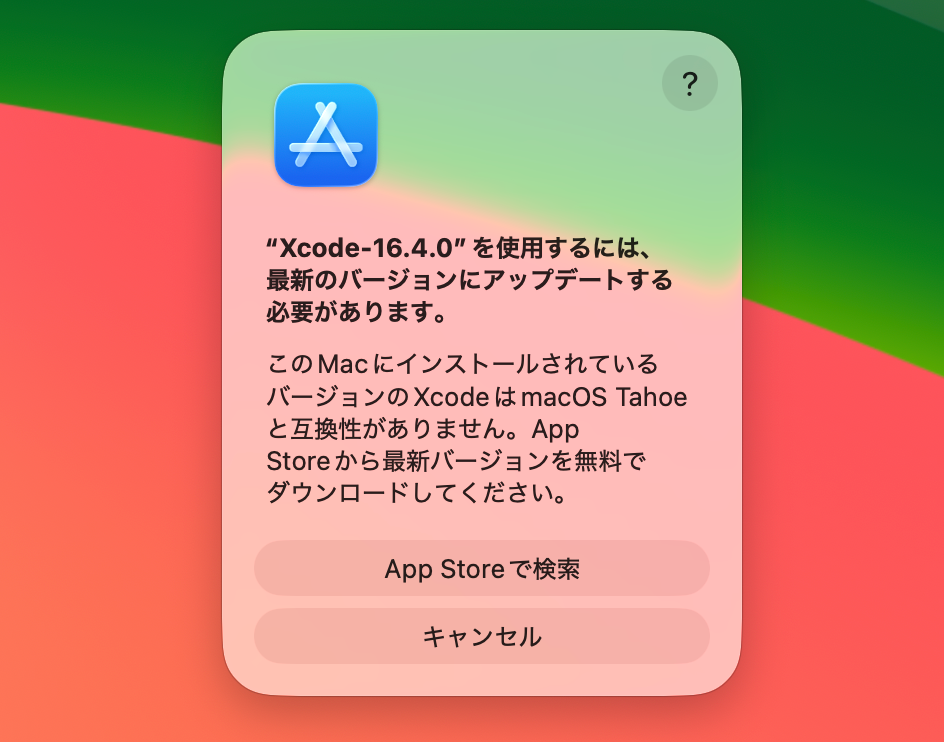
Why This Limitation Exists
macOS Tahoe (macOS 26) is designed to block older versions of Xcode from launching. This is likely a measure to prevent compatibility issues that could arise from continuing development with versions of Xcode that don't support changes included in new macOS versions.
Summary
Xcode 16.4 cannot be used with macOS 26.2.
If you need to continue using Xcode 16.4, you must stay on macOS 26.1 or earlier. If you want to use macOS 26.2, you need to update to Xcode 26.0 or later.
Through this investigation, I've found a way to avoid the hassle of checking compatibility on physical devices every time there's an OS update. Going forward, I can follow this process:
- First check compatibility on the official site
- If outside the supported range, either postpone the update or consider upgrading Xcode
- Verify on actual hardware as needed
This method should enable more efficient management of development environments. I hope this information helps others who want to check Xcode compatibility before updating macOS.