I tried setting up SSH public key authentication on Yamaha RTX1300 and disabling password authentication

This page has been translated by machine translation. View original
Introduction
At my home, I use a Yamaha RTX1300 as the router for my fiber optic connection.
In order to visualize the router's operational status in more detail, I am considering a mechanism to regularly retrieve logs and operational information. The RTX1300 supports SSH connections, but password authentication is the default. I tried switching to public key authentication and disabling SSH password authentication.
The public key authentication setup for RTX differs from the procedure used on typical Linux servers. I verified RTX-specific operations on actual hardware, including importing keys with the import sshd authorized-keys command and the requirement to execute it in administrator mode.
Test Environment
| Item | Details |
|---|---|
| Device | YAMAHA RTX1300 (Rev.23.00.17) |
| Client SSH | OpenSSH 10.0p2 |
Goals of the Verification
- Be able to connect via SSH using public key authentication
- Be able to disable SSH password authentication with
sshd auth method publickey - Maintain the web GUI management access even after disabling password authentication
Enabling the SSH Server
Enabling the SSH server on the RTX1300 and generating the host key were performed via the web GUI. Since LAN1 is used as the internal network side in this article's test environment, SSH listening is restricted to LAN1 using sshd host lan1. By configuring the WAN-side interface not to accept SSH connections, the route of access from the outside is eliminated entirely, reducing the attack surface.
As an additional security enhancement, restricting by source IP address is also possible. Please refer to the command reference for details.
Creating SSH Users
I created two SSH users via the web GUI. Administrative and general users are separated according to their intended purpose.
| User | Privilege | Connection Method | Purpose |
|---|---|---|---|
| SSH admin user | Administrator | SSH only | Configuration changes |
| SSH general user | General user | SSH only | Monitoring |
The existing web GUI admin user (no public key registered, all connection methods allowed) will be left as-is. This is to confirm that password login to the web GUI is still possible after setting sshd auth method publickey, described later.
Below is the SSH user addition screen in the web GUI. Administrator privileges are granted, and SSH only is selected as the connection method.
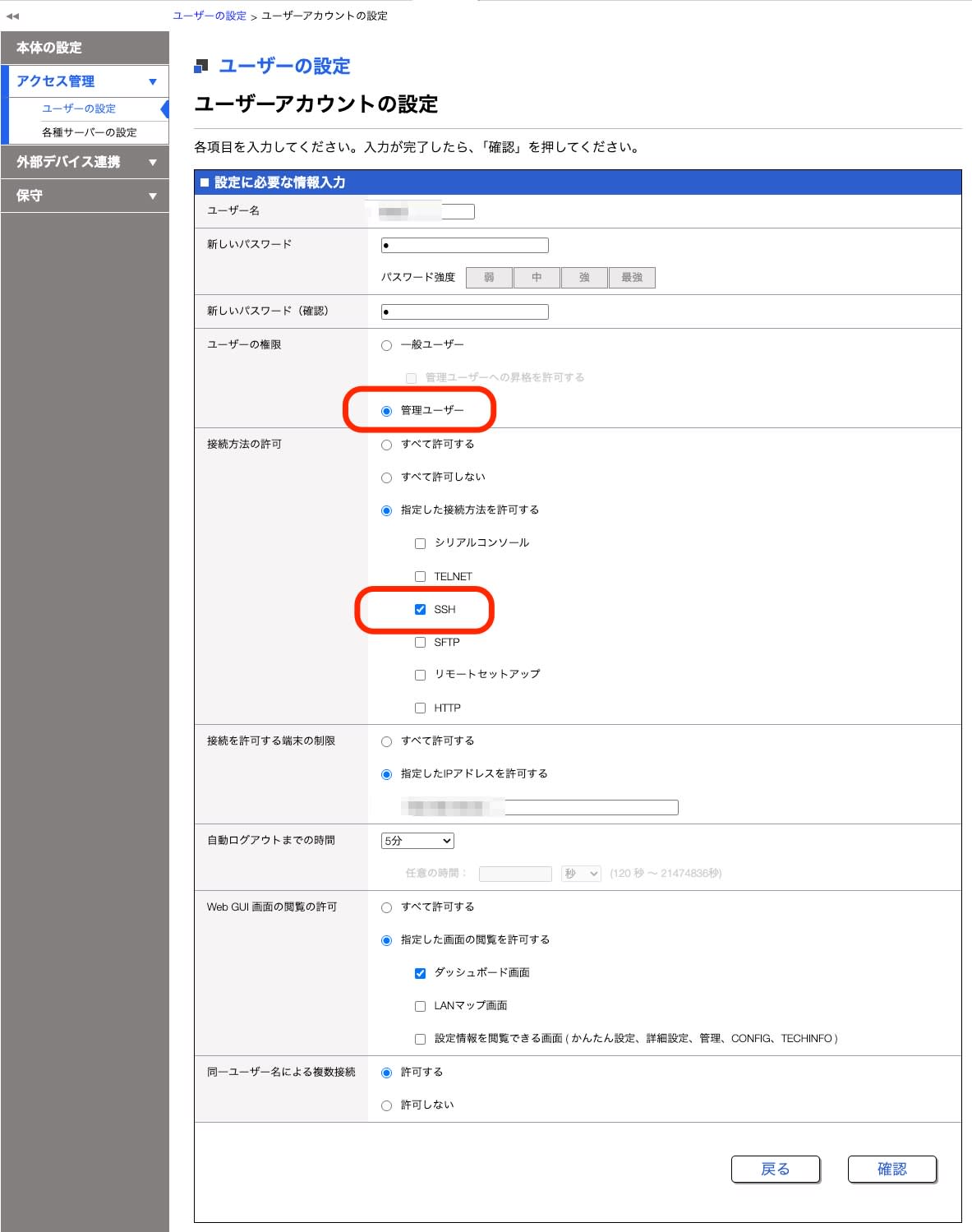
"Restrict terminals allowed to connect" (source restriction by IP address) is an optional additional setting and is outside the scope of this article.
Generating a Key Pair on the Client
Generate an ed25519 key pair on the client. Separate keys are used for the administrator and for monitoring.
# For administrator
ssh-keygen -t ed25519 -f ~/.ssh/rtx1300-admin -C "admin@rtx1300" -N ""

# For general user (monitoring)
ssh-keygen -t ed25519 -f ~/.ssh/rtx1300-monitor -C "monitor@rtx1300" -N ""
The meaning of each option is as follows.
| Option | Description |
|---|---|
-t ed25519 |
Key type. Offers short data length for keys and signatures, fast processing, sufficient security, and is widely used in recent years |
-f |
Output file path |
-C |
Comment (for identifying purpose; does not affect authentication) |
-N "" |
Set passphrase to empty |
In this article, keys are created without a passphrase (-N "") for simplicity of verification. Keys without passphrases may be chosen for automation (monitoring) purposes, but a passphrase is recommended for administrator keys. If using keys without passphrases, strictly manage file permissions (600), storage location, and the devices used.
Execution result:
$ ssh-keygen -t ed25519 -f ~/.ssh/rtx1300-admin -C "admin@rtx1300" -N ""
Generating public/private ed25519 key pair.
Your identification has been saved in /home/user/.ssh/rtx1300-admin
Your public key has been saved in /home/user/.ssh/rtx1300-admin.pub
It is recommended to store the created private key in a secure location such as 1Password.
Importing the Public Key to RTX1300
Connect via SSH to the SSH admin user using password authentication, escalate to administrator mode, and then import the public key.
$ ssh <SSH admin user>@<RTX IP address>
Password: ********

RTX1300 Rev.23.00.17 (Fri Mar 14 10:49:46 2025)
Copyright (c) 1994-2025 Yamaha Corporation. All Rights Reserved.

> administrator
Password: ********
#
In administrator mode (# prompt), execute the import sshd authorized-keys command to register the public key.
# import sshd authorized-keys <SSH admin user>
Import destination:
/ssh/authorized_keys/<SSH admin user>
Input a public key: ssh-ed25519 AAAA...(public key content)... admin@rtx1300
Import a public key? (Y/N)Y
Import is succeeded.
Similarly, import the public key for the general user.
# import sshd authorized-keys <SSH general user>
Import destination:
/ssh/authorized_keys/<SSH general user>
Input a public key: ssh-ed25519 AAAA...(public key content)... monitor@rtx1300
Import a public key? (Y/N)Y
Import is succeeded.
Save the configuration.
# save
Saving ... CONFIG0 ... Done .
At the Input a public key: prompt, paste the contents of the .pub file generated on the client side as-is. Register different public keys for the administrator and general user.
Verifying Connection with Public Key Authentication
With the public key imported, verify SSH connection using public key authentication.
$ ssh -i ~/.ssh/rtx1300-admin -o IdentitiesOnly=yes <SSH admin user>@<RTX IP address>

RTX1300 Rev.23.00.17 (Fri Mar 14 10:49:46 2025)
Copyright (c) 1994-2025 Yamaha Corporation. All Rights Reserved.

>
Login was successful without being prompted for a password. Adding -o IdentitiesOnly=yes ensures that only the key file specified with -i is used, preventing other keys held by ssh-agent from being presented. The general user was also able to connect with public key authentication.
$ ssh -i ~/.ssh/rtx1300-monitor -o IdentitiesOnly=yes <SSH general user>@<RTX IP address>
I also confirmed that after logging in with the admin user, it is possible to escalate to administrator mode with the administrator command.
> administrator
Password: ********
#
Password Authentication Is Still Active at This Point
Simply importing the public key does not disable SSH password authentication. At this point, password authentication is still active. Disable public key authentication on the client side (PubkeyAuthentication=no) and attempt to connect using only the password authentication path to confirm.
$ ssh \
    -o PubkeyAuthentication=no \
    -o PreferredAuthentications=password \
    -o PasswordAuthentication=yes \
    <SSH admin user>@<RTX IP address>
Password: ********
>
Login was also possible with password authentication. To disable password authentication during SSH login, it is necessary to explicitly set sshd auth method publickey in the next step. Note that this is a separate setting from the password input for the administrator command used to escalate to administrator mode.
Disabling SSH Password Authentication
Connect using public key authentication, escalate to administrator mode, and then set sshd auth method publickey.
# sshd auth method publickey
#
Confirming That New Connections via Public Key Authentication Succeed
From a separate terminal, confirm that a new SSH connection using public key authentication succeeds.
$ ssh -i ~/.ssh/rtx1300-admin -o IdentitiesOnly=yes <SSH admin user>@<RTX IP address>
>
Connection was successful without any issues.
Confirming That SSH Password Authentication Is Rejected
From a separate terminal, attempt SSH password authentication.
$ ssh \
    -o PubkeyAuthentication=no \
    -o PreferredAuthentications=password \
    -o PasswordAuthentication=yes \
    <SSH admin user>@<RTX IP address>
<SSH admin user>@<RTX IP address>: Permission denied (publickey).
Password authentication was rejected. sshd auth method publickey is working correctly.
Confirming That Web GUI Management Access Is Maintained
sshd auth method publickey only controls the SSH authentication method. It does not affect web GUI password authentication.
I confirmed that it is possible to access the web GUI as the web GUI admin user (with no public key registered) and log in with a password. In this test environment, the sshd auth method publickey setting had no impact on web GUI password login, and management access via the web GUI was maintained.
Saving the Configuration
All verifications are complete, so save the configuration.
# save
Saving ... CONFIG0 ... Done .
# show config | grep sshd
sshd service on
sshd host lan1
sshd host key generate *
sshd auth method publickey
sshd host key generate * indicates that the host key has been generated.
If the web GUI management access is left in place as in this test environment, recovery via the web GUI is possible even if SSH connections stop working. Serial console access, if available, is also a means of recovery.
Notes
RTX-Specific Operations
- Users created as "Administrator" in the web GUI are displayed as users with administrator attributes in
show config. In this test environment, the notation wasadministrator=2. These users can escalate to administrator mode with theadministratorcommand even after logging in via public key authentication. On the other hand, the general user created in this verification was unable to escalate to administrator mode.
Regarding Periodic Monitoring
In this test environment, direct command execution (exec request) such as ssh user@rtx show log did not yield the expected results, and an interactive session was required. For periodic monitoring, it is necessary to consider using a mechanism capable of handling interactive SSH sessions, such as expect.
I confirmed that general users can also execute reference commands such as show log, but the range of executable commands is limited. Please separately verify that the commands required for your actual monitoring items can be executed.
Summary
I configured SSH public key authentication on the RTX1300 and disabled SSH password authentication with sshd auth method publickey. On the RTX, the import sshd authorized-keys command is used to register public keys. The procedure differs from placing a ~/.ssh/authorized_keys file on a typical Linux server. Also, simply importing a public key does not disable password authentication; explicitly setting sshd auth method publickey is required. I also confirmed that this setting only controls the SSH authentication method, and in this test environment, it was possible to operate without affecting web GUI management access.