I tried connectivity testing by authentication method using Secure Settings in ZAF

This page has been translated by machine translation. View original
Introduction
There was a situation where I needed to connect from a ZAF (Zendesk Apps Framework) app to an endpoint with Basic authentication provided by the other party. At first, I was a bit confused because authentication kept returning 401, but the cause turned out to be my misunderstanding of how ZAF's Secure Settings work.
Secure setting values are not returned to JavaScript. Placeholders only perform string replacement and do not base64-encode values. Keeping these two points in mind will allow you to smoothly connect to authenticated APIs.
This article summarizes the results of testing connectivity to an authenticated API from ZAF using multiple authentication methods, along with the knowledge gained from that experience.
Target Audience
- Those who want to connect to an external API with authentication from a ZAF app
- Those who are struggling with authentication failures despite using Secure Settings
References
The Problem
Initially, I stored the authentication credentials (username and password) as separate settings and assembled the Authorization header on the frontend. The code looked something like 'Basic ' + base64(user + ':' + password). At that time, the secure option was not set in client.request.
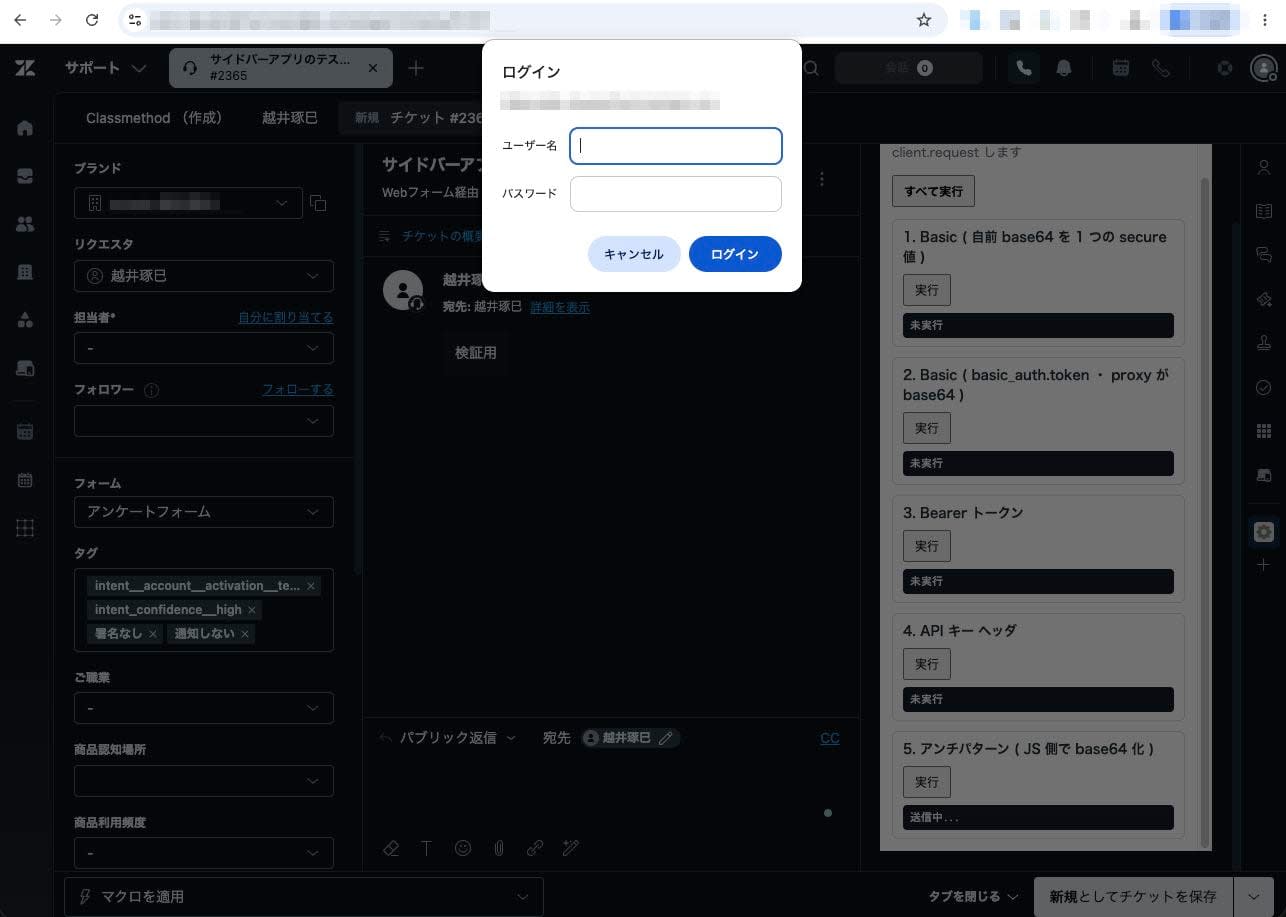
This worked locally. However, after deploying to the tenant and entering actual values into the secure settings, the authenticated API started returning 401, and an error message saying "please check your credentials" would not go away. Additionally, the browser reacted to the WWW-Authenticate returned by the server, and a native Basic authentication dialog appeared.
Root Cause Investigation
After re-reading the official documentation, I found the cause. Setting values declared with secure: true are not returned to the frontend via client.metadata().
The correct way to include secure values in a request is to write a {{setting.NAME}} placeholder in the header and set secure to true in client.request. This causes the Zendesk proxy to replace the placeholder with the actual value on the server side. There is no need to assemble base64 on the frontend — in fact, you must not do so.
Connectivity Testing
Using httpbingo.org as the authentication endpoint, I tested 5 authentication methods with ZAF's client.request(). The results are as follows.
| # | Authentication Method | Result | What I Learned |
|---|---|---|---|
| 1 | Basic · manually base64-encoded value as a single secure setting | Success (200) | Works if pre-encoded as base64 and stored as a single setting |
| 2 | Basic · basic_auth.token | Success (200) | No manual conversion needed since the proxy handles base64 encoding |
| 3 | Bearer token | Success (200) | Works as-is with placeholder + secure |
| 4 | API key header | Success (200) | Works even without specifying scope · explicit specification is recommended |
| 5 | base64 encoding on the frontend | Failure (401) | Gets base64-encoded before replacement, and an authentication dialog also appears |
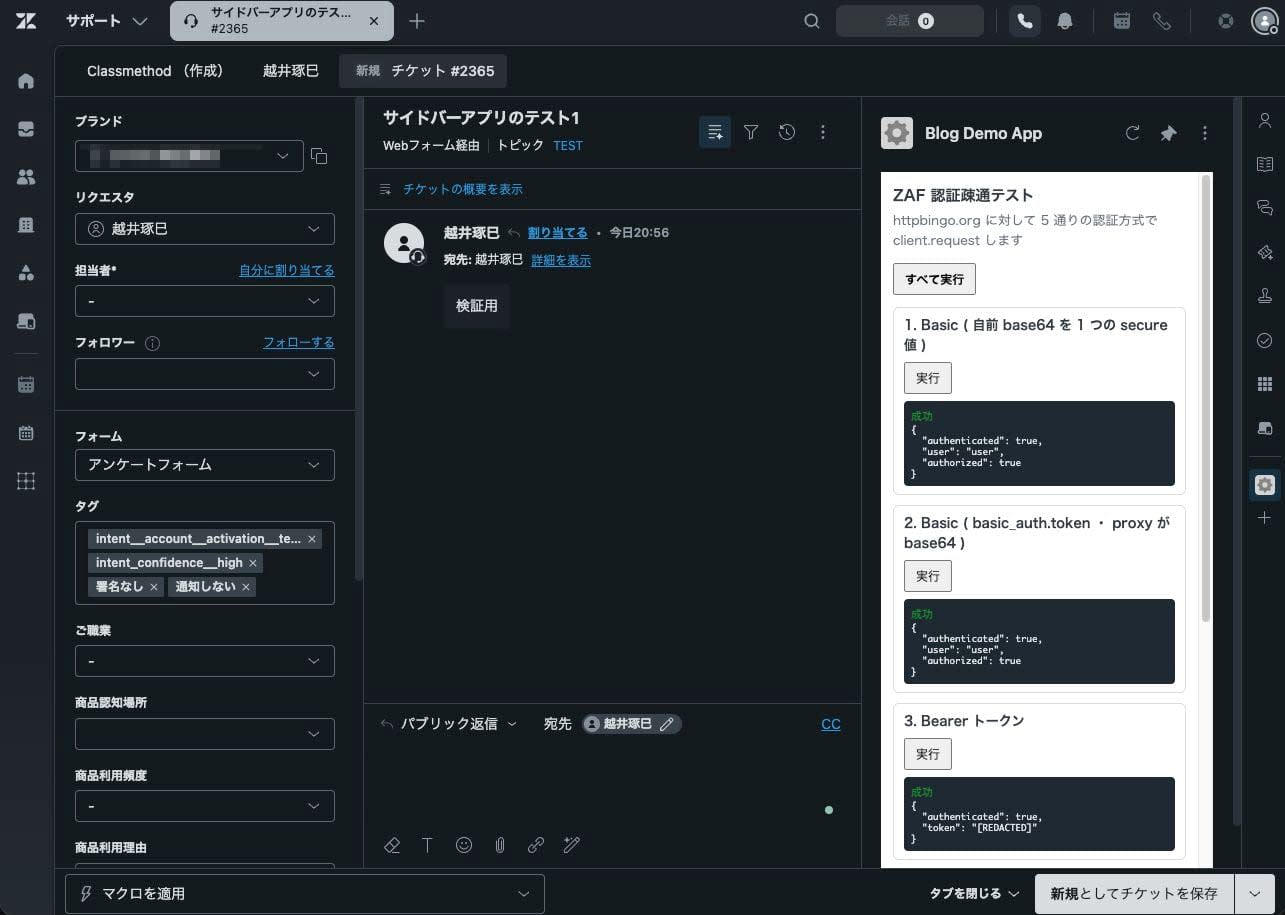
Connectivity testing using a sidebar app. Cases 1–3
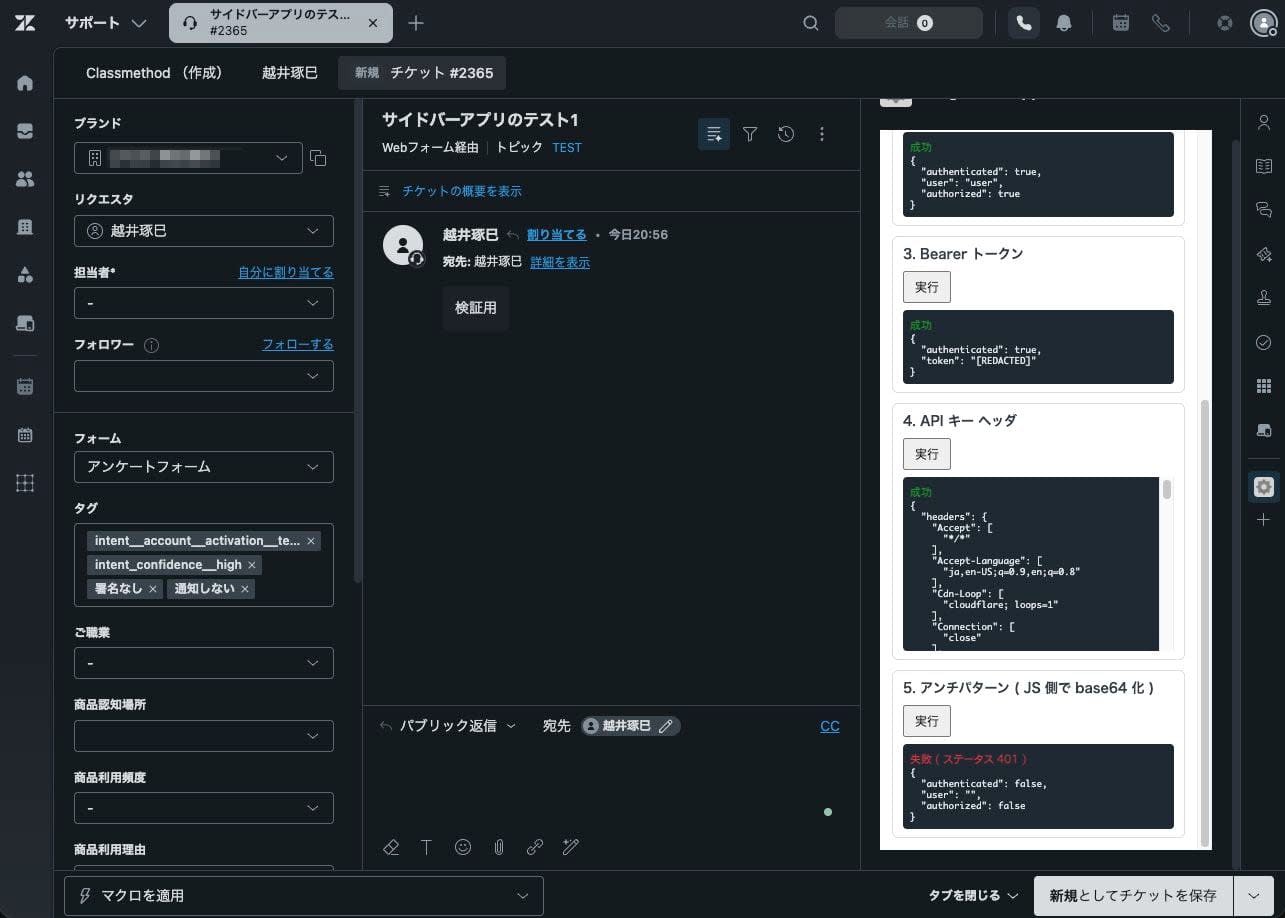
Connectivity testing using a sidebar app. Cases 3–5
Case 1 stores a value that you manually base64-encode from user:passwd into a single secure setting, and only a placeholder is written in the header.
// Basic authentication · store a manually base64-encoded value in a single secure setting
client.request({
  url: 'https://httpbingo.org/basic-auth/user/passwd',
  type: 'GET',
  secure: true,
  headers: { Authorization: 'Basic {{setting.basicManualB64}}' }
});
Case 2 uses the official basic_auth mechanism. You pass a username and password, write {{basic_auth.token}} in the header, and the proxy concatenates and base64-encodes them for you. No manual base64 encoding is needed.
// Basic authentication · basic_auth.token method · proxy handles base64 encoding
client.request({
  url: 'https://httpbingo.org/basic-auth/user/passwd',
  type: 'GET',
  basic_auth: { username: 'user', password: '{{setting.basicPassword}}' },
  secure: true,
  headers: { Authorization: 'Basic {{basic_auth.token}}' }
});
For the Bearer token in Case 3, you simply write a placeholder in the Authorization header. No processing like base64 encoding is needed; it works as-is.
// Bearer token · place the placeholder as-is
client.request({
  url: 'https://httpbingo.org/bearer',
  type: 'GET',
  secure: true,
  headers: { Authorization: 'Bearer {{setting.bearerToken}}' }
});
Case 4 is particularly noteworthy. Since httpbingo's /headers endpoint returns the request headers as-is, you can see the actual values inserted by the proxy on the server side. Traces of the Zendesk proxy appear in this echo response, confirming that the request is sent from the server side via the proxy, not directly from the frontend.
The X-Api-Key contains the actual value inserted by the proxy, and Via and X-Zendesk-* show traces of the Zendesk proxy.
{
  "headers": {
    "X-Api-Key": ["(actual value inserted by proxy)"],
    "Via": ["zorg, 1.1 fly.io, 1.1 fly.io"],
    "X-Zendesk-User-Role": ["admin"],
    "X-Requested-With": ["XMLHttpRequest"],
    "Zendesk-Internet-Path": ["cloudflare"]
  }
}
On the other hand, in the browser's developer tools Network tab, the same header is displayed with the placeholder {{setting.apiKey}} intact. This confirms that actual values only appear beyond the proxy.
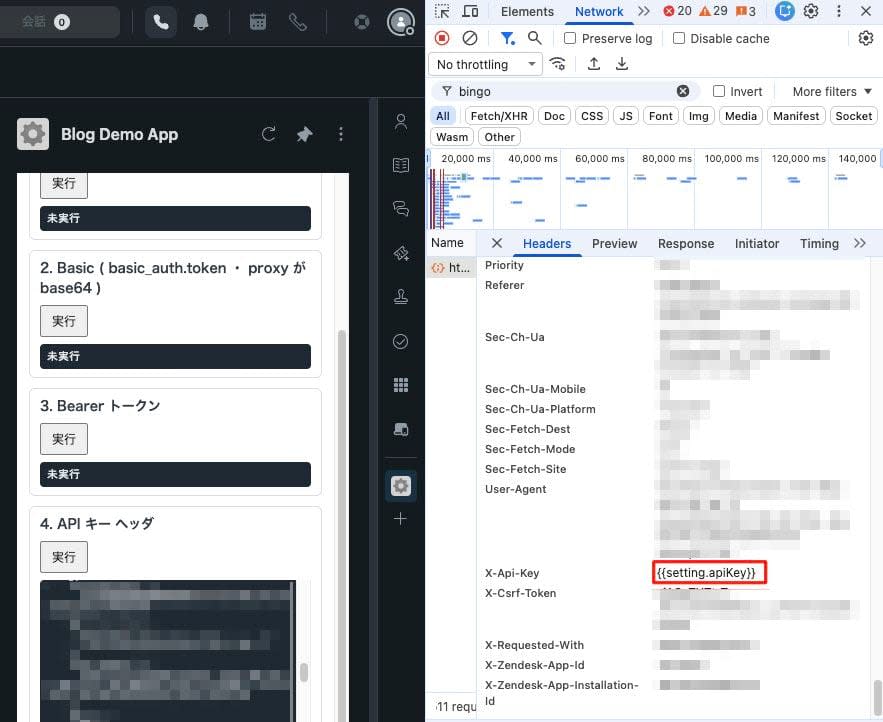
Only the placeholder appears in the browser; the actual value is inserted on the server side
Why You Must Not base64-Encode on the Frontend
Case 5 reproduces the implementation I originally wrote. It uses btoa() on the frontend to base64-encode the placeholder before inserting it into the header.
// Implementation to avoid · base64-encoding the placeholder with btoa
client.request({
  url: 'https://httpbingo.org/basic-auth/user/passwd',
  type: 'GET',
  secure: true,
  headers: { Authorization: 'Basic ' + btoa('{{setting.basicManualB64}}') }
});
Because btoa() runs before the proxy's replacement, the placeholder string itself gets base64-encoded and sent. This breaks the {{setting.NAME}} format that the proxy looks for, so no replacement occurs, and the request arrives with incorrect credentials, resulting in 401.
Furthermore, because this 401 comes with WWW-Authenticate, the browser's native Basic authentication dialog appears even via client.request. Not only does authentication fail, but the user is also shown an authentication dialog.
base64-encoding on the frontend causes authentication to fail and also triggers the dialog
What I Learned
Here is the knowledge gained from the connectivity testing.
Since secure values are not returned to the frontend, you should avoid designs that assemble credentials on the frontend. For Basic authentication, either pre-encode the value as base64 and store it in a single secure setting, or use the basic_auth.token method to let the proxy handle base64 encoding. Bearer tokens and API keys work as-is with placeholder + secure.
On the operational side, it is recommended to explicitly specify the scope. Without specifying it, secure values may be used in unintended scopes. Also, after saving a secure setting, the input field in the Admin Center will appear empty, but this does not mean the value was not saved.
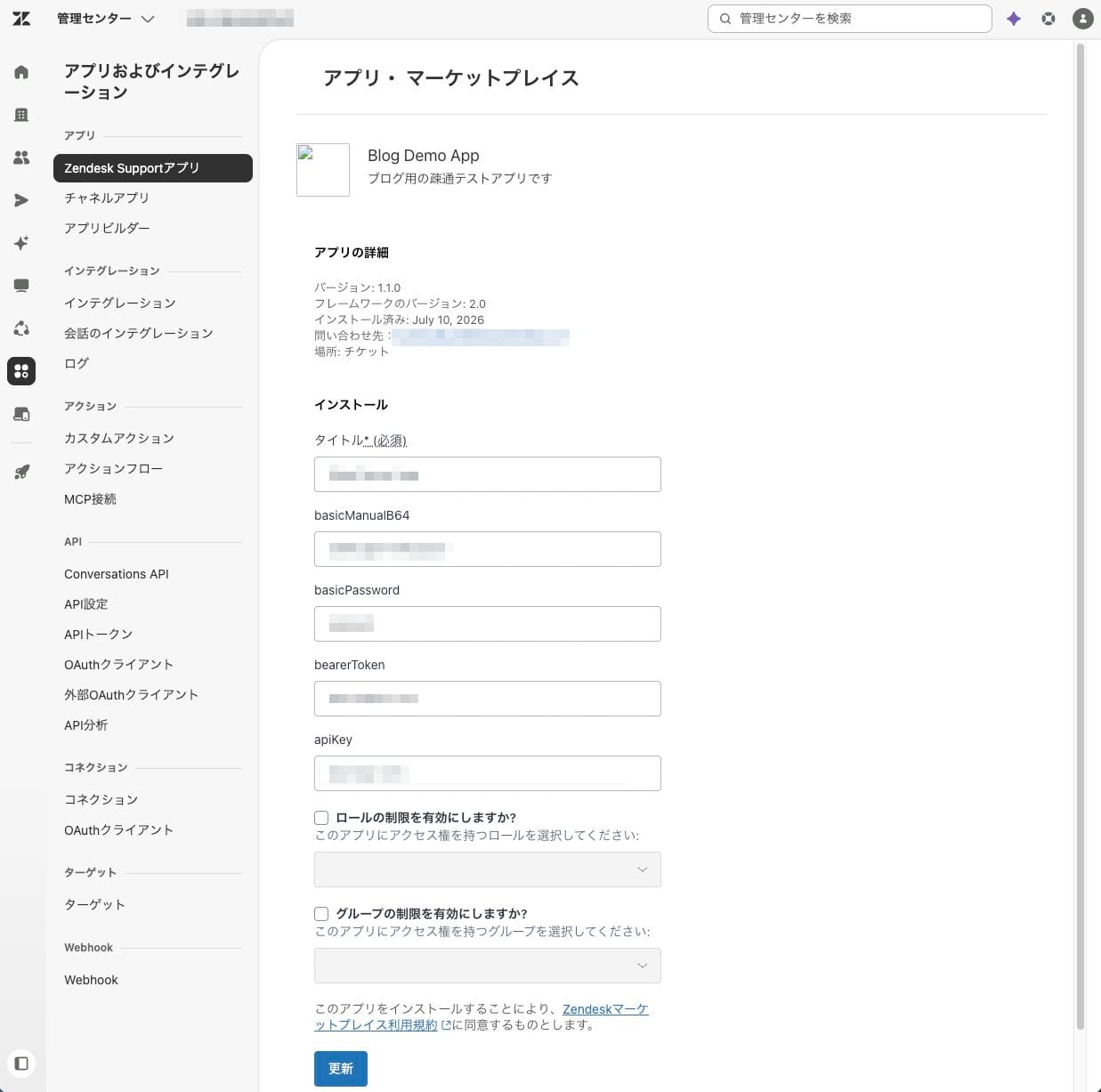
Go to Admin Center → Zendesk Support Apps → select the created app, enter the secure setting, and update
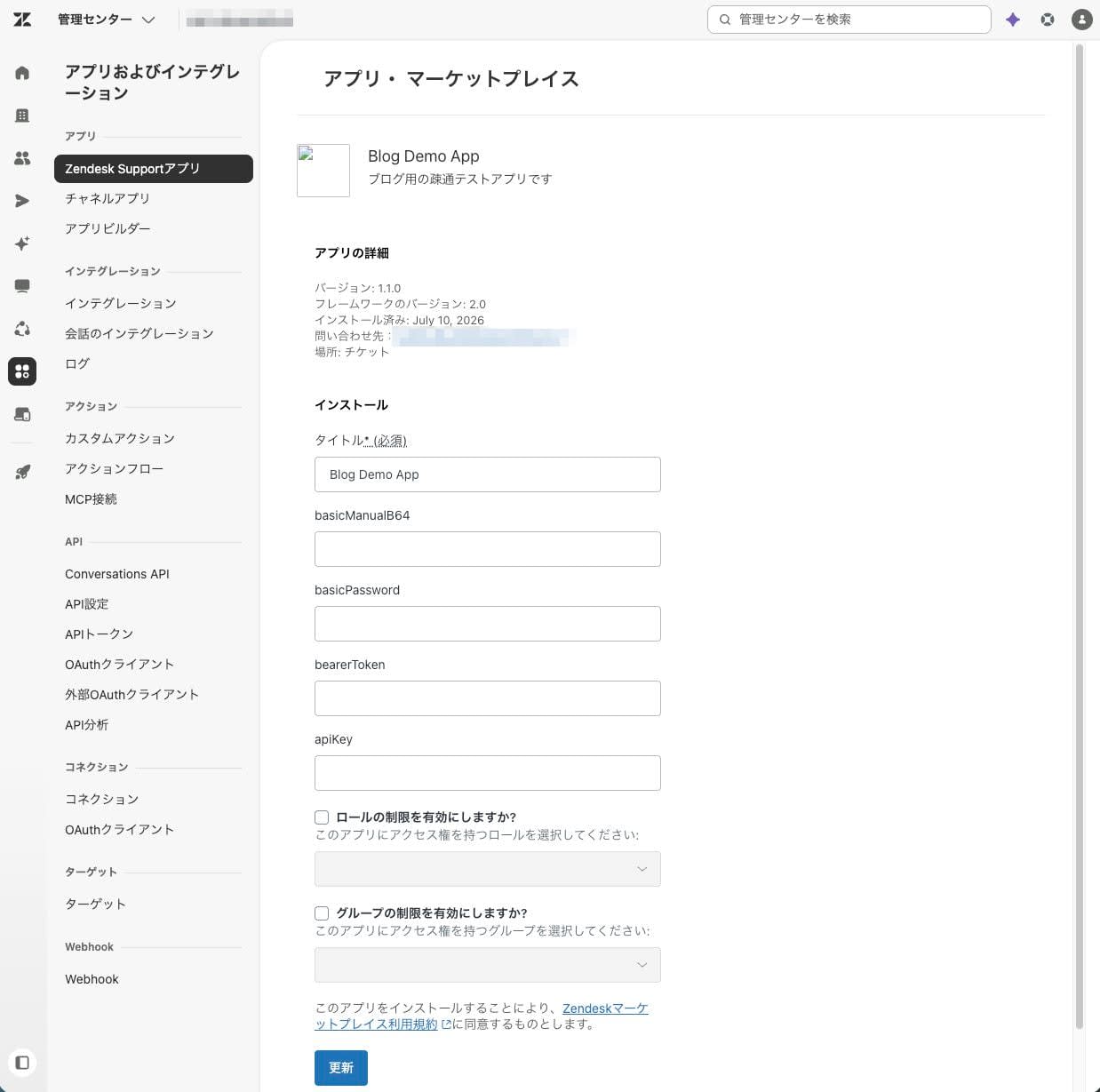
After updating, the input field displays as empty
Summary
ZAF's Secure Settings are designed so that secure values are not returned to the frontend, and placeholders only perform string replacement. Keeping these two points in mind will allow you to connect to authenticated APIs. The connectivity testing confirmed that for Basic authentication, you should either manually base64-encode the value or use the basic_auth.token method. I hope this is helpful for anyone who has been confused by the same issues.