
Display JSONL / NDJSON logs in table view with Zed 1.23.2

This page has been translated by machine translation. View original
Hey there! This is Yuji Nishimura from the Operations team!
With Zed stable version 1.23.2, you can now preview JSONL / NDJSON files as a table. Since I work with JSONL frequently for logs and datasets, I tried it out to see how it actually looks and how far the sorting and filtering features can go.
What is the JSONL / NDJSON Table Preview?
JSONL (JSON Lines) and NDJSON (Newline Delimited JSON) are formats where one JSON object is written per line. They are commonly used for log output, API dumps, and machine learning datasets. While each line being independent makes them suitable for appending and sequential processing, they tend to become just a long vertical wall of text in an editor, making it hard to visually track which values belong to which record.
Zed's tabular data preview was originally added in 1.17 for delimiter-separated formats like CSV and TSV. The 1.23.2 release notes state the following:
Added JSONL and NDJSON support to the tabular data preview. Open previews alongside the source with
cmd-k v(macOS) orctrl-k v(Linux/Windows).
Additionally, a bug where row separator lines extended beyond the last column in the table preview was also fixed in the same release.
Trying It Out
Environment
- macOS 26.6.1 (Apple Silicon)
- Zed 1.23.2 (stable, released 2026-10-07)
- Default settings and keymap
1. Opening a JSONL File in Table View
I prepared a JSONL file with one JSON object per line for testing.
{"id": 1, "level": "info", "msg": "service started", "ts": "2026-10-09T09:00:00Z"}
{"id": 2, "level": "warn", "msg": "retry scheduled", "ts": "2026-10-09T09:00:03Z"}
{"id": 3, "level": "error", "msg": "connection refused", "ts": "2026-10-09T09:00:05Z"}
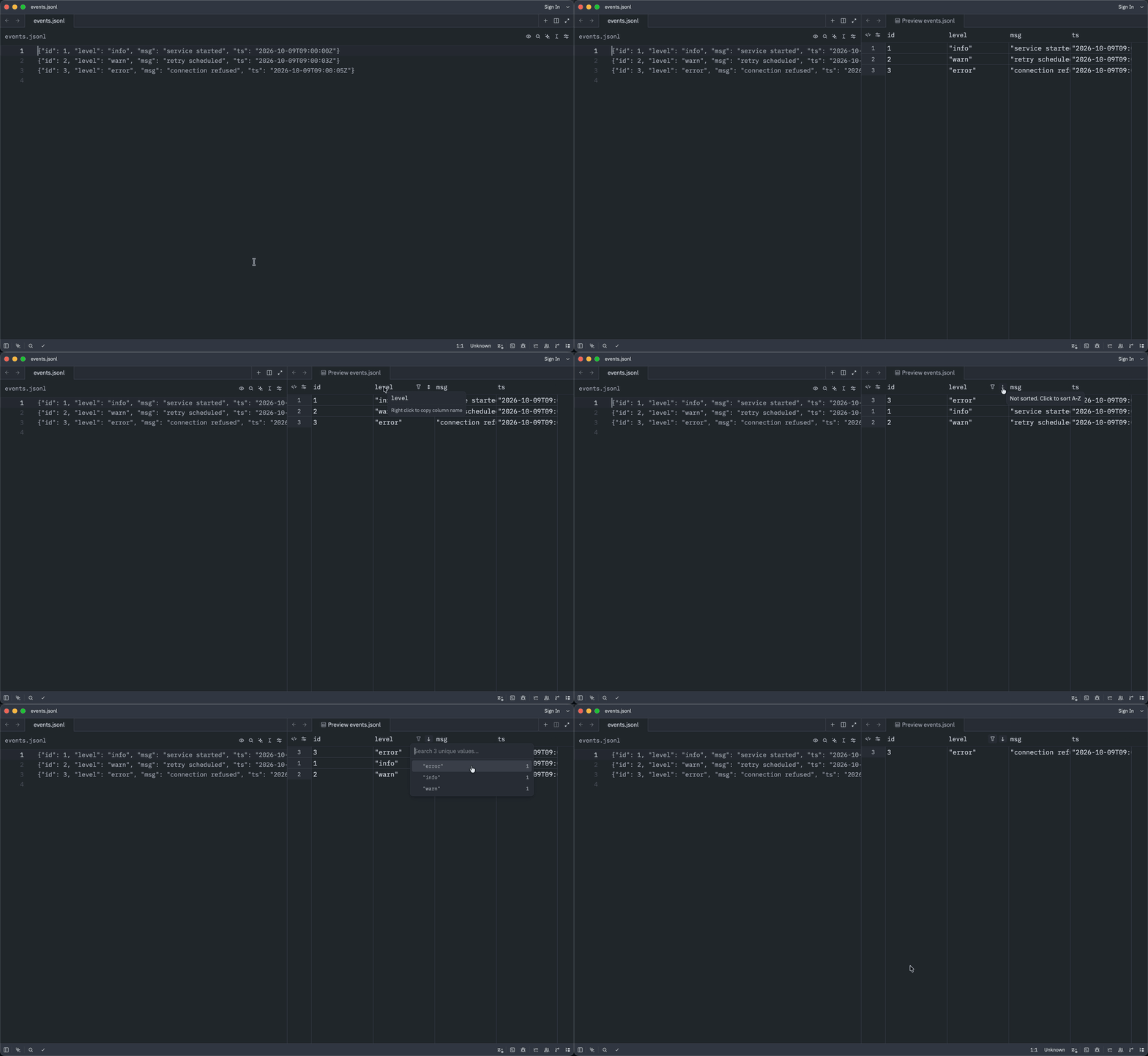
Opening this file in Zed and pressing cmd-k followed by v opened a "Preview events.jsonl" tab to the right of the source.
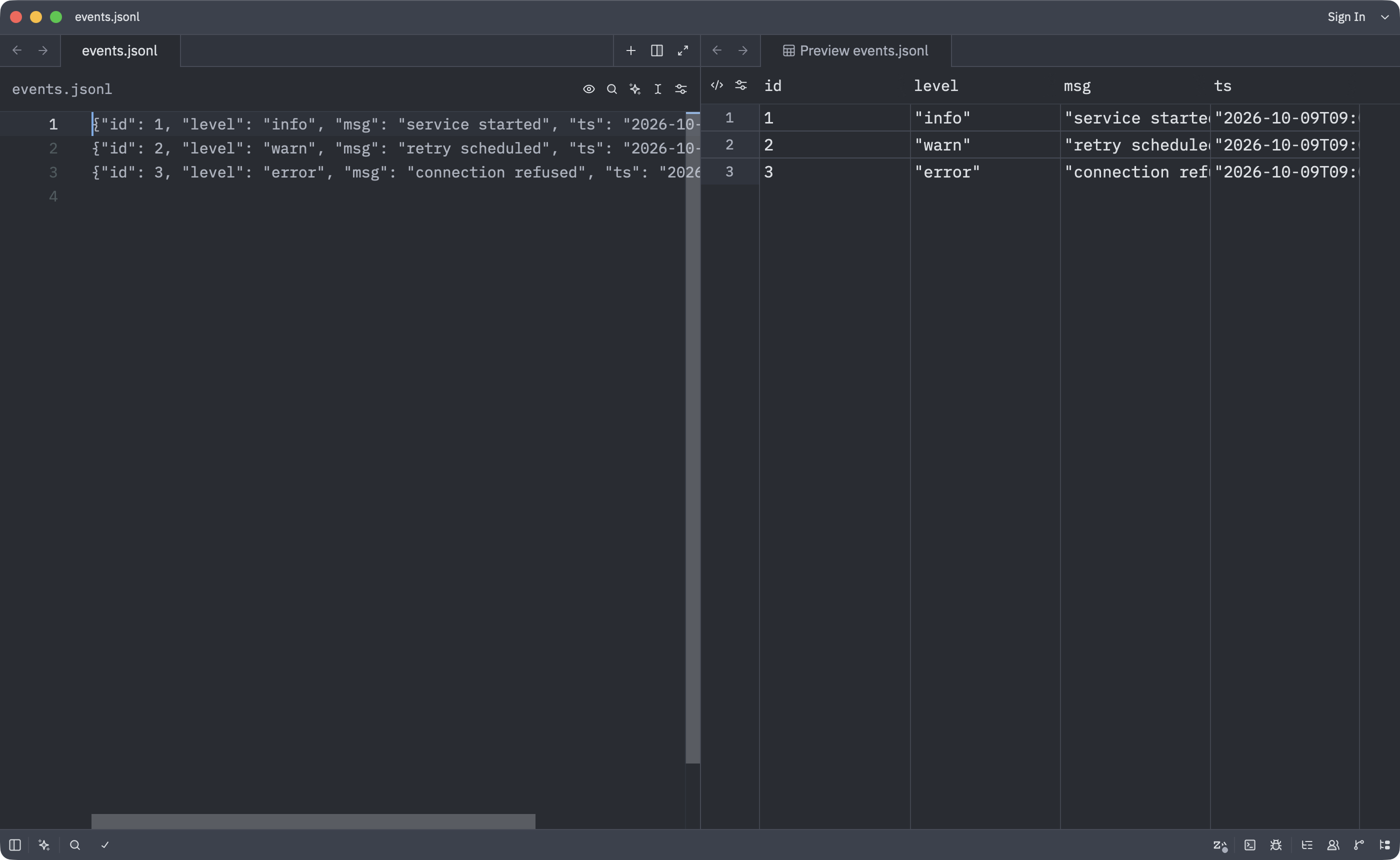
The keys from each JSON object become column headers as-is, with one record per row. String values are displayed with quotes like "info", making it easy to distinguish them from numeric values (1).
2. Sorting by Column
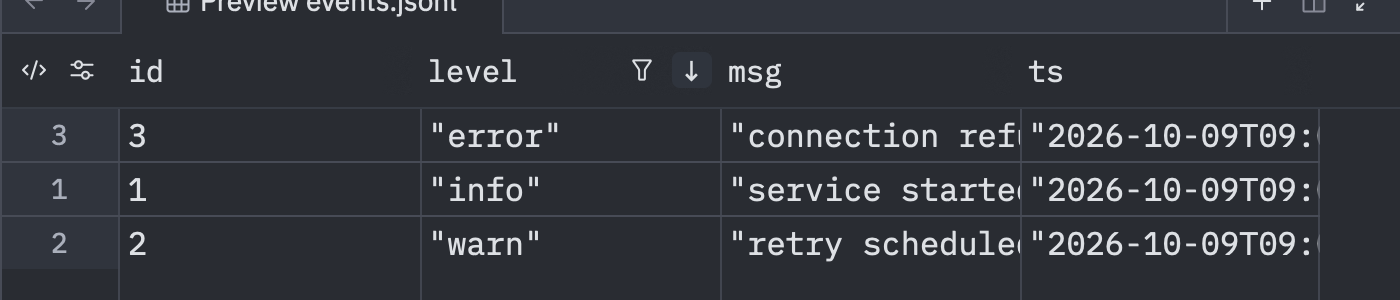
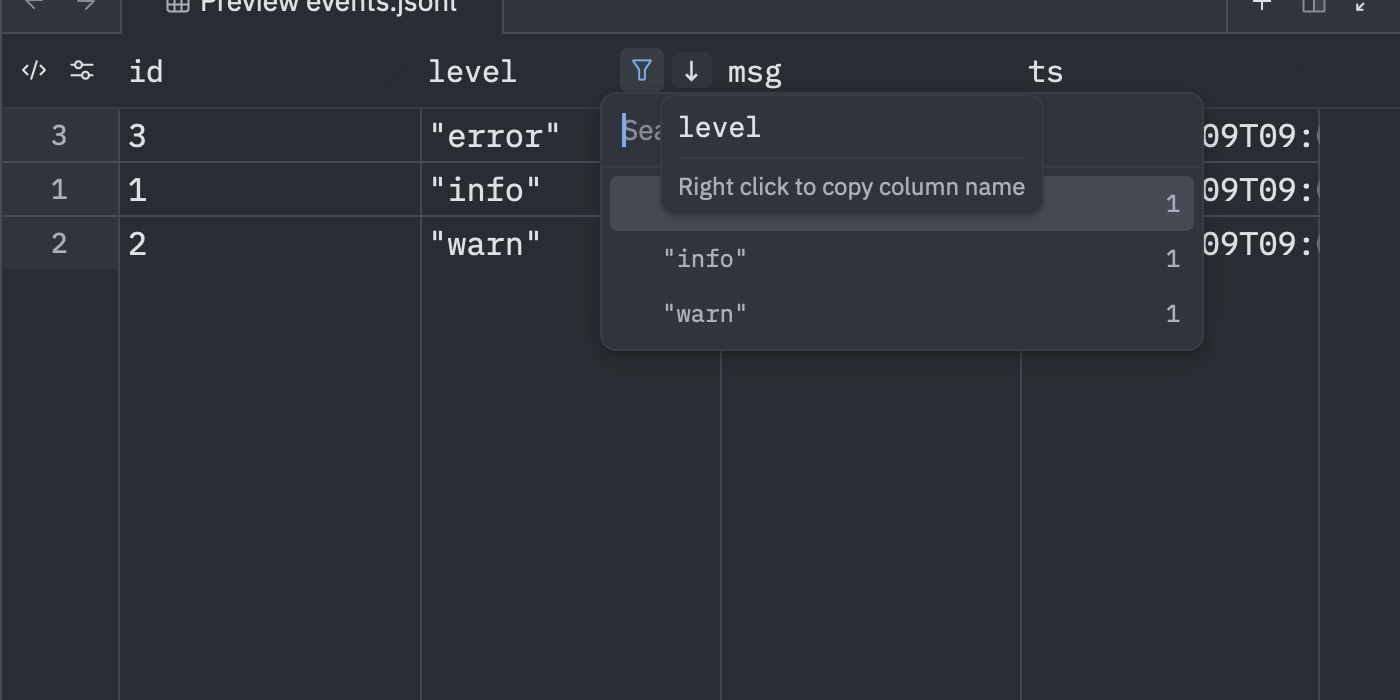
Hovering the cursor over a column header reveals filter (funnel) and sort (↕) icons on the right side of the header. Clicking the header text itself does not sort; instead, a tooltip saying "Right click to copy column name" appears, allowing you to copy the column name by right-clicking.
Clicking the ↕ on the level column sorted the rows in A-Z order (error → info → warn). The row numbers on the left retain their original line numbers (3, 1, 2), so you can still trace back to the source lines.
3. Filtering Rows by Value
Clicking the funnel icon displays a search field along with a list of values appearing in that column, with counts for each.
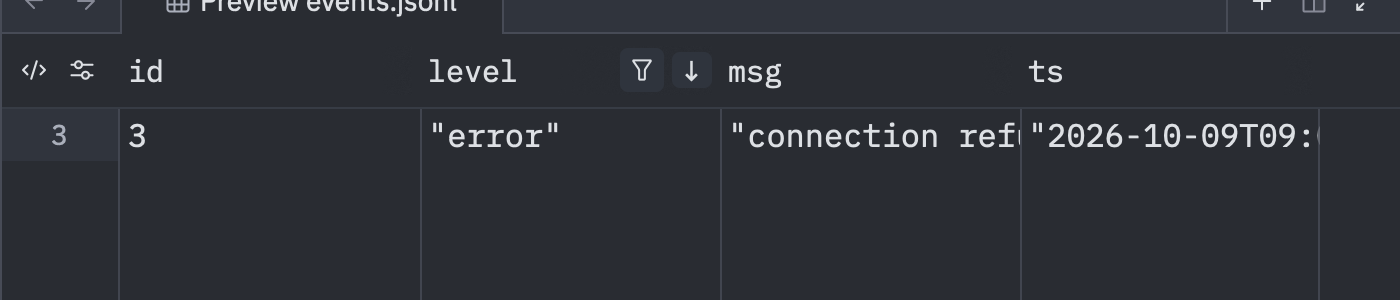
Selecting "error" narrowed it down to just the one matching row. This allows use cases like picking out only anomalous records from logs.
Here is a recording of the entire workflow (table view → sort → filter) from start to finish.
4. Handling JSONL with Different Keys Per Row
Since each line in JSONL is independent, the set of keys can differ from row to row. I tested this with a file where only one record has a nested detail key.
{"id": 1, "level": "info", "msg": "service started"}
{"id": 2, "level": "error", "msg": "connection refused", "detail": {"host": "db", "port": 5432}}
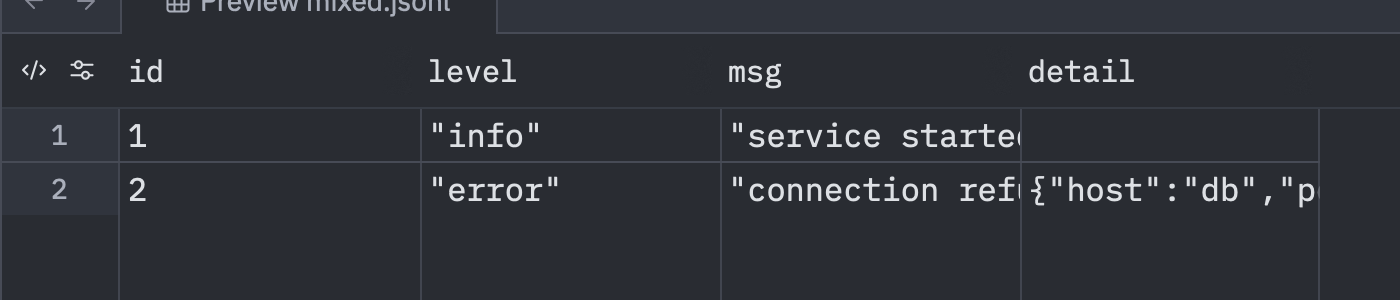
- The columns become a union of all keys across all rows, and a
detailcolumn was added - Cells for rows that don't have the key are left blank
- Nested objects are not expanded; they are displayed as a single-line JSON string like
{"host":"db",...}
If you want to sort or filter by values inside nested objects, it seems you would need to flatten them beforehand using something like jq.
Thoughts on the Results
Opening JSONL as a table makes it much easier to compare values across records, since keys are aligned into columns. Sorting and filtering work with the same operations as CSV, and since the filter menu shows counts per value, you can see the distribution at a glance for columns like log level.
On the other hand, nested objects remain as single-line JSON strings, so this is not well-suited for digging into deeply structured logs. It seems best used for browsing flat logs or datasets.
Summary
- Starting with Zed 1.23.2, the tabular data preview now supports JSONL / NDJSON. On macOS, you can open it alongside the source with
cmd-k v - Hovering over a column header reveals ↕ for sorting and a funnel for filtering by value
- When keys differ between rows, the columns become a union of all keys, and nested objects are displayed as single-line JSON
I hope this is helpful for someone out there.
Reference Links: